App Settings
File Settings
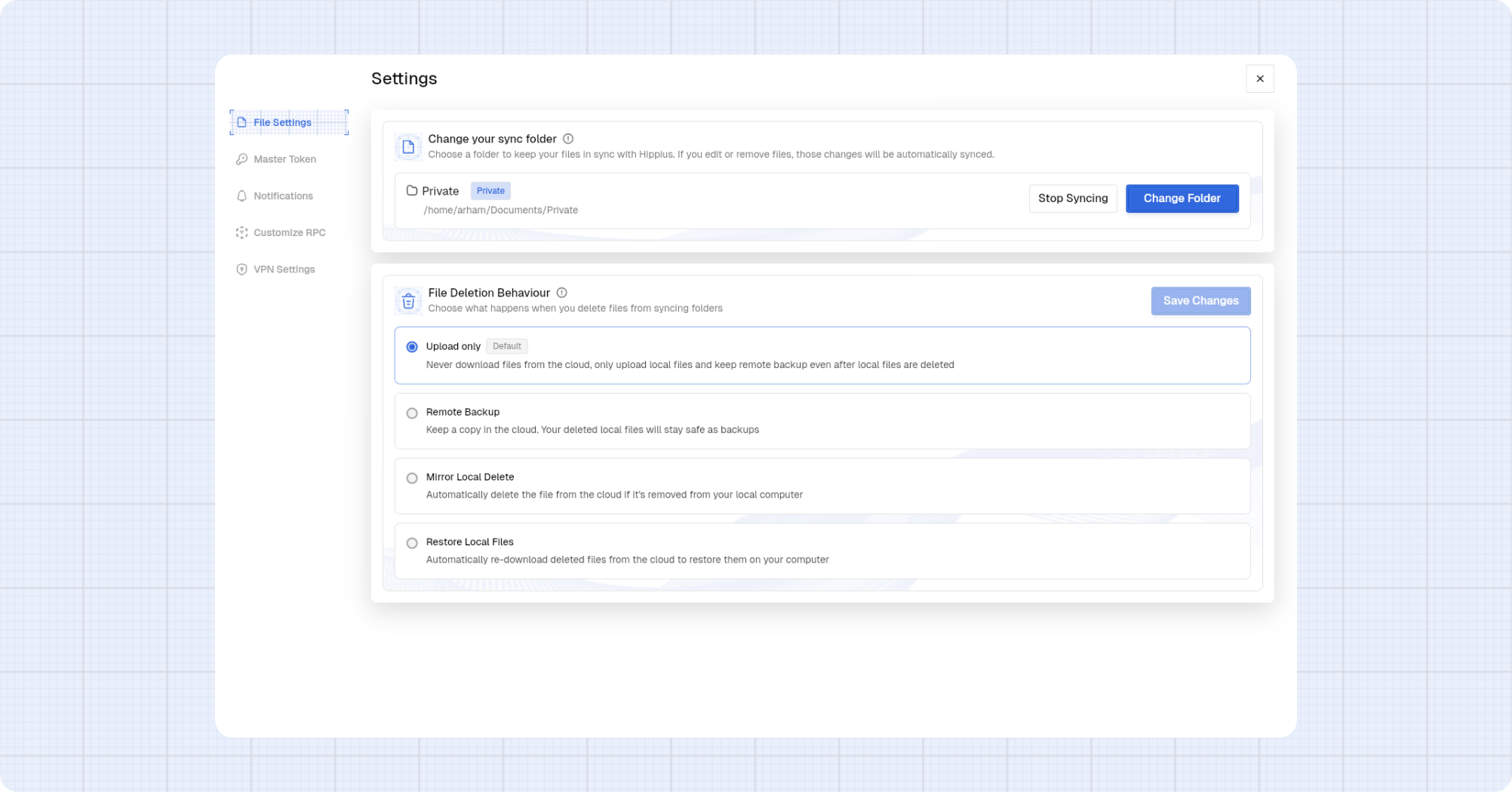
Selecting Sync Folder
Select a folder on your device to sync with Hippius. Changes made in this folder will automatically sync to the cloud.
- Click on Settings.
- Click on File Settings.
- Review the current sync folder path.
- Click Change Folder to select a new location. The folder is automatically saved once selected.
- To pause syncing, click Stop Syncing.
This folder serves as your private sync path, ensuring secure and private synchronization between your device and Hippius.
File Deletion Behavior Settings
Configure how file deletions are handled between your local device and the cloud.
- Under File Deletion Behaviour, choose how deletions should be handled.
- Click Save Changes to apply your deletion behavior settings.
File Deletion Behaviour options:
- Upload only (Default): Never download deletions; keep cloud backups even if local files are removed.
- Remote Backup: Keep a copy in the cloud; local deletions do not remove cloud files.
- Mirror Local Delete: Delete cloud files when you delete them locally.
- Restore Local Files: Re-download deleted files from the cloud to your device.