S3 Token Management
Overview
Hippius S3 Storage provides a secure token-based authentication system that uses Master Tokens and Sub Tokens to control access to your storage buckets and objects. This approach, inspired by AWS S3's access key management, gives you fine-grained control over permissions while maintaining security and ease of use.
Master Tokens vs Sub Tokens
Master Tokens
Master tokens are the primary credentials for your S3 storage account. They provide:
- Full Access: Complete control over all buckets and objects in your account
- Long-lived: Can be configured to last from 7 days to 1 year or custom duration
- Bucket Operations: Create, delete, and manage all buckets
- Token Management: Create and manage sub tokens
- Security: Provides both an Access Key ID and Secret Access Key
Sub Tokens
Sub tokens are limited-scope credentials designed for specific use cases. They offer:
- Granular Permissions: Control exact permissions (Read Only or Read & Write) per bucket
- Bucket-Specific: Grant access to specific buckets only, multiple buckets, or all buckets
- Shorter Lifespan: Typically 7 days, 30 days, 1 year, or custom duration
- Revocable: Can be revoked or rotated at any time without affecting other tokens
- API Integration: Ideal for applications and third-party integrations
Getting Started with Master Tokens
Creating Your First Master Token (Console)
When you access S3 Storage in the Hippius Console for the first time, you'll need to create a master token:
- Navigate to Filesin the console.
- Select S3 Storage from the dropdown menu.
- You'll see a message: "No Entries in Your Storage"
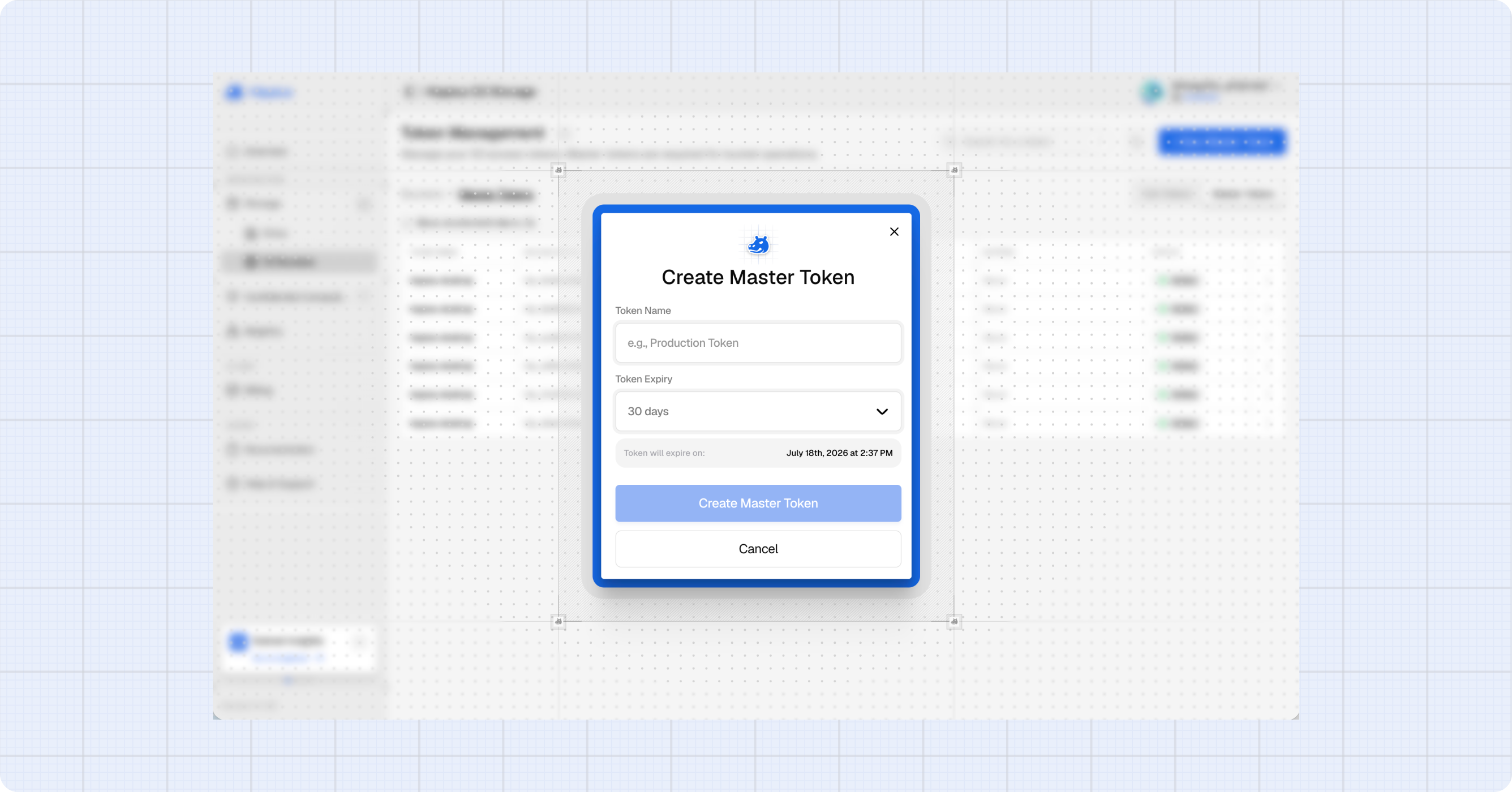
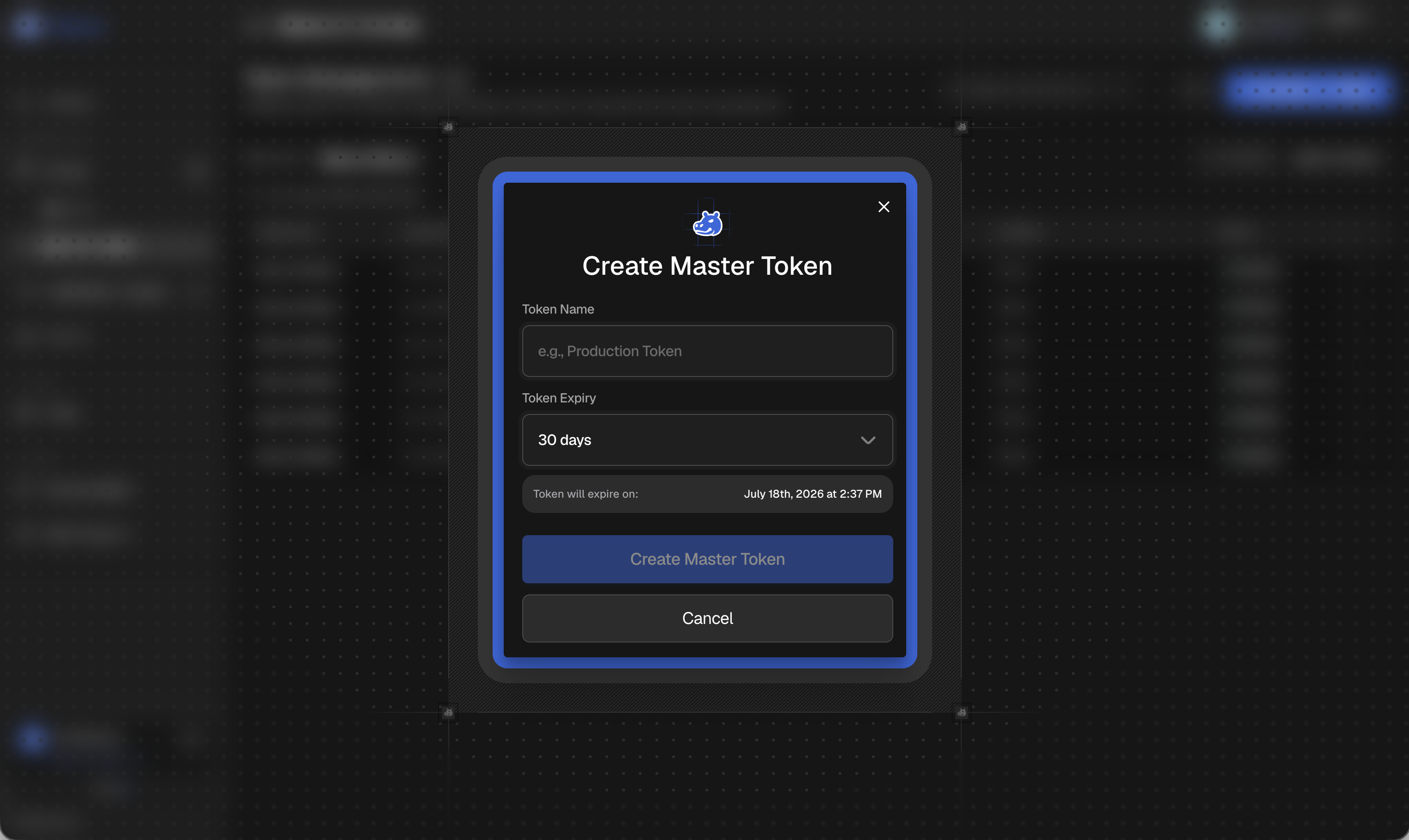
- Click the Create Master Token button.
- Enter a descriptive Token Name (e.g., "Production Token").
- Choose Token Expiry from the dropdown: 7 days (short-term), 30 days (default), 1 year (long-term), or Custom (select any future date).
- Click Create Master Token to generate your credentials.
Saving Your Master Token Credentials
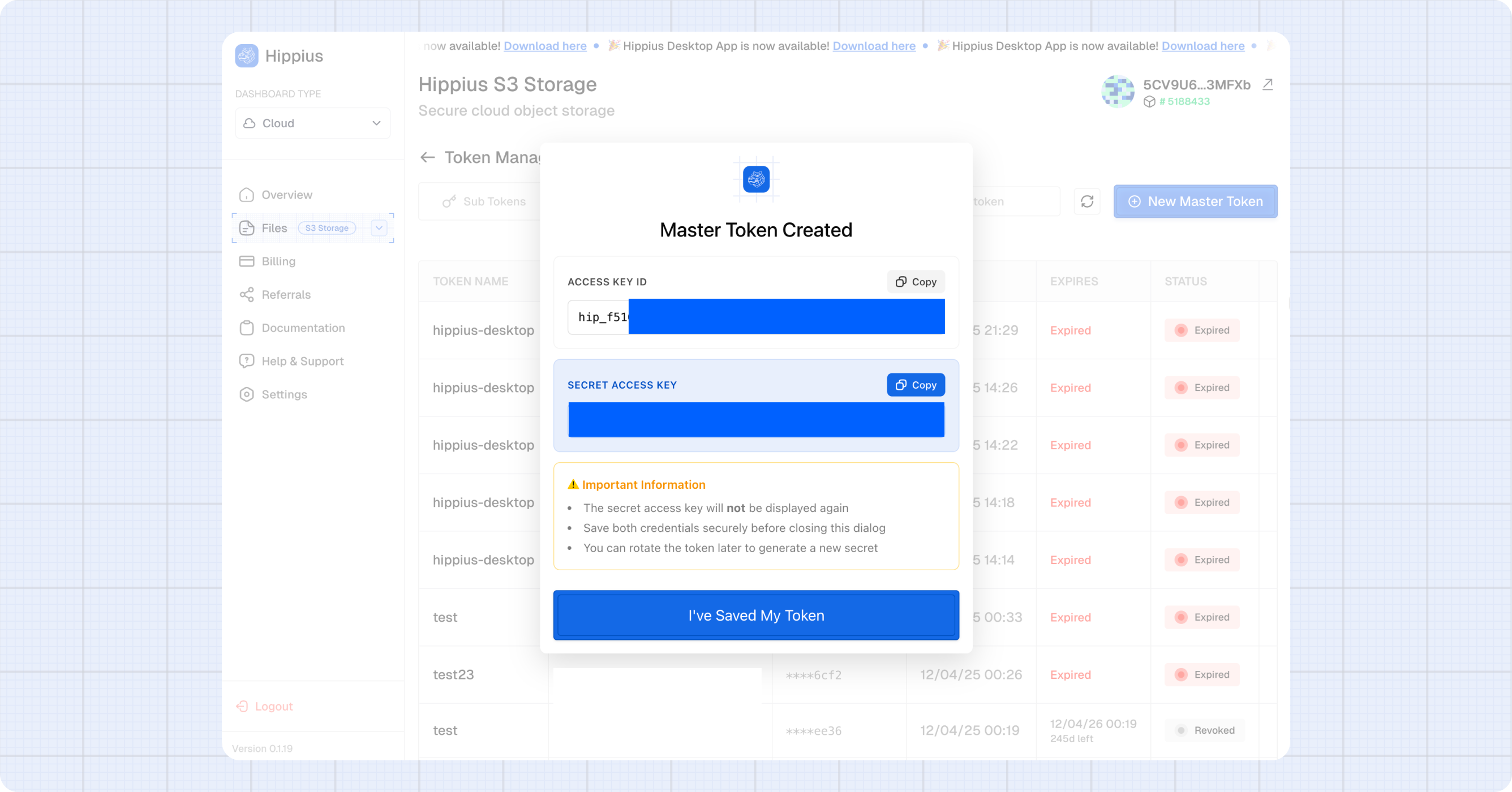
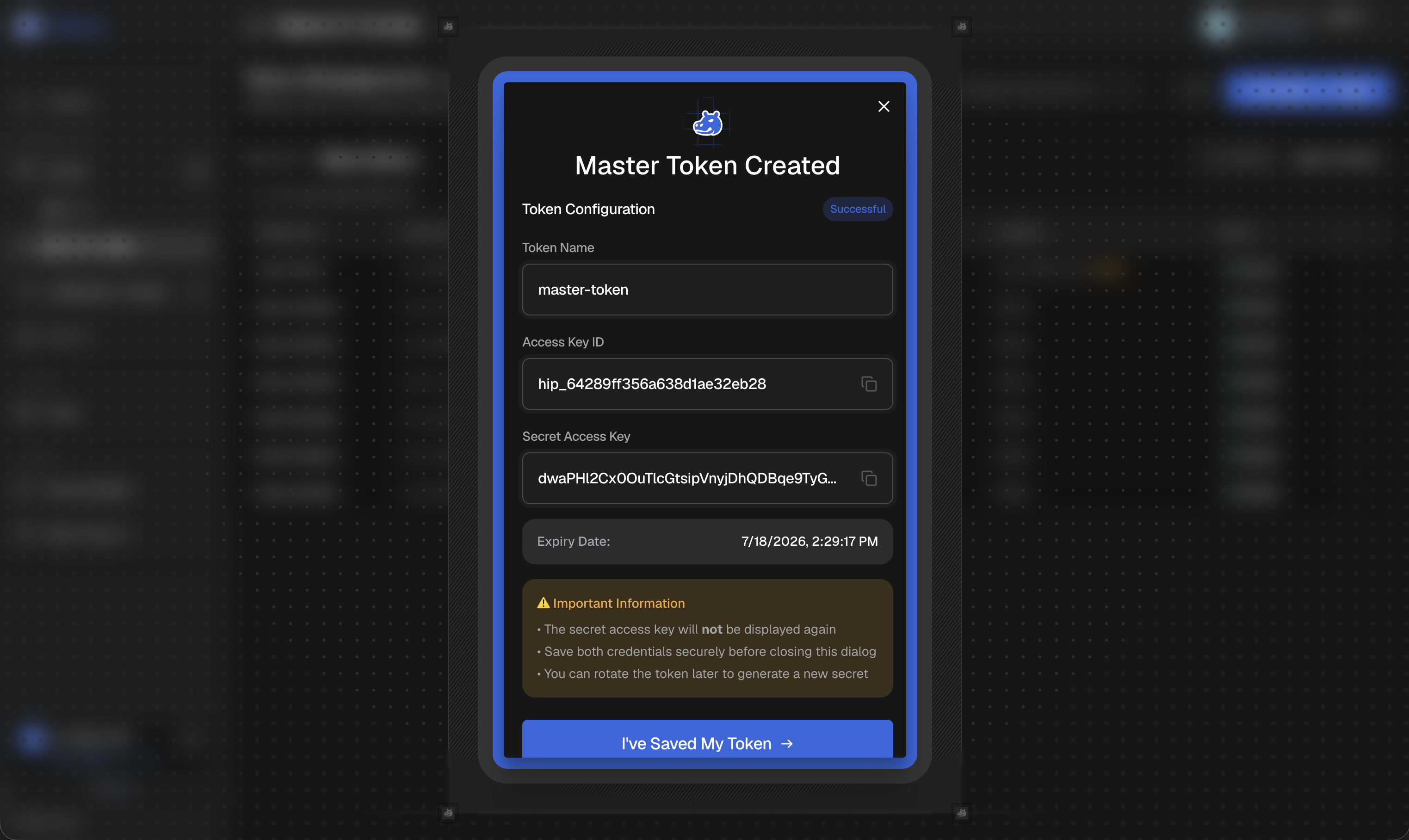
After creating a master token, you'll receive two critical pieces of information:
- Access Key ID: Starts with hip_ (e.g., hip_e7f37023498b6765ef1e64d8)
- Secret Access Key: A long alphanumeric string
The Secret Access Key is displayed only once! Save it securely before closing the dialog. If you lose it, you'll need to rotate (revoke and create a new) master token.
- Click the Copy button next to each credential.
- Store both credentials in a secure password manager or secrets vault.
- Never share these credentials or commit them to version control.
- Click I've Saved My New Secret to confirm.
Managing Tokens
Accessing Token Management
The Hippius Console provides a comprehensive token management interface:
- Navigate to S3 Storage section.
- Click the Manage button in the top-right corner.
- You'll see two tabs: Sub Tokens (manage limited-scope API tokens) and Master Tokens (manage full-access tokens).
Master Tokens Tab
The Master Tokens tab displays:
- Token Name: Descriptive name you assigned
- Access Key ID: Your unique identifier (starts with
hip_) - Secret (Last 4): Last 4 characters of your secret key
- Created: When the token was generated
- Expires: Expiration date and countdown
- Status: Active or Expired
Master Token Actions
Each master token has an options menu (⋮) with the following actions:
Rotate Token
- Click the options menu (⋮) next to the master token.
- Select Rotate.
- A new secret key will be generated while keeping the same Access Key ID.
- Save the new secret immediately! The old secret becomes invalid.
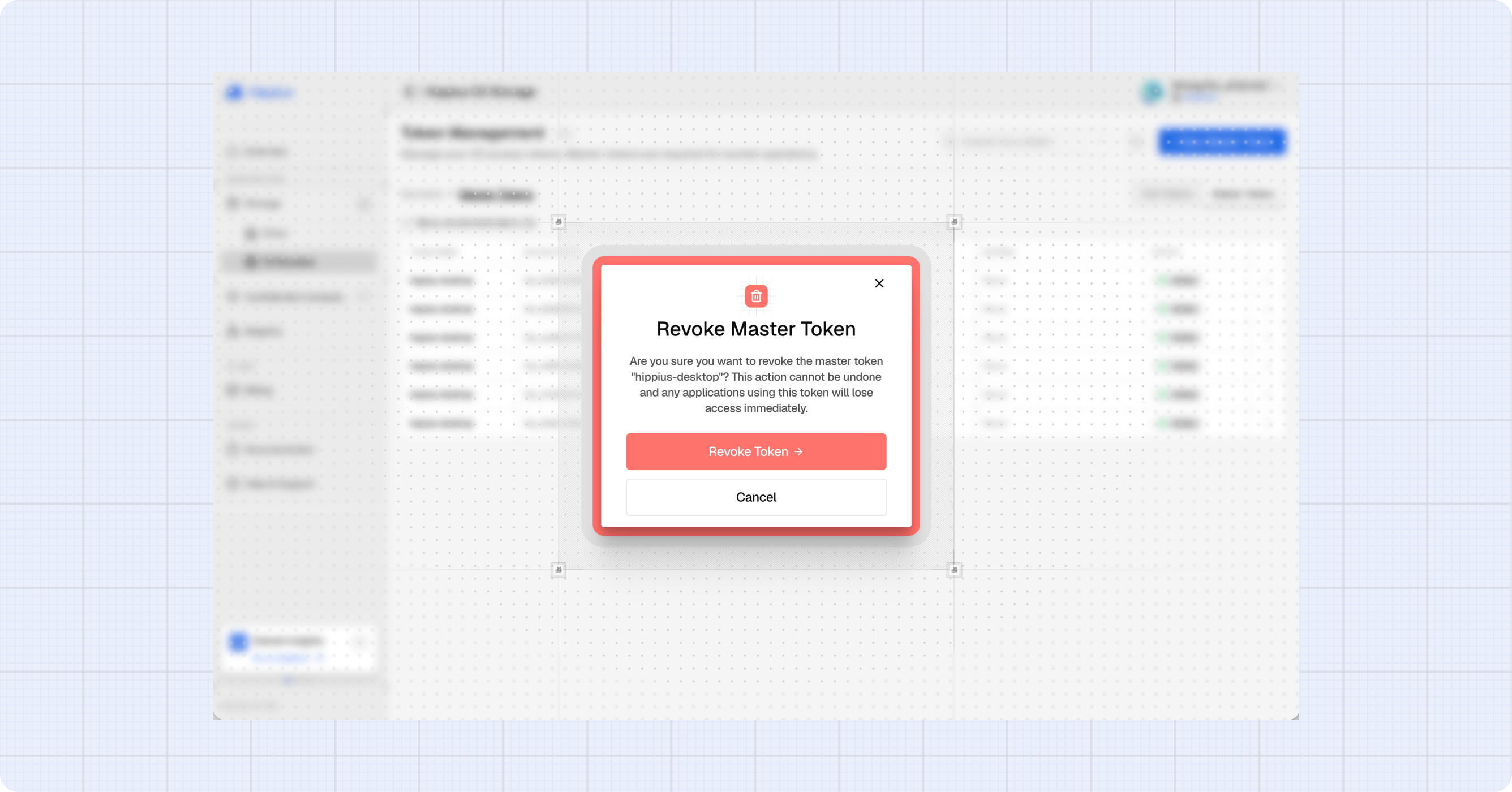
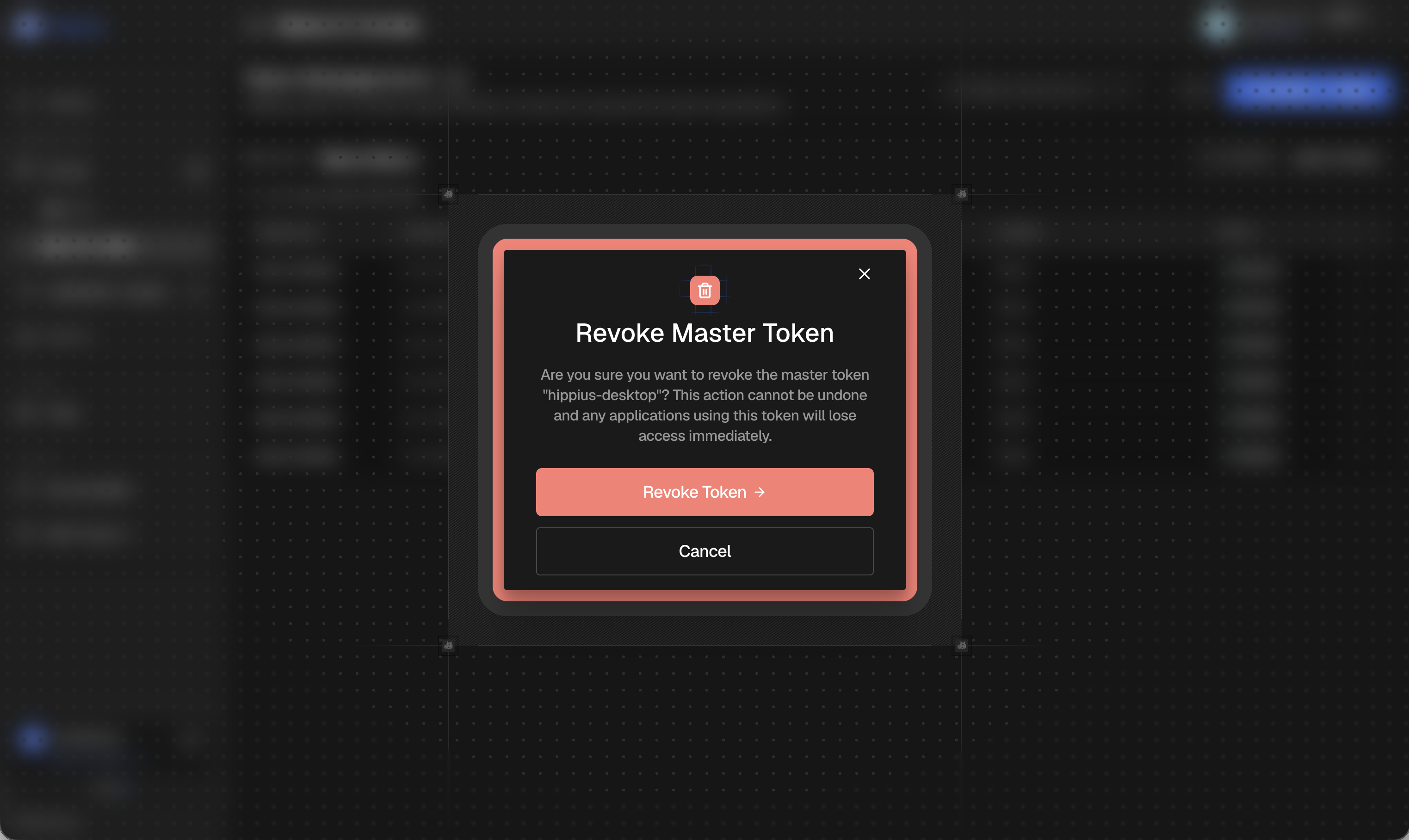
Revoke Token
- Click the options menu (⋮) next to the master token.
- Select Revoke.
- Confirm the action in the warning dialog.
- The token will be immediately invalidated.
Revoking a master token cannot be undone! Any applications using this token will immediately lose access. Make sure to update all integrations before revoking.
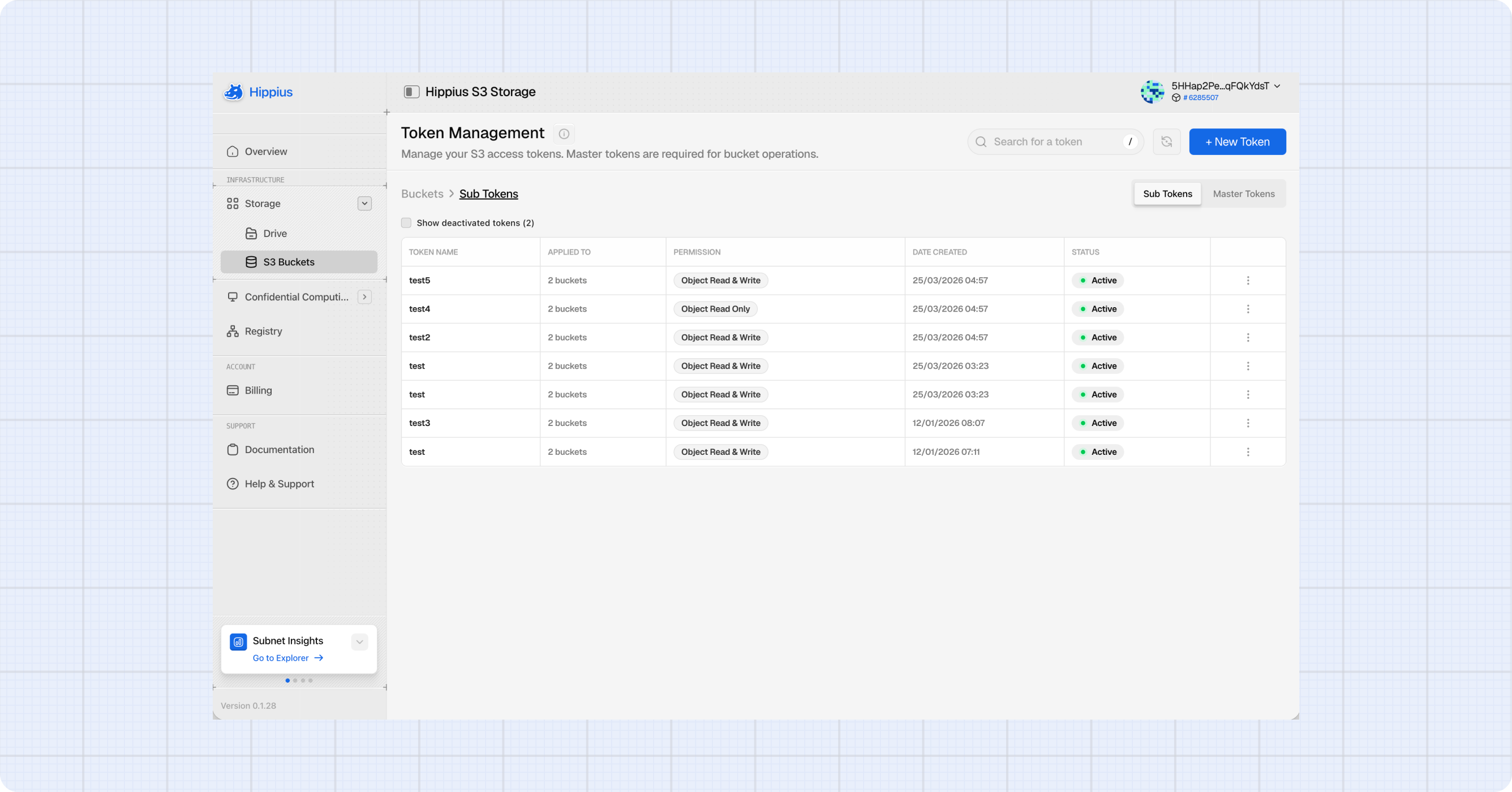
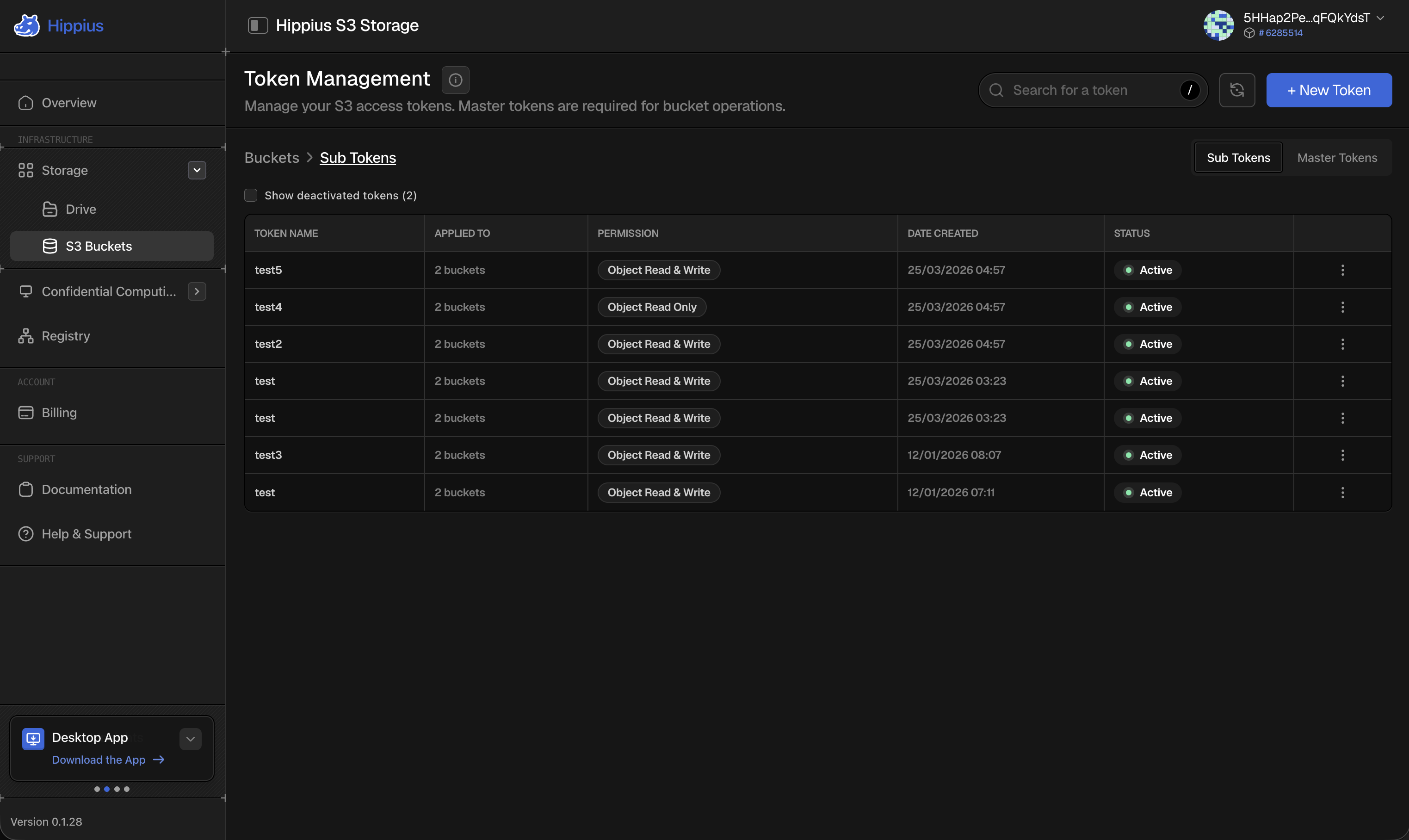
Sub Tokens Tab
The Sub Tokens tab displays:
- Token Name: Descriptive name for the token
- Applied To: Number of buckets this token can access
- Permission: Read Only or Read & Write
- Date Created: When the token was generated
- Status: Active or Revoked
Creating Sub Tokens
Sub tokens allow you to grant limited, scoped access to your S3 buckets. This is ideal for:
- Third-party application integrations
- API access for specific services
- Temporary access for contractors or partners
- Testing and development environments
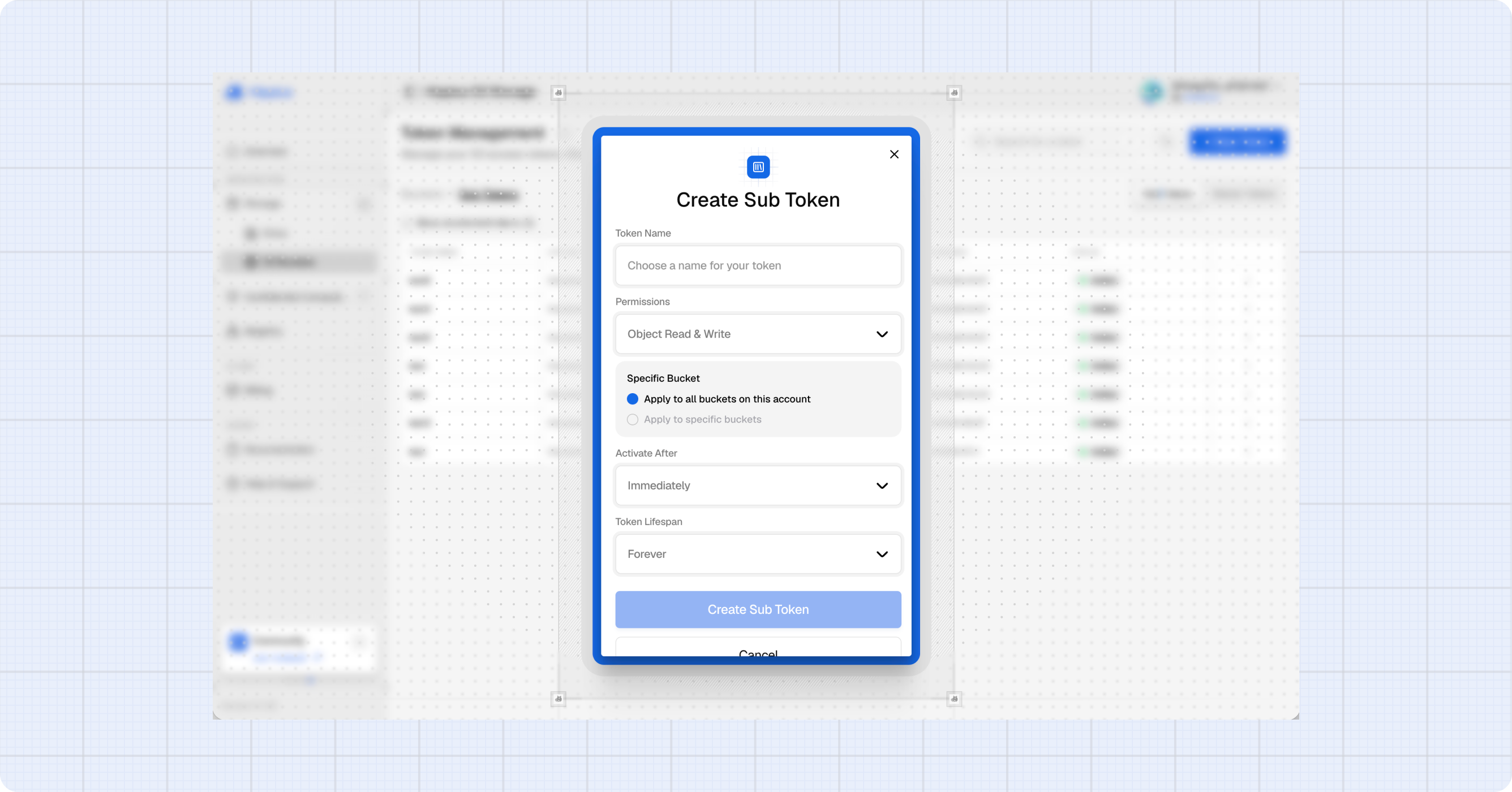
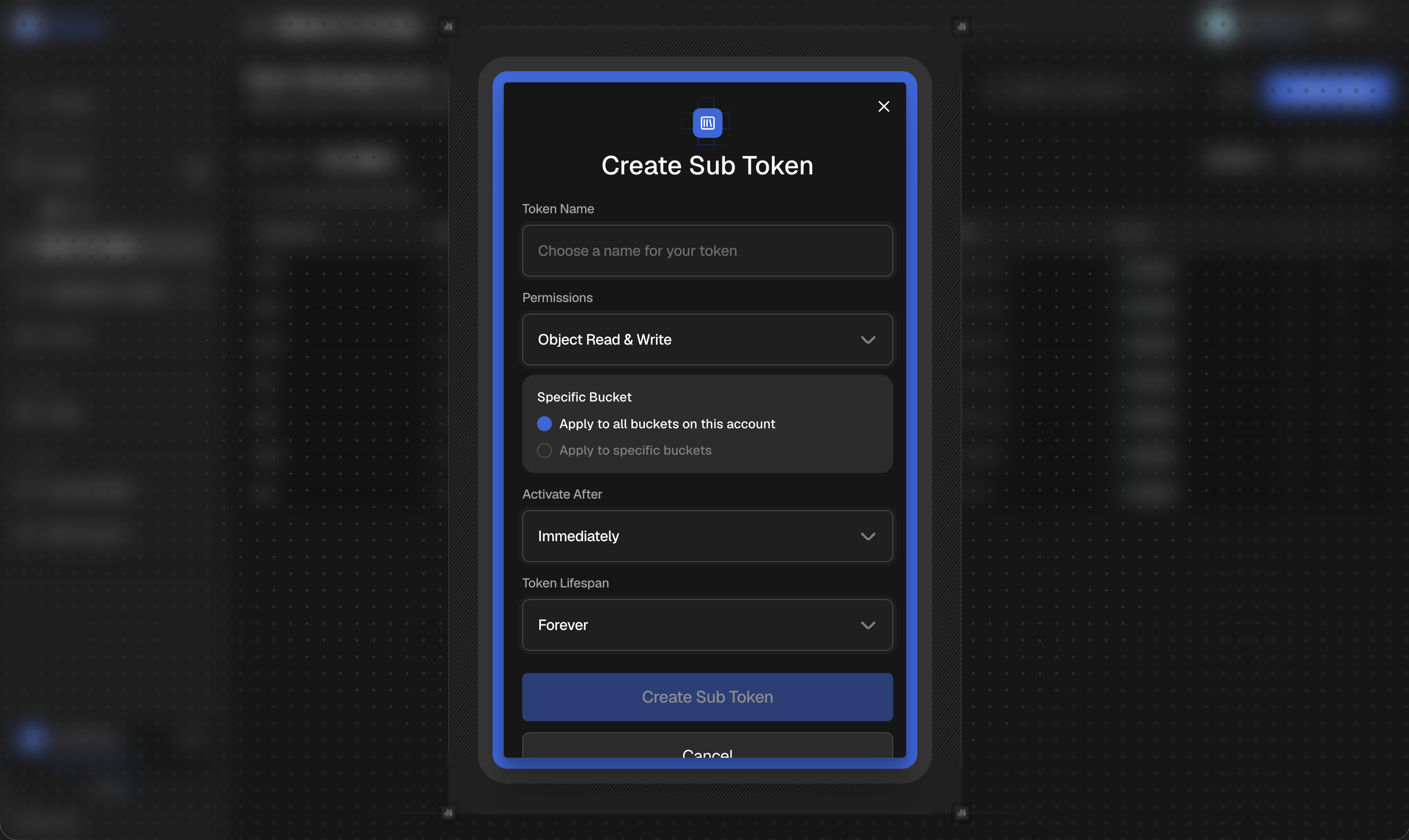
Creating a Sub Token
- Navigate to Token Management and select the Sub Tokens tab.
- Click the New Token button.
- Enter a Token Name (e.g., "API Integration Token").
- Select Permissions: Object Read Only (can only read/download objects) or Object Read & Write (can read, upload, and delete objects).
- Choose Select Buckets: Click the dropdown to see all your buckets. You can select all buckets, multiple specific buckets, or just a single bucket. Only selected buckets will be accessible with this token.
- Set Token Lifespan: Choose 7 days, 30 days, 1 year, or Custom (pick any future date).
- Click Create Sub Token to generate the token.
Using Sub Token Credentials
After creation, you'll receive the token credentials:
- Access Key ID: Your sub token identifier
- Secret Access Key: The secret key (shown only once!)
- Copy both credentials using the Copy buttons.
- Store them securely.
- Use them in your S3-compatible applications and SDKs.
Just like master tokens, sub token secrets are shown only once. Save them immediately or you'll need to create a new token!
Managing Sub Tokens
Each sub token has an options menu (⋮) with the following actions:
Rotating a Sub Token
- Navigate to Token Management → Sub Tokens tab.
- Find the token you want to rotate.
- Click the options menu (⋮) next to the token.
- Select Rotate.
- A new secret key will be generated while keeping the same Access Key ID and permissions.
- Save the new secret immediately! The old secret becomes invalid.
Revoking a Sub Token
- Navigate to Token Management → Sub Tokens tab.
- Find the token you want to revoke.
- Click the options menu (⋮) next to the token.
- Select Revoke.
- Confirm the action in the warning dialog.
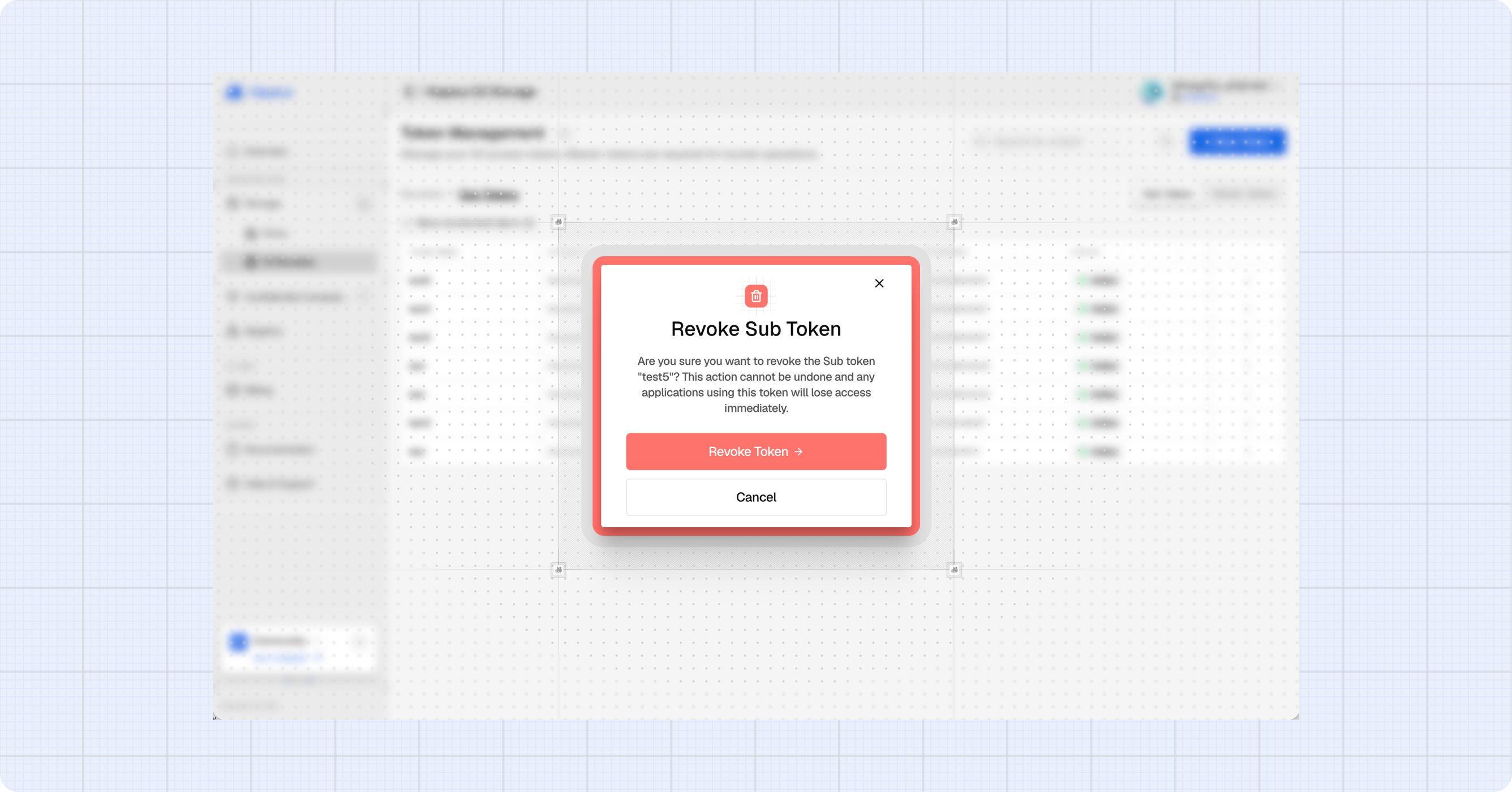
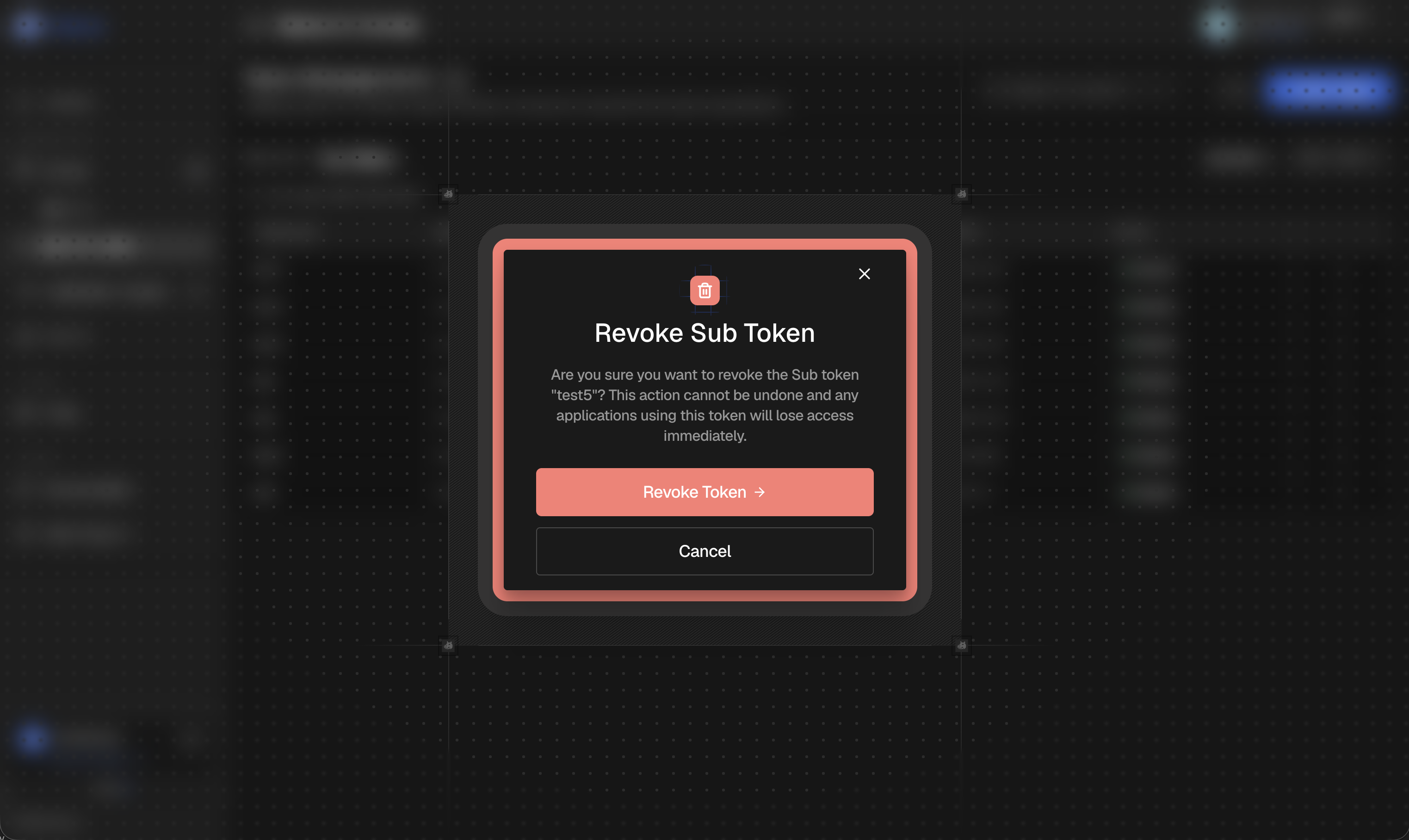
- The token becomes invalid immediately
- Applications using this token will receive authentication errors
- This action cannot be undone
- You can create a new token with the same permissions if needed
Token Expiration
Understanding Expiration
All tokens (master and sub) have expiration dates:
- Active Tokens: Can be used for authentication and API calls
- Expired Tokens: Automatically become invalid after the expiration date
- Renewal: You must create a new token when one expires
Handling Expired Tokens
When a master token expires in the Console:
- You'll see the "No Entries in Your Storage" message again.
- Click Create Master Token to generate a new one.
- Update all applications using the old credentials with the new ones.
When a sub token expires:
- The token's status changes to "Expired" in the management interface.
- Applications using it will receive authentication errors.
- Create a new sub token with the same or updated permissions.
Set calendar reminders before tokens expire to ensure uninterrupted service for your applications and integrations.
Security Best Practices
Protecting Your Tokens
- Never Share Secrets: Keep your Secret Access Keys private and secure.
- Use Environment Variables: Store credentials in environment variables, not in code.
- Rotate Regularly: Rotate master tokens periodically for enhanced security.
- Use Sub Tokens for Apps: Create specific sub tokens for each application or service.
- Revoke Unused Tokens: Remove tokens that are no longer needed.
- Monitor Usage: Regularly review active tokens in the management interface.
- Least Privilege: Grant minimum permissions needed (use Read Only when possible).
Token Storage Recommendations
DO:
- ✅ Store in password managers (1Password, LastPass, Bitwarden)
- ✅ Use secrets management services (AWS Secrets Manager, HashiCorp Vault)
- ✅ Store in secure environment variables
- ✅ Encrypt if storing in configuration files
DON'T:
- ❌ Commit to Git or version control
- ❌ Share in Slack, email, or messaging apps
- ❌ Store in plain text files
- ❌ Hardcode in application source code
Use Cases
Master Tokens
When to use Master Tokens:
- Full administrative access to all buckets
- Bulk operations across multiple buckets
- Creating and managing sub tokens
- Account-wide configuration changes
Example Scenarios:
- Administrative scripts for bucket management
- Backup and disaster recovery operations
- Migrating data between storage systems
Sub Tokens
When to use Sub Tokens:
- API integrations with third-party services
- Web applications requiring S3 access
- Mobile app backends
- CI/CD pipelines for deployment
- Sharing limited access with team members or contractors
Example Scenarios:
Read Only Token for Analytics Service:
- Create sub token with "Object Read Only" permission
- Grant access to "analytics-data" bucket only
- Analytics service can read data but not modify it
Read & Write Token for Content Management:
- Create sub token with "Object Read & Write" permission
- Grant access to "website-assets" and "user-uploads" buckets
- CMS can upload, update, and delete content
Summary
Master Tokens and Sub Tokens provide a flexible, secure way to manage access to your Hippius S3 Storage:
- Master Tokens: Full access, created in the Console
- Sub Tokens: Limited scope, perfect for API integrations and specific use cases
- Security: Secrets shown only once, tokens can be revoked anytime
- Flexibility: Custom permissions, bucket selection, and expiration dates
- Management: Comprehensive interface in the Console
All token operations — creating, listing, revoking, and rotating — can also be done programmatically via the Hippius Management API. Use it to automate token lifecycle in CI/CD pipelines, multi-tenant apps, or AI agent workflows.