Billing
Introduction
Billing is the one place in the desktop app where you manage the money side of your account: the storage plan that decides how much Drive space you have, and the credit balance that can pay for it.
Open it from the account avatar in the top bar, choose
Your plan grants storage. Credits are a dollar balance on your account (1 credit = $1) that can pay for a plan and for other Hippius services such as virtual machines. Adding credits on its own does not give you more Drive space. Only a bigger plan does that.
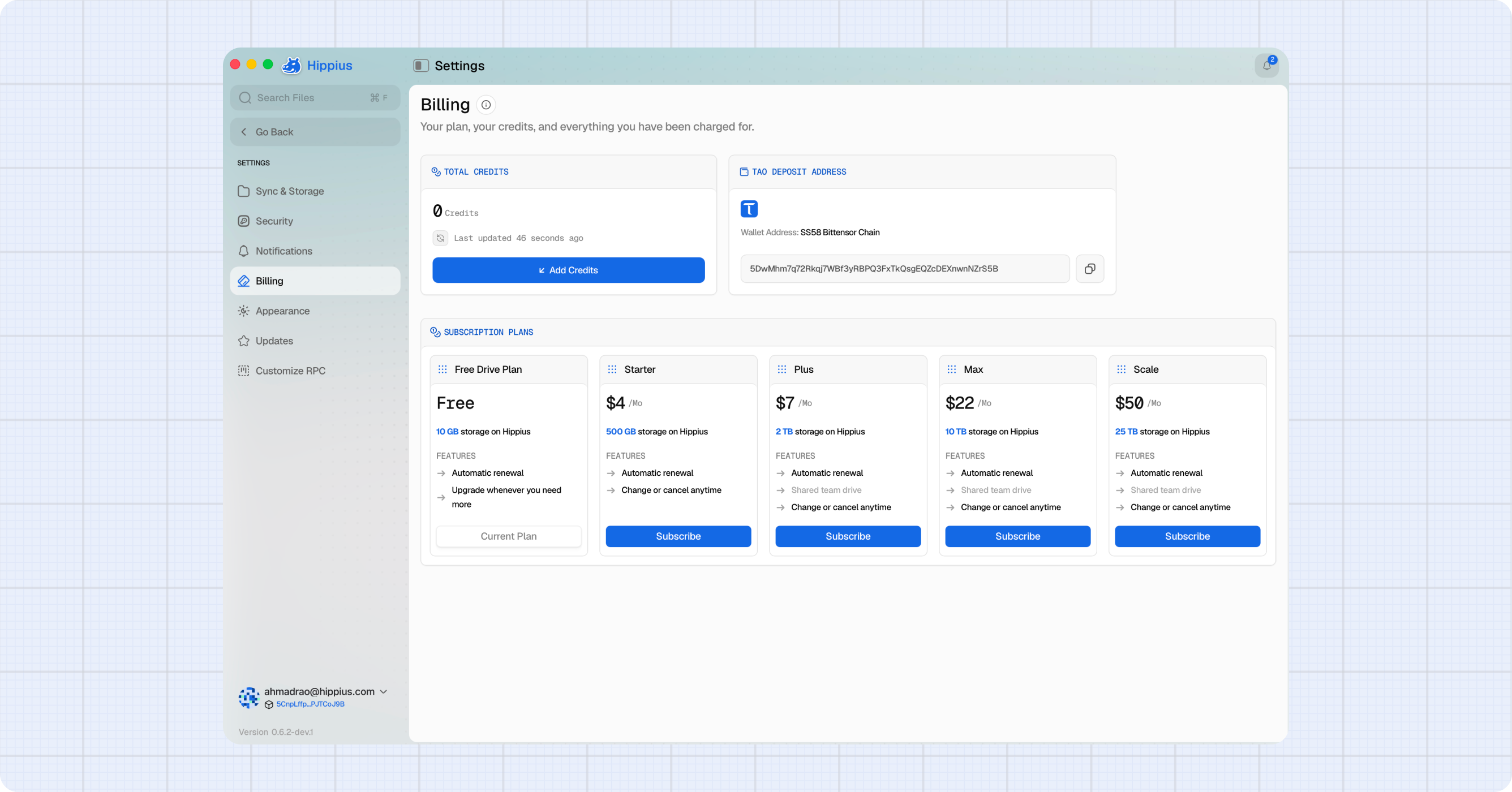
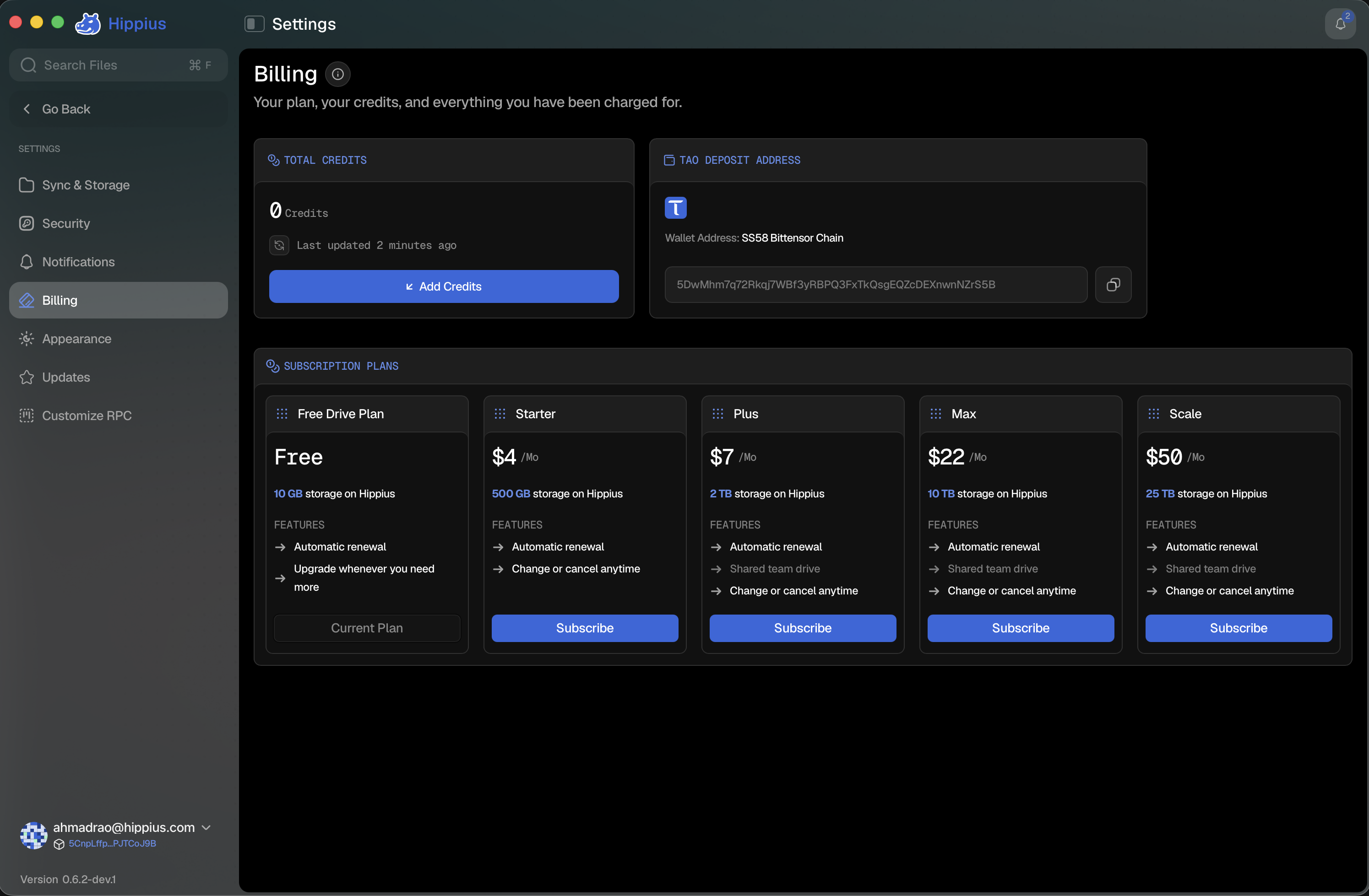
Every prompt in the app that asks you to spend money lands here. The Upgrade and Top up buttons in the page header, the "not enough storage" dialog, and the banners on Drive all open this same page, so there is only ever one screen to learn.
What is on the page
| Section | What it is for |
|---|---|
| Total Credits | Your current credit balance, when it was last refreshed, and a button to add more. |
| TAO Deposit Address | Your Bittensor address for funding the account with TAO. |
| Subscription plans | The storage plans you can be on, which one you are on now, and the buttons to subscribe, change or cancel. |
Total Credits
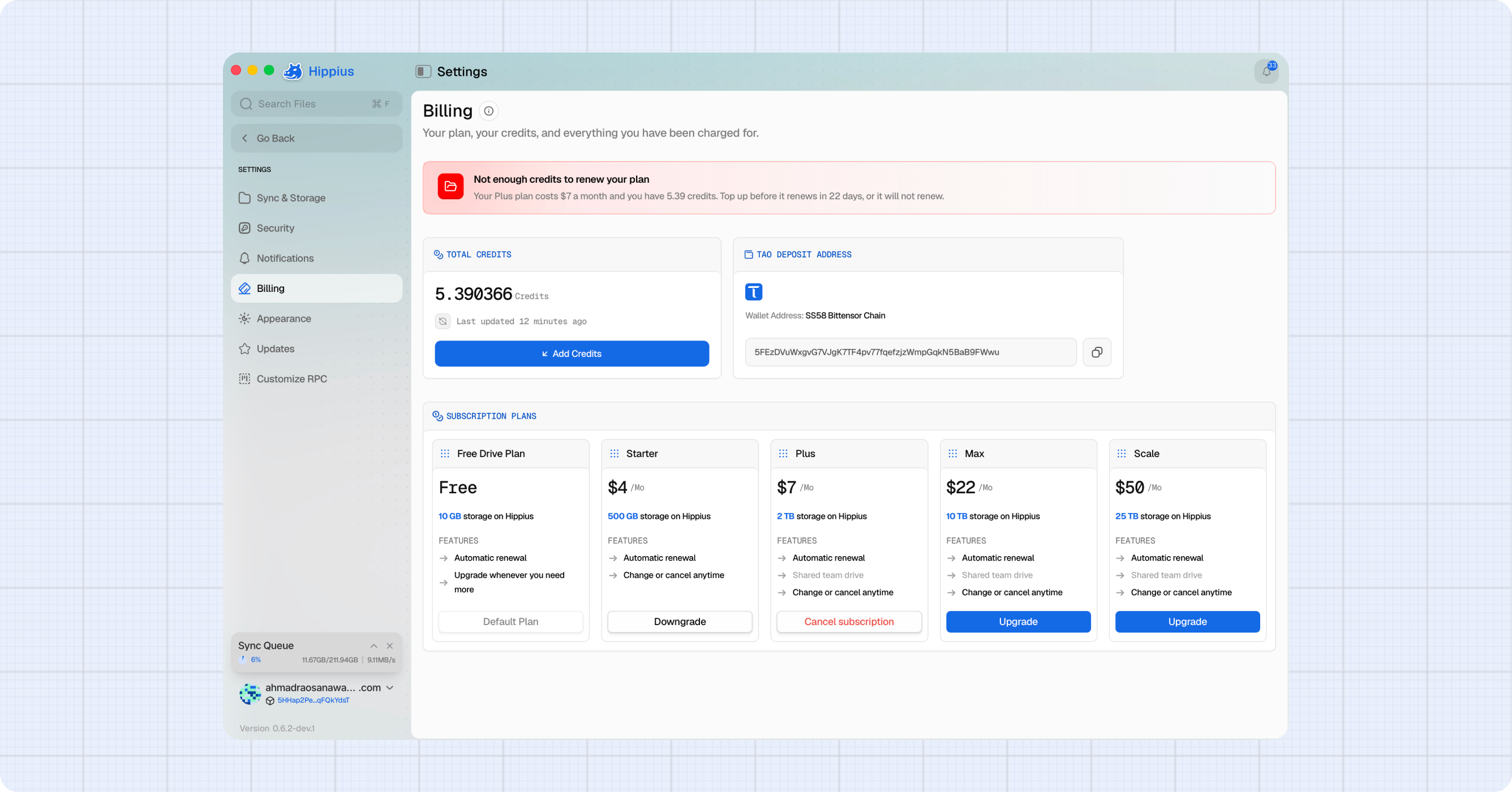
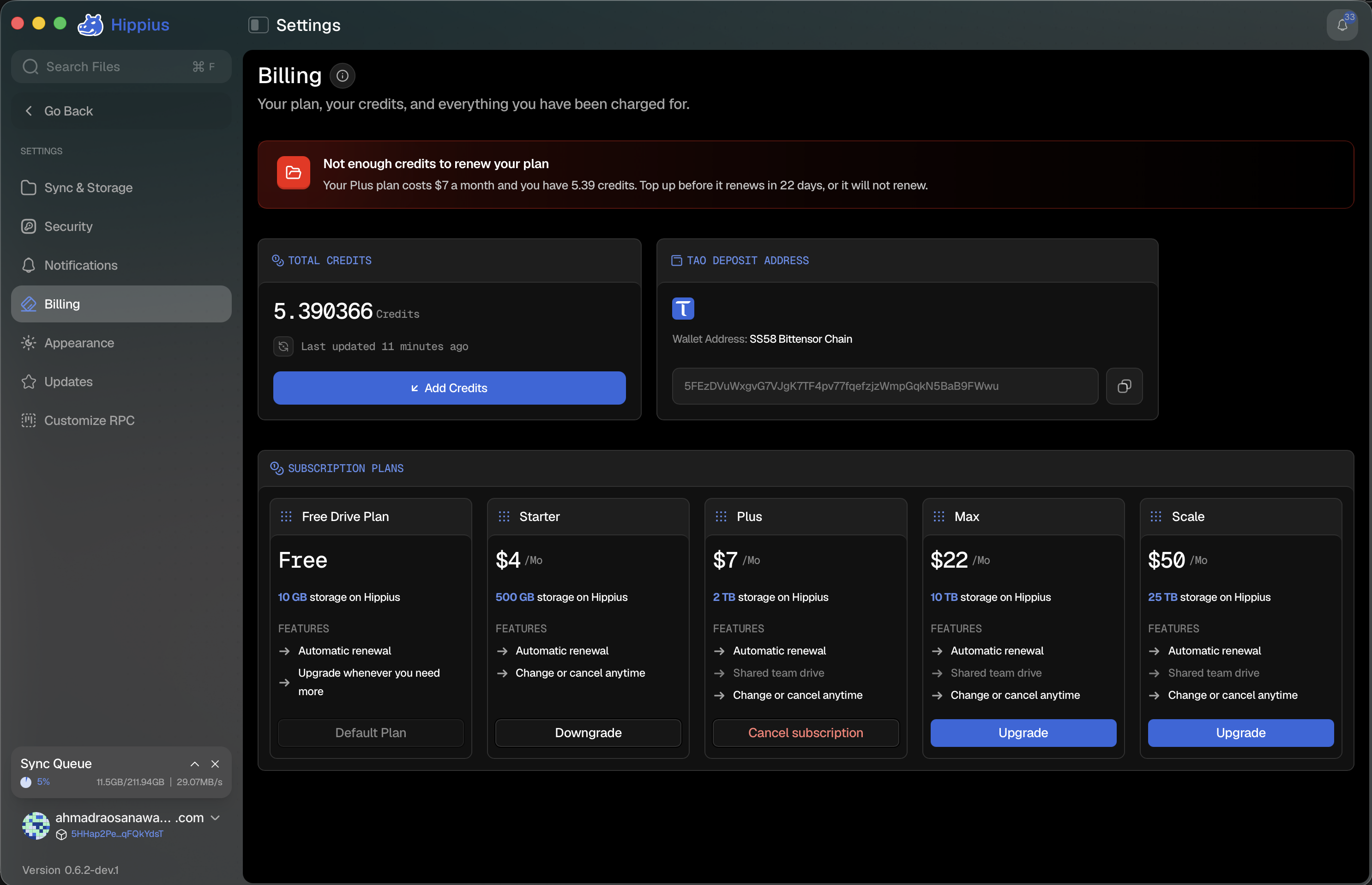
The Total Credits card shows your balance. A new or unfunded account reads as 0 Credits.
- Click the refresh icon to pull the balance again. The "Last updated" line tells you how recent the number is.
- Click Add Credits to top up. This opens the Hippius console in your browser, where you can pay with TAO or by card.
The desktop app does not sell credits directly. Add Credits hands you to the console's top-up flow, and your balance here updates the next time it refreshes. See Console Billing for that flow in full.
TAO Deposit Address
The TAO Deposit Address card shows your SS58 Bittensor Chain address. Send TAO to it from any Bittensor wallet or exchange and your credit balance grows at the rate of $1 = 1 credit once the transfer confirms on chain.
Click the copy button beside the address to copy the whole value. The address is shortened in the middle to fit the card, so copy it rather than typing what you see.
Once a TAO transaction confirms on chain it is final. Check the destination address before you send. We cannot recover funds sent to the wrong address.
Storage plans
The Subscription plans section is the plan catalogue. Plans are loaded live from our servers, so the names, sizes and prices you see in the app are always the current ones. At the time of writing they are:
| Plan | Storage | Price |
|---|---|---|
| Free Drive Plan | 10 GB | Free |
| Starter | 500 GB | $4 / month |
| Plus | 2 TB | $7 / month |
| Max | 10 TB | $22 / month |
| Scale | 25 TB | $50 / month |
The desktop app bills monthly. Annual billing is offered in the Hippius console.
What a plan card shows
- The plan name and its monthly price, or "Free" for the free plan.
- How much storage on Hippius the plan includes.
- A Features list: automatic renewal, a shared team drive on Plus, Max and Scale, and the freedom to change or cancel at any time.
- One button, which changes with your situation: Subscribe, Upgrade, Downgrade, or Cancel subscription on the plan you are on.
The Shared team drive line is greyed out with a "Coming soon" note. Those plans do include it, we have just not switched the feature on yet.
While you hold a paid plan, the Free card reads Default Plan. That is the plan you fall back to if you cancel, not a second plan you are on.
The free plan and how you signed in
If you signed in with Google, GitHub or Apple, your account includes the Free Drive Plan and you always have 10 GB to fall back on.
If you signed in with an access key (a seed phrase), there is no included allowance. The free card is not shown to you at all, because it is not something you can take, and the app tells you so wherever a plan is offered:
- An empty Drive says "You do not have a storage plan yet" instead of "You are on the Free plan".
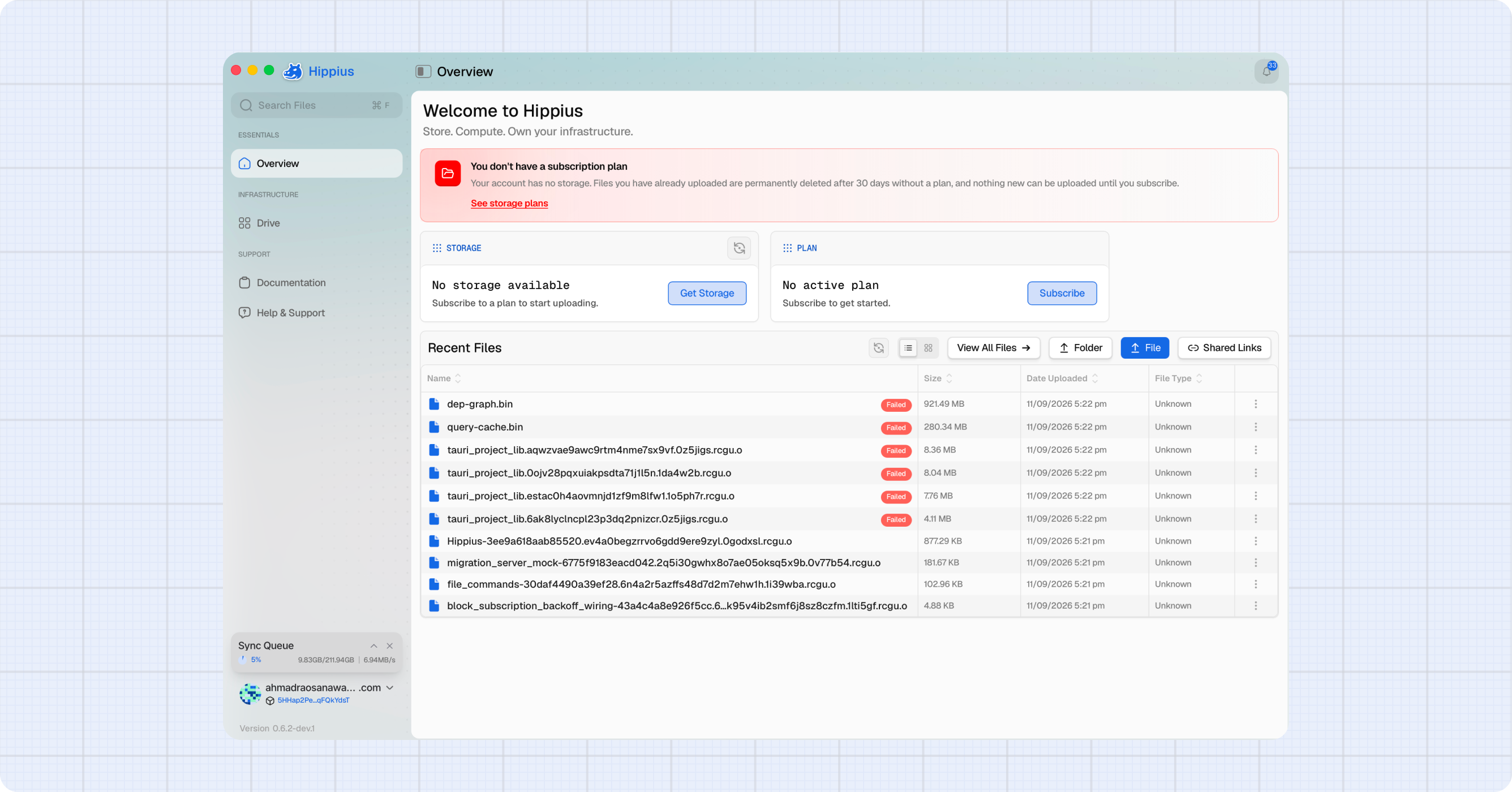
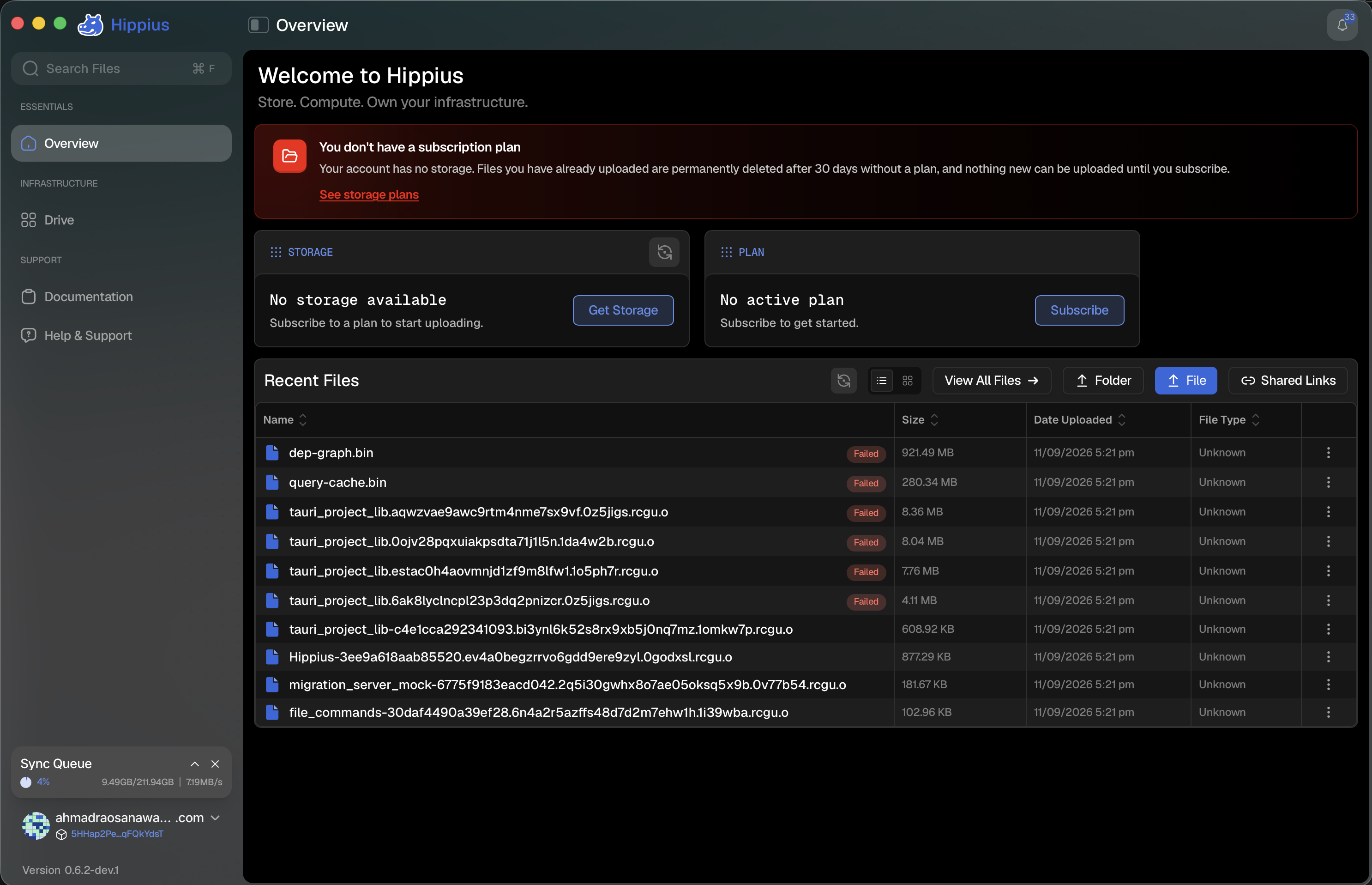
- A red banner on the Overview and Drive pages warns that your account has no storage, that nothing can be uploaded until you subscribe, and that files already uploaded are permanently deleted after 30 days without a plan.
- Cancelling warns that you will be left without a storage plan, rather than promising a fallback that does not exist.
Subscribing to a plan
- Find the plan you want and click Subscribe.
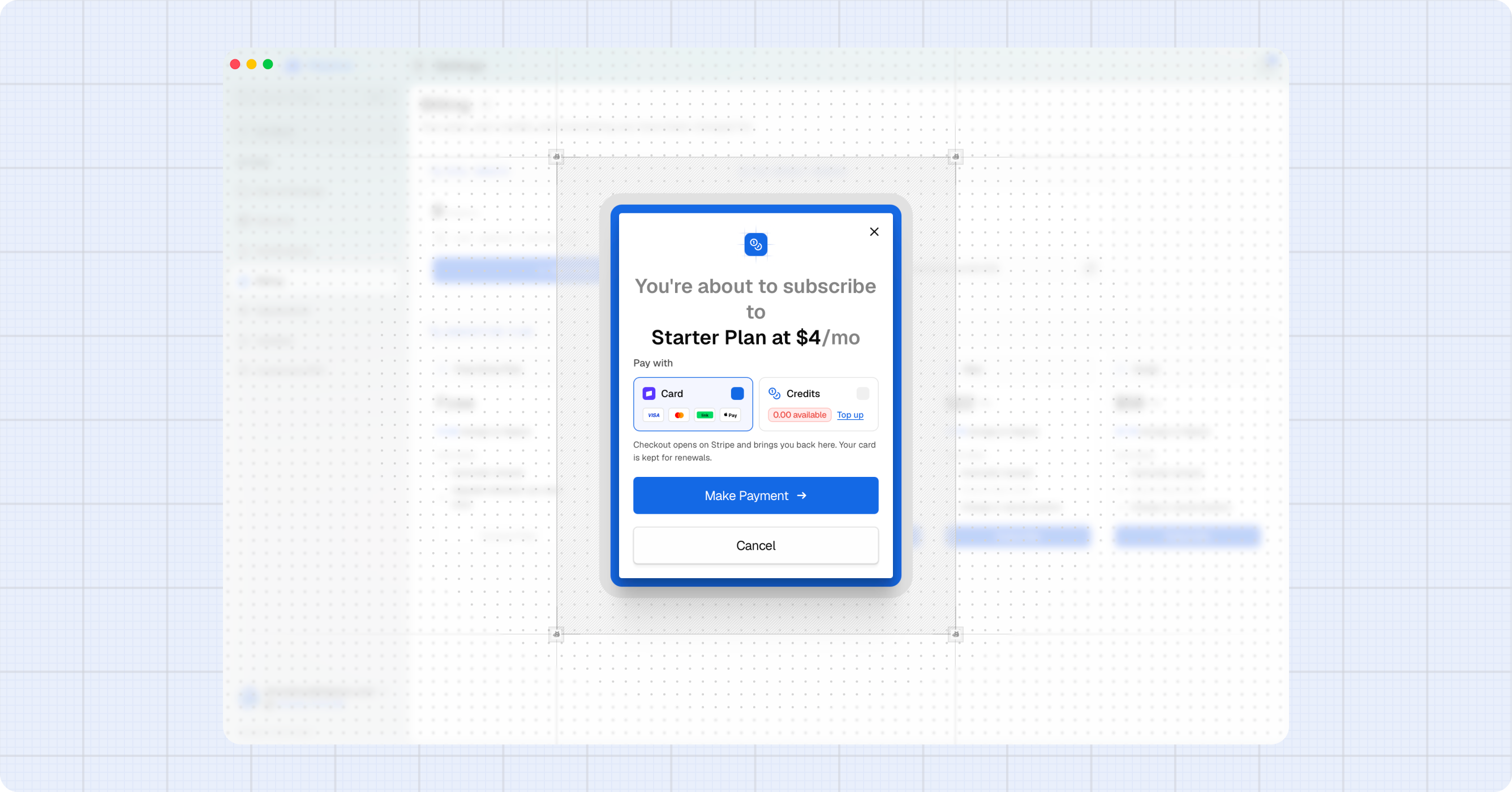
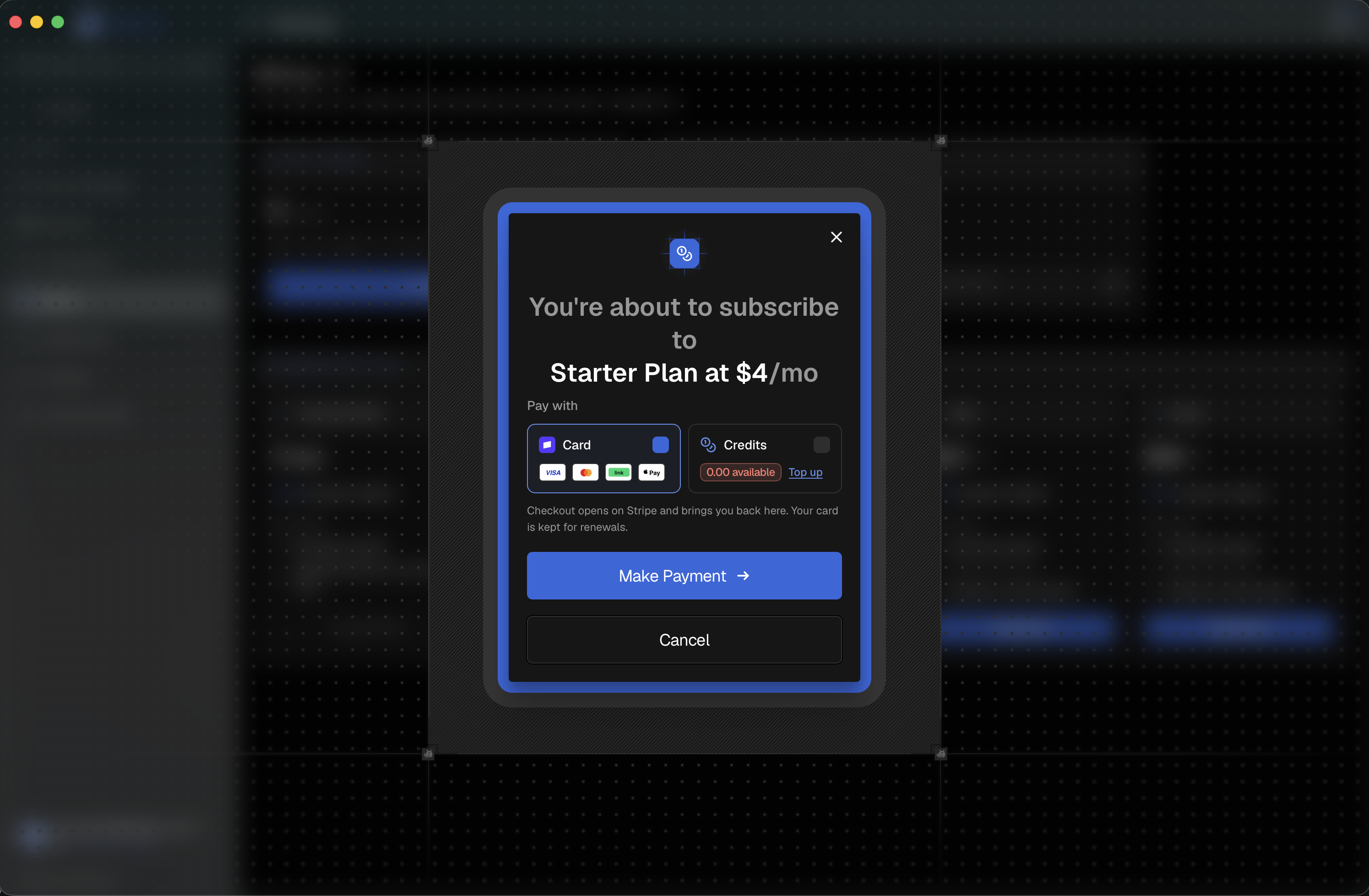
- A confirmation appears with the plan name and price, and a Pay with chooser. Pick Card or Credits.
- Click Make Payment.
Paying by card
Card is selected by default, because it works whatever your balance is.
Choosing it opens Stripe Checkout in your browser. The app shows a "Finish your payment in the browser" card while you are away, which you can close at any time: the payment is not tied to that dialog. Once Stripe takes the payment, the credits are minted, the plan is bought with them, and your subscription appears in the app on its own.
Your card is kept at Stripe and funds future renewals.
Paying from credits
Choosing Credits charges the plan straight to your Hippius balance at 1 credit = $1. The tile shows what you have available.
If your balance will not cover the plan, the balance chip turns red, a Top up link appears beside it, and Make Payment stays disabled until you either top up or switch to Card. We deliberately leave the option selectable so you can see how far short you are and fix it from the same place.
While it goes through
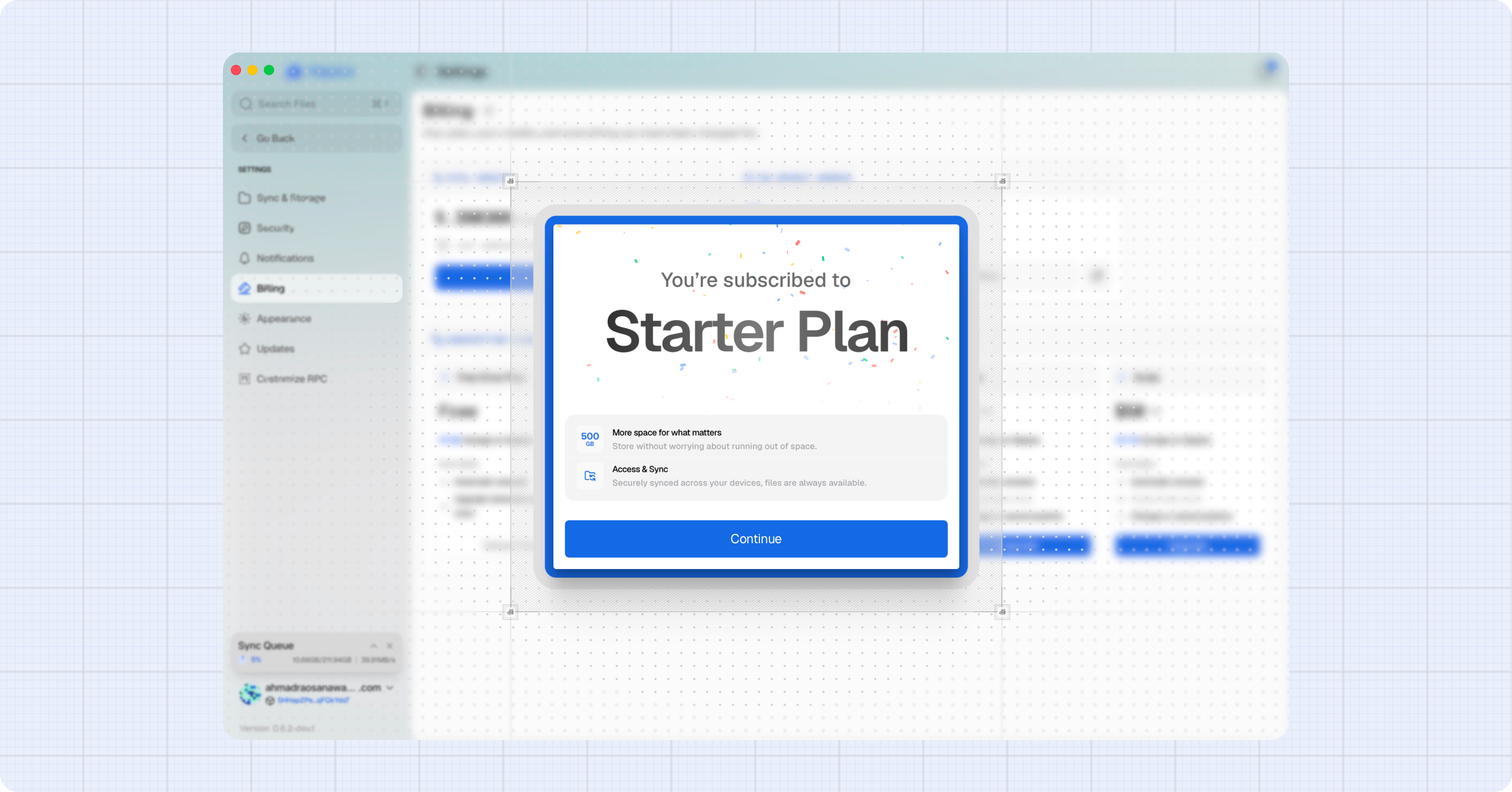
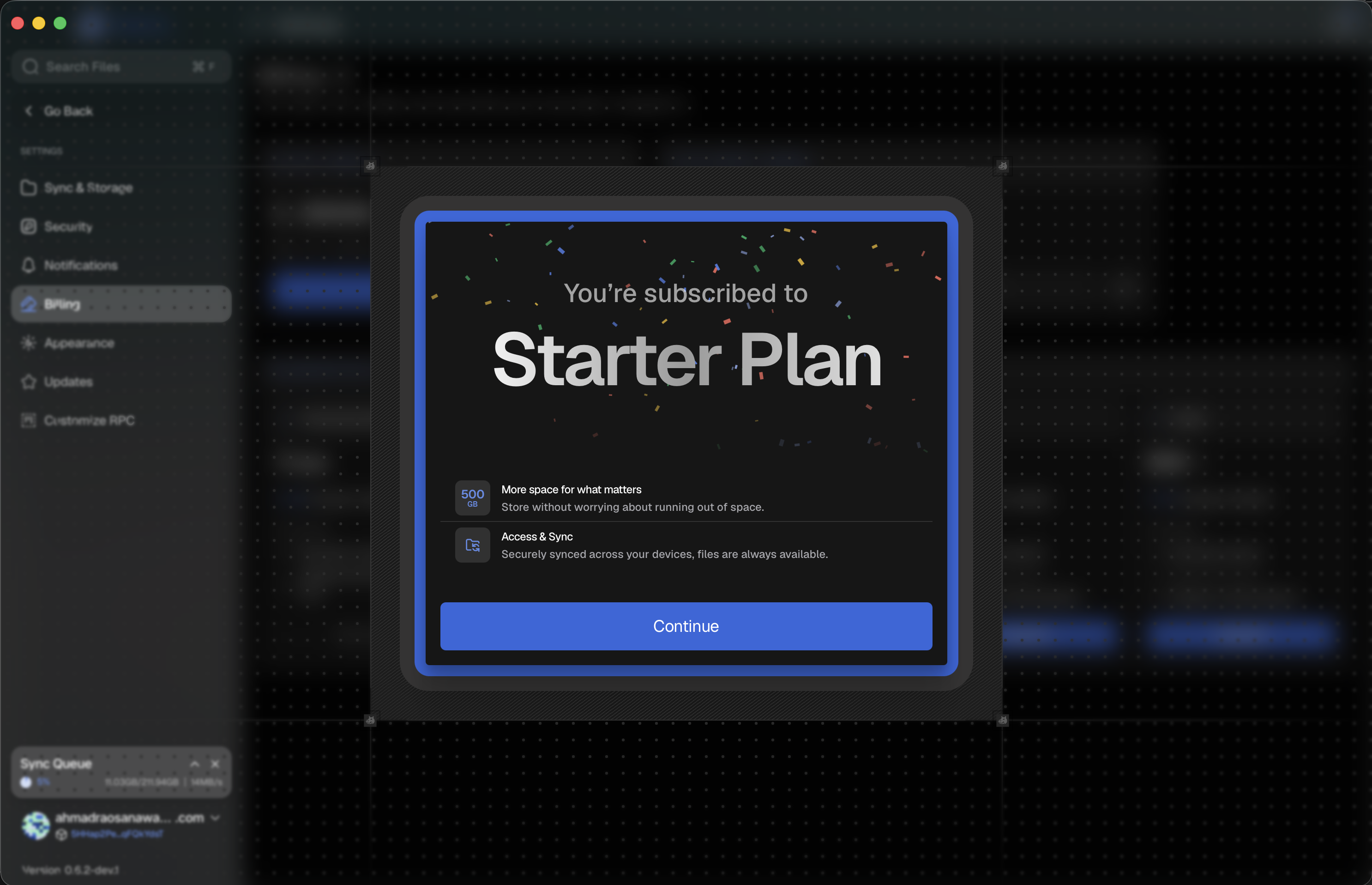
After you confirm, the app shows Processing, then waits for the chain to agree that your plan is live. That usually takes seconds. When it lands you get a confirmation screen naming your new plan, and Continue returns you to Billing.
If the chain is slow, the app stops waiting after a minute and tells you it will catch up shortly rather than spinning forever. Your payment is not lost, and the plan shows up once the network confirms it.
Changing plan
To move to a different size, click Upgrade or Downgrade on the plan you want and confirm.
A change is made against the subscription you already have, so there is no payment chooser: it settles from your credit balance on the existing plan's rail.
We refuse a downgrade if you are already storing more than the smaller plan holds. Remove enough files to get under the new limit first, then downgrade.
Cancelling
- On the plan you are on, click Cancel subscription.
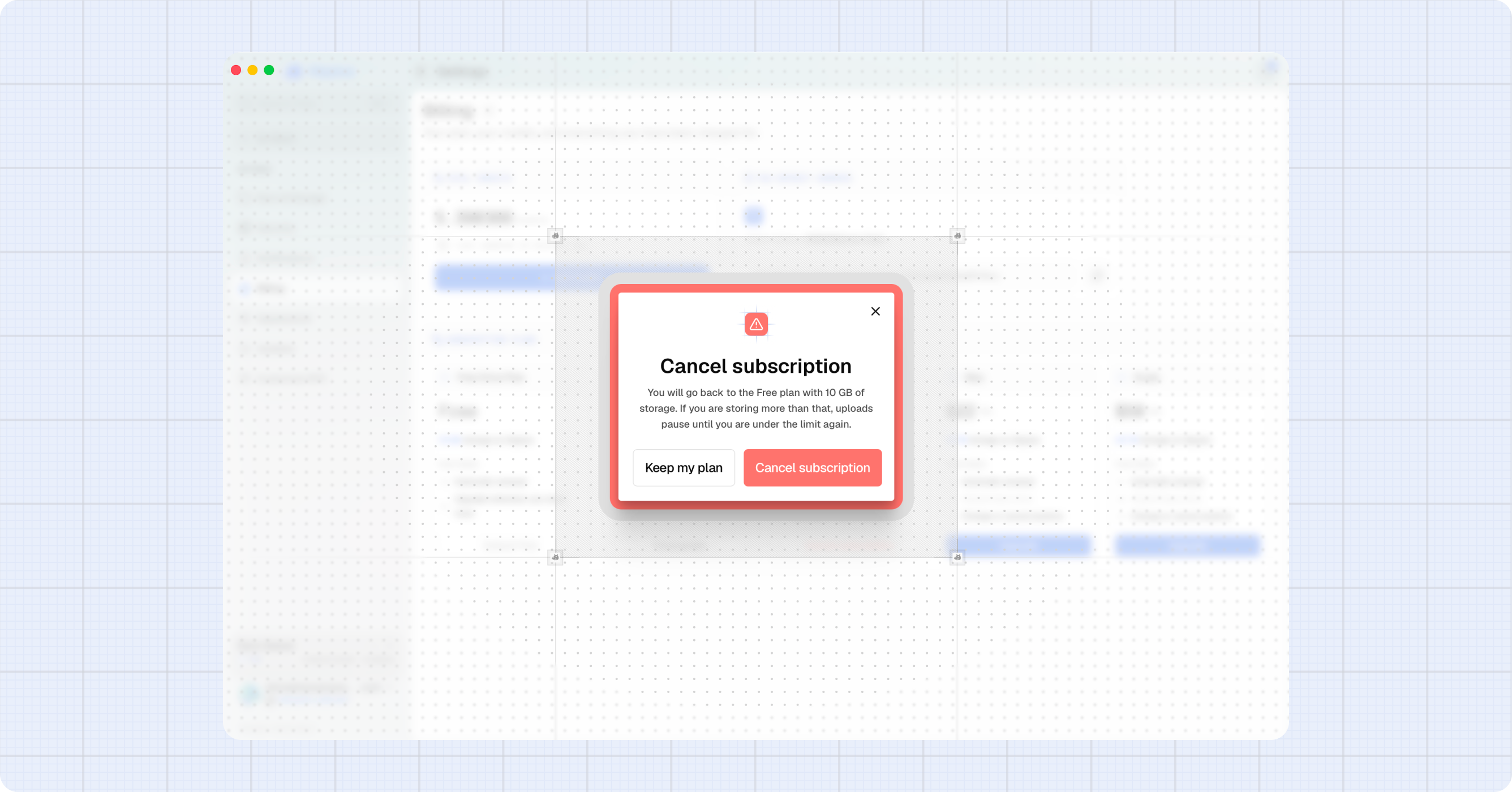
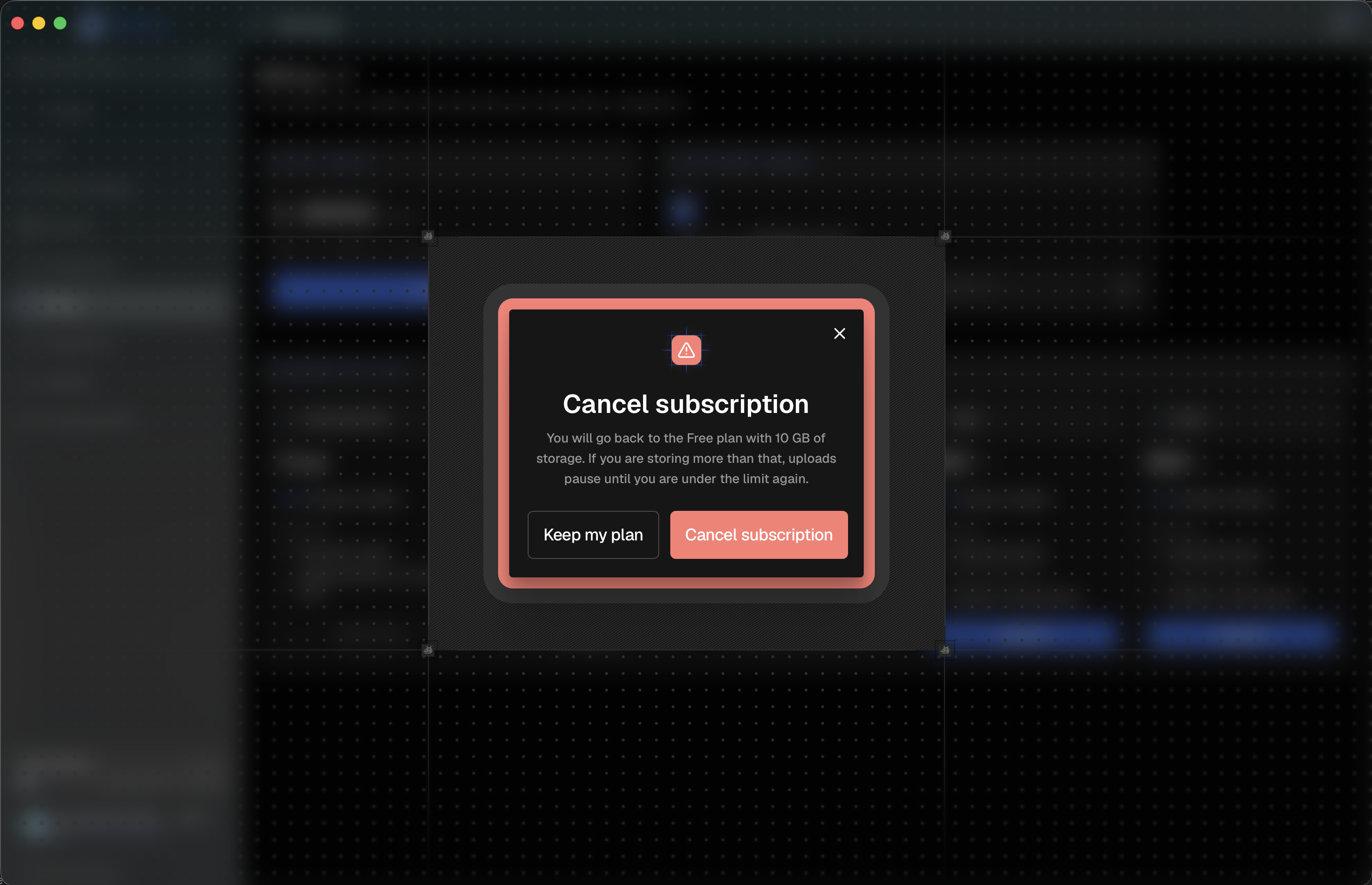
- Read the confirmation. It tells you exactly what you drop to.
- Click Cancel subscription to go ahead, or Keep my plan to back out.
What happens next depends on your account:
- Accounts with the free tier (signed in with Google, GitHub or Apple) go back to the Free Drive Plan and its 10 GB. If you are storing more than that, uploads pause until you are back under the limit. Nothing is deleted.
- Access key accounts are left with no storage plan at all. Uploads stop, and files already stored are removed after 30 days without a plan.
Your credits are untouched either way, and you can subscribe again at any time.
Plans bought somewhere else
If you bought your plan through the App Store, Google Play, or a Stripe billing portal, the desktop app cannot change it. The plan buttons are disabled and hovering one tells you where to manage it instead, for example "Managed in the App Store".
Cancel or change the plan wherever you bought it, and the desktop app picks up the new state.
Your plan in the app header
You do not have to open Billing to see how you are doing. The header on Overview, Drive and other pages carries a plan card with two lines:
- The name of your plan, or "Active Plan" if we do not have a name for it, plus a short warning when something needs attention.
- A usage bar with how much of your storage you have used. It is blue normally, amber from 80% full, and red from 95%.
Beside it, one button appears only when there is something worth doing:
- Upgrade when you have no plan, or your plan is 80% full or more. More space always means a bigger plan, so we never point you at credits here.
- Top up when your plan renews from credits and your balance will not cover the next renewal. The note beside it says how many days you have, and Billing itself carries the fuller warning.
A healthy plan with room to spare shows no button at all.
When something is wrong with your plan
Not enough credits to renew
If your plan renews from credits and your balance will not cover the next charge, a red notice sits at the very top of the Billing page, directly above Total Credits. It names your plan, what it costs, what you actually have, and how long you have left, for example:
Not enough credits to renew your plan Your Max plan costs $22 a month and you have 9 credits. Top up before it renews in 6 days, or it will not renew.
There is no button on the notice, because Add Credits is already the next thing on the page. It cannot be dismissed either: putting it away would not buy credits, and the renewal would still fail.
Only plans that renew from credits get this. A card-funded plan charges the card at Stripe, so there is nothing to top up.
Banners on Drive
Drive shows a banner for the states worth interrupting you over. A plan that is simply working says nothing.
| Banner | What it means |
|---|---|
| You don't have a subscription plan | Your account has no storage at all. Nothing can be uploaded, and stored files are deleted after 30 days. Subscribe to clear it. |
| Setting up your Drive plan | Your payment went through and the plan is being provisioned on chain. This normally takes two to three minutes. |
| Your Drive plan could not be renewed | The renewal payment failed. Top up your credits, or fix the payment where the plan is managed. |
| Your Drive plan has been cancelled | Your files are still here, but you need an active plan to upload again. This one can be dismissed. |
Running out of room or credits
Two different things can stop an upload, and the app says which:
Not enough storage. Uploading a file or folder, syncing a folder, or creating a share link can push you past what your plan holds. A dialog says so and offers View plans, which opens Billing. Credits cannot help here. The answer is a bigger plan, or freeing space.
Creating a share link uploads a re-encrypted copy of the file, and that copy counts against your plan just like any other upload. See Shared Links.
Out of credits. If the sync engine is refused for want of credits, a banner appears at the top of the page saying what was needed, what you have, and how many files are paused, with a Top up button. You can dismiss it, and it comes back if it happens again.
Where to next
- Console Billing: buying credits with TAO or a card, and your full transaction history.
- Drive: start uploading once you have a plan.
- Shared Links: sharing a file uses your plan's storage.
- Settings: the rest of what lives alongside Billing.