Record Your Screen
A screen recording shows what's happening while you talk someone through it: a bug, a walkthrough, a quick "here's how". Record your entire screen, one window or an area, with your voice and, if you like, a round bubble of your camera. When you stop, the video is saved to your Hippius Captures drive and its link is copied.
Screen recording works in the desktop app on macOS, Windows and Linux, and in the console in Chrome, Edge, Safari and Firefox on a computer.
Get ready
Open the capture bar with Record. In the desktop app you'll find it in the menu bar (the Hippius icon, then the Record tile) and in the header of Drive, Captures and every drive. You can also press ⌥ ⇧ ⌘ 2 on a Mac, or Ctrl Alt Shift 2 on Windows and Linux. In the console, click Record at the top of the Drive or Captures page.
On the bar, choose:
- What to record: entire screen, a window or an area.
- Microphone: on or off, and which one. The bar shows a live level so you can check you're being heard.
- Camera: off by default. Turn it on to add a round bubble of you to the recording.
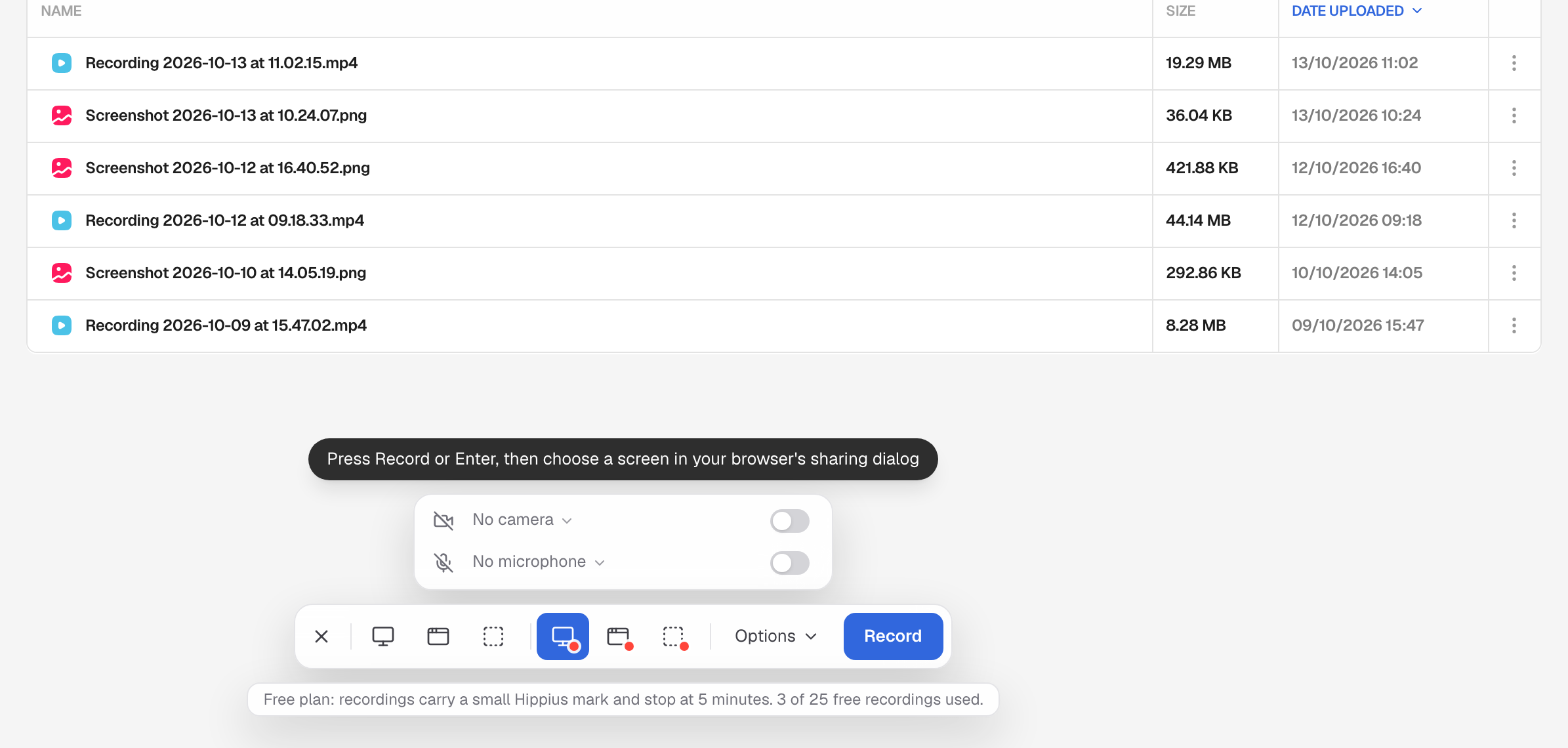
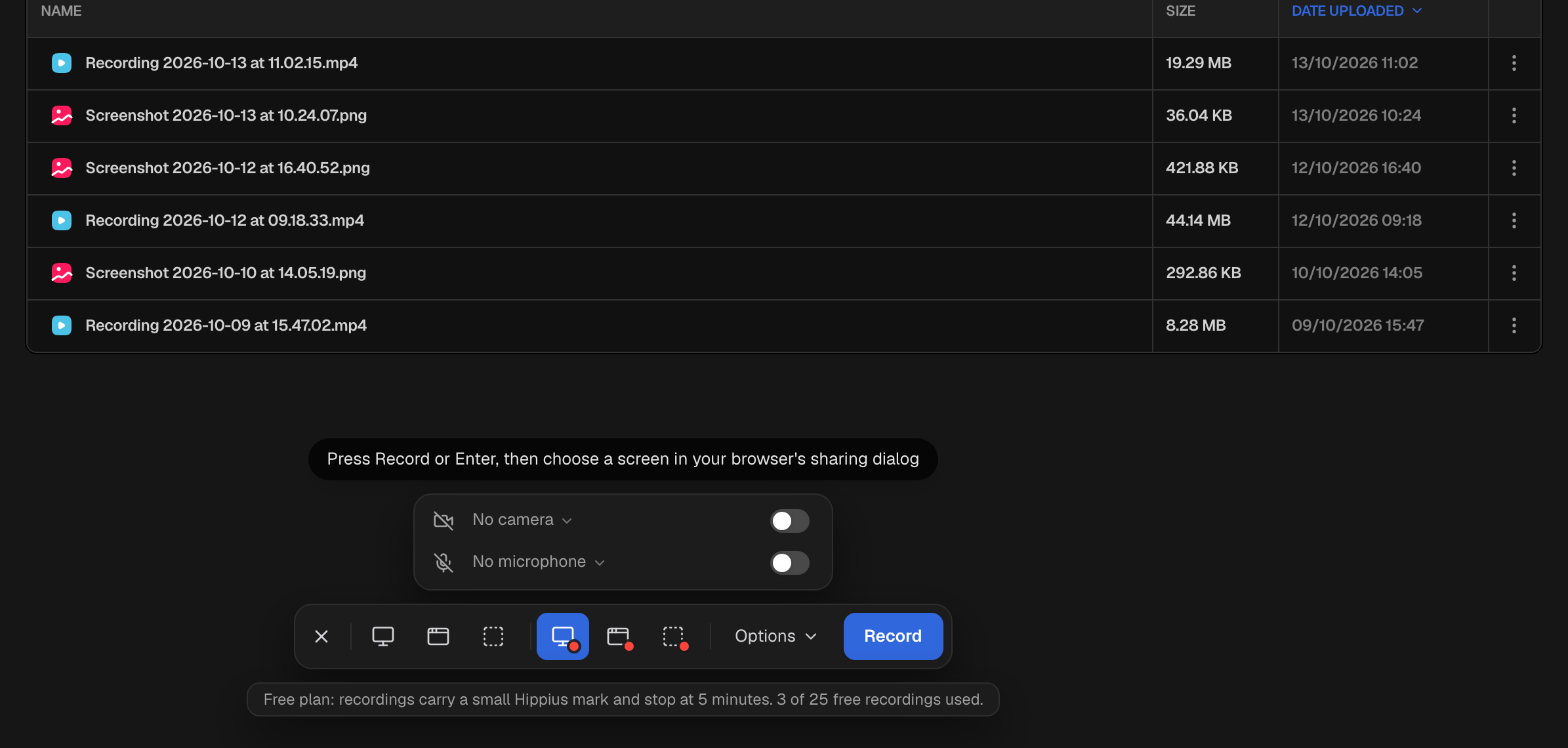
Under Options you'll find a few more:
- Recording countdown: none, 3 seconds (the default) or 5 seconds, so you have a moment to get ready after pressing Record.
- Record system audio (desktop) or Record tab or system sound (console): adds what your computer plays, such as a video or a call. It is off by default because with speakers your voice gets recorded twice. Headphones avoid that.
- Show mouse clicks, in the desktop app where your computer supports it.
The bar remembers your choices for next time.
Record
- Press Record (or Enter).
- Choose what to record. In the desktop app you click the screen or window, or drag the area, just as for a screenshot. In the console, and in the desktop app on Linux with Wayland, a sharing dialog asks which screen or window to record; for an area, you then drag it out on the screen you picked.
- The countdown runs. Start now skips it and Cancel stops before anything is recorded.
- Record what you need to.
While you record
A small set of controls stays on screen. Most are on every computer; a few, like switching microphones mid-recording, depend on what your computer allows.
- The timer, which also shows the time left in your last minute on the Free plan.
- Mute the microphone. The recording carries on, silent, until you unmute. You can also switch to another microphone.
- Hide or show the camera, and change its size: small, large or full size.
- Pause and resume. Paused time is left out of the video.
- Restart to throw this take away and start again. Hippius asks first.
- Stop to save the recording and make its link.
- Discard to throw it away with nothing saved. Hippius asks first.
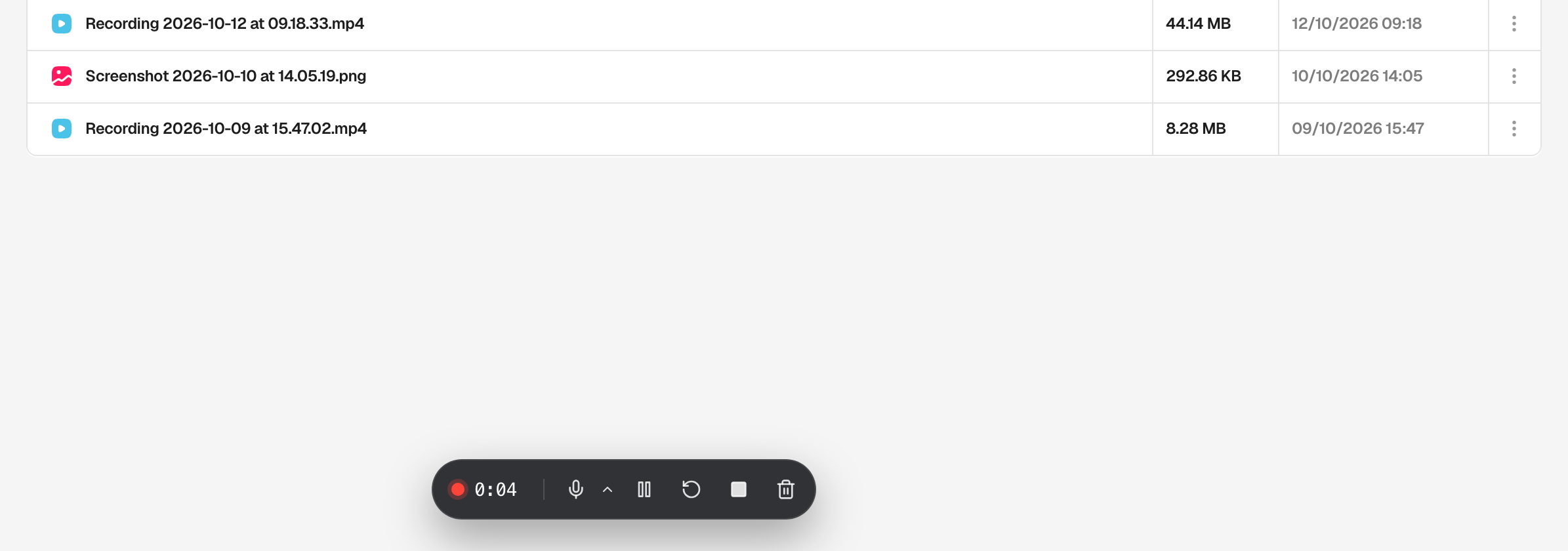
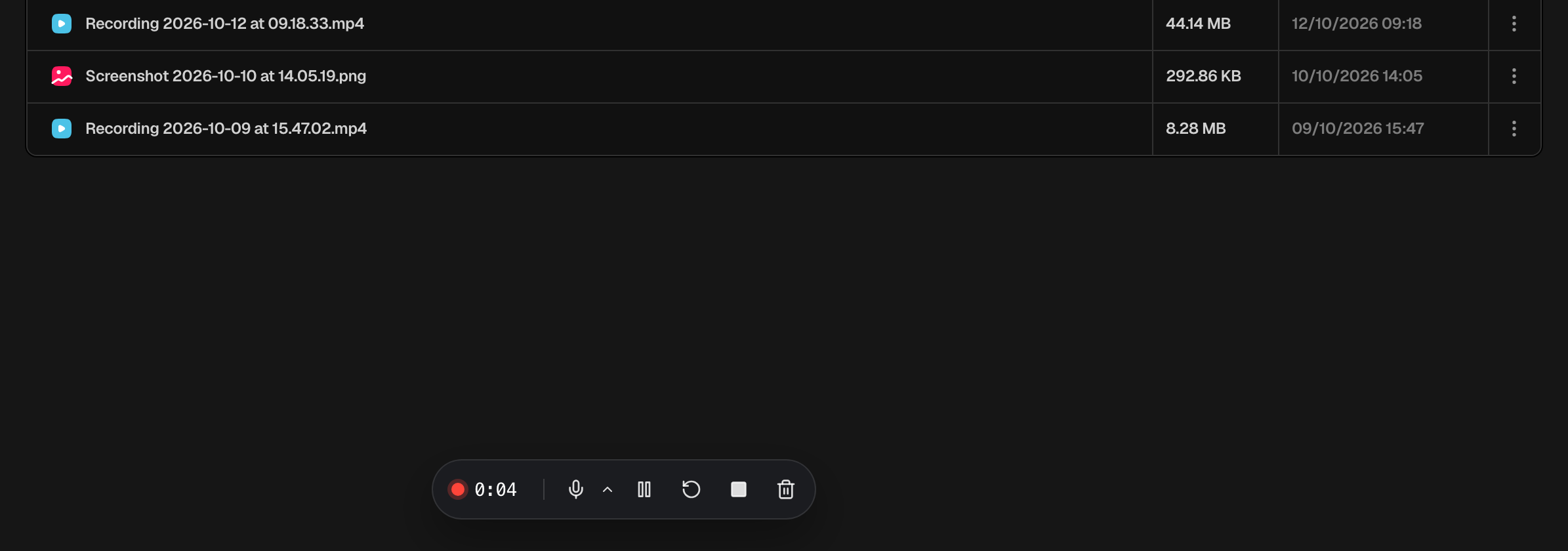
In the desktop app, pressing either capture shortcut while you record stops the recording, so you can finish without looking for the controls.
When you stop
The recording is saved and uploaded, and a card shows the progress until it says Link ready. The link is copied for you, and from the card you can copy it again, open it, show the recording in Captures, or manage the link. Recordings start playing straight away for the people you send them to; they don't have to download the whole video first.
The camera bubble
With the camera on, your face appears in a round bubble on top of the screen you're recording.
- With entire screen, the bubble floats above your other windows and is filmed wherever you put it. Drag it out of the way of what you're showing.
- With a window or an area in the console, Chrome and Edge draw the camera into the bottom-left corner of the video.
In the desktop app on a Mac, you can also point at the bubble while you record to change its size, or pause and resume right there.
Browser differences
Recording in the console works in every major browser on a computer, but browsers don't all give websites the same tools. Here's what changes:
| Chrome and Edge | Safari and Firefox | |
|---|---|---|
| Record entire screen or a window | Yes | Yes |
| Record an area | Yes | No, but screenshots of an area work |
| Camera with entire screen | Yes, a round bubble | Safari: yes, in a small floating video window. Firefox: no camera |
| Camera in window and area recordings | Yes, drawn into the video | No, the camera is only recorded with entire screen |
| Where the controls are | In a small floating window above all your apps | In the console tab |
In Chrome and Edge, the floating controls window shows the website's name at the top. That's the browser's doing, and a website can't hide it.
A Hippius browser extension is coming soon that removes both of these limits.
Free plan recordings
On the Free plan, a recording stops on its own at 5 minutes. In the last minute the timer shows how long you have left, and when it stops the recording is saved, uploaded and shared like any other, with an Upgrade button on the card if you need longer. The Free plan includes 25 recordings, and free recordings carry a small Hippius mark in the bottom-right corner. Paid plans have none of these limits. See Free and paid plans.