Getting Started
Introduction
The Hippius Console is the web dashboard for the Hippius distributed network. Open it at console.hippius.com in any modern desktop browser. From one place you can:
- Store, browse, and manage personal encrypted files with Drive.
- Create S3 compatible buckets and connect any S3 client.
- Top up credits with a card or with TAO to pay for storage.
Signing In
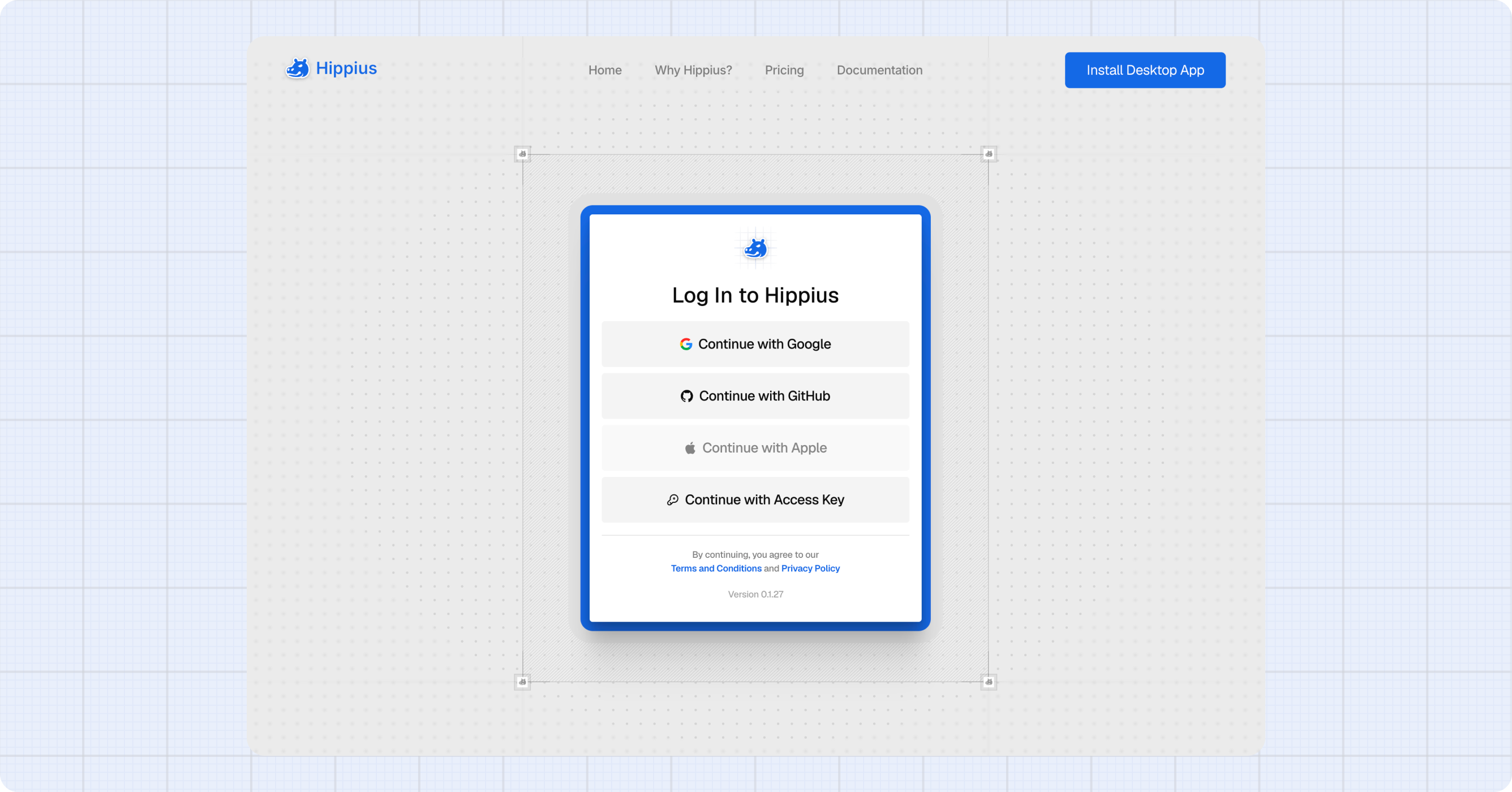
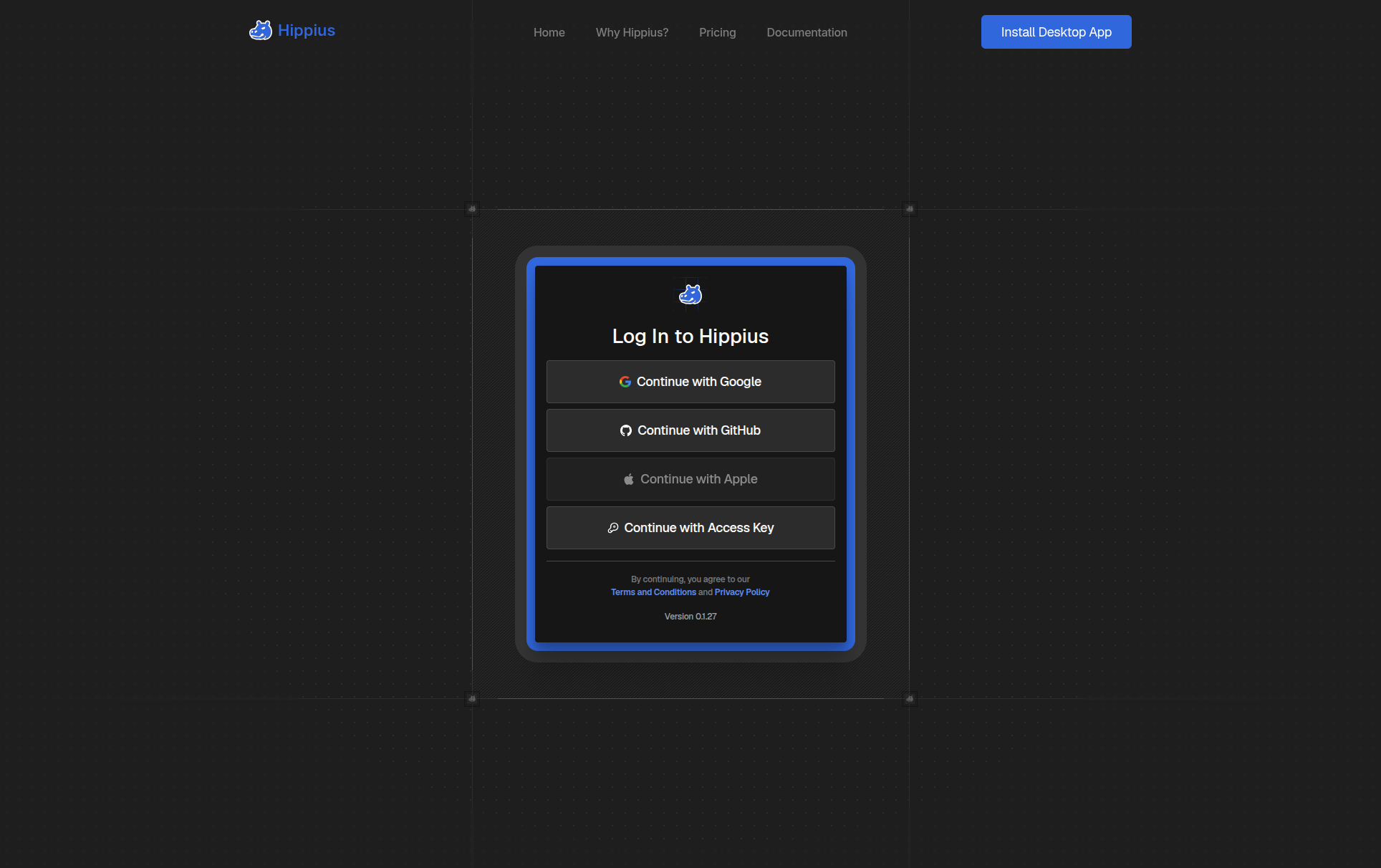
Go to console.hippius.com and choose how you want to sign in:
- Google, GitHub, or Apple: click the button and you'll be taken to that provider's login page, then brought back to the console automatically.
- Access Key: enter your 12-word recovery phrase and click Log In. Use the eye icon to show or hide the words as you type.
If this is your first time signing in, your account is created automatically. There is no separate sign up step.
Your console account and desktop app account are the same. Sign in with the same credentials and your Drive files will be there waiting for you.
Choose Your View
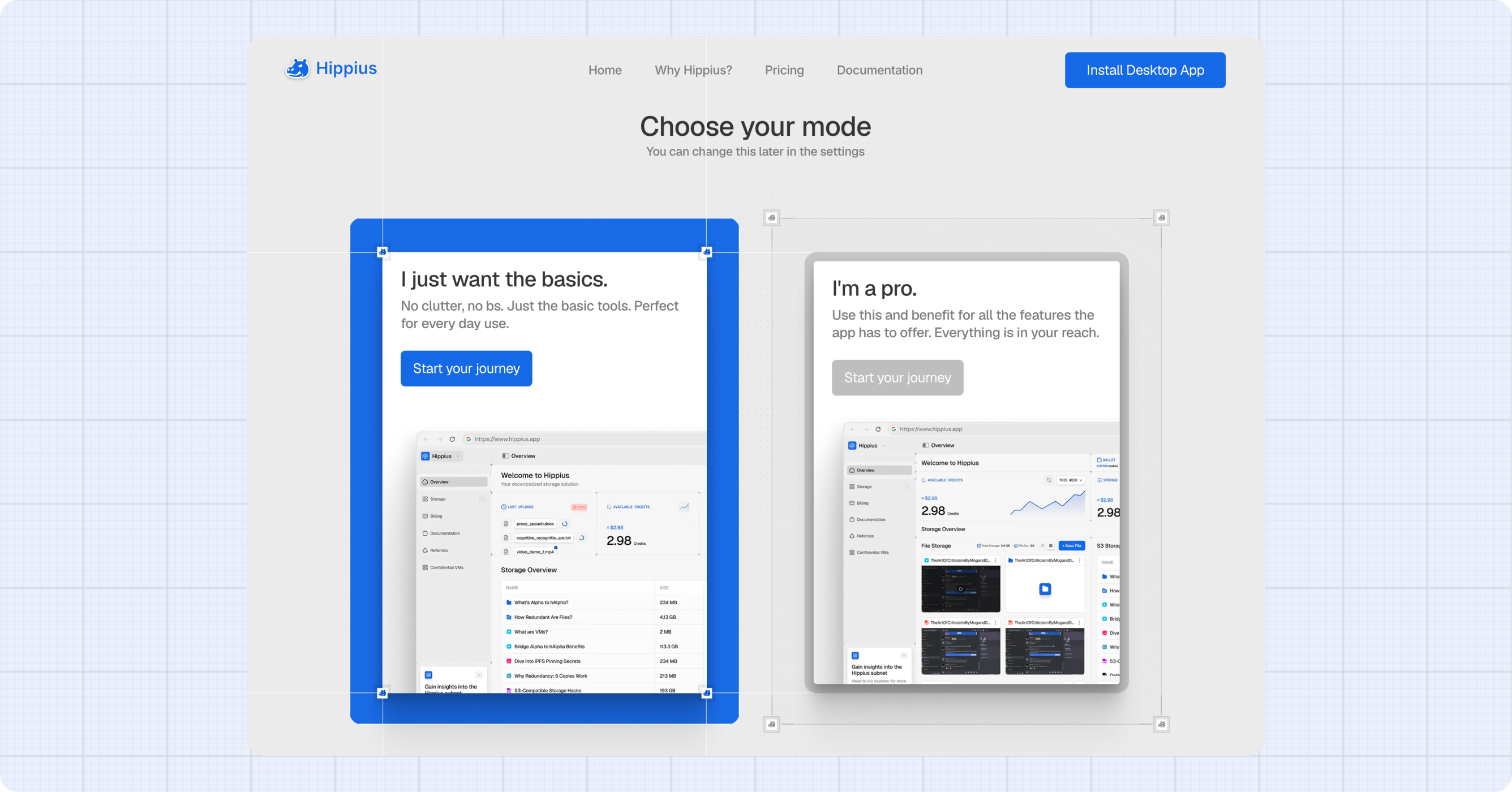
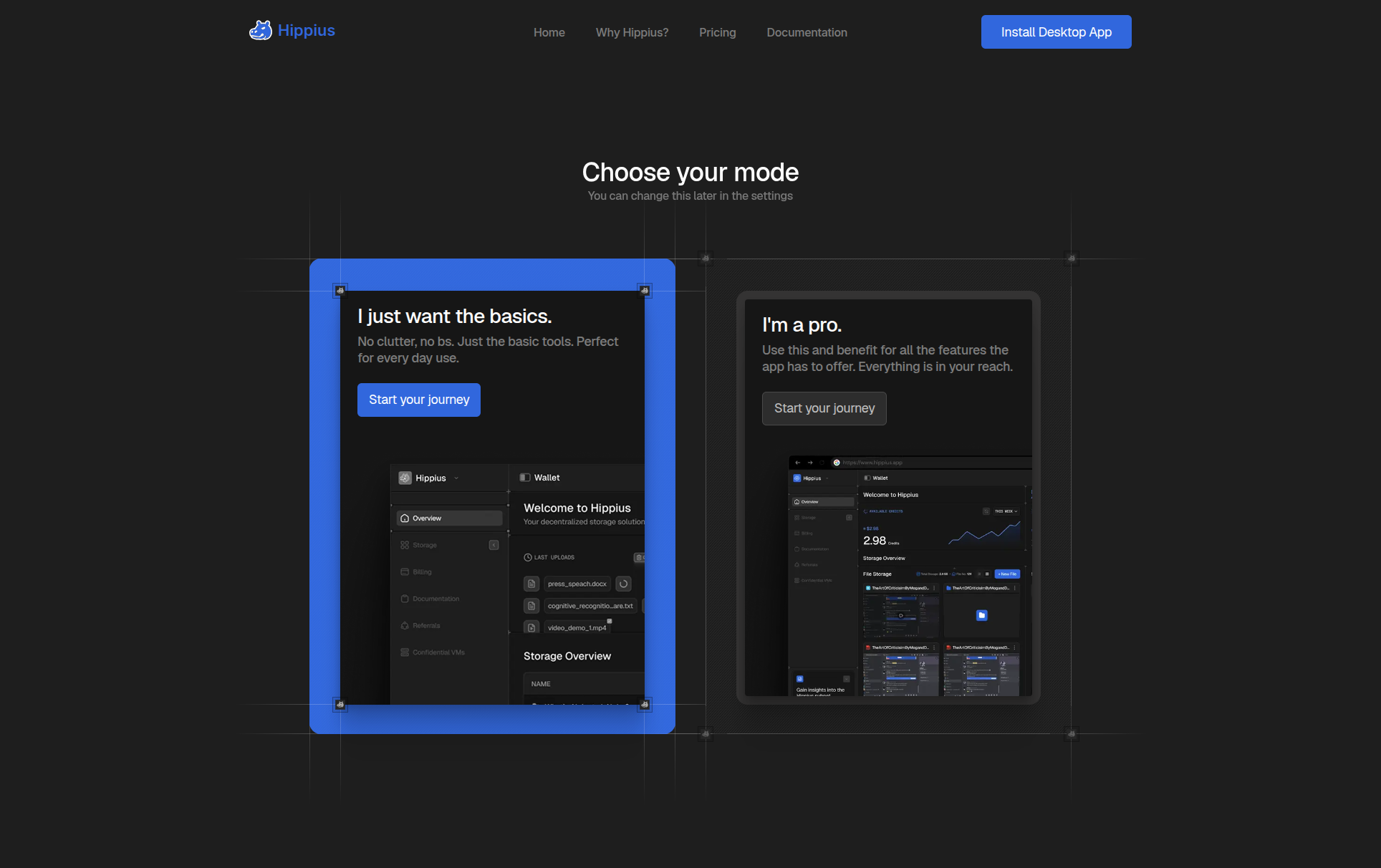
The first time you sign in, you'll be asked to pick a view for your dashboard.
Normal gives you a clean, focused dashboard. You'll see your most recent file uploads, your current credit balance, and your storage usage. It's ideal if you're just getting started or mainly use Hippius for personal file storage.
Pro expands the dashboard to show your Drive and S3 sections side by side, along with detailed storage and credit charts. It's the better choice if you're actively managing multiple services and want everything at a glance.
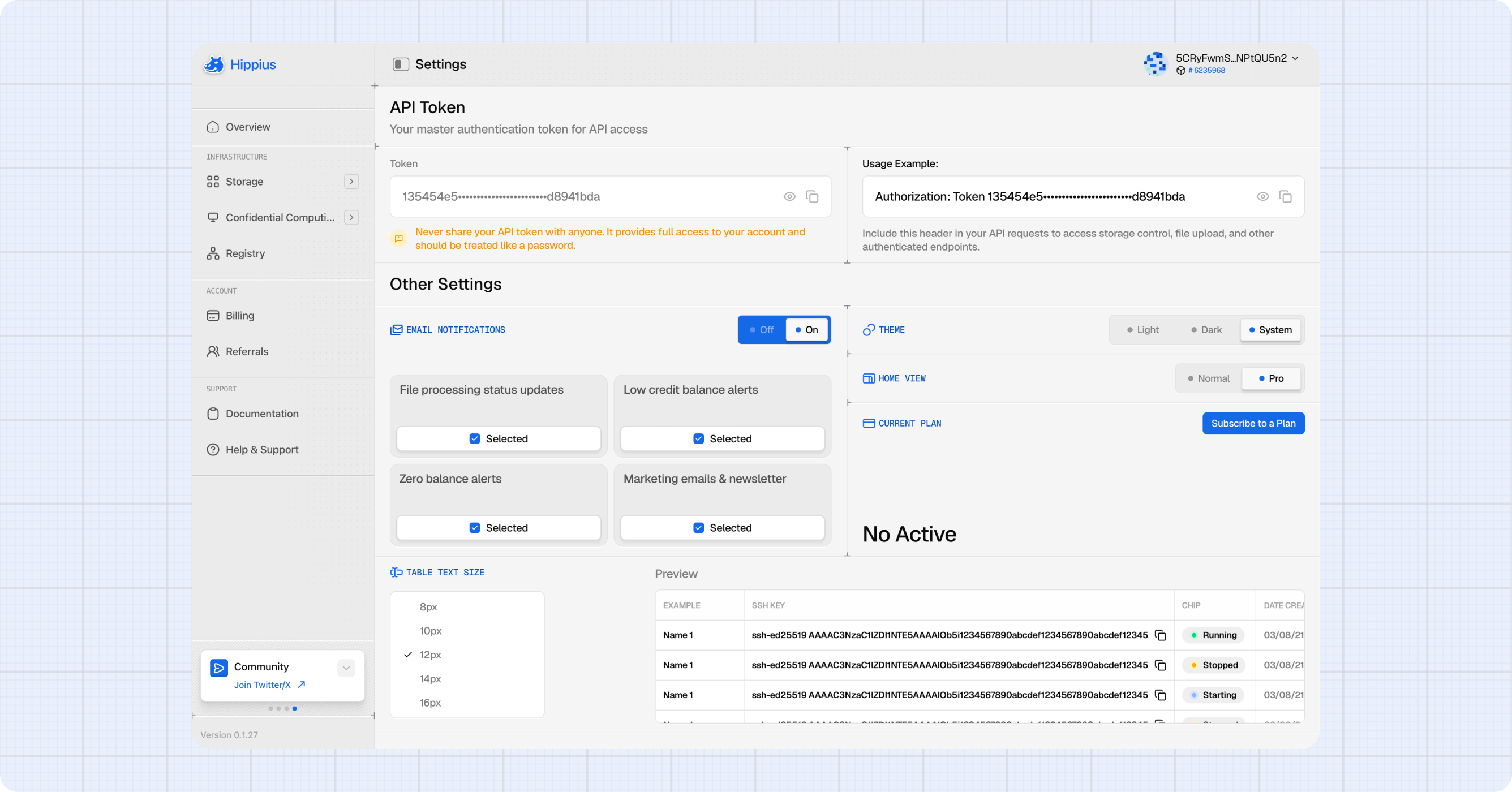
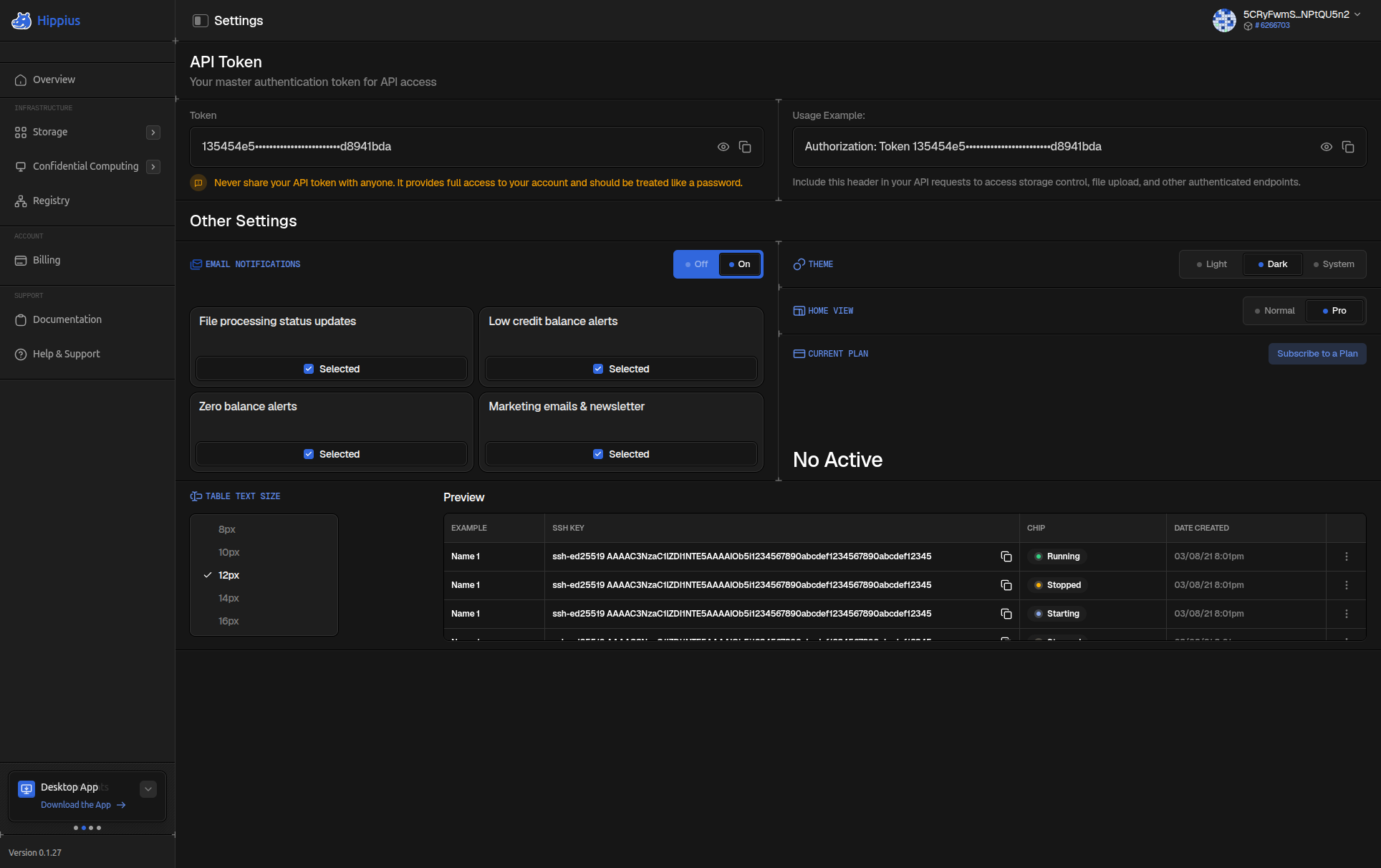
You can switch between Normal and Pro at any time from Settings.
Getting Around
The sidebar on the left is how you move between sections. It's organised into groups:
- Storage: Drive (personal encrypted files) and S3 Buckets.
- Billing: credits, top ups, and subscription plans.
- Help & Support: open a ticket with our team.
Theme
The console automatically follows your system's dark or light mode. If you'd prefer a different theme, you can override it at any time from Settings.
Where to next
- Overview: a tour of your dashboard home page.
- Billing: top up credits first. You'll need a balance to upload files or run VMs.
- Drive: upload and manage your personal encrypted files.
- S3 Buckets: set up S3 compatible storage and manage access tokens.