Shared Links
Introduction
Hippius lets you share any file from your Drive as a public download link. Recipients don't need a Hippius account. They just open the link in any browser and the file downloads directly to their device.
To share a file, go to Drive, open the menu on any file, and choose Share via link. Hippius creates a secure encrypted copy in your browser and generates a shareable URL.
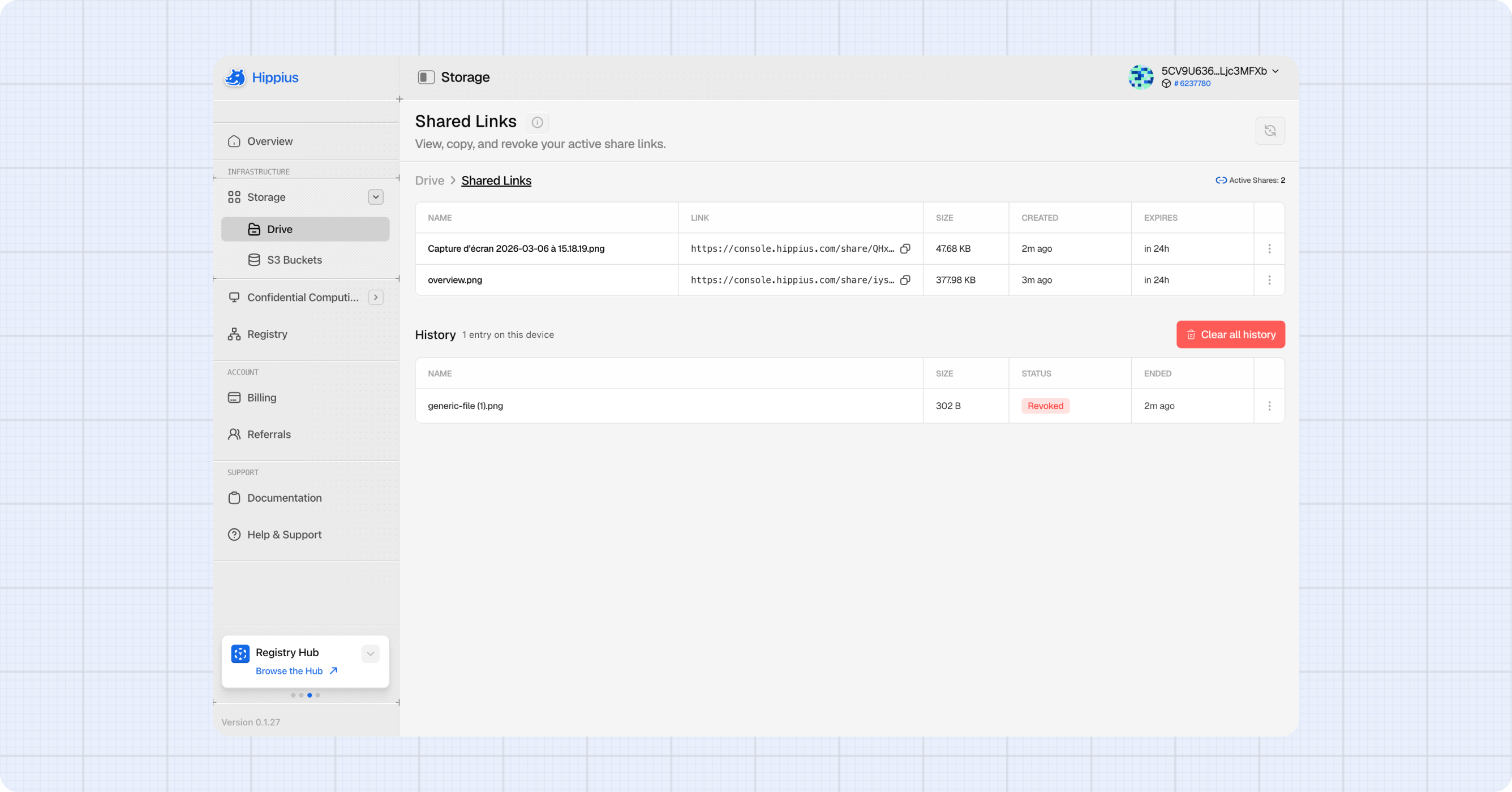
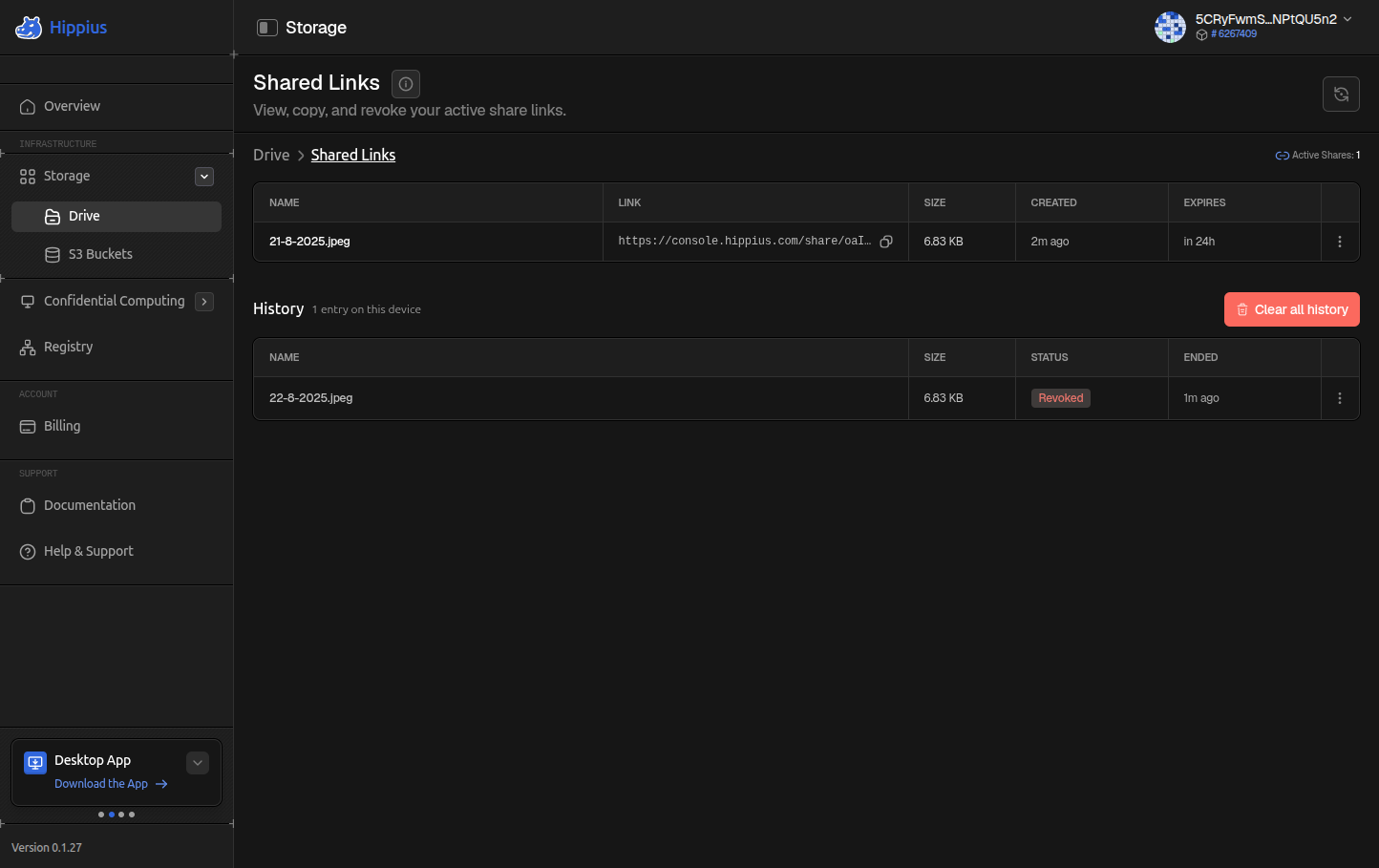
After sharing, all your active links are tracked on the Shared Links page, reached from the Drive header breadcrumb or from the sidebar at
How Sharing Works
Understanding the sharing process will help explain a few things you'll notice, like why sharing takes a moment and why you can only copy a link on the device where you created it.
Your files are encrypted with a key only you hold
Every file in your Drive is end to end encrypted. The Hippius network only ever stores an encrypted version of your data. It cannot read your files, and neither can anyone else. Only you can decrypt them, because only you have the key.
Sharing requires creating a fresh encrypted copy
Here's the challenge: your folder key is private to you. If you just handed someone a link to your encrypted file, they would have no way to decrypt it. They don't have your key.
So instead, when you share a file, the console runs a three step process entirely inside your browser:
- Download and Decrypt: Your browser fetches the encrypted file from Drive and decrypts it using your folder key. This happens entirely on your device and is never sent to any server in plaintext.
- Encrypt with a fresh key: A brand new random key is generated, unique to this one share. Your browser encrypts the file again using that new share key. Your original folder key stays private and is never exposed.
- Upload: The newly encrypted copy is uploaded to Hippius as a separate object. This is the copy that recipients will download.
The share key is embedded in the recipient URL after the # symbol. Browsers never send the # part of a URL to servers, so it stays entirely in the recipient's browser. Hippius servers store the encrypted file but never see the key that decrypts it.
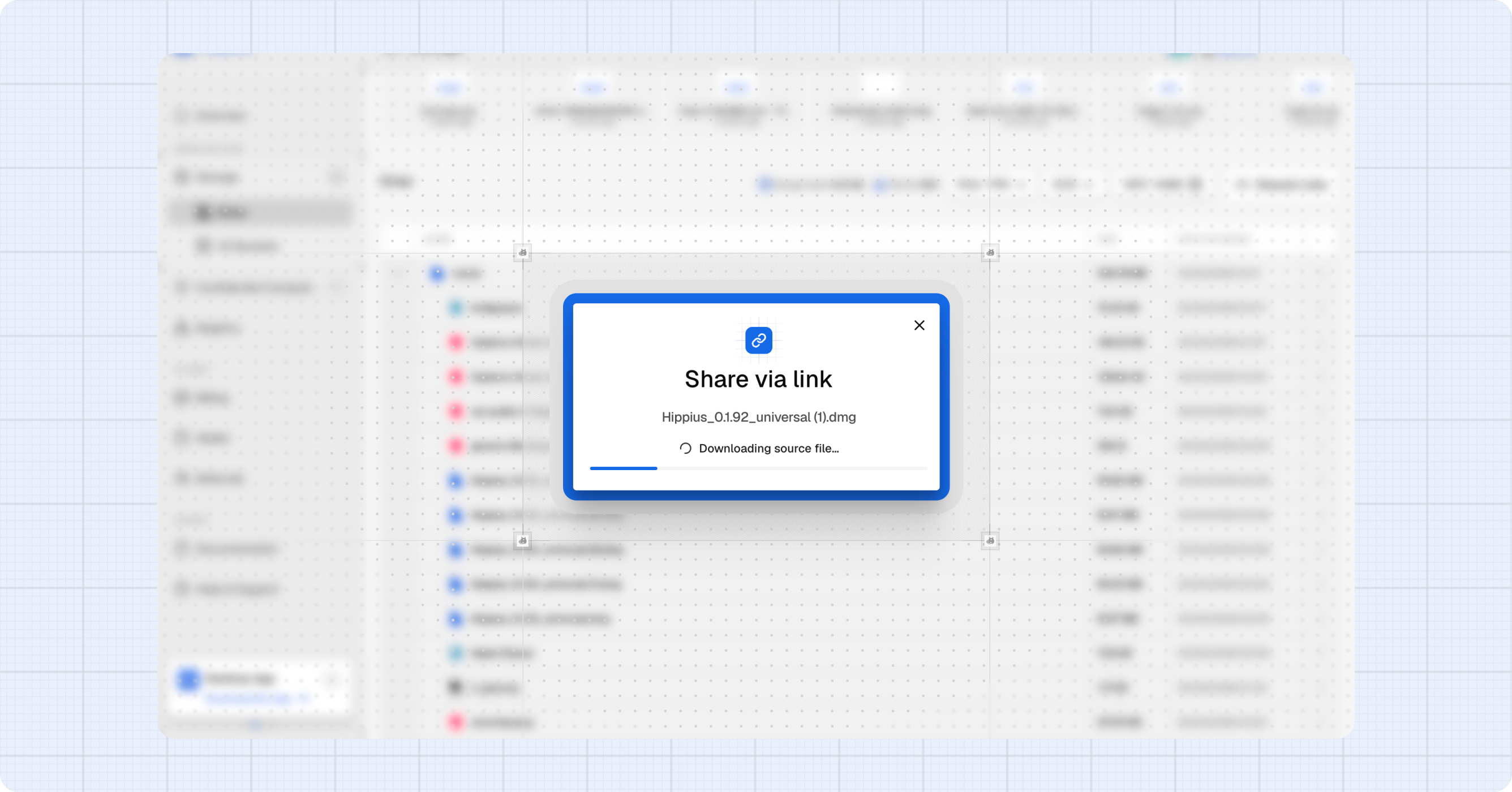
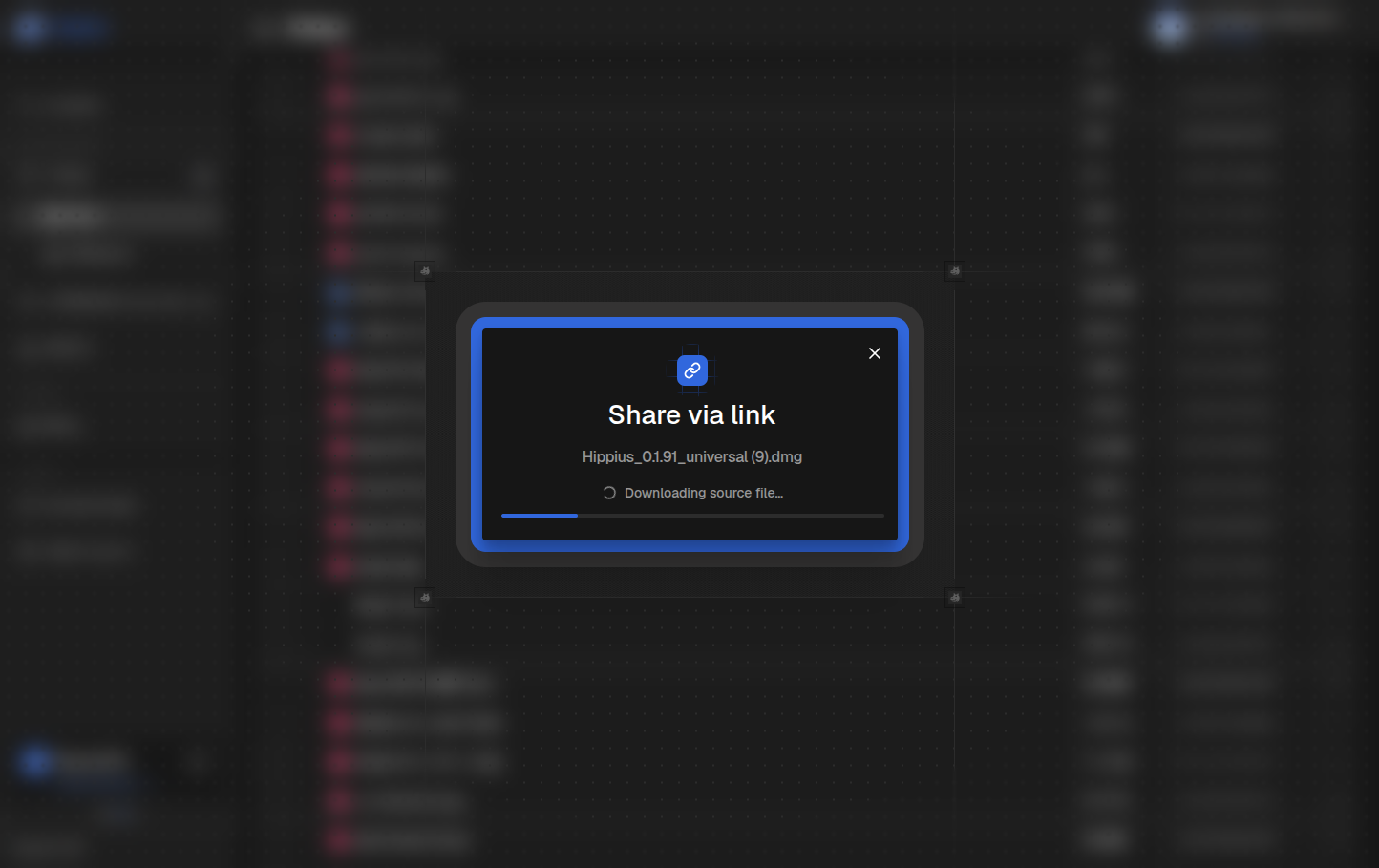
The download, decrypt, encrypt, and upload steps run each time you create a share. For larger files this takes longer. A progress indicator in the share dialog shows you which step is running.
What this means in practice
- The server holds an encrypted copy. It cannot read the file and does not know the key.
- The recipient's browser decrypts the file locally. Nothing is decrypted on the server.
- Revoking a share deletes the encrypted copy and frees the storage immediately.
- Each share is independent. Revoking one share of a file doesn't affect any other share of the same file.
Before You Share
A few things need to be in place before you can create a share:
- Your session must be unlocked. Sharing requires your folder key, which is only available after you've entered your unlock password in the current session. If the console asks for your password, enter it and then retry.
- You need room in your Drive plan. Creating a share uploads a new encrypted copy of the file, so it needs storage like any other upload.
- The file must be in Drive. Shared Links only works for files stored in your Hippius Drive.
Creating a Share
You create share links from within the Drive file browser, not from the Shared Links page itself.
- Go to Drive and navigate to the file you want to share.
- Click the three dot action menu on the file row and choose Share via link.
- Choose when the link should expire, and optionally require a password. Both are described below.
- The share dialog runs the download, decrypt, encrypt, and upload steps automatically. A progress bar shows the current step.
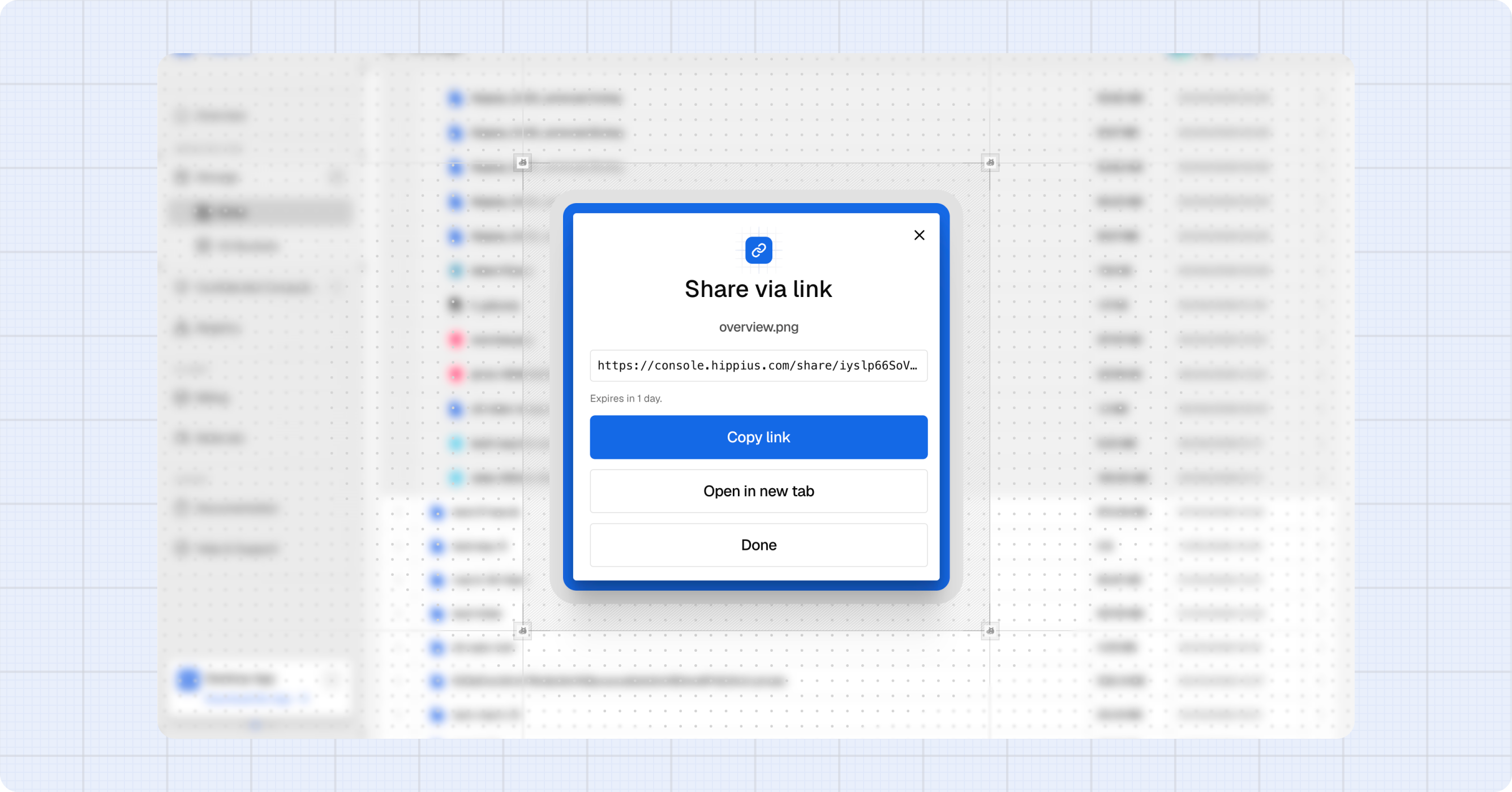
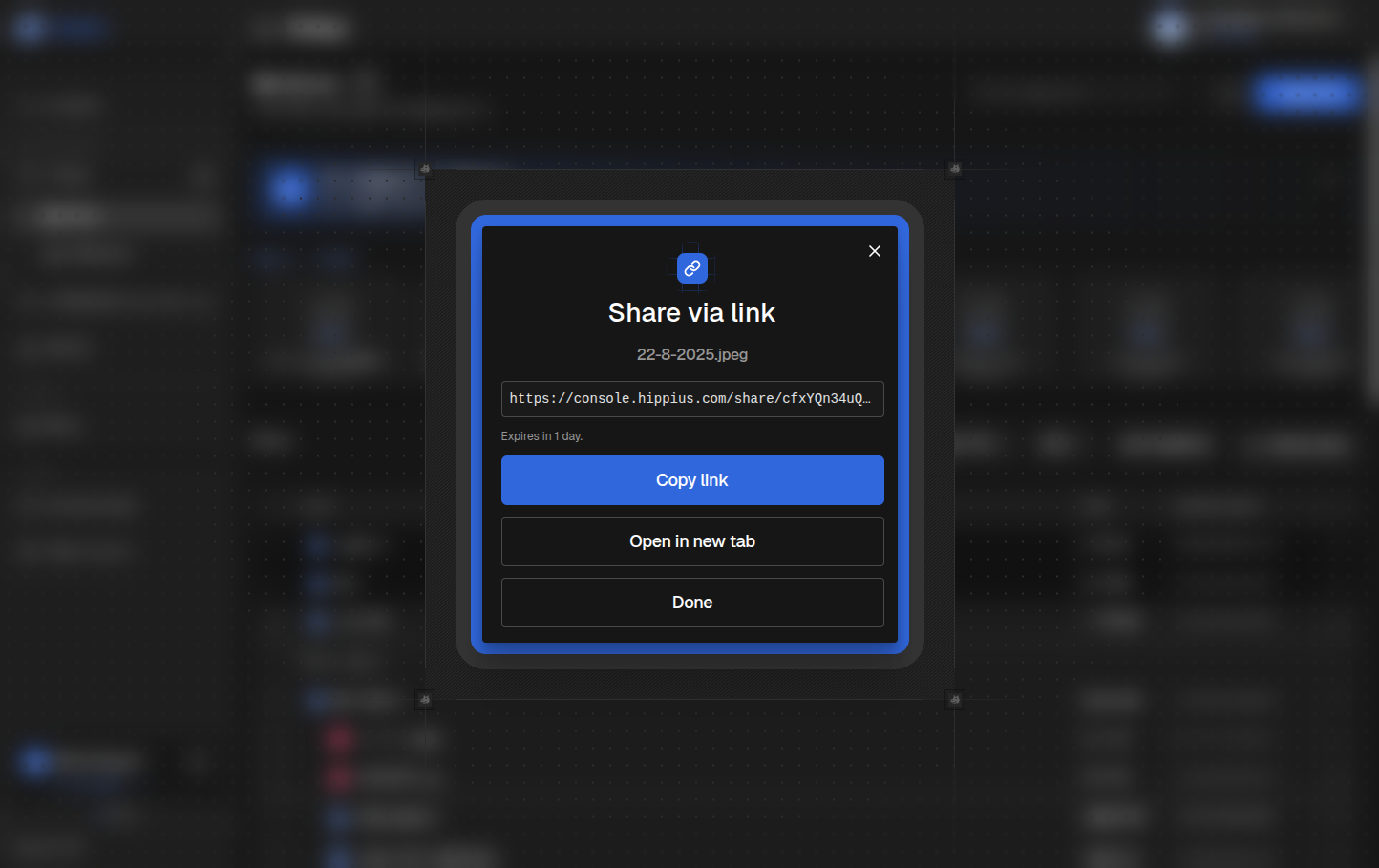
- When complete, the share URL is shown and copied to your clipboard automatically.
- Click Copy link if you need to copy it again, then close the dialog.
The link is live immediately. Anyone you send it to can open it right away.
Choosing an expiry
Every link gets an expiry, chosen before you create it:
| Option | The link stops working |
|---|---|
| 24 hours | One day after you create it. |
| 7 days | One week after you create it. |
| 30 days | One month after you create it. |
| Until I revoke it | Never on its own. It stays live until you revoke it. |
There is no silent default. The dialog asks, because a link that quietly expired in a day was the behaviour people found surprising.
Requiring a password
Tick Require a password to lock the link. Recipients are asked for the password before they see anything, and it must be at least 8 characters.
The password is shown in plain text while you set it, on purpose. It is a password you have to read off the screen and pass on, not one you are typing in, so hiding it would only make it harder to do the one thing it is for.
Send it through a different channel to the link itself. It cannot be recovered or changed later. If you lose it, revoke the share and create a new one.
Sharing a Folder
You can share an entire folder, not just one file. Open the action menu on a folder row and choose Share via link. The expiry and password options are the same as for a file.
A folder share behaves differently to a file share in one important way:
Recipients always see the folder's current contents. Add a file to the folder tomorrow and everyone holding the link can see it. Remove one and it disappears for them too. If you want to share a fixed set of files, share them individually instead.
What the recipient gets
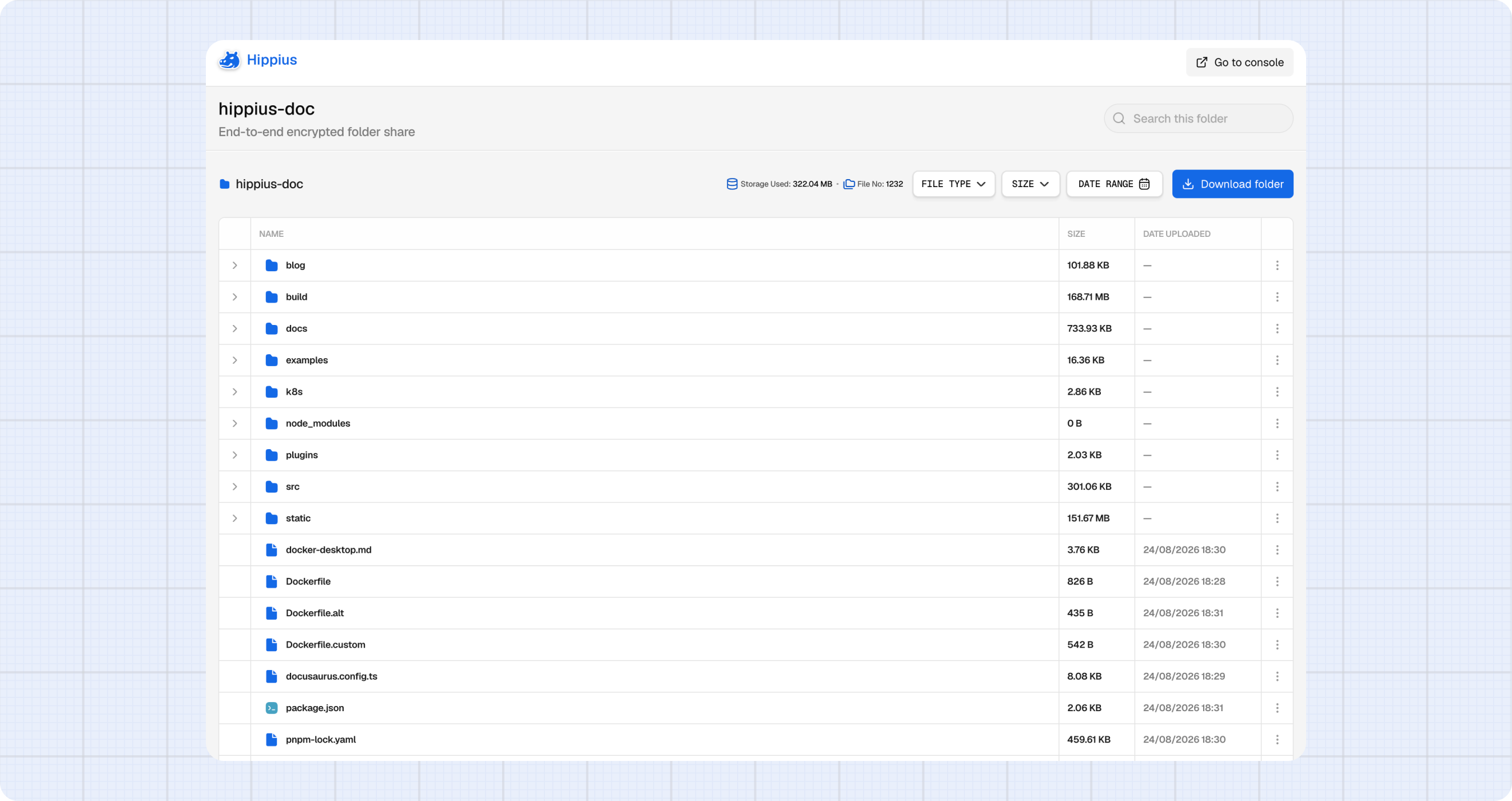
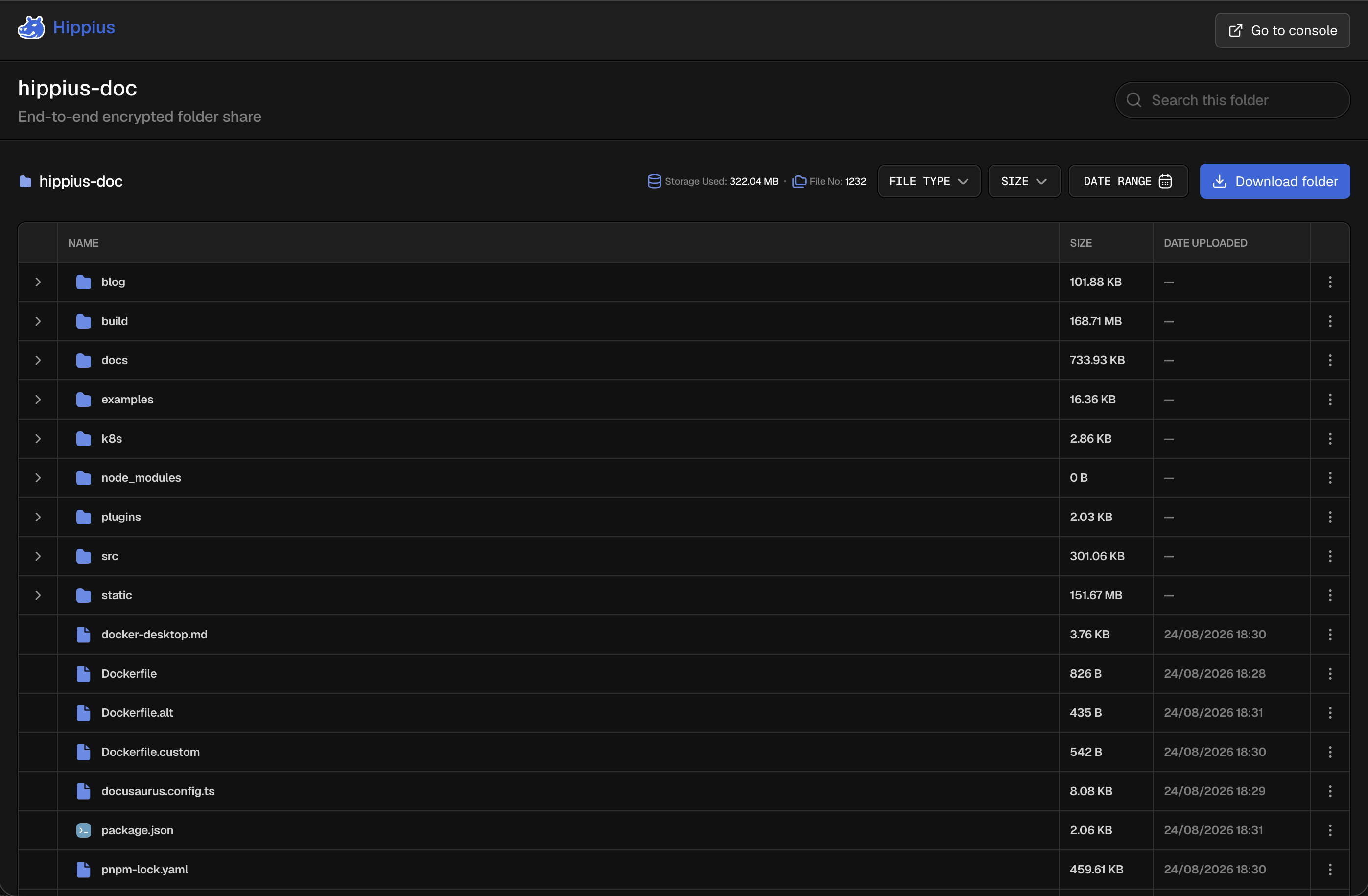
Someone opening a folder link can:
- Browse the folder and its subfolders, with a breadcrumb to move back up.
- Search the folder by file name.
- Preview individual files, with the same formats listed on the Drive page.
- Download any single file.
- Download the whole folder as a zip, using Download folder.
The zip is built in the recipient's own browser, so nothing is assembled on our servers. It can be cancelled while it runs, and browsing stays usable while it packs.
They do not need a Hippius account for any of this.
Active Shares
The Active Shares table shows every share currently live on your account. It refreshes automatically every 30 seconds.
The table includes shares created from any device or the desktop app, not just this browser. This means you might see shares here that you created elsewhere.
If a share was created on a different device or browser, the filename shows as <created on another device>, as the share key needed to decrypt it isn't available here.
Copy link
Click the three dot menu on any row and choose Copy link to copy the full share URL to your clipboard.
The link can only be copied on the device where you created it. The share URL includes the encryption key in the # fragment. That key lives only in memory in the browser session where you created the share. If you close the tab, reload the page, or switch to a different device, the key is gone, so Copy link will be disabled for that row.
A tooltip on the disabled action explains: "Link is only available on the device where the share was created."
This is by design. If you need to share a link again from a different device, you can revoke the existing share and create a new one.
After creating a share, copy the URL straight away and save it somewhere you can access it. Once you close or reload the tab, you won't be able to copy the link again from this browser.
Revoke
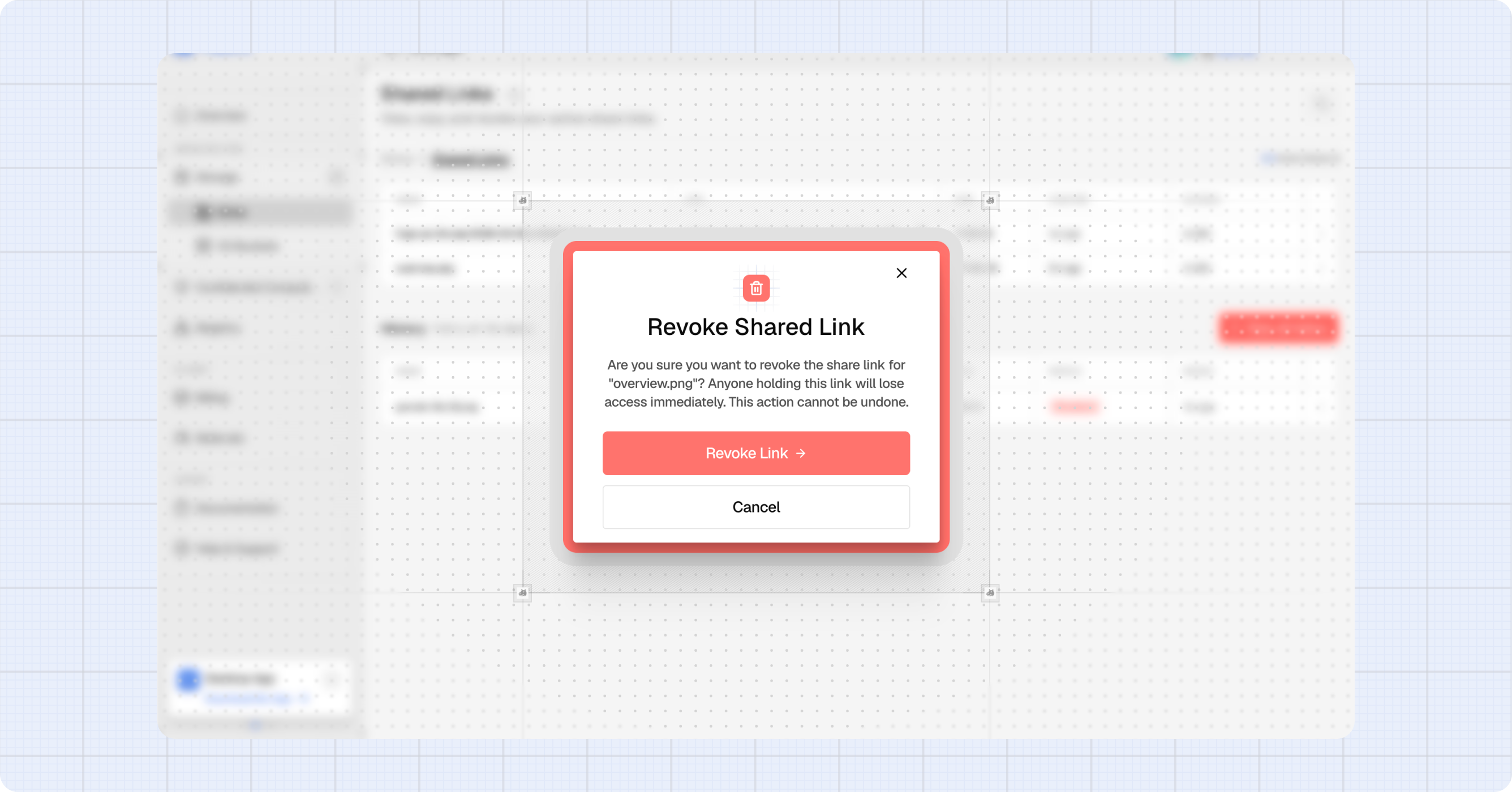
Click the three dot menu on any row and choose Revoke to permanently invalidate a share link.
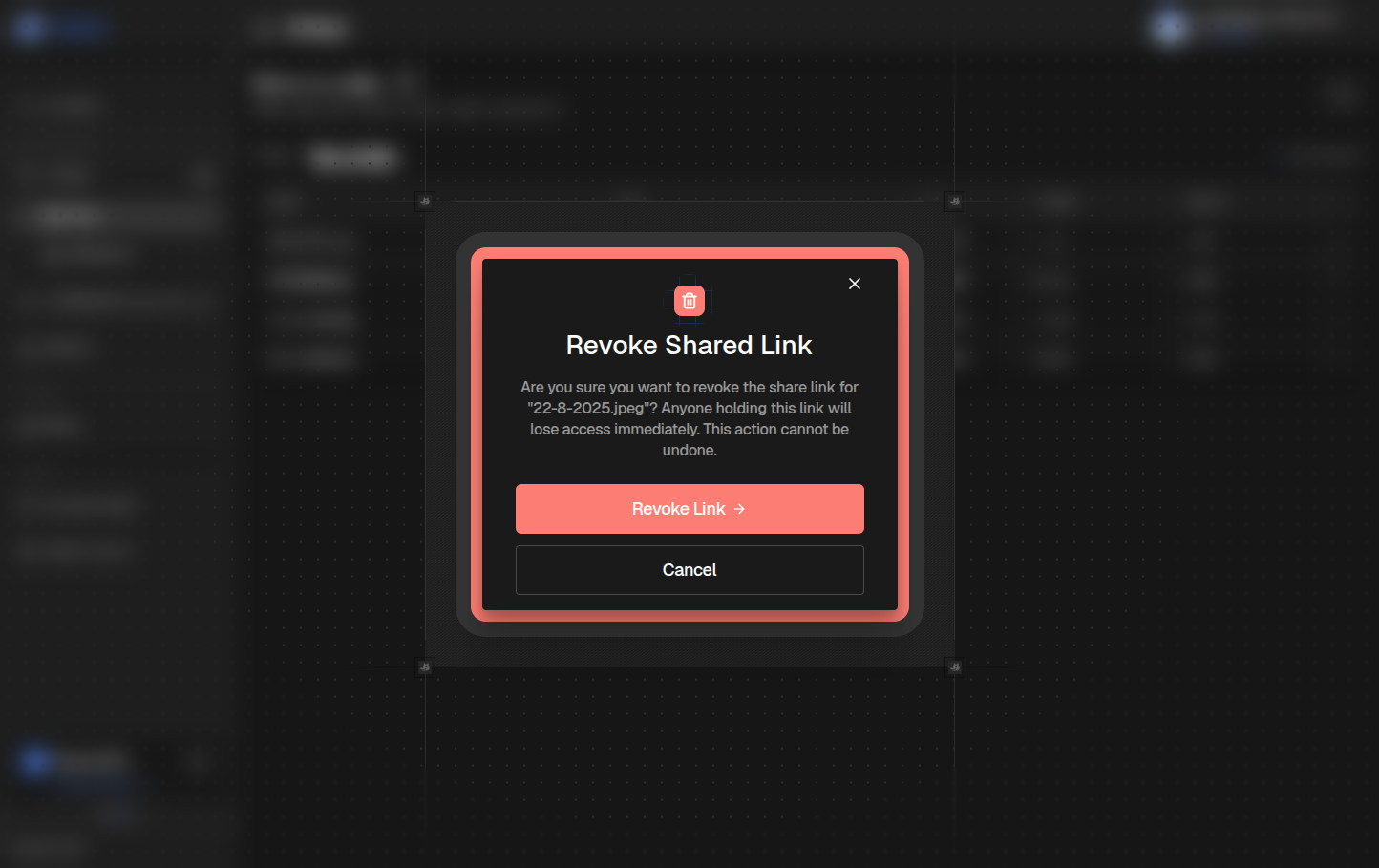
A confirmation dialog will ask you to confirm before anything happens. When you revoke:
- The link stops working for anyone immediately, with no grace period.
- The encrypted copy stored on Hippius is deleted, freeing the storage.
- The row moves to the History section with a "Revoked" status.
- This cannot be undone. If you want to share the file again, create a new share.
Anyone holding the link loses access the moment you confirm. There is no way to restore a revoked link.
Share History
The History section appears below the Active Shares table once there is at least one ended share recorded on this device.
What gets recorded
Every time the active shares list refreshes, the console compares the new list against what was there before. Any share that disappeared gets added to history with a reason:
| How it ended | What gets recorded |
|---|---|
| Its expiry time passed | Added as Expired |
| It disappeared while still in date | Added as Revoked elsewhere (another device or the desktop app revoked it) |
| You clicked Revoke on this device | Added as Revoked immediately, before the next poll |
Status badges
| Badge | Meaning |
|---|---|
| Revoked | You pressed Revoke on this device. |
| Revoked elsewhere | The share was revoked from another device or the desktop app. |
| Expired | The server's expiry time elapsed. |
Removing individual entries
Click the three dot menu on any history row and choose Remove from history to delete that entry from your local history. This only affects what you see here, the share is already ended so nothing changes on the server.
Clear all history
Click Clear all history at the top of the History section to remove all entries at once. A confirmation dialog appears first.
What Recipients See
When someone opens your share link, they land on a simple page in their browser and no account is needed. What they see depends on the file:
- Images, videos, and PDFs up to 100 MB preview inline, full-page, so the recipient can view the file without downloading it.
- Documents preview inline too: Word documents (DOCX), presentations (PPTX), spreadsheets (XLSX, CSV), HTML, plain text, JSON, and Markdown.
- Everything else, and any file too large to preview, shows a download card with the filename, the file size, and how much time is left before the link expires.
A Download option is always available. The file is streamed directly to the recipient's device, decrypted entirely in their browser. We never see the file in plaintext on the recipient's end either.
If the link has been revoked or has expired, recipients see: "This link has expired or been revoked." The page deliberately does not say which, which prevents anyone from guessing whether a link was ever valid.
Storage Usage
Every active share stores a separate encrypted copy of your file on the Hippius network. This copy:
- Counts against your storage quota for as long as the share is active.
- Is independent of your Drive copy, using a different key and living in a different location on the network, unaffected by any changes to your original file.
- Is freed automatically when you revoke it or when it expires.
If you share the same file multiple times, each share is a separate encrypted copy with its own key and its own storage cost.
Each active share consumes storage quota. If you shared a file temporarily, say to send to a colleague, revoke it when you're done to reclaim the space.
Console vs Desktop App
The desktop app also has a Shared Links page with a few extra capabilities:
| Feature | Console | Desktop App |
|---|---|---|
| Create a share | ✅ Yes | ✅ Yes |
| Share a folder | ✅ Yes | ✅ Yes |
| Share from Finder | ❌ Not available | ✅ macOS only |
| Choose an expiry | ✅ 24h, 7d, 30d, or until revoked | ✅ Same options |
| Password-protected link | ✅ Yes | ✅ Yes, in the app and from Finder |
| Change the expiry later | ✅ Folder shares, from the session that created them | Uses Reshare instead |
| How it reads the file | Downloads and decrypts the Drive copy | Reads the local plaintext file directly from disk |
| Copy link (same session) | ✅ Yes | ✅ Yes |
| Copy link after reload | ❌ No, key is lost when you close or reload the tab | ✅ Yes, key is saved to a local database |
| Revoke | ✅ Works from any device | ✅ Works from any device |
| History | ✅ Yes | ✅ Yes |
Why the desktop app can copy links after a reload: The desktop app saves each share's key to a local SQLite database. The console holds the key only in memory, so when you close or reload the tab it's gone.
Changing an expiry. For a folder share, open its action menu on the Shared Links page and choose Change expiry. This works only in the session that created the share, because changing it needs the share token, which is held in memory there and nowhere else. A share created on another device shows the option greyed out, with a tooltip saying where to go.
For a file share there is no expiry change. The desktop app's Reshare covers that case by revoking the old share and creating a fresh one for the same file, with a new key, a new link and a fresh expiry. That needs the original local file, so it only works on the device that created the share.
Limits
| Limit | Value |
|---|---|
| Max shareable file size | 5 GB |
| Link expiry | Your choice of 24 hours, 7 days, 30 days, or until you revoke it |
| Share password | Optional, at least 8 characters |
Where to next
- Drive: browse, upload, and manage your encrypted files. This is where you create share links.
- Desktop Shared Links: the desktop version with reshare support and persistent link copying.
- Billing: check your Drive plan has room before sharing large files.