Insights, Comments and Reactions
You sent a recording to your team. Did anyone watch it? Did they get to the part that matters? Insights answer that. For each share link you can see how many times it was opened and by how many people, and for a recording, how much of it each person watched and where people stopped.
The people you send a link to can also leave comments and react with an emoji, right under the screenshot or video. Their comments are end-to-end encrypted, so only people who have the link can read them. Not even Hippius can.
Insights, comments and reactions work for any file you share by link. For screenshots and recordings on a paid plan, they're switched on for you.
Insights, comments and reactions are live in the console. In the desktop app they arrive in version 0.6.16, which you can use now on the beta channel and which comes to everyone with the next release. Everything on this page about the desktop app, including link emails and the Free plan defaults, applies from that version.
Open a link's Insights
Insights open in a panel on the right, so the list you were looking at stays in view. In Captures, click Insights next to a capture that has a link (in the console, View insights is in the capture's row menu). You can also open them from the link's row in Shared Links, from the card right after a capture (in its More menu in the desktop app, right on the card in the console), and from any email about your link, which takes you straight there in the console.
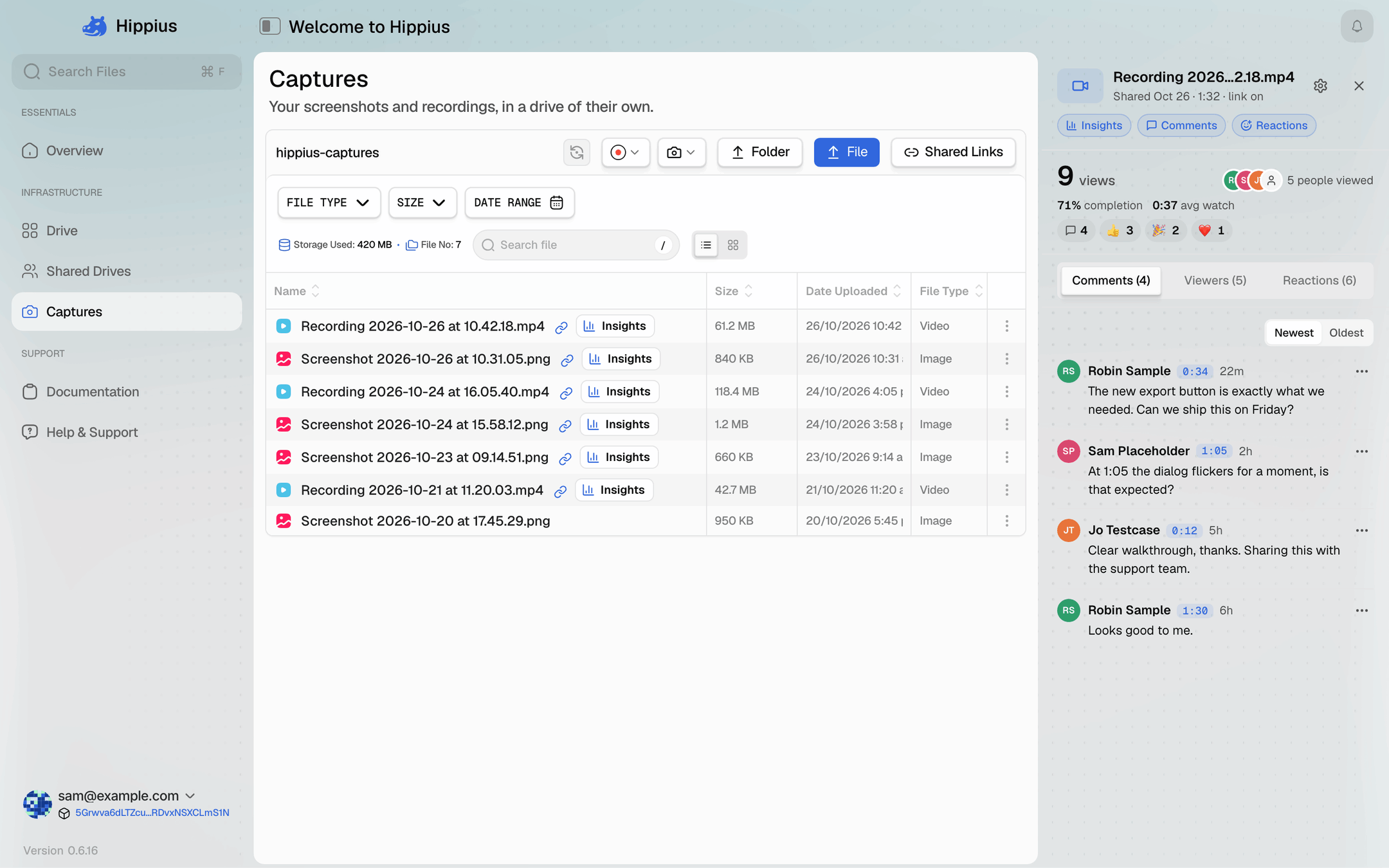
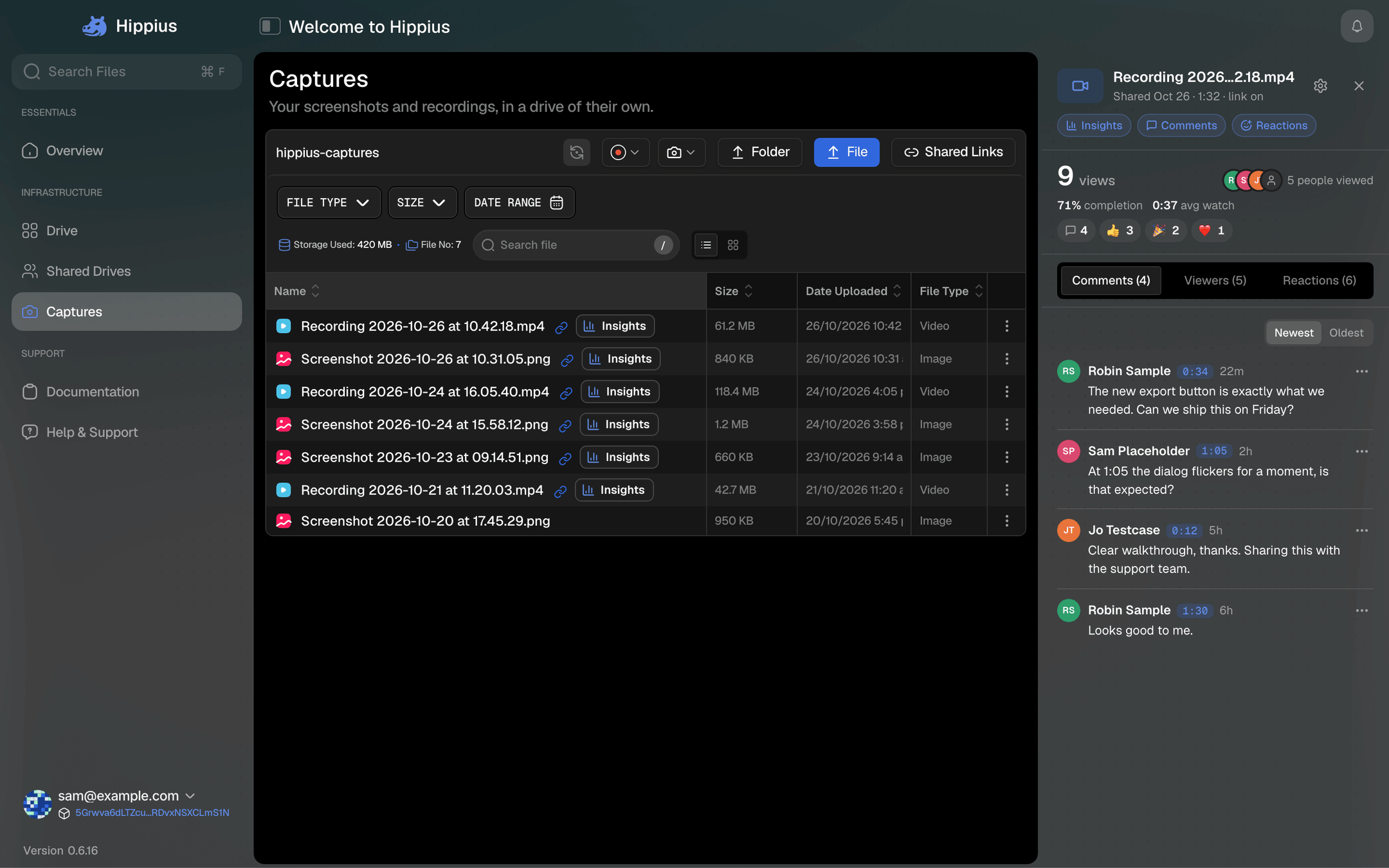
The panel shows the headline numbers first (views, people and how much they watched), then the comments, viewers and reactions. The desktop app gives each of those its own tab, so a link with dozens of comments stays easy to read, and the console stacks them in one column.
What the numbers mean
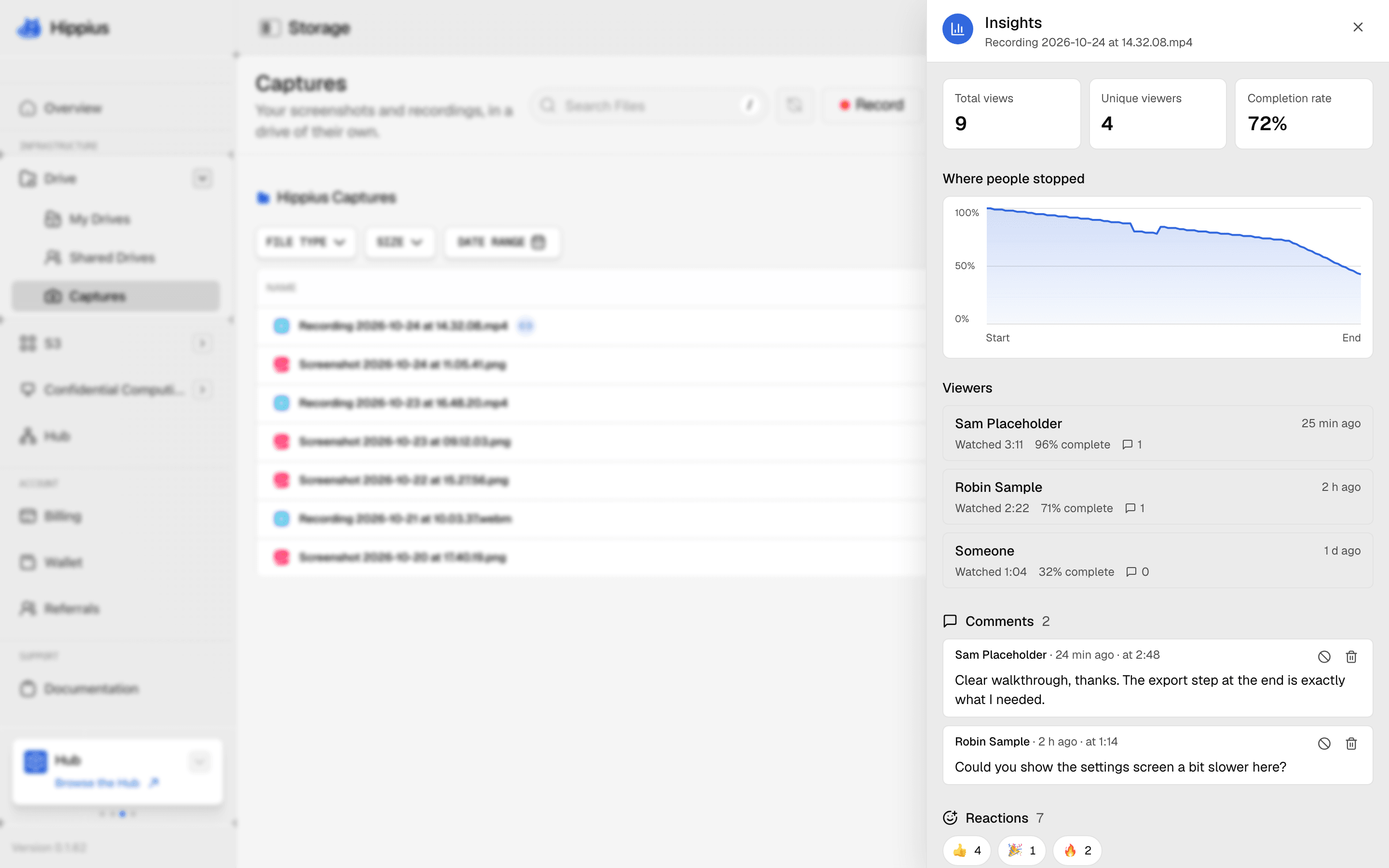
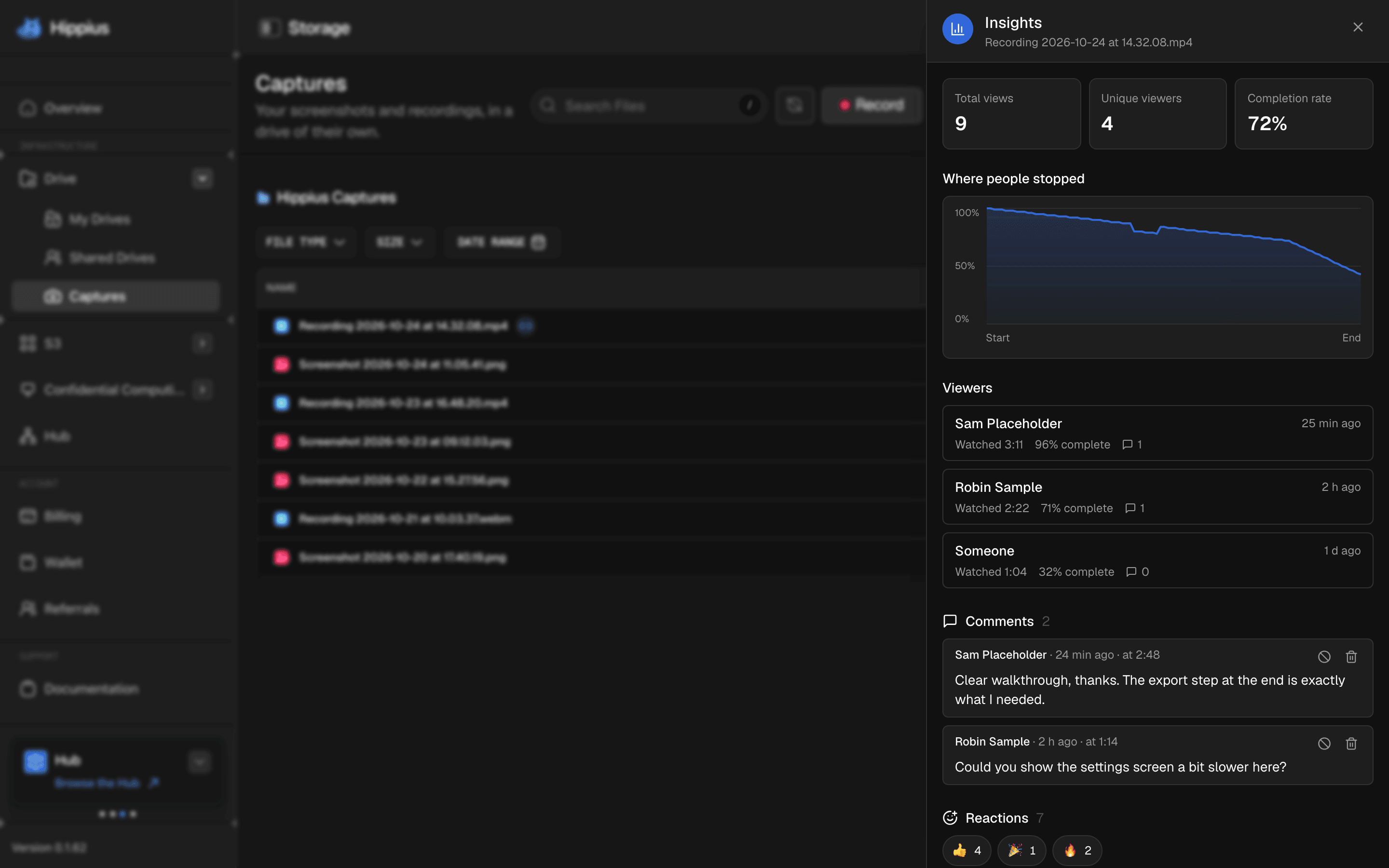
- Views: every time the file was opened from the link. Your own visits don't count.
- Unique viewers: different browsers that opened it. The same person on their phone and their laptop counts twice.
- Completion: for each view of a recording, how much of the video was played, averaged over all views. Skipped parts don't count, and parts watched twice count once.
- Average watch time: how long people watched, on average.
- Where people stopped: a chart that shows, for each moment of the recording, how many views reached it. A sharp drop tells you where people lost interest or found what they needed. In the desktop app, each commenter appears on the chart at the moment they commented on.
- Viewers: everyone who watched, with how much they watched and when. People appear as Anonymous viewer (in the desktop app) or Someone (in the console) unless they commented under a name.
Screenshots and other pictures get views and viewers, but no completion or chart, since there is nothing to play.
Comments and reactions
When comments are on, people who open your link see a comment box under the screenshot or video and can read what others wrote. Anyone with the link can read the comments, and posting one needs a Hippius account. Reactions work the same way: anyone can see them, and reacting needs an account.
A comment on a recording shows the moment in the video it was written at, so you know which part someone is talking about.
You stay in charge of what appears under your link. From a comment's menu in Insights you can delete it for everyone, or block its author from commenting and reacting on this link. Their earlier comments stay until you delete them.
Choose what each link collects
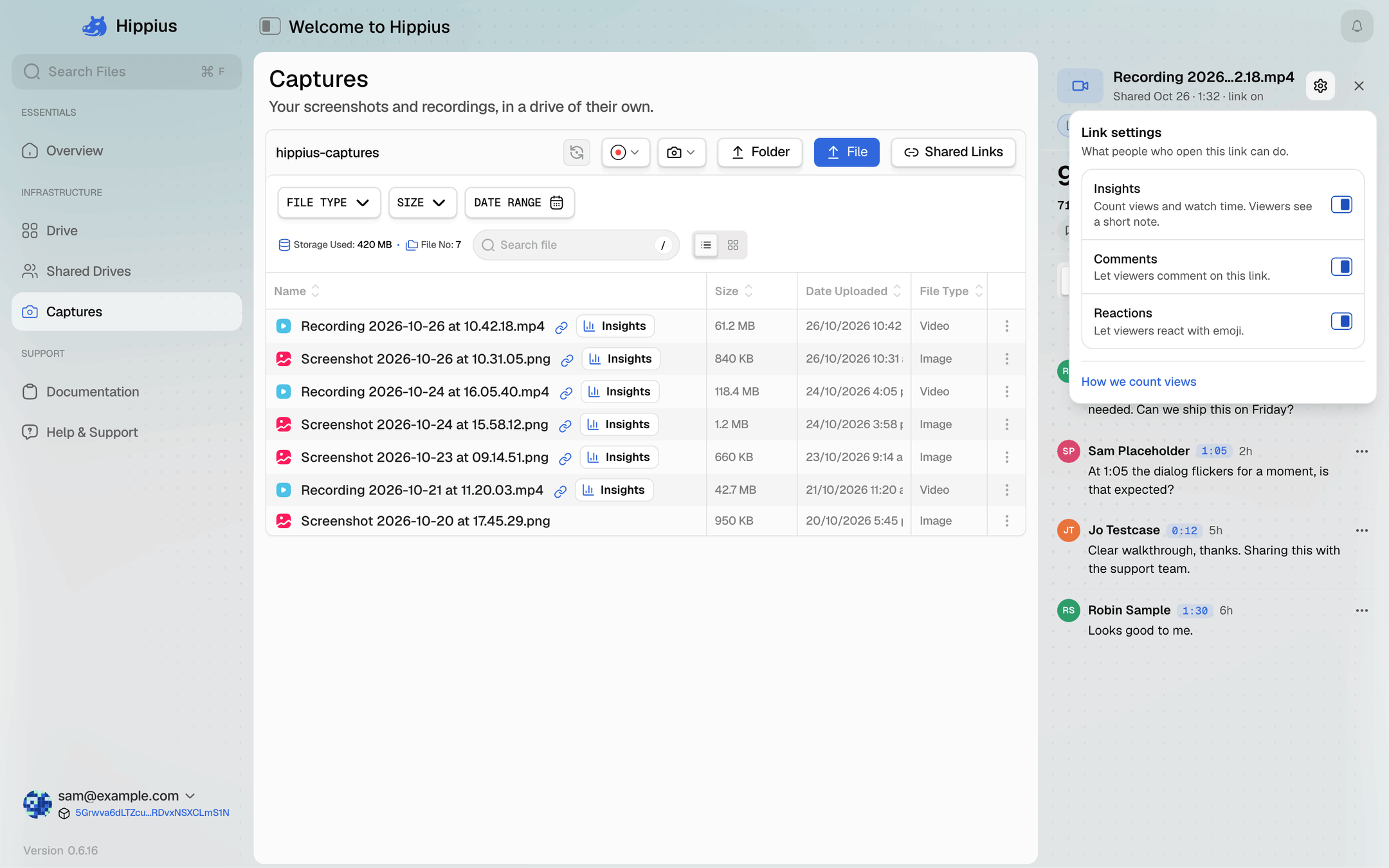
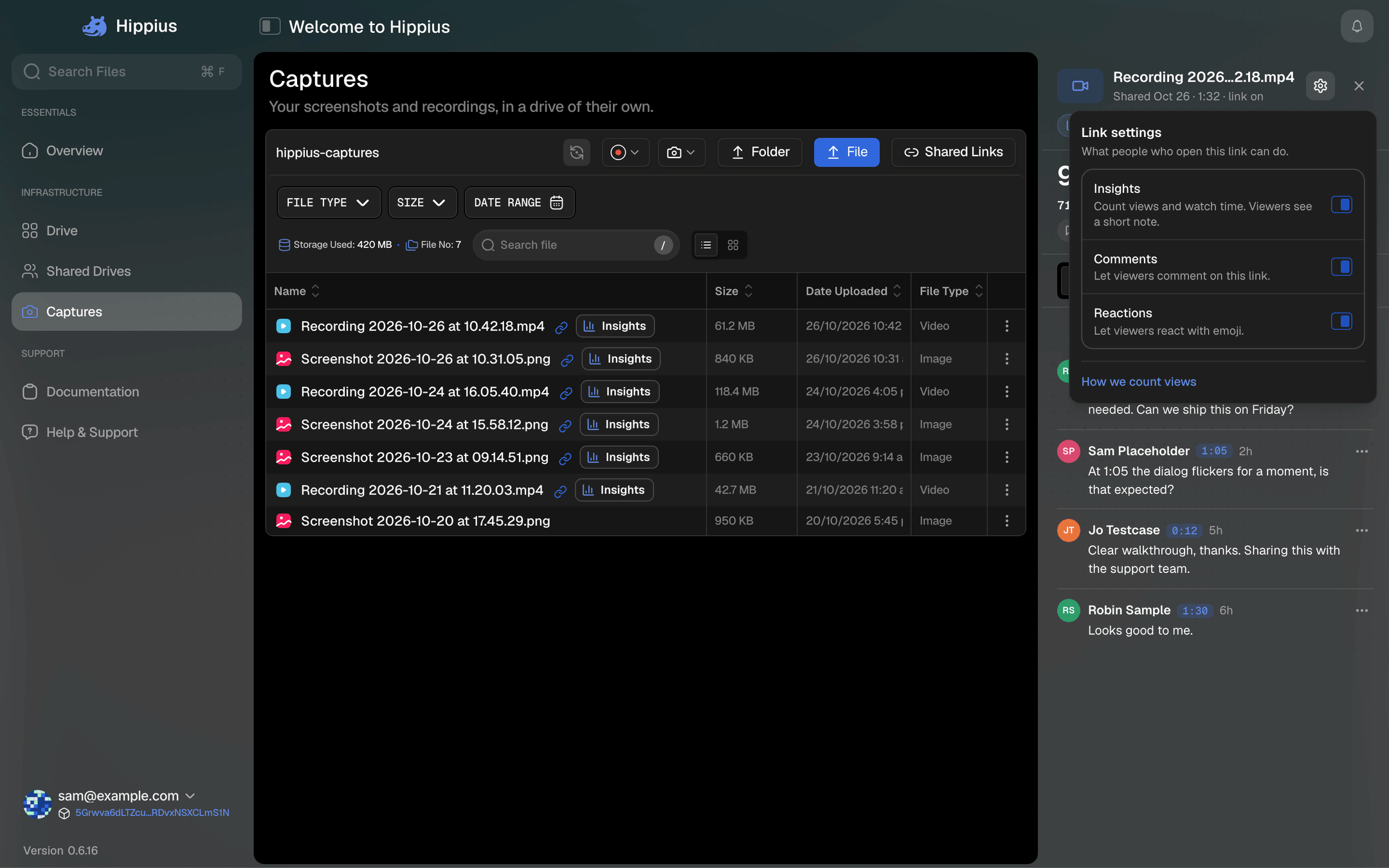
Each link has three switches: Insights (counting views and watch time), Comments and Reactions. When Insights is on, people who open the link see a short note saying you can see how many people viewed it.
You'll find them in the share dialog when you make a link, and later in the link's Insights: behind the gear at the top of the panel in the desktop app, or under Link settings in the console. Changes apply straight away. Turning one off stops new views, comments or reactions from being added, and what was already collected stays in your Insights.
Where the switches start
| Desktop app | Console | |
|---|---|---|
| Screenshots and recordings, paid plan | On | On |
| Screenshots and recordings, Free plan | Off | On, for now |
| Other files, any plan | Off | Off |
On the Free plan in the desktop app, turning a switch on shows an upgrade prompt. Links that already have one on keep it, and you can always turn it off. In both apps, Insights on the Free plan show how many views a link has had and by how many people; completion, the chart and the viewer list come with paid plans. The console will start matching the desktop app's Free plan defaults soon.
In the desktop app, Track views, comments and reactions in Settings, Screenshots & Recording decides where the switches start for your captures.
Emails about your links
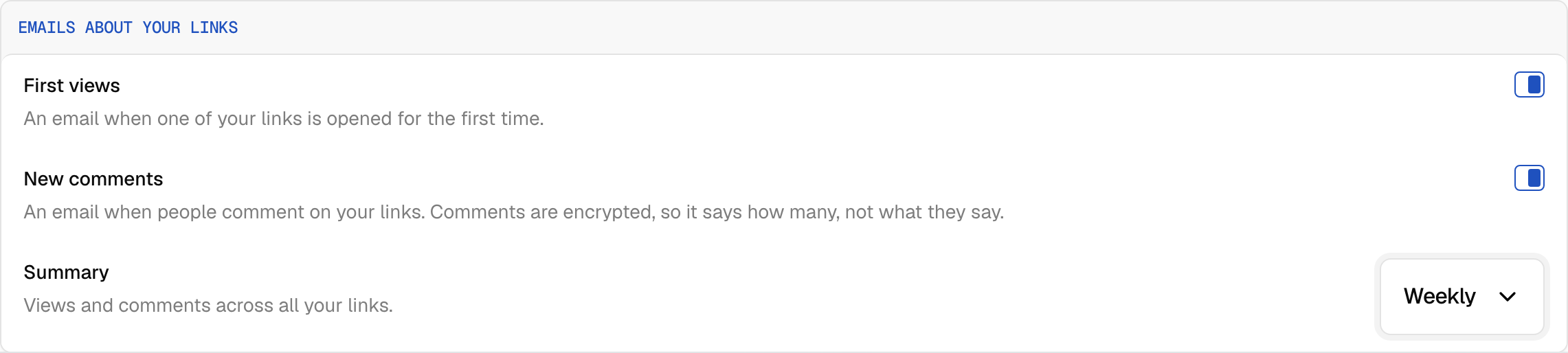
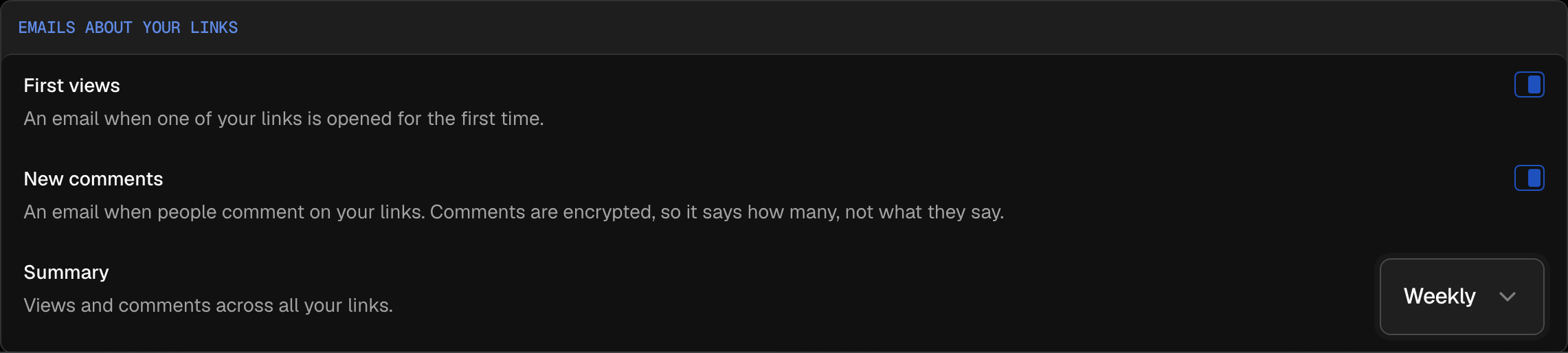
Hippius can email you when something happens to your links, so you don't have to keep checking. You can get an email when a link is opened for the first time, and another when people comment (comments are encrypted, so it says how many there are, not what they say). There's also a daily or weekly summary of views and comments across all your links, if you'd like one.
Choose them in the desktop app under Settings, Notifications, or in the console under Settings, Share link emails. Each email also has a link to stop that kind of email. These emails are rolling out, so if you don't see the settings yet, they're on their way.
Privacy
Share links are public: anyone who has the full link can open the file. Insights, comments and reactions follow the same idea, with as little as possible visible to Hippius.
Who can read comments. Comments, and the names people comment under, are encrypted with the link's key, the part after the # that browsers never send to a server. Anyone with the link can read them, and Hippius can't. That's also why comment emails only tell you how many there are.
Reading them on a new device. Hippius needs that key again before it can show you the comments. In the console, Insights asks for your unlock password, the same one that opens your Drive. The desktop app finds the key in your account by itself. If it can't, a comment shows as This comment couldn't be read, and opening the full link in your browser still shows every comment on the link's own page. Comments on a link with a password are only shown on that page, after the password.
What isn't encrypted. Reactions and view counts. Hippius has to count them, so it can see which emoji were picked and how many views a link had, but never the file. Views are anonymous: a random ID kept in the viewer's browser, with no account or IP address, and only numbers are kept, never what was on screen.
If a link reaches someone it shouldn't, turn it off in Shared Links. From then on nobody can open the link, its comments or its reactions. See Share links for captures.
Where to go next
- Share links for captures: who can open them, chat previews, and turning a link off.
- Free and paid plans
- Troubleshooting & FAQ