Quickstart: Store Your First File in Drive
Drive is your private, end-to-end encrypted file storage. This guide gets your first file into it using the Hippius Console in your browser, with nothing to install. It takes about five minutes.
Drive is for your own files. To connect apps, scripts or backup tools over the S3 API, follow the S3 Quickstart instead.
1. Sign in
- Go to console.hippius.com.
- Click Continue with Google, Continue with GitHub or Continue with Apple, and approve the sign-in.
- If the console asks you to choose a view, pick either one. You can switch later in Settings.
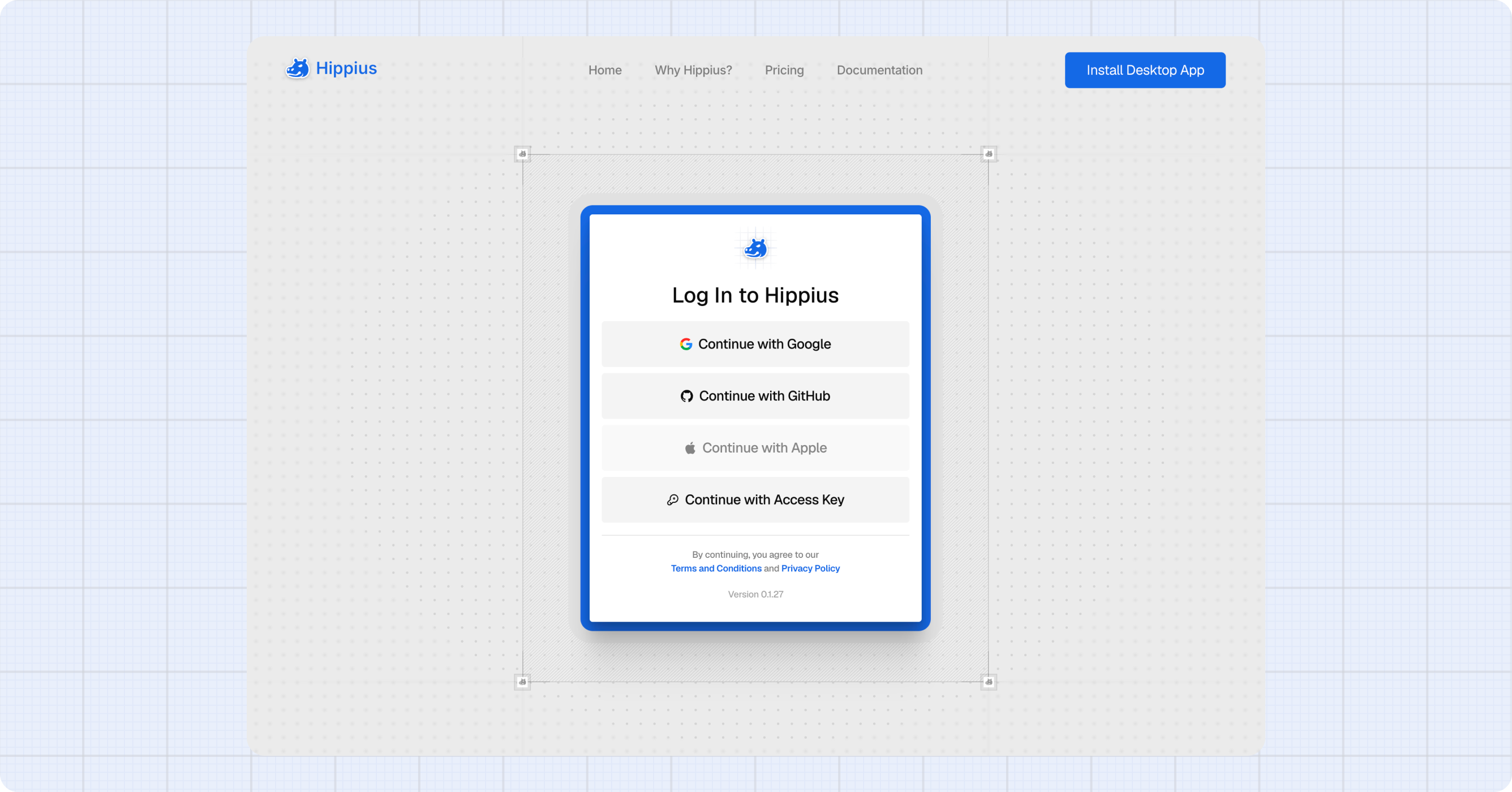
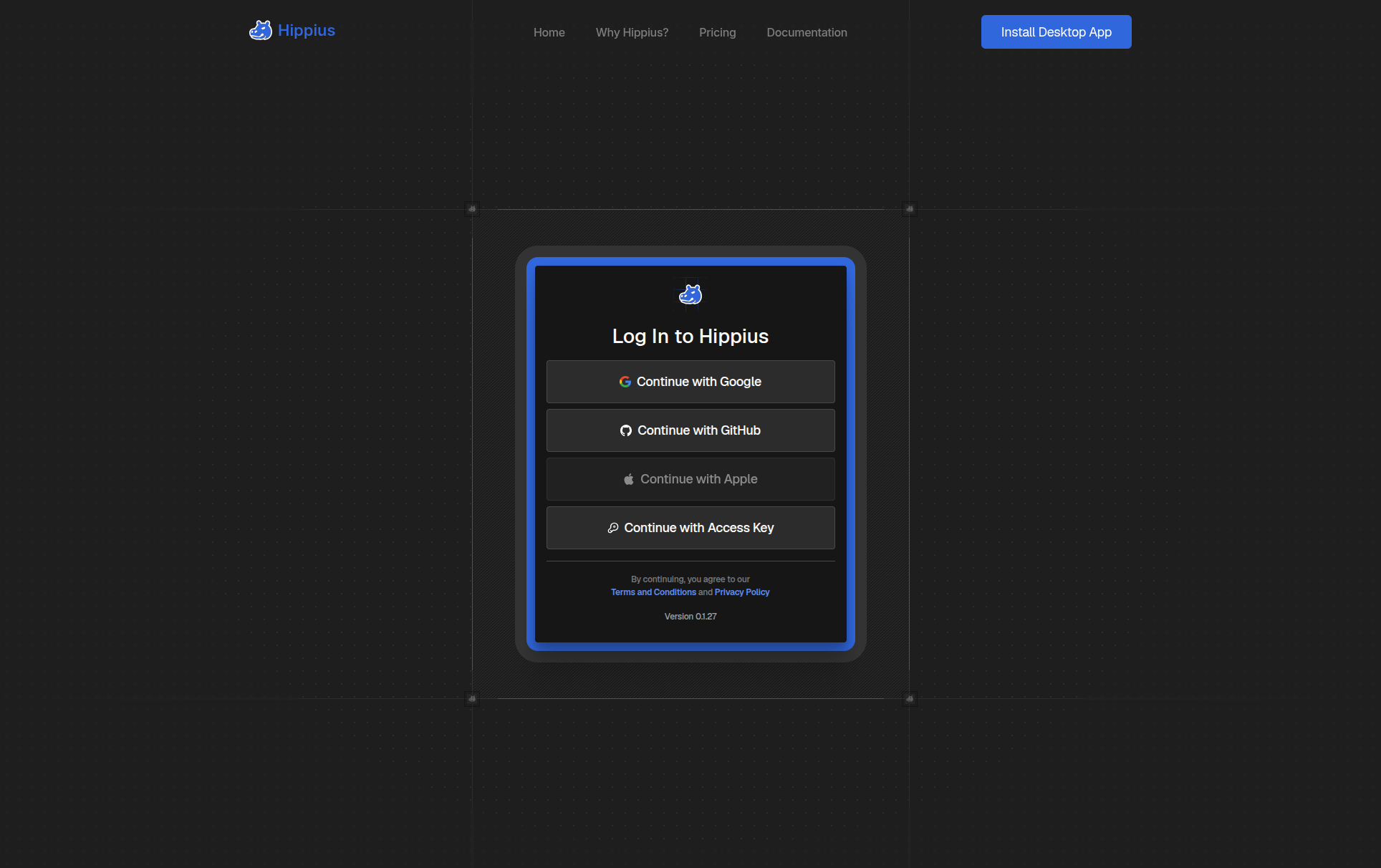
Your account is created the first time you sign in, and it comes with the Free Drive Plan: 10 GB of encrypted storage, with no payment details needed.
Access key accounts don't include free storage. Pick a Drive plan before step 3. In step 3 you won't get a new recovery seed, because your access key already is one. The console may ask you to confirm it instead.
2. Open Drive
In the sidebar, click
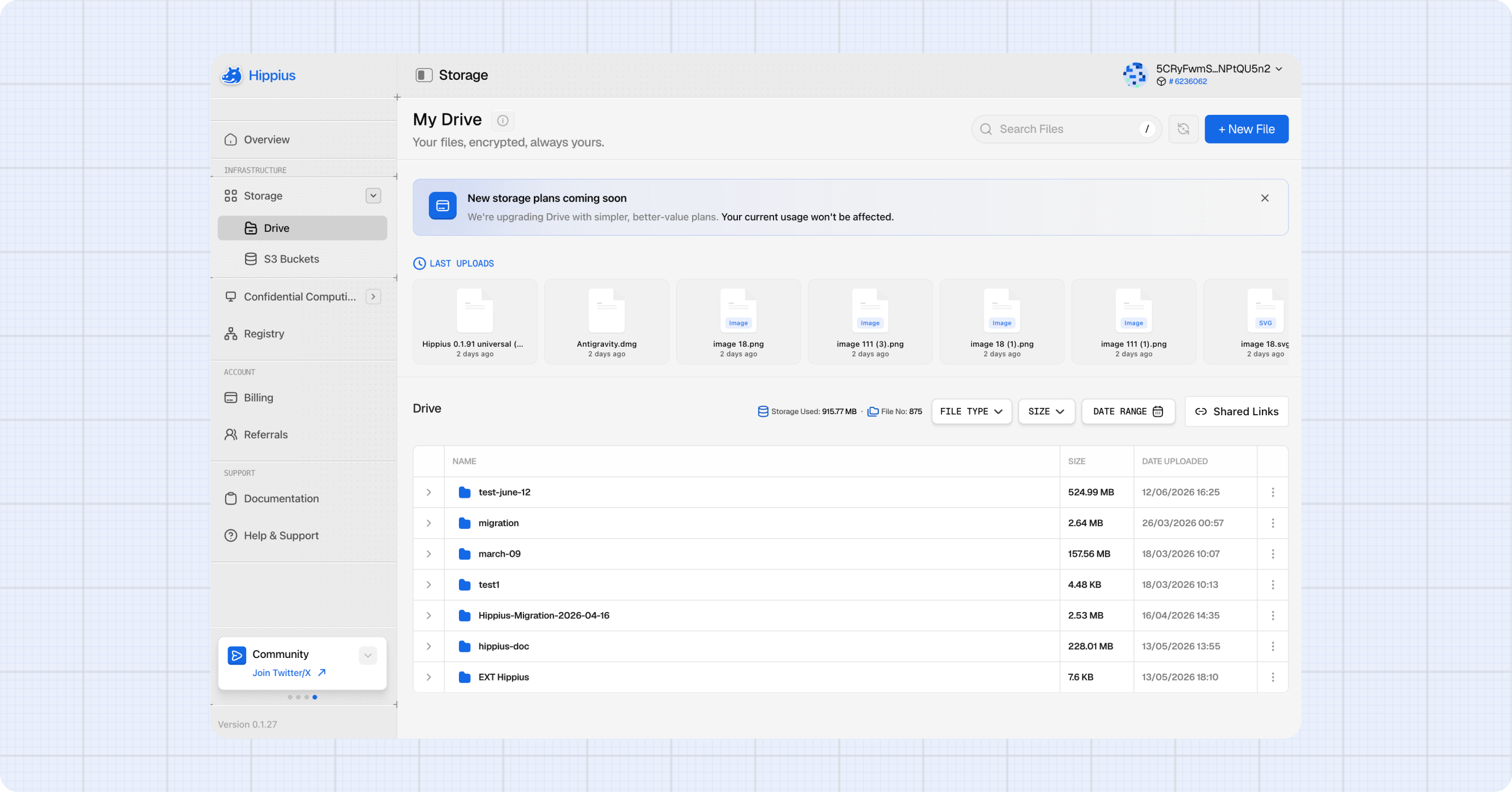
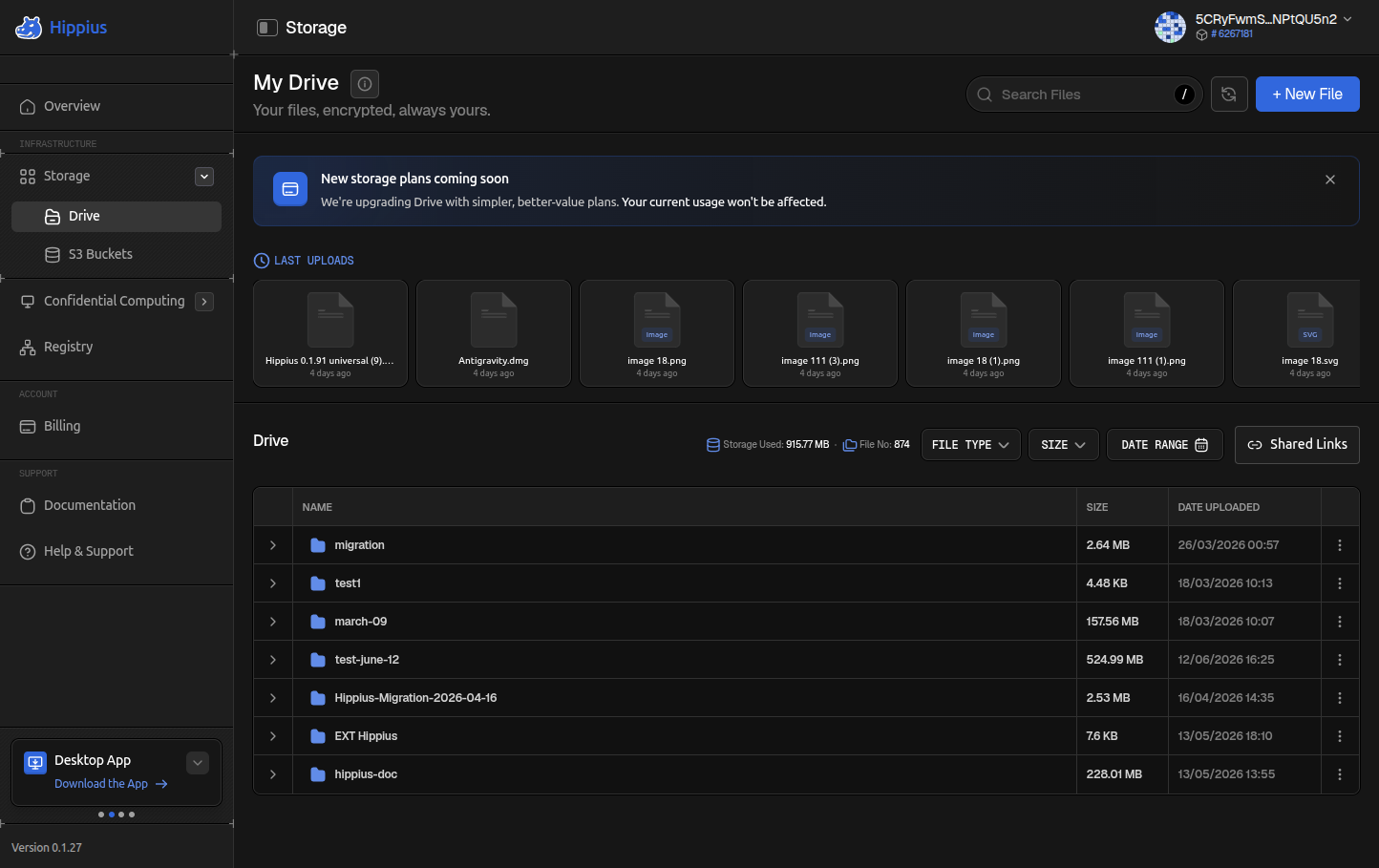
3. Create a folder and set your unlock password
Files in Drive live in folders, so start with one. The first time, the console also sets up your encryption.
- Click + New Folder.
- In Protect Your Account, choose an unlock password and type it again to confirm. It needs at least 10 characters, and Save Password only turns on once the meter reads Strong.
- In Save Your Recovery Seed, write the 12 words down on paper, in order. Tick I saved my recovery seed safely and click Continue to Drive.
- In Create New Folder, type a name such as Documents and click Create Folder.
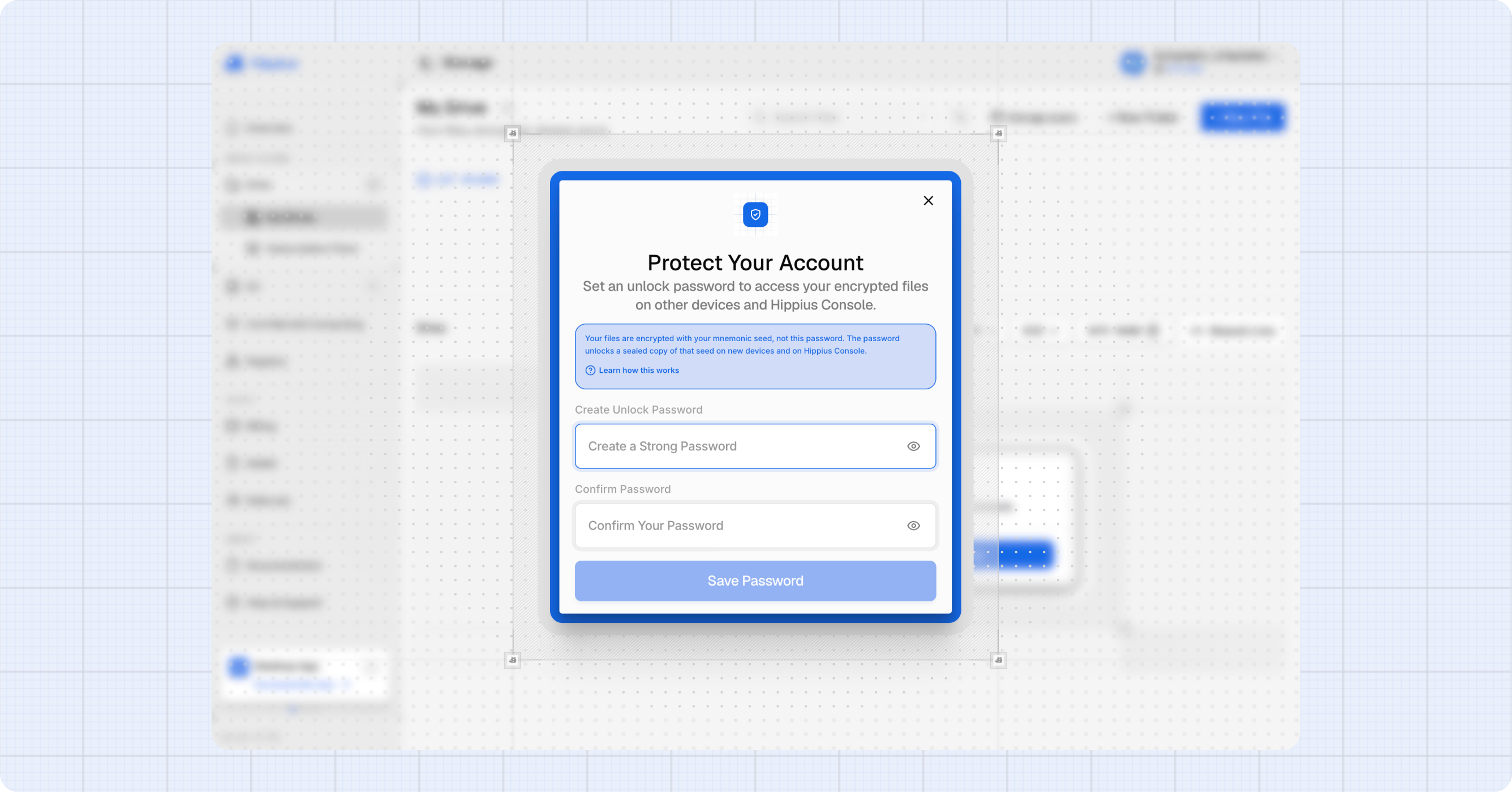
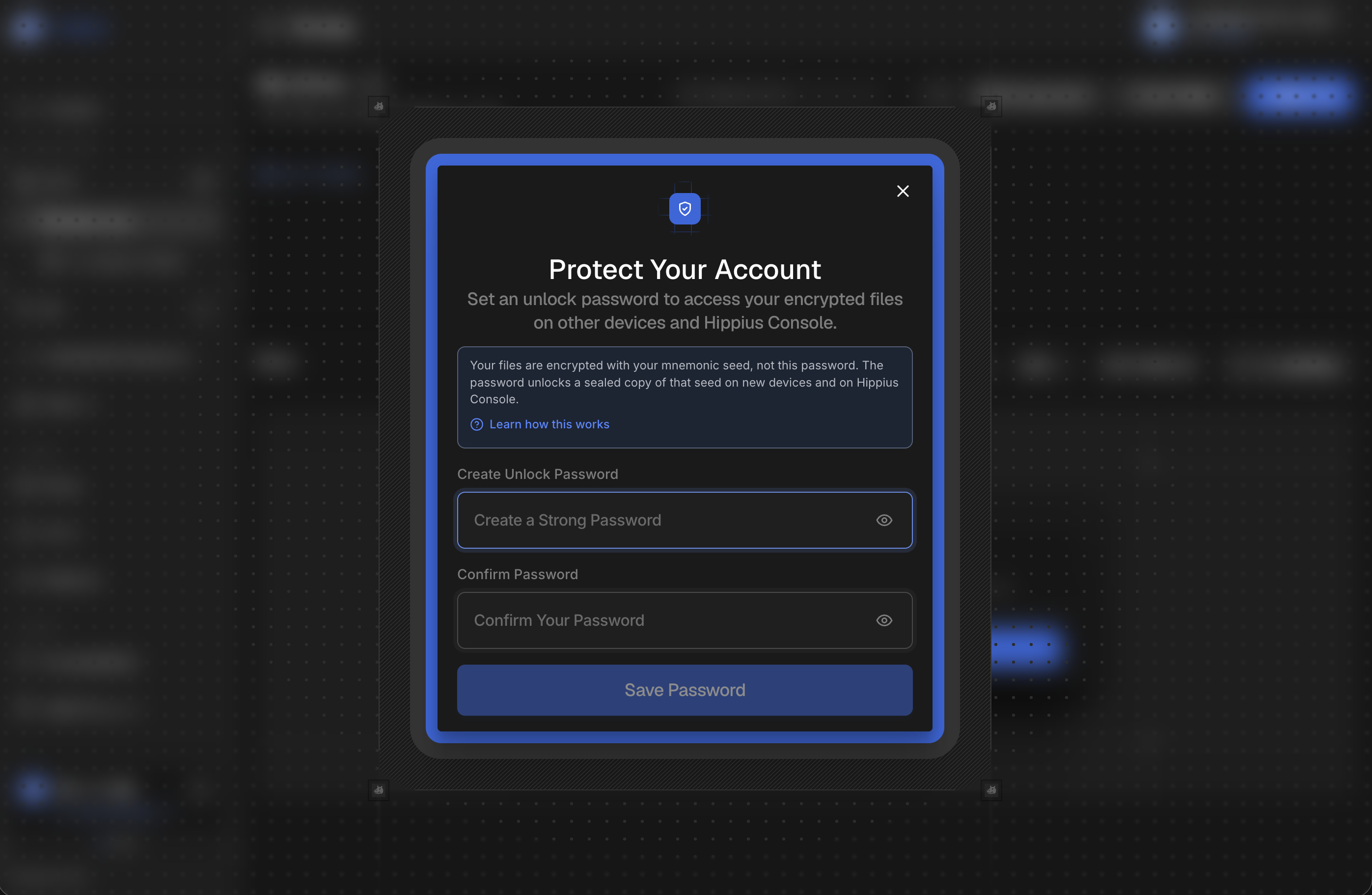
Your unlock password is not your Google, GitHub or Apple password. It opens the key that encrypts your files, and the same password works in the desktop and mobile apps.
Those 12 words are the only way back into your files if you forget your unlock password. We don't keep a copy and can't recover either one for you.
Already set an unlock password in the desktop or mobile app? The console skips the setup. Enter that password when it asks for it.
4. Upload a file
- Click your new folder to open it.
- Click + New File, or drag files from your computer onto the page.
- In Upload Files, drop your files or click to pick them. Upload to folder shows where they will go.
- Click Upload File.
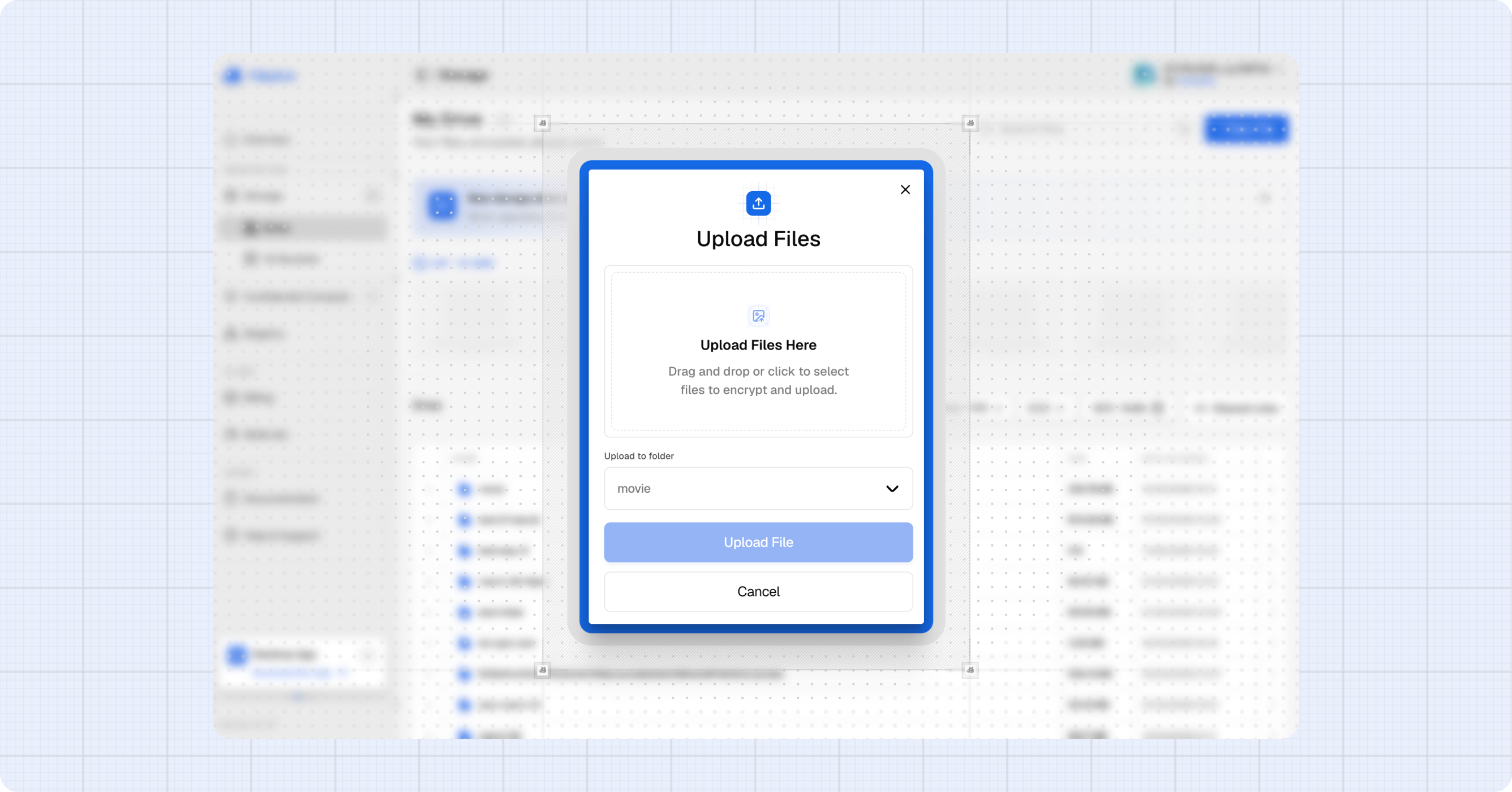
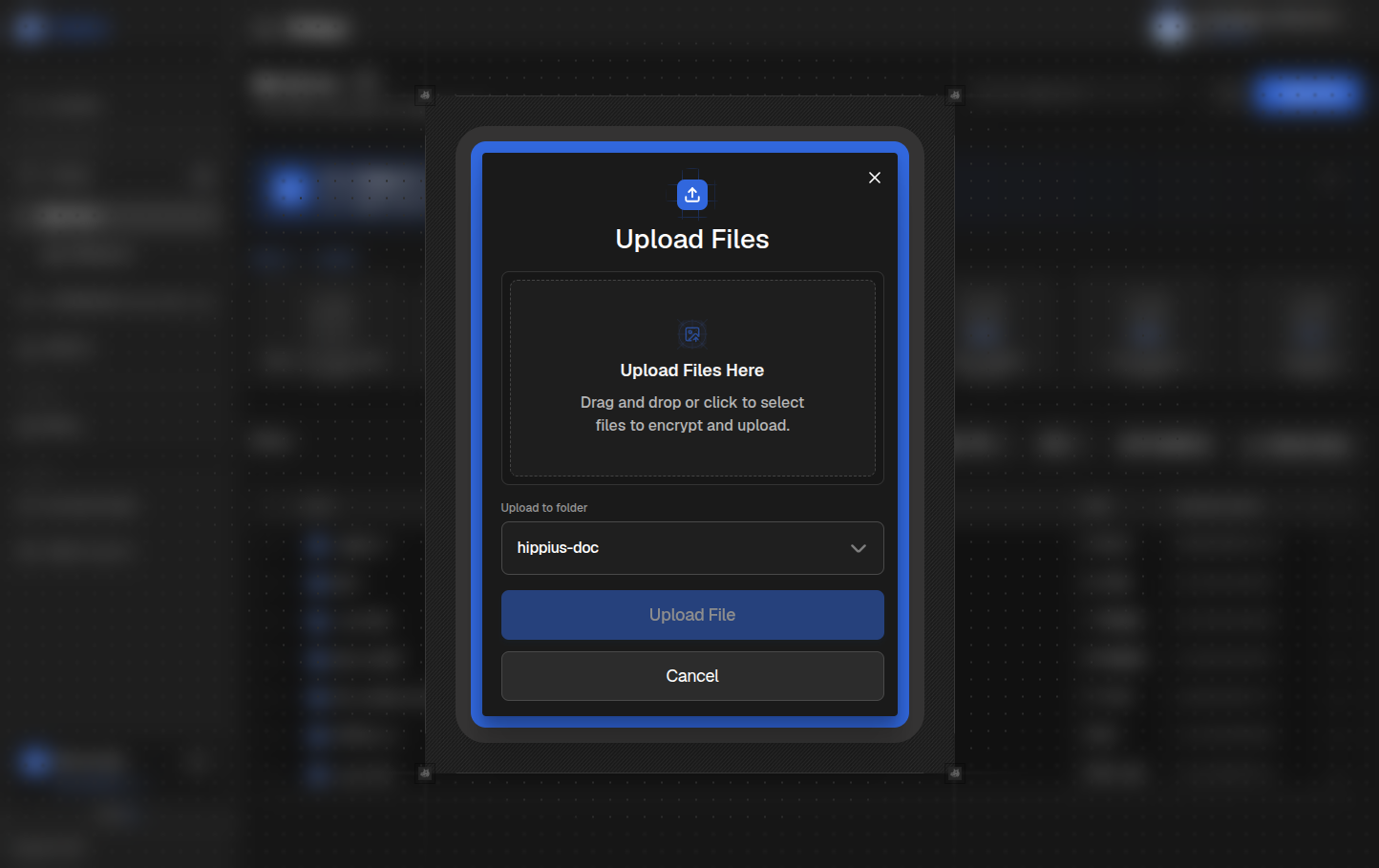
Each file is encrypted in your browser before it is sent. A progress widget follows the upload in the corner of the screen, whichever page you are on. The console takes files of up to 100 MB each. For bigger files, use the desktop app.
5. Open your file
Click the file's name. It opens in a preview, decrypted in your browser. Click the download icon in the preview's toolbar to save a copy.
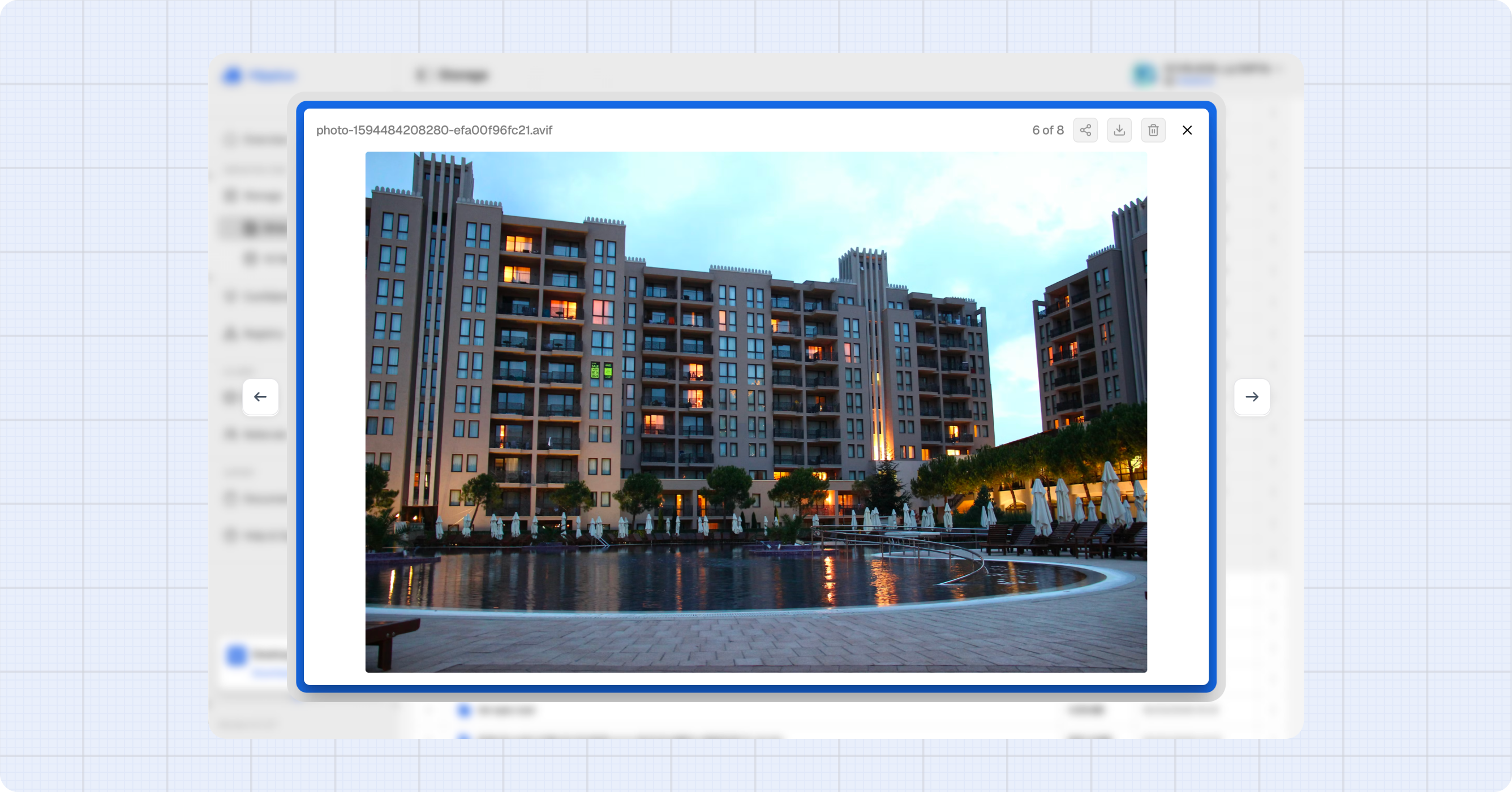
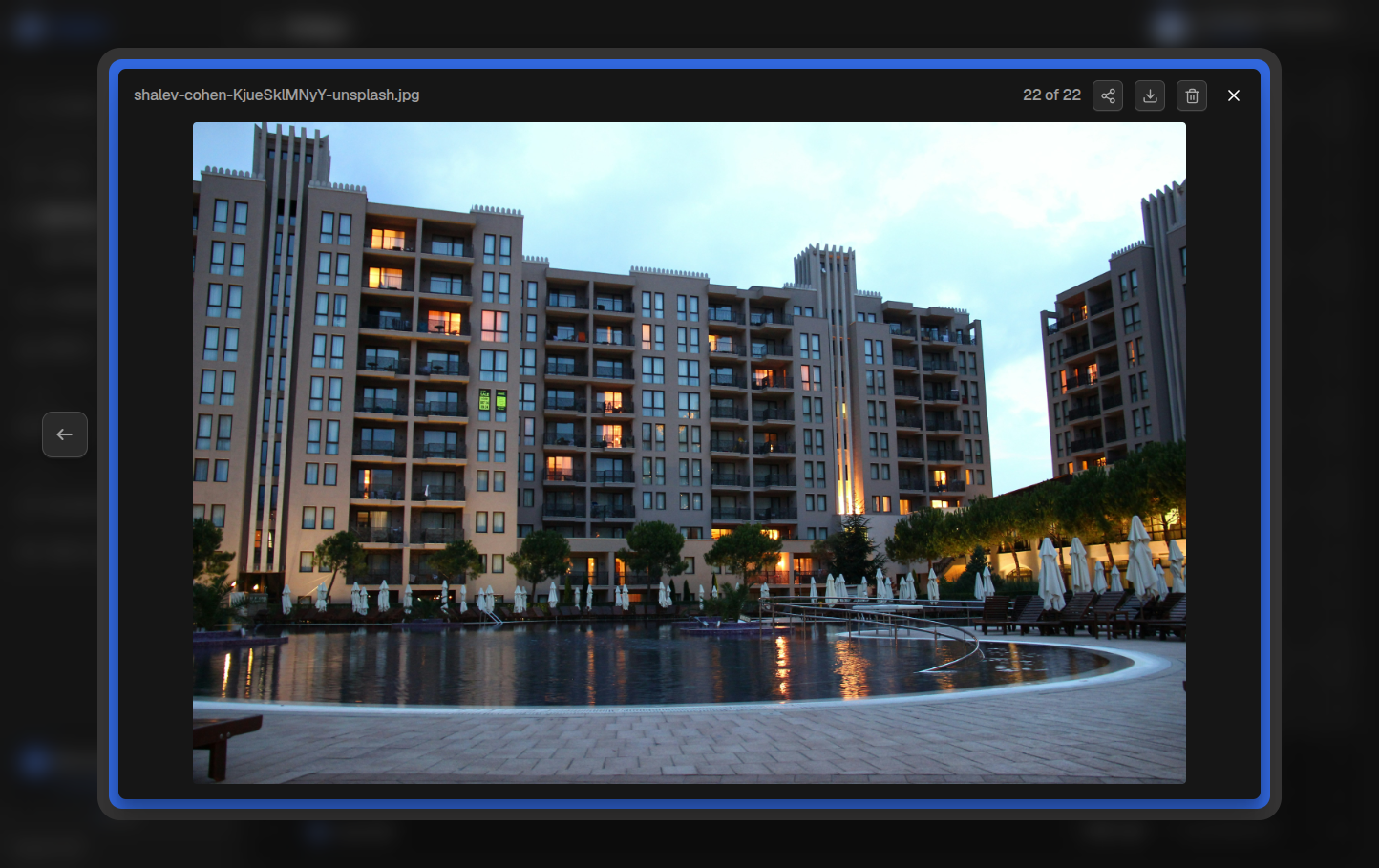
Photos, videos, PDFs, Word, Excel and PowerPoint files, and text files all open this way. See Previewing Files for the full list.
6. Share it
- Click the three dots on the file's row and choose Share via link.
- Under Link expires, choose how long the link should work. To lock it, tick Require a password and set one.
- Click Create share link. When it's ready, the link is copied to your clipboard.
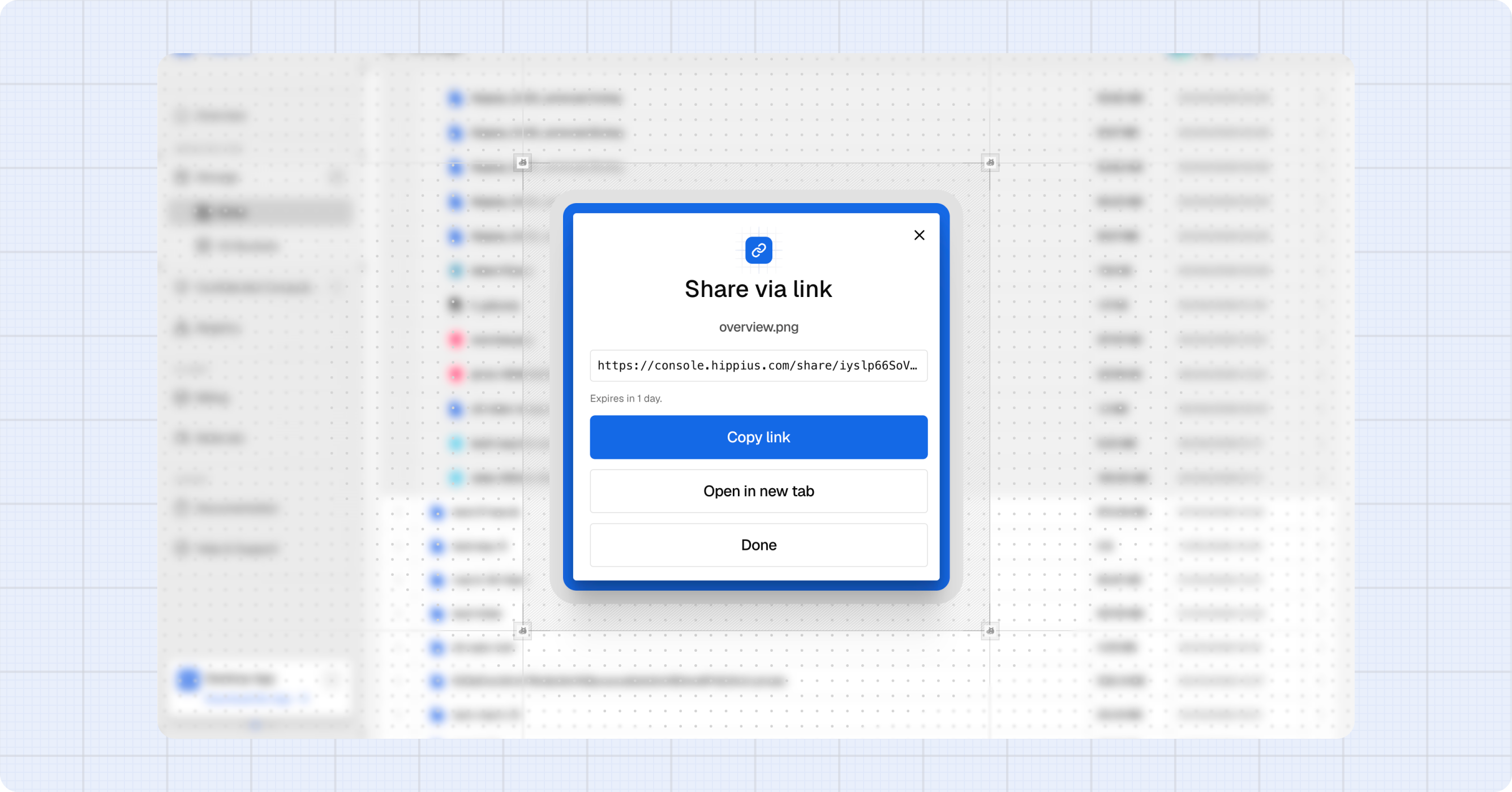
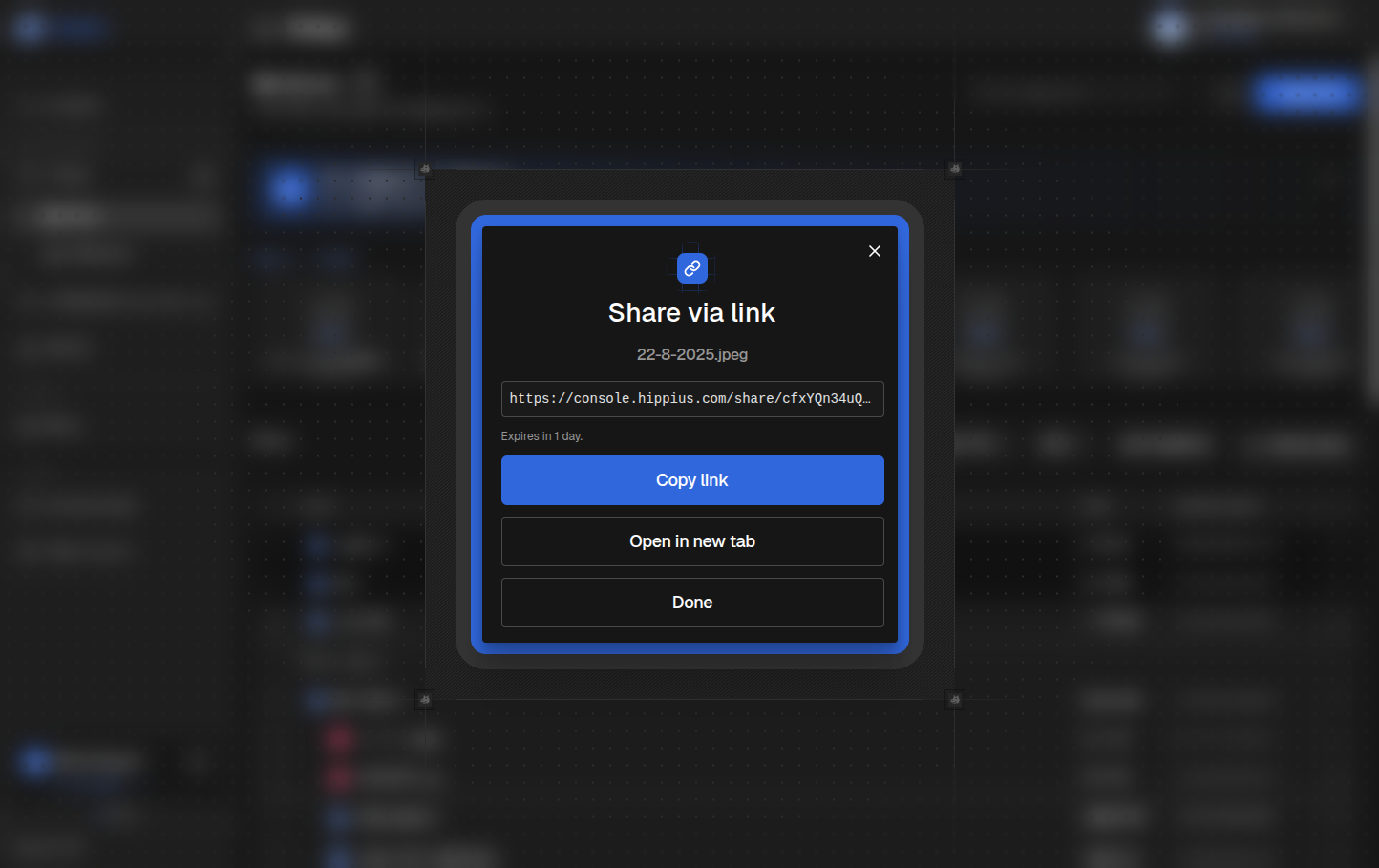
The person you send it to doesn't need a Hippius account. You can see and revoke your links later on the Shared Links page.
7. Add your computer and phone
Sign in to the apps with the same Google, GitHub or Apple account, enter your unlock password when asked, and your files are already there.
- Desktop App for Windows, macOS and Linux: install it and sign in. Then click Add Folder to keep a folder on your computer in sync with Drive. See Set Up Your First Sync Folder.
- Mobile App for Android: install Hippius from Google Play and sign in. Turn on Camera Uploads to back up your photos and videos automatically.
Where to next
- Choose Your App: what the console, desktop app and mobile app are each best at, with links to their guides.
- Drive in the Console: everything you can do with your files in the browser.
- Drive plans: when you need more than 10 GB.