Camera Uploads
Introduction
Camera Uploads copies the photos and videos on your phone into your Hippius Drive, on its own, encrypted on the device before anything is sent.
Turn it on once and you can stop thinking about it. It starts with the photos already on your phone, then picks up new ones as you take them.
This page covers setting it up and using it. Two more pages help it run smoothly:
- Permissions and Background Backups explains what your phone needs to allow so backups keep going when you are not using the app.
- Troubleshooting helps when a backup stops or doesn't start.
Backed-up photos count toward your storage like any other upload. See Plans and Storage.
Three ways to set it up
Until Camera Uploads is on, the app offers it in three places. They all lead to the same setup.
1. The backup card on Overview and Drive
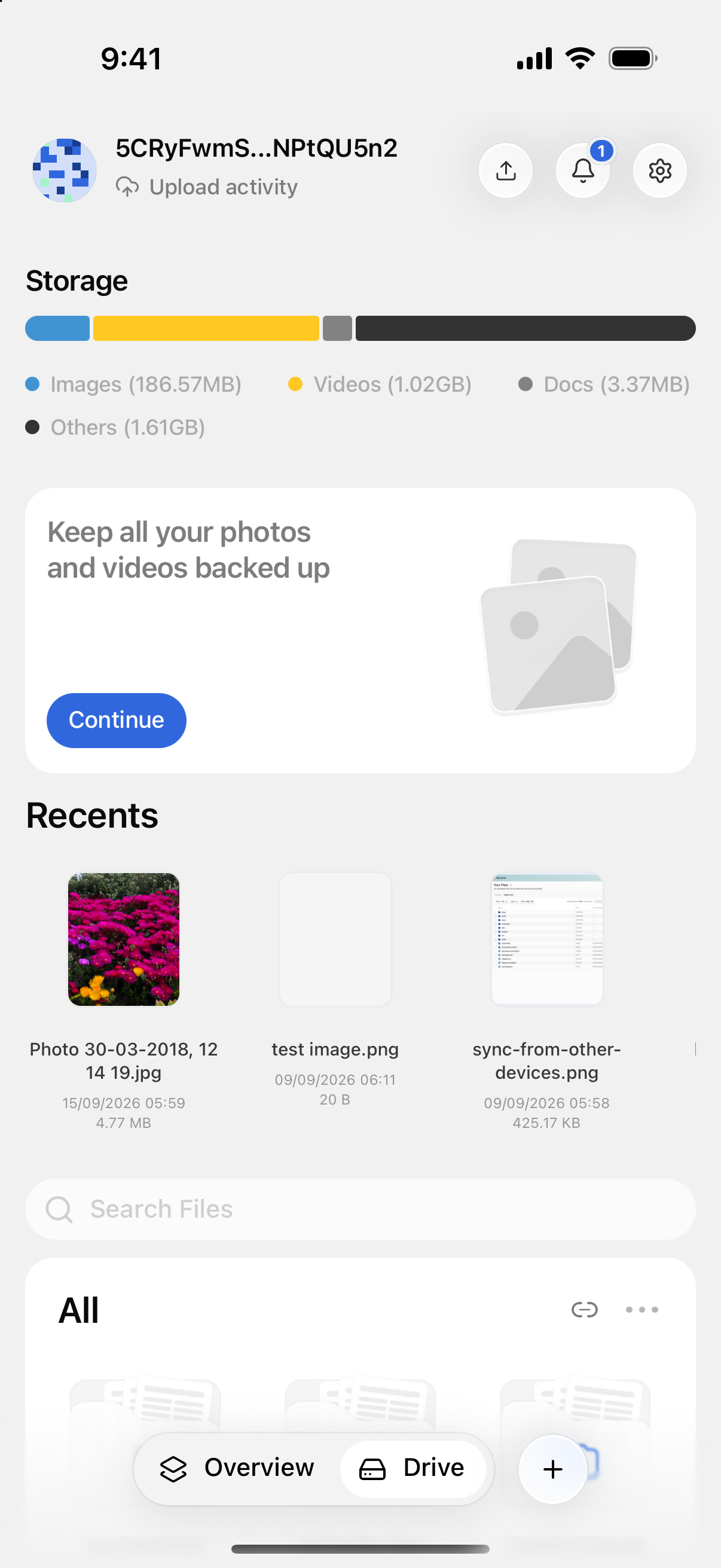
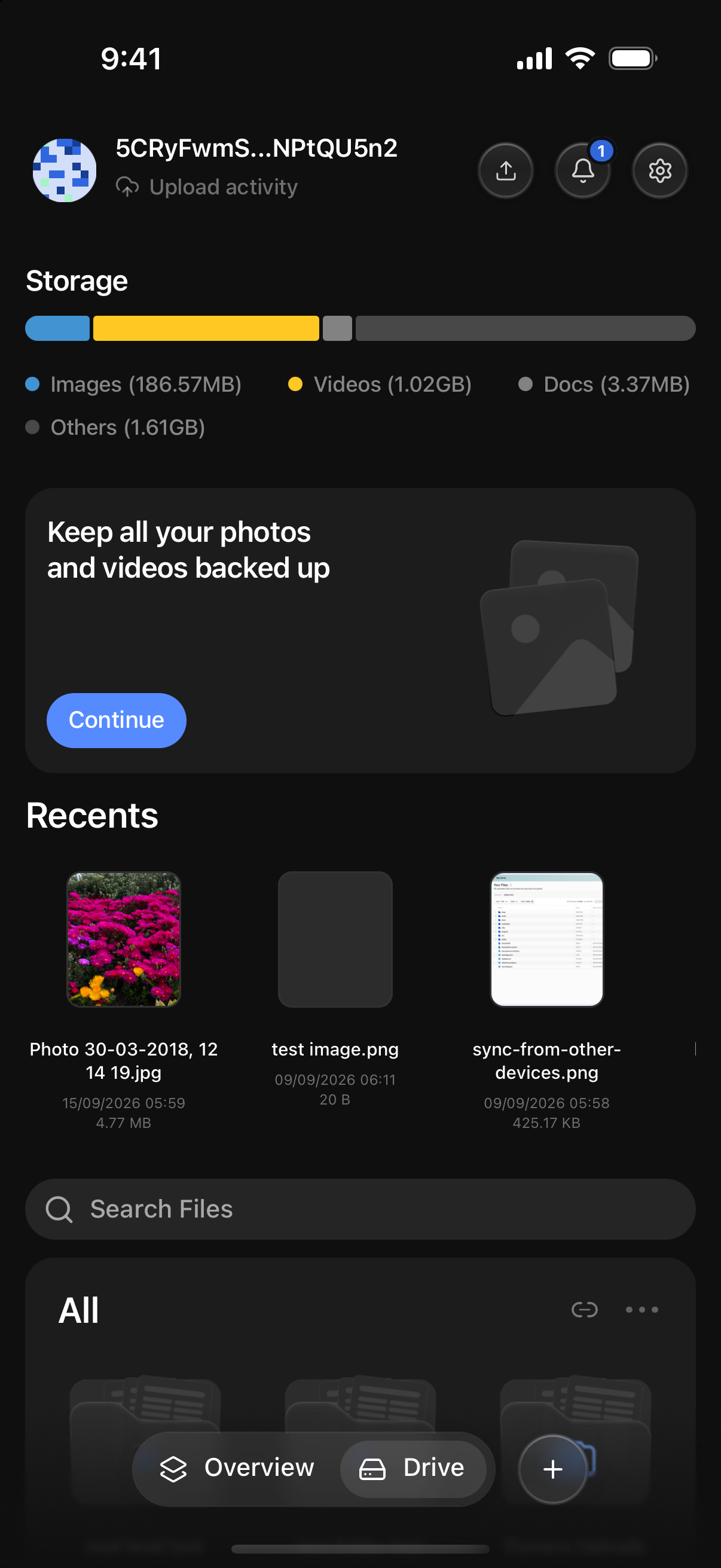
Overview and Drive show a card that reads Keep all your photos and videos backed up. Tap Continue to start.
The card stays until you turn Camera Uploads on, so it is always there if you skipped setup before.
2. The Get started sheet
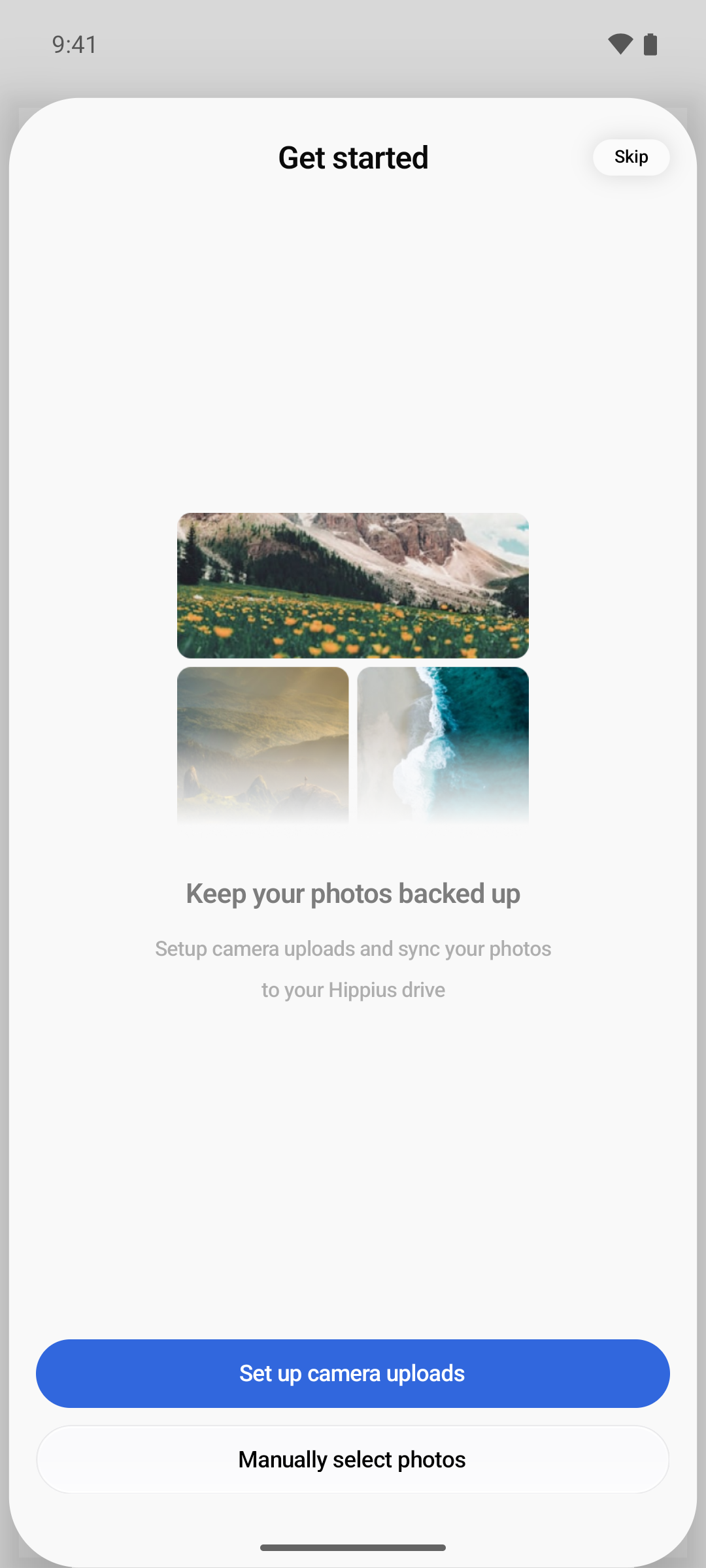
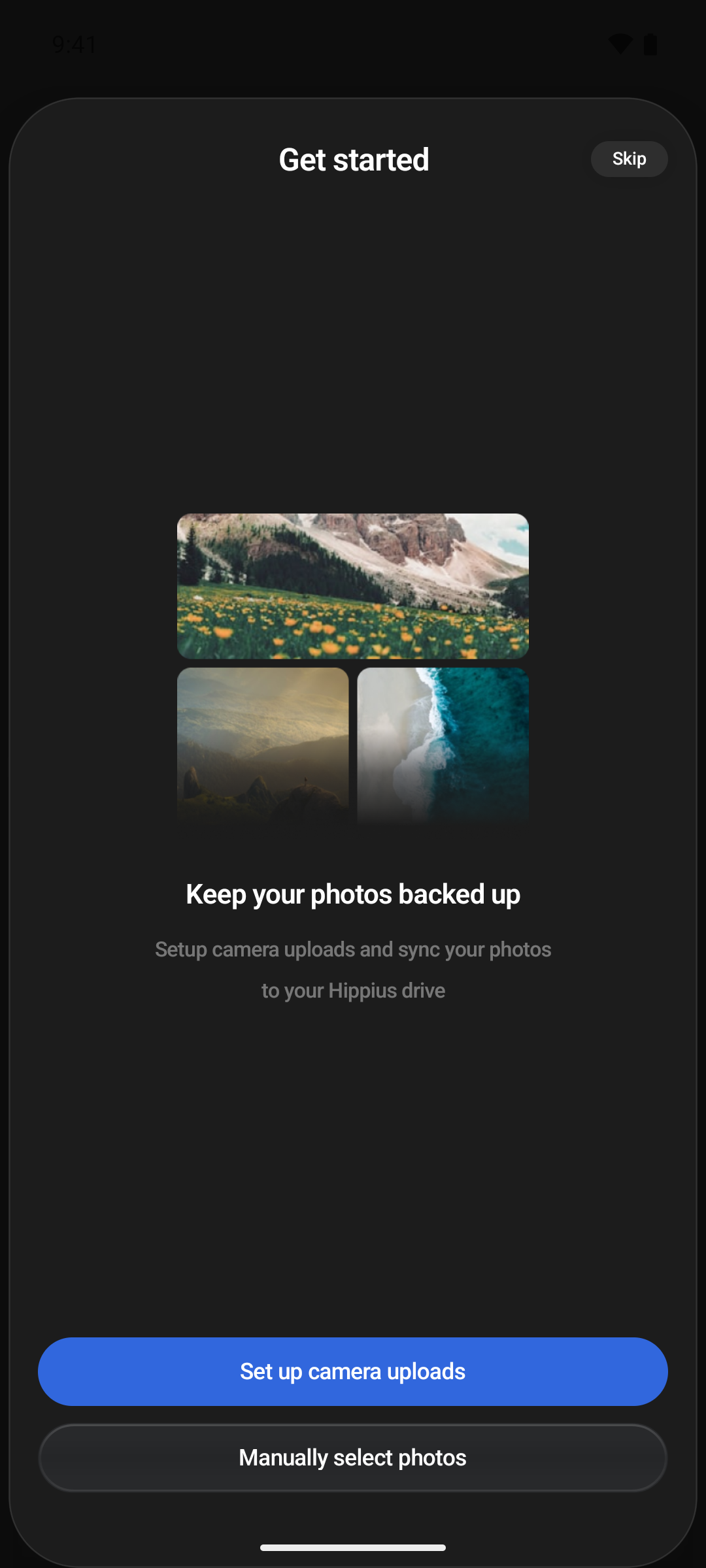
The first time you open Drive, a Get started sheet slides up: Keep your photos backed up. It offers three choices:
- Set up camera uploads starts the setup below.
- Manually select photos opens your photos so you can pick a few to upload now, without turning on backup.
- Skip, at the top, closes it.
The sheet appears only once. Whichever you choose, it doesn't come back. Use the card or Settings to set up Camera Uploads later.
3. Settings
Open Settings → Camera Uploads. The row shows Off until backup is on. This opens the Camera Uploads screen, where you can check every option and then tap Turn on Camera uploads.
When you start from Settings, the app backs up everything on your phone unless you change Upload from first.
Setting it up for the first time
Setting up takes a minute, and your phone asks for photo access along the way.
You need storage available to turn Camera Uploads on. Every account that signs in with Google, GitHub or Apple has the 10 GB Free Drive Plan. See Plans and Storage.
Camera Uploads starts with everything already on your phone, oldest first, so the first run can take hours if you have years of photos. After that it is only new ones, which is quick. Leaving the app open, on Wi-Fi and plugged in, is the fastest way through a big first backup.
On Android
- Tap Continue on the card, or Set up camera uploads on the Get started sheet.
- Allow photo access. Android asks whether Hippius may access your photos and videos. Choose Allow all so the whole library can be backed up. See Photo access if you pick only some.
- Choose what to back up. The Upload from sheet opens with All Photos selected. Keep it, or pick individual folders. Tap Save selection.
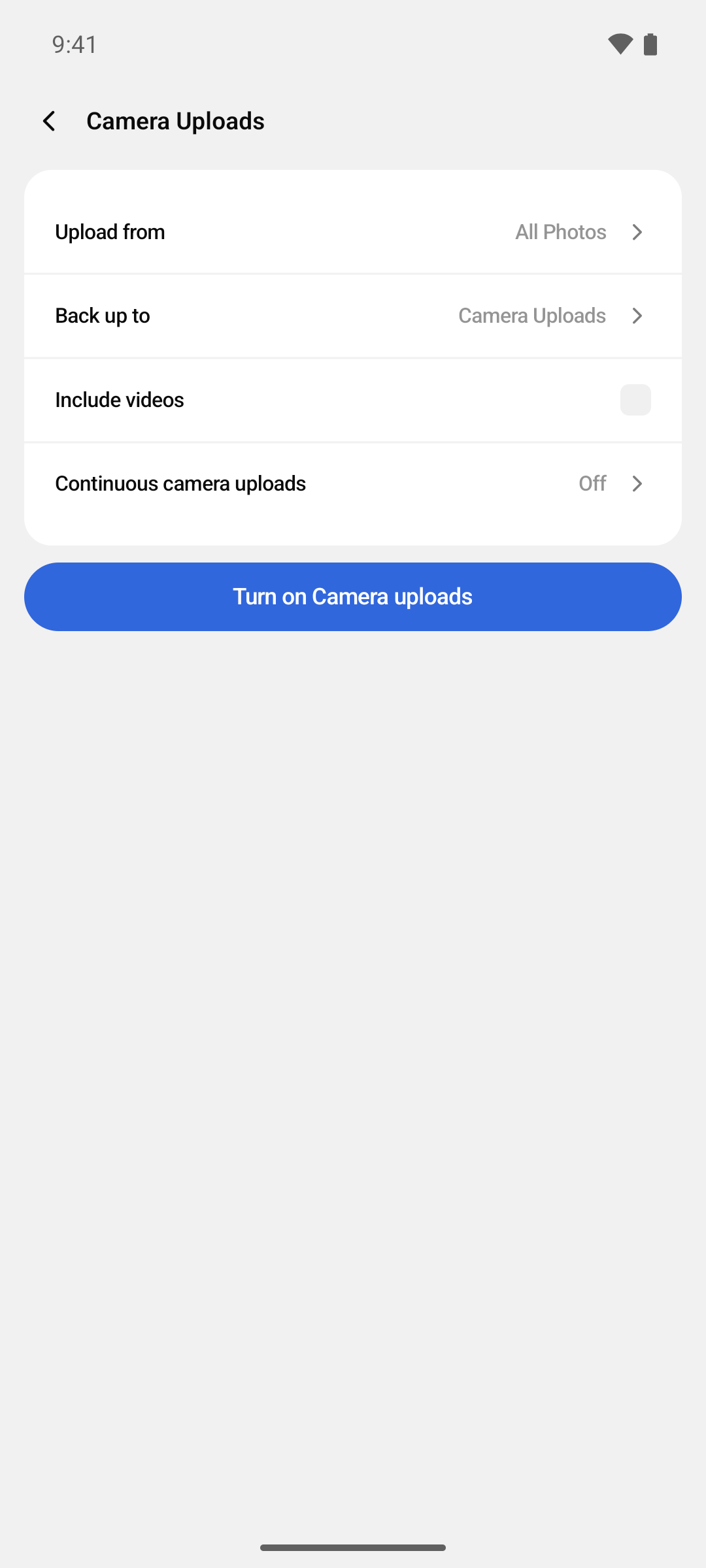
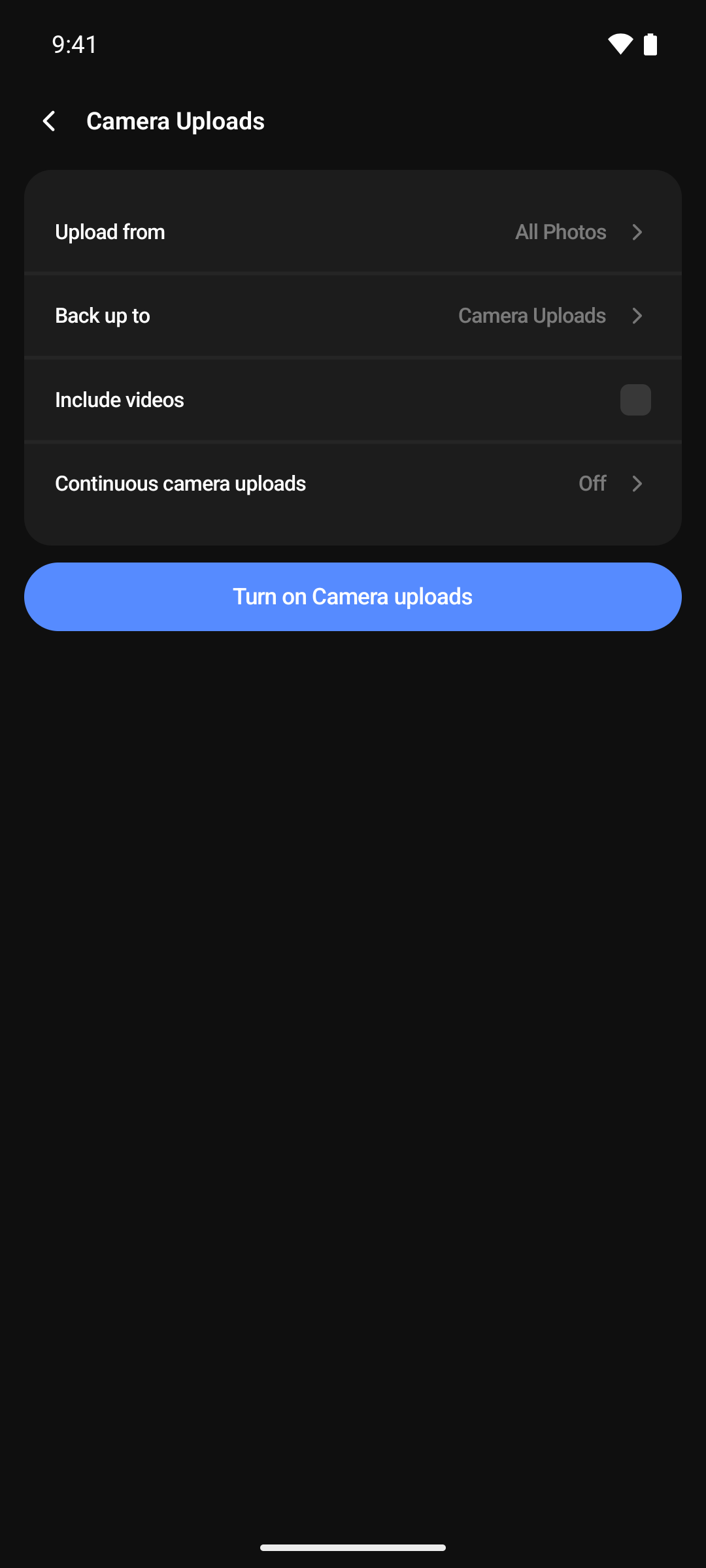
If Android's Pause app activity if unused is on for Hippius, a dialog asks you to turn it off first. Tap Open settings, switch it off and come back. See Pause app activity if unused. - Check the options. The Camera Uploads screen opens. Check where backups go (Back up to), whether to Include videos, and Continuous camera uploads. Each is explained below.
- Tap Turn on Camera uploads.
- If Android asks whether Hippius may send notifications, choose Allow, so you can see backup progress while you are not in the app.
- The app opens your backup folder in Drive and starts. The header reads Preparing backup… while it counts your photos, then Backing up • 340 remaining... as it goes.
The first time you open that folder, Android may warn that Camera uploads may stop syncing. Tap Stop optimising and allow Hippius to run in the background. It is the single most useful thing you can do to keep backups going. See Battery optimization.
Choosing what to back up
Upload from decides which photos and videos are backed up. Later, the Upload from row on the Camera Uploads screen shows what you picked. What the sheet lists depends on your phone.
On Android
- All Photos backs up everything on your phone. It is the default, and the simplest choice.
- Folders lists the folders on your phone that hold photos or videos, each with how many items it has. Camera is where your camera saves, and you will usually also see folders such as Screenshots, Download or WhatsApp Images. Photos that are not in any folder are grouped under your phone's model name.
Choosing a folder switches All Photos off, and you can pick as many folders as you like. Choosing All Photos again clears the folder picks. Tap Save selection when you are done. The row then reads, for example, All Photos or 3 Folders.
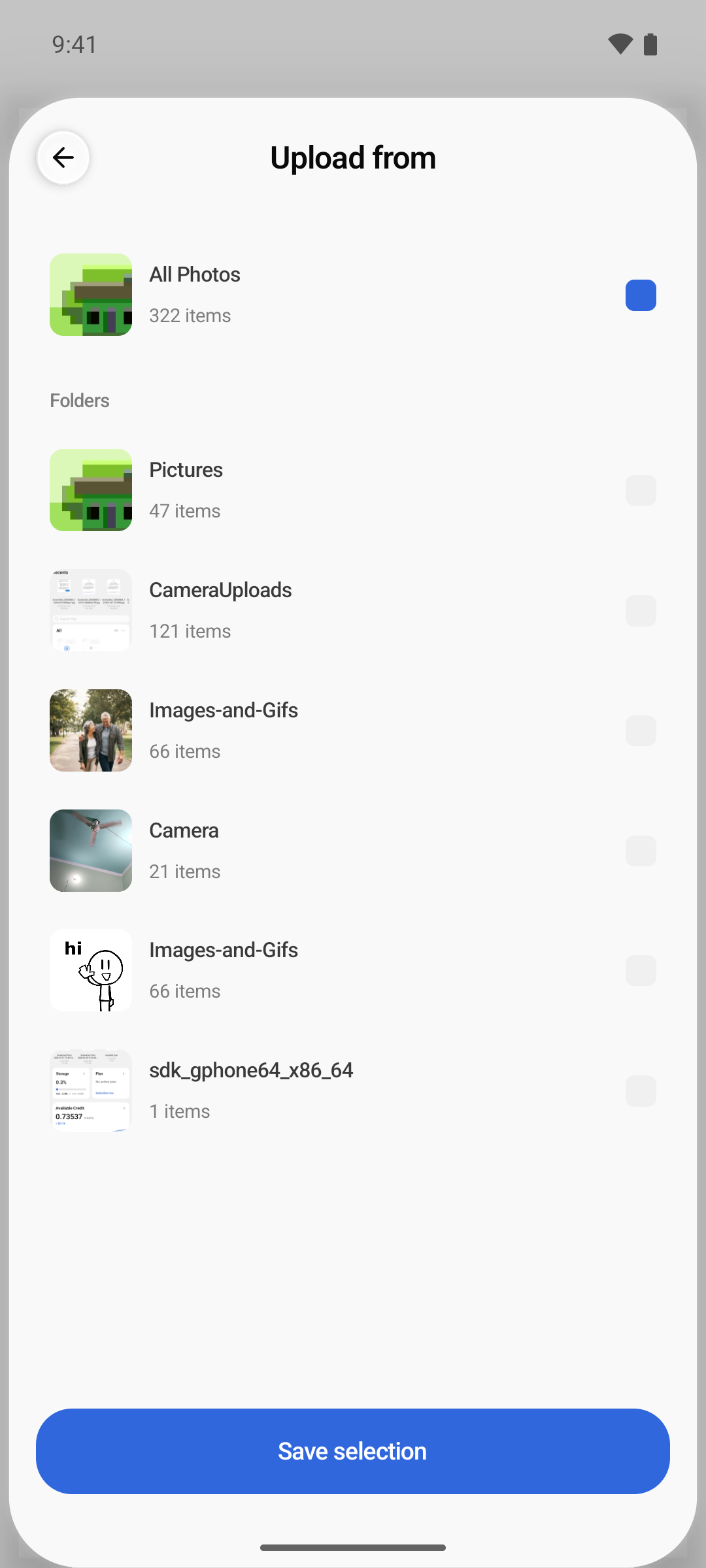
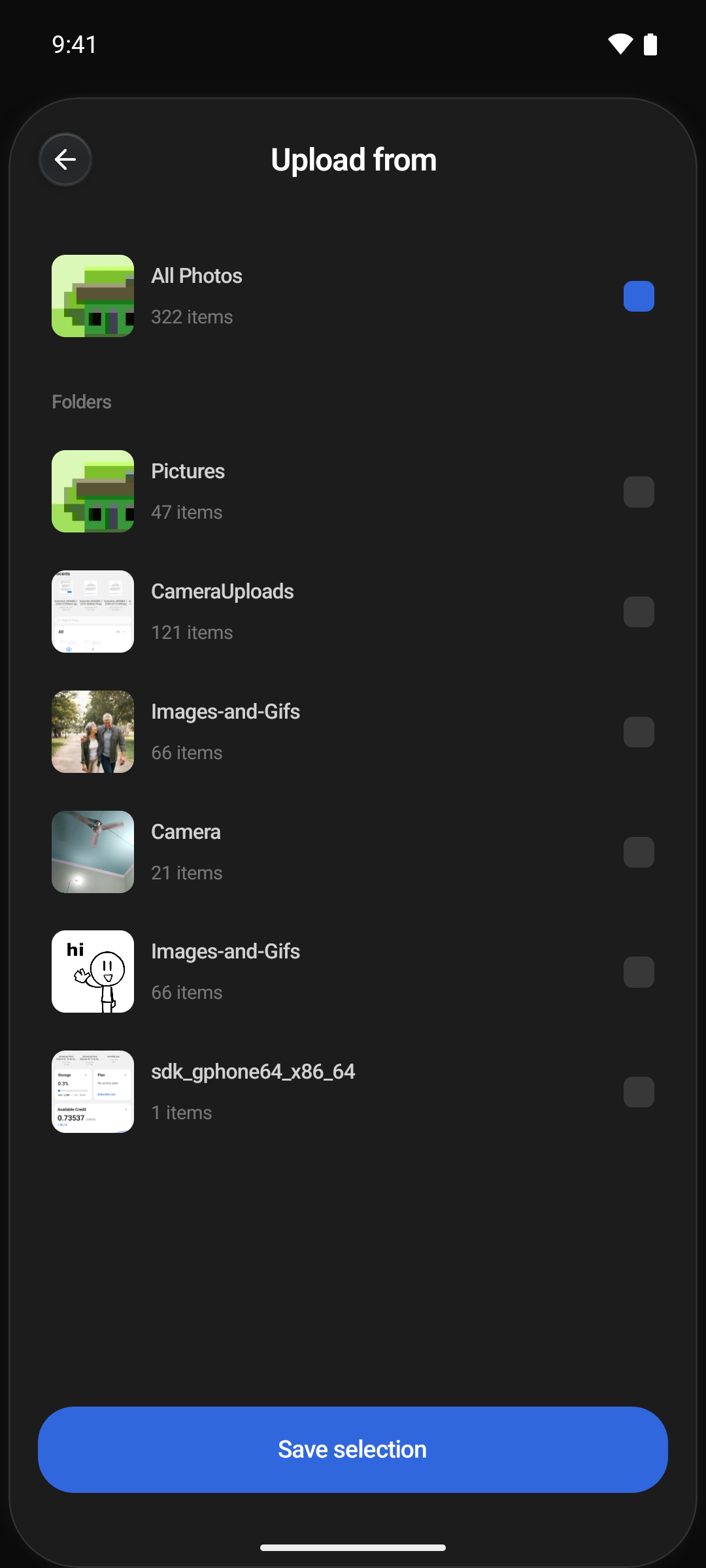
Photo access
Camera Uploads can only back up what Android lets Hippius see.
- Allow all: Hippius sees your whole library. This is what Camera Uploads needs.
- Select photos and videos (Android 14 and later): Hippius sees only the items you picked, so only those are backed up. The Upload from sheet says Only selected photos are visible, or No photos selected if you picked none. Tap Change selection to pick different ones, or Manage in settings to switch to Allow all.
- Don't allow: Hippius sees nothing, the sheet says Photo access is off, and Camera Uploads can't be turned on.
To change it later, open your phone's Settings → Apps → Hippius → Permissions → Photos and videos. Permissions and Background Backups has the details.
Choosing where backups go
Backups go into a folder in your Drive. By default it is a folder called Camera Uploads at the top level of your Drive. The app creates it the first time you back up if you don't have one.
To use a different folder:
- On the Camera Uploads screen, tap Back up to.
- Pick any folder, including one inside another folder. Backups need a folder, so Drive itself can't be chosen. Or tap New folder, name it, and tap Create.
- Tap Use this folder.
The Back up to row shows the folder's name. New photos and videos back up to the new folder from then on. Anything already backed up stays where it is.
Videos
Include videos is off by default, so only photos are backed up. Turn it on to back up videos too.
Videos are much bigger than photos. They take longer, use more of your storage, and use more mobile data if you are not on Wi-Fi. Consider turning on Upload on Wi-Fi only as well.
Choosing when it uploads
Two switches in the main Settings screen shape how Camera Uploads behaves:
- Upload on Wi-Fi only pauses Camera Uploads, and every other upload, while you are on mobile data. They pick up again by themselves when you are back on Wi-Fi. It is off by default, so backups use mobile data too.
- Backup notifications tells you when a backup finishes, so you are not checking on it. It is on by default.
If Upload on Wi-Fi only is on and you try to turn on Camera Uploads over mobile data, the app says Camera Backup needs Wi-Fi. Connect to Wi-Fi, or turn the switch off.
Continuous camera uploads (Android)
This row appears on Android only. It shows whether Android's battery optimization can pause Hippius while you are not using it:
- Off: battery optimization is on for Hippius, so Android may pause Camera Uploads when the app is in the background. Tap the row, then Stop optimizing battery, and allow Hippius to run in the background.
- On: Hippius is exempt, so backups can keep going while you are not using the app.
See Battery optimization for why this matters.
Following the backup
You can check on a backup from several places:
- The header. On Overview and Drive, the line under your name shows progress, such as Backing up 120 of 340, with a progress ring on the upload button. It reads Scanning backup… while the app is still counting your photos. Once the first backup is done, new photos are counted on their own, for example Backing up 2 of 3 new items. Tap the line or the button to open Your Uploads.
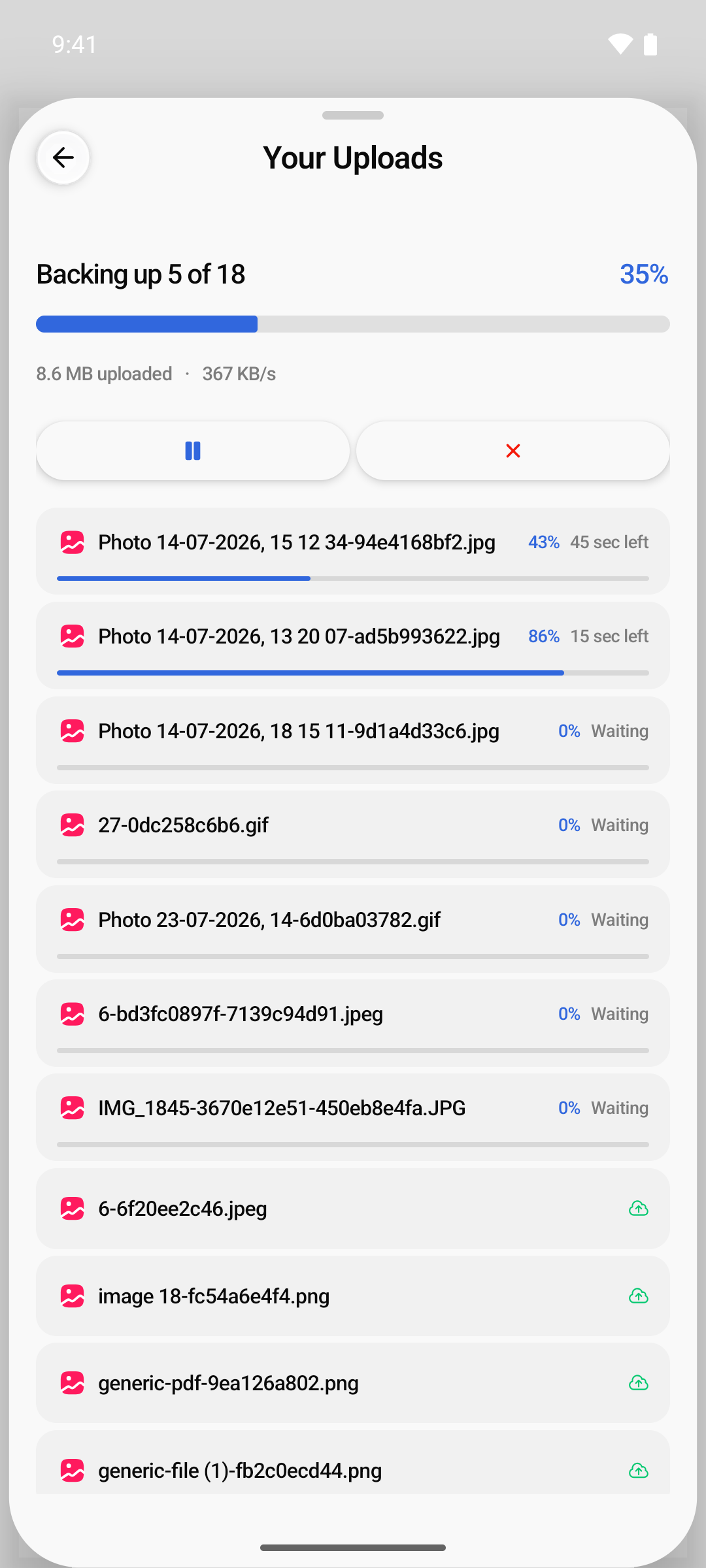
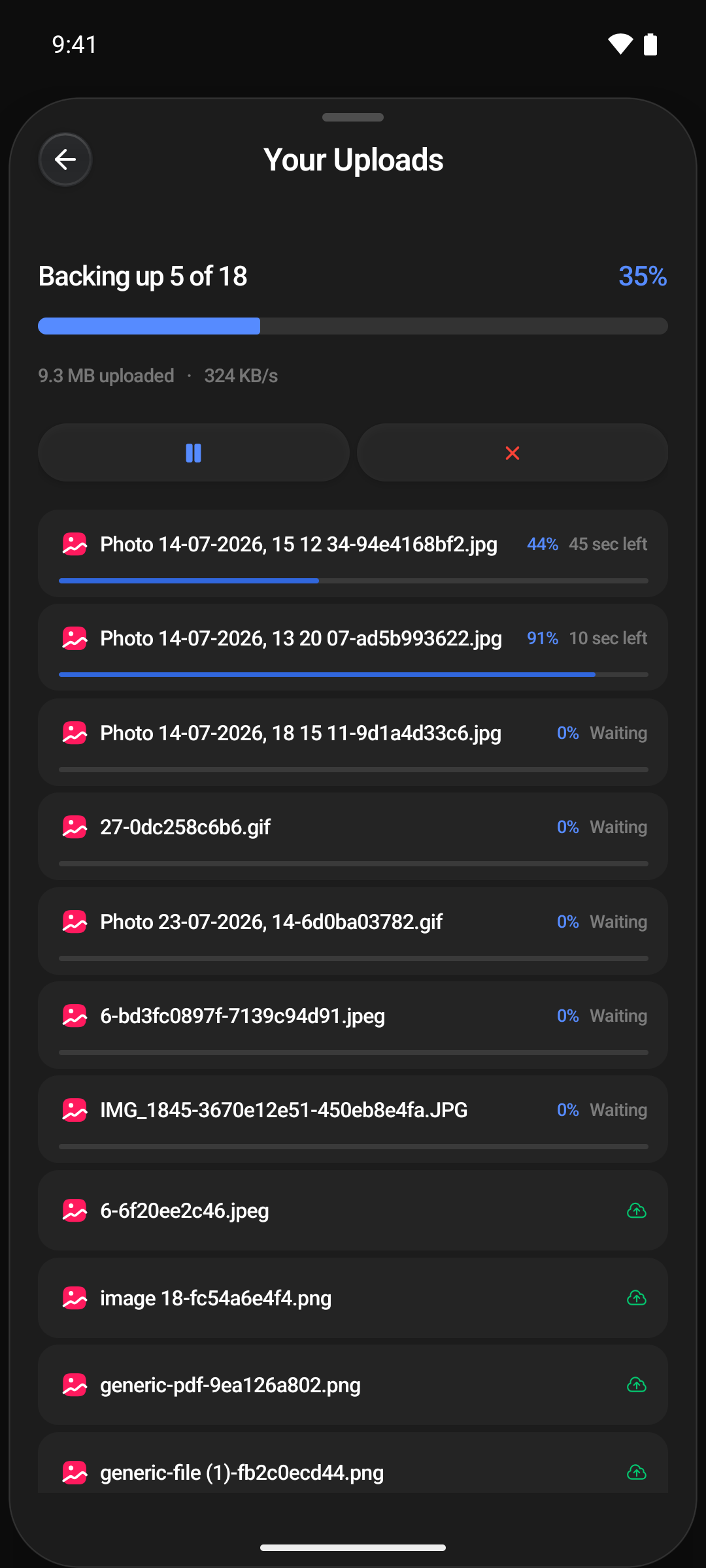
- Your Uploads. Shows how many items are done out of the total, the percentage, how much has been uploaded and the speed. Below that are the files that are uploading now, each with its own progress and roughly how long it has left, then those waiting and those that finished recently.
- The backup folder. Open it in Drive to see photos arriving. Its header shows how many are left, for example Backing up • 220 remaining....
- The home screen widget (Android). The Upload & Backup widget shows the same progress on your home screen, and keeps updating while the backup runs in the background.
- Notifications. With Backup notifications on, you are told when the backup finishes.
When everything is done, Your Uploads shows Backup Complete, and later runs are listed under Earlier.
If an item fails
When an upload fails, the app tries it again by itself a few times. If it still fails, it stops and waits for you. The header then reads, for example, 2 backup items failed, and the item shows a red mark in Your Uploads. Tap it to see why, then choose:
- Retry to try it again.
- Skip to leave that one out for good, so the rest of the backup can finish. You can still upload it by hand later.
A backup doesn't count as finished while an item is waiting for you, so the Backup finished notification only arrives once you have retried or skipped it.
Pausing, resuming and cancelling
Open Your Uploads from the header. While something is uploading, two buttons sit under the progress bar:
- Pause (⏸) stops uploads and backups where they are. The progress turns grey and the header reads Backup paused. Tap the same button, now Resume (▶), to carry on from where it stopped. Photos that were already backed up are not uploaded again.
- Cancel (✕) stops the backup and turns Camera Uploads off. The app asks first: Cancel backup? Photos already backed up stay in your Drive. Tap Cancel backup to confirm, or Keep backing up. Turn Camera Uploads back on later to back up the rest.
Pause is the one to use when you only need a break, for example on a slow connection. It stays paused until you resume, even if you close the app. Cancel is for when you don't want the rest backed up.
Backup paused also shows while Upload on Wi-Fi only is holding the backup on mobile data. That one carries on by itself once you are on Wi-Fi.
Changing settings later
Open Settings → Camera Uploads. The screen has:
| Row | What it does |
|---|---|
| Upload from | What is backed up: All Photos or the folders you picked. |
| Back up to | The Drive folder backups go into. |
| Include videos | Whether videos are backed up as well as photos. |
| Continuous camera uploads | Whether Android lets backups run in the background. Android only. |
The Upload from row also warns you when your phone limits what Hippius can see. It reads Limited access, No photos selected or Not allowed instead of your selection. Tap it to fix it.
Changing Upload from or Include videos makes the app look through your photos again for anything the new choice adds. Photos already backed up are not uploaded twice.
Turning it off
- Open Settings → Camera Uploads.
- Tap Turn off Camera uploads.
- Confirm with Turn off.
New photos and videos are not backed up until you turn it back on. Everything already uploaded stays in your Drive.
What happens to the photos
They land in the Drive folder you chose, like anything else you upload. Browse them on your phone, in the console, or in the desktop app, and download them anywhere you are signed in.
- Names. Each file keeps the name your phone gave it, with a short code added so names never clash, for example IMG_1234-3fa9c0b1d2.jpg.
- One folder. Everything goes straight into the backup folder. There are no subfolders by date or album.
- HEIC photos. If your Android phone saves photos in the HEIC format, Camera Uploads converts them to JPG, which opens everywhere.
- Each photo once. A photo that is in several of the folders you picked is still backed up only once.
Good to know
- Backing up never removes anything from your phone. Deleting a photo from your phone afterwards leaves the copy in Hippius alone.
- Deleting a backed-up photo from Drive doesn't bring it back. It isn't backed up again.
- Edits aren't backed up again. If you edit a photo after it was backed up, Hippius keeps the version it already has. If your editing app saves the edit as a new photo, that new photo is backed up.
- Logging out and back in on the same phone picks up where it left off, with the same settings. Photos already backed up are skipped.
- Reinstalling the app, or moving to a new phone, starts Camera Uploads from scratch. It backs up every photo on the phone again, as new copies next to the old ones in the same folder. Delete the copies you don't need, or pick only the folders you want before you turn it on.
Camera Uploads doesn't ask for an unlock password. Set one under Settings → Security anyway, so you can open your backed-up photos in the web console and the desktop app too.
Keeping it running
Backing up happens in the background, and phones are strict about what they let run there. Permissions and Background Backups explains what to allow so backups keep going on their own. If a backup has stopped, see Troubleshooting.
Whatever stopped a backup, opening Hippius picks it up again from where it stopped. Photos that were already backed up are not uploaded again.
On Android
- Turn off battery optimization for Hippius, so Android lets it keep uploading after you leave the app. Continuous camera uploads then reads On. See Battery optimization.
- Turn off Pause app activity if unused, so Android doesn't take photo access away if you don't open Hippius for a few months. See Pause app activity if unused.
Even with both of these done, some Android phones stop Hippius in the background anyway, often within about 15 minutes of leaving the app. Many phone makers add a battery manager of their own on top of Android's, and it can close apps whatever you have allowed. The backup may then wait until you open Hippius again. Your phone's own battery settings can help. See When your phone stops backups anyway.
Where to next
- Permissions and Background Backups: keep backups running when you are not using the app.
- Troubleshooting: when a backup stops or doesn't start.
- Your Files: browse, share and download what you have backed up.