Hippius Mobile App
Introduction
Your Hippius Drive, on your phone. Browse everything you have stored, upload from your camera roll, share a file or folder with a link, and let your photos back themselves up while you get on with your day.
It is the same account and the same files you see in the console and the desktop app. Anything you add on one shows up on the others.
Everything is encrypted on your phone before it leaves it, so what travels to the network and what sits on it is unreadable without your key.
Installing the app
Hippius is on Google Play for Android phones. The iPhone version is coming soon to the App Store.
On Android
- On your Android phone, open Hippius on Google Play, or search for Hippius in the Play Store.
- Tap Install.
- Open the app when it has finished installing.
The app needs Android 7.0 or later.
Signing in
You do not need an account before you start. Signing in with Google, GitHub, or Apple creates one for you if you do not have one already.
If you have used Hippius before, sign in with the same details you use everywhere else and your files are there waiting.
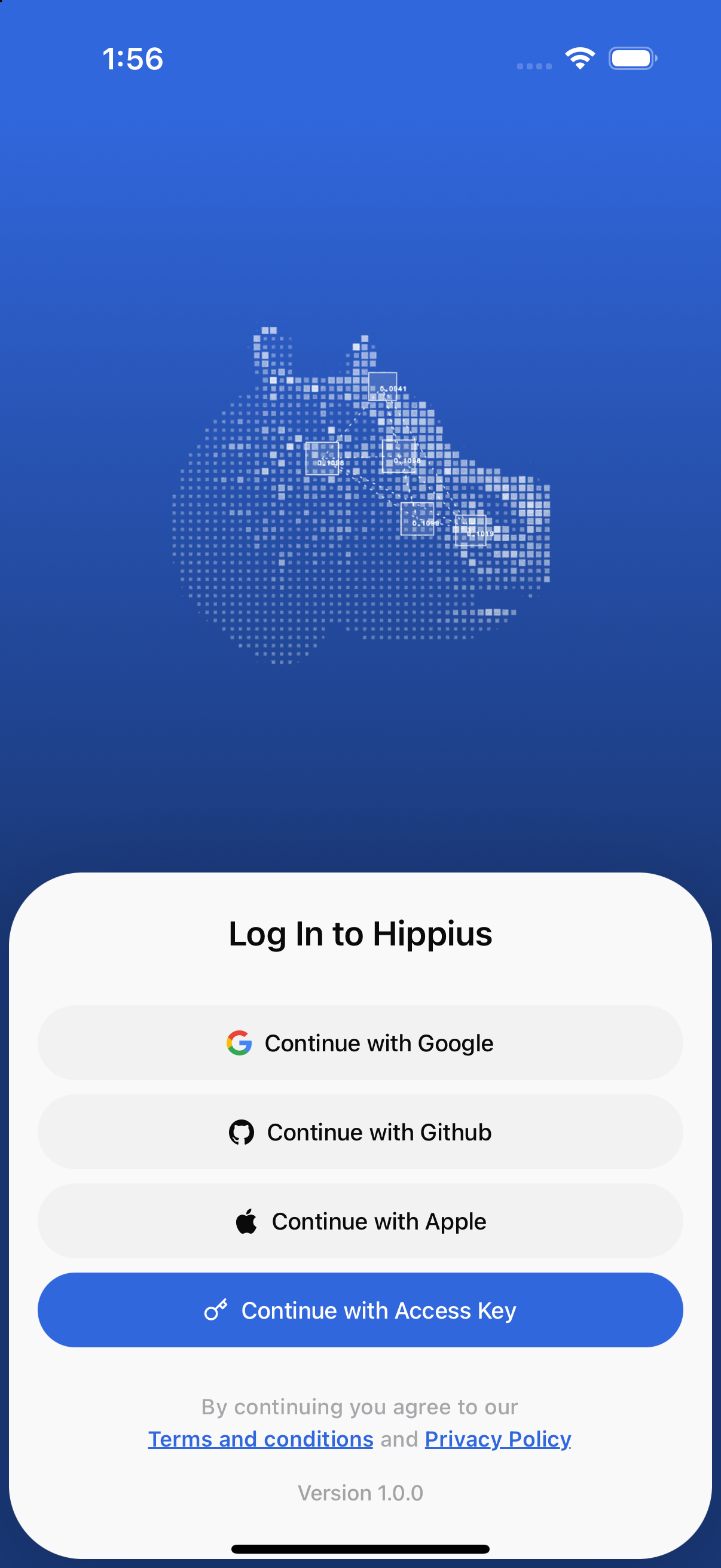
- Open the app and go through the short introduction. Tap Continue, then Proceed to log in.
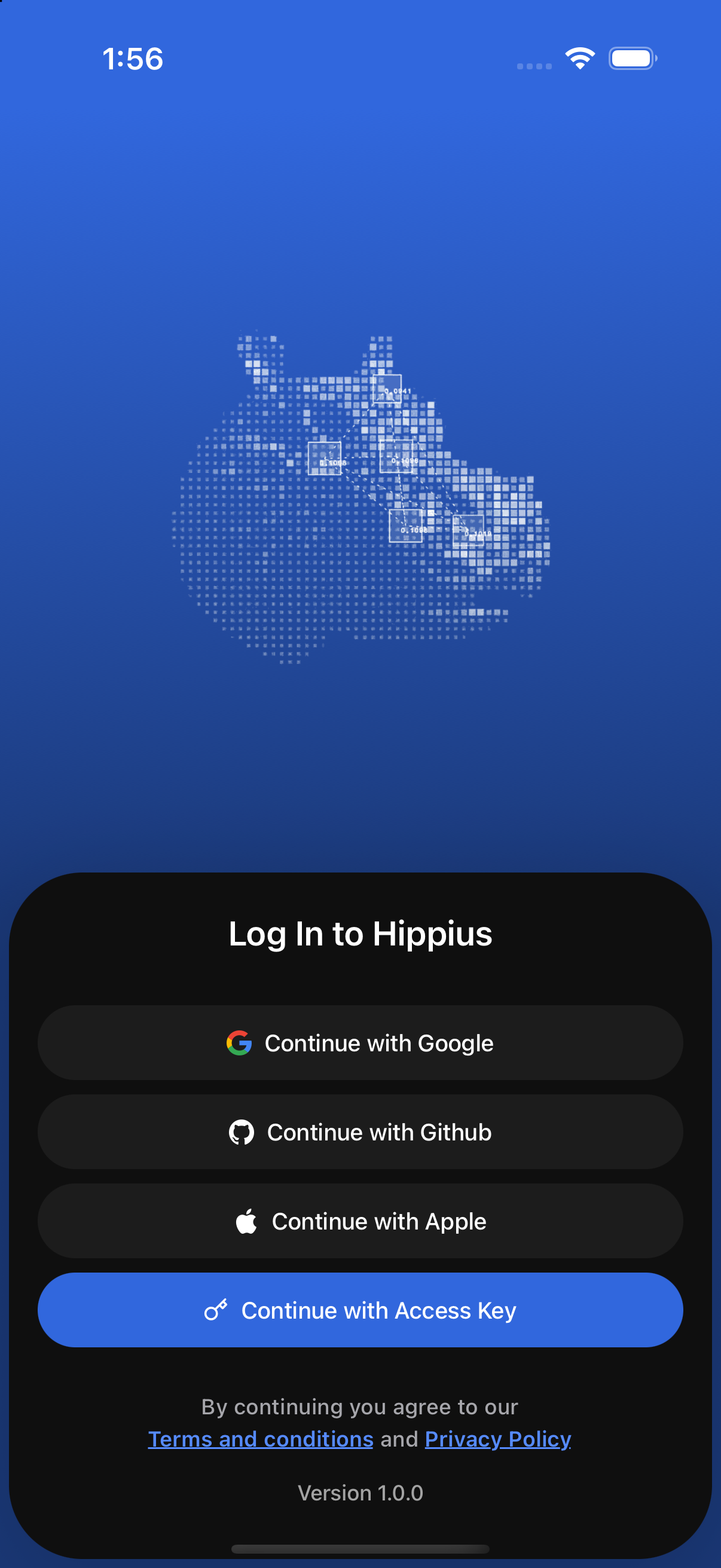
- On Log In to Hippius, choose how you want to continue: Continue with Google, Continue with Github, Continue with Apple, or Continue with Access Key. All four work on Android.
- Google, GitHub, and Apple open a browser sheet where you approve the sign-in and come straight back to the app.
- For an access key, type or paste your recovery phrase from an existing Hippius account under Access Key and tap Log In. Use this if you already have one.
Your access key is the key to your files, not just a password. Anyone who has it can read everything you have stored. Keep it somewhere only you can reach, and never send it to anyone, including us.
How you sign in also decides whether your account includes free storage. Google, GitHub and Apple accounts come with the 10 GB Free Drive Plan. Access key accounts need a plan before their first upload. See Plans and Storage.
Your unlock password
An unlock password protects an encrypted copy of your mnemonic seed that we store for your account. It is the same password used in the console and the desktop app. It is not your Google, Apple, or GitHub password.
When you are asked for it depends on the situation:
- New account, first upload. The app asks you to create an unlock password before that first upload is encrypted. For a Google, GitHub or Apple account, this is also when your recovery phrase is created. Afterwards, a Save your recovery phrase card appears on Overview. Tap View phrase and write it down.
- Existing unlock password, new phone. After you sign in, the app asks you to enter the password once so it can open your seed on this device.
- Any time from Settings. You can set, change, or restore the password under Settings → Security.
We cannot reset your unlock password or recover it for you. If you forget it, your mnemonic seed can restore access and set a new one. See Restore Access.
Finding your way around
The app has two main screens, Overview and Drive. Switch between them with the bar at the bottom of the screen.
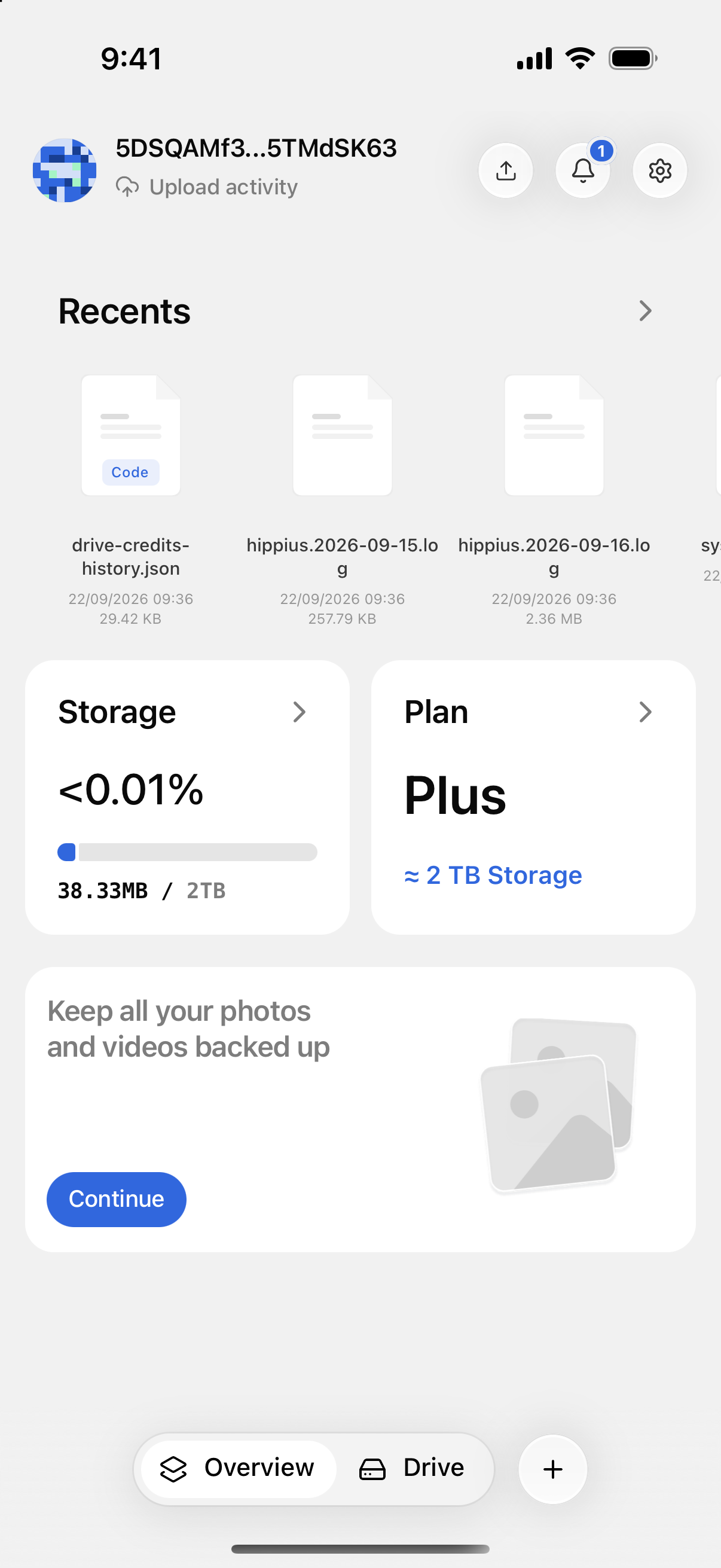
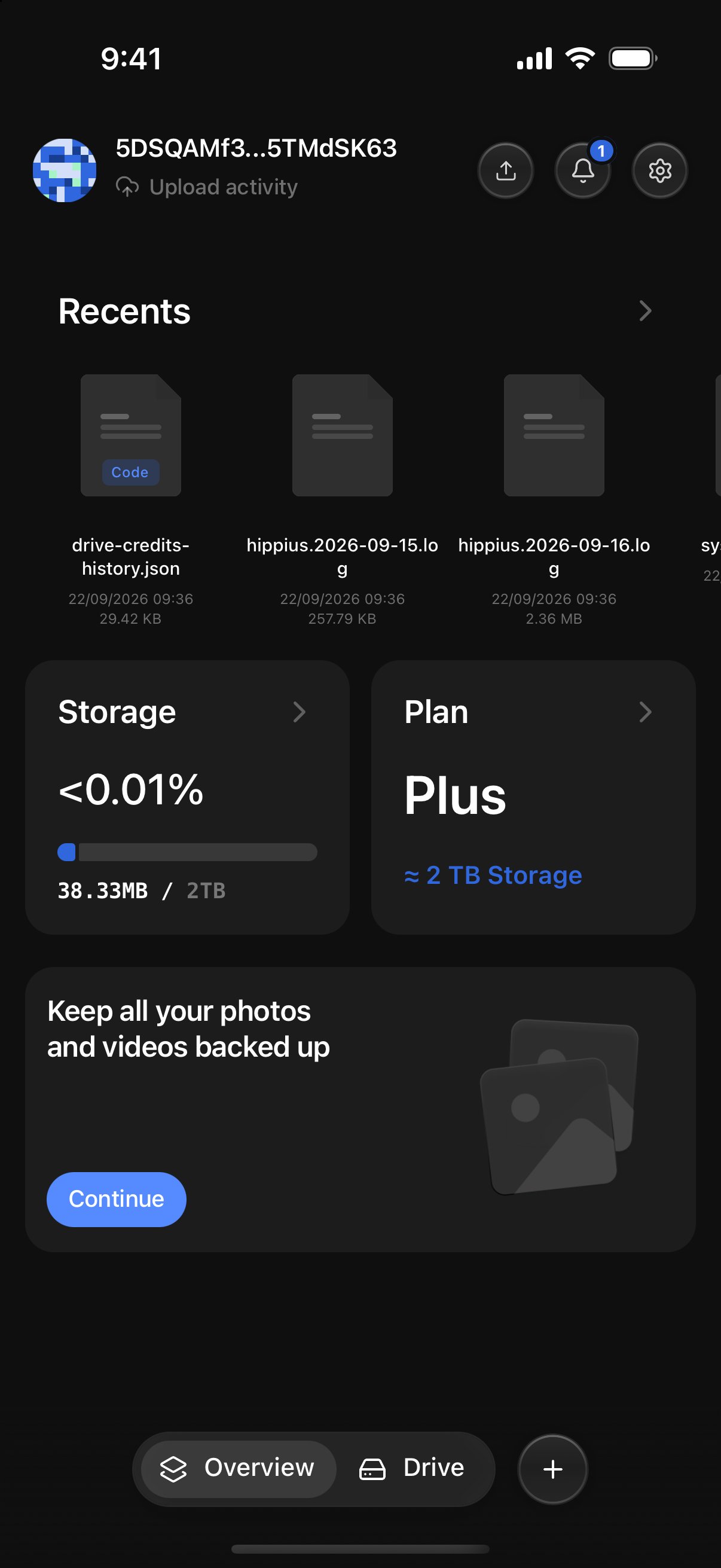
At the top of both screens:
- Your account: your picture and your email, GitHub name or wallet address. Under it, a line shows what is uploading, such as Backing up 120 of 340, or Upload activity when nothing is. Tap the line to open your uploads.
- The upload button opens Your Uploads, where you can follow, pause or cancel anything that is uploading or backing up. Its icon shows a progress ring while something is uploading.
- The bell opens your notifications. A badge counts the ones you have not read.
- The gear opens Settings.
At the bottom:
- Overview is your home screen. See below.
- Drive is your files. Browse, search, upload, preview, download, and organise them into folders. See Your Files.
- The + button adds something: Upload Photos, Upload files, Create Folder, or Take photo or video. See Adding files.
Overview
Overview shows, from top to bottom:
- Recents: the files you added most recently. Tap the arrow to go to Drive.
- The Storage and Plan cards: how full your Drive is, and which plan you are on. See Plans and Storage.
- Save your recovery phrase, only for a new Google, GitHub or Apple account after its first upload. Tap View phrase to back the phrase up. Later hides the card for good, so only tap it once the phrase is safe.
- A card to set up Camera Uploads. Once you have set it up, it is replaced by Storage Distribution, a breakdown of what is using your storage.
Notifications
Tap the bell to see your notifications. The app sends three kinds:
- Welcome, once, when you first sign in.
- App updated, after the app updates to a new version.
- Backup finished, when Camera Uploads has backed up your photos, for example Backed up 12 new photos. If some could not be backed up, it says how many need attention. Its Open button, such as Open Camera Uploads, takes you to your backup folder. You can turn these off with Backup notifications.
Backup notifications also appear on your phone, so you know without opening the app. Tapping one opens the app on that notification.
In the list, tap a notification to read it, or press and hold it to mark it as read or unread, or delete it. Mark all as read clears the unread badge.
Home screen widgets
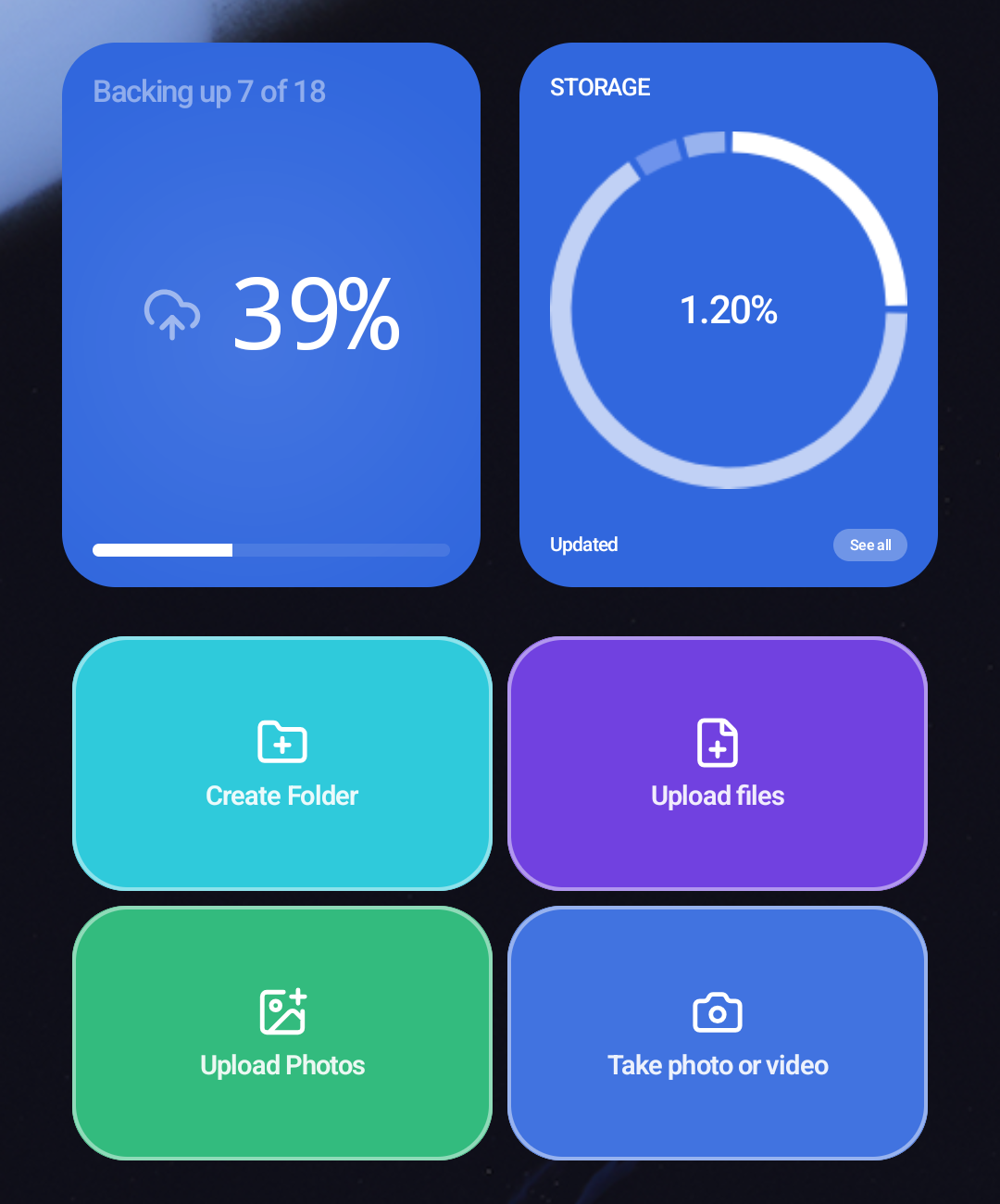
Widgets put Hippius on your home screen, so you can start an upload or check on a backup without opening the app.
On Android
To add one, press and hold an empty spot on your home screen, tap Widgets, find Hippius, and drag the widget you want into place. You can resize them.
There are four:
| Widget | What it shows | Tap it to |
|---|---|---|
| Upload & Backup | The progress of your uploads and your Camera Uploads backup, as it happens. See below. | Open Your Uploads |
| Quick Actions | Four buttons: Create Folder, Upload files, Upload Photos and Take photo or video | Jump straight into that action |
| Storage | How full your Drive is | Open the Storage screen |
| Storage Overview | How full your Drive is, with the space used by videos, images, docs and others | Open the Storage screen |
A new Storage widget reads Open to refresh until the app has filled it in. All the widgets are cleared when you log out.
The Upload & Backup widget
This widget shows your upload activity on your home screen, so you can follow a backup or a big upload without opening the app. It shows the same progress as the line under your name in the app:
- While something is uploading, what is happening, such as Backing up 120 of 340 or Uploading 4 of 12, with a percentage and a progress bar. It reads Scanning backup… while the app is still counting your photos.
- While it is paused, Backup paused or Uploads paused. This includes while Upload on Wi-Fi only is holding uploads on mobile data.
- When something failed, how many items need you, such as 3 backup items failed.
- When it is done, how it went, such as Backed up 340 photos or Uploaded 5 files. Once you clear it in Your Uploads, it reads Up to date. With nothing to report, it reads No active uploads and All caught up.
It keeps updating while Camera Uploads runs in the background. Tap it to open Your Uploads, where you can pause, resume, retry or skip. See Following the backup.
Keeping the app up to date
The app checks for a new version by itself shortly after it opens. If there is one, it tells you and offers to update. Tap Not now to be reminded a day later.
You can check yourself any time with Settings → Check for Updates, which also tells you when you are already on the latest version.
Small updates install inside the app. Tap Update now, wait a few seconds for the download, then tap Restart now. Uploads that were in progress carry on after the restart.
On Android
Bigger updates come from Google Play. Tap Update now and Google Play installs the new version for you without leaving the app. If it can't, the button reads Open Play Store instead. It takes you to Hippius on Google Play, where you tap Update.
What you can do
- Your files. Upload, preview, download, rename and delete. See Your Files.
- Camera Uploads. Back up your photos and videos on their own. See Camera Uploads.
- Shared links. Send a file or folder to someone who does not have Hippius. See Sharing Files.
- Your plan and storage. See how much space you have and what is using it. See Plans and Storage.
Coming back
After the first sign-in the app remembers you. Open it and you land on Overview, with no account password to type. You stay signed in until you sign out yourself.
If you turn on Biometric lock in Settings, the app asks for your fingerprint or face before it opens. That lock is only on this phone, separate from your unlock password.
Your plan
The app shows which Drive plan you are on and how much storage it gives you, on the Overview Plan card and on your Account screen. Managing subscriptions is not available in the mobile app. You subscribe, change or cancel a plan in the Hippius Console in a browser, signed in with the same account.
Once you subscribe in the console, the app picks the plan up on its own. There is nothing to enter twice. Plans and Storage walks through it step by step, and shows what the app looks like before and after.
Where to next
- Your Files: upload, preview, download and organise.
- Camera Uploads: back up your photos automatically.
- Plans and Storage: your plan, your storage, and subscribing in the console.
- Settings: security, biometric lock, Wi-Fi only uploads, appearance, account.