Permissions and Background Backups
Introduction
Phones are strict about two things: what an app may see, and when it may run. Both matter for Hippius, because Camera Uploads needs to read your photos and keep working while the app is closed. This page covers both: the permissions the app asks for, and what to allow so backups keep going on their own.
The app asks for each permission when it first needs it, rather than all at once. It never asks for your location or your contacts.
Android permissions
What the app asks for
| Permission | When it is asked | What it is for | If you say no |
|---|---|---|---|
| Photos and videos | When you set up Camera Uploads | Finding the photos and videos to back up | Camera Uploads can't run. Picking photos to upload by hand still works. |
| Camera | When you choose Take photo or video | Taking a photo or video to upload straight away | Upload photos you have already taken instead. |
| Notifications | After you first sign in, and again when you turn on Camera Uploads | Showing backup progress, and telling you when a backup finishes | Backups still run. You just don't see them in your notifications. |
Biometric lock uses the fingerprint or face unlock already set up on your phone, so Android doesn't ask a separate question for it.
Photos and videos
When you set up Camera Uploads, Android asks whether Hippius may access your photos and videos. On Android 14 and later there are three answers:
- Allow all lets Hippius see your whole library. Choose this for Camera Uploads.
- Select photos and videos lets Hippius see only the items you pick. Camera Uploads then backs up only those, and never sees new photos you take. The Upload from sheet says so and offers Change selection. When you turn backup on, the app warns you again with Limited photo access, and offers Select Photos… or Allow Full Access.
- Don't allow gives no access. Camera Uploads can't be turned on.
On Android 13 and earlier, the choice is simply Allow or Don't allow.
To change it later:
- Open your phone's Settings → Apps → Hippius.
- Tap Permissions, then Photos and videos.
- Choose Allow all.
The app can take you there: on the Upload from sheet, tap Manage in settings, then Open settings.
Notifications
On Android 13 and later, apps need your permission to show notifications. Hippius asks after you first sign in, and again when you turn on Camera Uploads if you haven't allowed it yet.
Allow it. While a backup runs in the background, Android requires a visible notification for it, and without the permission you can't see it. Backups still run if you say no, and you can turn notifications on later under Settings → Apps → Hippius → Notifications.
The Backup notifications switch in the app's own Settings decides whether you are told when a backup finishes. See Settings.
Keeping backups running on Android
Once Camera Uploads is on, it keeps working in the background. Android limits what apps can do there, so these settings decide whether backups keep going while you use your phone for other things.
Battery optimization
To save battery, Android limits what apps can do while they are not on screen. With battery optimization on, Android may stop a backup that is running in the background, and delay or skip the regular checks that pick up new photos. Camera Uploads then only catches up the next time you open the app.
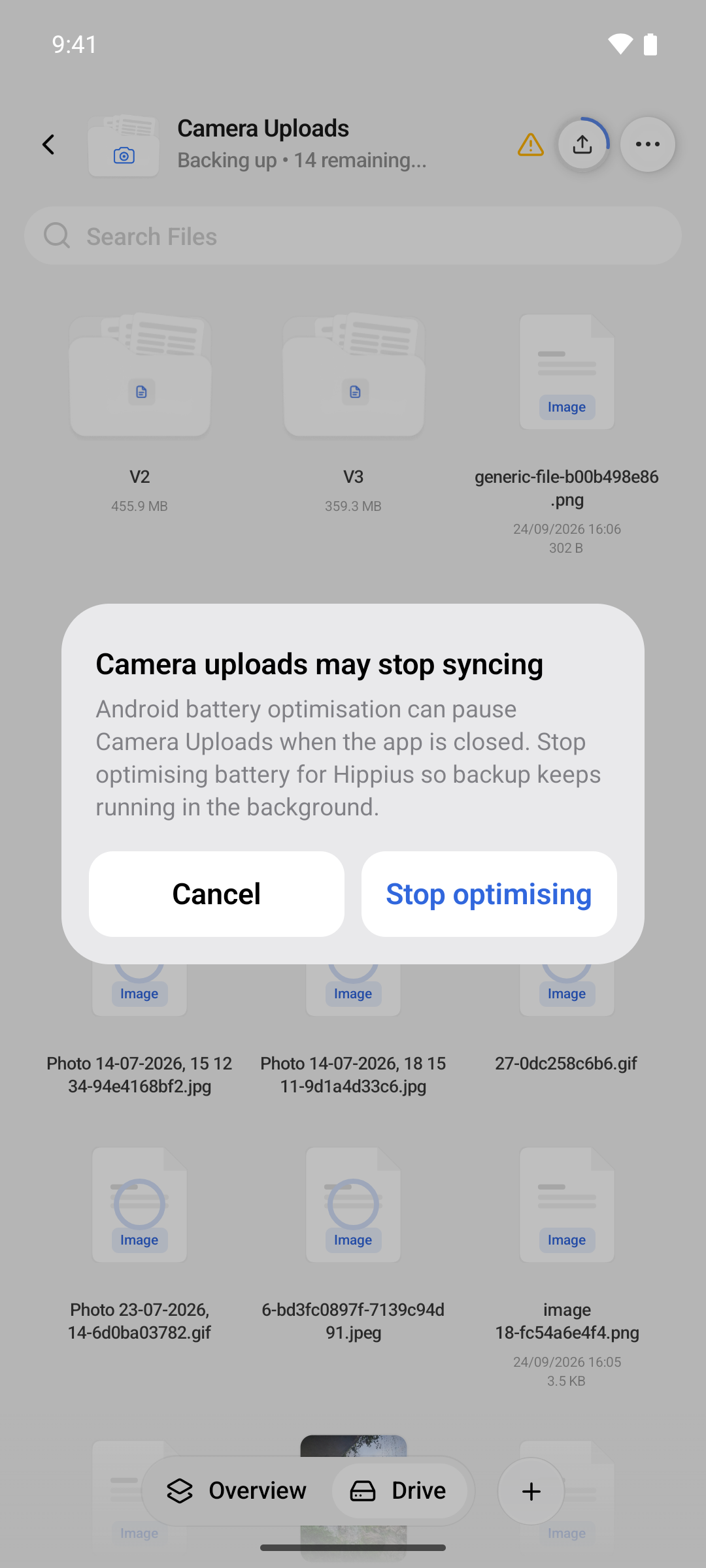
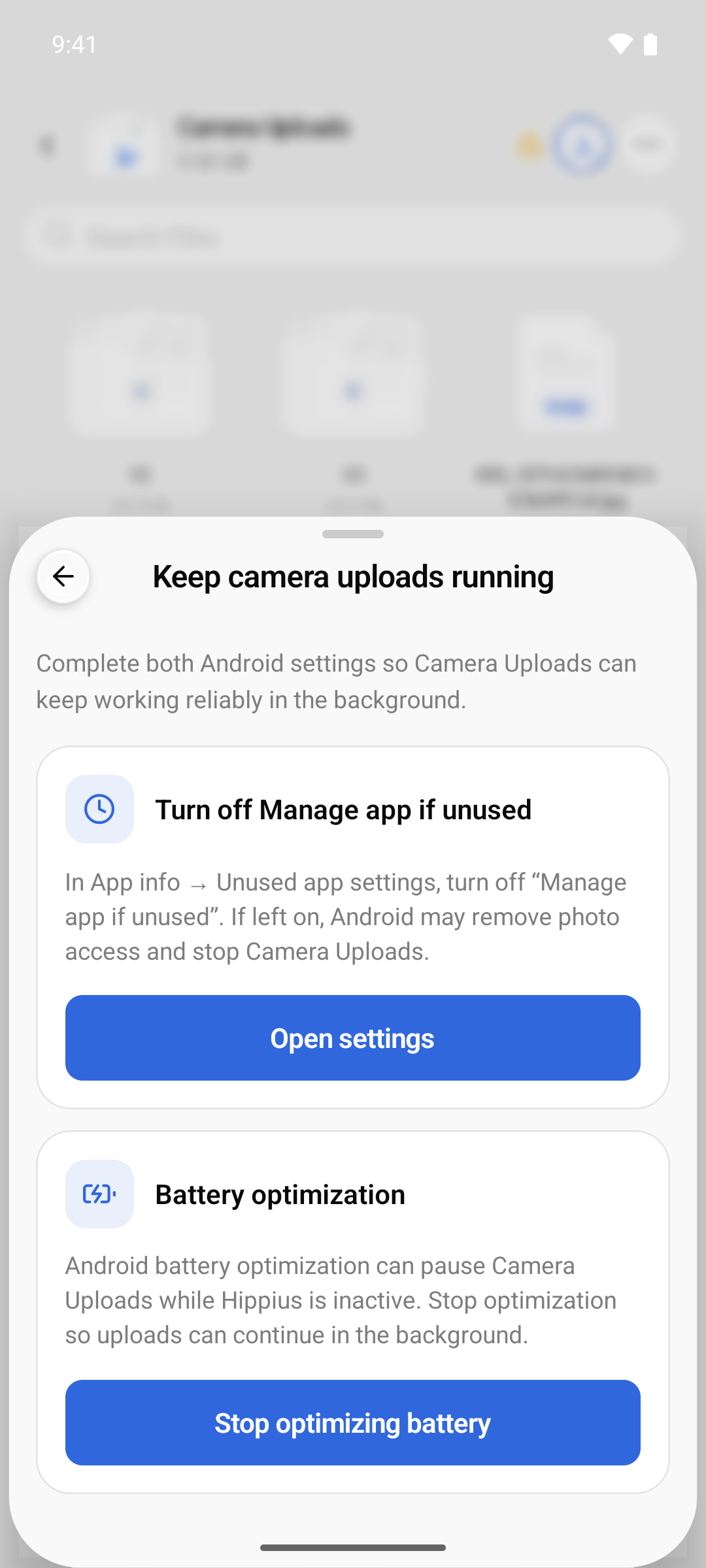
Turning off battery optimization for Hippius lets backups keep going in the background. The app asks in three places:
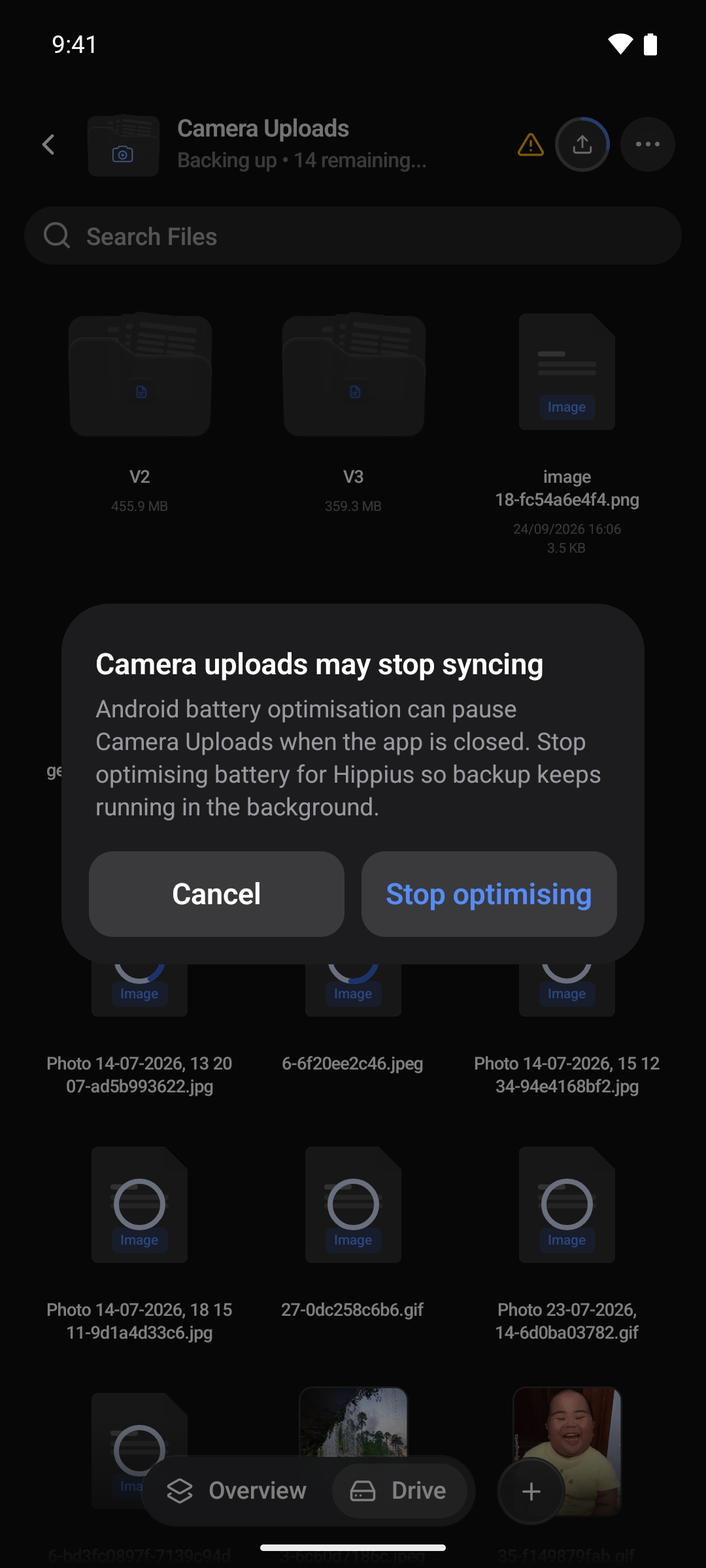
- The first time you open your backup folder, a dialog says Camera uploads may stop syncing. Tap Stop optimising.
- Settings → Camera Uploads → Continuous camera uploads shows Off while optimization is on. Tap it, then Stop optimizing battery.
- A warning triangle appears in your backup folder's header while something still needs your attention. Tap it to see what is left.
Each of them opens Android's own prompt, which asks whether to let Hippius always run in the background. Tap Allow. Continuous camera uploads then reads On.
Turning off battery optimization is enough on many phones, but not all. Some phone makers add a battery manager of their own that can still stop Hippius. See When your phone stops backups anyway.
Pause app activity if unused
If you don't open an app for a few months, Android can take away its permissions and stop it running, to free up space and protect your privacy. For Hippius that means losing photo access, and Camera Uploads stops.
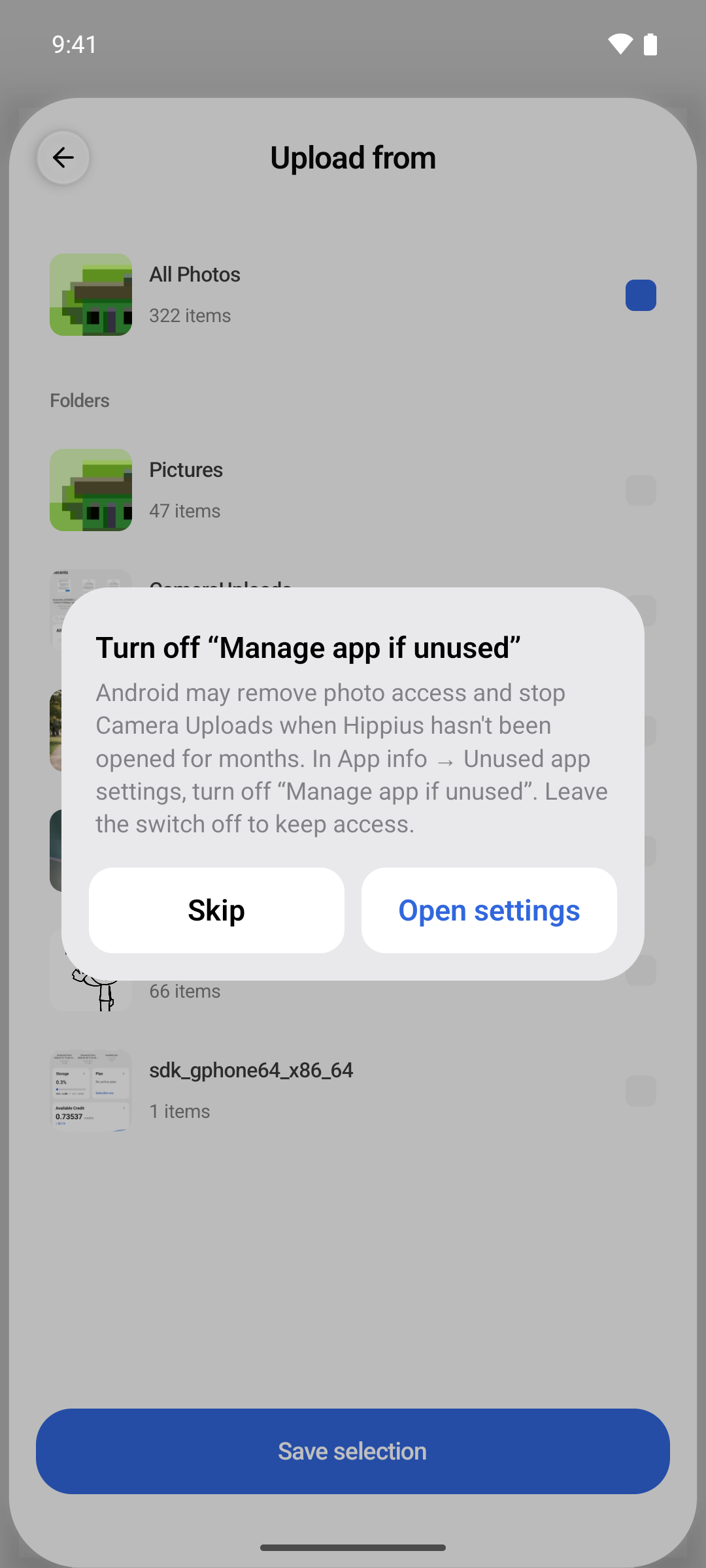
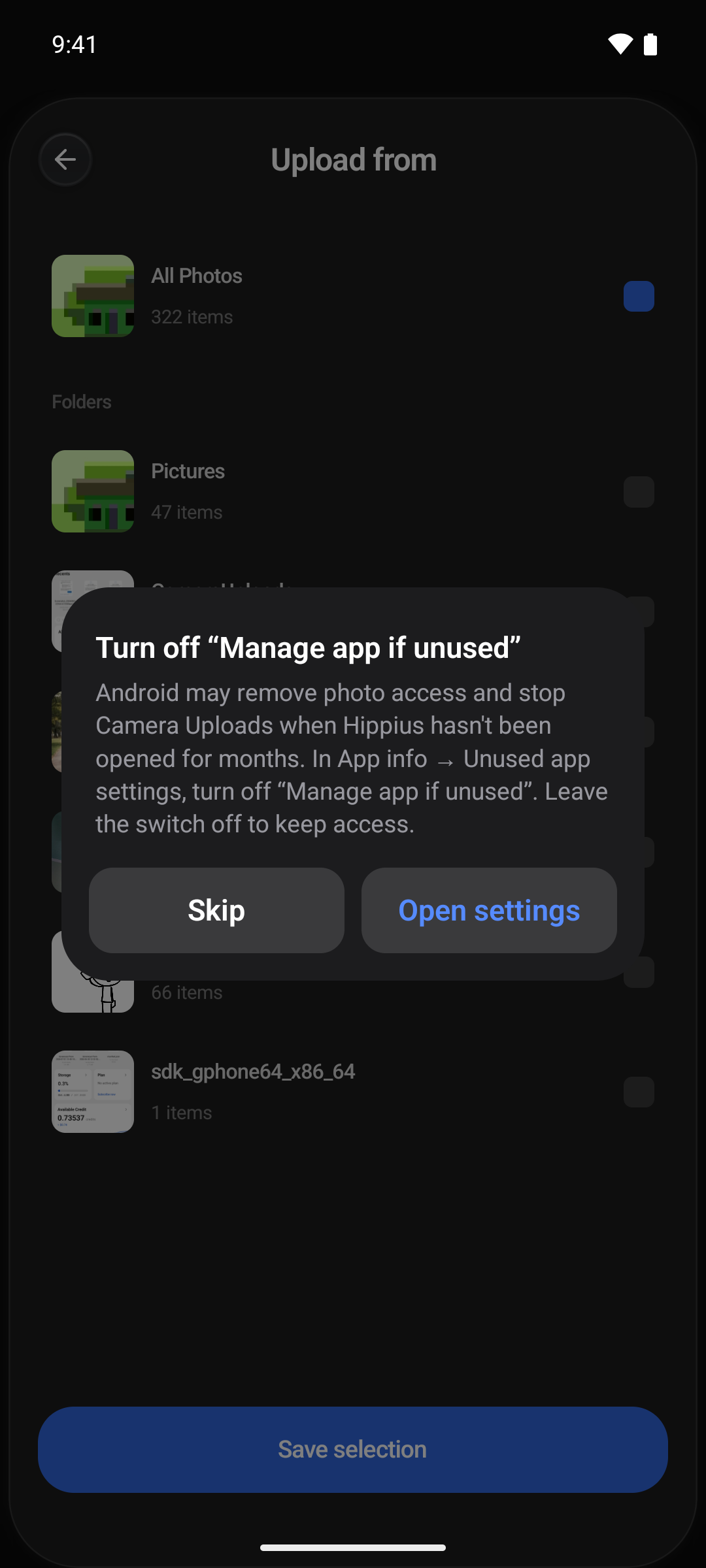
While this setting is on for Hippius, the app reminds you every time you open the Upload from sheet. Tap Open settings and switch it off. The setting has a different name on each Android version:
| Android version | What it is called | Where it is |
|---|---|---|
| 15 and later | Manage app if unused | App info → Unused app settings |
| 13 and 14 | Pause app activity if unused | App info |
| 12 | Remove permissions and free up space | App info |
| 11 | Remove permissions if app isn't used | App info → Permissions |
| 10 and earlier | Remove permissions if app isn't used | Play Protect → Permissions for Unused Apps |
To find App info, open your phone's Settings → Apps → Hippius.
Keep camera uploads running
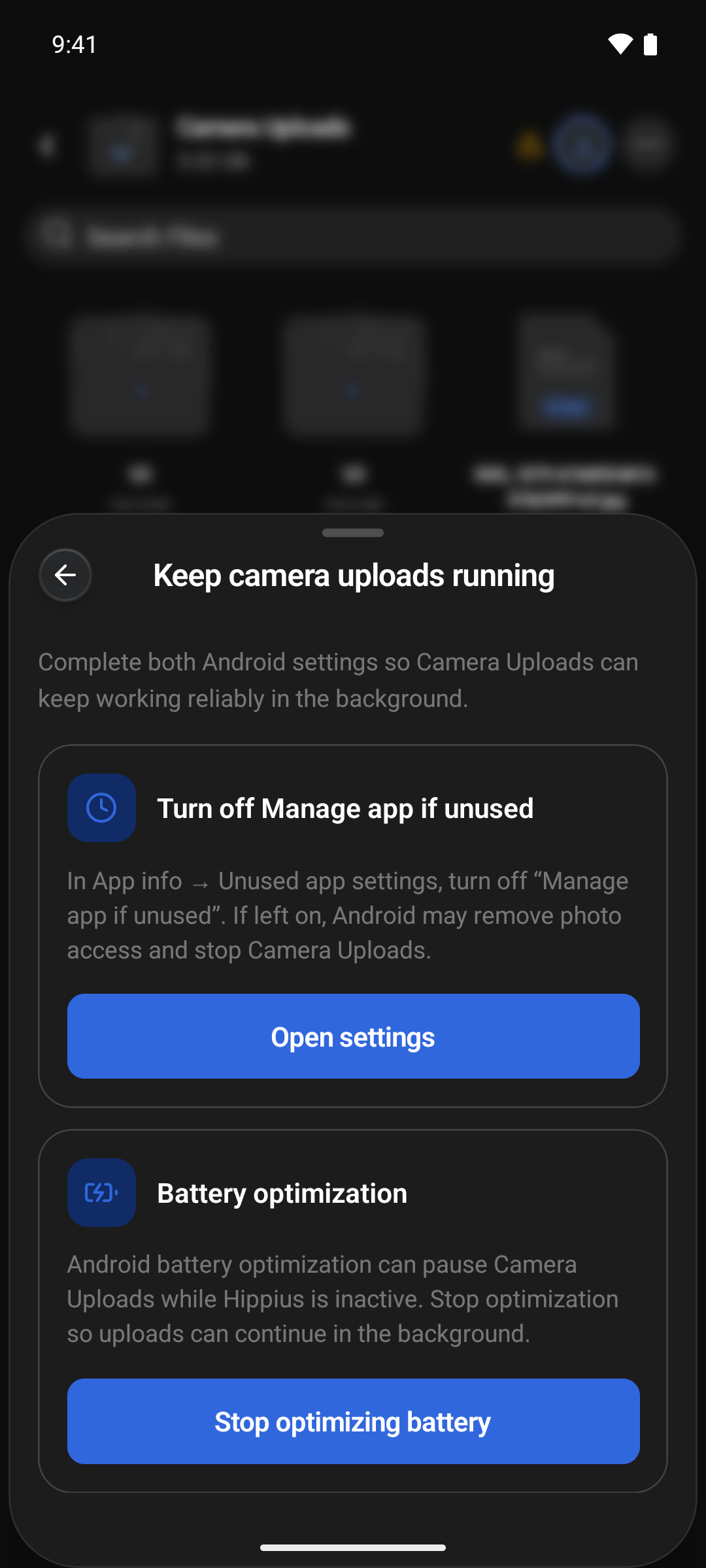
If both battery optimization and the unused app setting still need changing, the warning triangle in your backup folder opens a sheet called Keep camera uploads running. It lists what is left, each with a button that takes you to the right place. As you finish them they disappear, and the sheet says You're all set when there is nothing left to do.
How Android runs backups in the background
- While a backup is running and you leave the app, Hippius keeps uploading. A quiet notification, Hippius Camera Uploads: Backing up your photos in the background, stays in your notifications while it works, and goes away when the backup is done. Tap it to open the app.
- New photos are picked up when you open the app, and by a background check that Android runs from time to time. Android decides exactly when, at most about every 15 minutes, and less often when the battery is low or battery saver is on. Each check backs up a batch, and the next one carries on.
- Closing the app by swiping it away from your recent apps usually doesn't stop a backup that is already running. Some phones stop it anyway. See When your phone stops backups anyway.
- Restarting your phone ends a running backup. The background checks start again after the restart and carry on a batch at a time. Open the app to get the backup going at full speed again.
- Android 15 and later limit how long an app may upload in the background. On a long backup, Android may stop it after a while. It carries on at the next background check, or as soon as you open the app.
- Force stop (Settings → Apps → Hippius → Force stop) stops everything, including background checks, until you open the app again.
A backup that is running in the background can only be started from the open app. That is why opening Hippius is always the quickest way to get a stalled backup moving again.
When your phone stops backups anyway
Even with battery optimization off and every permission allowed, a backup can still stop in the background on some Android phones. Many phone makers add a battery manager of their own on top of Android's. It can close apps that are running in the background whatever you have allowed, often within about 15 minutes of leaving them.
When that happens:
- The Hippius Camera Uploads notification disappears, even though the backup hasn't finished.
- Hippius can't restart the backup by itself, because Android only lets the open app start one. Android's background checks may still back up a batch now and then, but many of these phones hold those back too.
- Nothing is lost. The next time you open Hippius, the backup carries on from where it stopped, and photos that were already backed up are not uploaded again.
To make it happen less often, look through your phone's own battery settings for Hippius. They are usually under Settings → Apps → Hippius → Battery, or in the phone's Battery settings. The names change from one phone maker and software version to the next, but look for settings like these:
| Phone | What to look for |
|---|---|
| Samsung | Battery set to Unrestricted, and Hippius on the list of apps that never sleep, under Battery → Background usage limits |
| Xiaomi, Redmi, POCO | Autostart turned on, and battery set to No restrictions |
| OnePlus, OPPO, realme | Allow background activity and Allow auto launch turned on |
| vivo | Hippius allowed to use power in the background, under Battery → Background power consumption management |
| Huawei, Honor | Under Battery → App launch, Manage automatically turned off for Hippius, with Run in background on |
Some phones also let you lock an app on the recent apps screen, often with a padlock icon, so that clearing your recent apps doesn't close it. If yours does, lock Hippius.
Even so, some phones still close apps in the background. For a big backup, keep your phone on Wi-Fi and plugged in, and open Hippius now and then to keep it moving.
Where to next
- Camera Uploads: set up and manage your backup.
- Troubleshooting: when a backup stops or doesn't start.