Screenshots and Screen Recording
Sometimes a picture explains a problem faster than a paragraph, and a short video beats a meeting. Hippius lets you take a screenshot or record your screen, and by the time you have let go of the mouse, the capture is saved in your Drive and a link to it is on your clipboard, ready to paste into a chat, an email or a ticket.
Like everything else in your Drive, a capture is encrypted on your own device before it leaves it. Nobody at Hippius can look at it, and the people you send the link to can.
What happens when you capture
- You choose what to capture: your entire screen, one window, or an area you drag out.
- Hippius takes the screenshot, or records until you stop.
- The capture is encrypted on your device and uploaded to a drive of its own, called Hippius Captures.
- A share link is made for it and copied to your clipboard. Anyone with that link can view the capture in their browser, without a Hippius account.
There is no folder to pick, no file to name and no upload to start. You can still do all of that later if you want to, because a capture is an ordinary file in your Drive.
Where you can use it
| Where | Screenshots | Screen recording |
|---|---|---|
| Desktop app on macOS | Yes | Yes |
| Desktop app on Linux | Yes | Yes |
| Desktop app on Windows | Yes | Yes |
| Console in Chrome or Edge on a computer | Yes | Yes |
| Console in Safari or Firefox on a computer | Yes | Yes, with a few differences (see Record your screen) |
| Phones | No | No |
On a phone you can't take captures with Hippius, but everything you capture on a computer shows up in Captures when you open the console on your phone, and its link works on any device.
If you have the choice, the desktop app gives you the most: system-wide keyboard shortcuts, a one-step area screenshot, Screenshot and Record in the menu bar, and captures that wait safely on your computer if they can't be uploaded straight away. The console needs nothing installed, which makes it handy on a computer that isn't yours.
Where your captures go
Every screenshot and recording lands in your Hippius Captures drive. The desktop app and the console use the same drive, so a recording you made on your laptop is in the list when you open the console at work, and the other way round.
Captures are named after the moment you took them, so they sort naturally:
Screenshot 2026-10-12 at 14.03.11.pngRecording 2026-10-12 at 14.05.40.mp4(some browsers save a.webmvideo instead)
You'll find them in two places:
- Captures, in the sidebar of the desktop app and of the console (under Drive). It lists your newest captures first, with the same search, filters and row menu as any drive.
- The Hippius Captures drive itself, next to your other drives.
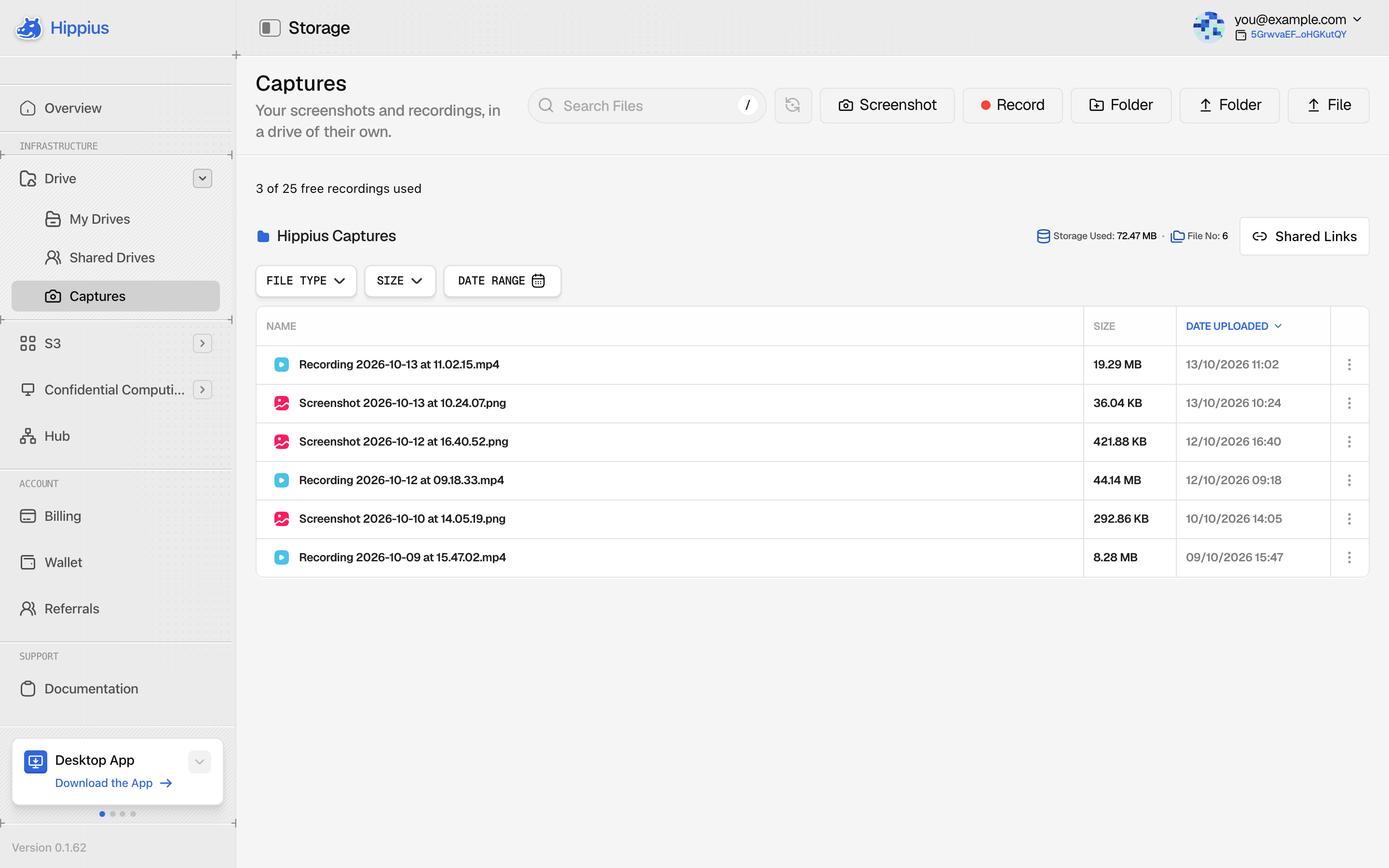
In the desktop app, your first capture asks once where to keep your captures on your computer. A Hippius Captures folder in Documents is suggested, and you can pick another place. That folder is backed up as your Hippius Captures drive, and you can move it later in Settings. The capture you just took is kept safe while you decide.
In the console, the drive is created for you on your first capture.
A capture is a file like any other, so you can rename it, move it, download it, share it again or delete it whenever you like.
Privacy and encryption
Captures get the same protection as the rest of your Drive:
- Encrypted before upload. Your screenshot or recording is encrypted on your computer, in the app or in your browser, before any of it is sent. Hippius only ever stores the encrypted file.
- The link carries its own key. A share link ends with a key after the
#sign. Browsers never send that part of an address to a server, so the key that opens your capture never reaches Hippius. That is also why the full link matters: without the part after the#, the capture can't be opened. - The watermark is part of the file. On the Free plan, the small Hippius mark is drawn into the picture on your device before it is encrypted. It is not something the server adds or could remove.
- What the server can see. For a shared file, the server knows how big it is and what it is called. It never sees what is in it.
Because the file name of a shared capture is visible to the server, give a capture a neutral name before you share it again if the name itself would say too much. The automatic names only say when it was taken.
Anyone who has the link can view the capture, so treat the link like the capture itself. If a link reaches someone it shouldn't, turn it off in Shared Links. See Share links for captures.
Where to go next
- Take a screenshot in the desktop app or the console.
- Record your screen, with your microphone, your camera and your computer's sound.
- Share links for captures: who can open them, and how to turn one off.
- Edit a screenshot with arrows, text, blur and more.
- Free and paid plans: what the Free plan includes.
- Troubleshooting & FAQ when something doesn't go to plan.