Edit a Screenshot
A screenshot often needs a little help: an arrow to the button that matters, a box around the error, or a blur over a name you shouldn't be sending. The Hippius editor does that without leaving the app or the console, and the edited picture stays encrypted like everything else.
The editor opens PNG, JPEG and WebP pictures, so it works on any picture in your drives, not just screenshots. In the desktop app it opens PNG and JPEG.
Open the editor
- In the console: open the row menu of a picture in Captures or any drive and choose Edit. You may be asked for your unlock password first, because the picture is decrypted on your computer to be drawn on.
- In the desktop app: choose Edit image from a picture's menu in Drive or Captures, press Edit in the viewer or on the card right after a screenshot, or click the arrow on the menu bar's Screenshot tile and choose Annotate an image to open any picture on your computer.
You can only edit pictures in drives you're allowed to change. In a shared drive where you are a Viewer, Edit isn't offered.
The tools
| Tool | Key | Good for |
|---|---|---|
| Select and move | V | Picking up, moving and resizing anything you've drawn |
| Crop | K | Cutting the picture down, freely or to a shape such as 1:1, 4:3 or 16:9 |
| Arrow | A | Pointing at the thing that matters |
| Line | L | Underlining or connecting |
| Rectangle and Ellipse | R, E | Drawing a box or a circle around something |
| Text | T | Adding a note |
| Pen | D | Drawing freehand (in the console) |
| Highlighter | M | Marking text the way a highlighter pen would |
| Numbered step | C | Numbered dots for step-by-step instructions |
| Blur and Pixelate | B, P | Hiding names, email addresses, passwords or anything private |
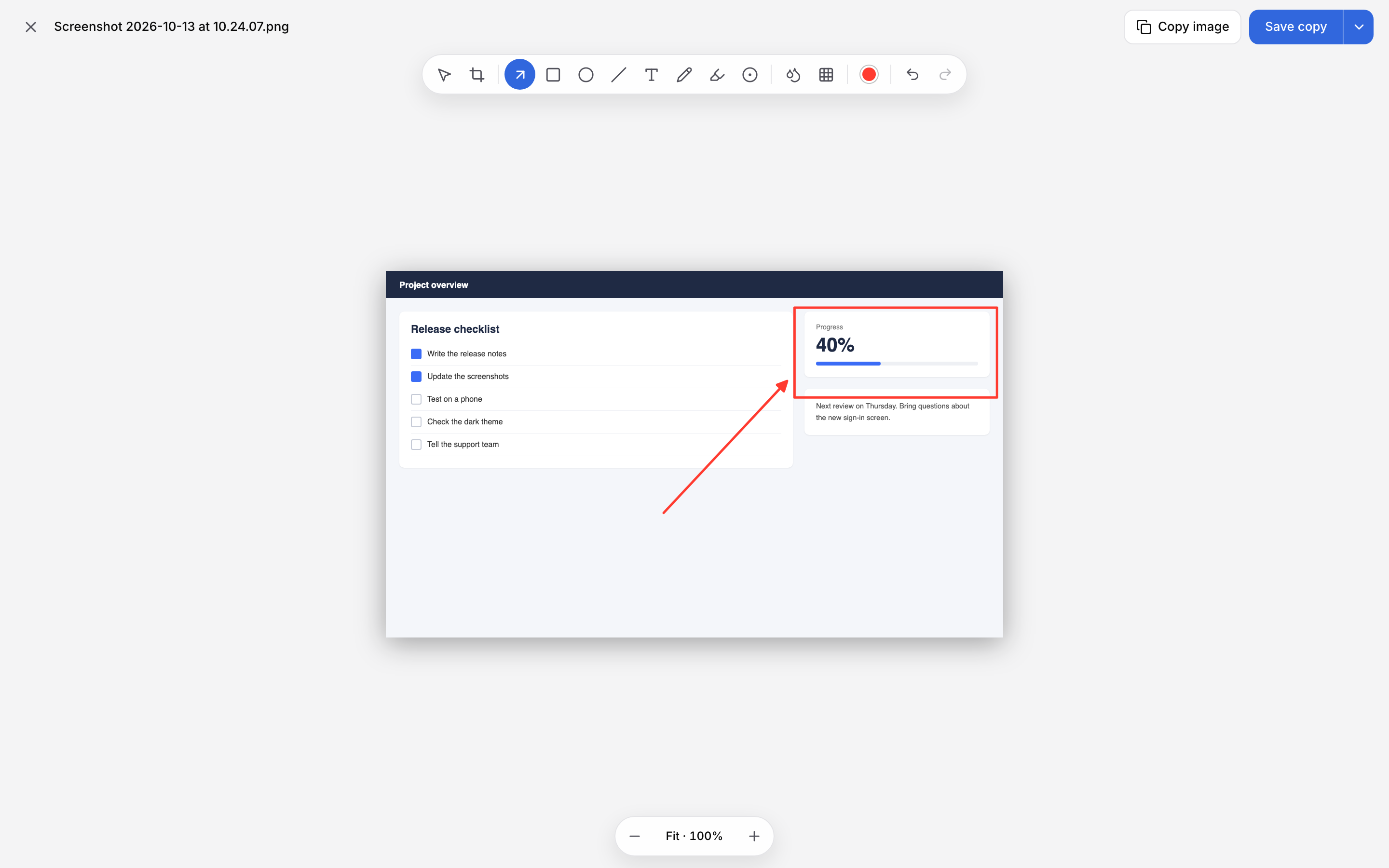
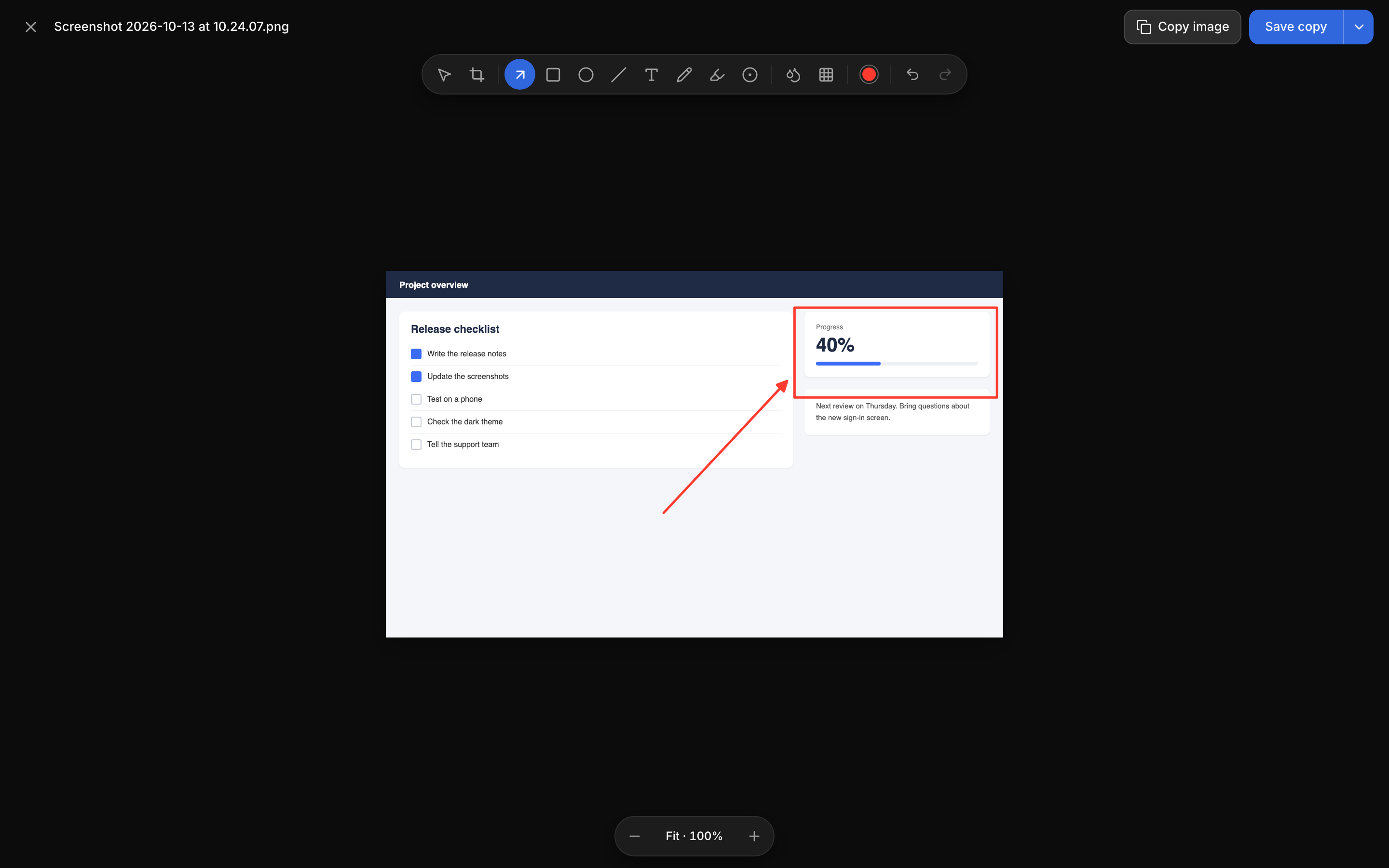
Each tool can take a colour and a thickness (thin, medium or thick). Undo and redo work as you'd expect.
Use Blur or Pixelate rather than drawing a box over something. They change the picture's pixels, so what's underneath is gone from the saved file, not just covered.
Save your edits
When you save, Hippius asks how:
- Save as a copy (the default) adds a new picture next to the original, with
(edited)in its name, for exampleScreenshot 2026-10-12 at 14.03.11 (edited).png. The original, and any link to it, stay as they were. - Replace the original writes over the picture.
A share link is its own copy of the file, made when the link was created. If you replace a picture that already has a link, that link still shows the picture as it was. To share the edited version, share it again (and revoke the old link if you don't want the old picture out there).
That's why Save as a copy is the default: the copy gets its own link when you share it, and nothing you've already sent changes under anyone's feet.
In the desktop app you can skip the question. In Settings, under Screenshots & Recording, When saving an edited image can be set to Ask, Save a copy or Replace the original. Picking Remember my choice in the save dialog sets the same thing.
A picture you open with Annotate an image from outside your drives is saved as a new screenshot with its own link, and the file on your computer is left as it was.