Drive
Introduction
Drive is your personal encrypted file storage on the Hippius network. Every file you upload is encrypted in your browser before it leaves your device. Only you can decrypt and read it.
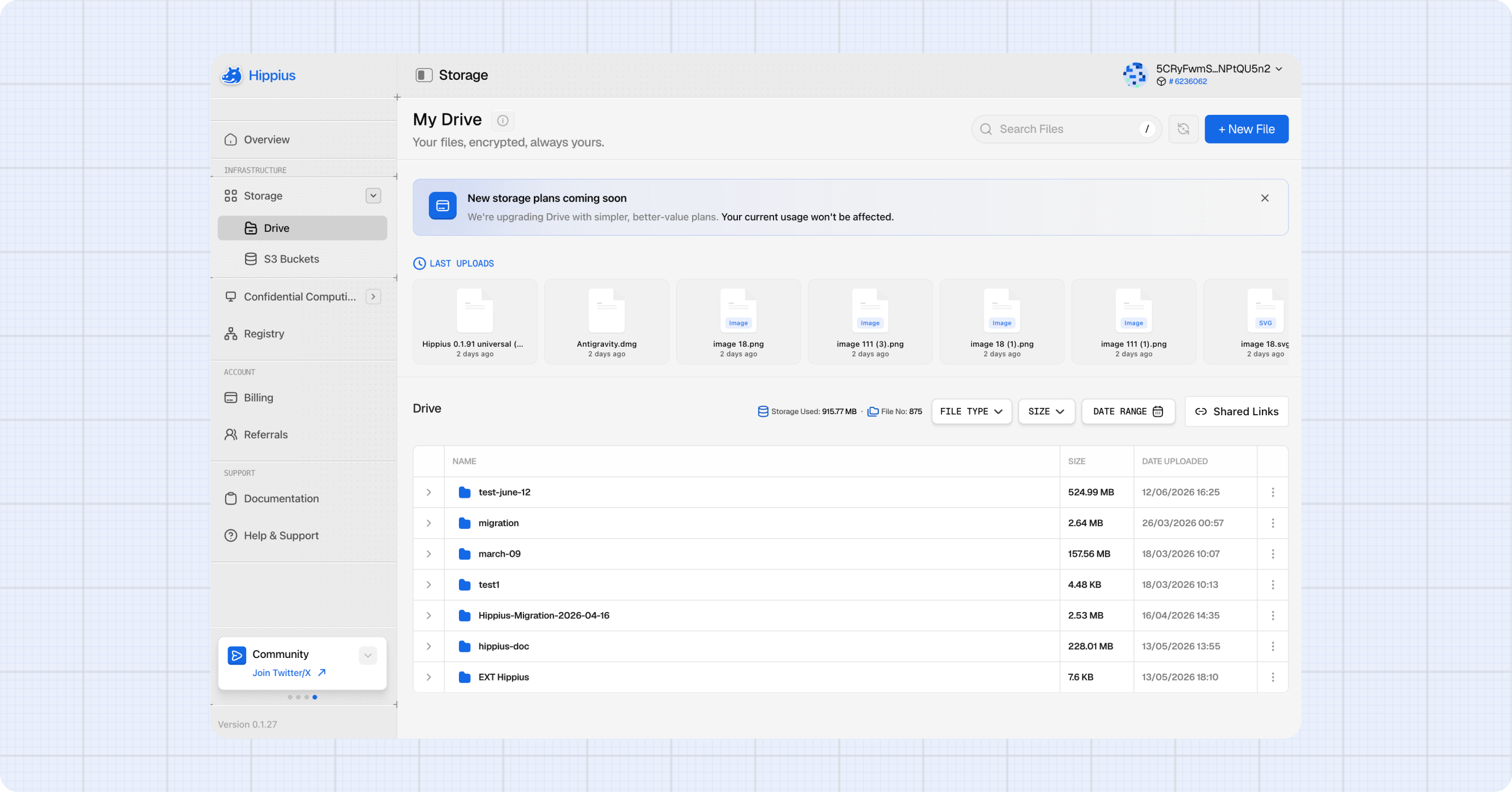
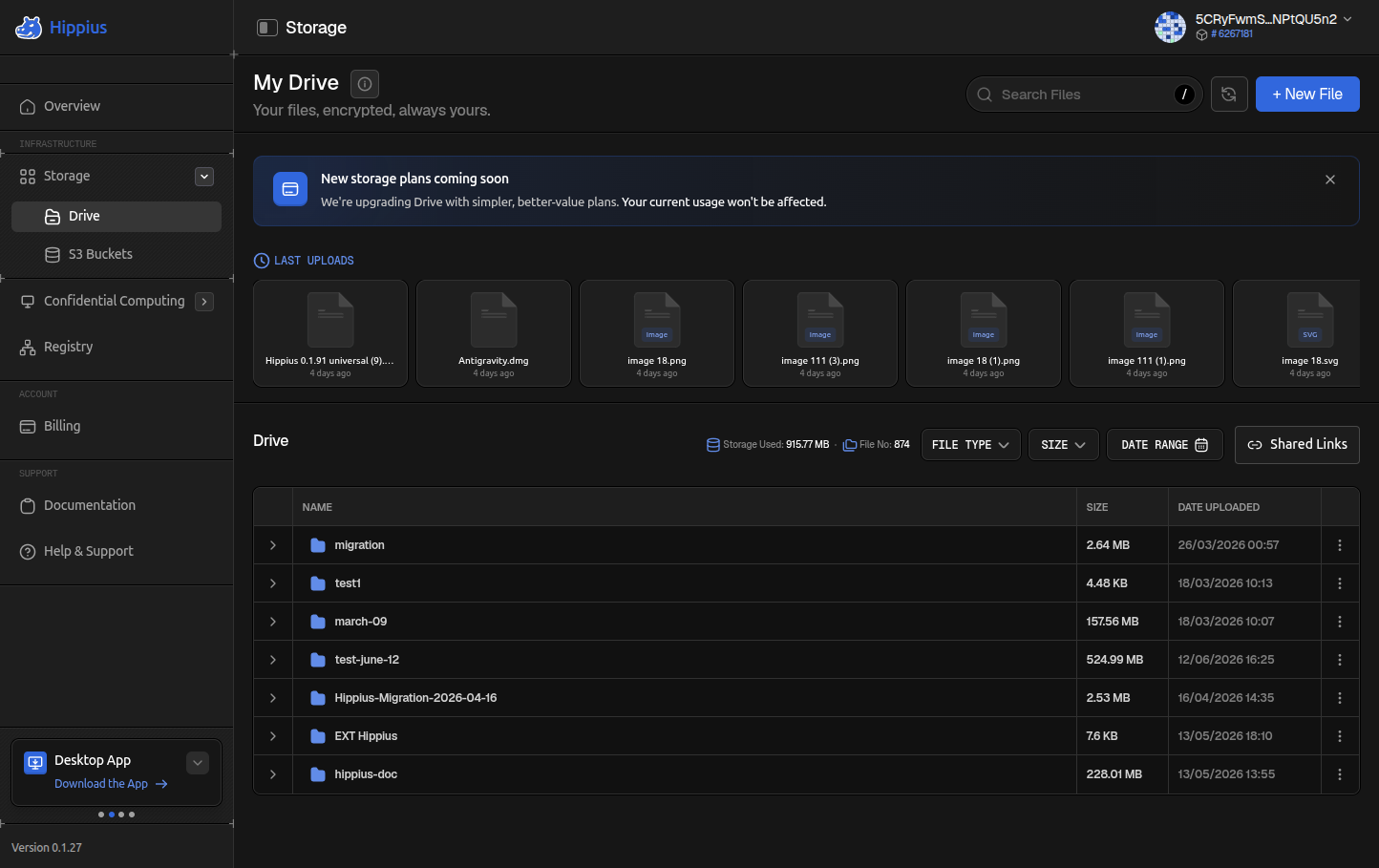
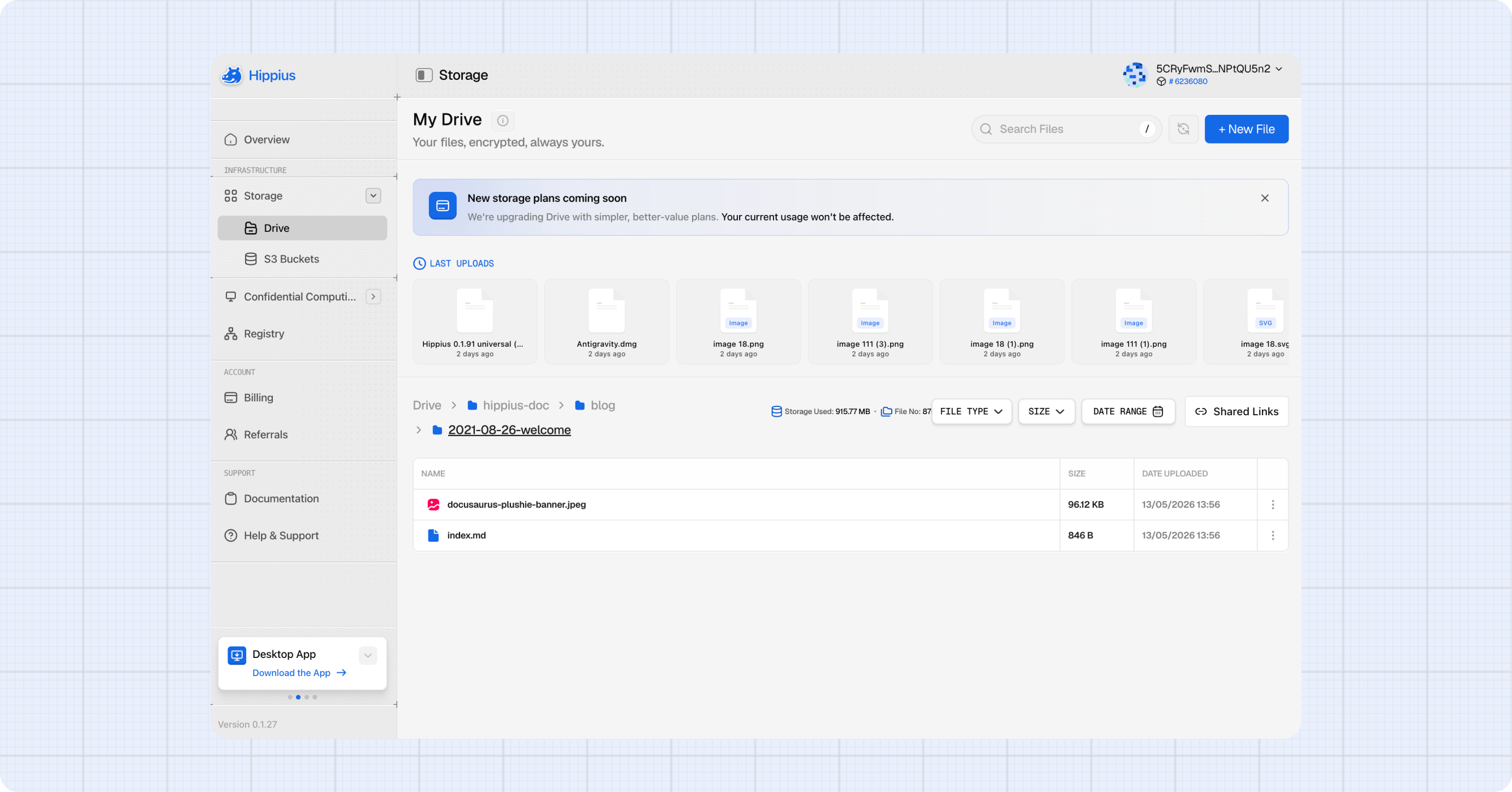
Reach Drive from the sidebar at
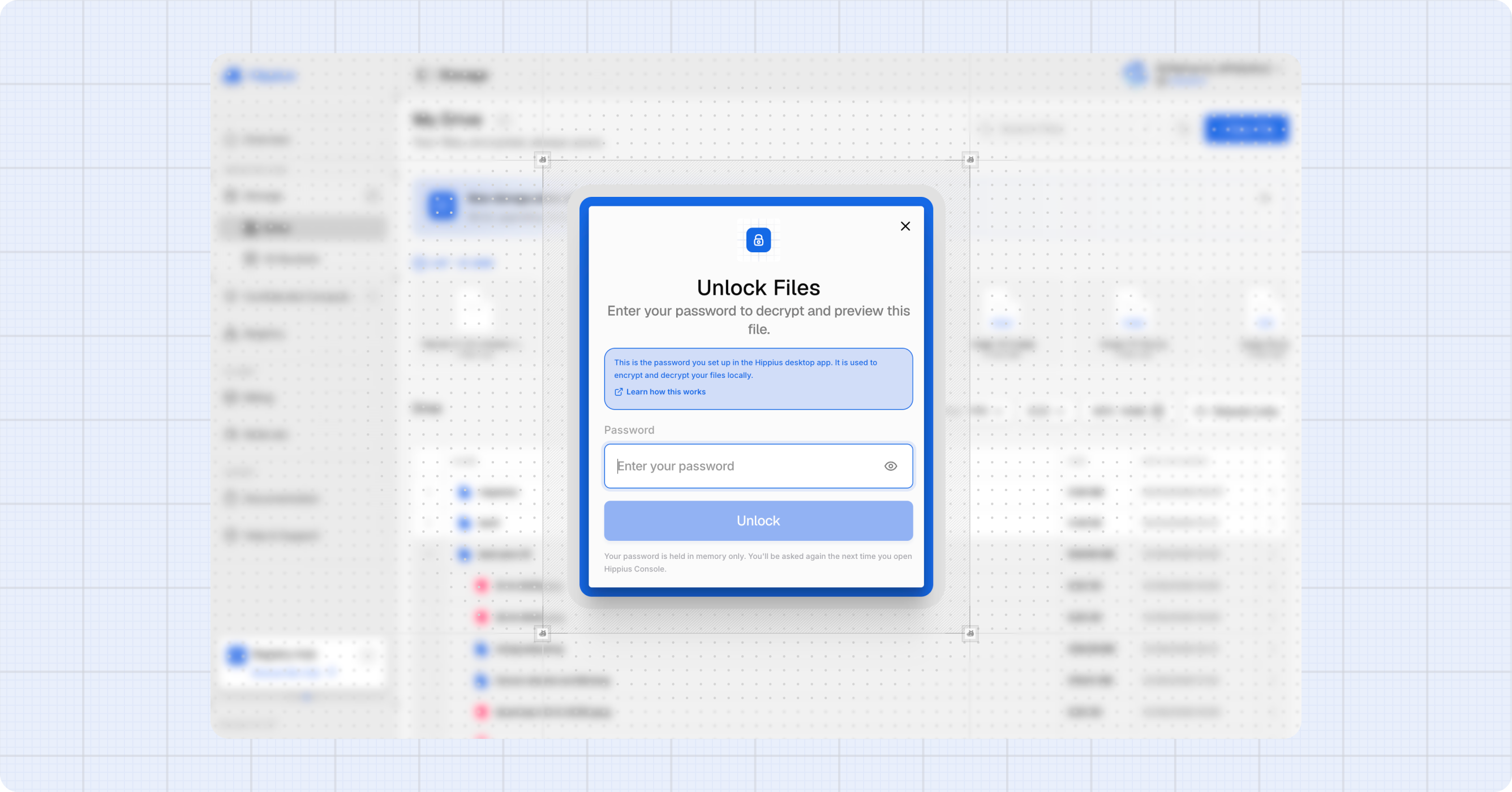
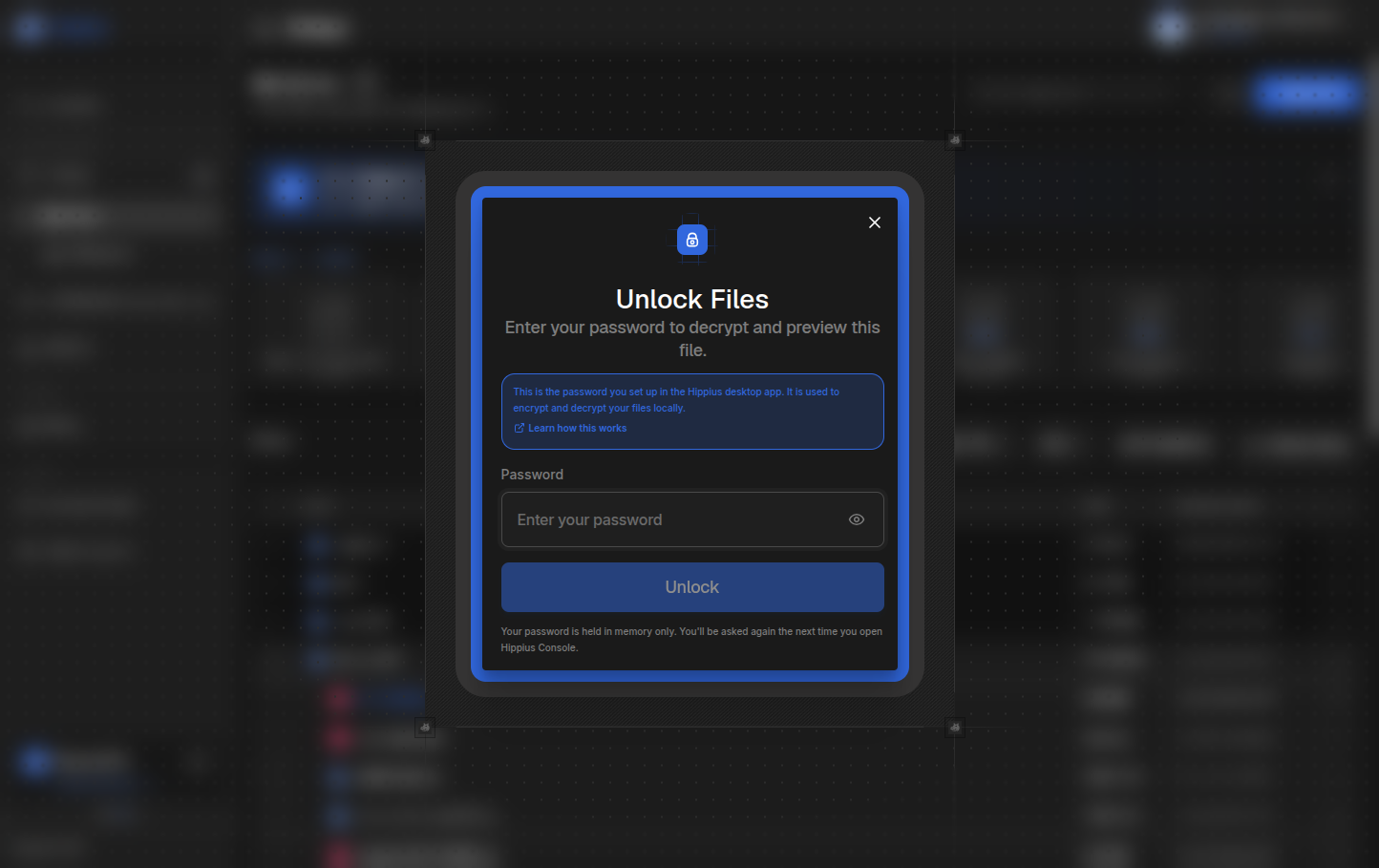
Your Unlock Password
Drive encrypts every file using a key tied to your unlock password. The console will ask for this password the first time you upload, preview, or download a file in each session. After you enter it, the key stays in memory until you close the tab. You won't be asked again during the same session.
Setting up for the first time? The console sets your unlock password up for you the first time you upload a file or create a folder. You do not need the desktop app for it. See Unlock Password for the full flow, including how to restore access with your recovery seed. If you already set one in the Hippius Desktop App, the same password works here.
If you forget it, you'll need your 12-word recovery phrase to restore access to your encrypted files. Keep both somewhere safe. We cannot recover either for you.
Browsing Your Files
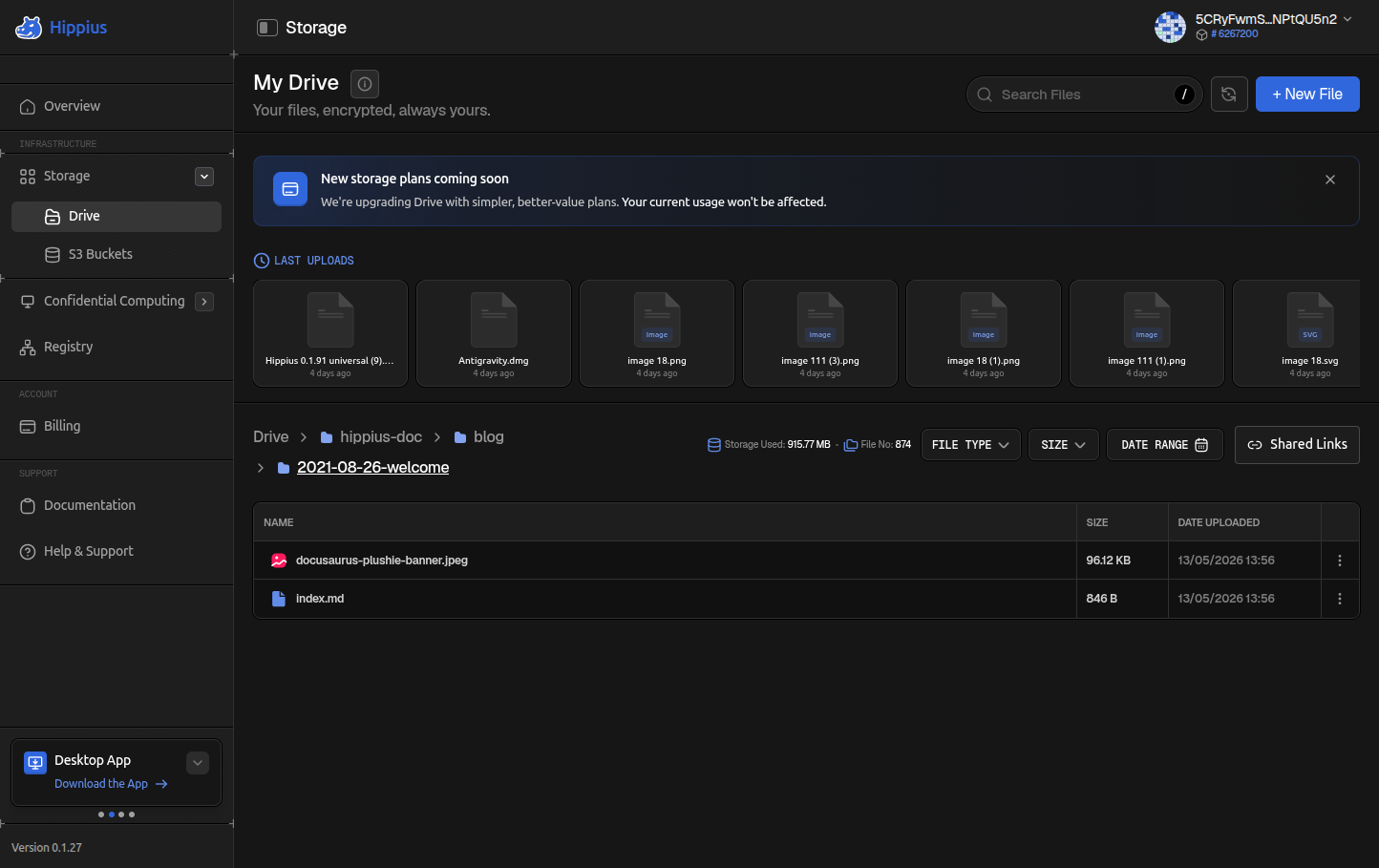
Your files are organised into folders. The Drive root lists every folder on your account. Click a folder to open it and see its contents.
The breadcrumb at the top of the file browser shows where you are: for example My Drive › Documents › Receipts. Click any part of the breadcrumb to jump back up, or click the home icon to return to the root.
Files are displayed in a table showing the name, size, type, and upload date.
Creating a Folder
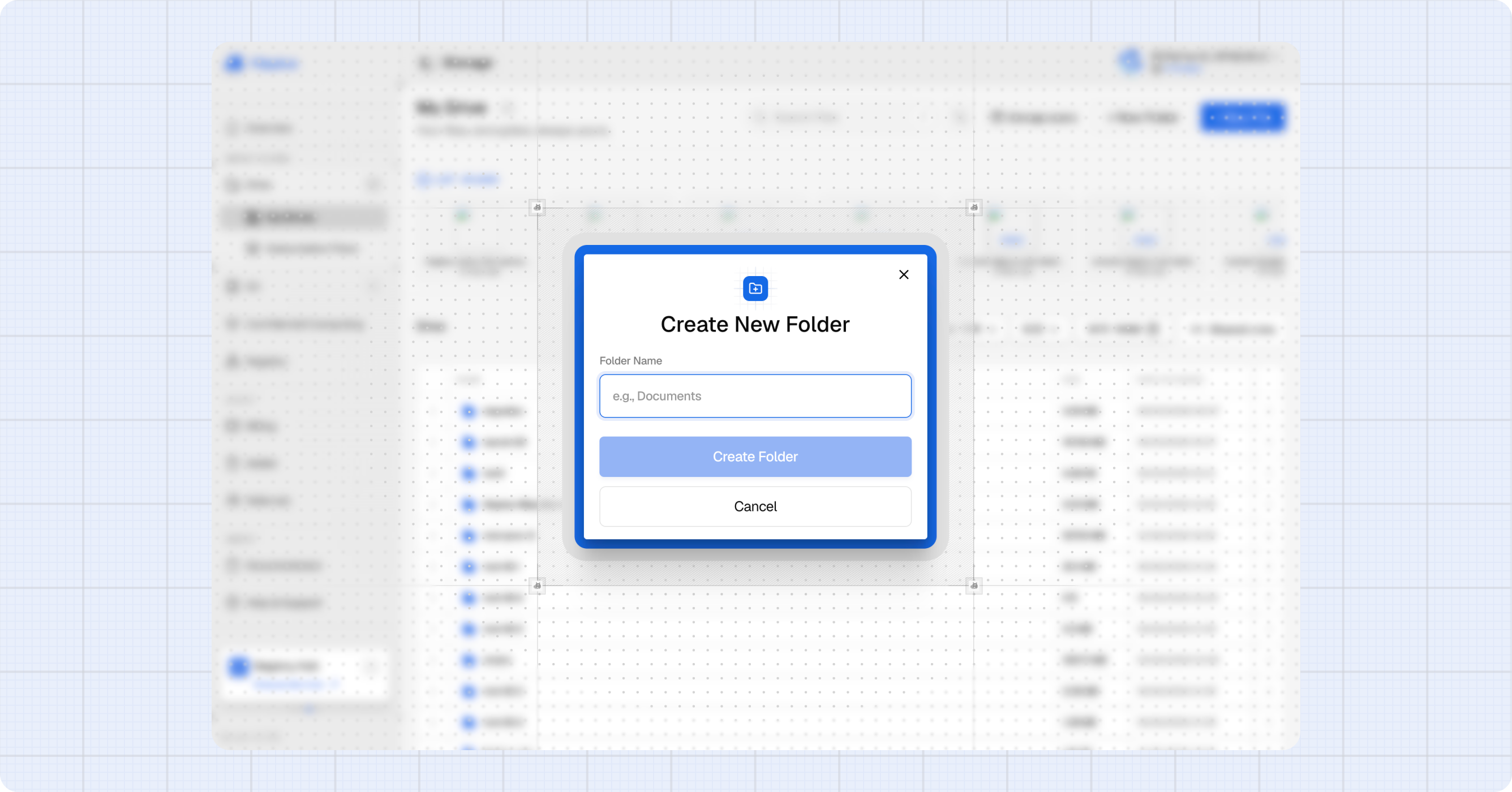
Click + New Folder in the page header to create a folder. If you are already inside a folder, the new one is created there; from the Drive root it is created at the top level.
Folder names must be unique among their siblings, so the dialog will tell you if the name is already taken before you create it.
Renaming Files and Folders
Open the action menu (three dots) on any row and choose Rename for a file, or Rename Folder for a folder. The name changes in place; nothing is re-uploaded and no link you have already shared is affected.
Sorting
Click any column header to sort by that column. Click it again to reverse the order.
Searching and Filtering
The search box in the page header filters the current folder by file name as you type. On mobile the search input is in the toolbar instead.
The filter pills in the toolbar let you narrow files by type, size, or date:
| Filter | Options |
|---|---|
| File Extension | Pick from common types (PDF, JPG, PNG, MP4, ZIP, …). |
| File Size | Pre set ranges from < 1 MB to > 500 MB. |
| Date Range | A date range picker for the upload date. |
Active filters show as chips above the table. Click the X on a chip to remove it, or use Clear all to remove them all at once.
Uploading Files
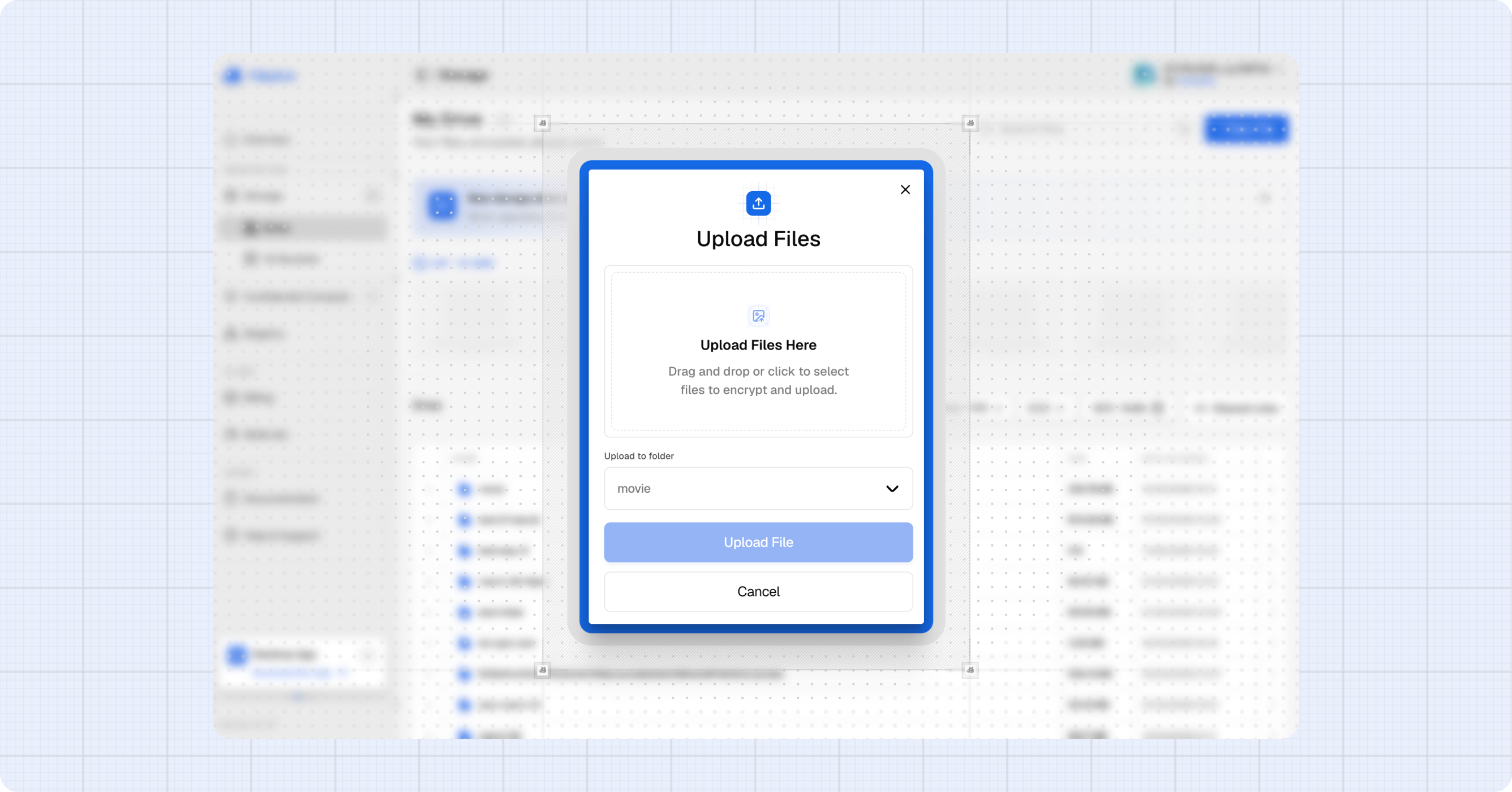
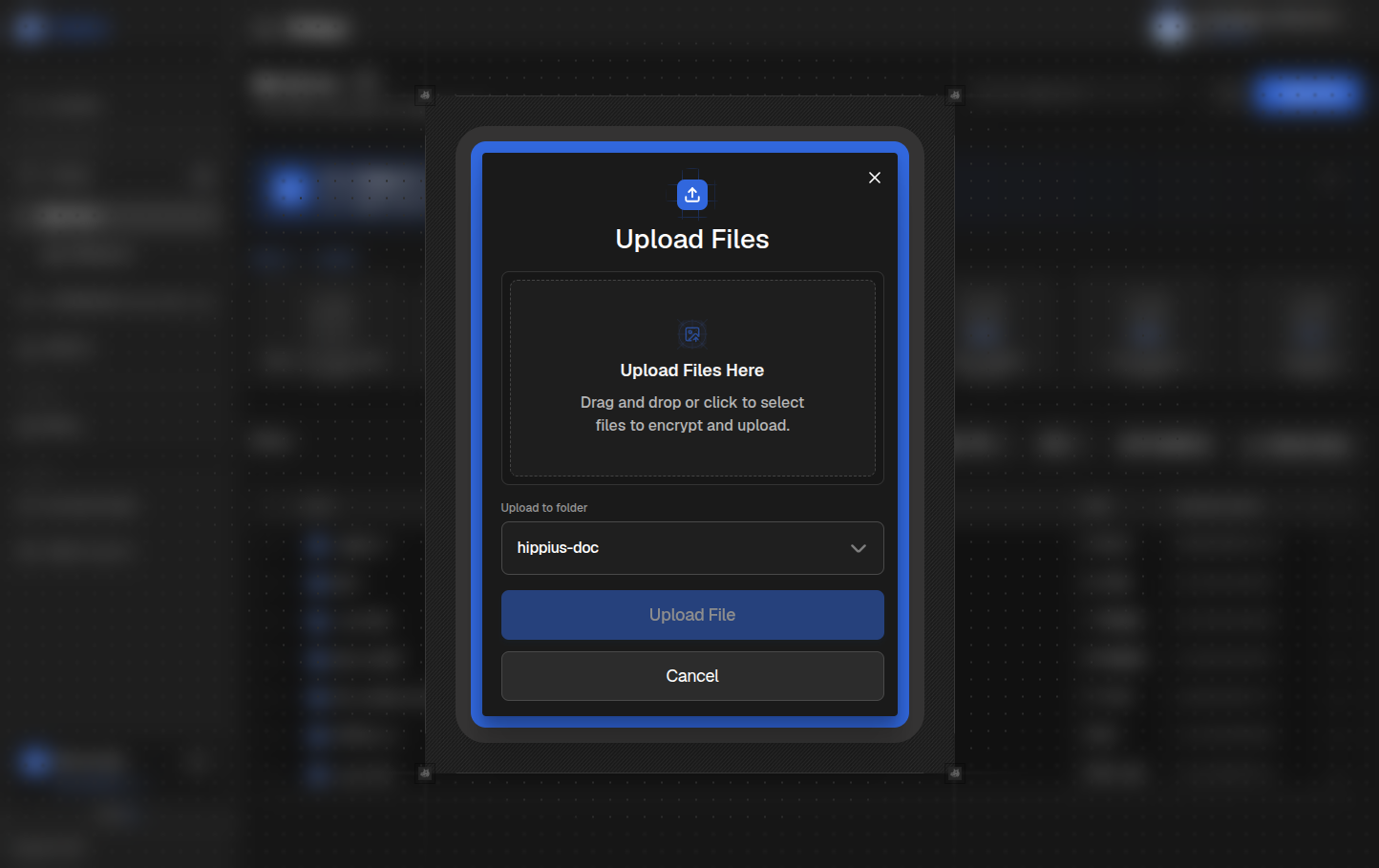
Click + New File in the page header to open the upload dialog.
The first time you upload in a session, the console will ask for your unlock password to encrypt the file. After that, the key is cached for the rest of the session.
Two important things to know before uploading:
- The destination is the folder you're currently in. If you're at the Drive root with no folder selected, the upload dialog will ask you to pick a destination folder first.
- Each file must be under 100 MB. Files larger than 100 MB will be flagged and cannot be uploaded via the console browser. To upload larger files, use the Hippius Desktop App.
You can also drag files from your desktop directly onto the Drive page. A full page drop zone appears and the dialog opens with your files pre loaded.
For a complete reference of the upload queue, progress widget, and error handling, see Console Uploads.
Previewing Files
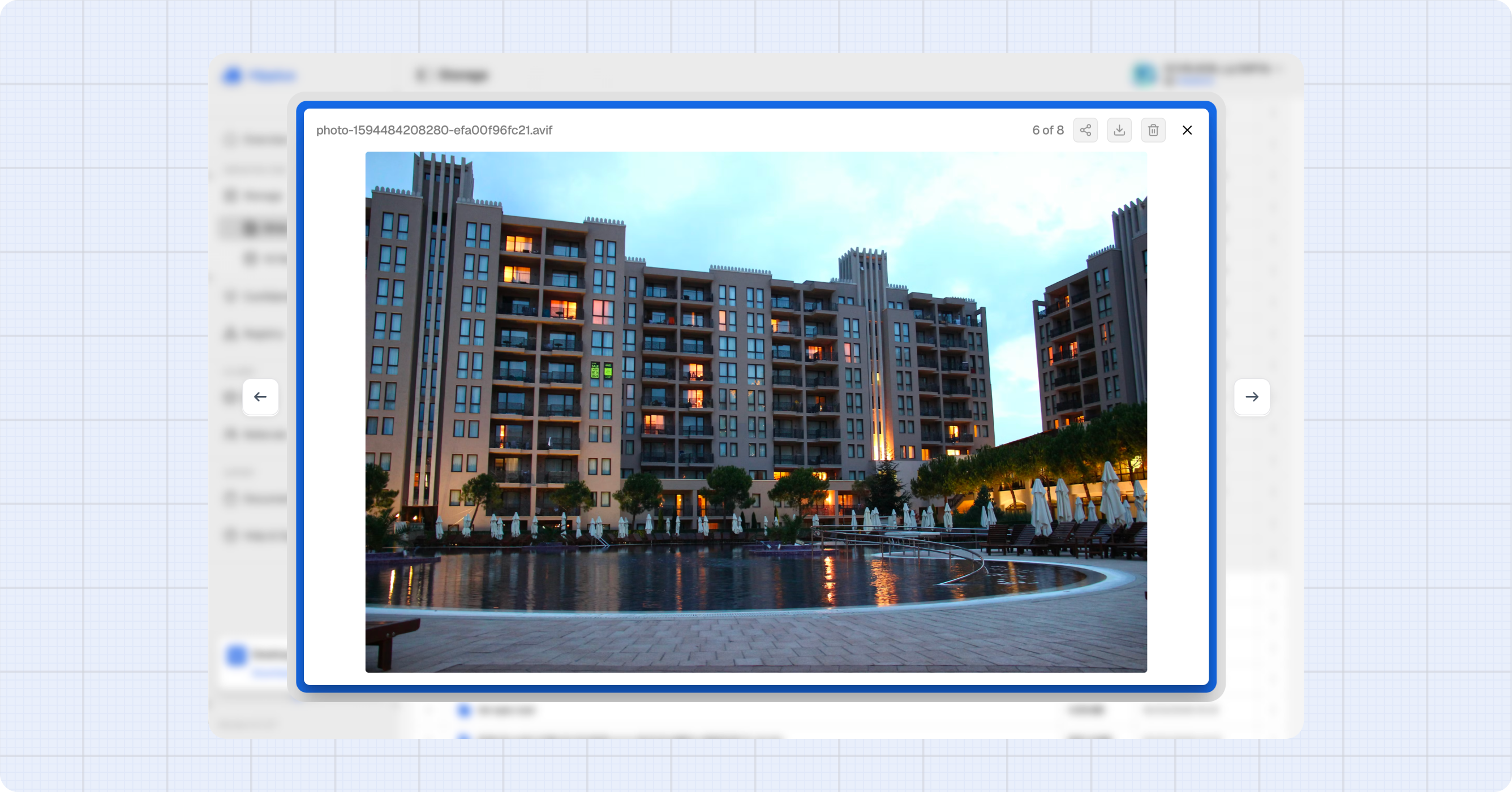
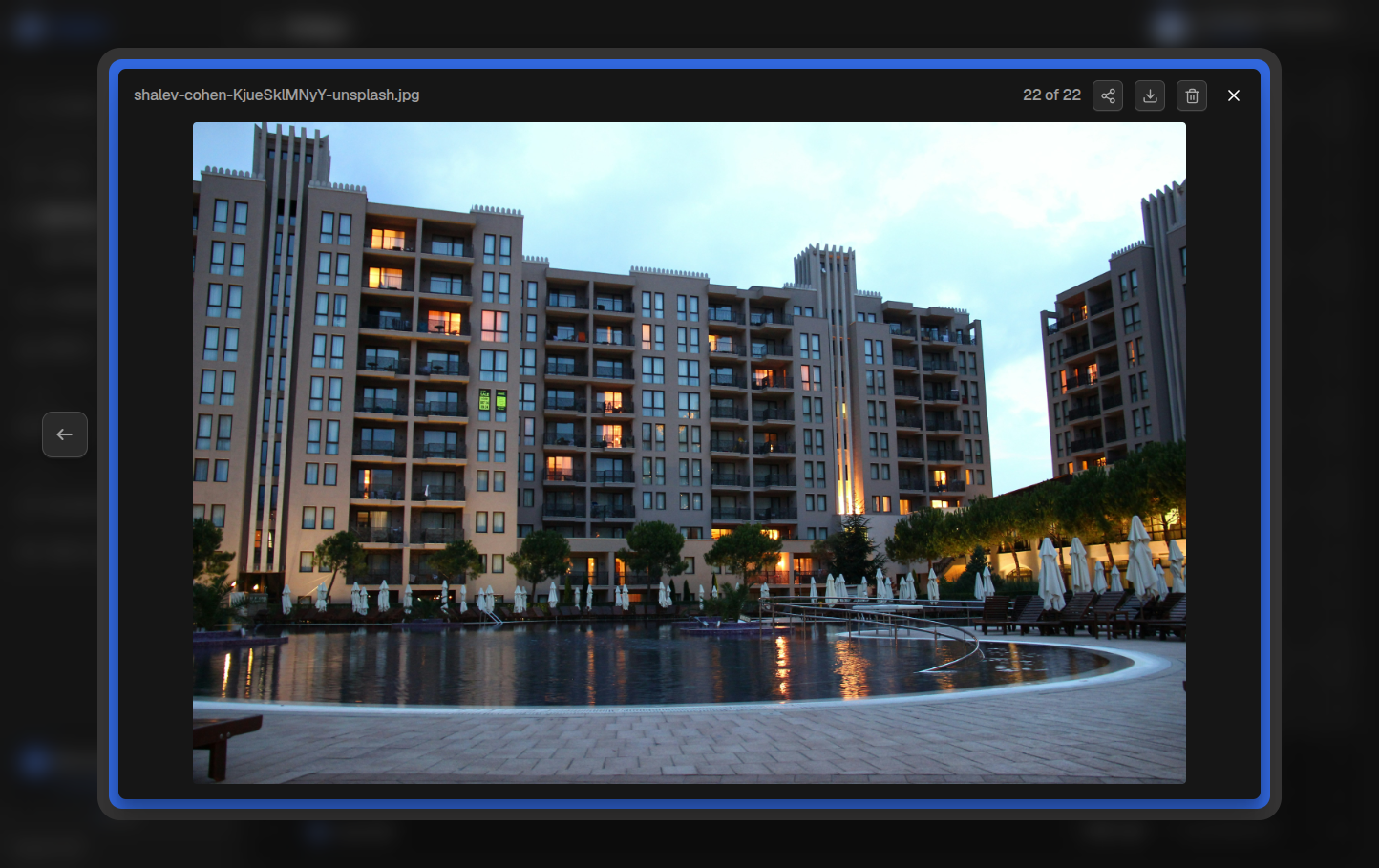
Click any file name or the eye icon in its row to preview it directly in the browser. The first time you preview in a session, the console asks for your unlock password to decrypt the file.
Everything below is decrypted and rendered on your own device. The file is never sent anywhere in readable form, and no outside viewing service is involved.
| Type | Formats | What you see |
|---|---|---|
| Images | JPG, PNG, GIF, WebP, AVIF, BMP, ICO, HEIC/HEIF, SVG | Inline image viewer. |
| Hippius Live photos | HEIC + motion | The still image, with the motion clip playable in place. |
| Videos | MP4, WebM, MOV | Inline player with playback controls. |
| PDFs | Multi page reader with page navigation. | |
| Word documents | DOCX | Page by page document reader. |
| Spreadsheets | XLSX, CSV | Spreadsheet grid with a tab for each sheet. |
| Presentations | PPTX | Slide viewer with a thumbnail strip and slide navigation. |
| Markdown | MD, MARKDOWN | Rendered Markdown. Raw HTML inside the file is shown as text, not rendered. |
| HTML | HTML, HTM | The rendered page, shown in an isolated frame. |
| Plain text | TXT | Monospaced text. |
| JSON | JSON | Pretty printed with syntax highlighting. |
Very large files can't be previewed. The console shows a toast asking you to download the file instead. Older Office formats (DOC, XLS, PPT) don't preview either. Save them as DOCX, XLSX, or PPTX to make them previewable.
Larger files fall back to a download rather than opening slowly, and the viewer says why. The cut-off depends on how much work the format takes to render:
| Format | Previews up to |
|---|---|
| PowerPoint | 40 MB |
| Word, HTML | 25 MB |
| Excel, CSV | 20 MB |
| JSON | 2 MB |
| Markdown, plain text | 1 MB |
For any file type not listed above, use the action menu to Download it and open it locally.
The preview toolbar has buttons to Download or Close the preview, plus Share and Delete when those actions are available for the file.
File Details
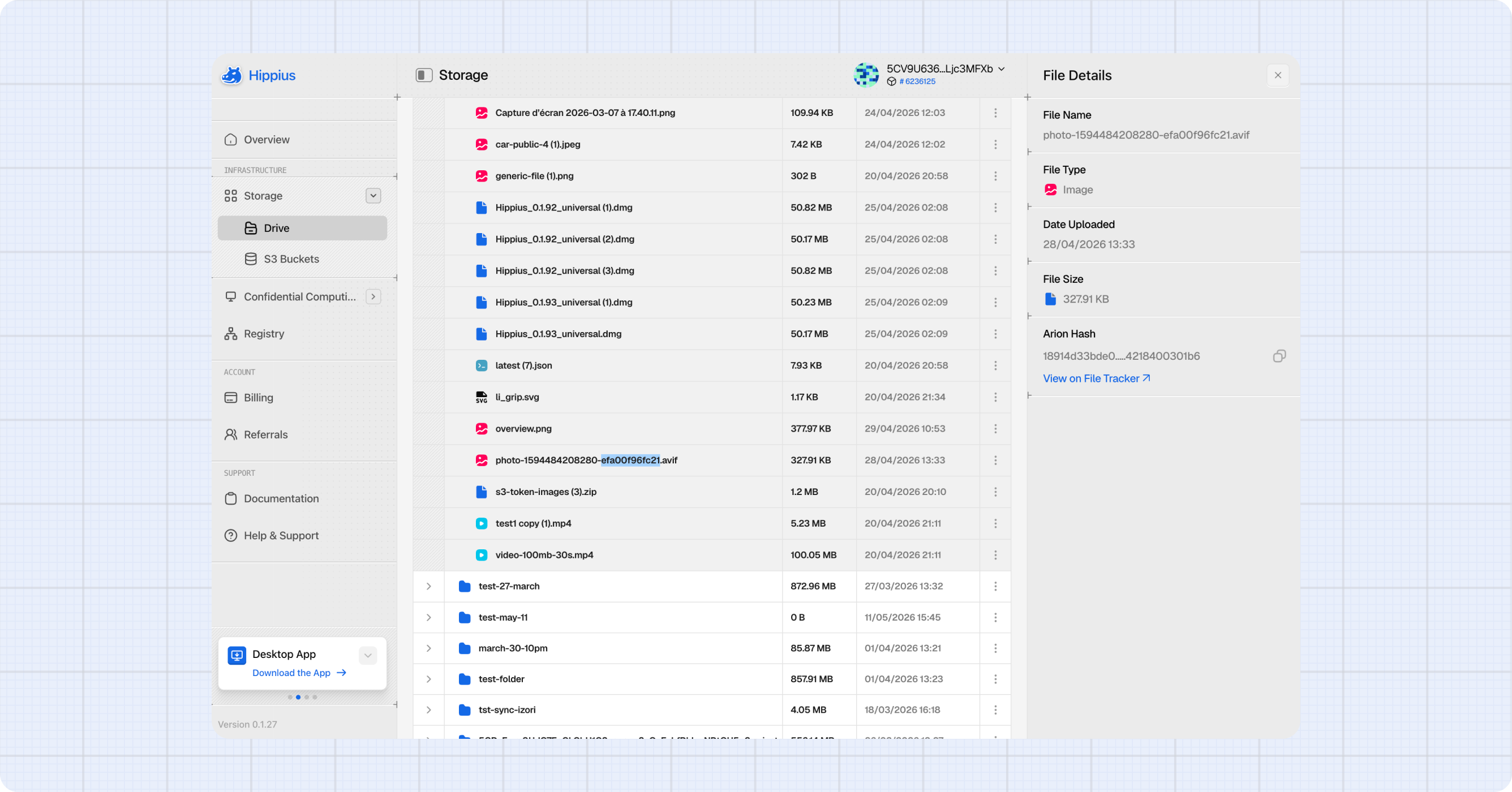
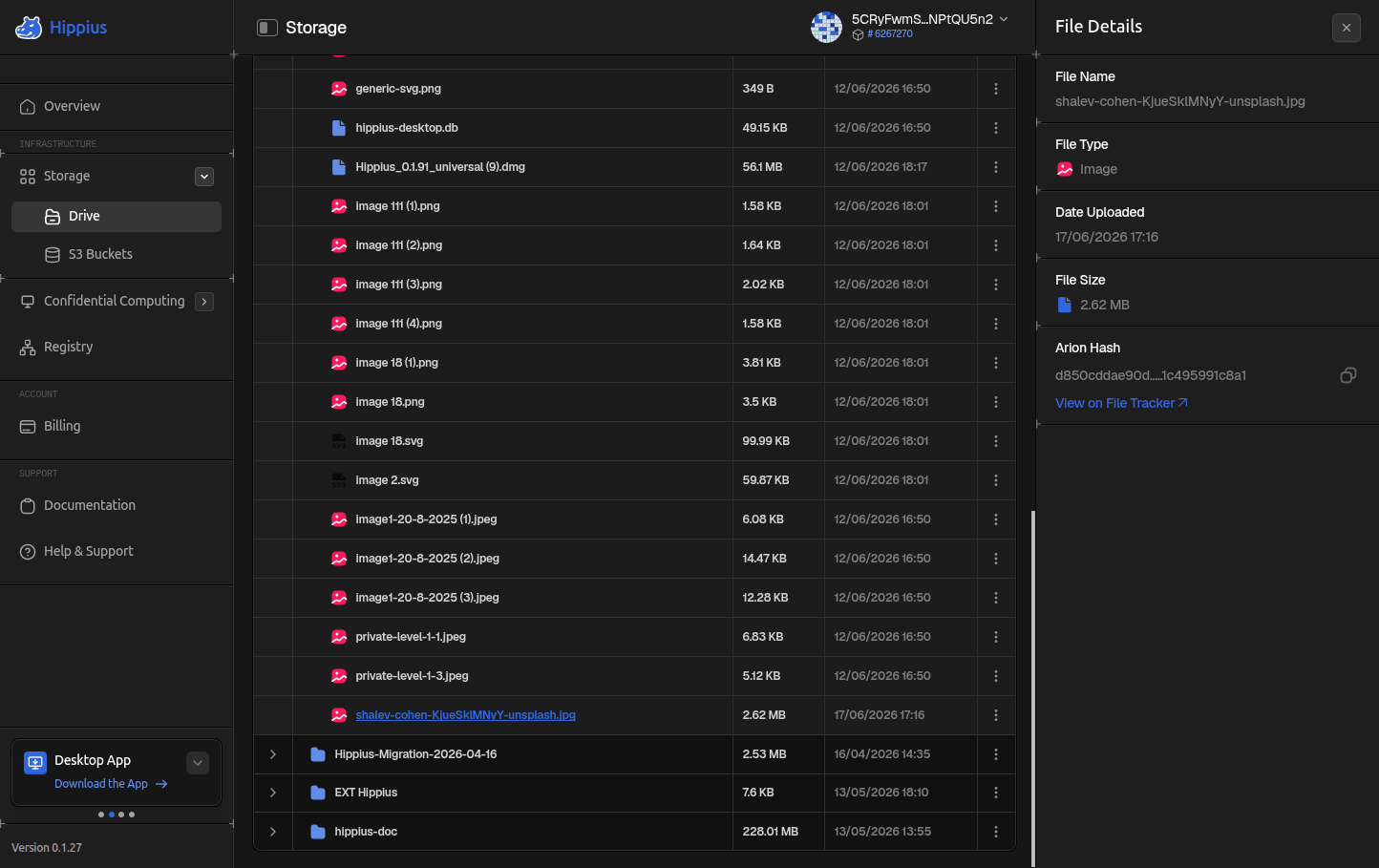
Click the action menu (three dots) on any file row and choose Details to see full metadata without opening a preview. The details panel shows the file name, path, size, MIME type, upload date, IPFS CID, and Hippius file hash, each with a copy icon.
Downloading Files
To download a file:
- Open the action menu on the row and choose Download.
- Or open the file preview and click the download icon in the toolbar.
- Or open File Details and click the download button.
Hippius decrypts the file in your browser and saves it to your local downloads folder. A toast confirms when it's ready.
Downloading a Folder
You can download a whole folder at once. Hippius fetches every file inside it, decrypts each one in your browser, and packs them into a single .zip archive.
Open the action menu (three dots) on any folder row and choose Download Folder. The option is on every folder row in Drive: a top level drive at the root, a folder you've opened, and a subfolder expanded inline.
The archive keeps the folder structure. A folder containing report.pdf and images/logo.png unzips to exactly those two paths, relative to the folder you downloaded. Nested subfolders are included, however deep they go.
Watching the Progress
A folder of a few thousand files takes minutes, so a floating progress card appears in the bottom right corner of the screen, stacked with the upload widget. It stays visible no matter which page you navigate to.
The heading on the card tells you which stage the download is in:
| Stage | What's happening |
|---|---|
| Preparing folder | Listing the files inside the folder. |
| Downloading folder | Fetching and decrypting the file bodies. This is the long phase. |
| Zipping folder | Closing the archive and handing it to your browser. |
Below the heading you'll see a live count, for example 3 of 120 files, and a percentage ring. Click Cancel to stop the download. The card stays up and reads Cancelling until the browser has actually stopped writing, then disappears.
The file is written straight to your downloads folder as the archive is packed, so your browser never has to hold the whole thing in memory. A toast confirms when it's done.
Things to Know
- One folder at a time. While a folder download is running, the Download Folder option on other rows is greyed out with a tooltip explaining why. Wait for it to finish, or cancel it.
- Your session must be unlocked. The files are decrypted with your folder key, so the console asks for your unlock password if you haven't entered it yet this session.
- Empty folders can't be downloaded. If a folder has no files in it, the console says so instead of producing an empty archive.
- Files deleted mid download are skipped. If a file disappears between the listing and the packing, it's left out of the archive rather than failing the whole download.
- Duplicate names are made unique. If two files would land on the same name inside the archive, the second becomes
name (2).ext, so nothing is silently overwritten when you unzip.
The archive is packed by your browser, not on a server. Closing the tab or navigating away from the console cancels a folder download in progress.
On a first visit, before the console's background worker has started, your browser may not be able to write the archive as it's packed. In that case the whole archive has to be held in memory, and folders over 500 MB are refused with a "too large to download as a zip in this browser" message. Reload the page and try again, which lets the worker take over and removes the limit.
Selecting and Deleting Multiple Files
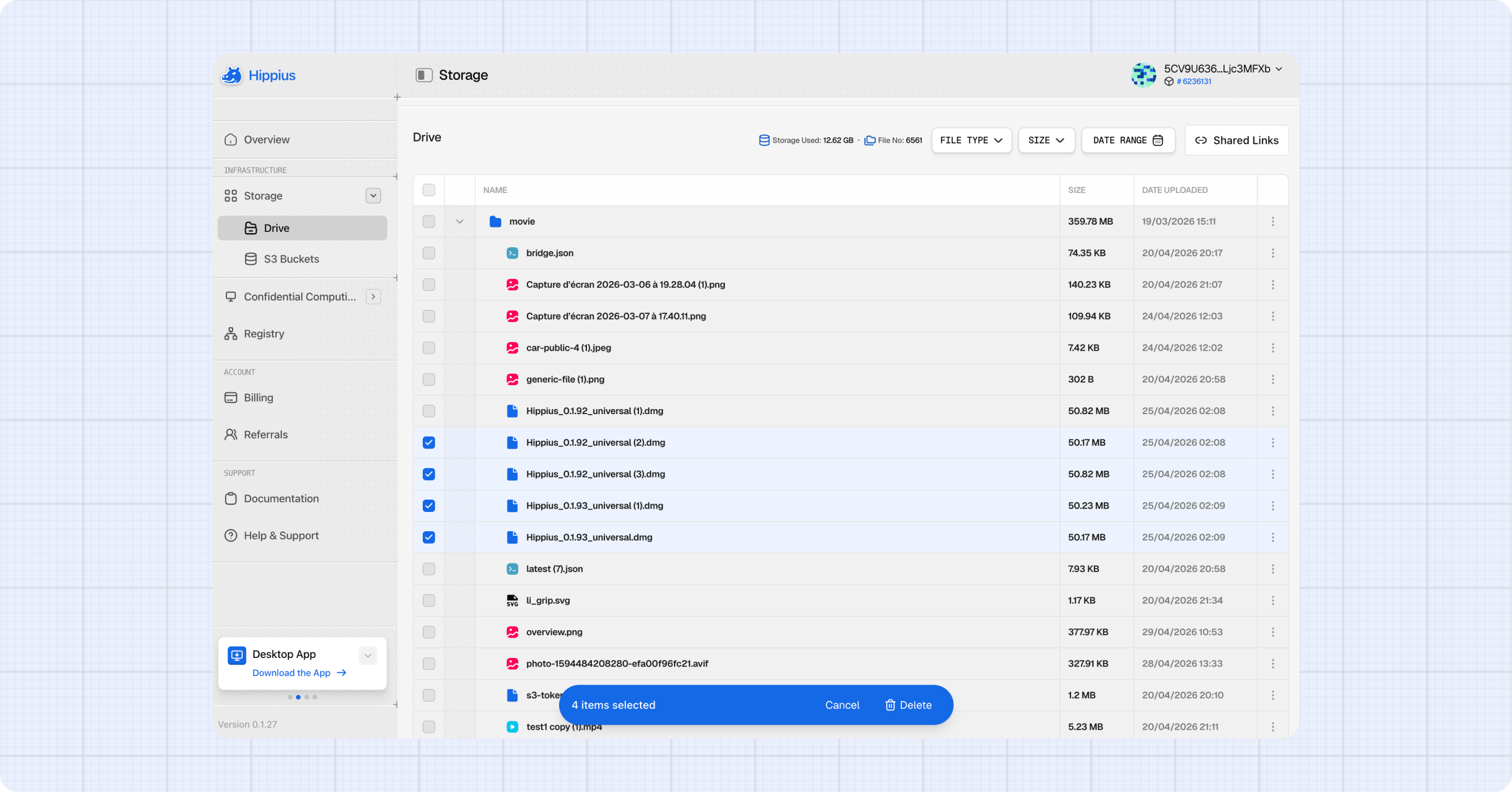
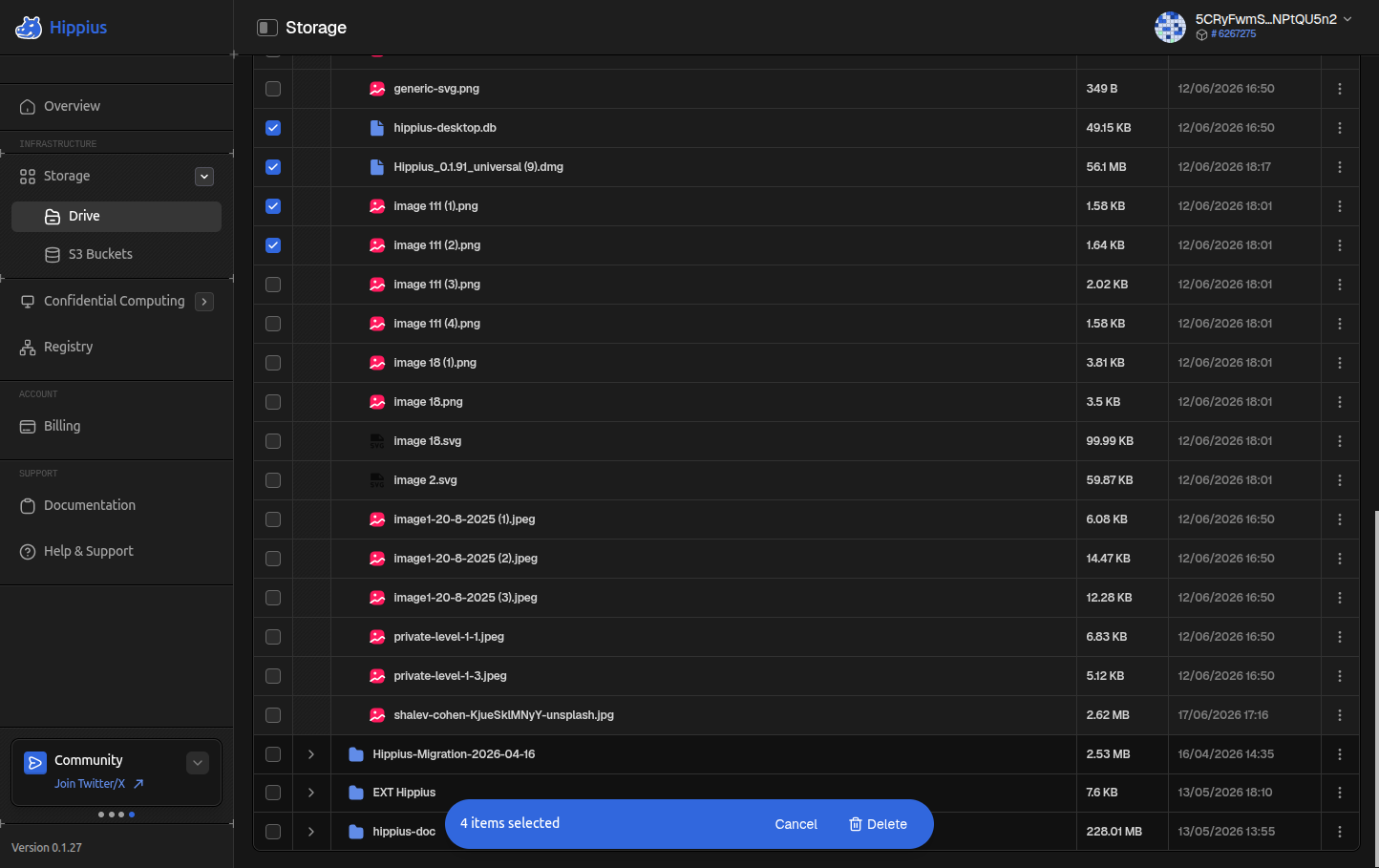
Tick the checkbox at the start of any row to enter selection mode. The header checkbox selects everything on the current page.
A Selection Action Bar appears at the bottom of the page with a live count of selected files, a Delete button, and a cancel (X) button.
Deletes run in parallel. Each file is removed independently and a per file toast streams the result as it completes. A confirmation dialog appears before anything is deleted.
Deleted files cannot be recovered through the console. If a file was also synced from the desktop app, it will be removed there too on the next sync.
Storage Stats
The toolbar shows your total storage used and file count next to the breadcrumb. These update automatically after every upload or delete.
Refreshing
The file list refreshes automatically after uploads and deletes. To manually refresh, for example after another device has synced new files, click the refresh icon in the page header.
Storage Plans and Upload Limits
How much you can upload depends on your Drive plan, not on your balance.
- If an upload would go over your plan, You're out of storage appears. Click View plans to move to a bigger plan, or free up space and try again.
- If your account has no plan at all, + New File asks you to pick one first, and a banner warns that existing files are deleted after 30 days without a plan.
See Billing → Drive plans for the plans and what happens without one.
Limits
| Limit | Value |
|---|---|
| Max file size (via console) | 100 MB |
| Max files per upload batch | 1000 |
| Folder depth | Unlimited |
| Max files in a folder download | 65,535 |
| Max size of any one file in a folder download | 4 GB |
For files larger than 100 MB, use the Hippius Desktop App, which syncs files incrementally without a browser size cap.
The two folder download limits come from the zip format itself, not from Hippius. They only matter for drives synced from the desktop app, since nothing uploaded through the console can exceed 100 MB.
Where to next
- Shared Links: share any Drive file as a public download link — no account required for recipients.
- Console Uploads: full reference for the upload queue, progress widget, and error handling.
- S3 Buckets: S3 compatible storage for use with any S3 client.
- Hippius Desktop App: real time folder sync and uploads beyond the 100 MB cap.