Help & Support
Introduction
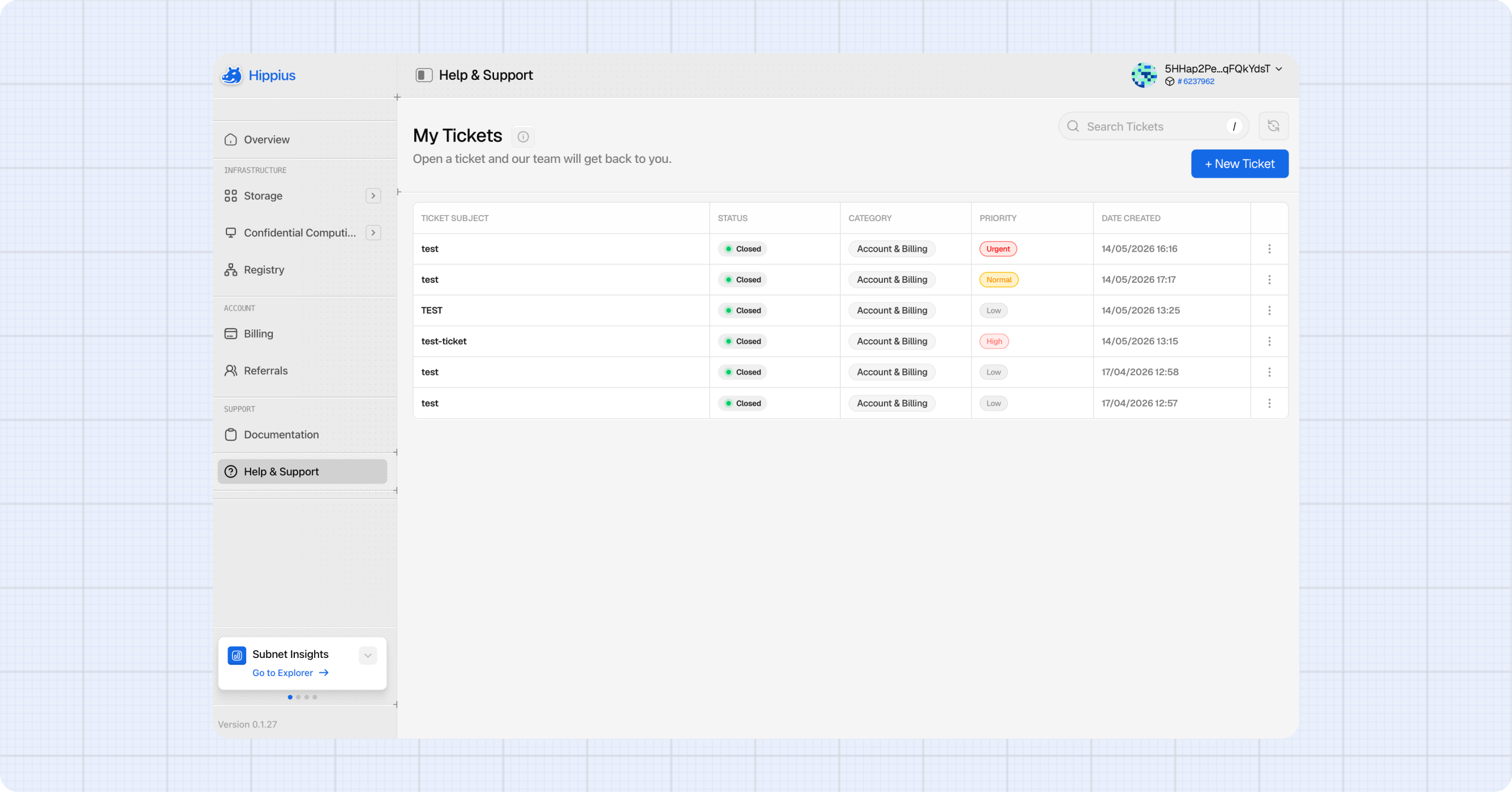
The Help & Support page is your direct line to our team. If you hit a bug, have a billing question, or run into something the docs don't cover, open a ticket here. We'll reply inside the ticket and you'll see our messages the next time you load the page.
Reach Help & Support from the sidebar at
Opening a Ticket
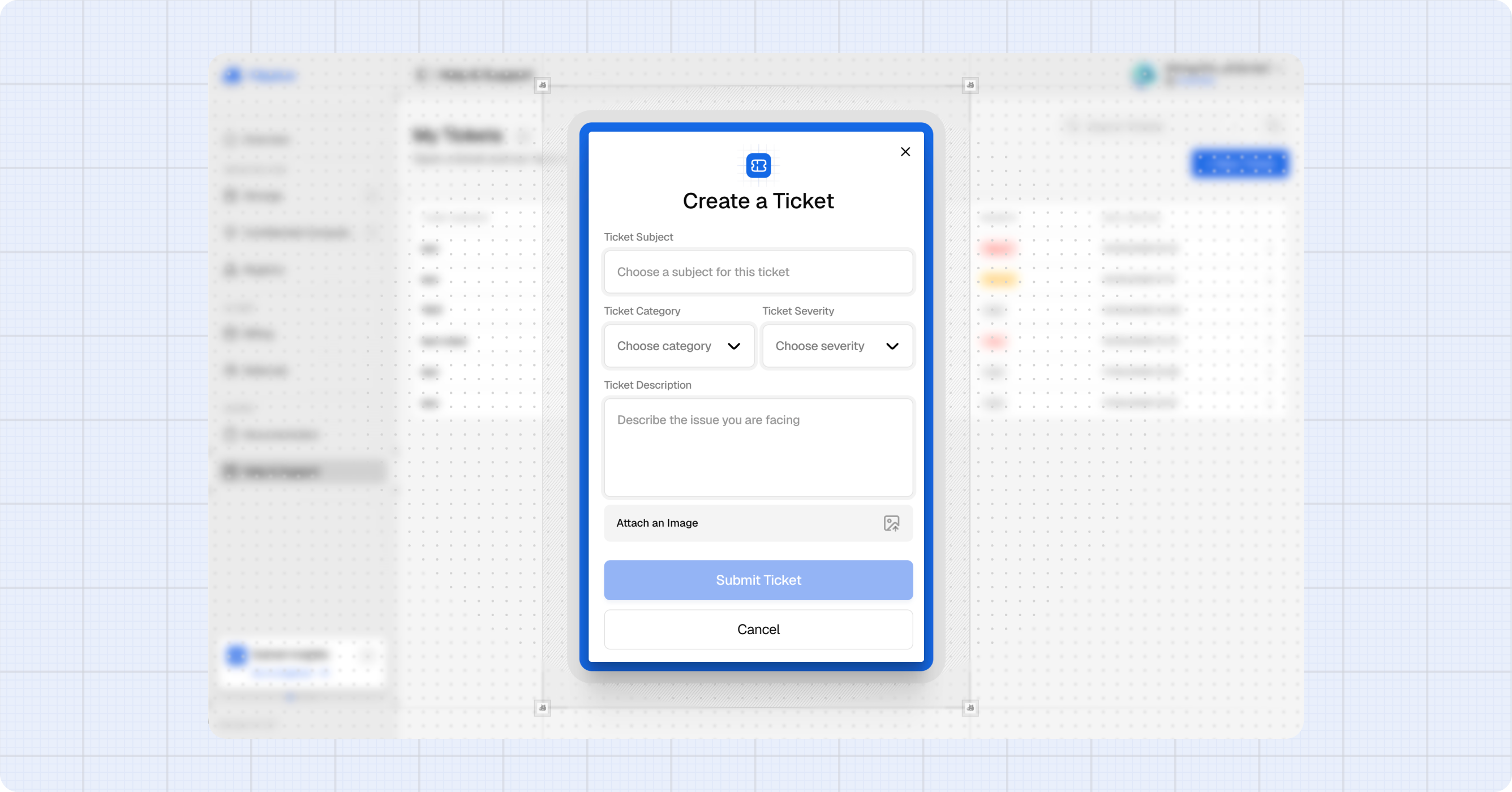
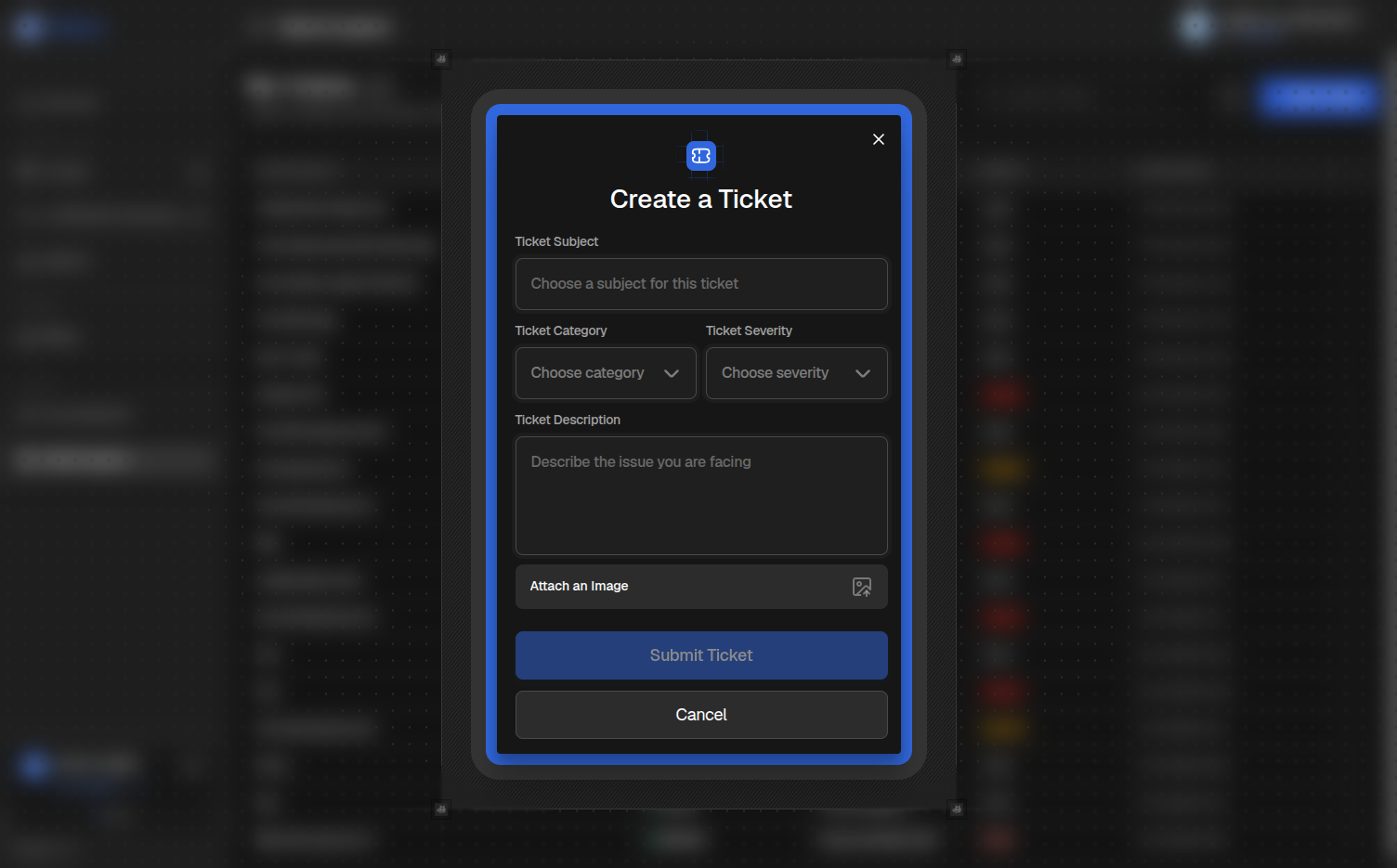
Click + New Ticket in the top right corner to open the Create a Ticket dialog.
- Enter a clear, one line Subject, for example "Upload stuck in processing after several minutes".
- Pick a Ticket Category from the dropdown (see the categories below).
- Pick a Ticket Severity: Low (minor issue, question, or feature request), Medium (affects you but you have a workaround), or High (blocking: you can't use the platform, data loss, or a security concern).
- Describe the problem in the Description field. Include what you were doing, what you expected to happen, what actually happened, any error text, and your browser, OS, and the approximate time.
- (Optional) Click the attachment icon to add a screenshot, log file, or other supporting file.
- Click Create Ticket.
Ticket Categories
- Account & Billing: credits, subscriptions, payments, or account access issues.
- Storage (My Files & S3): uploads, downloads, encryption, S3 client errors, or sync problems.
- General: feature questions, feedback, and anything else not covered above.
The new ticket appears at the top of your tickets table in the Open state, and our team is notified immediately.
Include your browser and OS, the exact time the issue occurred, and a screenshot if you have one. The more context you give, the faster we can diagnose and fix the problem.
Your Tickets
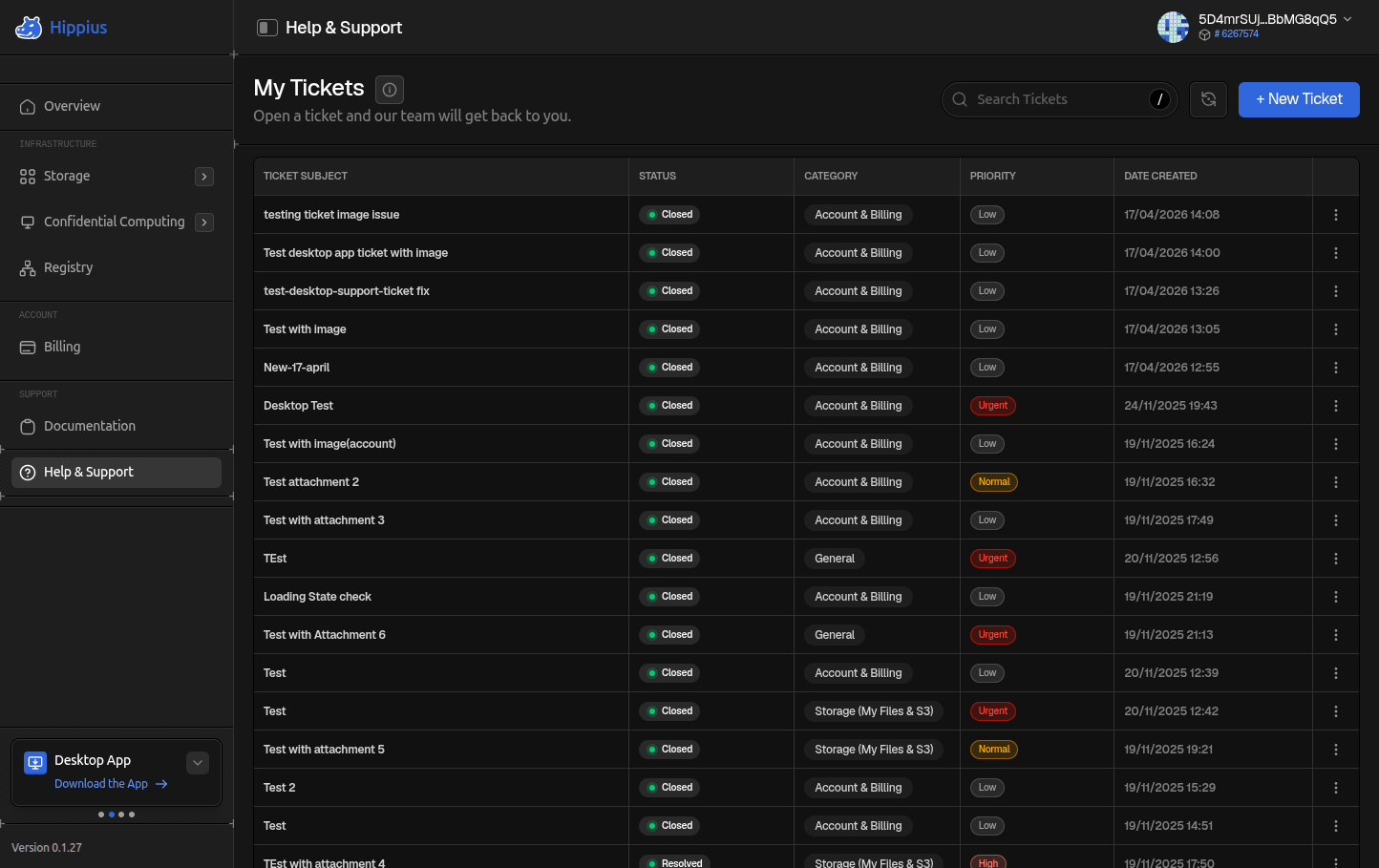
All your tickets appear in a table with the subject, category badge, status, and date of the last update. Use the filter pills above the table to show only tickets with a specific status:
- All: every ticket regardless of status.
- Open: newly created, waiting on our team.
- In Progress: someone on our team is actively working on it.
- Awaiting Response: we've replied and are waiting on your input.
- Closed: resolved tickets.
Click any row to open the full ticket conversation.
Reading and Replying to a Ticket
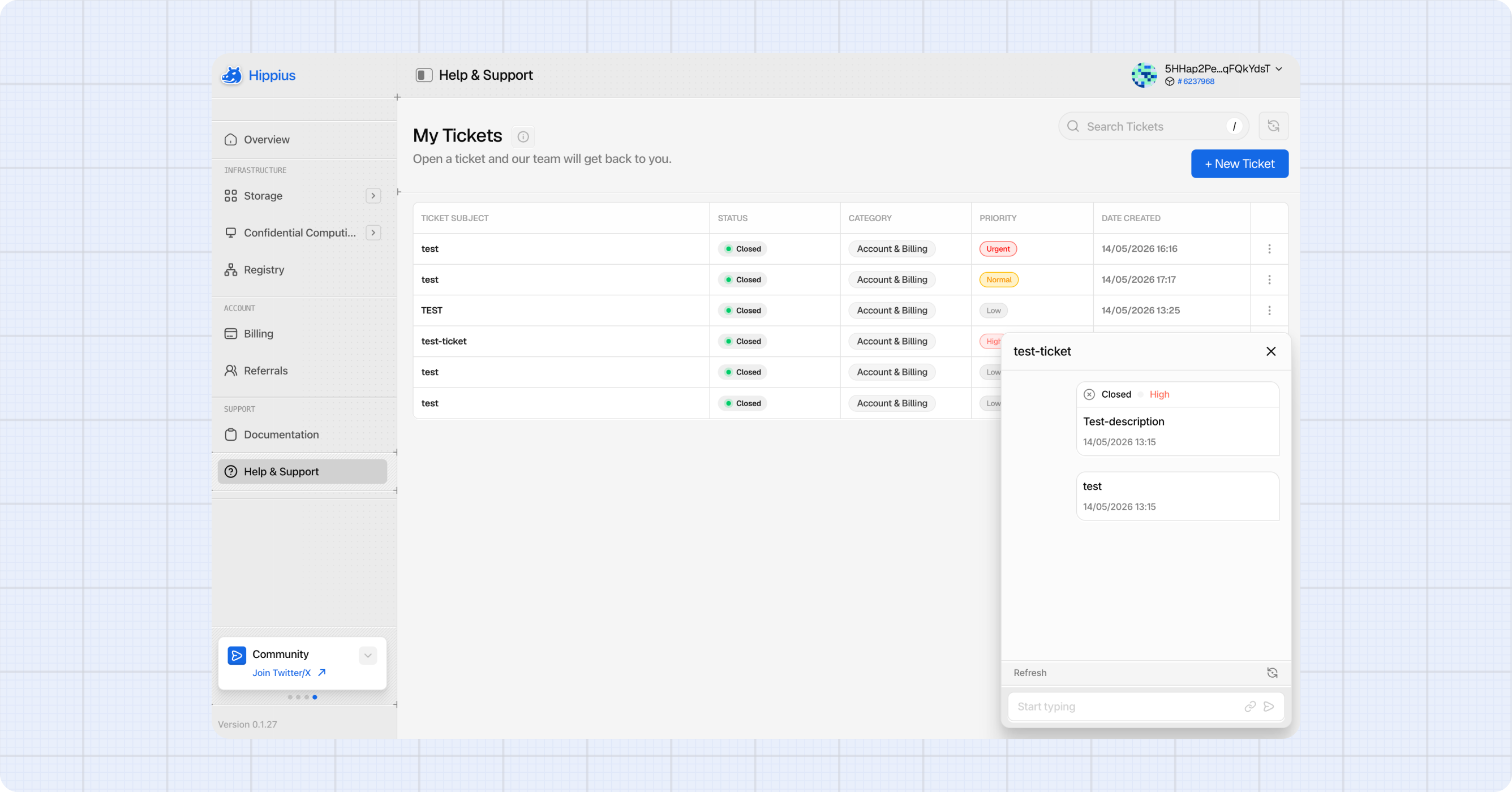
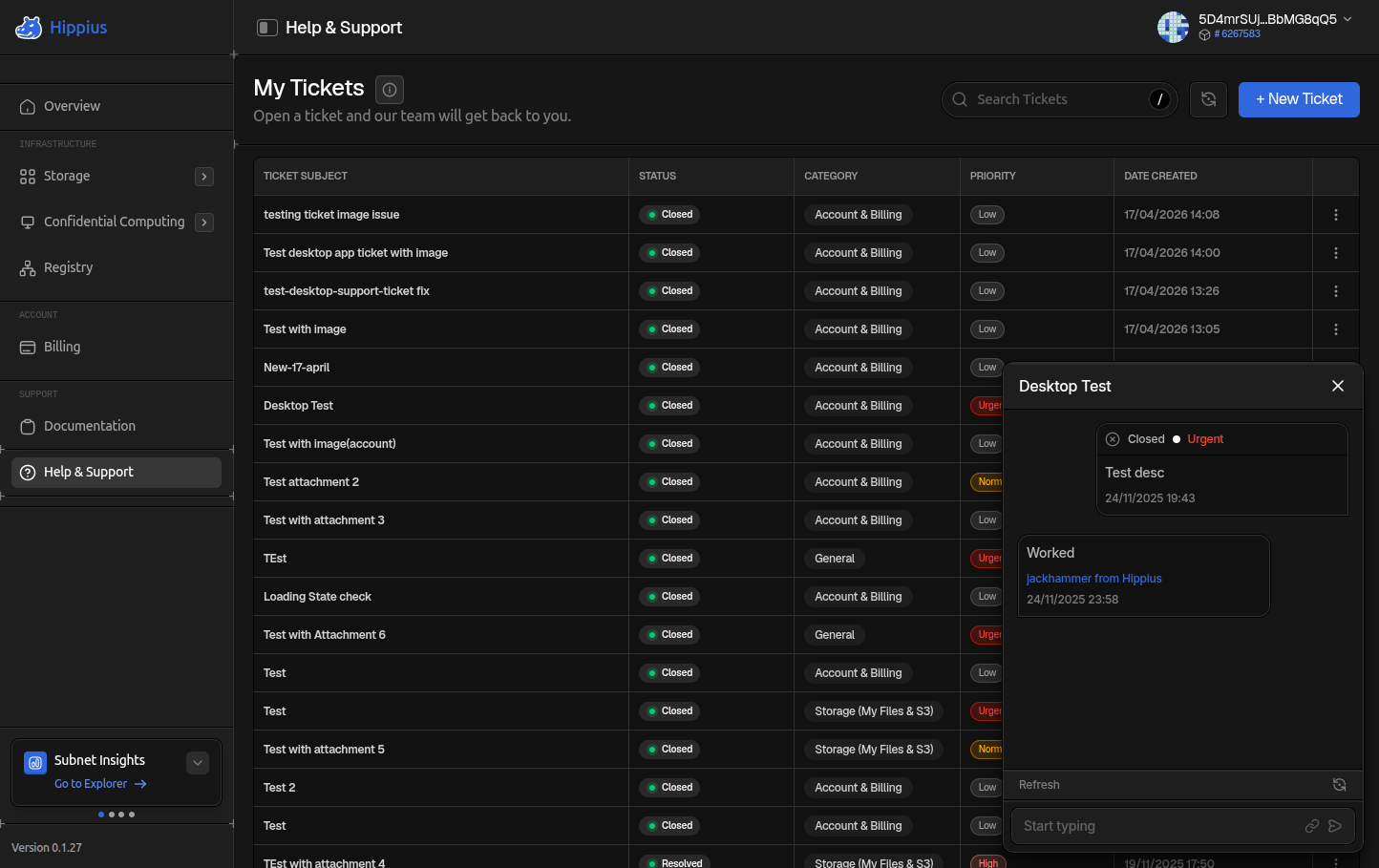
Clicking a ticket opens the Ticket Messages dialog, which shows the full conversation thread from oldest to newest. Your messages and team replies are styled differently so they're easy to tell apart. Attachments appear inline with download links.
To reply:
- Type your message in the Start typing field at the bottom.
- (Optional) Click the attachment icon to add files. They appear as chips above the input with an X to remove them.
- Click the Send arrow.
Your reply is added to the thread. If the ticket was Awaiting Response, the status moves back to In Progress and our team is notified.
You cannot reply on a closed ticket. The input field is disabled with a notice explaining this.
Closing a Ticket
If your issue is resolved, you can close the ticket yourself:
- From the tickets table, open the action menu on the row and click Close Ticket, or open the ticket and click the close icon in the dialog header.
- Confirm in the Close Ticket dialog.
Closed tickets stay visible in the table and can be filtered with the Closed pill. They cannot be reopened. If the same issue comes back, create a new ticket and reference the old one in the description.
Other Ways to Reach Us
For quick questions, community discussion, or contributing to open source Hippius repos:
- Discord: the fastest way to get a reply from a human.
- GitHub: bug reports and pull requests for Hippius open source projects.
Where to next
- Getting Started: signing in and navigating the console.
- S3 Troubleshooting: common S3 client errors and self serve fixes.