Uploads
Introduction
Whether you're uploading to Drive or an S3 bucket, all uploads in the Hippius Console go through the same system: a shared queue, a floating progress widget that stays visible no matter which page you're on, and a live progress toast that updates as your files upload.
This page explains the full upload flow from start to finish.
File Size Limit
The maximum file size for a single upload via the console is 100 MB, for both Drive and S3.
If you need to upload larger files:
- Drive: install the Hippius Desktop App, which uses incremental sync with no browser size cap.
- S3: use any S3 client that supports multipart uploads (the AWS CLI and every official SDK do). See S3 Quickstart.
Starting an Upload
| Where you are | How to open the upload dialog |
|---|---|
| Drive | Click + New File in the page header. |
| Inside an S3 bucket | Click + Upload in the bucket toolbar. |
You can also drag files from your file manager (Finder, Explorer) directly onto the Drive page or inside an open S3 bucket. A full page drop zone appears and the dialog opens with your files already loaded.
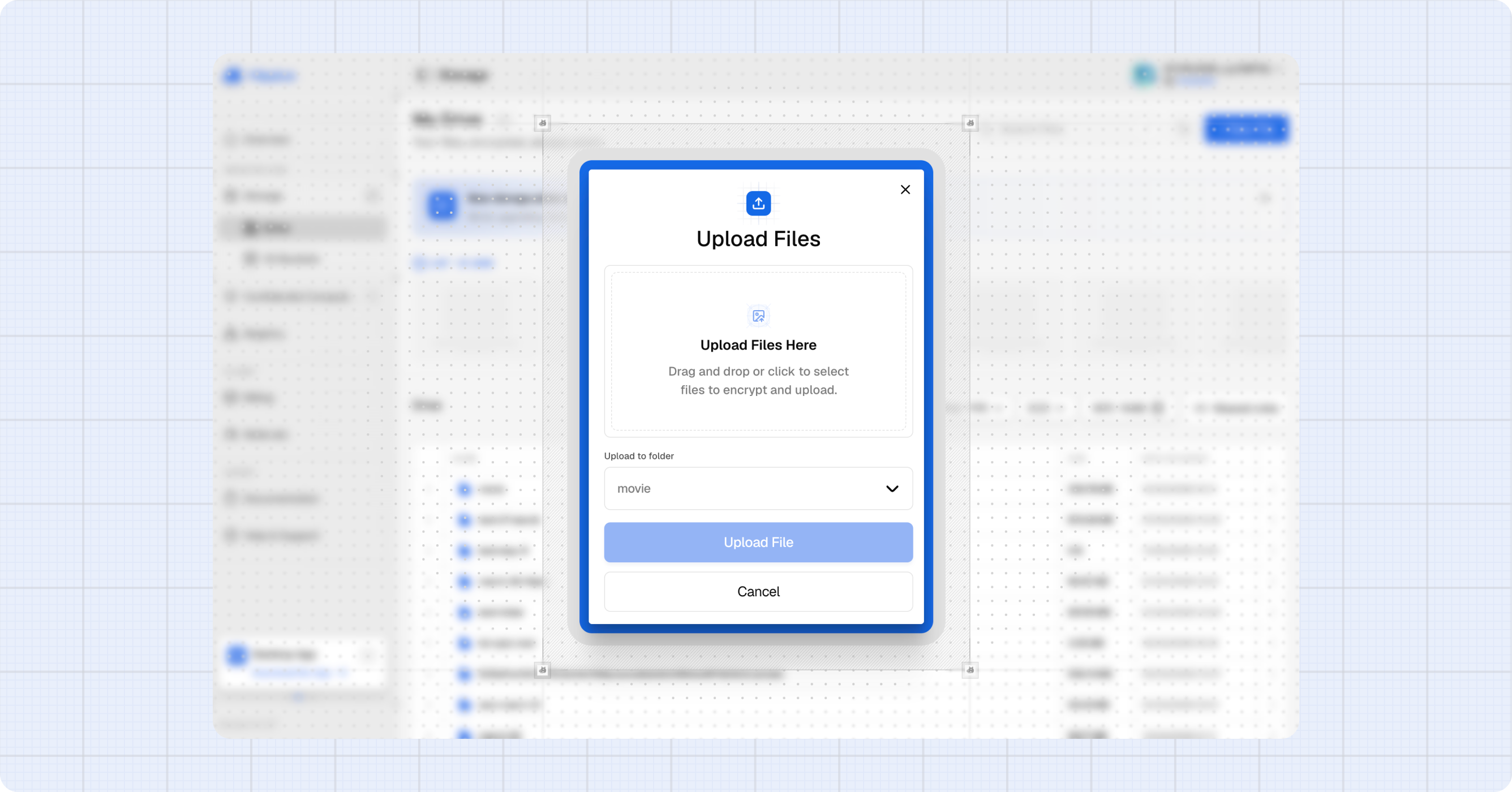
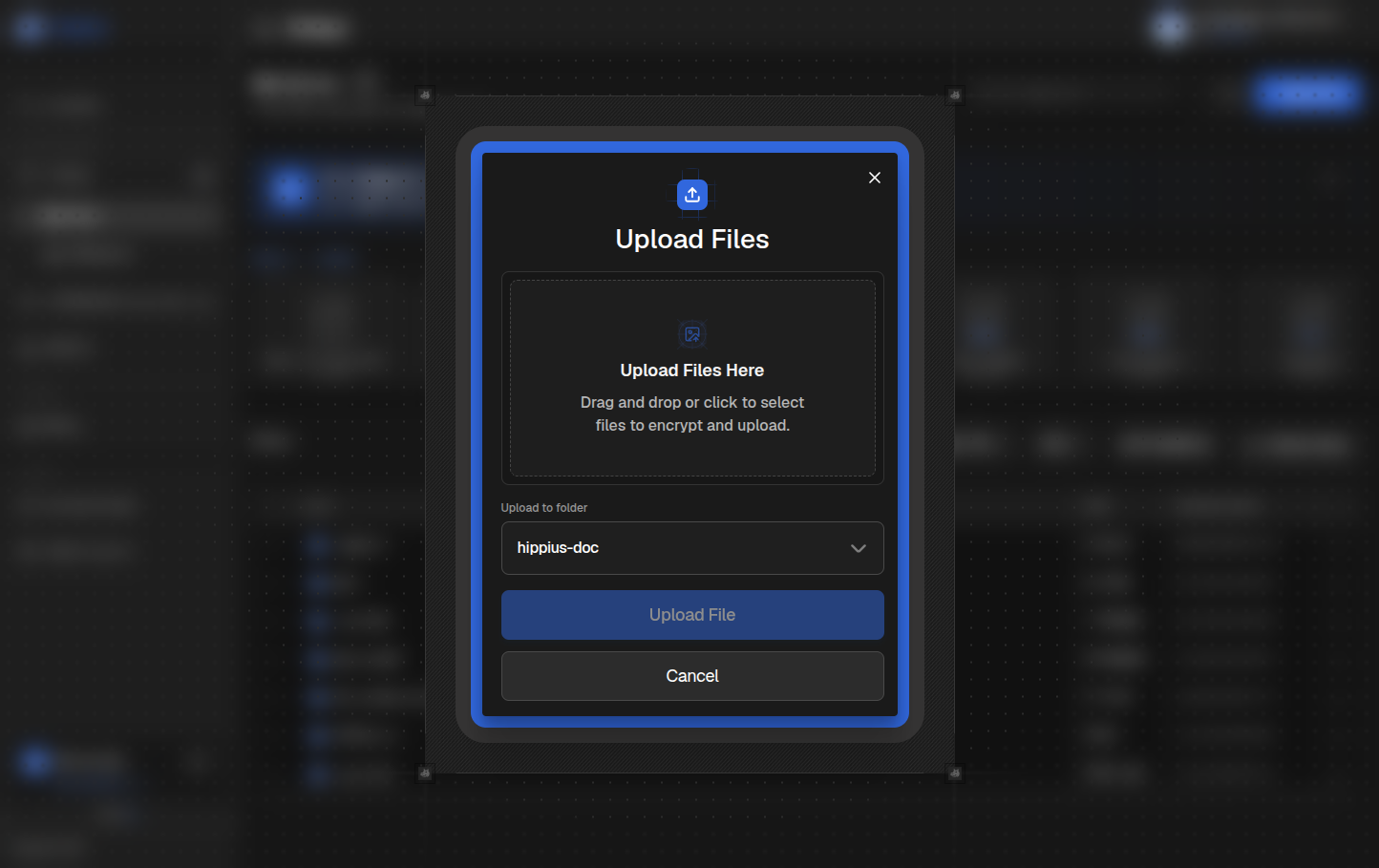
The Drive Upload Dialog
- Destination folder: the folder you're currently in is pre selected. If you're at the Drive root with no folder open, you'll need to pick one from the dropdown first.
- Drop zone: drag files onto it or click to open your file picker.
- File list: every picked file appears with its name and size. Files over 100 MB are flagged and excluded from the upload.
- Click Upload to start.
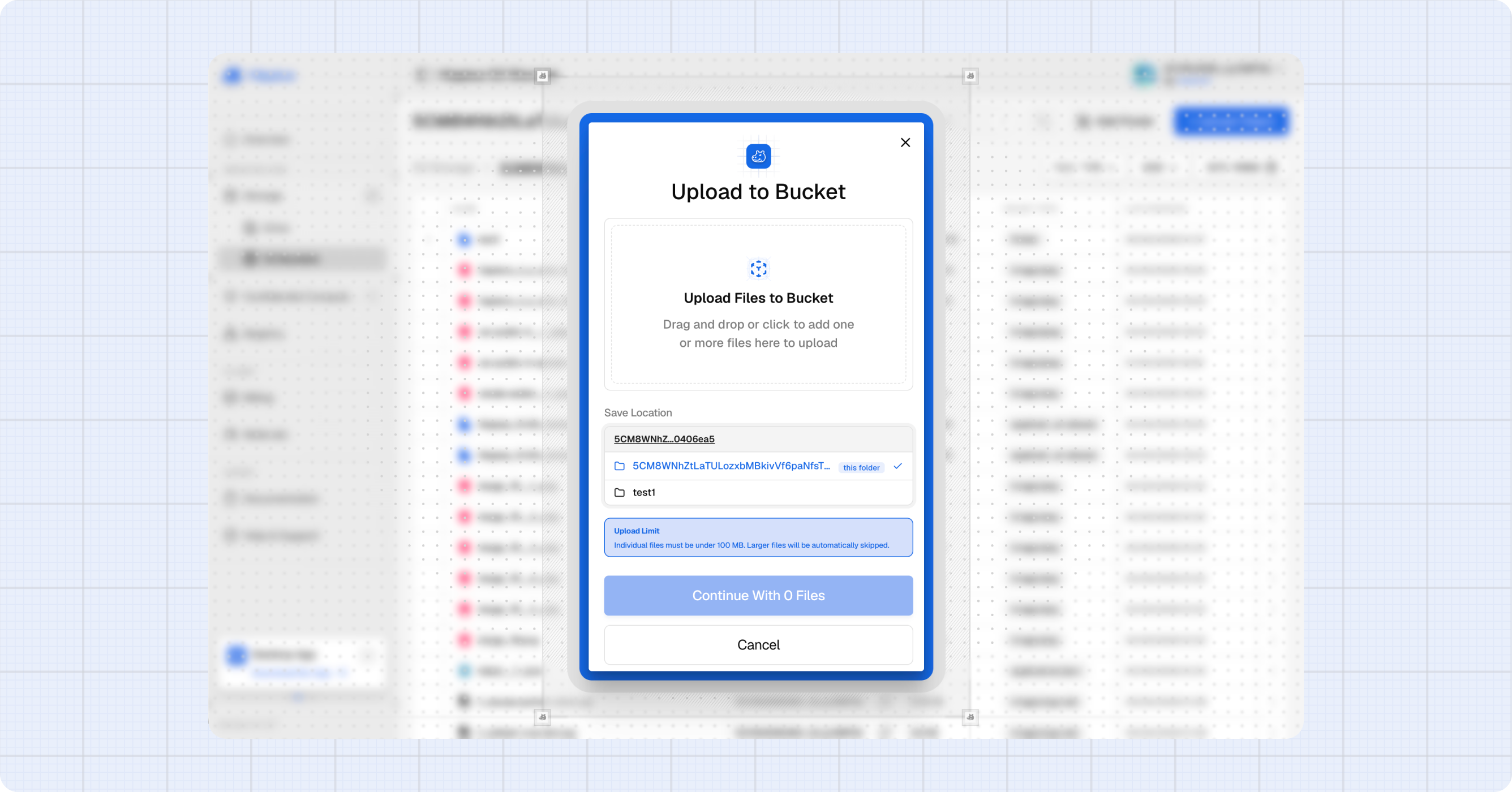
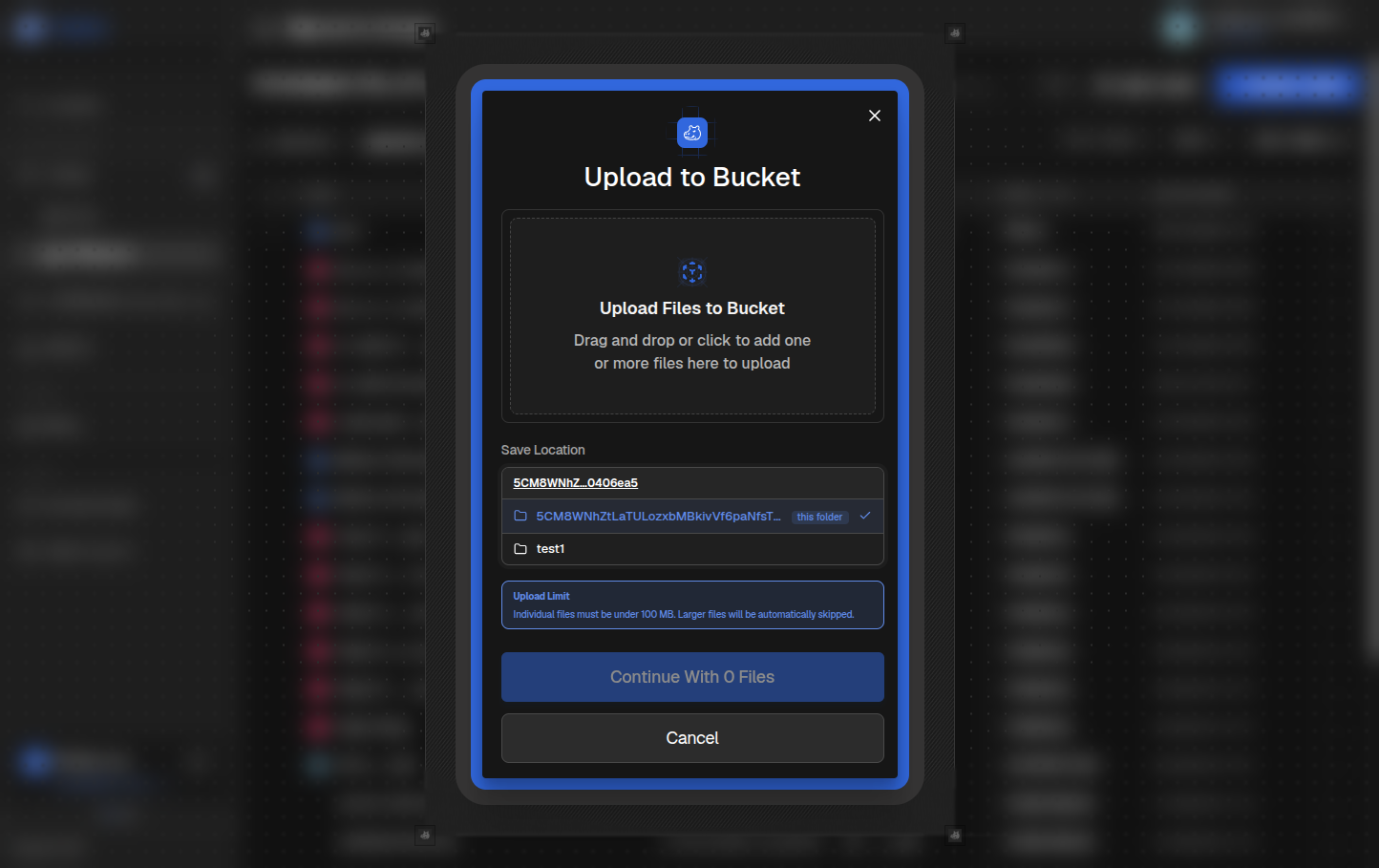
The S3 Upload Dialog
- Folder location: pre filled with the folder you navigated to inside the bucket. Click to pick a different sub folder.
- Drop zone: drag or click to pick files.
- File list: same as Drive, with a 100 MB warning for oversized files.
- Click Upload to start.
Upload Security
Drive
Every Drive upload is encrypted in your browser before any bytes leave your device:
- You enter your unlock password the first time you upload in a session. It's held only in memory, never sent to Hippius.
- A symmetric key is derived from your password and your account's key material.
- Each file is encrypted in your browser with that key using a streaming cipher.
- Only the resulting ciphertext is uploaded. Hippius nodes never see your files in plaintext.
S3
Your S3 buckets are private by default. Files are only accessible using your master or sub tokens, so nobody else can read, list, or download your objects. Use sub tokens to grant scoped, time limited access to specific buckets without sharing your master credentials. See S3 Buckets → Sub Tokens.
Watching Your Upload Progress
As soon as you click Upload, the dialog closes and a floating progress widget appears in the bottom right corner of the screen. It stays there regardless of which page you navigate to, so you can browse the console while uploads run in the background.
The widget shows:
- An overall summary like "1/3 files — 23% complete" showing how many files have finished and the total percentage across the batch.
- The name and percentage of the file currently uploading.
Files upload one at a time to avoid saturating your connection or the in-browser encryption pipeline. Each file starts automatically as the previous one finishes.
Progress is based on actual bytes uploaded via XMLHttpRequest progress events, not an estimate or a timer.
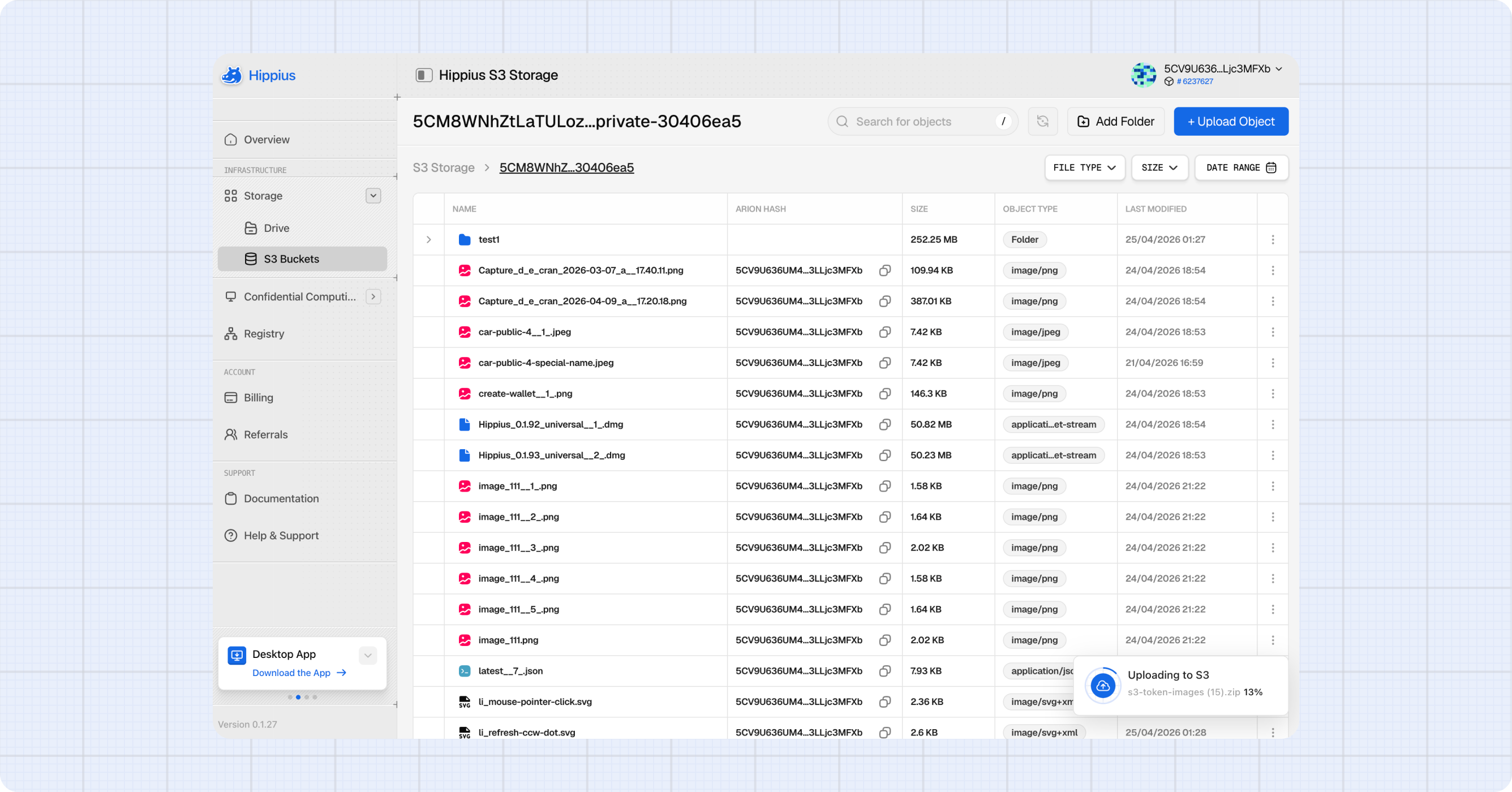
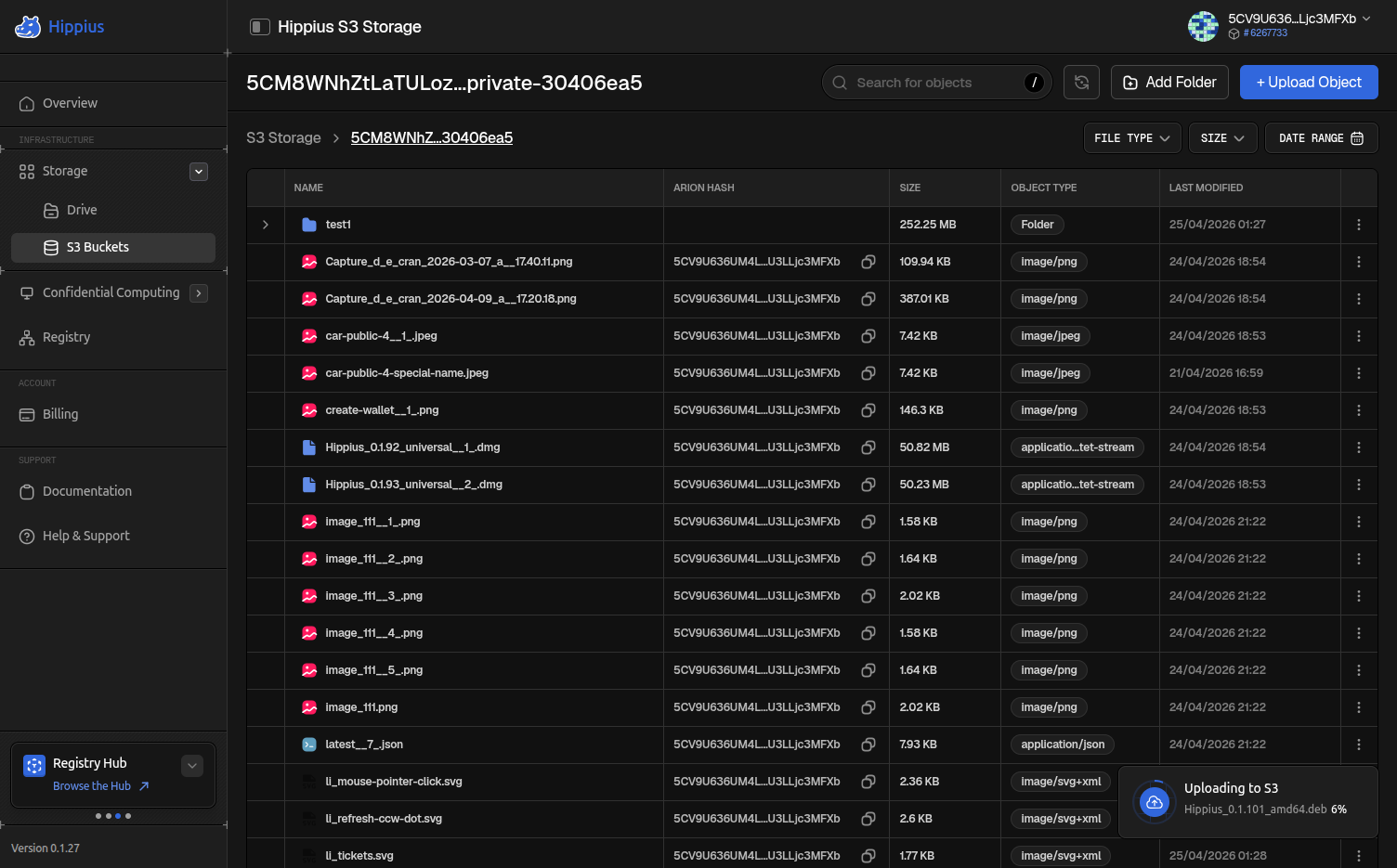
Once every file in the batch finishes, the widget collapses to a small pill you can dismiss. While any file is still in flight, you can collapse the widget but not close it.
When a File Fails
If a file fails to upload:
- Its row in the widget turns red with the error reason.
- The rest of the files in the batch keep going. One failure doesn't stop the others.
To retry a failed file, open the upload dialog again and add the file. There is no in place retry button in the widget.
Common failure reasons:
| Reason | What to do |
|---|---|
| Network error | Check your connection and add the file again. |
| 413 Too Large (Drive) | The file is over 100 MB. Use the desktop app. |
| Auth error (S3) | Your master or sub token has expired or been revoked. Generate a new one. |
| Insufficient credits | The dialog catches this before the upload starts (see below). |
Insufficient Credits
If your balance can't cover the upload, an Insufficient Credits dialog appears before the queue starts. It shows your current balance, the estimated cost, and a Top Up button that takes you to Billing.
After topping up, start the upload again.
Limits
| Limit | Drive | S3 |
|---|---|---|
| Max file size via console | 100 MB | 100 MB |
| Max files per batch | 1000 | 1000 |
| Concurrent uploads | 1 (queue runs one at a time) | 1 (queue runs one at a time) |
| Folder depth | Unlimited | Unlimited |
Where to next
- Drive: your personal encrypted file storage.
- S3 Buckets: S3 compatible bucket storage.
- Hippius Desktop App: uploads beyond the 100 MB console limit.
- Billing: top up credits to keep uploading.