S3 Migrations
Introduction
If your files already live with another storage provider, you do not have to download them and upload them again. Point Hippius at your existing bucket and we copy it across for you, however large it is, while you carry on with something else.
We can read from Storj, Amazon S3, Google Cloud Storage, Cloudflare R2, Backblaze B2, DigitalOcean Spaces, Wasabi, and anything else that speaks S3.
Find it in the sidebar at
Your files are only ever read from the source. Nothing is moved, renamed or deleted there, so the originals stay exactly as they are and you can run the same migration again if you want to.
Before you start
You need two things from your current provider: an access key and its secret.
Make them read-only if your provider offers the choice. We only ever read from the source, so a read-only key does everything a migration needs and limits what the key could do if it ever leaked.
Most providers show the secret once, when the key is created. Copy it somewhere safe before closing the page, or you will have to create another key.
Depending on where you are coming from, you may be asked for one more detail:
- Amazon S3: the region your bucket is in, such as
us-east-1. - Cloudflare R2: your account ID.
- Backblaze B2, DigitalOcean Spaces, Wasabi: the region, chosen from a list.
- Any S3-compatible: the endpoint URL, such as
https://s3.example.com. - Storj and Google Cloud Storage: nothing extra, we already know where to connect. For Google Cloud Storage the key and secret are an HMAC key, created under interoperability settings rather than a service account file.
If you are not sure where your provider keeps its keys, each one has a How to get your credentials panel in the migration window that tells you which screen to look on.
Migrating your files
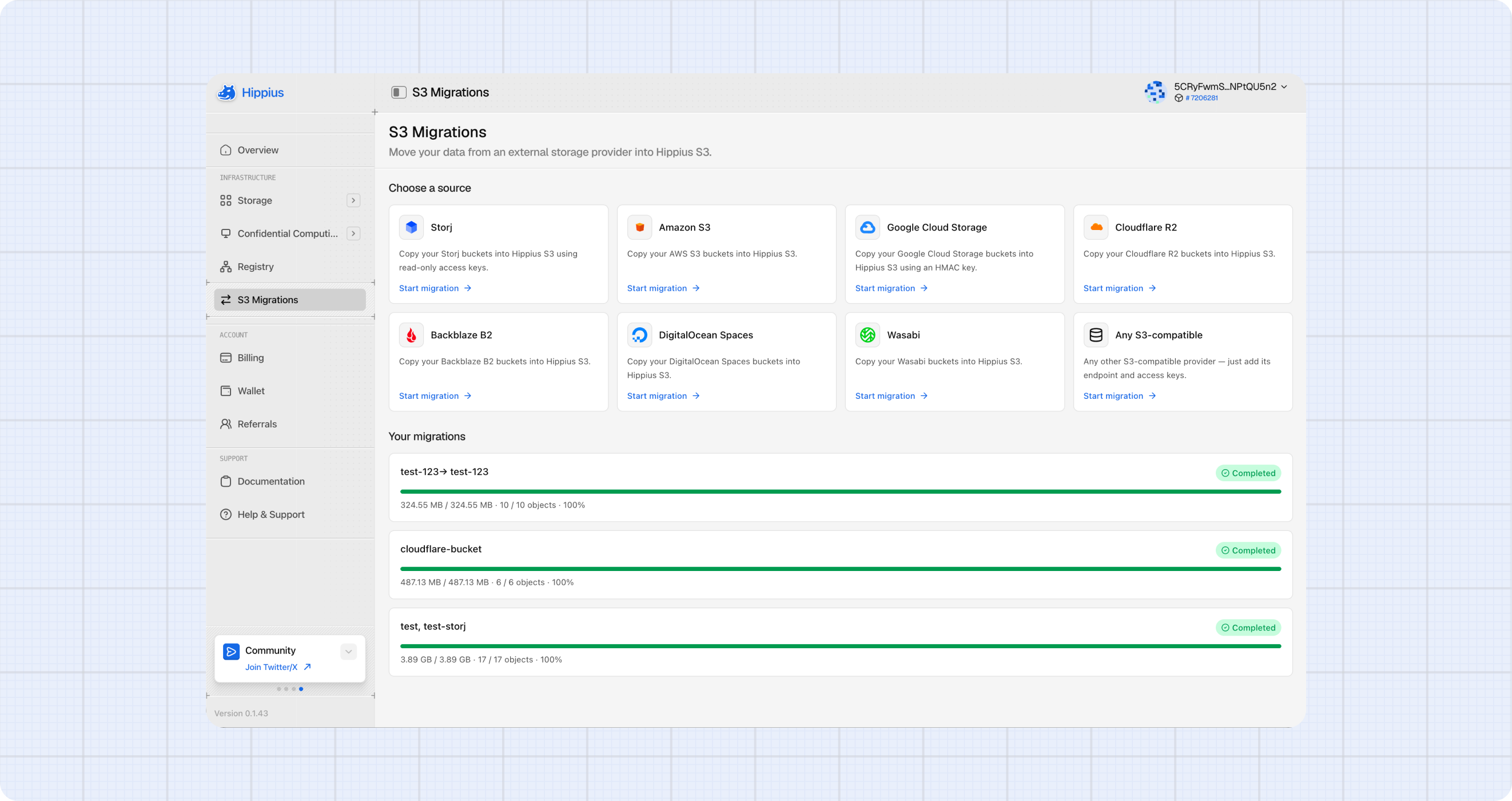
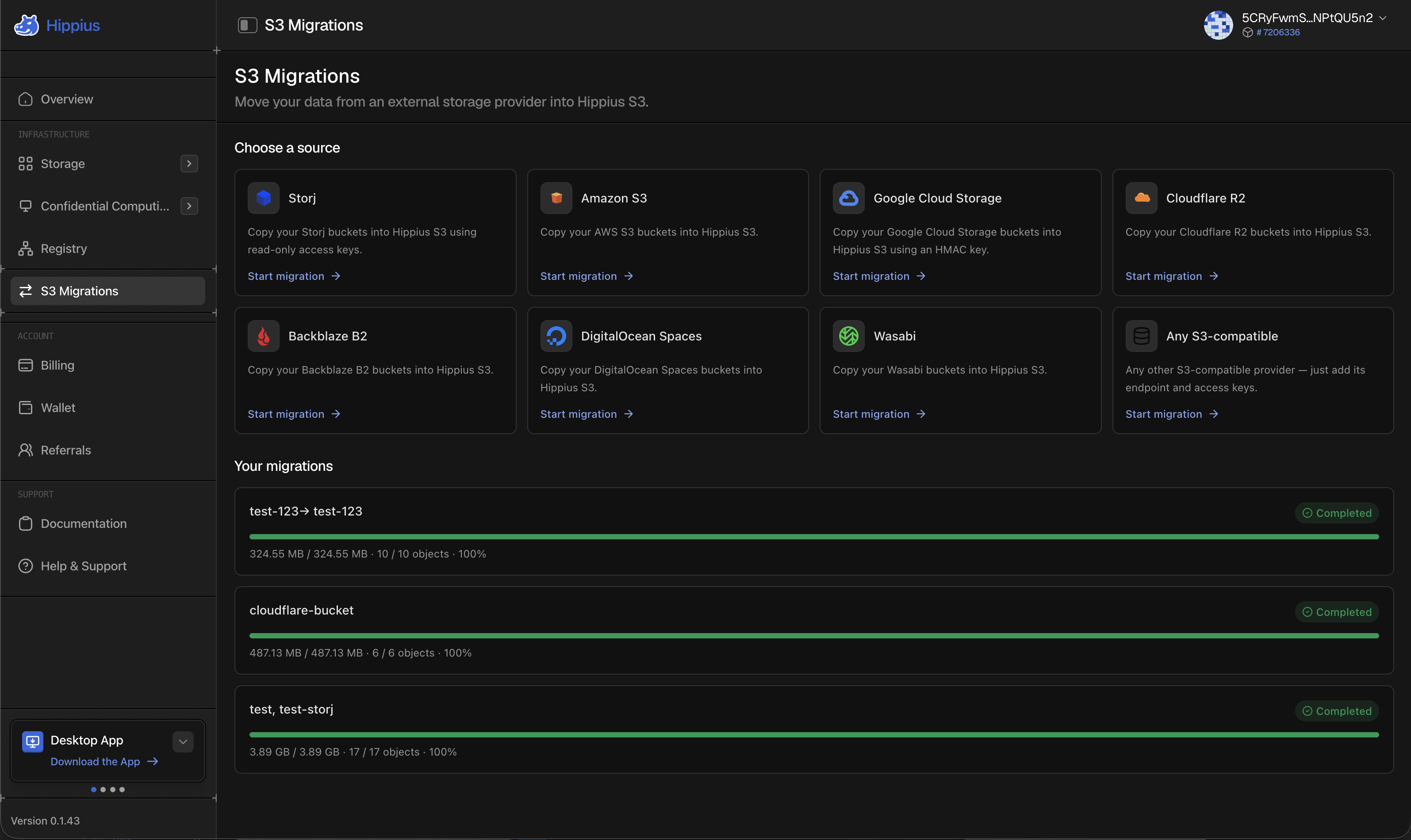
- Open S3 Migrations and choose the provider you are moving from. Pick Any S3-compatible if yours is not on the list.
- Enter your access key and secret, plus the region, account ID or endpoint if you are asked for one.
- Choose which buckets to bring across, and what each one should be called in Hippius. Take the suggested name or type your own.
- Start the migration. You can close the window and come back to it. Nothing stops when you navigate away.
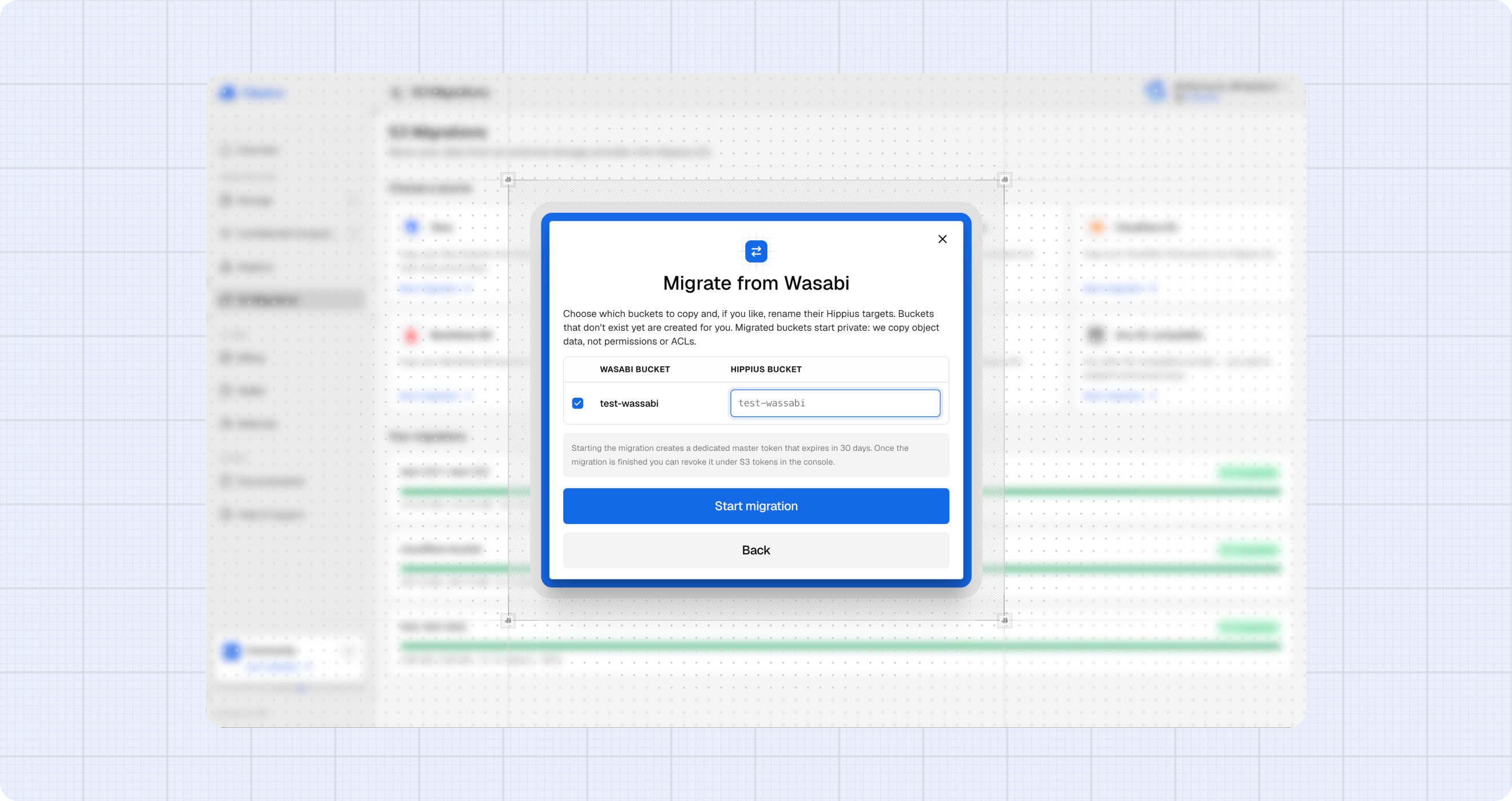
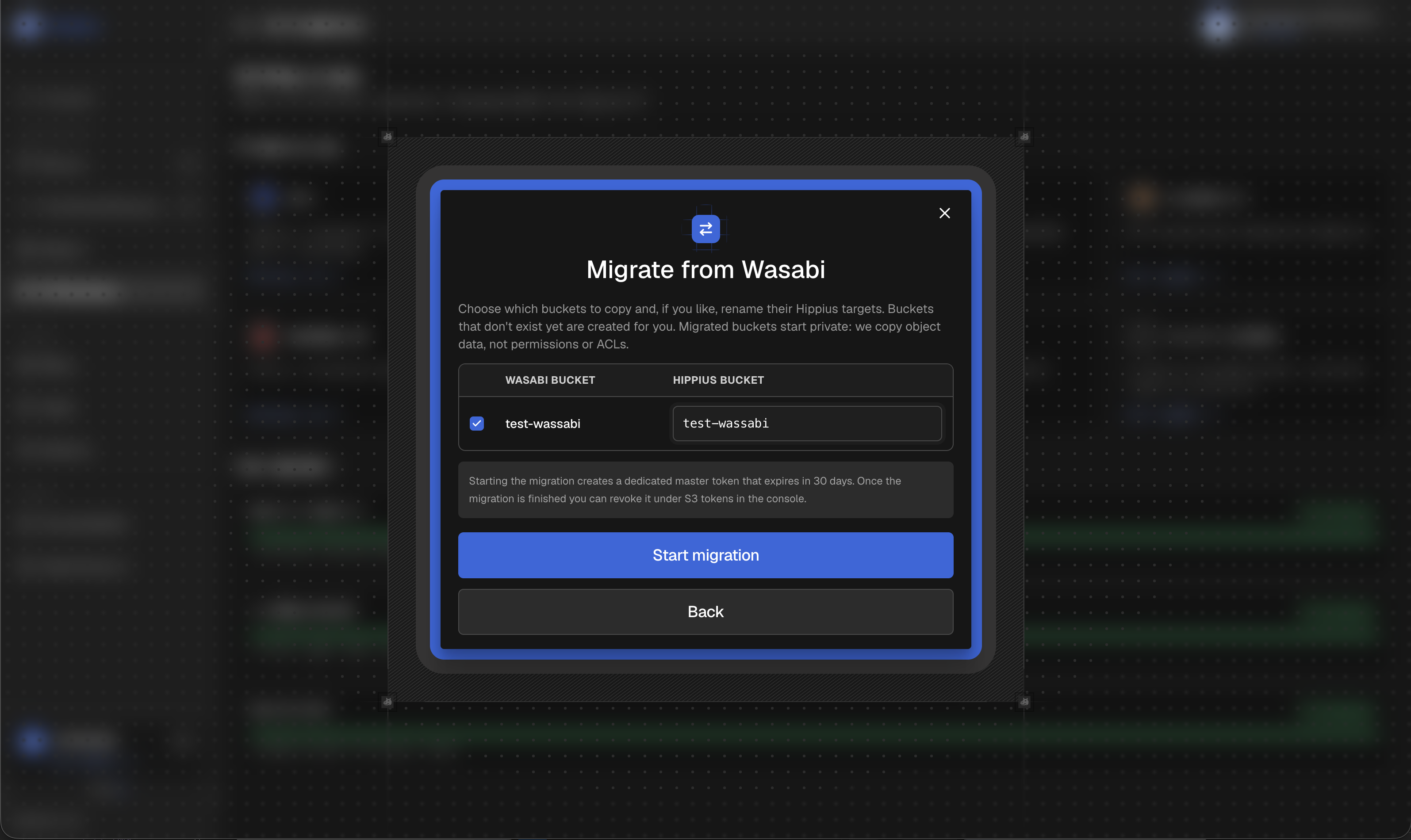
A bucket that does not exist in Hippius yet is created for you, so there is nothing to set up first.
Bucket names have to be unique across Hippius, so if the name you want is taken, add something of your own to it. The suggestion in the box is usually free.
Migrated buckets start private, and we copy object data rather than permissions. Access rules, ACLs and public settings do not come across, so anything that was public at your old provider needs setting up again here.
Watching it run
Once a migration starts you get a progress view showing how far along it is and how many objects have been copied.
Large buckets take a while. You do not have to sit and watch, and you do not have to keep the window open. Come back to S3 Migrations whenever you like and the current state is waiting for you.
Two things are worth understanding when it finishes:
- Skipped objects were already present in the destination with the same content, so there was nothing to copy. This is what makes it safe to run a migration a second time: the parts that already arrived are not fetched again.
- Failed objects could not be read or written, usually because the key lost access partway through or the object was removed at the source while we were copying. Everything else still completes, and you can run the migration again to pick up what failed.
After the migration
Starting a migration creates a dedicated S3 token so we can write into your account, and it expires by itself after 30 days. Once everything has arrived you can revoke it under S3 tokens rather than waiting.
Your files are now ordinary Hippius S3 objects. Use them with the same tools and access keys as anything else you store with us, and browse them under S3 Buckets.
Your original provider is untouched, so keep it or close the account in your own time once you are happy everything arrived.
Where to next
- S3 Buckets: browse your buckets and manage access keys.
- S3 Quickstart: endpoints, SDKs and first upload.
- Advanced Usage: presigned URLs, ACLs, and public buckets.