Wallet
Introduction
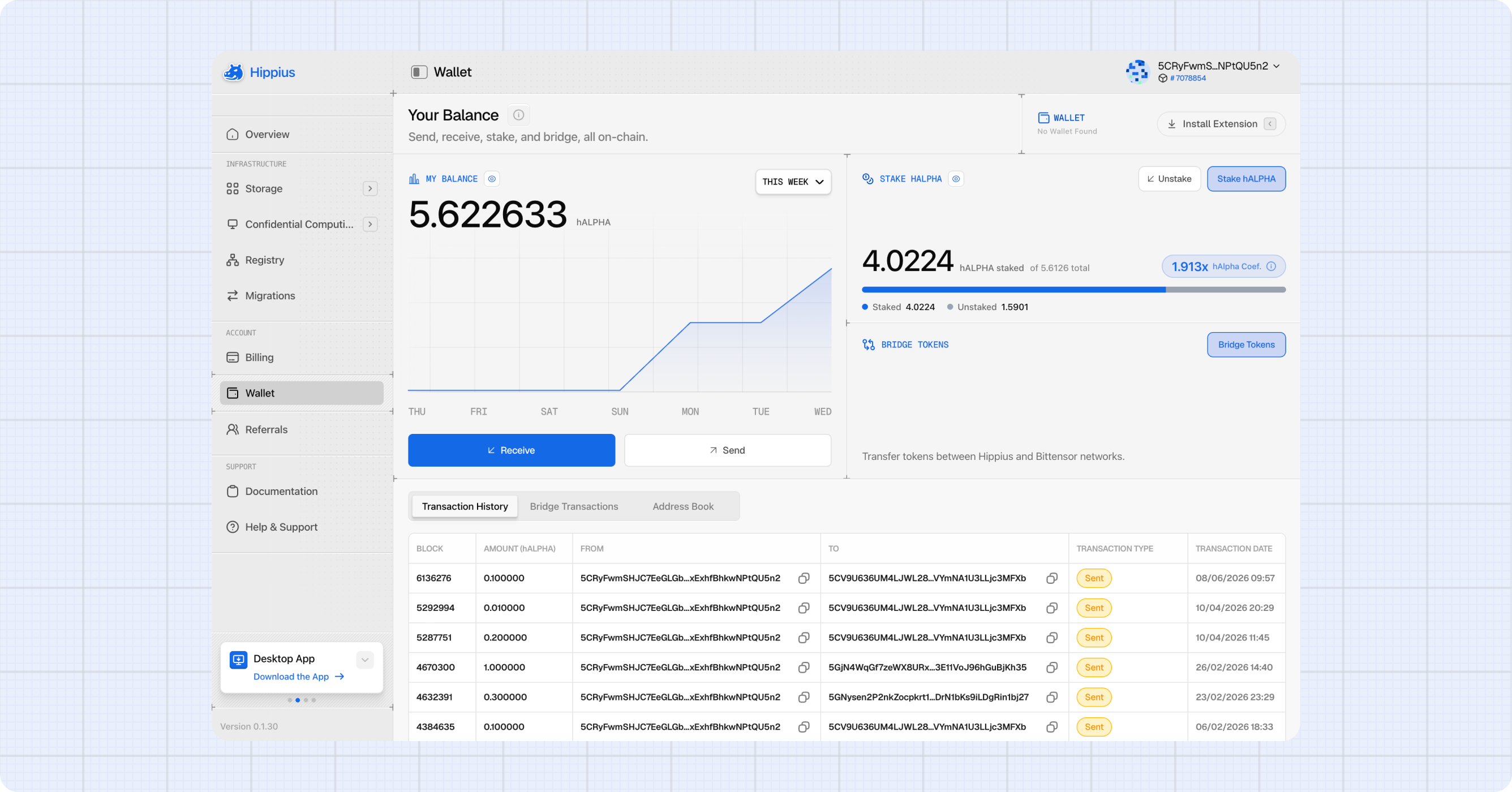
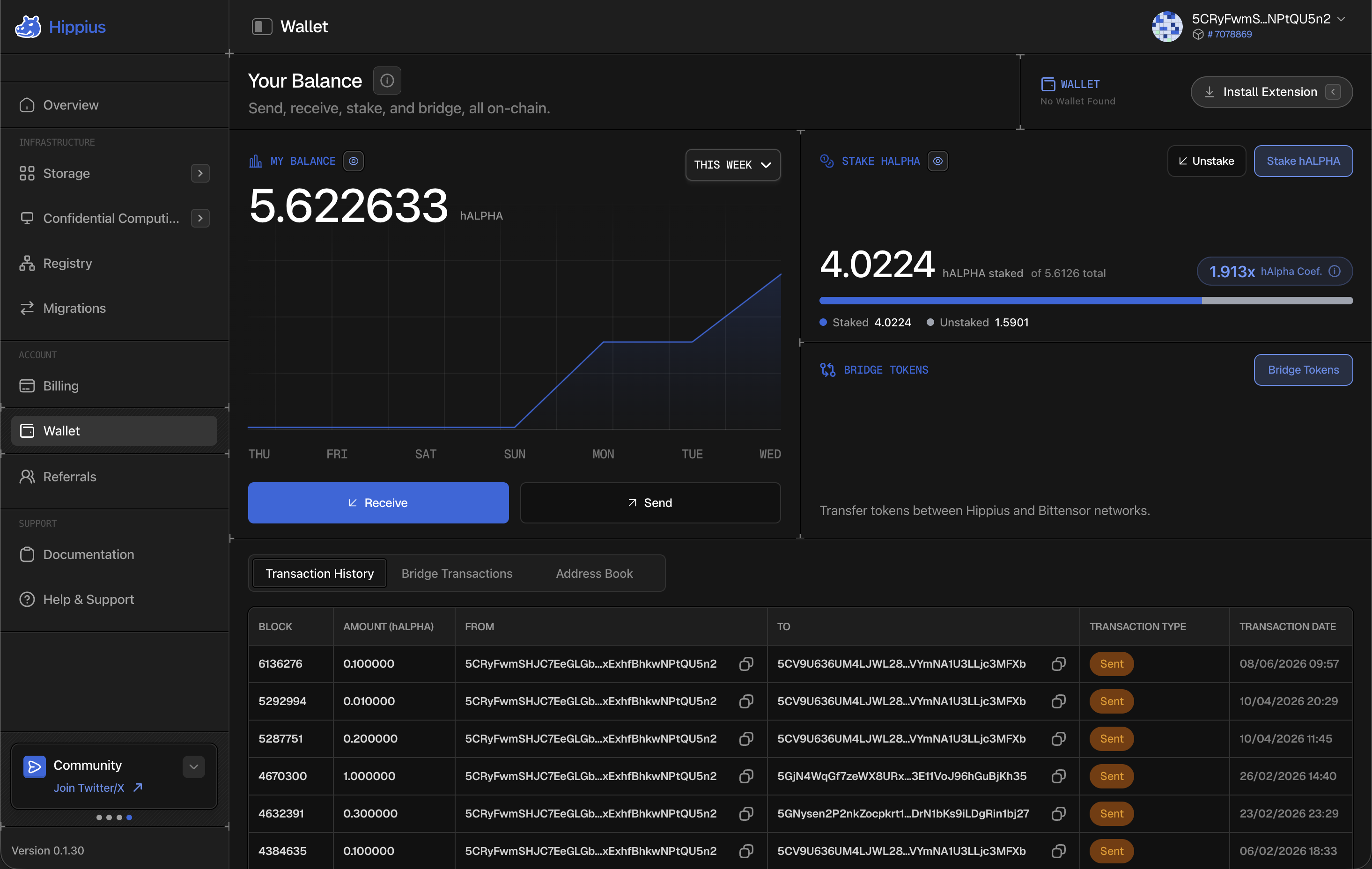
The Wallet page is where you manage your hAlpha, the native token of the Hippius network. From here you can check your balance, send and receive tokens, and keep a record of everything that has moved in or out of your account.
We want to be clear about one thing up front: every action on this page is signed on chain by your own wallet extension. We never hold or move your funds. We cannot reverse a transaction for you, and we cannot recover tokens sent to the wrong address.
Reach Wallet from the sidebar at
Staking and bridging live on this same page, but we have given them their own guides because there is more to explain than fits here:
- Staking: stake hAlpha, unstake it, and redeem once it unlocks.
- Bridge: move tokens between Hippius and Bittensor.
Connecting Your Wallet
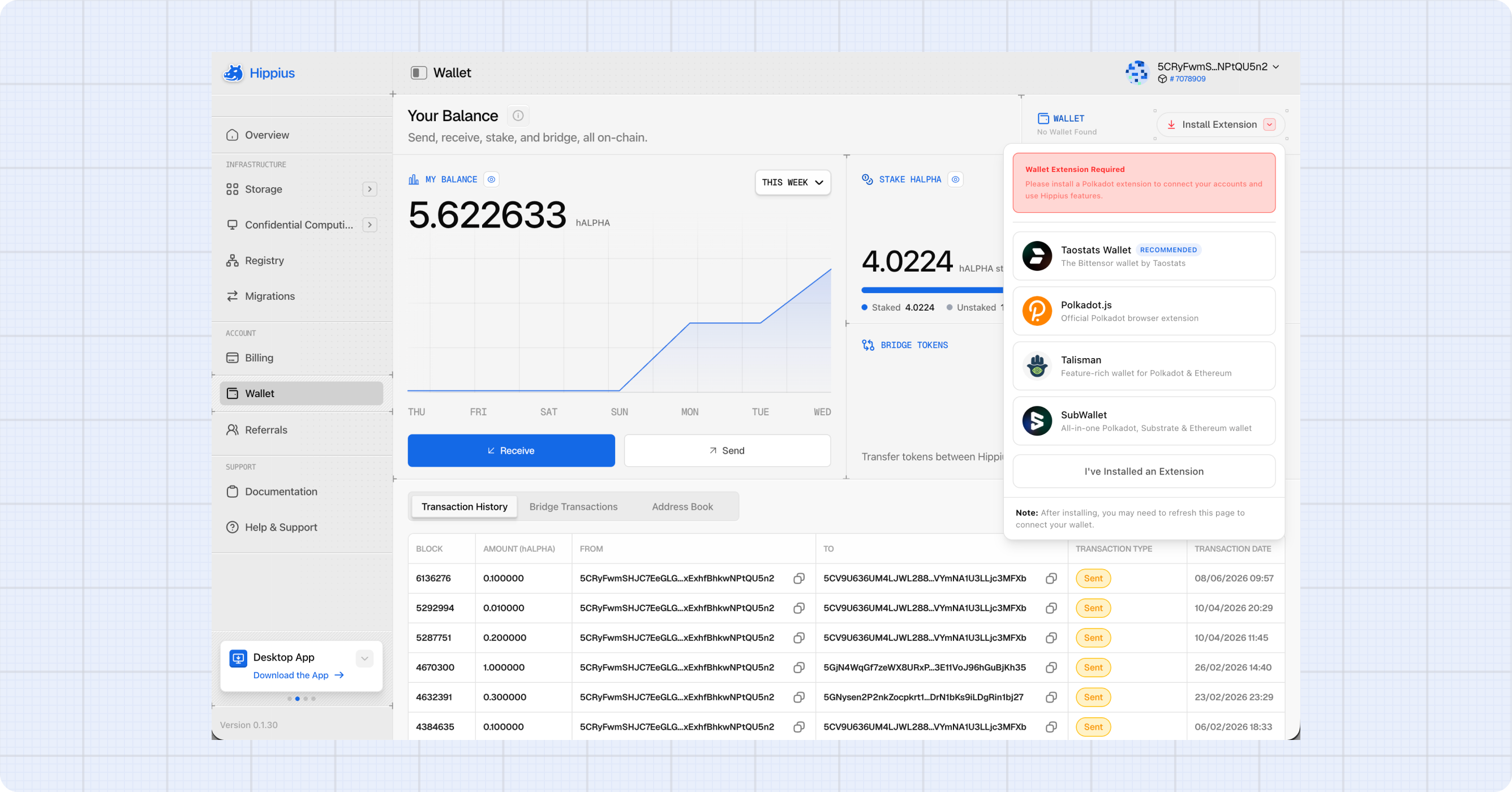
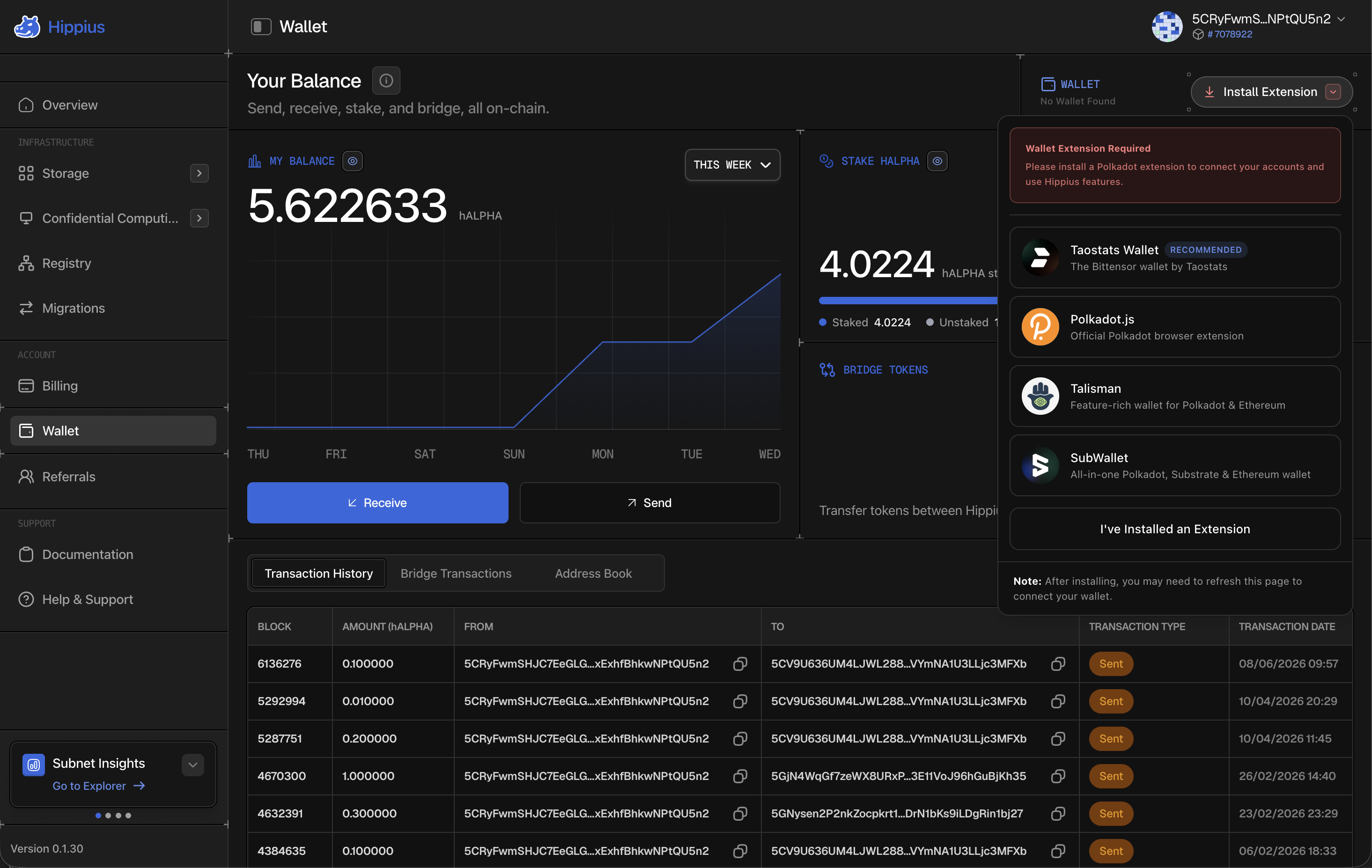
You need a browser extension wallet before you can send, stake, bridge, or sign anything. We support four:
| Extension | Notes |
|---|---|
| Taostats Wallet | Built for Bittensor. This is the one we recommend, and we list it first. |
| Polkadot.js | The official Polkadot extension, minimal and reliable. |
| Talisman | Feature rich, supports both Polkadot and Ethereum. |
| SubWallet | Multi chain, with a mobile companion app. |
You are not limited to one. We aggregate accounts from every extension we detect and remove duplicates, so an account held in two extensions appears once. The recommended extension only decides the ordering and which one signs by default.
Installing a Wallet Extension
If we cannot detect an extension, the button in the top right shows Install Extension. Click it to open a panel with install links.
- Click the install link for the extension you want. The provider's website opens in a new tab.
- Install it, then create or import an account.
- Come back to the console and click Refresh so we pick up the newly installed extension.
- Approve the connection request when the extension asks.
- Your accounts now appear in the wallet dropdown.
Adding the Hippius Network to Your Wallet
You do not need to add Hippius as a network to use the console. When you connect your extension here, we talk to the chain for you and your wallet only has to sign. That is true of staking and bridging too.
What adding the network does give you is Hippius showing up inside the extension itself, so you can see your hAlpha balance without opening the console.
Talisman is the one that usually needs this, because it does not ship Hippius in its built-in network list. Open its settings, find the section for managing networks, and add one using our RPC endpoint. Most extensions read everything else straight off the chain once they have the endpoint, so the URL is often the only thing you have to type.
| RPC endpoint | wss://rpc.hippius.network |
| Network name | Hippius Mainnet |
| Token symbol | hALPHA |
| Token decimals | 18 |
| Address prefix | 42 |
Talisman offers a setting called This network supports CheckMetadataHash sign extension. Leave it unticked.
With it on, Talisman will happily let you sign a transaction and the transaction then fails afterwards, which looks like the transaction was rejected when it was really the signature. We do not support that extension yet. With it off, signing works normally.
Hardware wallets like Ledger are not supported yet.
Hippius uses address prefix 42, the generic Substrate format, so the address you already see in the console is the one the extension will show. You do not get a separate Hippius address by adding the network.
If the extension asks for a genesis hash, ours is:
0x28a6b54823f786c5dd8520ef7bdb0ee2639173815bfbb7719bcf58ef9eb5e1f9
Selecting Your Active Wallet
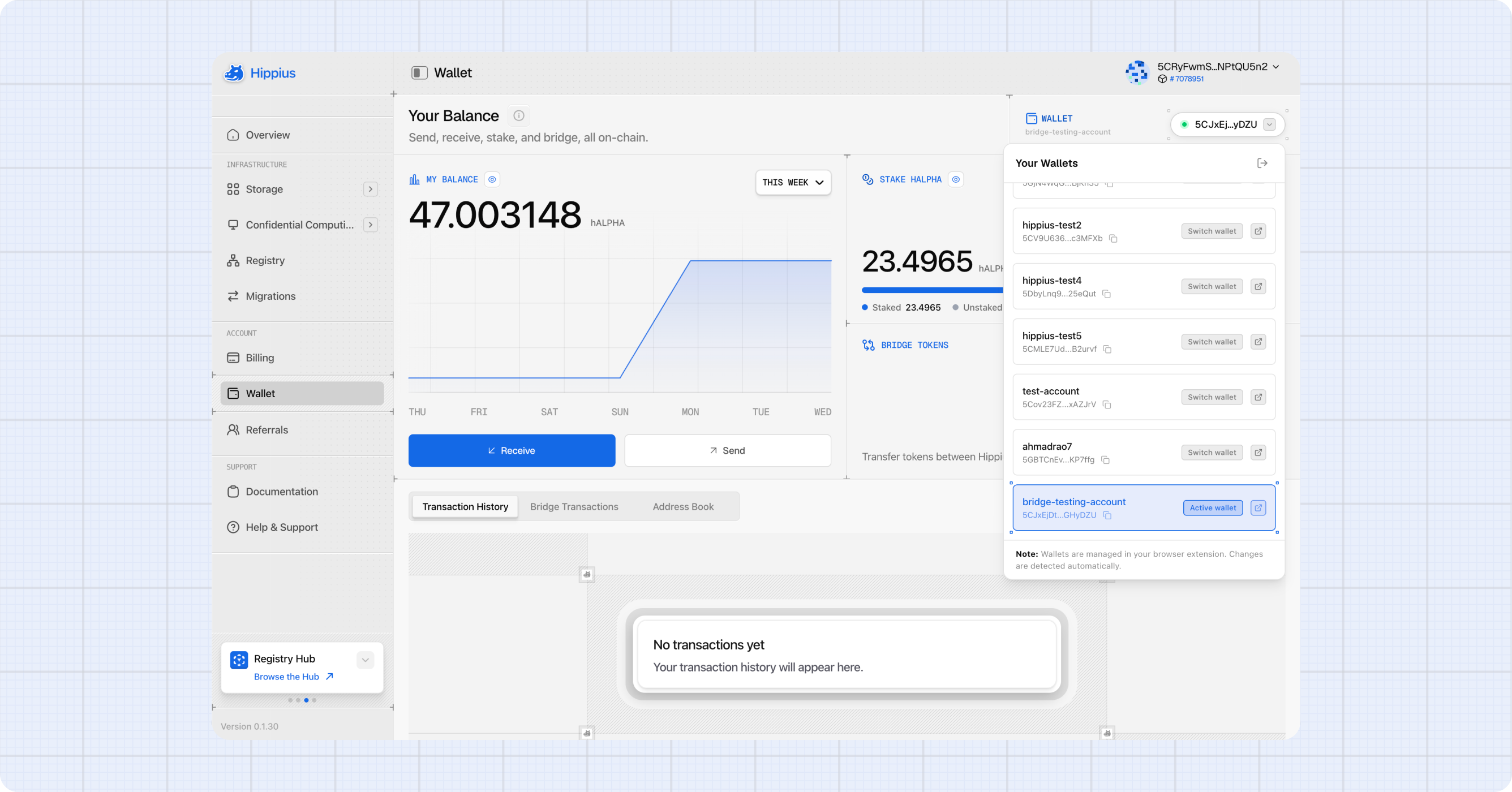
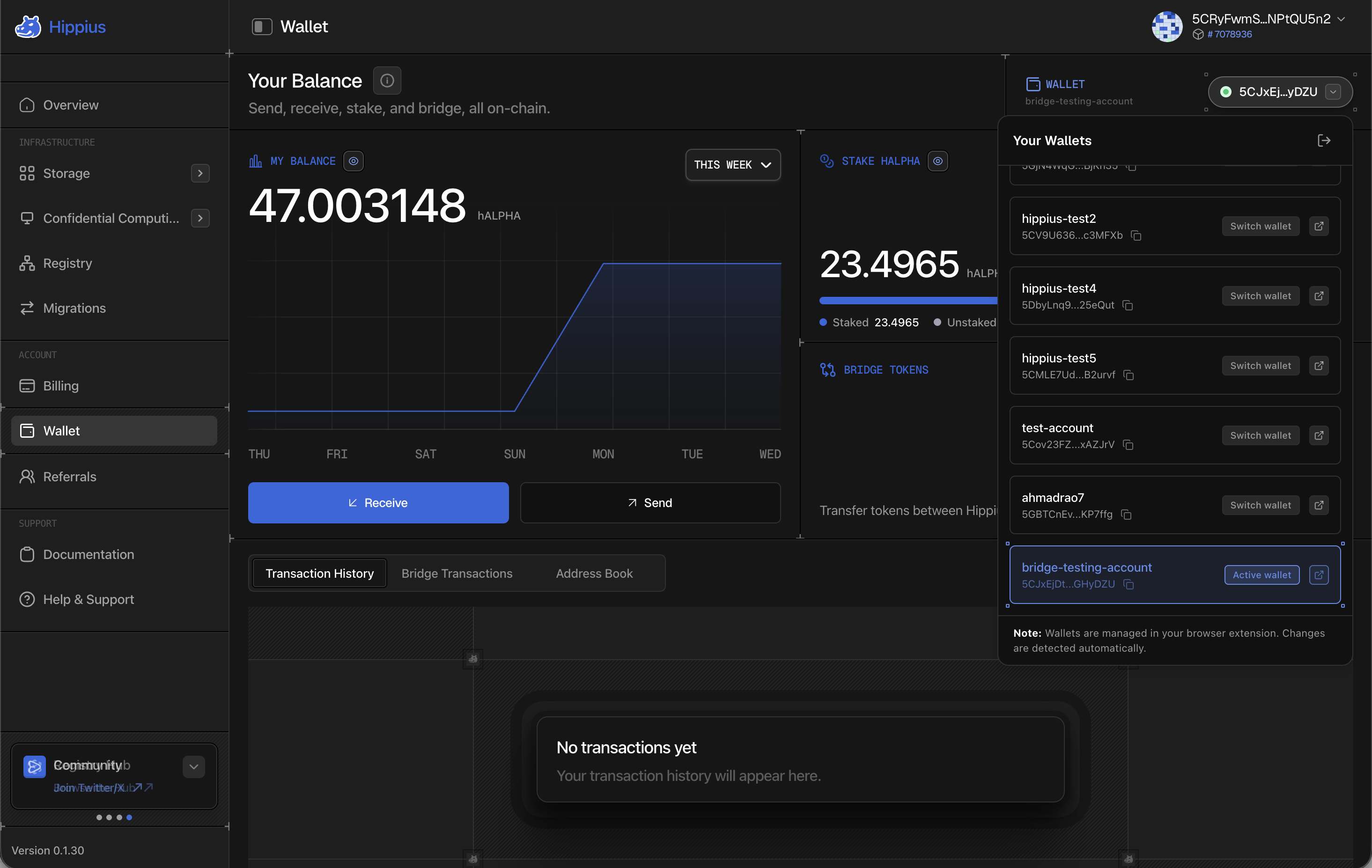
The selector in the top right shows your connected account. Click it to open the list of every account we found.
- Find the account you want to use.
- Click Select Wallet next to it.
Hover a truncated address to see it in full. Click the copy icon to copy it, or the link icon to open it on hipstats.com. We remember your choice across sessions.
Disconnecting
Open the wallet dropdown and click the logout icon at the top of the list. We clear the active wallet from the console. Your funds stay in your extension, untouched.
Hiding Your Balances
If you are sharing your screen or working somewhere public, click the eye icon next to a panel heading to hide sensitive wallet information. Your balances are masked until you toggle it back. This only changes what is displayed, nothing else.
Your Balance
The My Balance panel on the left shows your spendable hAlpha with a chart of your balance over time.
Use the range selector (THIS WEEK / LAST 30 DAYS / LAST 60 DAYS / 1 YEAR / MAX) to change the window. Hover any point on the chart to see the exact balance at that moment.
Your spendable balance excludes anything staking is holding: staked, unstaking, and redeemable amounts. See Staking for what each of those states means.
Receiving hAlpha
- Click Receive below the balance chart.
- We show your Hippius address, labelled Deposit Address, as a QR code and as plain text.
- Share the QR code with the sender, or click the copy icon to grab the address.
- The new balance appears within a block or two of the transfer confirming.
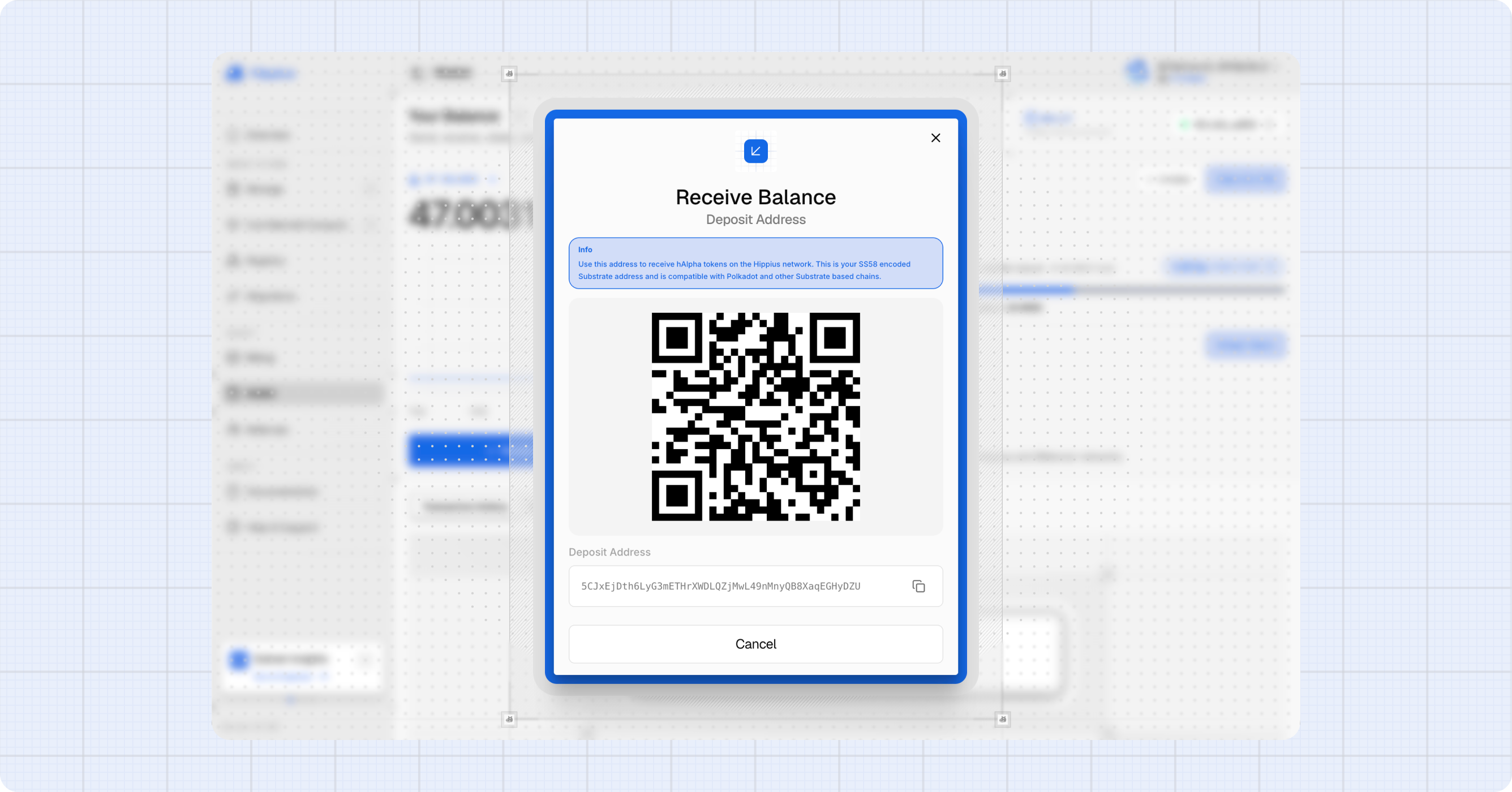
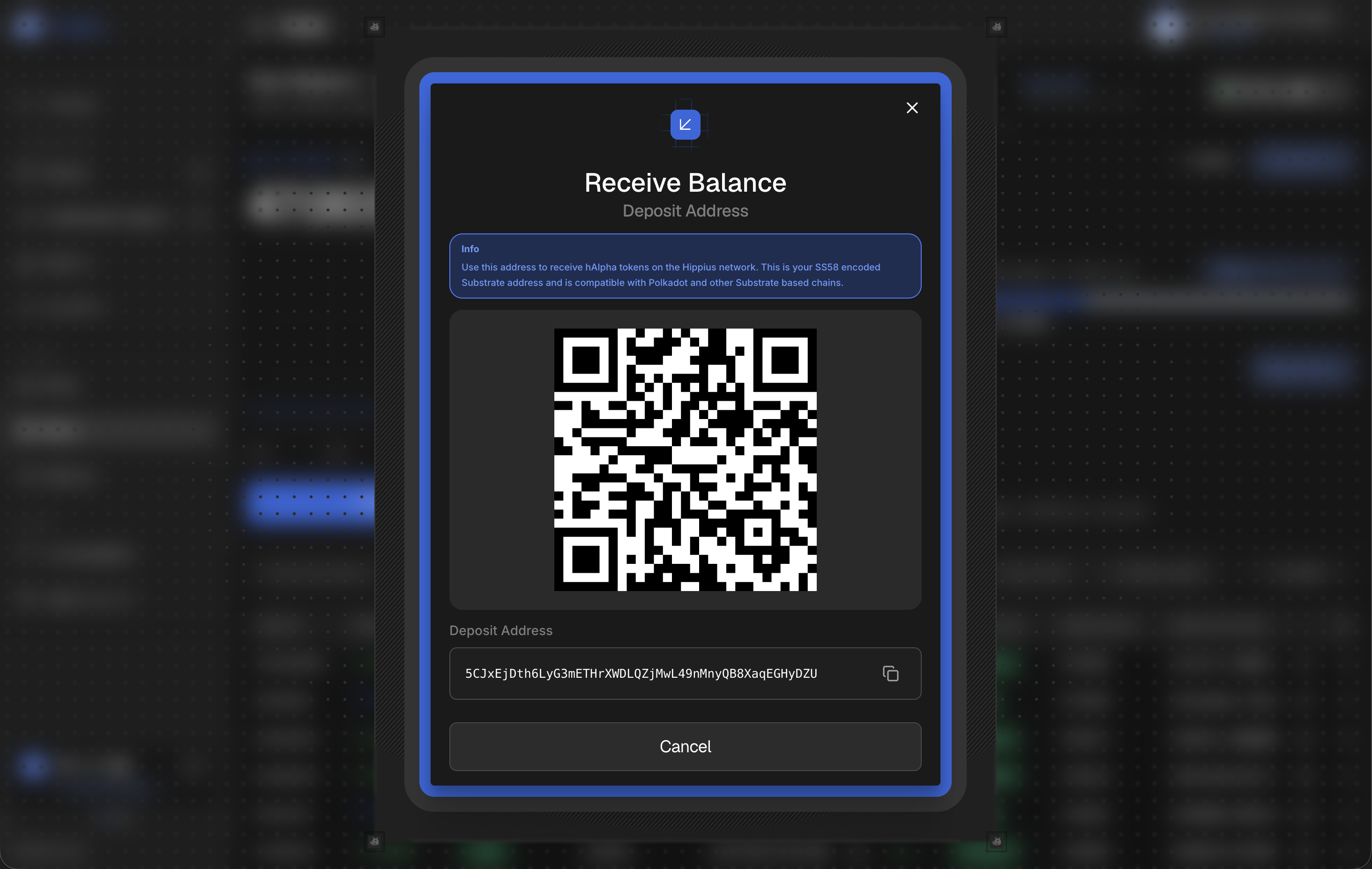
Don't send TAO to it: TAO sent there is not added to your balance. To pay with TAO, use the TAO deposit address in Billing.
Sending hAlpha
- Click Send below the balance chart.
- Enter the recipient address, or pick a saved contact from your address book.
- Enter the amount. We validate it against your available balance as you type.
- Review the summary: amount, estimated fee, and recipient.
- Click Send hALPHA. Your extension opens for approval.
- Approve it. We confirm with a toast once the transaction finalizes, including a link to the explorer.
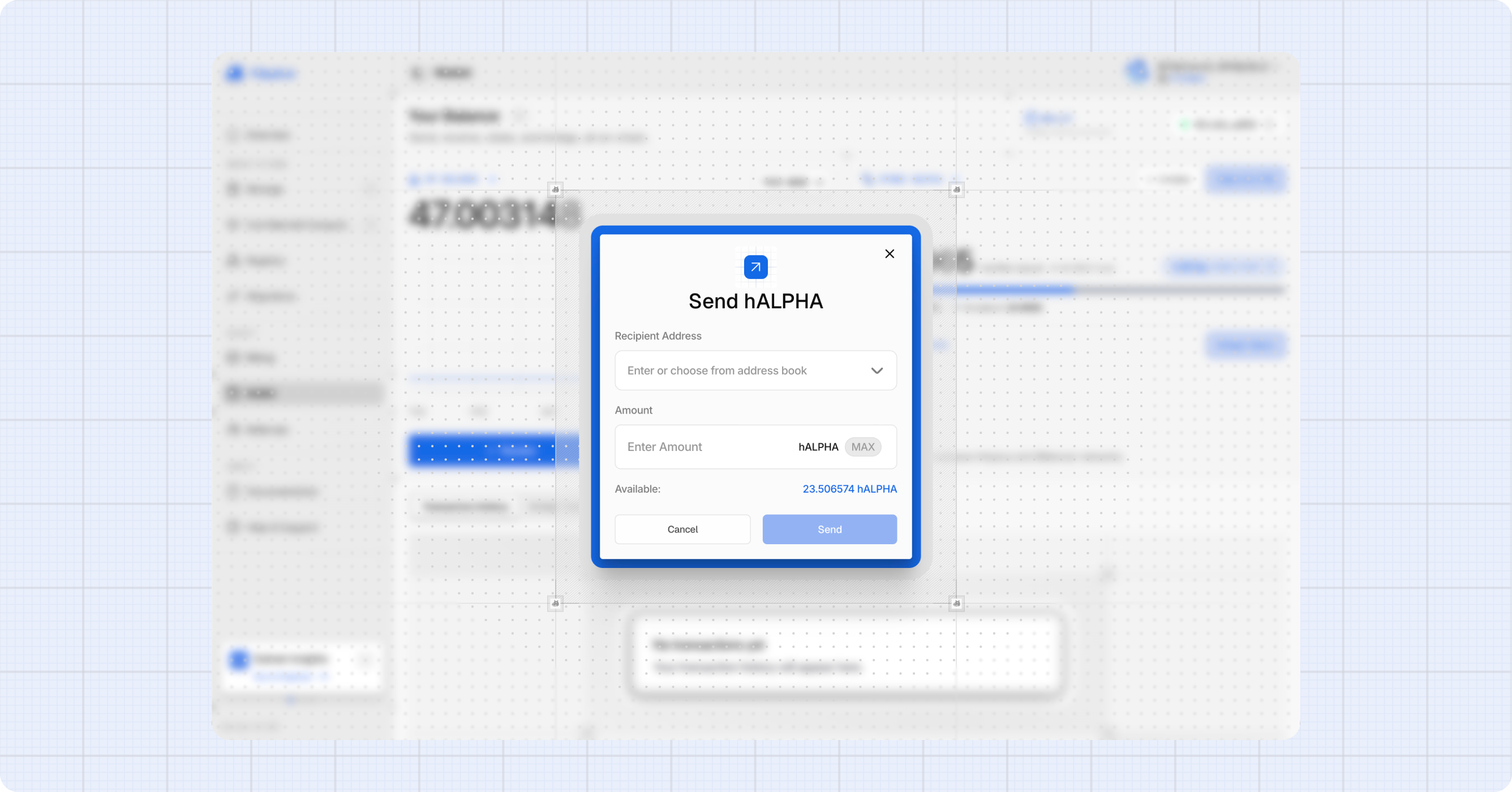
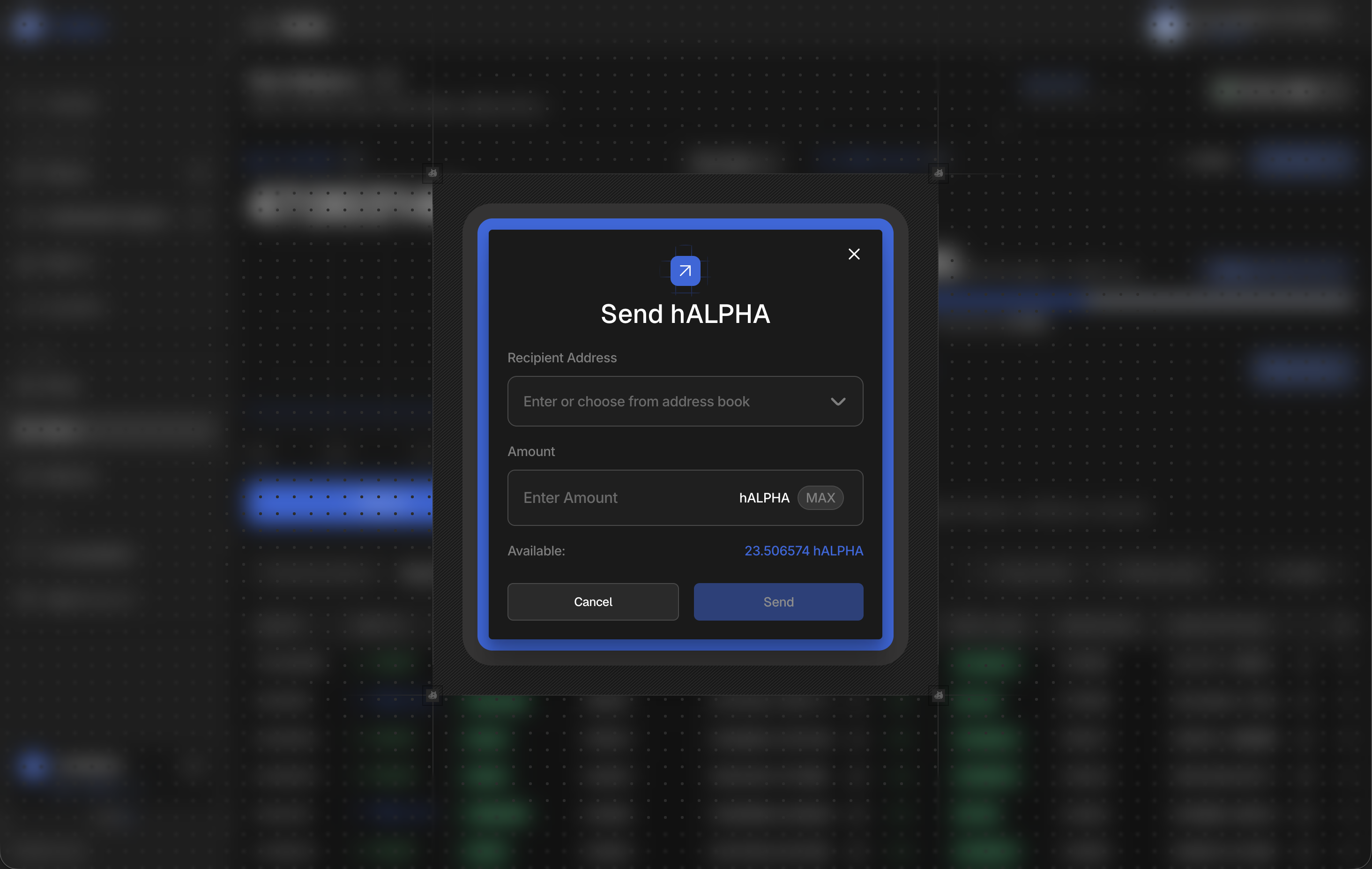
We block a few things before they reach the chain, so you may see one of these:
- "Invalid address format": the address is not a valid Substrate address.
- "Cannot send to your own address": pick a different recipient.
- "Amount exceeds your available balance": remember that staked and unstaking hAlpha is not spendable.
Transaction History
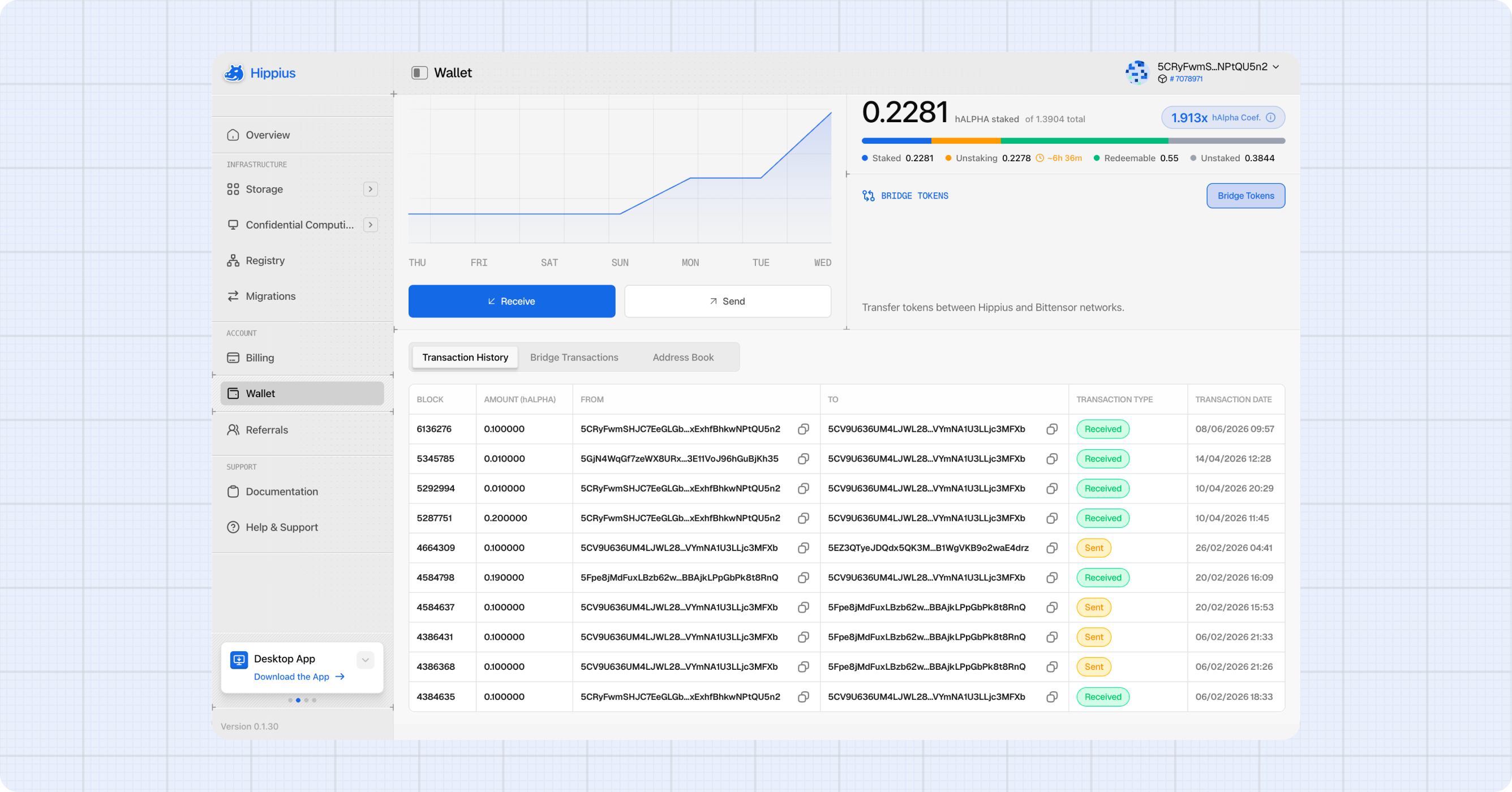
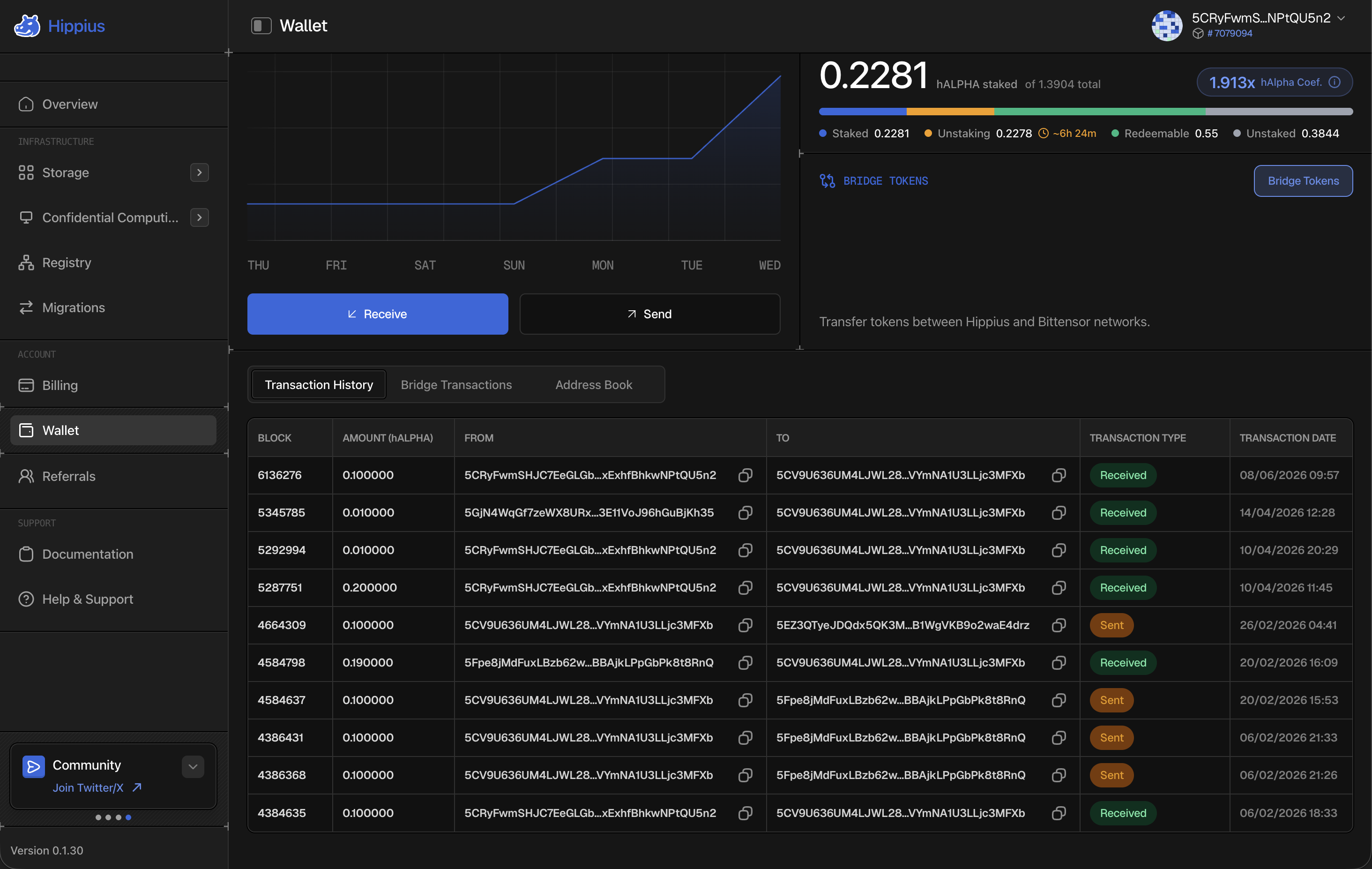
The Transaction History tab shows every incoming and outgoing hAlpha transfer for your active wallet.
Each row gives you the block, amount, sender and recipient, type and date. Sent or Received is relative to whichever wallet is active, and the block number opens that block on hipstats.
Search by address to narrow it down, sort by any column, and page through with the controls at the bottom.
Bridge operations are not listed here. We keep those in their own Bridge Transactions tab, covered in the Bridge guide.
Your balance and every transfer are recorded on chain, so you can check them independently. Search your address on hipstats.com to see your transfers, staking and bridge activity in one place, without connecting a wallet.
Address Book
The Address Book tab lets you save addresses under friendly names, so you can pick one from a list when sending instead of pasting a long address every time.
The table lists NAME, WALLET ADDRESS and DATE ADDED.
Adding an Address
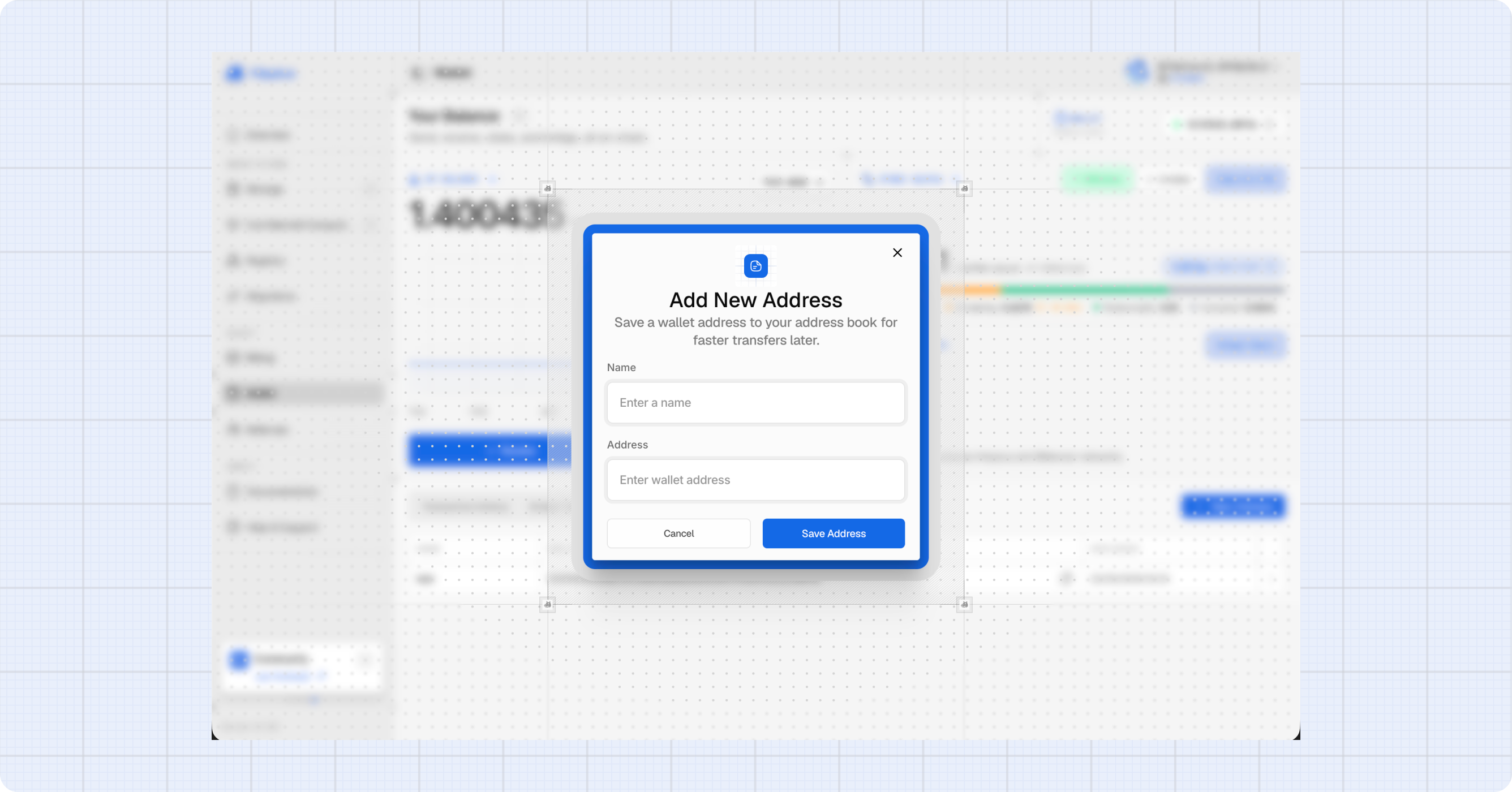
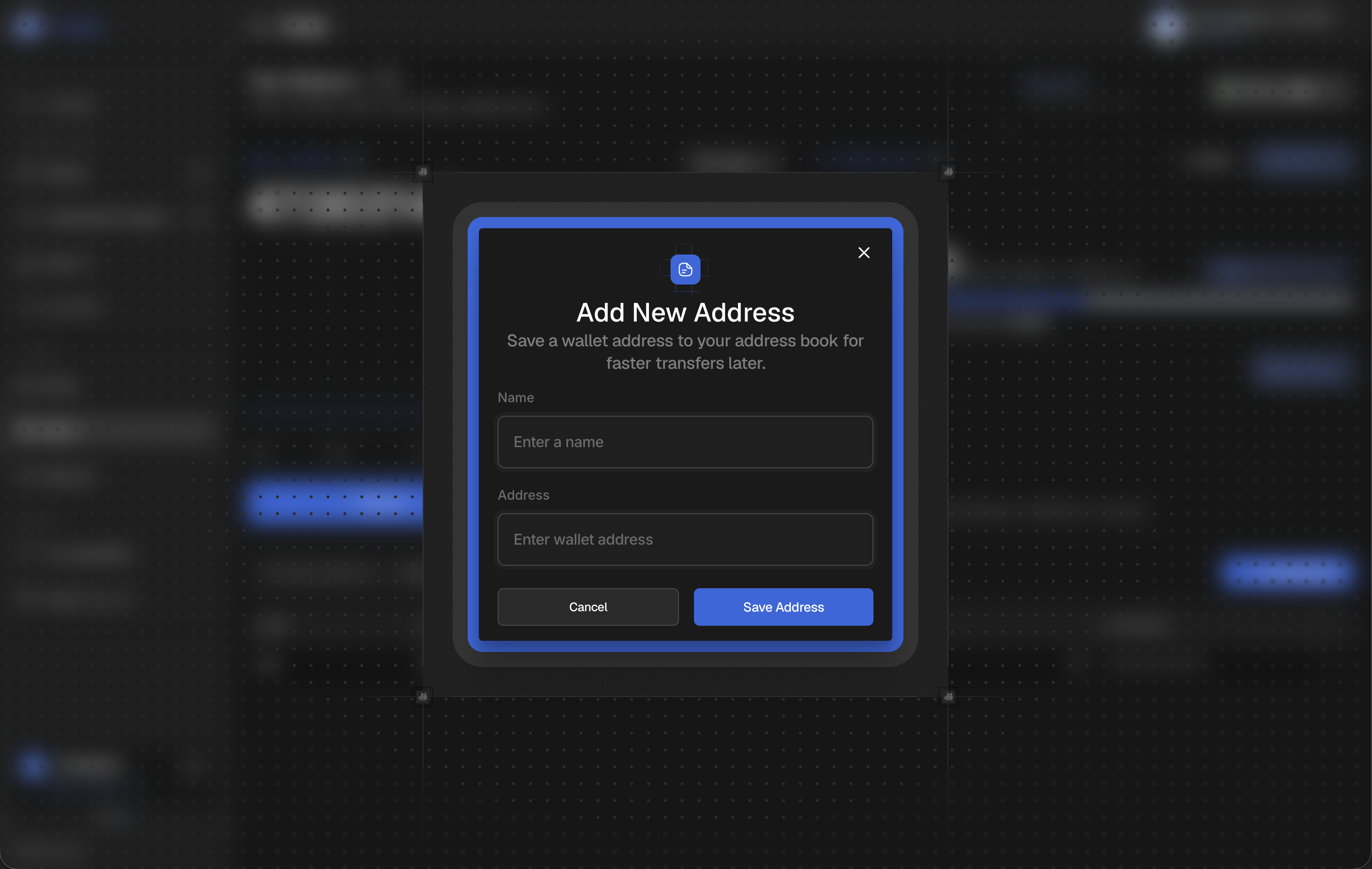
- Click + New Address.
- Enter a name (for example "Alice's wallet") and the wallet address.
- Click Save. We validate the address format before saving it.
Editing or Removing
Click the action menu on any row to Edit the entry or Delete it. We ask you to confirm before deleting.
Your address book lives in local browser storage. We do not sync it across devices, and clearing your browser data removes it. Keep your own copy of any address you cannot afford to lose.
Using a Saved Address When Sending
In the Send dialog, open the address book from the recipient field to see your saved contacts. Click one and we fill the address in for you.