Beta Channel
Introduction
Hippius Desktop ships on two channels you can choose between: Stable and Beta.
Stable is what you get by default. Beta follows the development work, so you see new features first, before they are fully stabilized. You can move between the two whenever you like, and nothing about your account, files or sync folders changes when you do.
Which channel should I use?
| Stable | Beta | |
|---|---|---|
| Who it's for | Everyone, by default | People who want new features early and don't mind rough edges |
| How often it updates | Less often | More often |
| How tested it is | More thoroughly | Less; features are still settling |
| Version looks like | 0.6.0 | 0.6.0-beta.3 |
If you rely on Hippius for work you cannot afford to interrupt, stay on Stable.
You do not need the beta for anything that has already been released. Screenshots and screen recording, for example, are part of the stable app. The beta gets the next improvements to them first, along with everything else.
Joining the beta
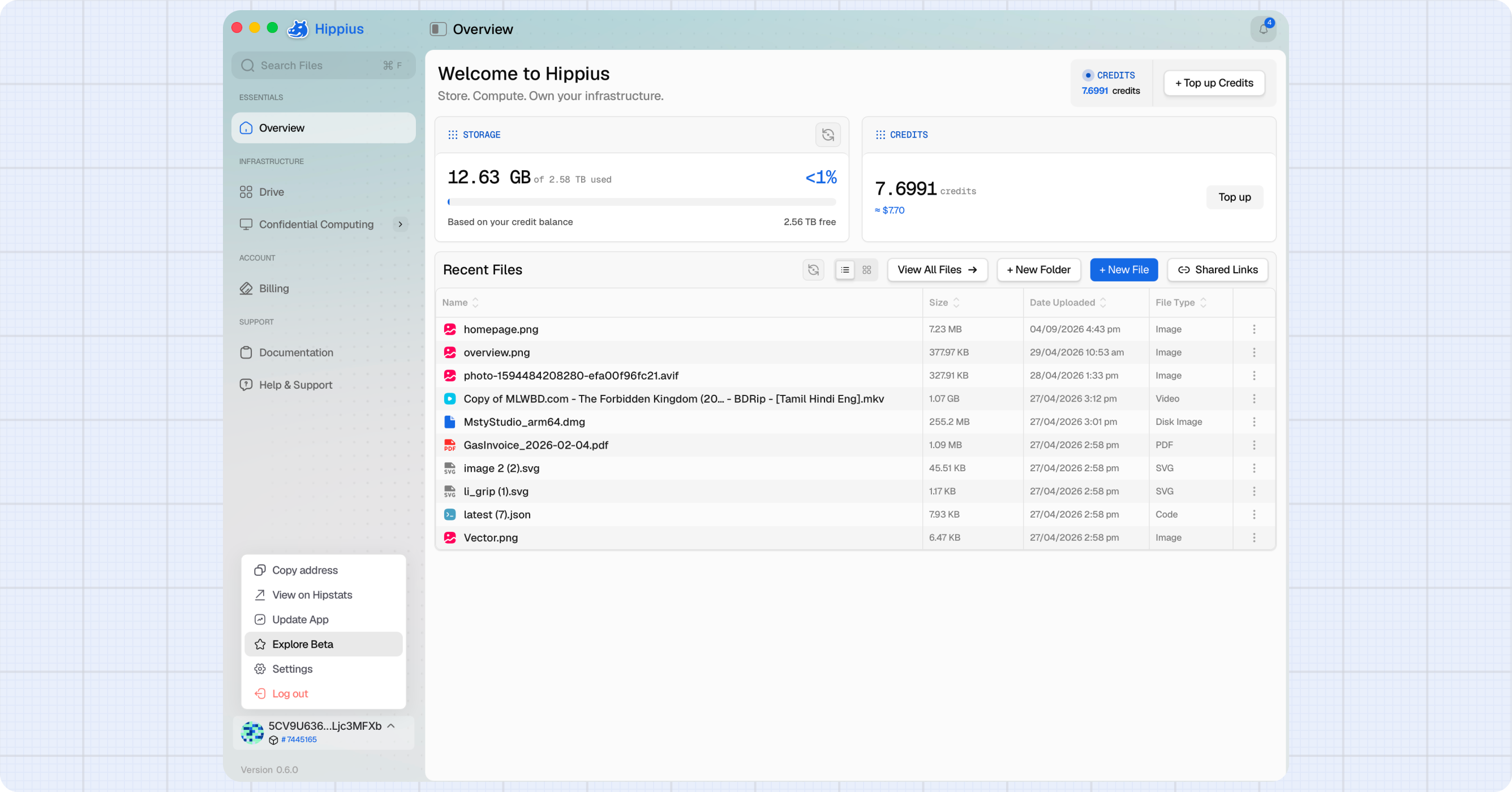
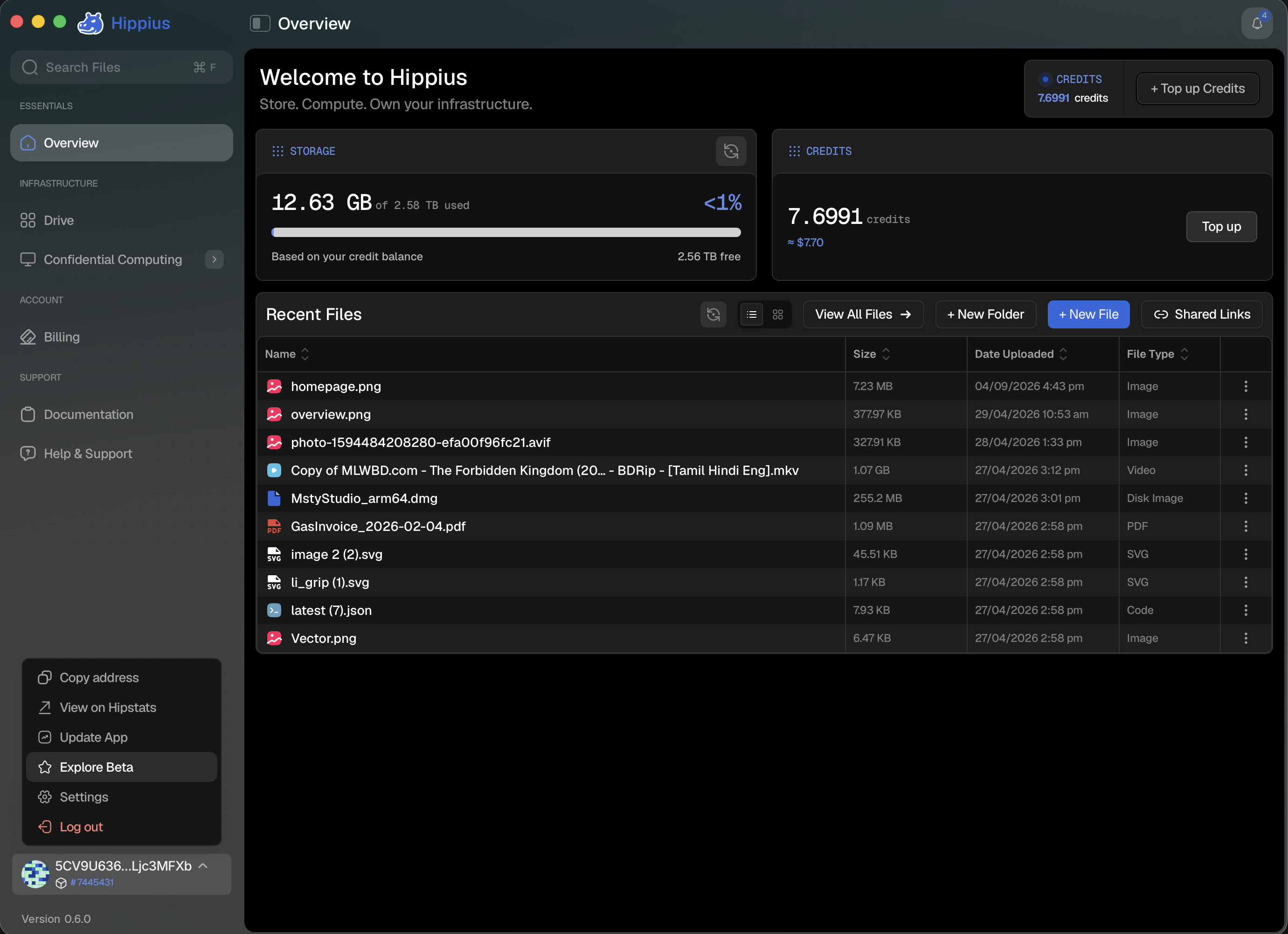
- Click your account address at the top of the app to open the address menu.
- Choose Explore Beta.
- Read what the dialog tells you, then confirm.
On macOS and Windows, Hippius downloads the beta build and restarts itself. That is the whole process; you do not need to uninstall anything or download a file by hand.
On Linux, the app can't install a new version by itself. The dialog tells you which file to get and opens the releases page, where you download the new package and install it with your package manager, the same way you installed Hippius. Stable updates on Linux work the same way.
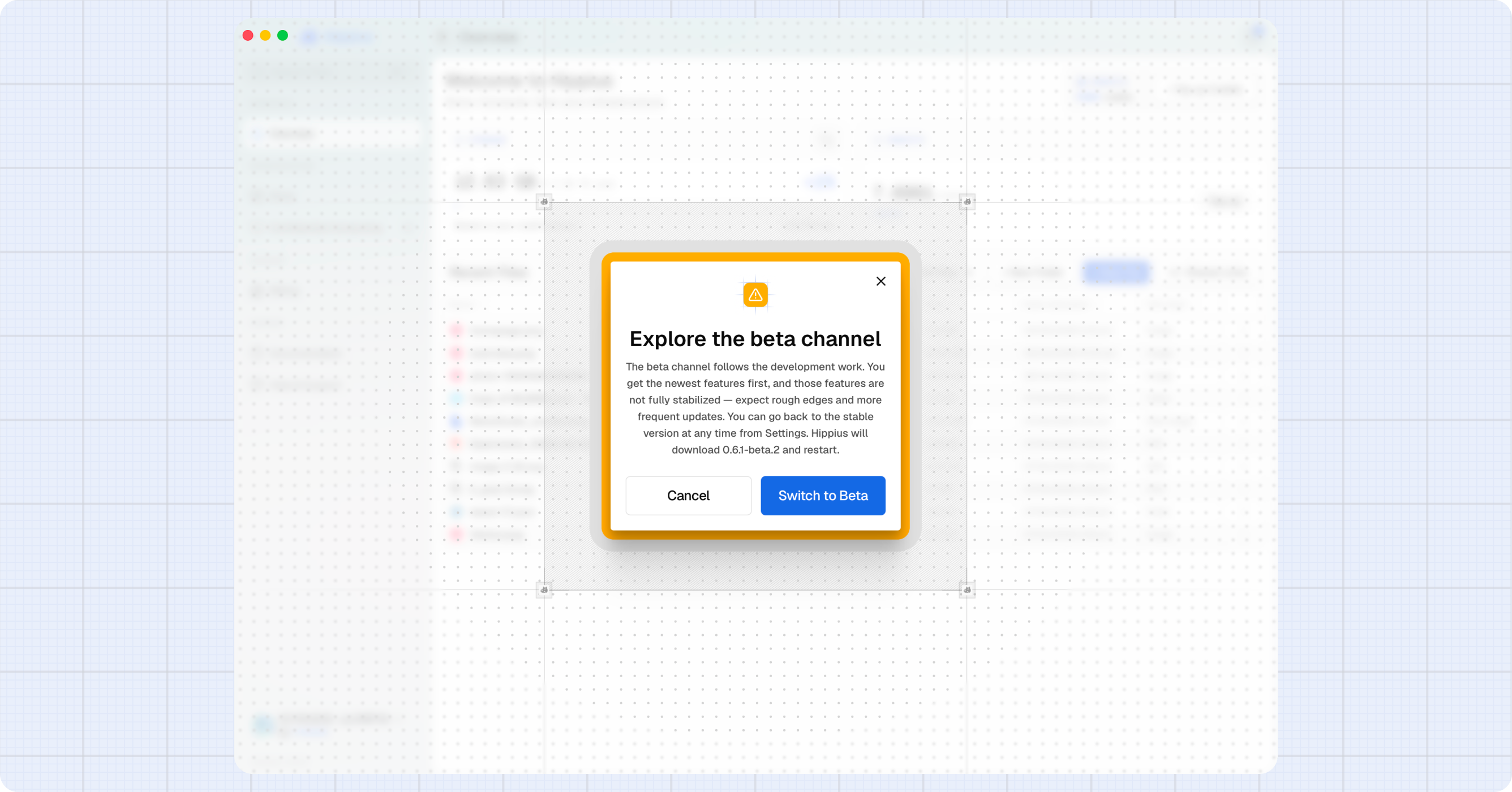
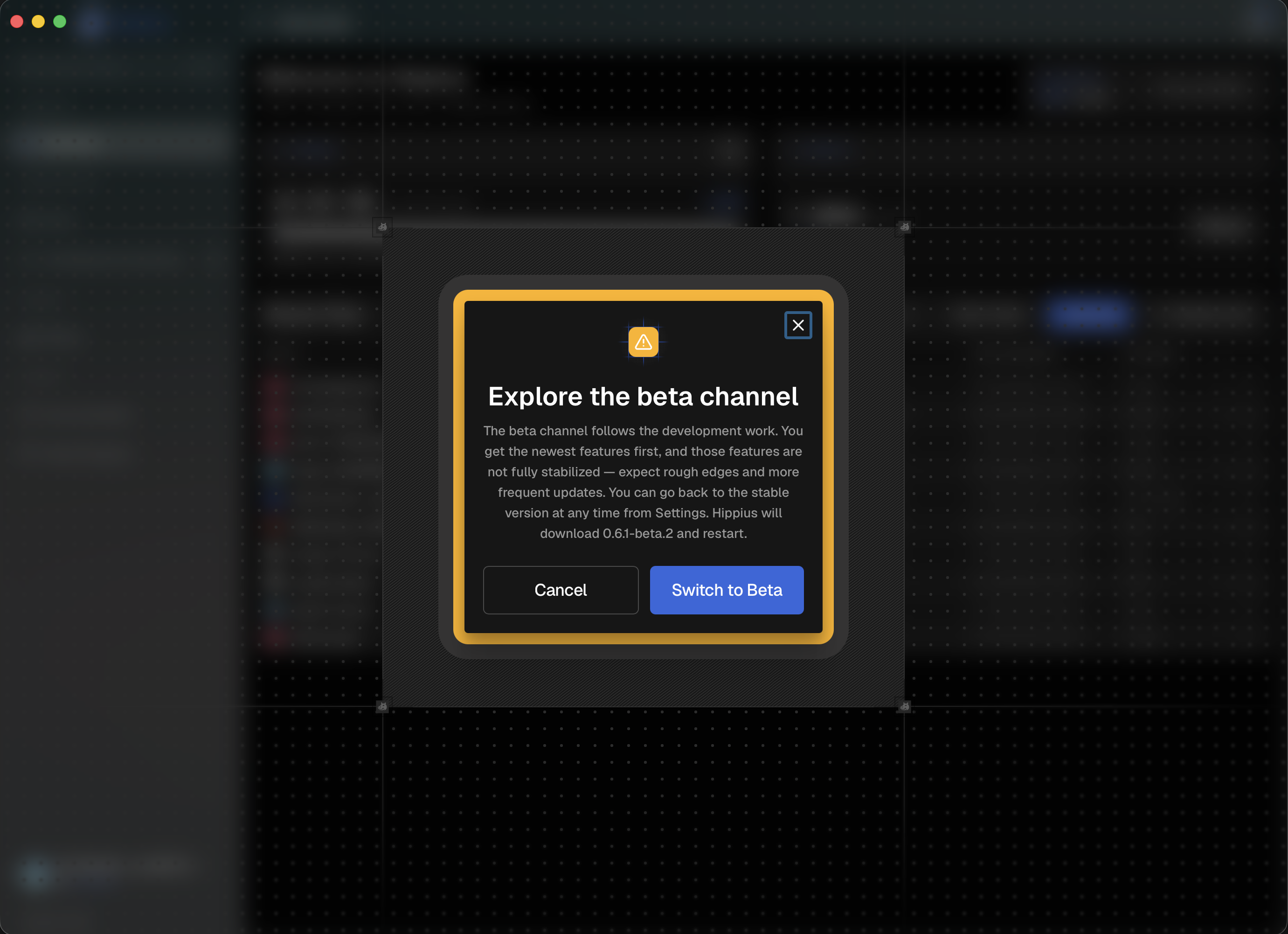
The dialog says this plainly and it is worth repeating: you are opting into features that are still settling. Expect rough edges and more frequent updates.
Going back to stable
Two ways, and they do the same thing:
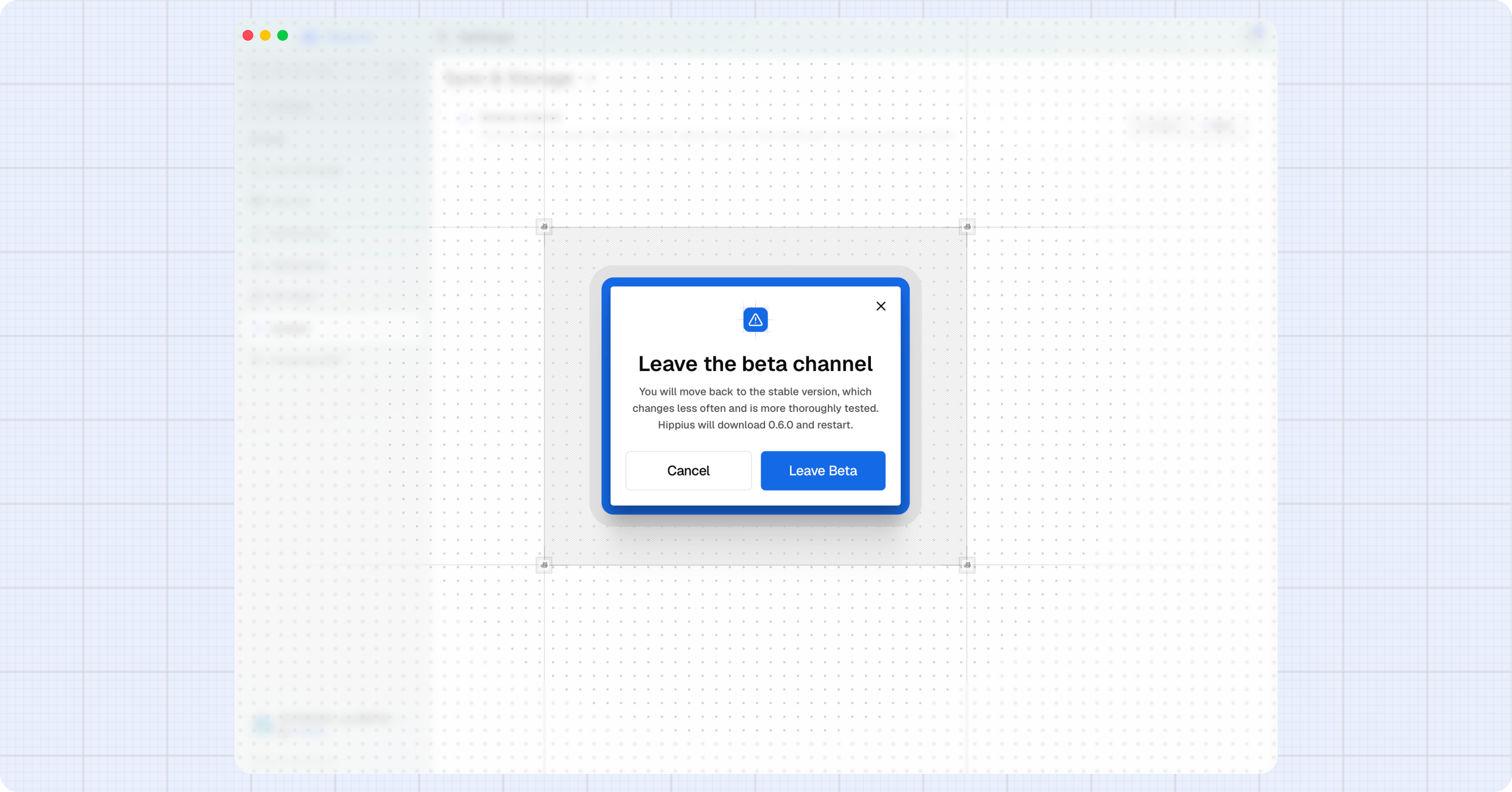
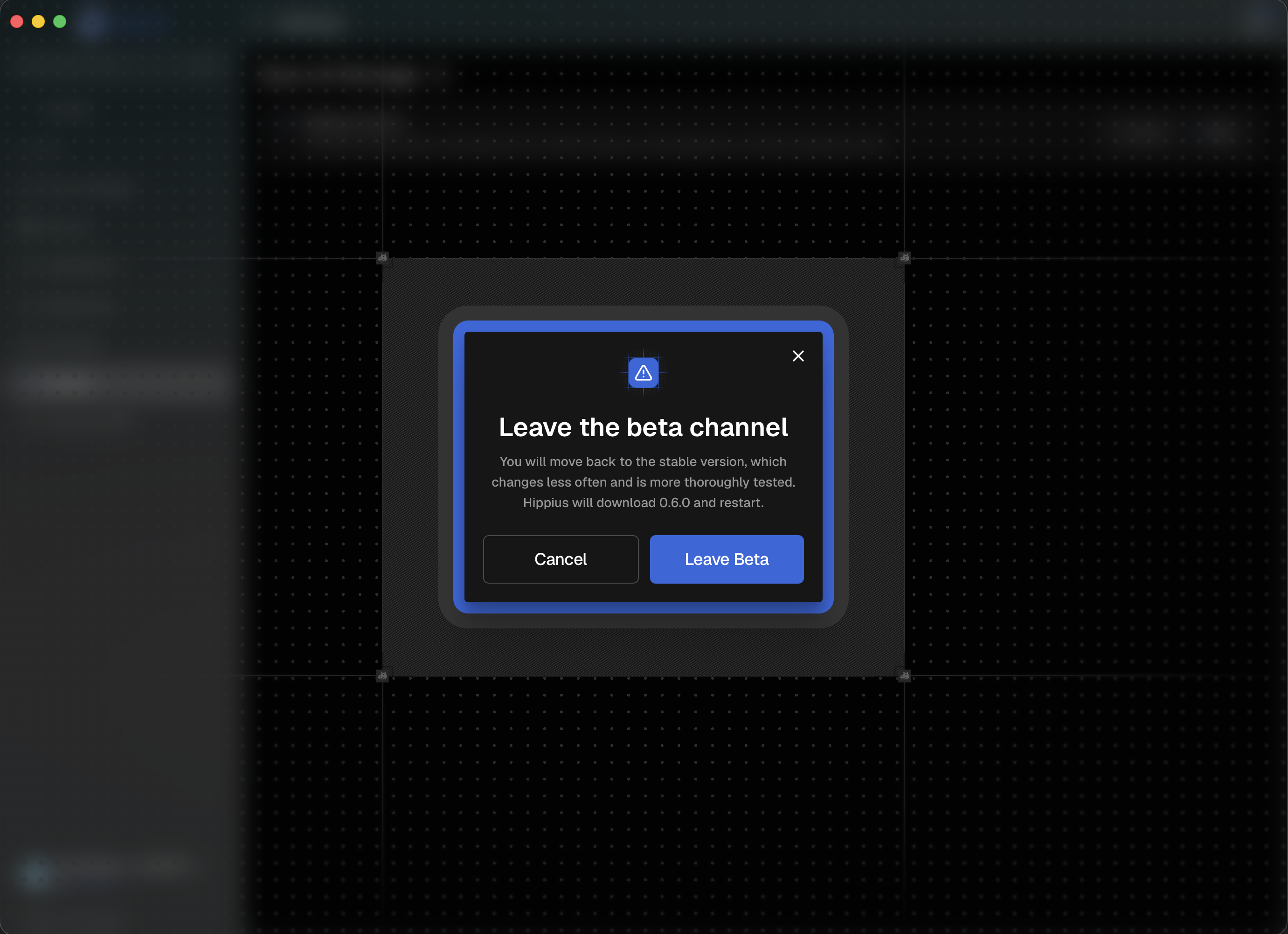
- Open the address menu again and choose Leave Beta. The menu item changes to this once you are on the beta channel.
- Or open Settings → Updates and pick Stable under Release channel. It also shows which channel you are currently running.
Hippius downloads the stable build and restarts, the same way joining did (on Linux, you install the stable package by hand).
What does not change
Switching channels only changes which build of the app you run. It does not touch:
- Your account or your recovery phrase.
- Your unlock password.
- Your files, or anything already synced.
- Your sync folder settings.
Reporting something you find
Finding problems early is the point of the beta. If something looks wrong, send it through Help & Support and say you are on the beta channel, along with the version number shown in Settings. That tells us which build to look at.
Where to next
- Settings: where the current channel is shown and can be switched.
- Help & Support: how to report a problem.