Notifications
Introduction
Notifications keep you informed about what's happening in your account — files syncing to the Hippius network and changes to your credits. Every notification is stored locally on your device so you can review it at any time.
Notifications are grouped into two categories:
- Drive — file activity such as uploads, downloads, and deletions across your sync folders.
- Credits — changes to your account credits and balance.
You decide which of these categories you want to receive — see Notification Settings.
Open Notifications
All notifications are accessed from the bell icon in the top right of the app — there is no Notifications entry in the left sidebar.
The notifications dropdown
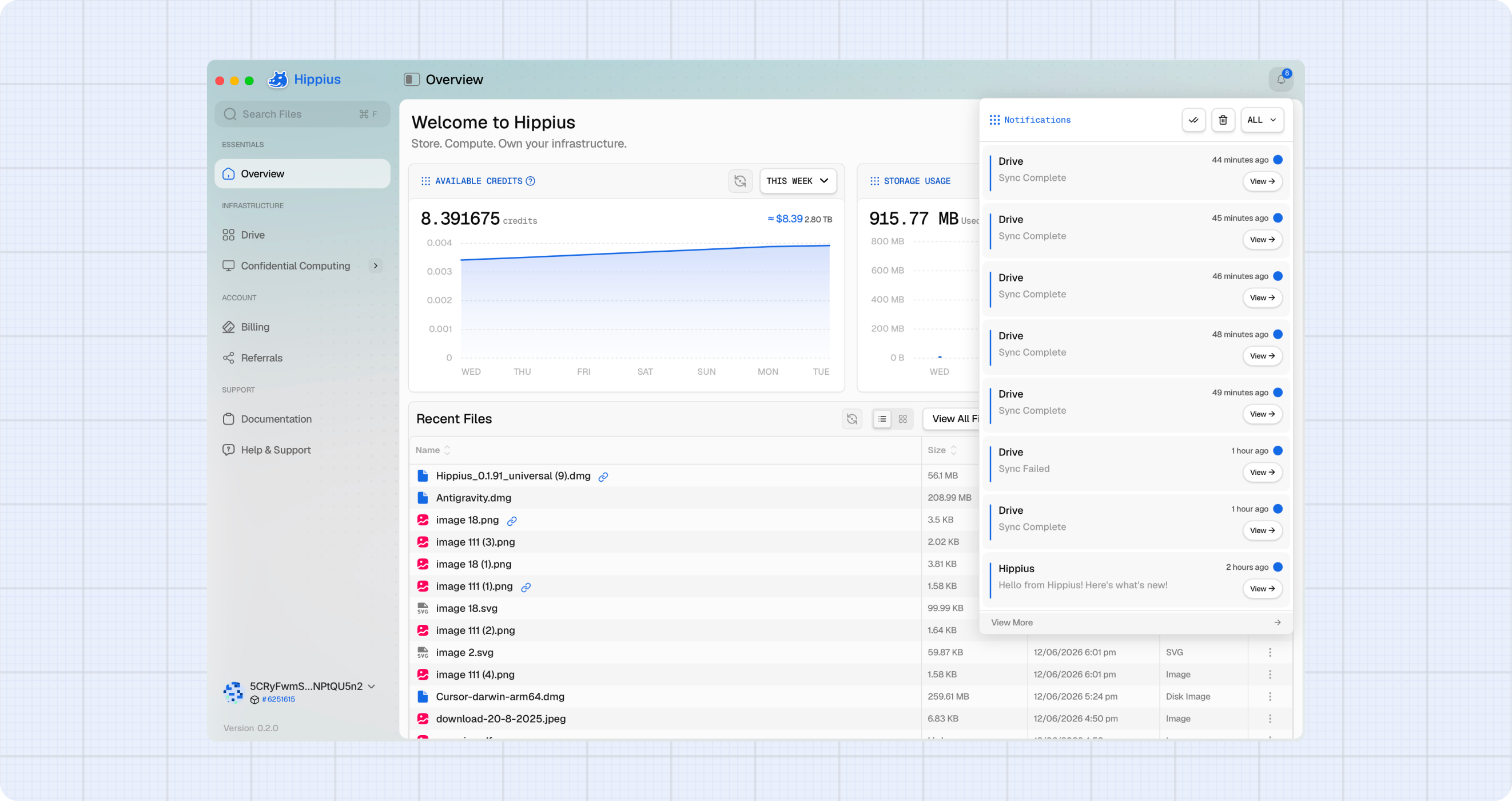
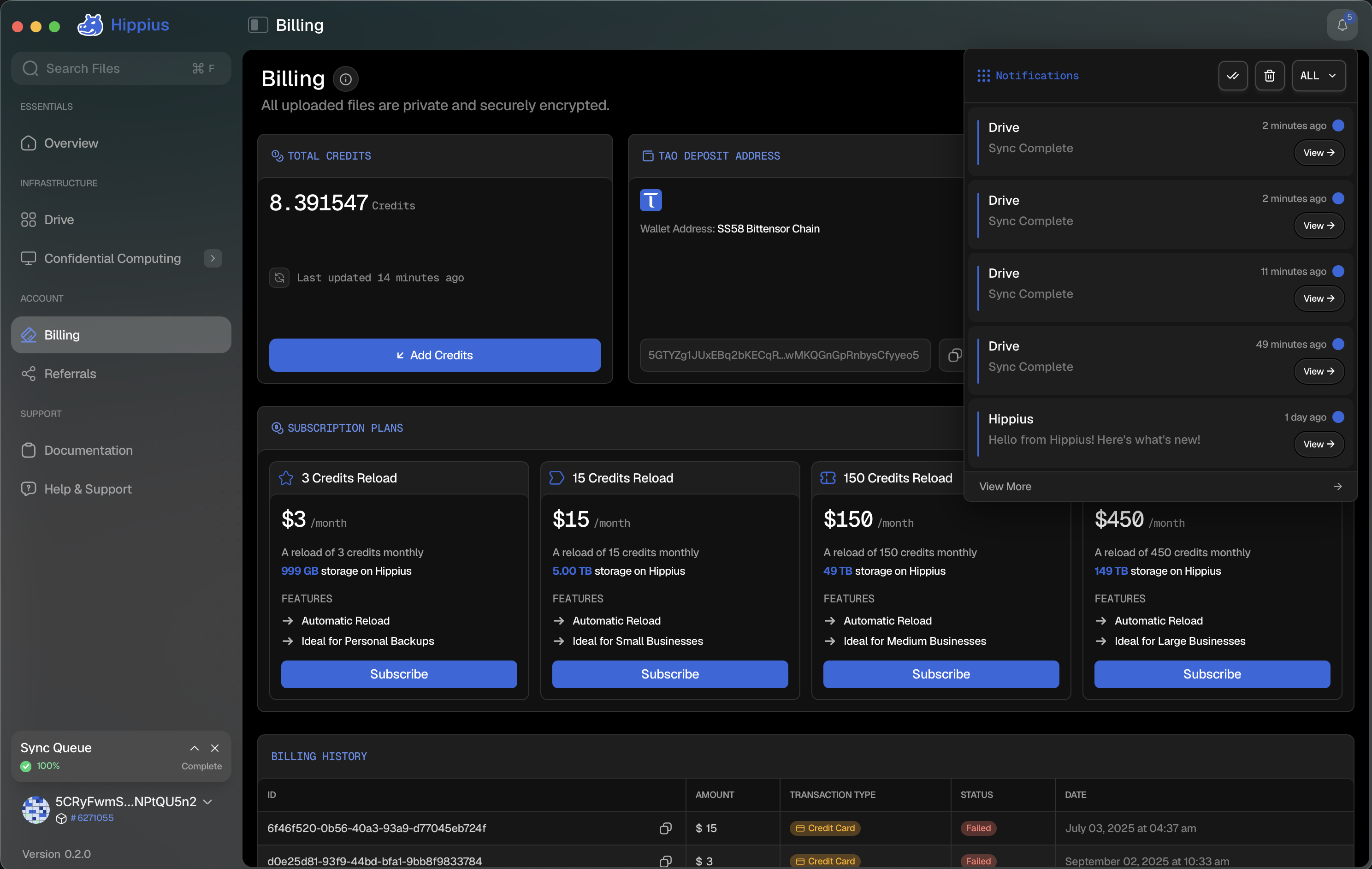
Click the bell icon to open the notifications dropdown. A badge on the bell shows your number of unread notifications.
- Use the category dropdown in the top right of the panel to filter by All, Drive, or Credits.
- Click any notification to open it on the full Notifications page.
- Click View More at the bottom to open the Notifications Hub.
The Notifications Hub
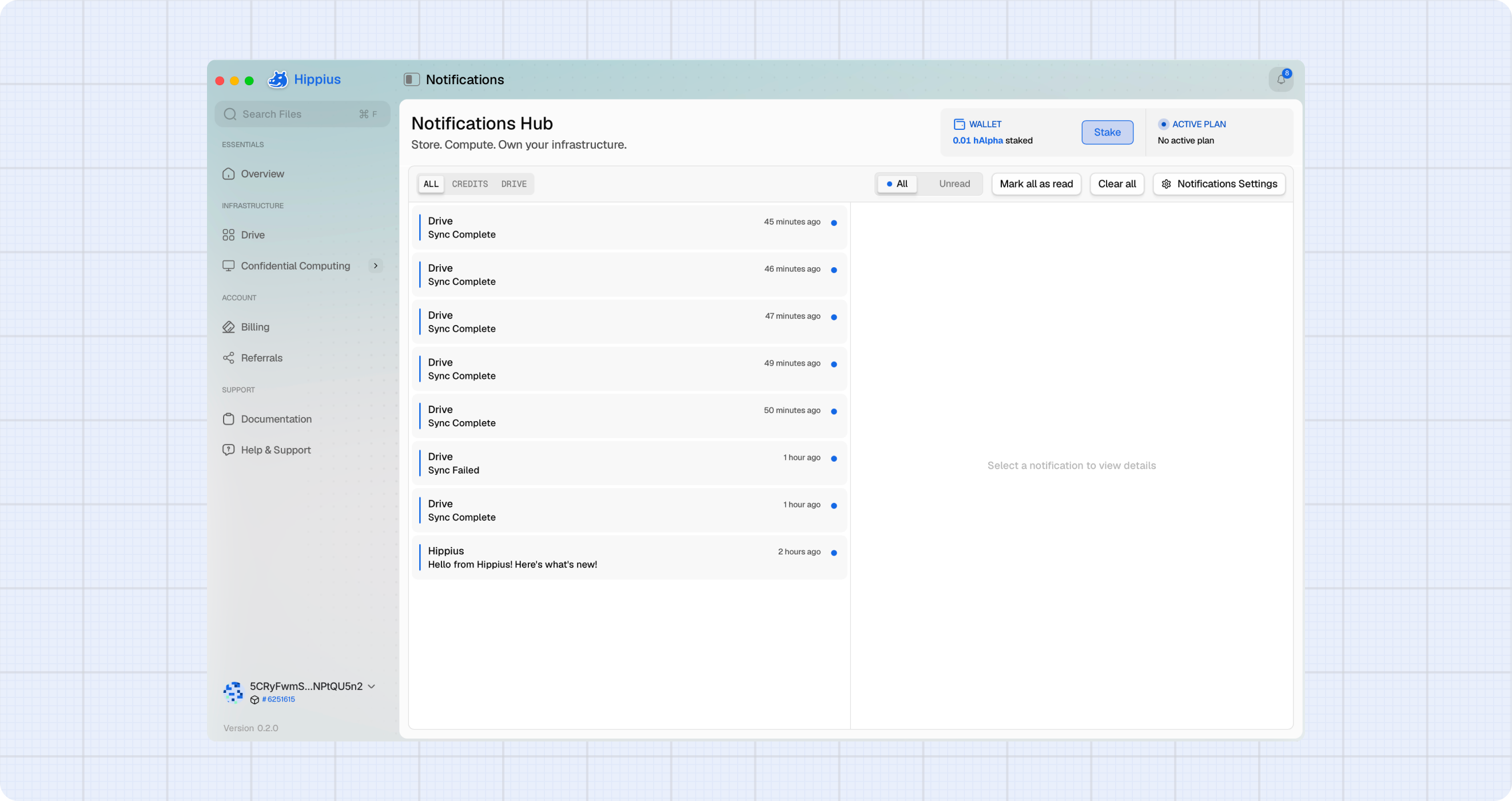
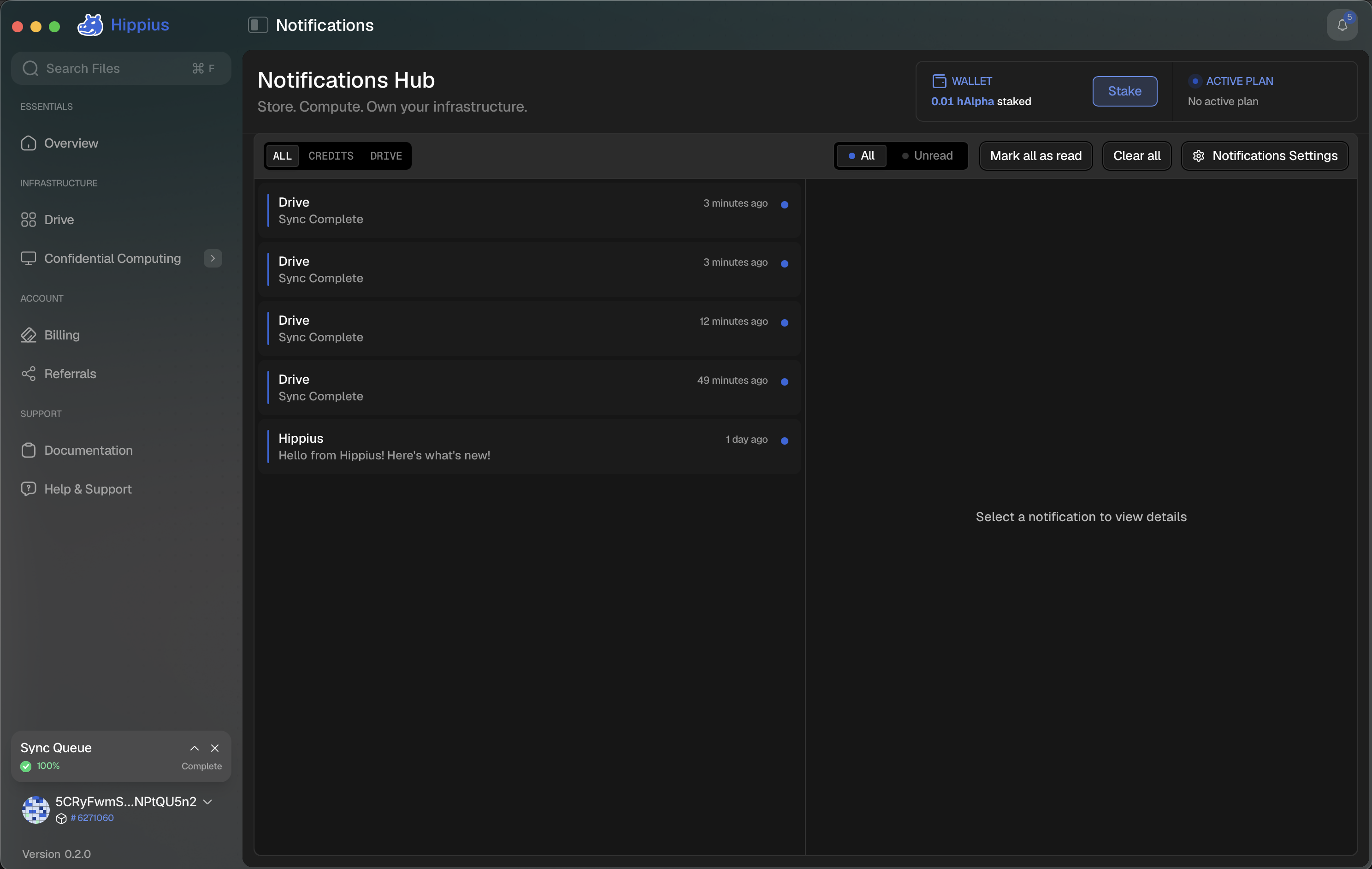
Click View More at the bottom of the dropdown to open the full Notifications Hub. The page is split into a list of notifications on the left and a details panel on the right.
Filter and Manage Notifications
The toolbar at the top of the Notifications Hub gives you several controls:
- Category tabs — switch between All and each enabled category (Drive, Credits).
- All / Unread toggle — show every notification or only the ones you haven't read yet.
- Mark all as read — clear the unread state for everything in the current view.
- Clear all — permanently delete every notification after a confirmation prompt.
- Notifications Settings — open the settings dialog to choose which categories you receive.
View Notification Details
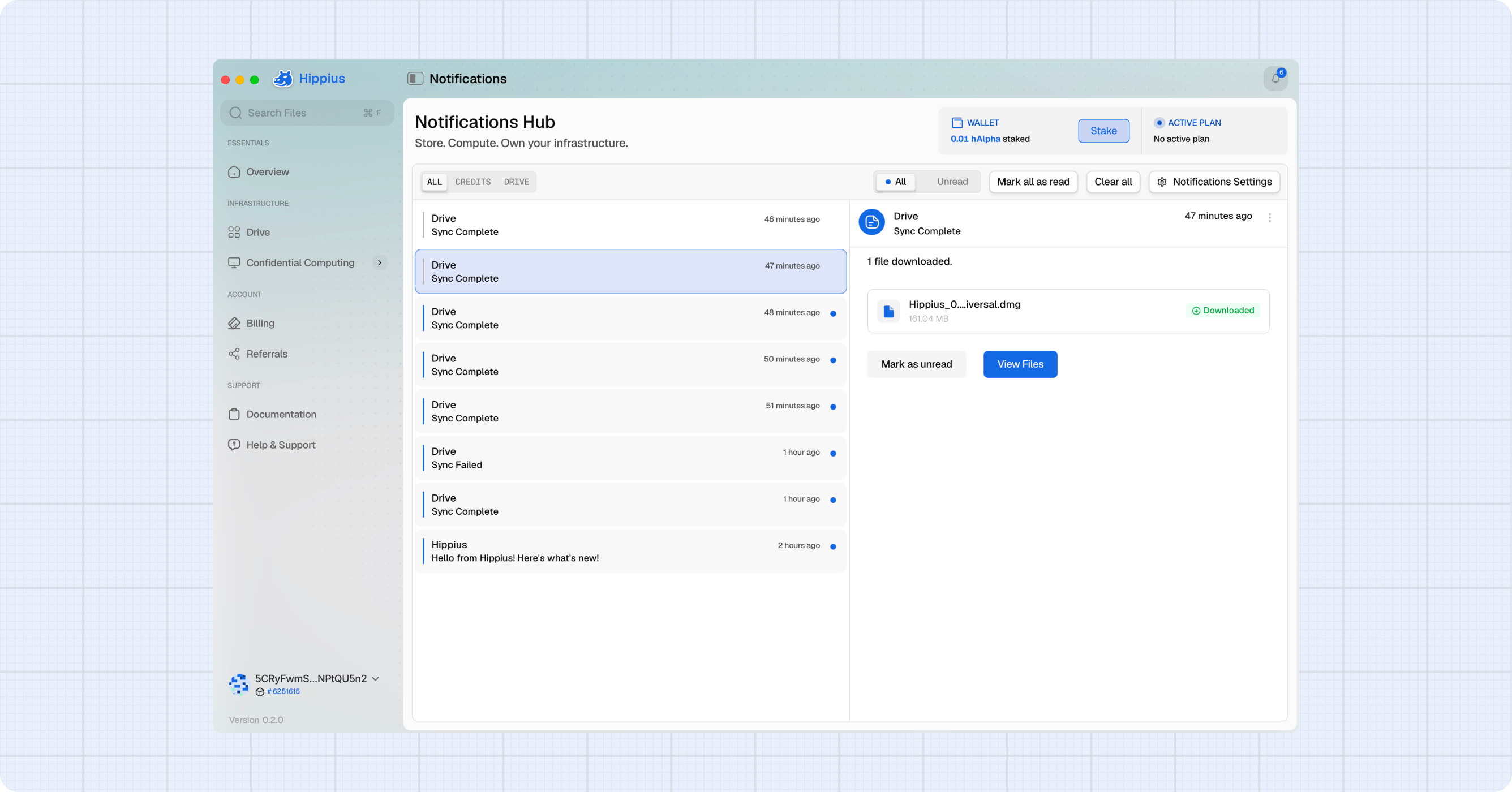
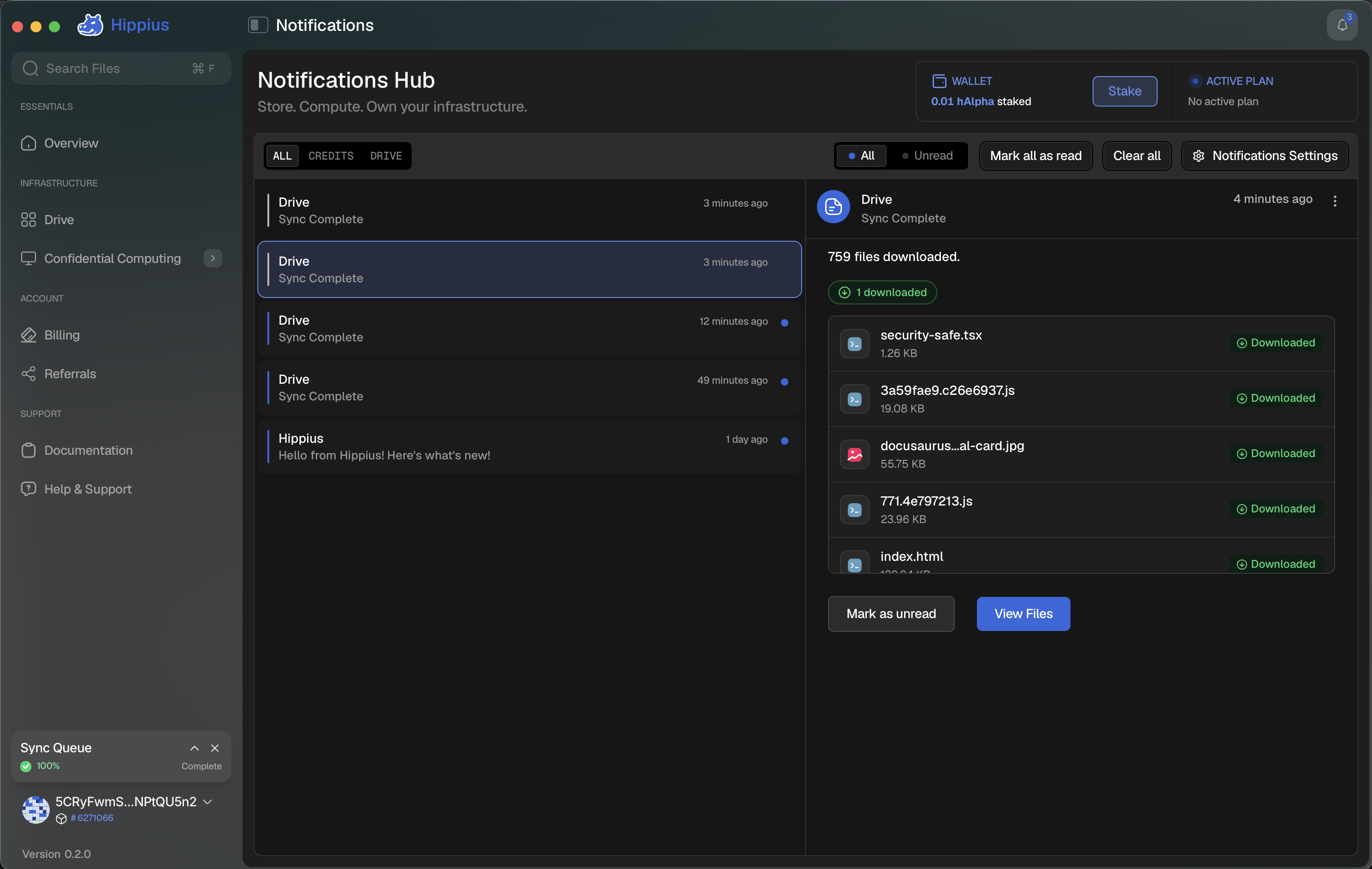
Select a notification from the list to open it in the details panel on the right.
- Drive notifications show a summary of how many files were uploaded, downloaded, or deleted, along with a list of each file and its size.
- Use Mark as read / Mark as unread to change a notification's status.
- Open the three dot menu (⋮) in the top right of the panel to mark the notification as read/unread or Delete this notification.
Notification Settings
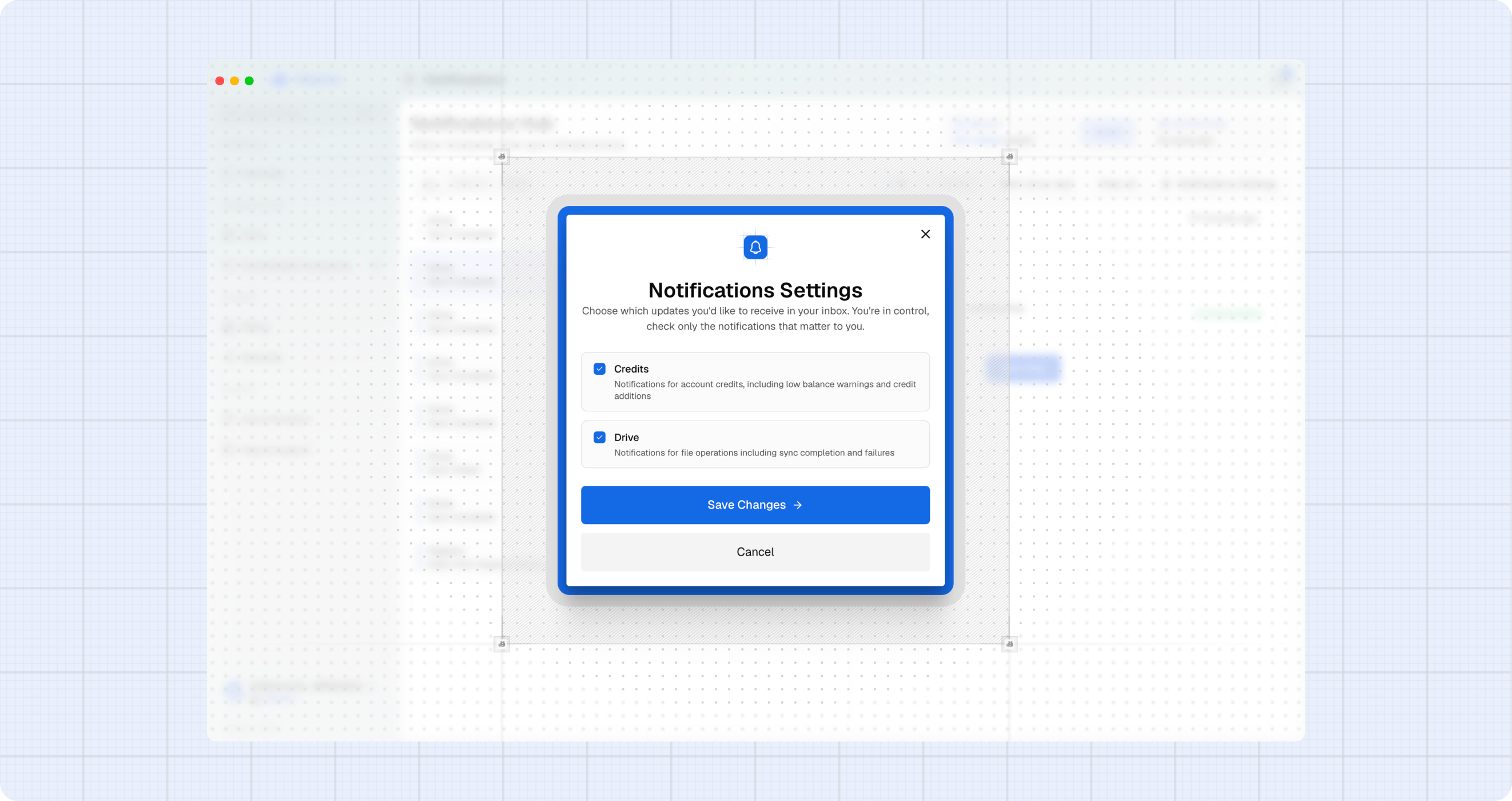
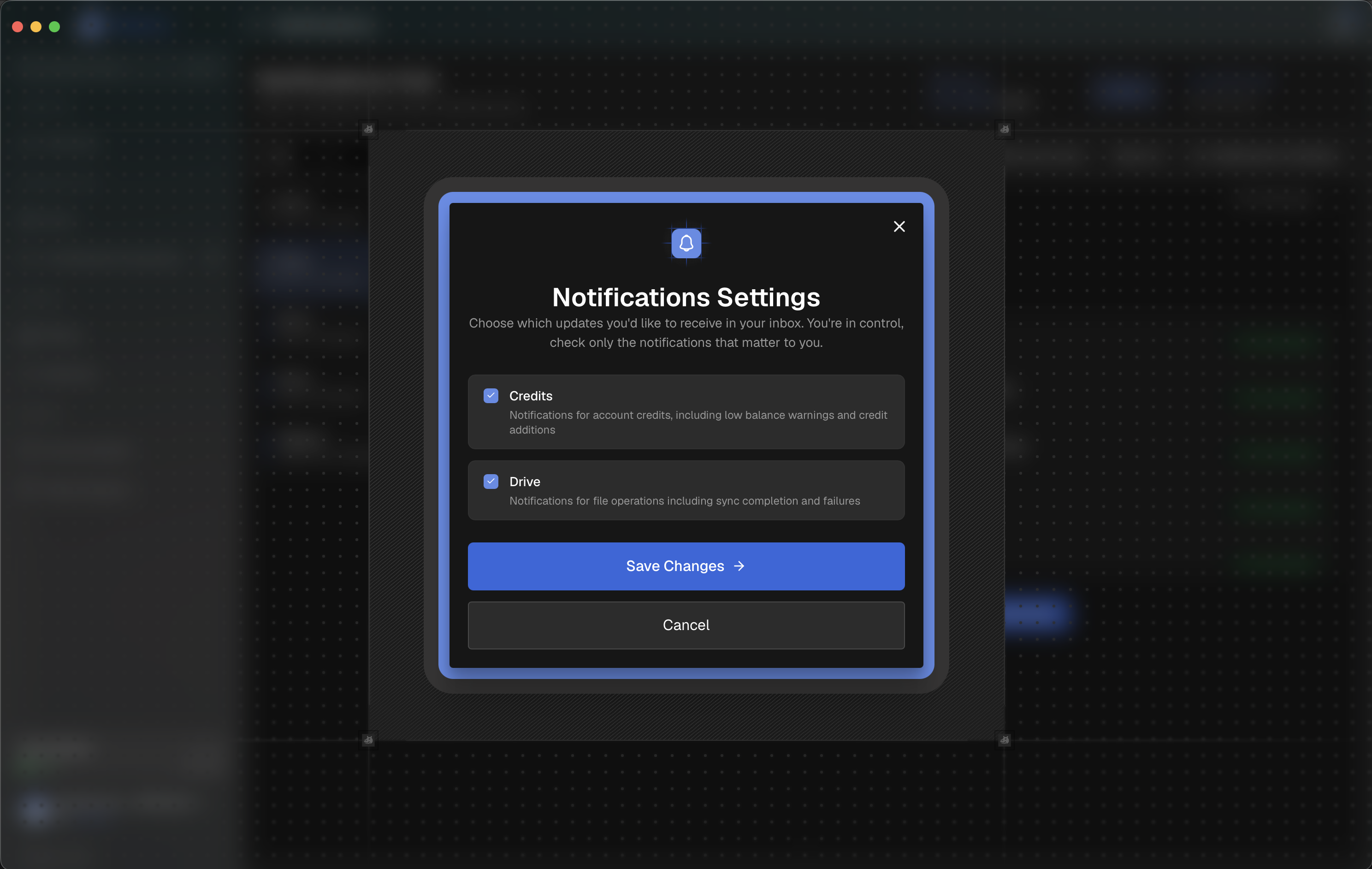
You choose which notifications reach your inbox. On the Notifications Hub, click the Notifications Settings button (top right) to open the settings dialog:
- Tick the categories you want to receive — Drive and Credits.
- Untick any category you'd like to mute.
- Click Save Changes.
The same preferences are also available in the Notifications section of the Settings page, which additionally includes email notification options.
Only enabled categories appear as tabs in the dropdown and on the Notifications Hub. If you haven't enabled any categories, the Hub and the bell dropdown prompt you to turn them on from settings.