Drive
Introduction
Your Drive is where your files live in Hippius Desktop. It is powered by the Hippius File System, a distributed approach to storage built with a strong focus on security and privacy. All files are encrypted on your device before syncing to the Hippius network, so only you can read them.
The desktop app supports multi-folder sync, allowing you to sync multiple folders from your device simultaneously. Each folder syncs independently and can be managed, paused, or removed individually.
Encryption
Hippius uses end-to-end encryption to protect your files. Every file is encrypted on your device before it leaves your machine, so the Hippius network only ever stores ciphertext that no one else can read.
How It Works
When you sign in for the first time, the app prompts you to set an unlock password. This password is used to derive a cryptographic key from your mnemonic seed. That key encrypts and decrypts every file in your sync folders.
- Files are encrypted locally on your device before upload.
- Files are decrypted locally on your device after download.
- The Hippius network and servers never see your plaintext data.
You do not need to set a separate encryption password. Your unlock password handles both file encryption and account recovery automatically.
Your unlock password cannot be recovered. If you forget it, you will need your mnemonic seed to restore access to your files. Store both your password and mnemonic seed safely.
What the Unlock Password Does
Your unlock password serves multiple purposes:
| Purpose | Description |
|---|---|
| File encryption | Encrypts and decrypts files on your device during sync |
| Multi-device access | Lets you access your files when you log in on a new device |
| Console access | Lets you preview and download files on Hippius Console |
The app sets up encryption automatically using your unlock password, so you only need to remember one password for everything.
- First login: The app prompts you to set your unlock password right after signing in for the first time.
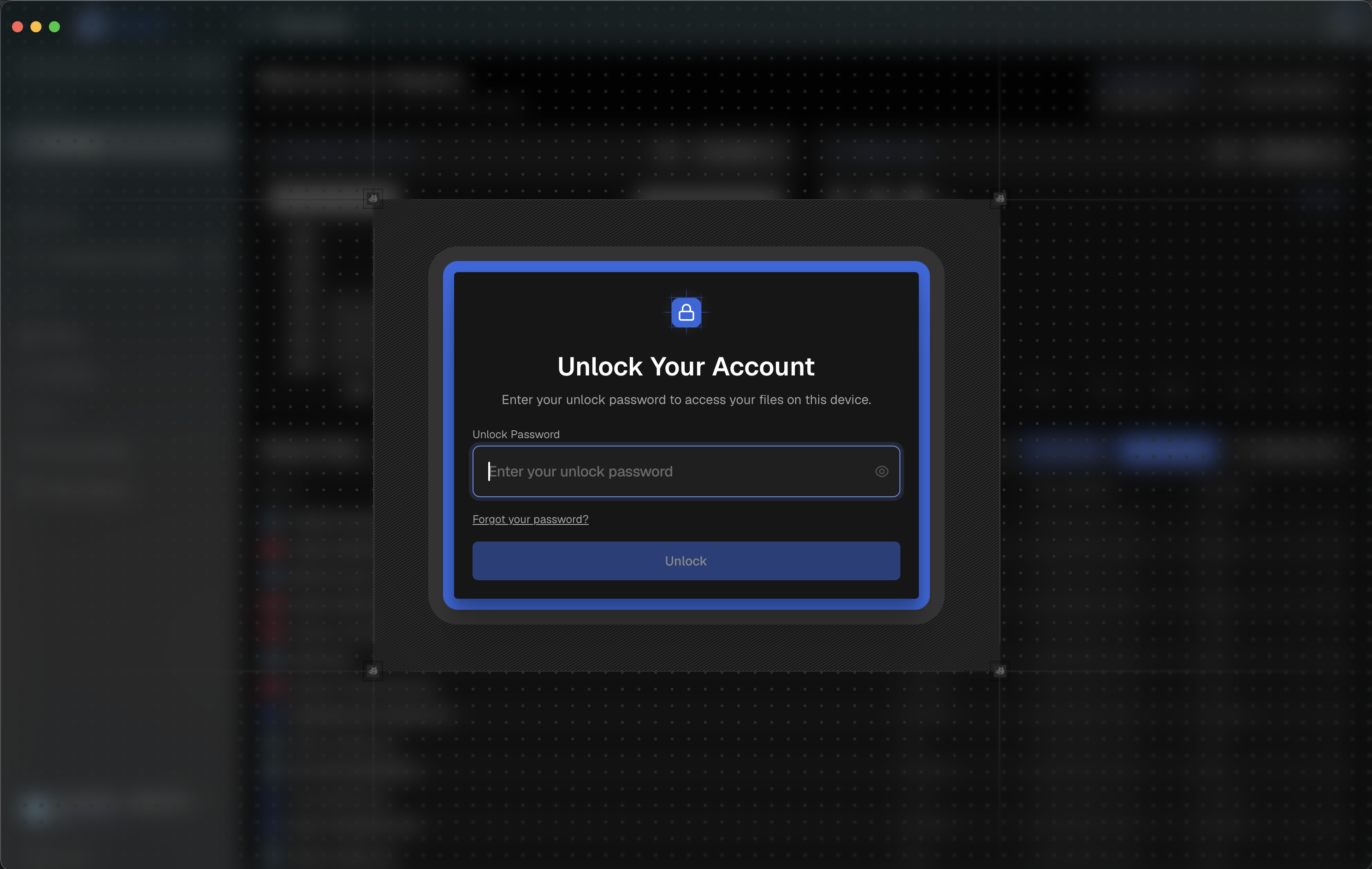
- New device: The app asks for your unlock password to decrypt your files on the new device.
- Hippius Console: Enter your unlock password to preview or download files from the web.
Unlock Password
The unlock password is the single password that protects your encrypted files, both on your device and across all other devices and Hippius Console.
How It Works
When you set your unlock password, the app uses it to encrypt your files locally and also creates an encrypted backup of your account key on the server. This backup can only be decrypted with your unlock password, so no one else can access it.
When you log in on a new device, the app asks for your unlock password to decrypt this backup and set up your files. On Hippius Console, the same password lets you preview and download your files directly from the web. Without the password, the encrypted backup remains locked and your files stay inaccessible.
Setting Your Unlock Password
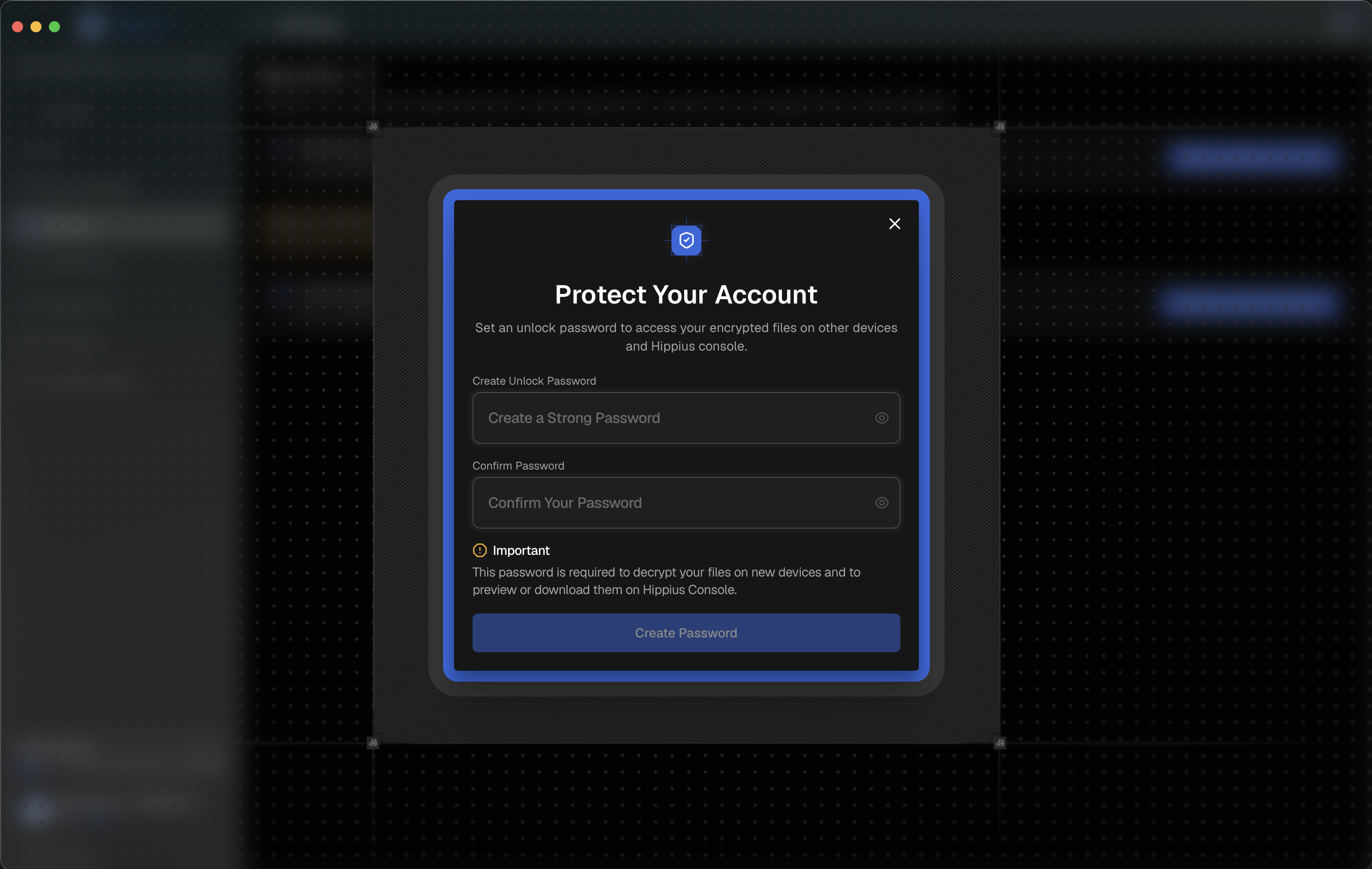
The app prompts you to set your unlock password on your first sign-in. This is required before you can use the app.
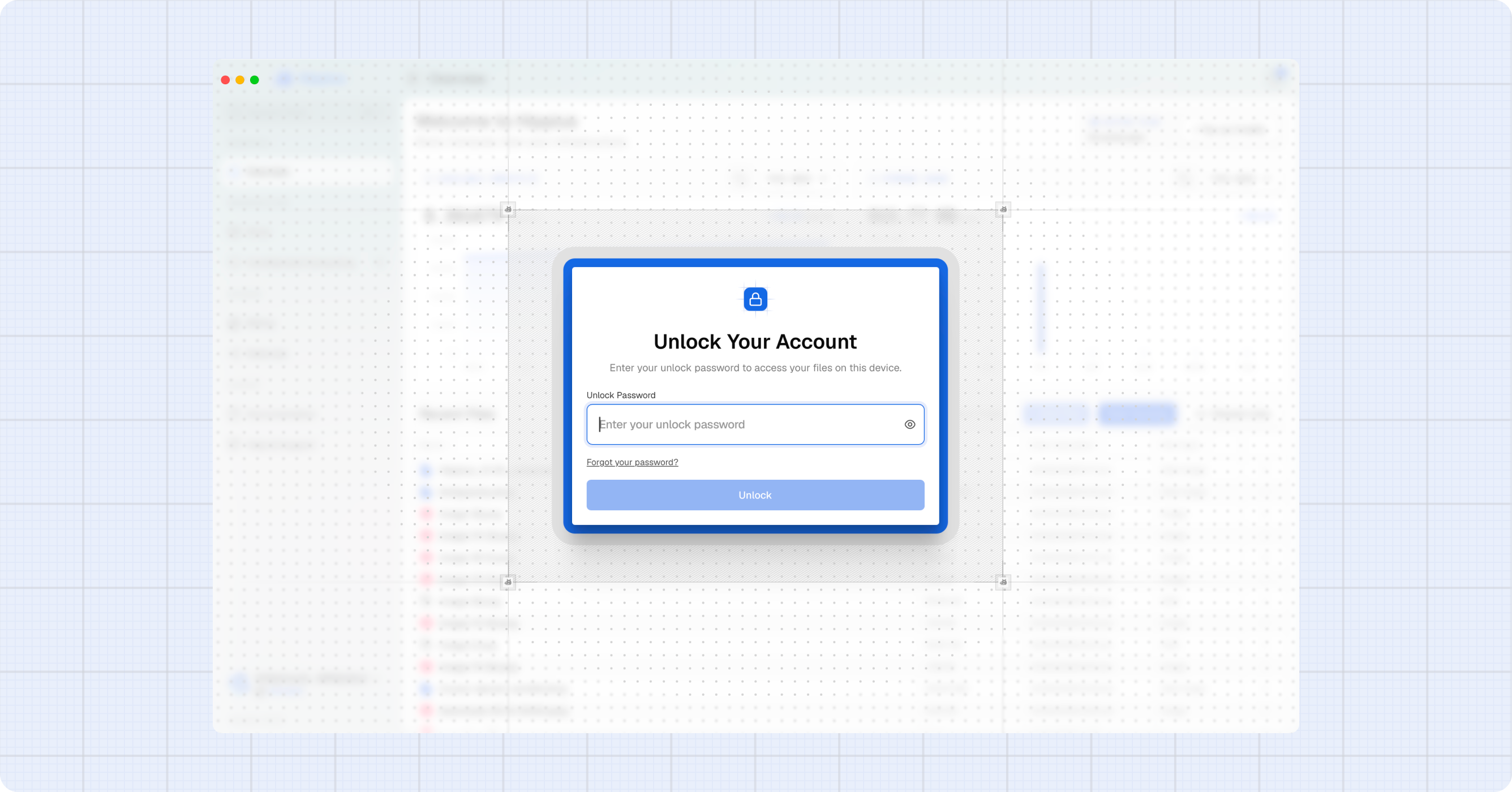
- Enter a strong password (minimum 8 characters).
- Confirm the password.
- Click Save password.
Once set, file encryption is configured automatically. You can start adding sync folders right away without any additional setup.
Changing Your Unlock Password
You can change your unlock password at any time from Settings.
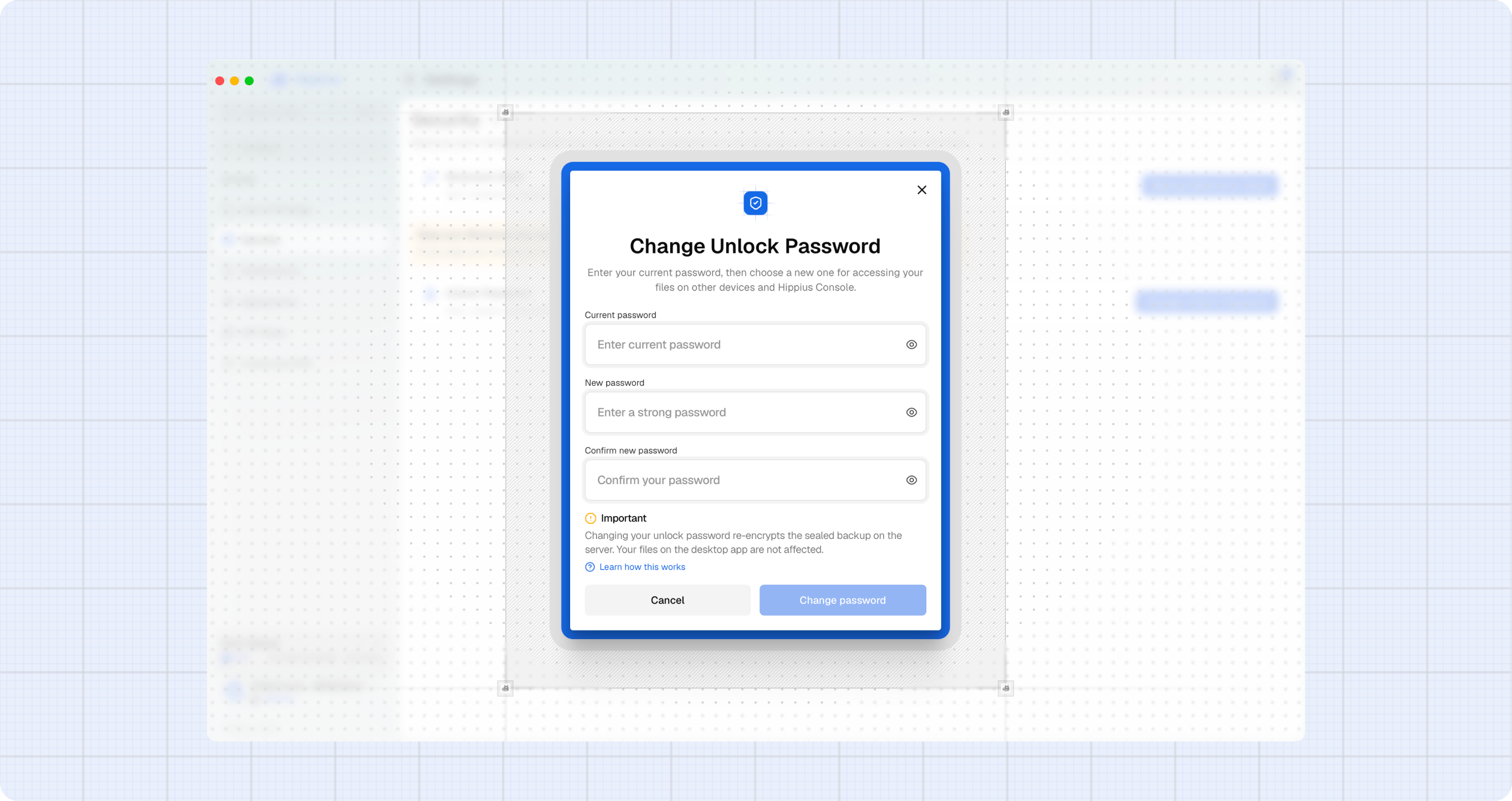
- Go to Settings→Security.
- Click Change Unlock Password.
- Enter your current password.
- Choose a new password and confirm it.
- Click Change password.
Changing the password re-encrypts the sealed backup on the server. Your mnemonic seed and encrypted files are not affected. Your desktop app access continues to work normally regardless of this change.
Uploading Files
Files uploaded to Hippius are automatically added to your sync folder and encrypted for security. This ensures your data remains private and protected.
- Click on Drivein the sidebar.
- Click the + New File button.
- If you have multiple sync folders, select the destination folder from the Upload to folder dropdown.
- Drag and drop or click to select one or more files to upload.
- Click the Upload File button in the modal to start the upload process.
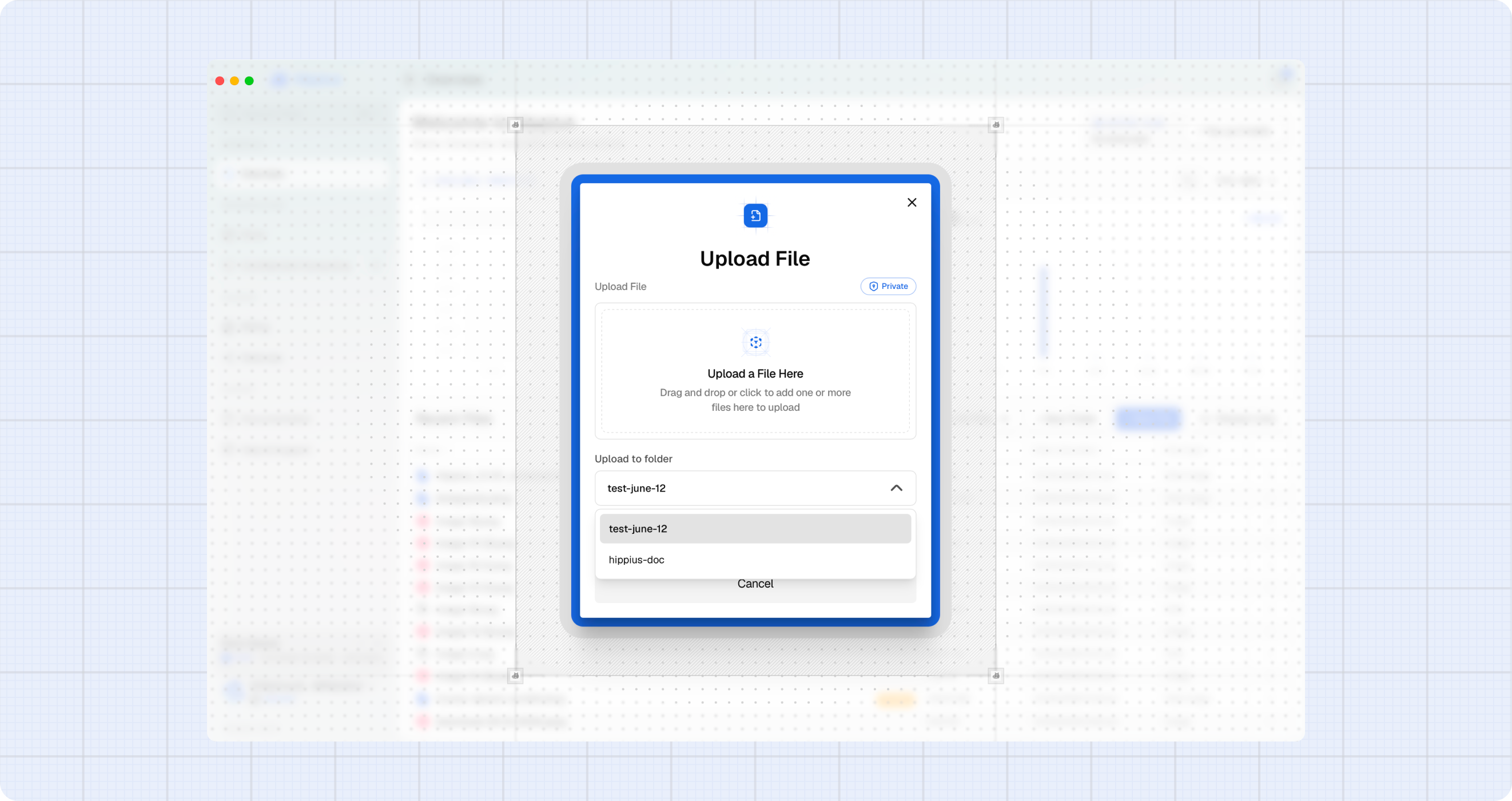
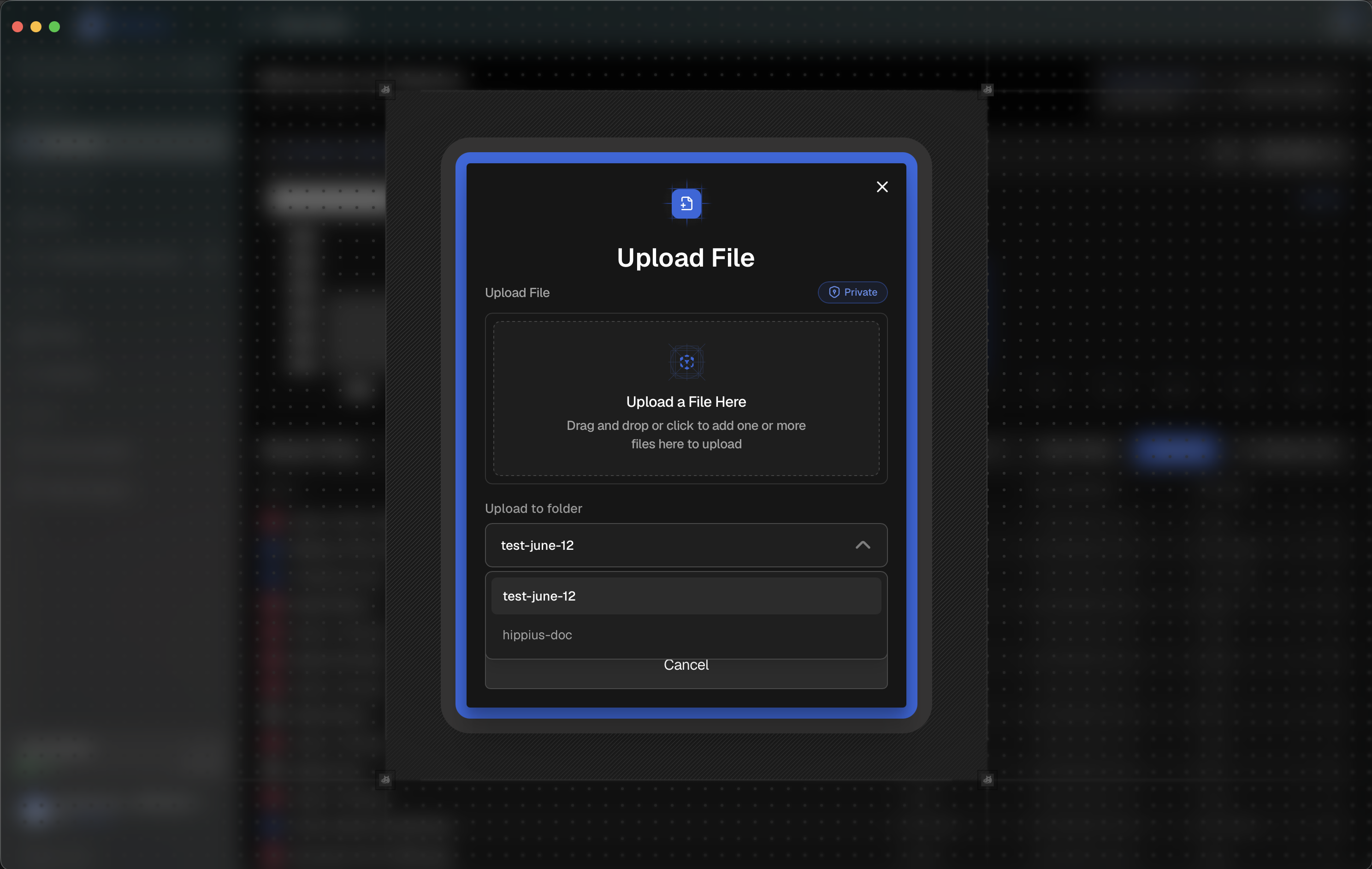
All files uploaded are stored privately and encrypted. Files are added to your sync folder and secured automatically.
If syncing is stopped for a folder, you will be prompted to resume syncing from Settings → Sync & Storage before you can upload files. An alert will appear if you try to add files to a stopped folder.
Uploading Folders
You can upload entire folders to Hippius. Like individual files, folders are encrypted and synced securely.
- Click on Drivein the sidebar.
- Click the + New Folder button.
- If you have multiple sync folders, select the destination folder from the dropdown.
- Click Select Folder and choose the folder you want to upload from your device.
- Click Upload Folder in the modal to start the upload process.
A toast notification will confirm: "Folder added. Your sync will start soon."
Browsing Files
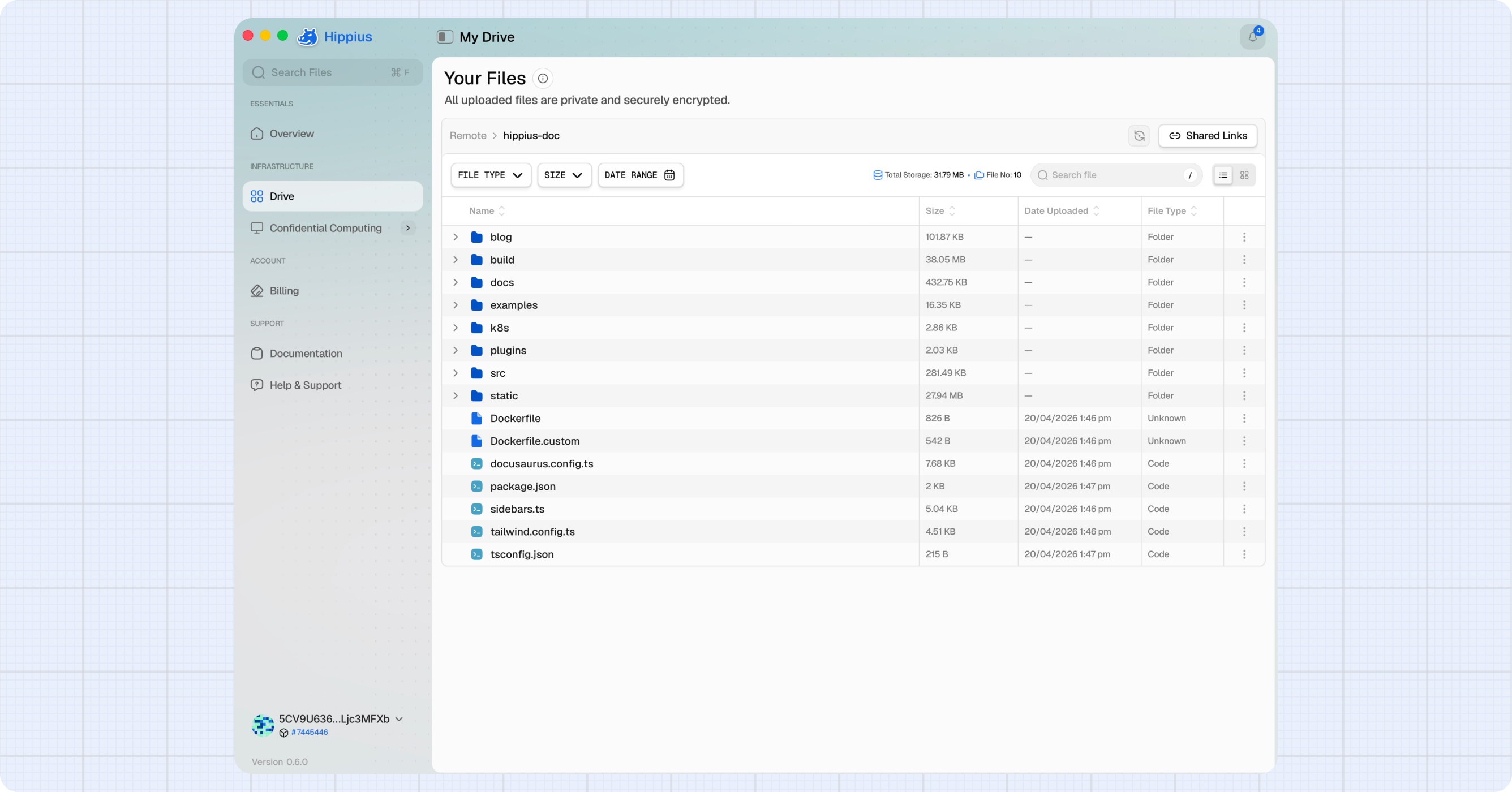
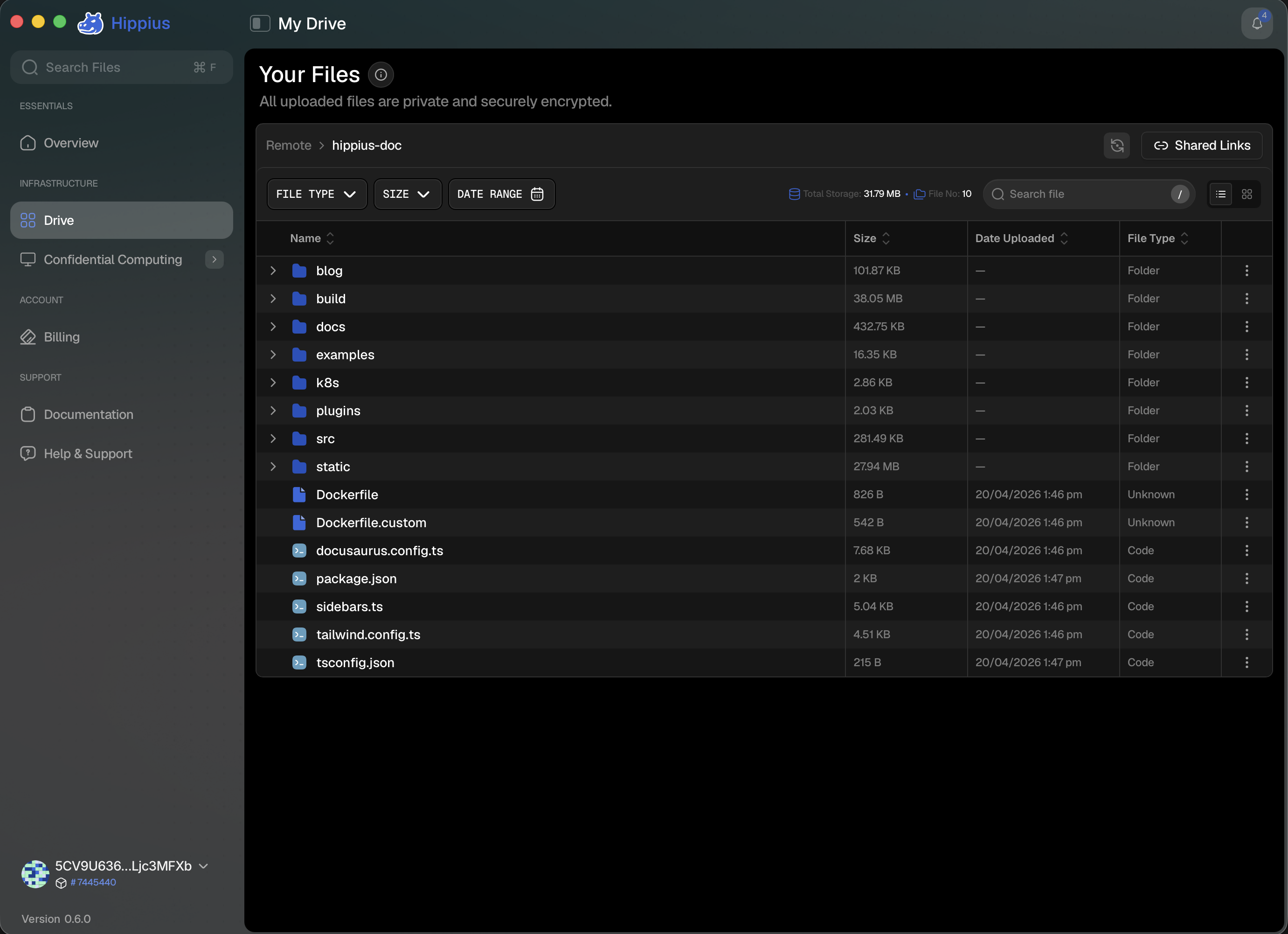
The Drive page shows the files and folders in your active sync folder. You can navigate through your folder structure by clicking on folders, and the breadcrumb at the top of the page tracks your location.
Switching Between Sync Folders
Hippius Desktop shows one sync folder at a time. The folder you are currently viewing appears in the breadcrumb (for example, Local › my-folder), and your selection is remembered the next time you open the app.
When you have more than one sync folder, switch between them from the Local view:
- Click Local in the breadcrumb to open the Local view.
- Under Local Sync Folders, click the folder you want to view.
- The Drive page opens that folder, and the breadcrumb updates to show your location.
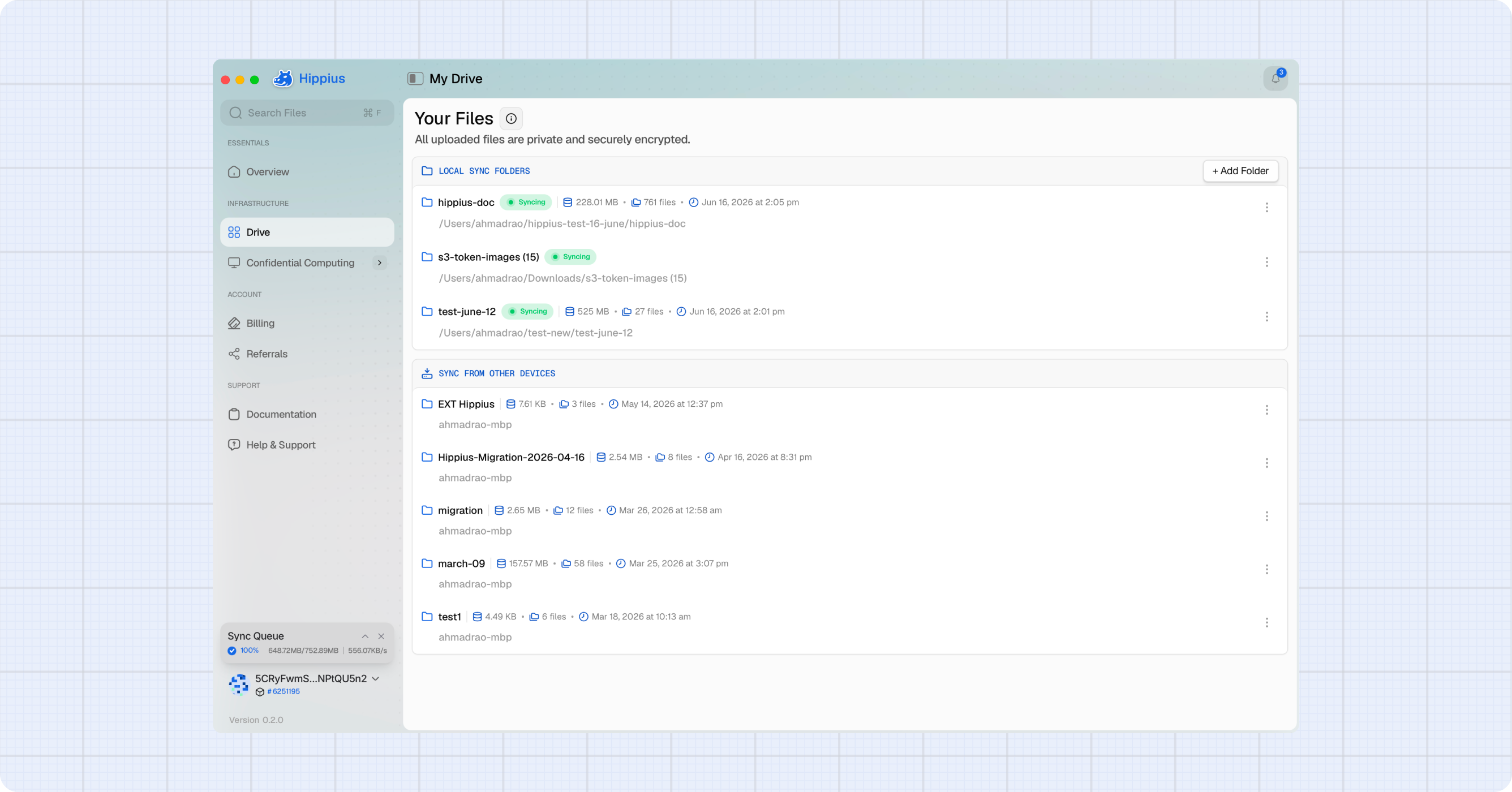
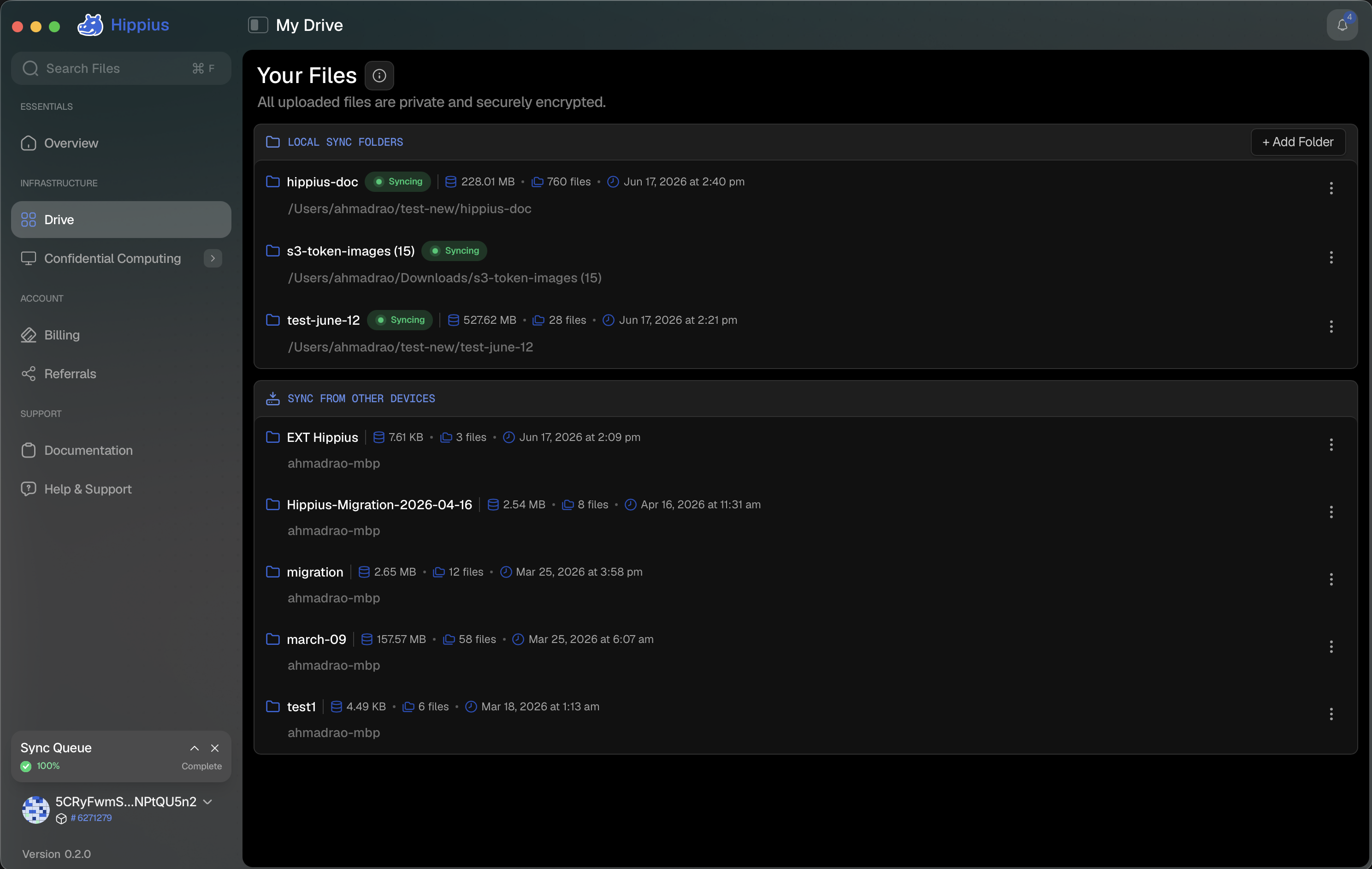
Folders From Your Other Devices
Folders you sync on another computer appear under Sync from Other Devices, in the Local view and in Settings. If you have never synced from another device, that section says so and stays empty.
Click one to open it like any other folder. You can:
- Navigate through its subfolders, with the breadcrumb tracking where you are.
- See real file sizes.
- Preview and download individual files.
- Share a file or the folder itself via link.
All of this reads straight from the server, so nothing is downloaded to this computer just because you opened the folder. Only the files you explicitly download land on disk. That is the point of the section: you can get at a file from your work laptop without syncing the whole folder onto your personal one.
Contents load a page at a time as you scroll, so a folder holding a large camera roll opens immediately rather than waiting for the whole listing. The app also reopens wherever you left off.
File Actions (Context Menu)
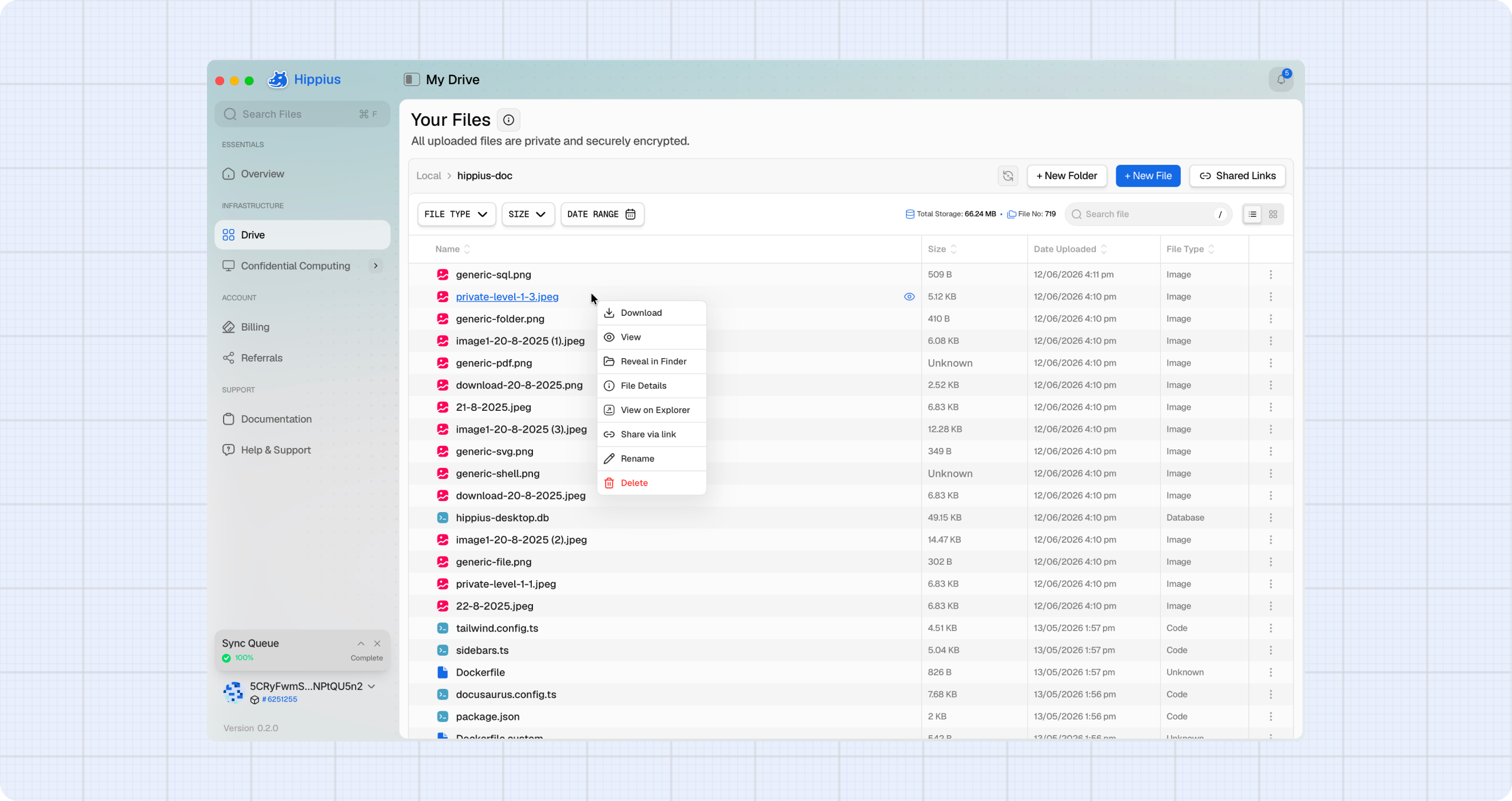
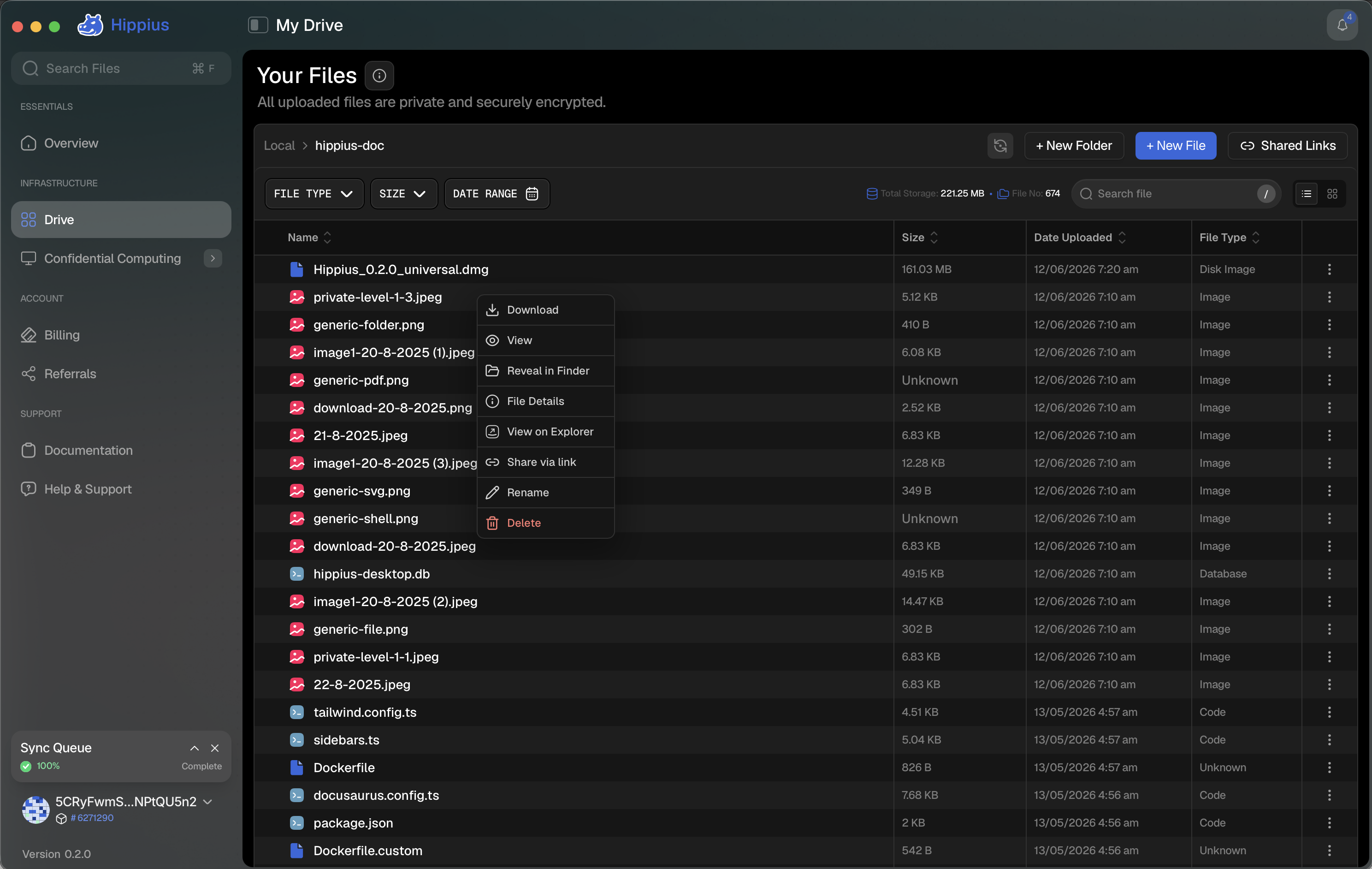
Right click any file or folder (or click the
menu) to access the full set of actions:| Action | Applies To | Description |
|---|---|---|
| Open | Folders | Navigate into the folder |
| Download | Files & Folders | Download the item to your local device |
| View | Previewable files | Open in the built-in viewer, see Previewing Files |
| Retry sync | Failed files | Re-attempt syncing a file that failed to sync |
| Reveal in Finder | Files & Folders | Show the item in your operating system's file manager |
| File Details / Folder Details | Files & Folders | View detailed metadata (size, type, modified date, sync status) |
| View on Explorer | Uploaded files | Open the file's Arion Hash tracker on hipstats.com |
| Share via link | Synced files | Create a shareable link to the file |
| Rename | Files & Folders | Rename the item on this device; the change syncs to the network |
| Delete | Files & Folders | Remove the item (disabled while syncing) |
Previewing Files
Choose View from the context menu to open a file in the built-in viewer without leaving the app. Cloud-only files that aren't synced to this device are fetched and decrypted first.
| Type | Formats |
|---|---|
| Images | JPG, PNG, GIF, WebP, AVIF, BMP, ICO, HEIC/HEIF, SVG |
| Videos | MP4, WebM, MOV |
| PDFs | |
| Word documents | DOCX |
| Spreadsheets | XLSX, CSV |
| Presentations | PPTX |
| Markdown | MD, MDX |
| HTML | HTML, HTM |
| Plain text | TXT, LOG |
| JSON | JSON |
Very large files can't be previewed. Download them instead. Older Office formats (DOC, XLS, PPT) and OpenDocument files don't preview either. Save them as DOCX, XLSX, or PPTX to make them previewable.
Other file types have no View action. Download them, or use Reveal in Finder and open them from your file manager.
The built-in viewer relies on the media support of your system's web view. If a video's format or codec can't be played there, such as MKV or HEVC video, the viewer offers Open with System Player for files on this device, along with Download File. On Linux, the web view has no PDF viewer, so PDFs offer Open with System Viewer instead.
Renaming Files and Folders
You can rename any file or folder that is fully synced on this device. Renaming happens on disk and the change is propagated to the Hippius network as a true rename on the next sync cycle, so the item keeps its place across all your devices.
- Right click the file or folder (or open the menu) and select Rename.
- In the Rename File (or Rename Folder) dialog, edit the name. The field is prefilled with the current name, and for files the extension is left out of the selection so typing replaces only the name part.
- Click Rename to confirm.
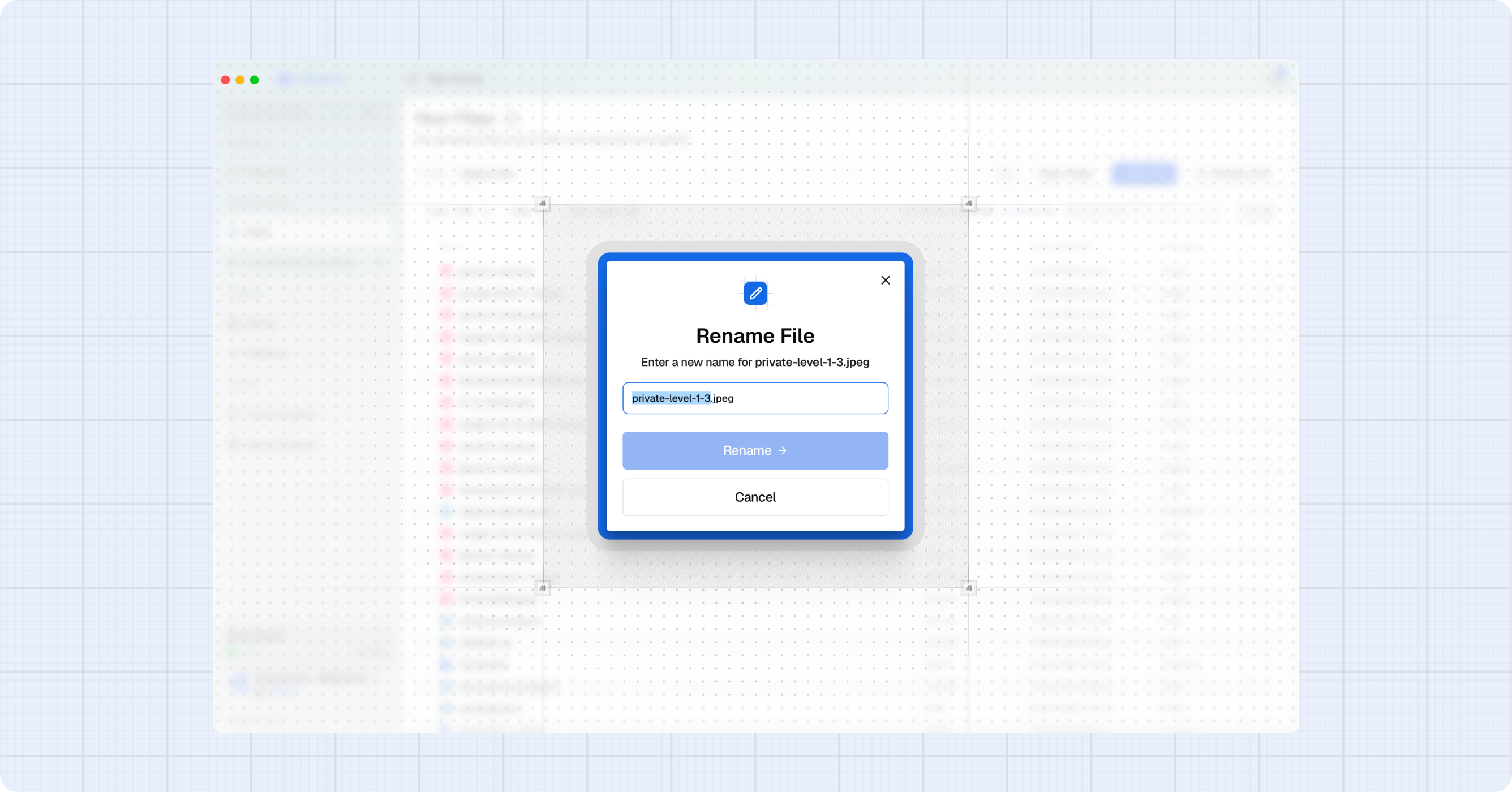
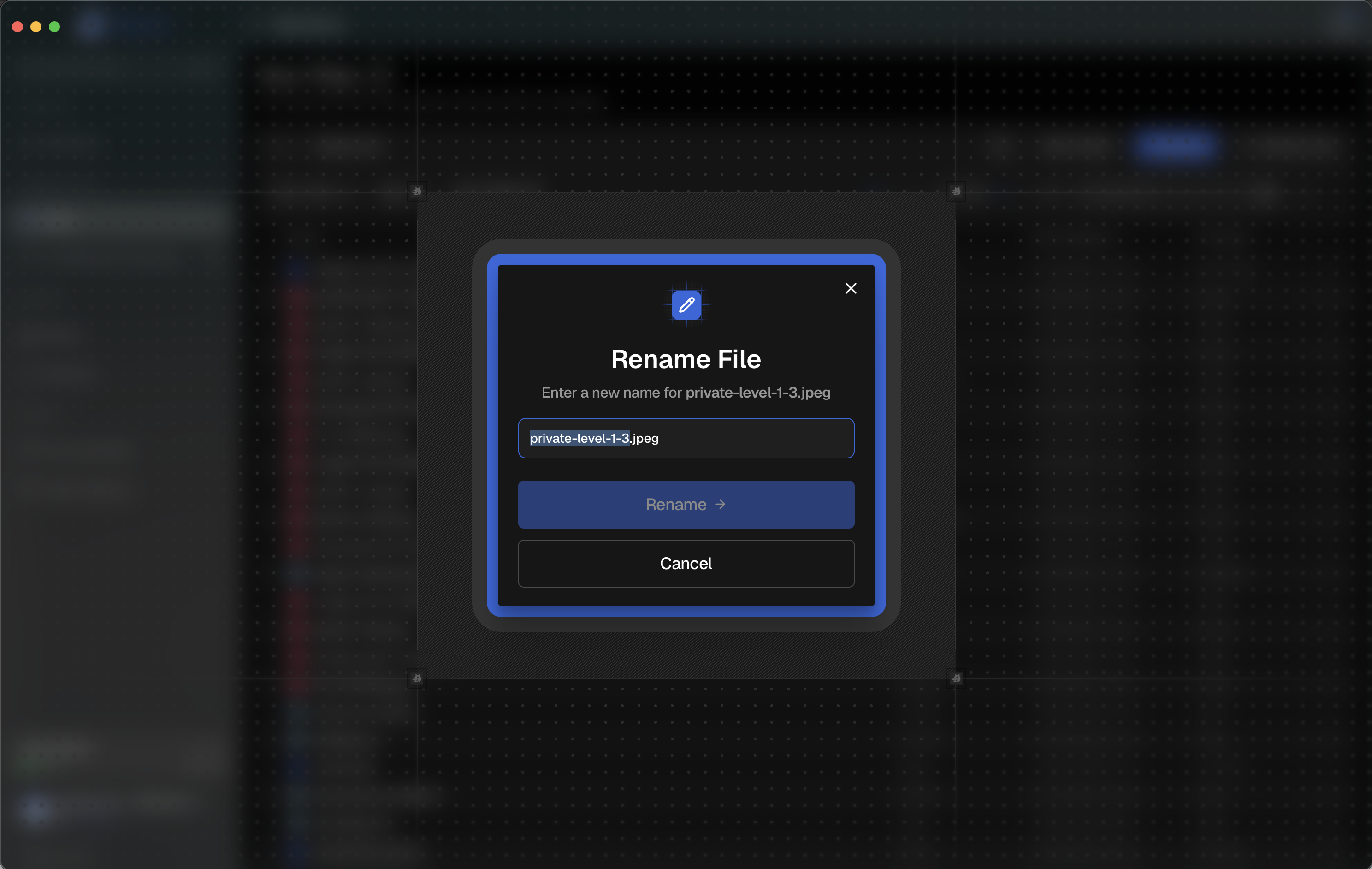
The name is validated as you type. A name cannot be empty, contain /, \, or :, end with a ., use an operating-system reserved name, or exceed 255 bytes. If you change a file's extension, the dialog warns that the file may open in a different app.
The Rename action is only available for items that are synced and present on this device. It is disabled while a file is uploading, downloading, or failed, and for cloud-only items that exist on another device but are not synced here. Wait for sync to finish and try again.
View Modes
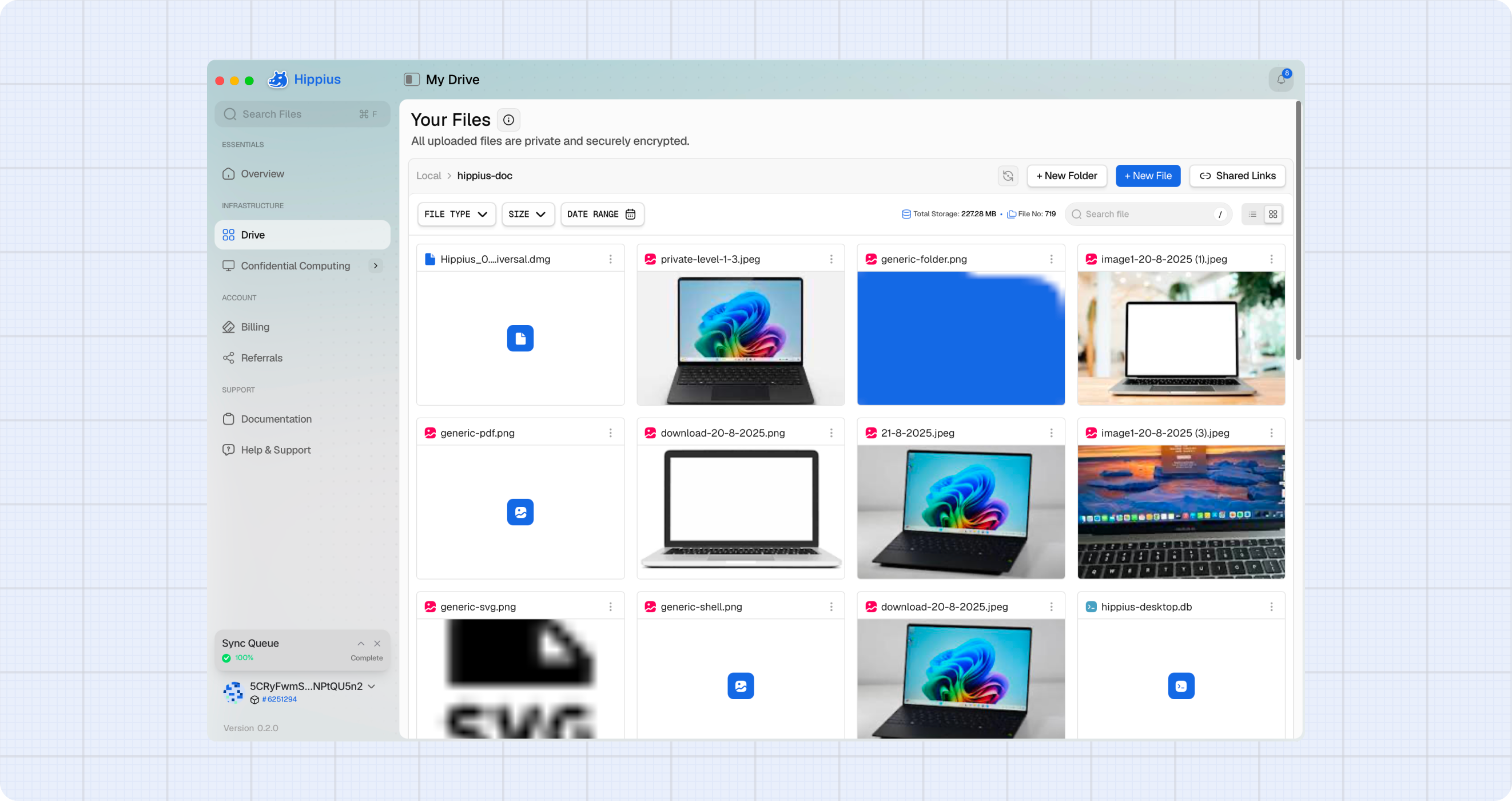
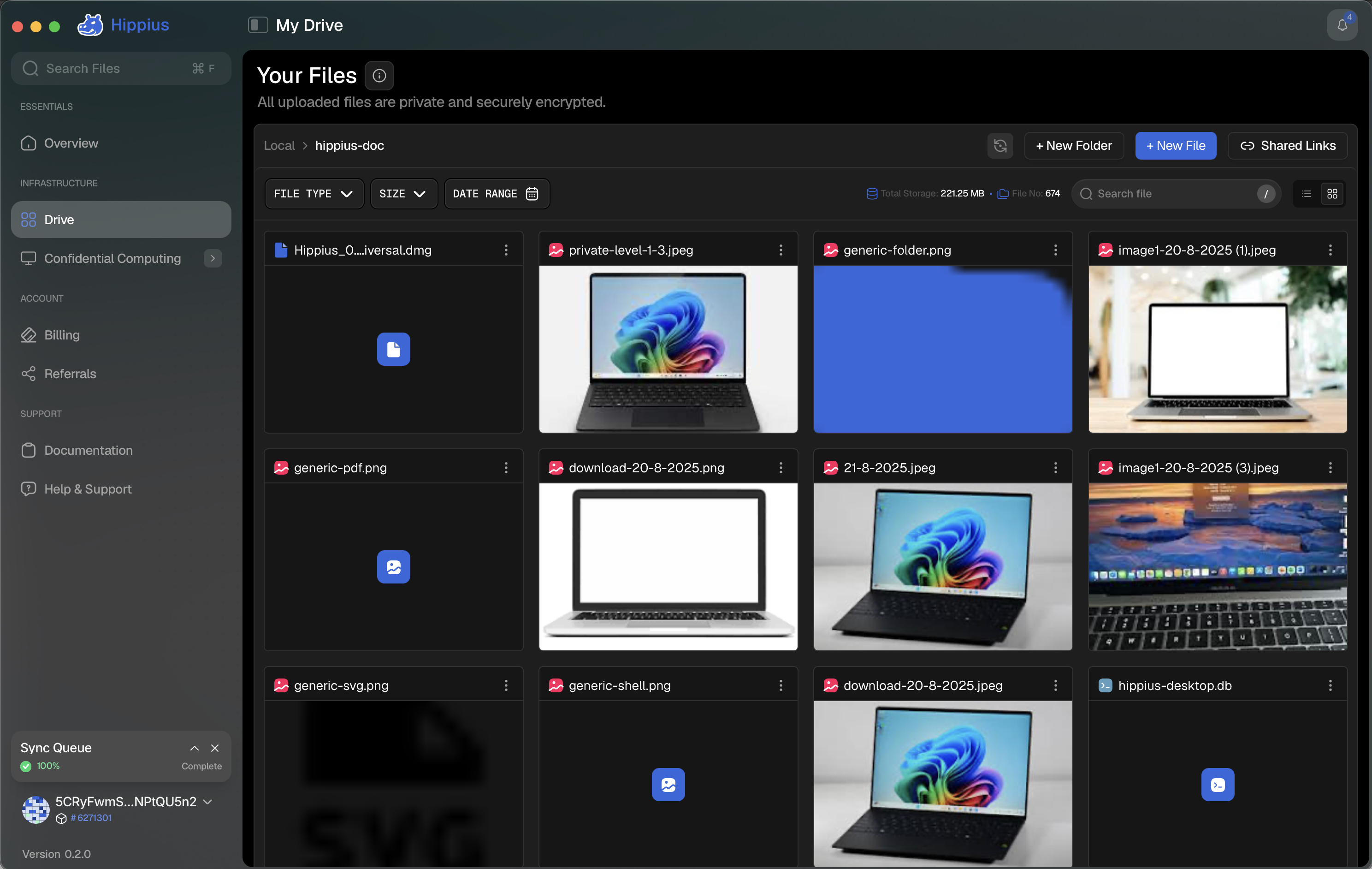
The Drive page supports two display layouts:
- List View: A traditional table format showing file name, size, modified date, and sync status in columns.
- Card View: A grid layout with file thumbnails for quick visual browsing.
Toggle between views using the view mode buttons at the top of the Drive page. Your selection is remembered across sessions.
Creating Folders
To add a folder to a sync folder, you can:
- Upload an existing folder with + New Folder (see Uploading Folders above).
- Create the folder inside your synced folder using your operating system's file manager, then add files to it — they sync to the Hippius network automatically on the next sync cycle.
Searching Your Files
Hippius Desktop offers two ways to find files, depending on whether you want to search the folder you're in or your entire account.
Search within a folder
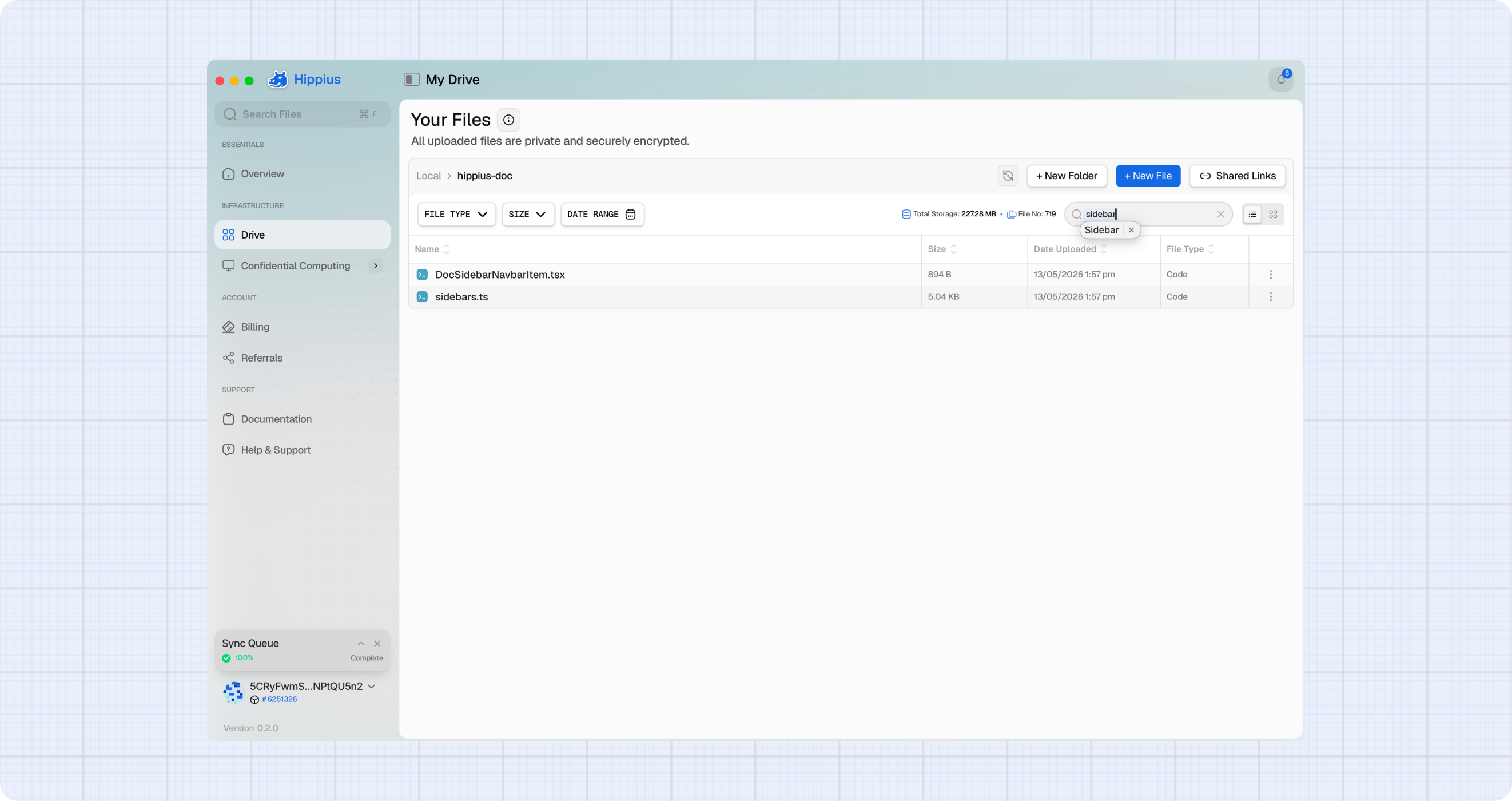
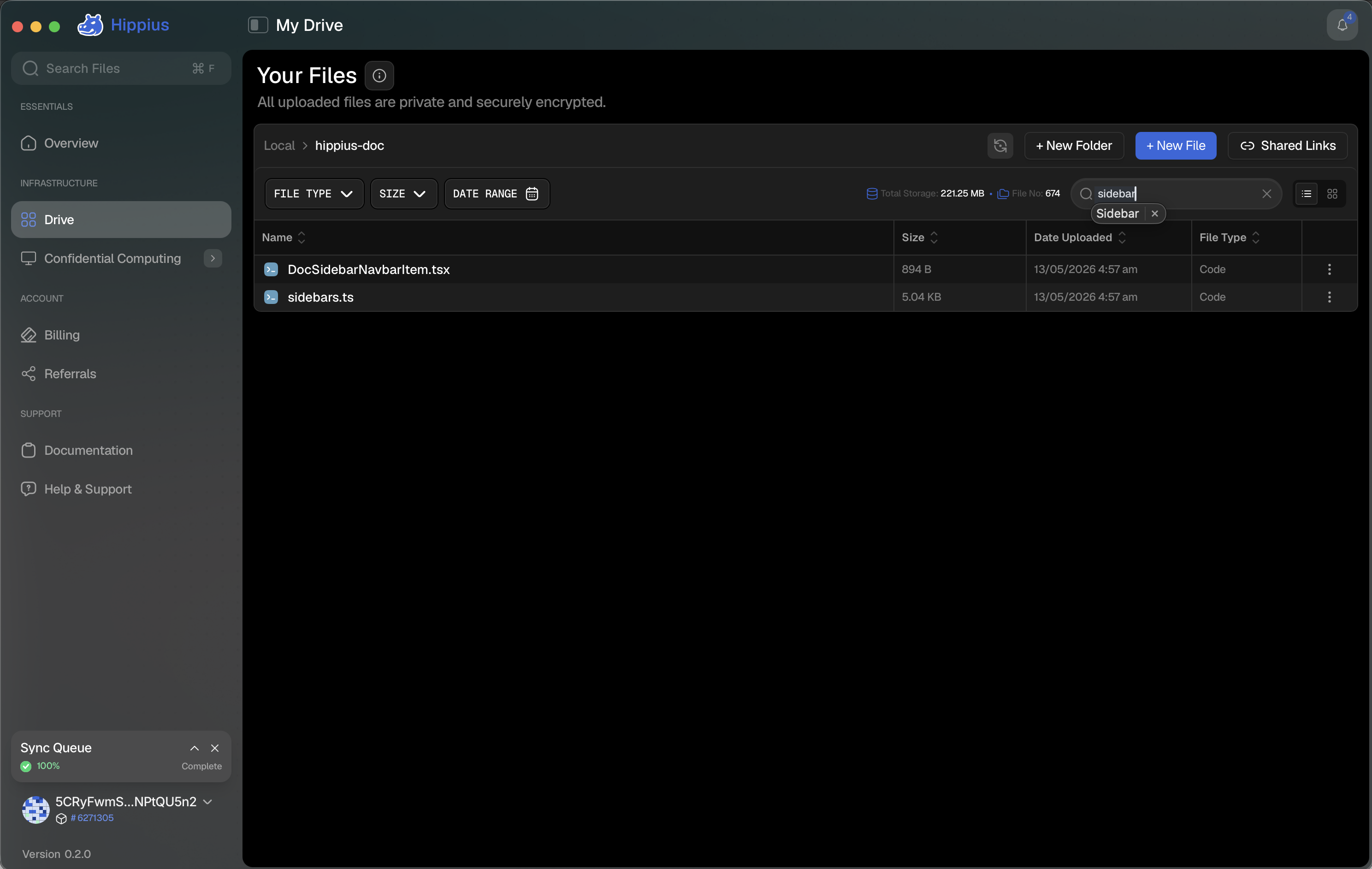
The Search file box at the top of the Drive page searches the sync folder you are currently viewing, including all of its nested subfolders — not just the rows currently on screen.
- Open the sync folder you want to search.
- Type in the Search file box at the top-right of the file list.
- Results update as you type. Combine it with the File Type, Size, and Date Range filters to narrow down further.
Search across everything
The Search Files box at the top of the sidebar opens a global search palette that queries the Hippius server directly. It searches your entire account — every sync folder and files uploaded from any device — so it can find files even when they aren't synced to this computer.
- Click Search Files in the sidebar, or press Ctrl + F (⌘ + F on macOS) from anywhere in the app.
- With the box empty, the palette shows your Last uploads for quick access.
- Start typing to search your whole account. Use ↑ / ↓ to move between results and Enter to open the highlighted file; press Esc to close.
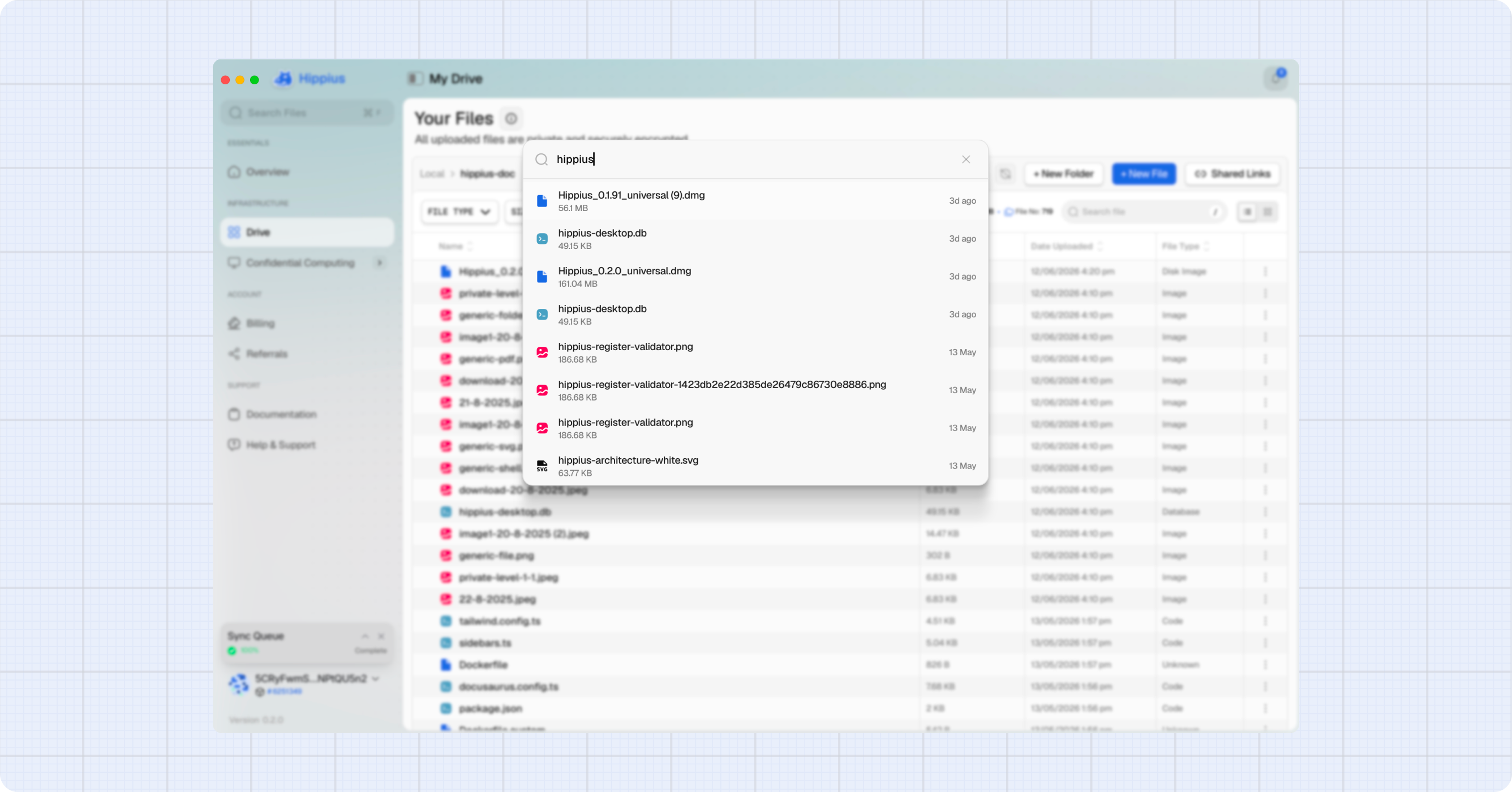
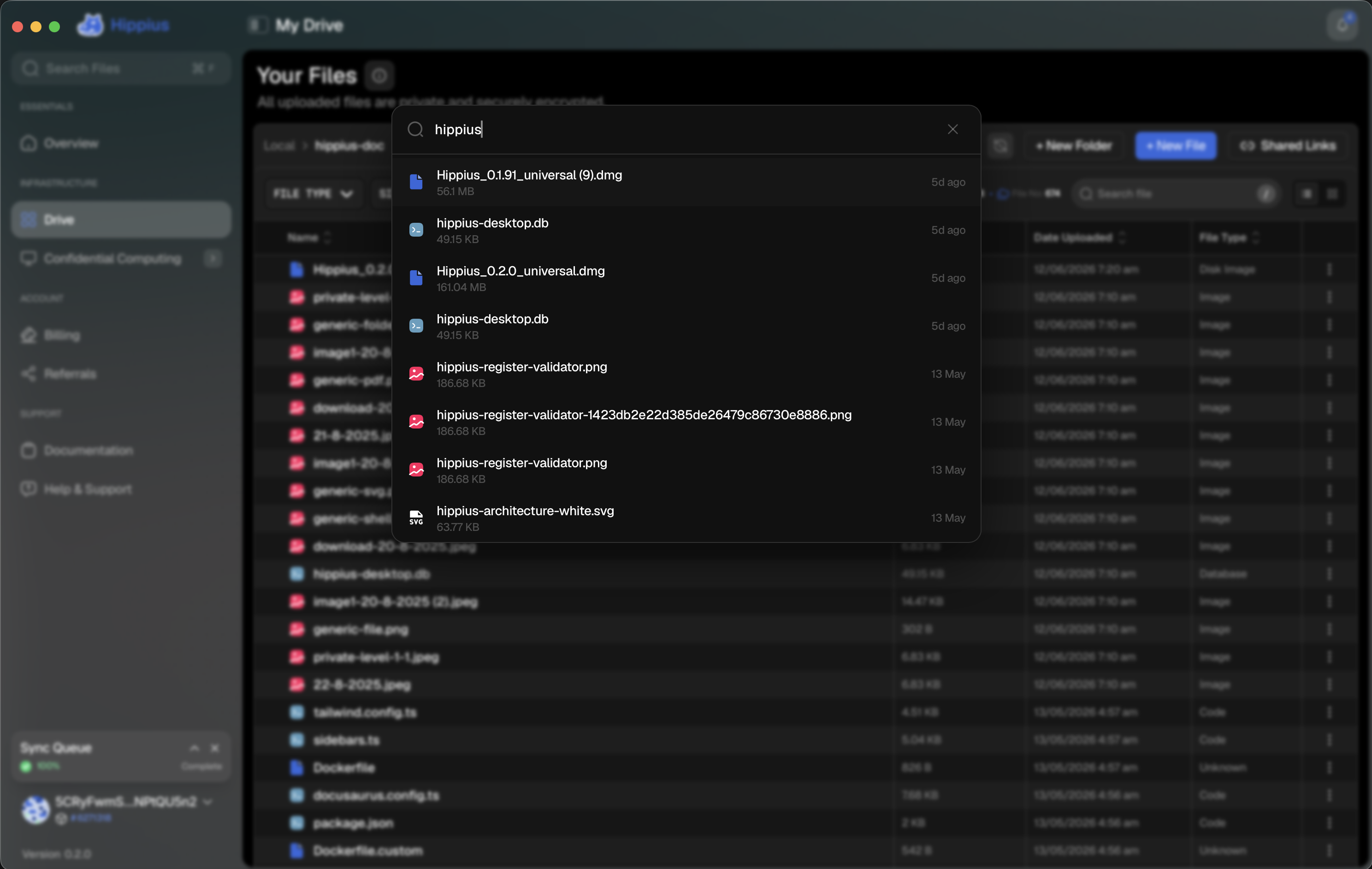
Use the in-folder Search file box when you know which folder a file lives in, and the global Search Files palette (Ctrl / ⌘ + F) to find a file anywhere in your account — including files uploaded from your other devices.
Sync Progress
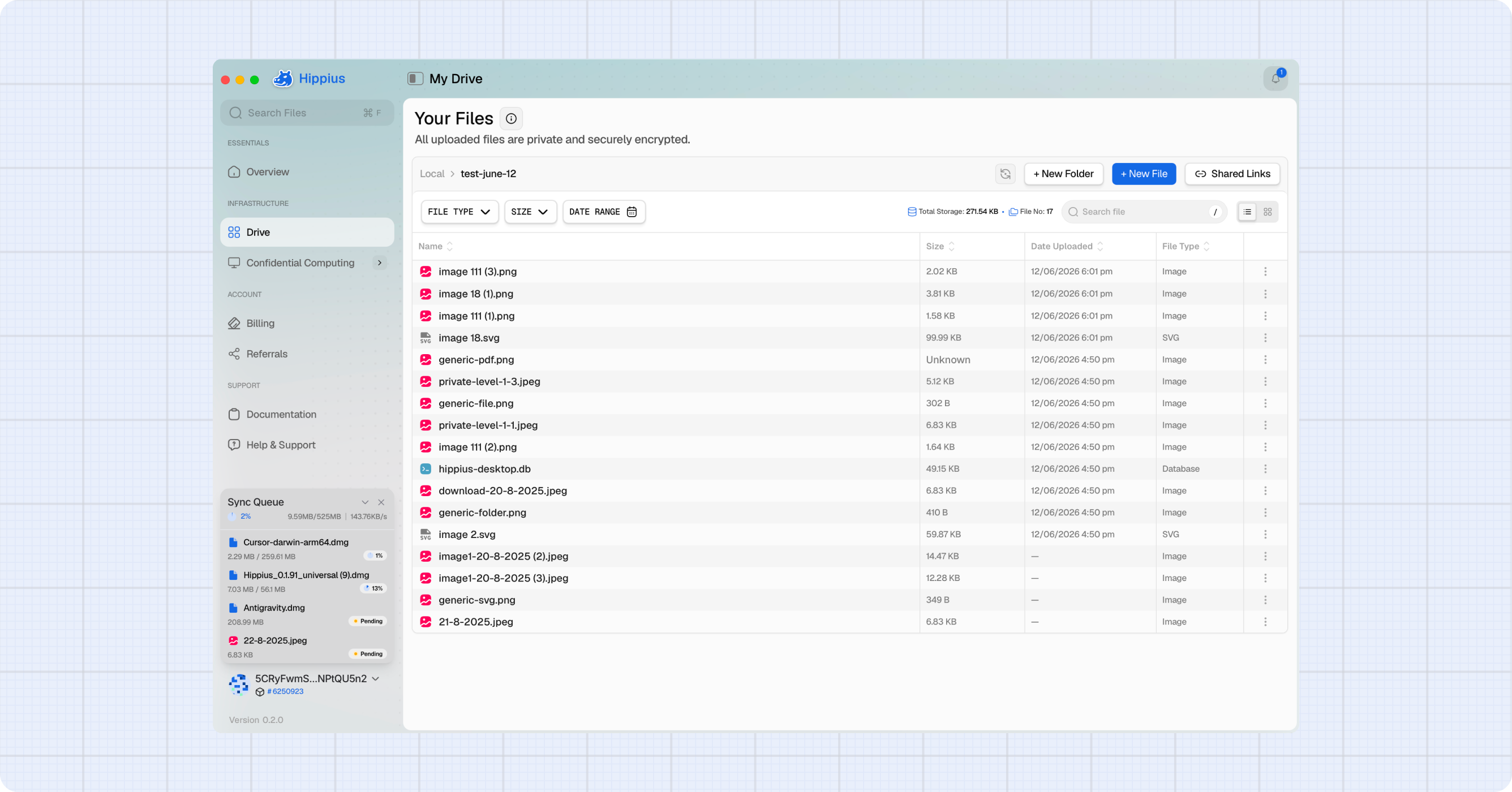
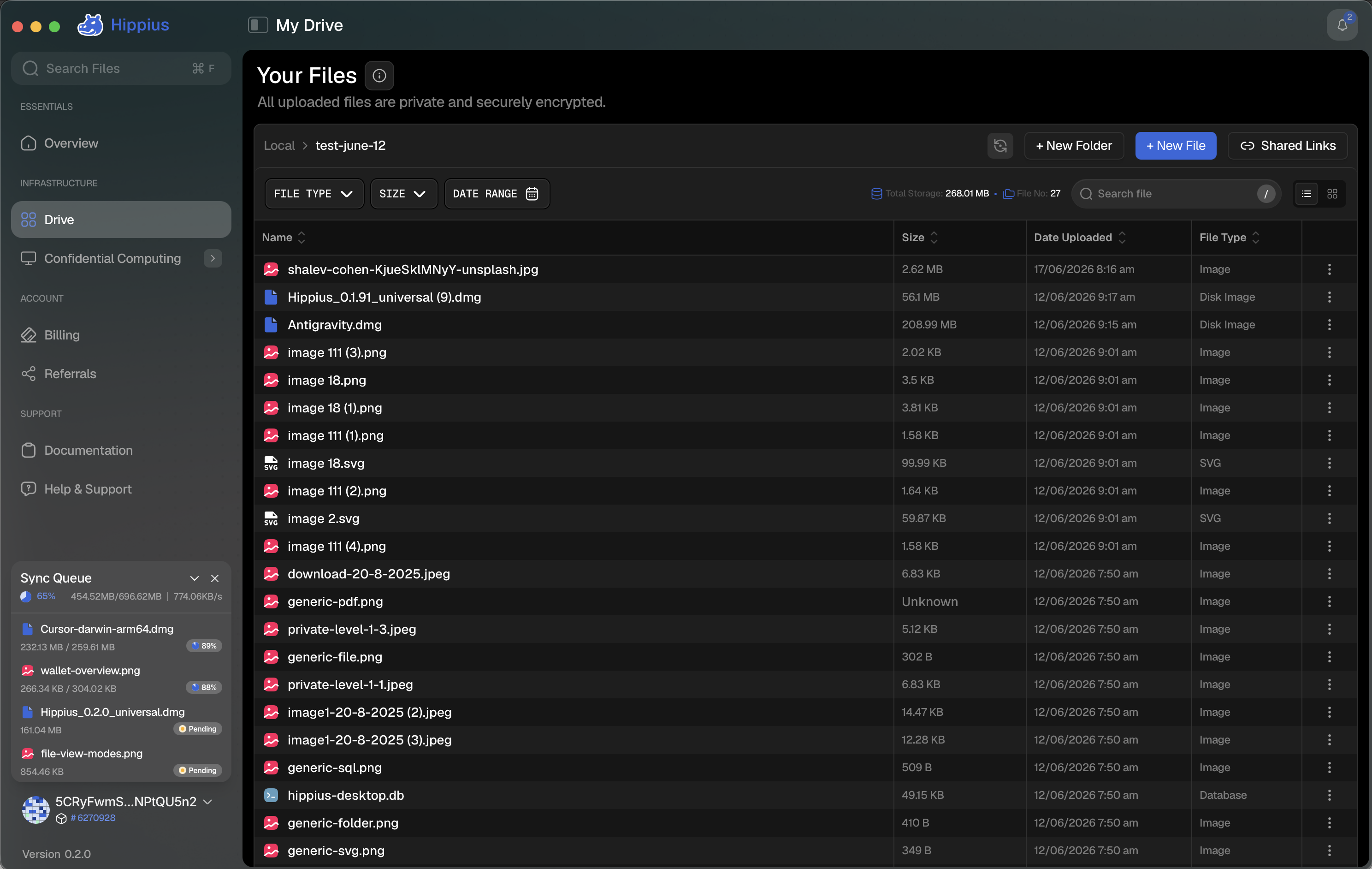
Whenever files are syncing, the Sync Queue widget appears in the sidebar footer, at the bottom-left of the app. It provides real-time feedback on sync operations.
The widget header always shows the overall progress — a percentage and progress bar with a live status, such as the current transfer speed while syncing or Complete when finished. By default the widget is collapsed, showing only this header. Hover the progress bar for more detail, including the estimated time remaining and a count of files synced.
Expanded View
Click the Sync Queue header (or the chevron) to reveal the file list. Each row shows:
- File name and icon
- Size or transfer progress — for example,
1.2 MB / 4.5 MBwhile a file is transferring - Status badge — Pending, Encrypting, a live percentage, Synced, Downloaded, Deleted, or Error
Minified View
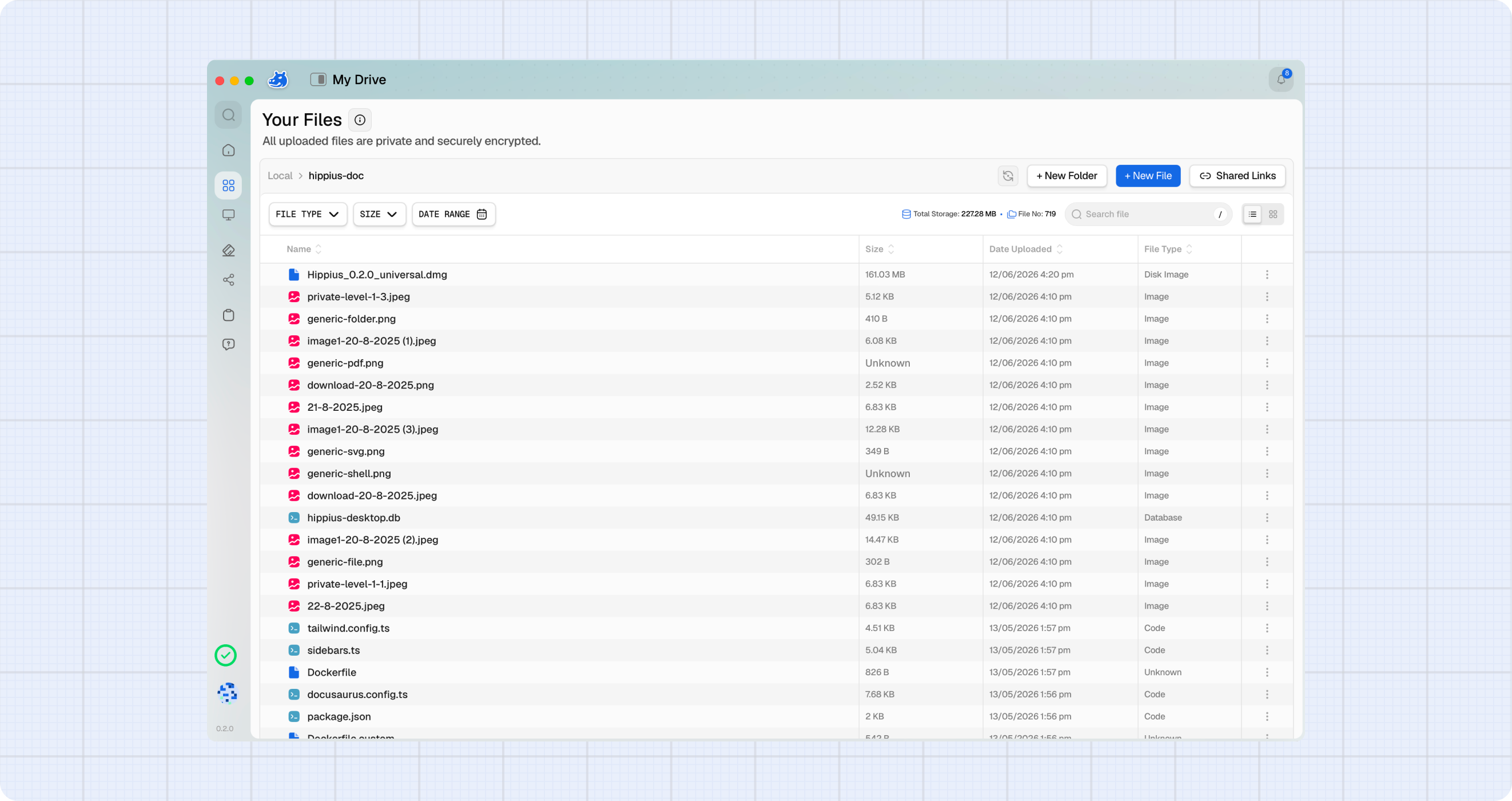
Click the ✕ to shrink the widget into a compact circular progress ring that keeps tracking progress:
- Percentage arc: Files are actively syncing
- Checkmark: Sync completed successfully
- Red ring: Some files failed to sync
Click the ring to restore the full widget. The ring also appears whenever the sidebar is collapsed.
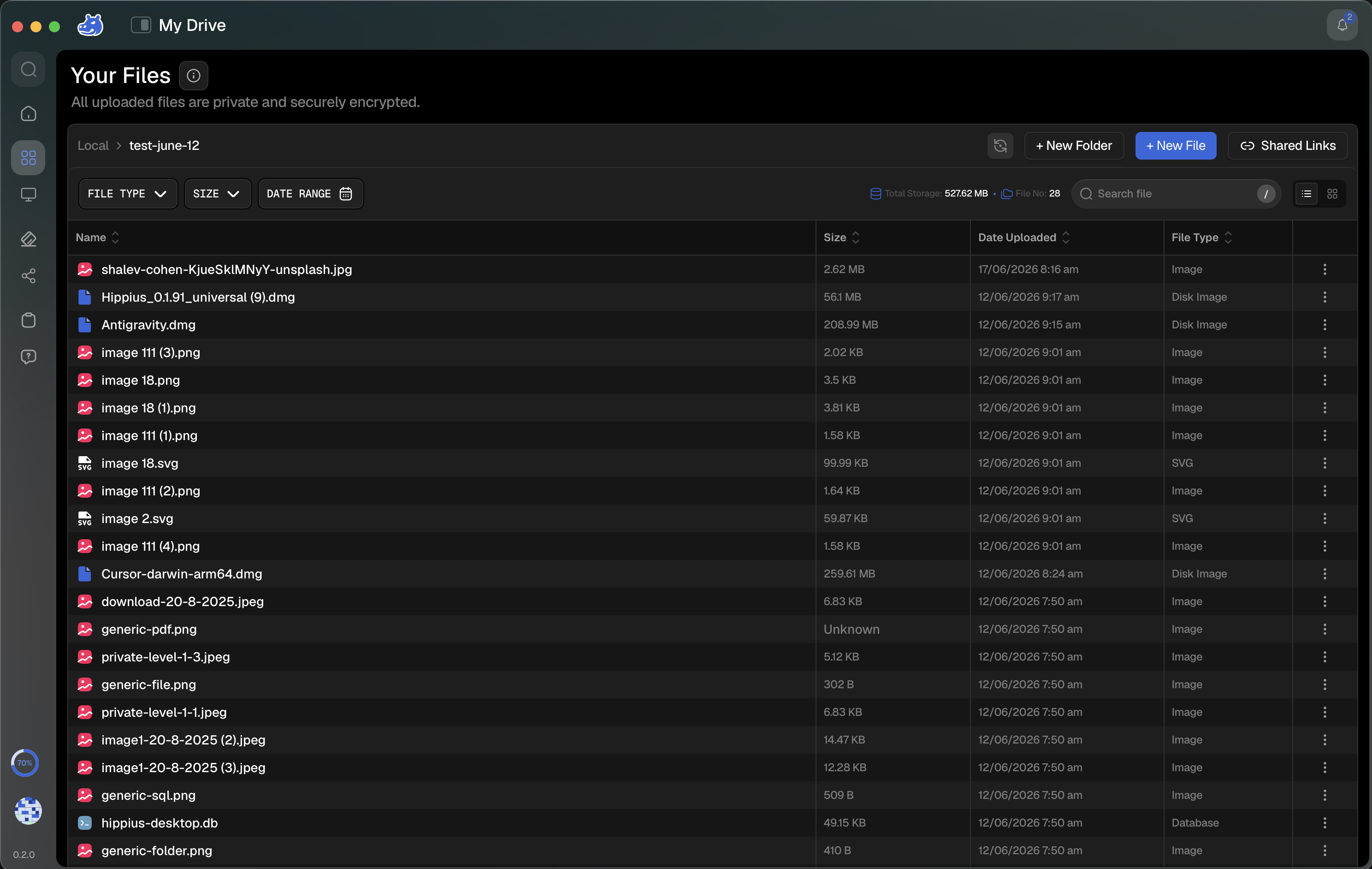
Dismissing the widget with ✕ does not stop syncing — it only minimizes the widget to the progress ring. The full card reopens automatically when a new sync starts.
Conflict Resolution
When the same file has been modified on multiple devices or both locally and remotely, sync conflicts may arise. Hippius detects these automatically and gives you full control over how to resolve them.
Conflict Detection
When conflicts are detected during a sync cycle, a conflict banner appears at the top of the Drive page:
"X file conflict(s) detected during sync."
Click Review & Resolve to open the Staged Changes dialog, or click the dismiss icon to skip the review and let sync continue with default behavior.
Reviewing Staged Changes
The Staged Changes dialog organizes pending sync operations into clear sections:
- Upload — Files that will be uploaded to the server
- Download — Files that will be downloaded from the server
- Delete Locally — Files that will be removed from your device
- Delete from Server — Files that will be removed remotely
- Conflicts — Files with conflicting changes that require your decision
Resolving Conflicts
For each conflicting file, choose a resolution from the dropdown:
| Resolution | What It Does |
|---|---|
| Keep Local | Use your local version of the file |
| Accept Remote | Replace your local file with the remote version |
| Keep Both | Create a renamed copy of your local file (e.g., file_conflict_...) and accept the remote version |
| Skip | Do nothing, leave the file unresolved for now |
You can use the Apply to all buttons to apply the same resolution to all conflicts at once. The Sync Now button remains disabled until every conflict has a resolution selected.
Conflict Types
Hippius identifies the following conflict scenarios:
| Conflict Type | Description |
|---|---|
| Both modified | The file was changed on both your device and another device |
| Modified locally, deleted remotely | You edited the file, but it was deleted on another device |
| Deleted locally, modified remotely | You deleted the file, but it was changed on another device |
| Both created | The same file was created independently on multiple devices |
Pause and Resume Syncing
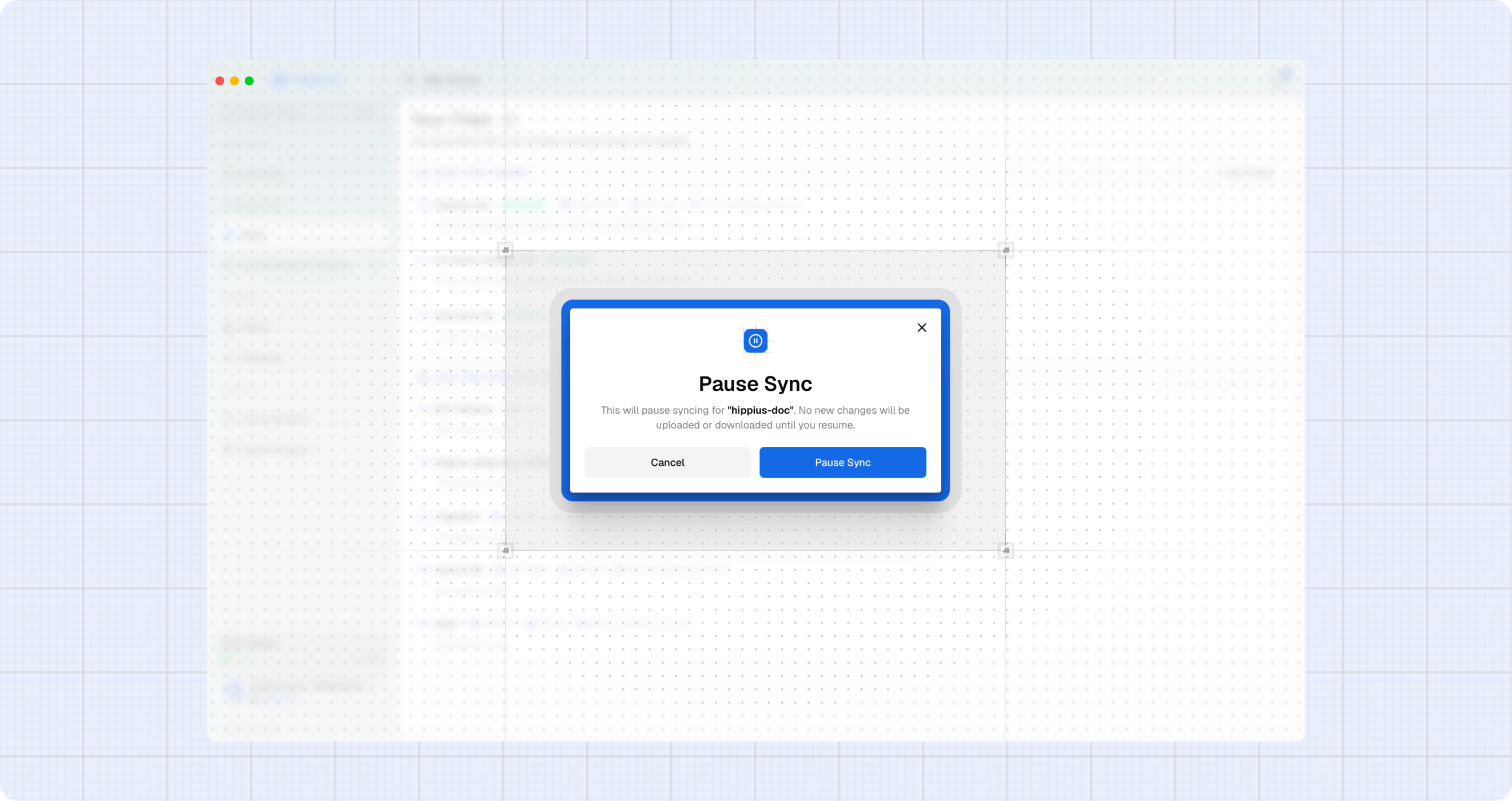
You can pause syncing for individual folders at any time. When a folder's sync is paused:
- Files in the folder are not uploaded or downloaded.
- Your local files remain on your device untouched.
- The folder shows a Paused status on its card.
- You can resume syncing at any time.
You can manage this from either the Drive page's Local view or Settings → Sync & Storage — both surfaces list your sync folders and share the same actions.
Pausing Sync
- Open the Local view (click Local in the breadcrumb on the Drive page) or go to Settings→ Sync & Storage.
- Find the folder you want to pause under Local Sync Folders.
- Select Pause Sync from the folder's menu.
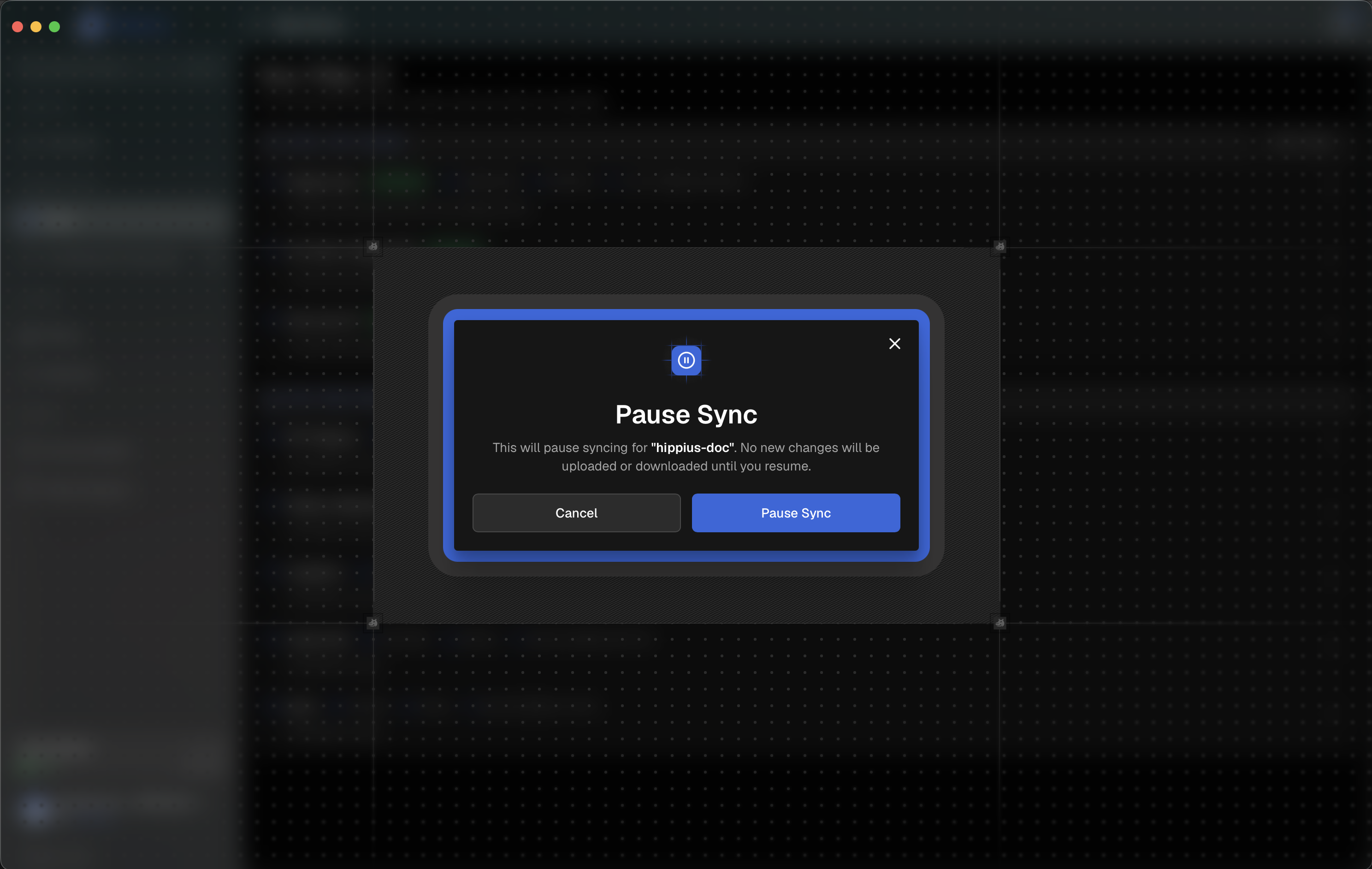
- Confirm in the Pause Sync dialog that appears.
Resuming Sync
- Open the Local view or go to Settings→ Sync & Storage.
- Find the paused folder and select Resume Sync.
- Syncing resumes and your files are synchronized again.
The Pause Sync and Resume Sync actions are available on both the Drive page's Local view and the Settings → Sync & Storage page, so you can manage syncing wherever is convenient.
Connectivity Status
The app monitors your connection to the Hippius sync network and displays alerts when connectivity changes:
- Connected: Sync is operating normally.
- Reconnecting: Temporarily lost connection, attempting to reconnect.
- Disconnected: Unable to reach the sync network. Files will sync when connection is restored.