Share from Finder (macOS)
Sharing a file with Hippius can be as quick as a right click. On macOS you don't have to open the app, hunt through folders, or upload anything first: point at any file or folder in Finder, choose Share with Hippius, and we'll hand you a link that's ready to send.
It works on any file on your Mac, not just the ones in your synced folders. You get the same choices as in the app: a public link or a password-protected one, and how long it lasts.
You'll need the latest version of the Hippius desktop app. Finder sharing is macOS only, since it relies on a macOS Finder extension. On Windows and Linux, share from the Drive view instead.
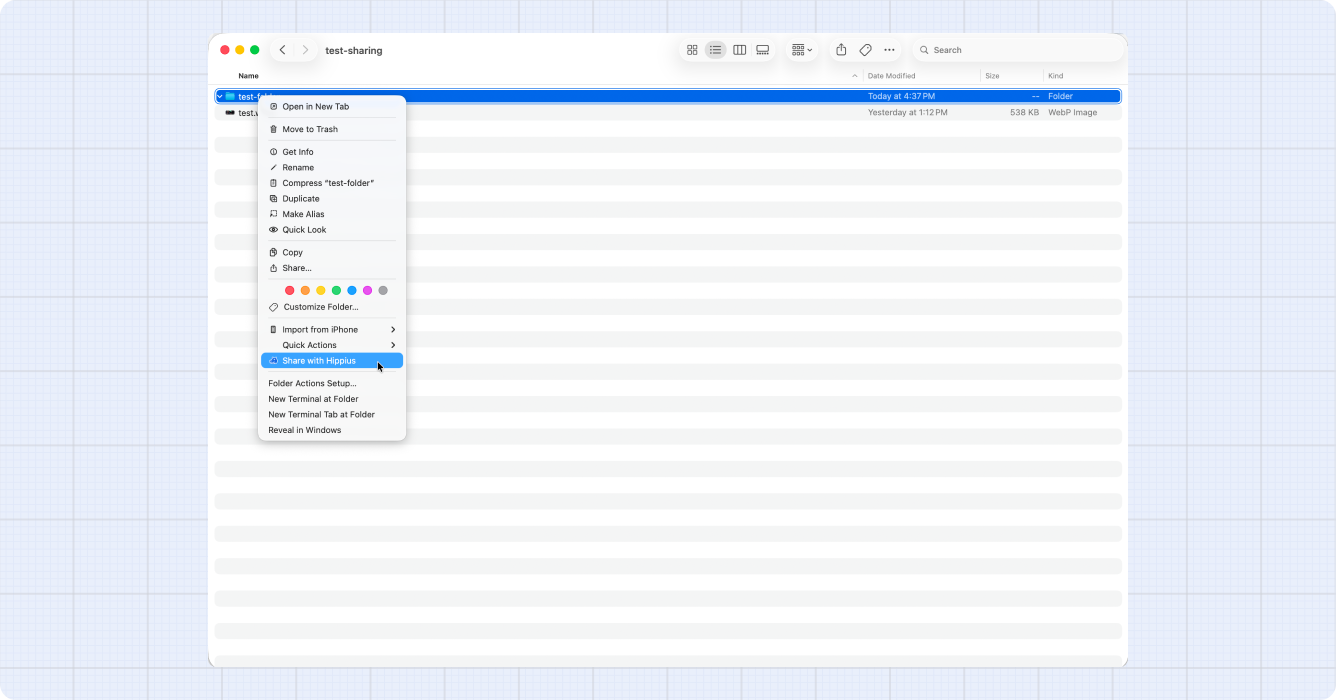
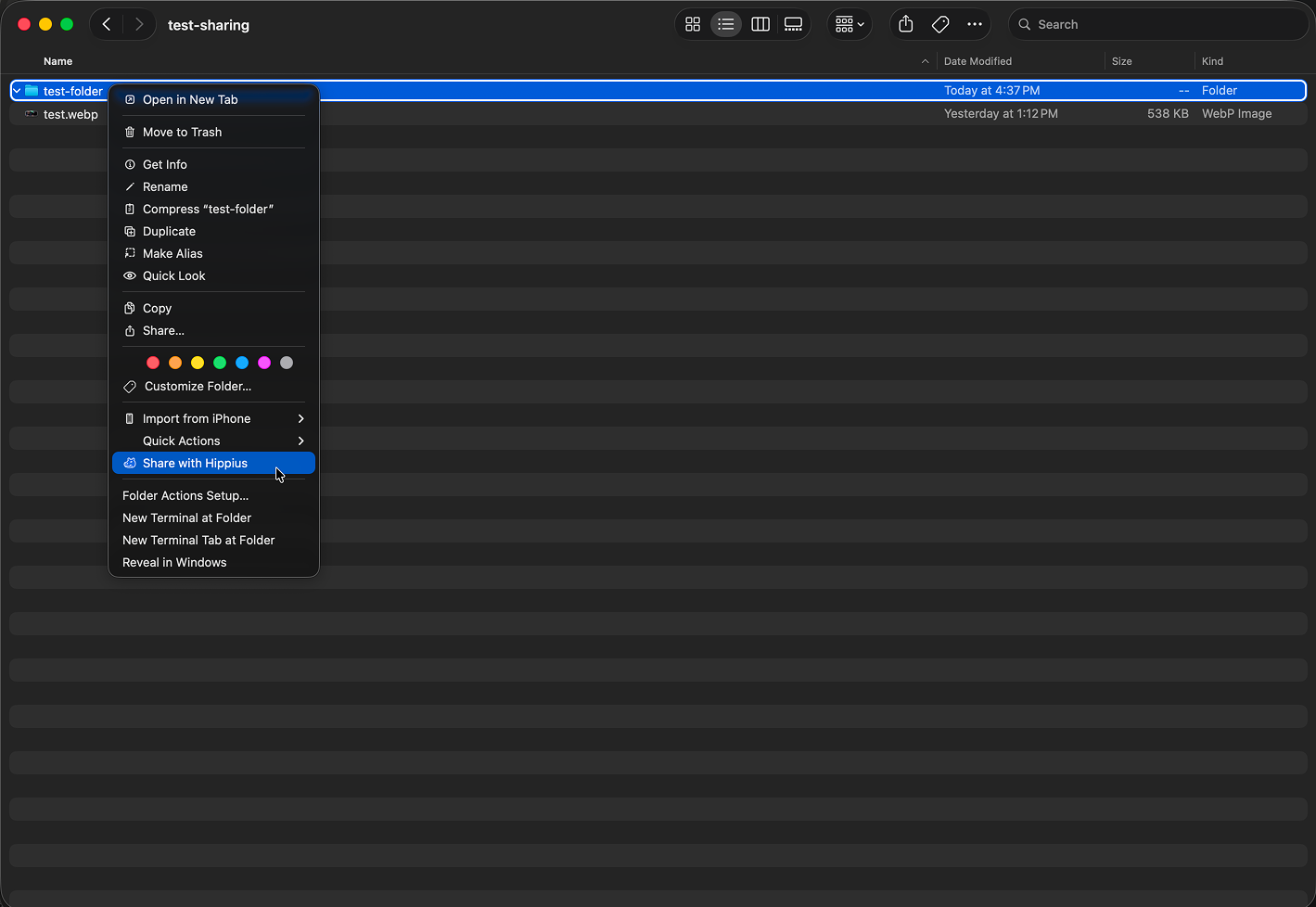
Share a file or folder
- In Finder, right click any file or folder in your home folder.
- Choose Share with Hippius. If the app isn't running or you're signed out, you'll see Open Hippius to share instead. Open Hippius, sign in, and try again.
- We bring the app forward with the same Share via link dialog you get inside the app. Pick Anyone with the link for a public link, or Password protected for a private one, and choose when the link expires.
- Click Create share link. We make the link, then show it to you (with the password, if it's protected) and copy it to your clipboard for you.
Here's what the two access options mean:
- Anyone with the link is a public link. Anyone you send it to can open and download the file until it expires.
- Password protected is a private link. We generate a password for you, and the link won't open without it.
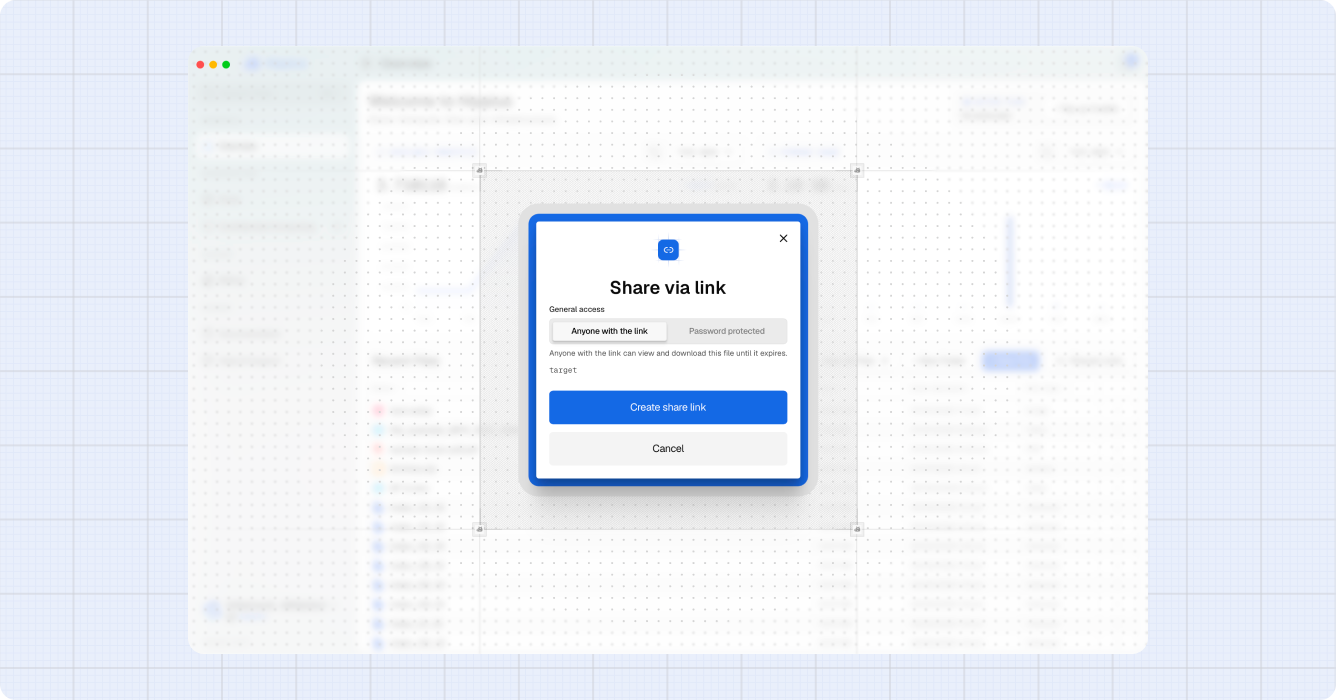
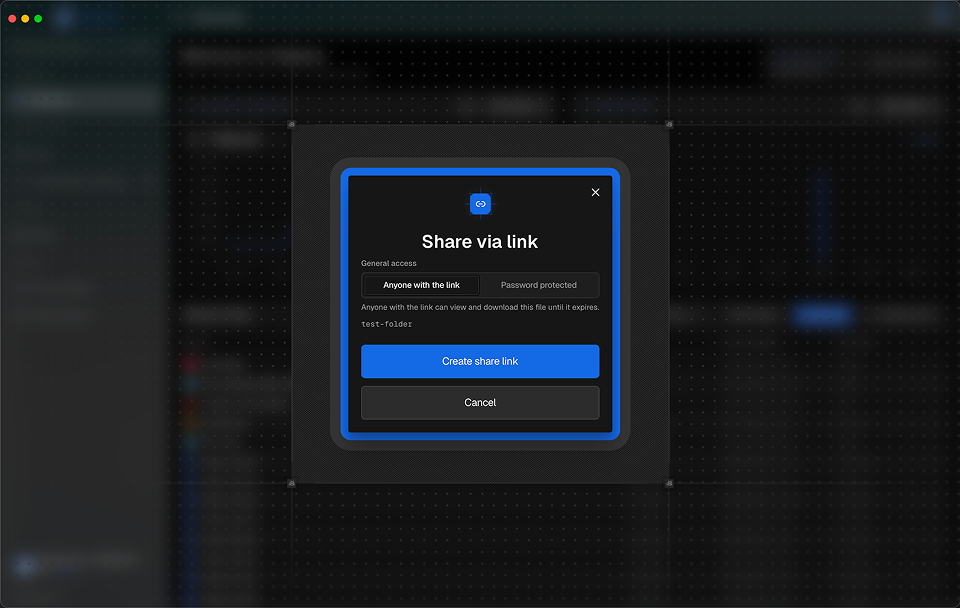
Sharing from Finder works on any file or folder in your home folder. It doesn't have to live in one of your synced folders, which is what makes it different from sharing inside the Drive view.
A folder inside one of your drives is shared as a live link: whoever opens it browses the folder as it is now, and sees files you add later. A folder from anywhere else on your Mac is uploaded as a copy, so the link shows the folder as it was when you shared it, and later changes aren't included. Either way, recipients can open single files or download the whole folder as a zip.
Password-protected links
For a password-protected link, we show you a generated password right next to the link. Copy it with the copy button and send it to the recipient separately, ideally through a different channel than the link itself. They'll need to type this password in to open the file.
We show the password once, right after you create the share. We don't keep it anywhere we can read, so it won't show up again on the Shared Links page later. Copy it before you close the dialog. If you lose it, no problem: just revoke the share and create a new one.
Turn the Finder item on or off
Share with Hippius comes from a small Finder extension that Hippius installs. You can switch it on or off in Settings → Sync & Storage, under Finder, with Show "Share with Hippius" in Finder. If the item is missing from Finder's menu, check that switch first.
Manage your Finder shares
Your Finder shares show up on the Shared Links page right alongside the ones you create from the Drive view, so you can copy the link, revoke it, and keep track of it the same way. Head over to Shared Links to manage them and view your history, or see What recipients see for how the link opens in someone's browser.