Shared Links
Introduction
With Hippius you can share a file as a link that anyone can open in a browser, with no Hippius account needed. Depending on the file, they can preview it right on the page or download it to their device. Your links can be public (anyone with the link) or password-protected.
To share a file, right click it in the desktop app and choose Share via link. We create a secure encrypted copy and generate a shareable URL, then copy it to your clipboard for you. On macOS you can also share straight from Finder: just right click any file or folder and choose Share with Hippius.
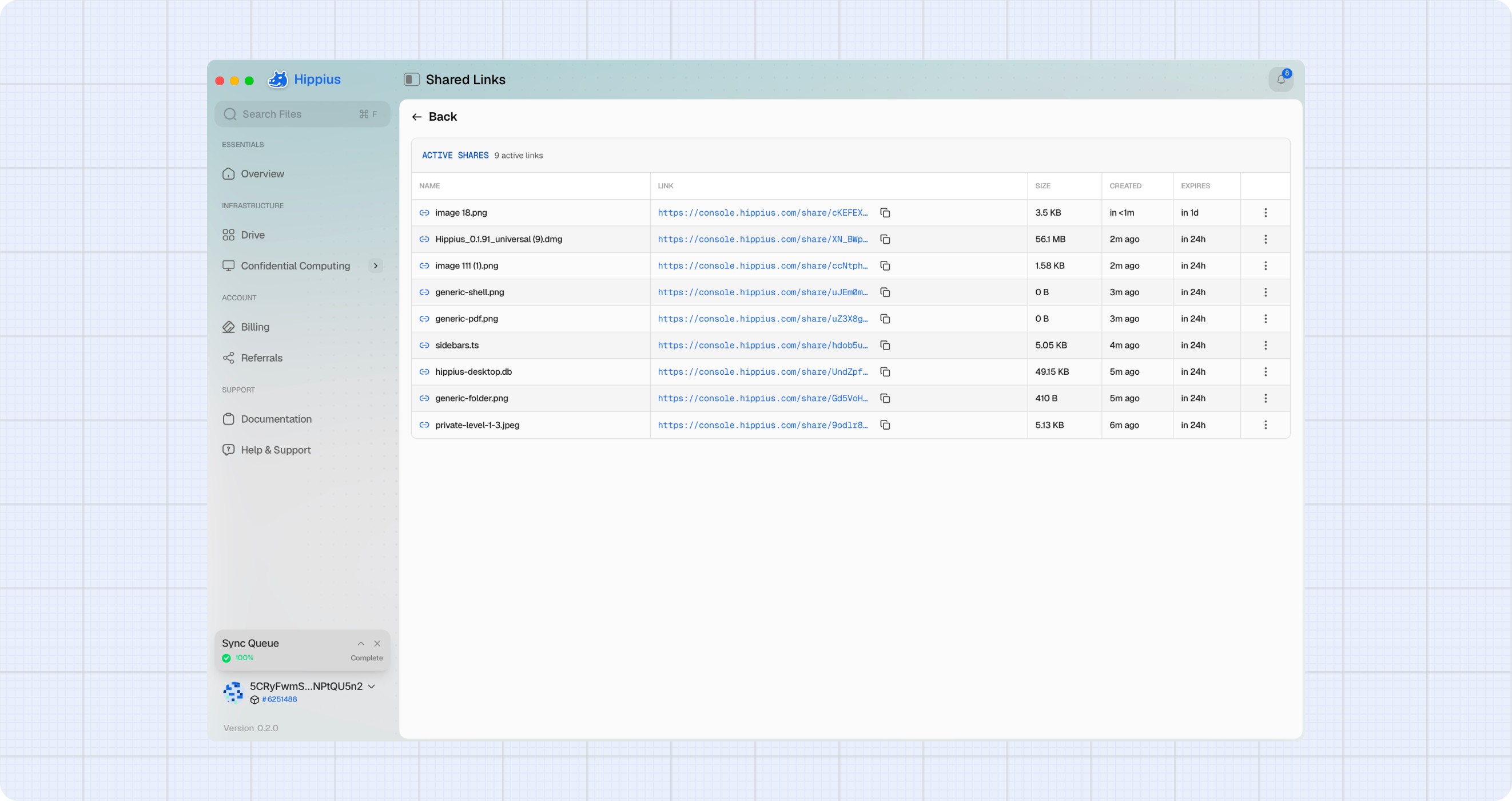
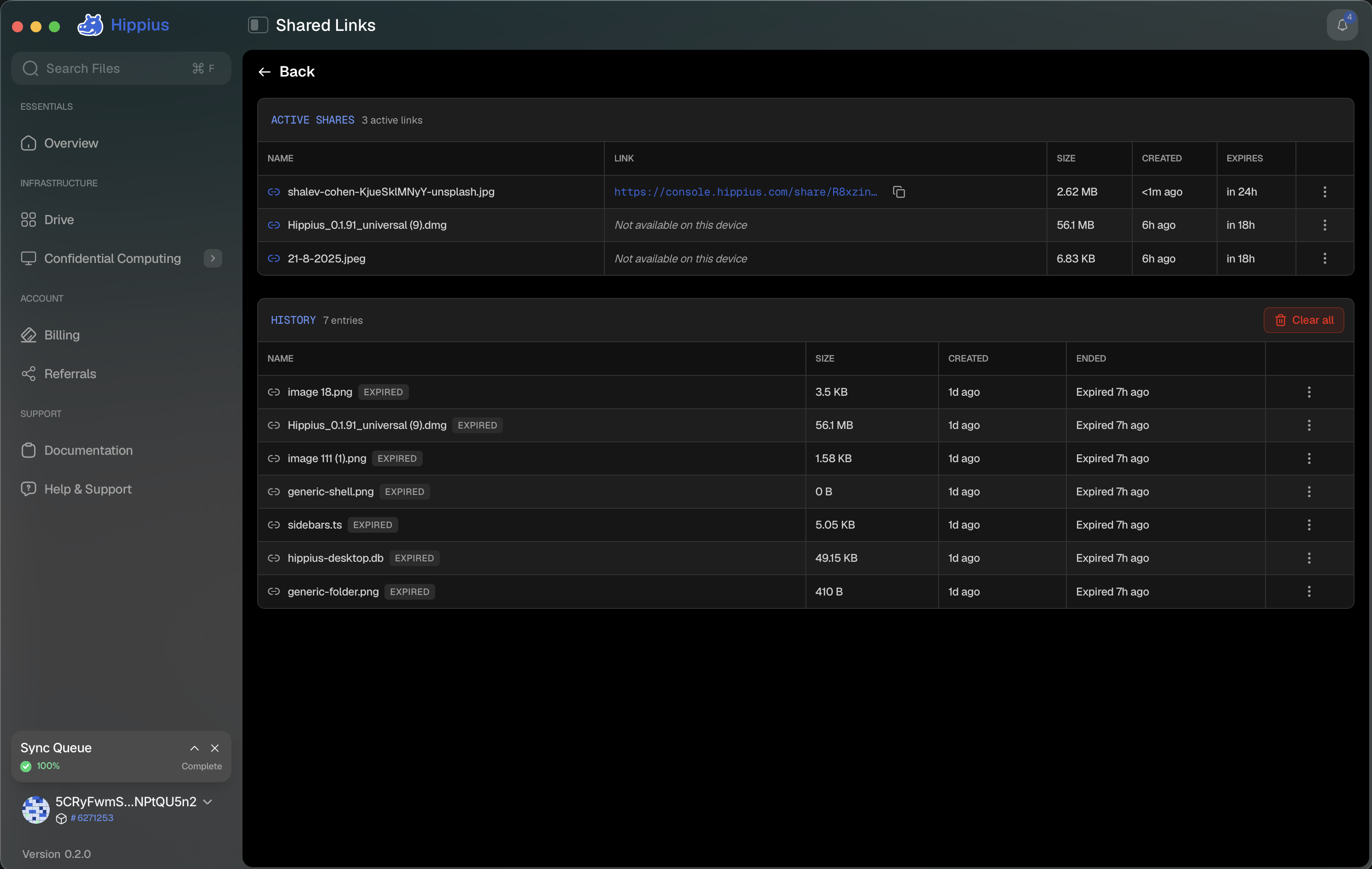
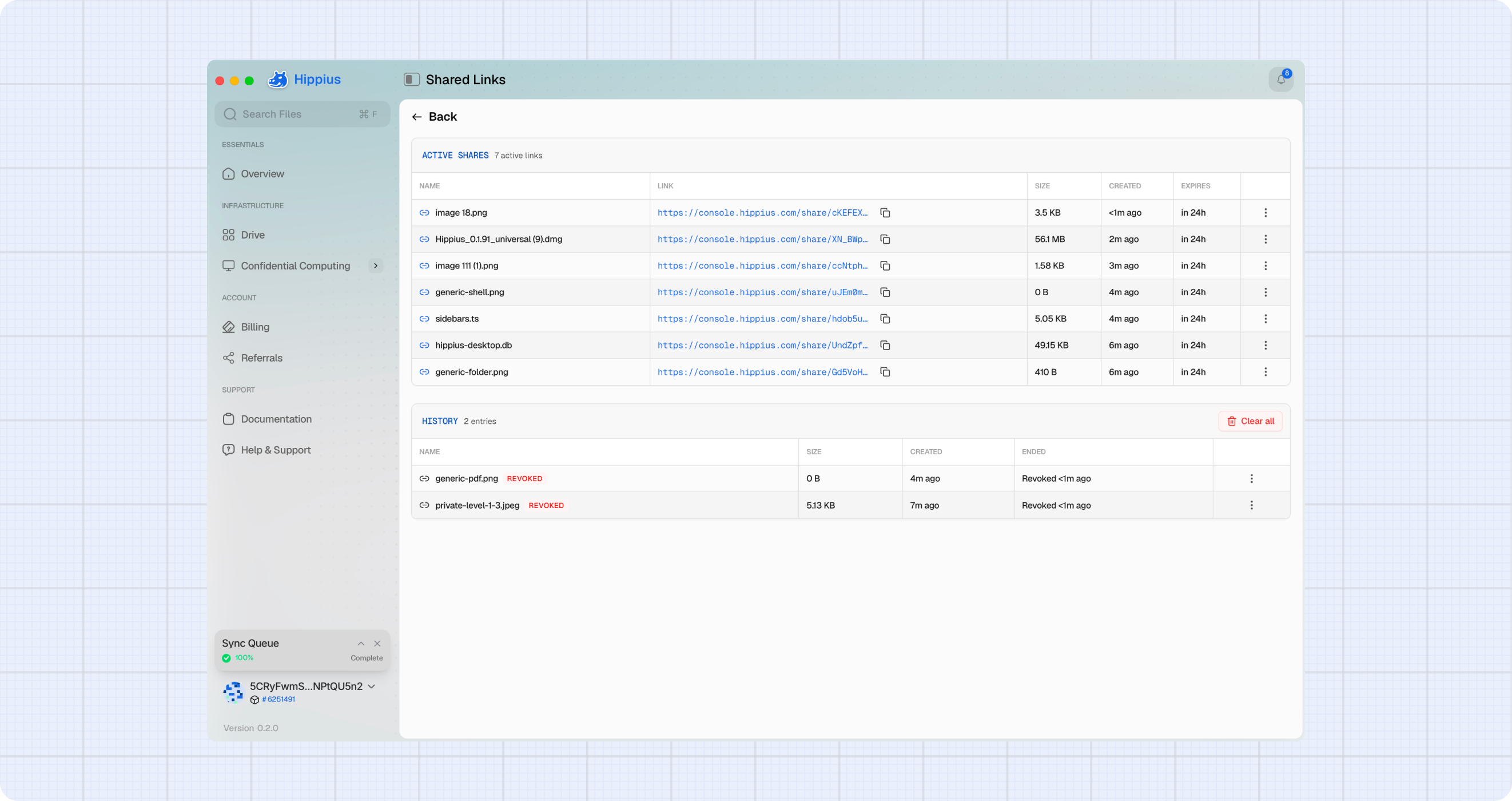
After sharing, all your active links are tracked on the Shared Links page. Open it with the Shared Links button in the top right of the
You can share from the Drive view inside the app, or, on macOS, right from Finder. Just right click any file or folder and choose Share with Hippius. See Share from Finder.
How Sharing Works
Every file on Hippius is encrypted
All your files are encrypted end to end on your device before they are uploaded to the Hippius network. The Hippius network stores ciphertext only. Nobody else can read your files because nobody else has your key.
How the desktop creates a share
The desktop app has a key advantage over the console when it comes to sharing: your synced files are already stored as plaintext on your local device. The sync engine encrypts them on the way up to Hippius, but on disk you have the originals. This means the desktop can create a share without needing to download and decrypt anything first.
When you right click a file and choose Share via link, the desktop:
- Reads the local plaintext file from your sync folder directly. No download or decryption step needed.
- Generates a fresh share key, a random 32-byte key unique to this one share. This key is completely independent from your folder key.
- Encrypts the file with the share key using XChaCha20-Poly1305, then uploads the newly encrypted copy to Hippius as a separate object. This is independent of your regular sync copy.
- Builds the recipient URL:
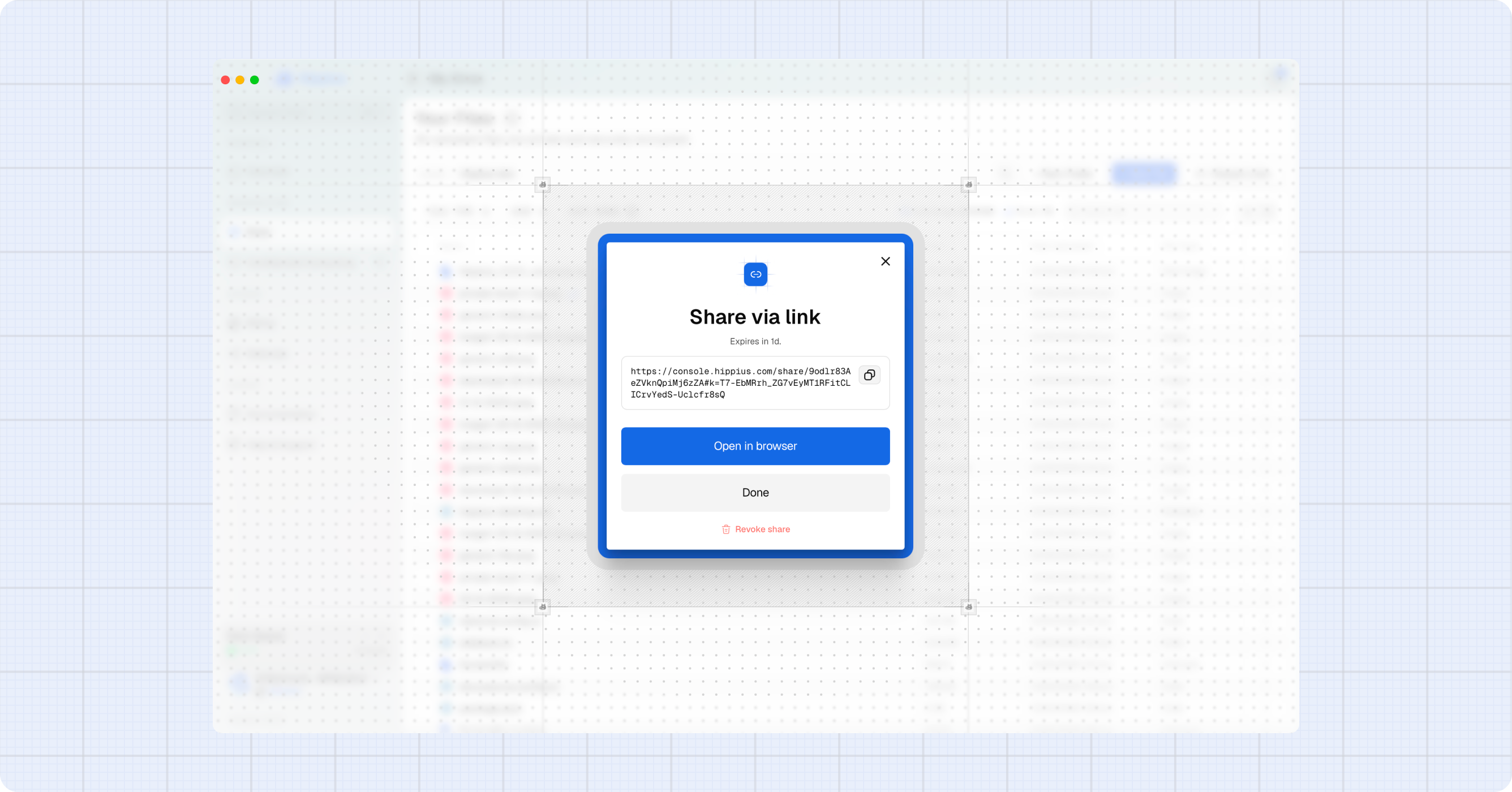
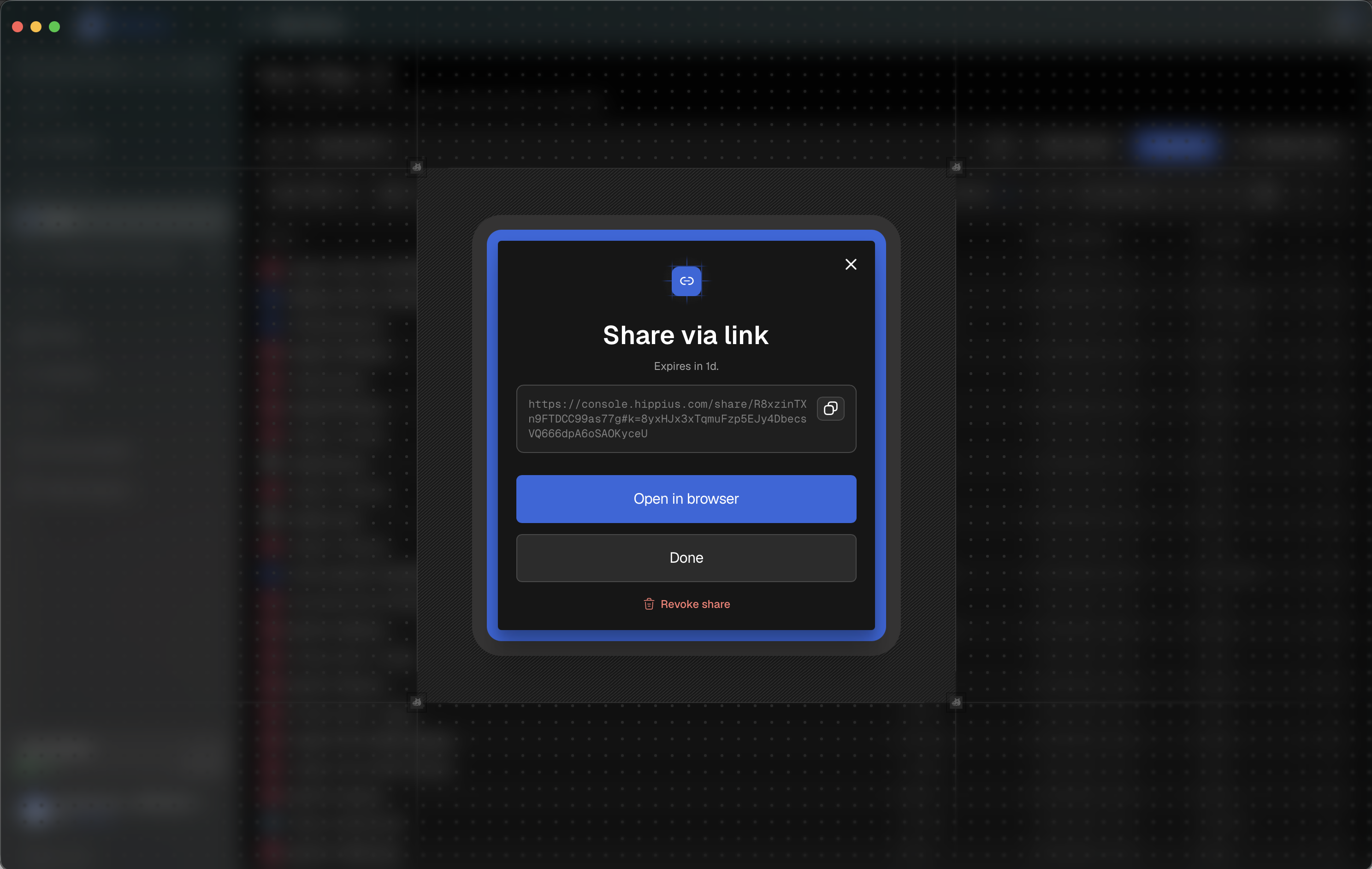
https://console.hippius.com/share/<token>#k=<share_key>. The key is in the#fragment, and browsers never transmit fragments to servers, so we never see the key. - Shows the link in a modal and copies it to your clipboard automatically. The modal also shows when the link expires (for example, Expires in 1d). The link is live immediately.
The server stores the encrypted copy and returns a share token. It never learns the decryption key.
The desktop reads your local file directly with no download required. For most files this means the entire share process is as fast as your upload connection allows, with no extra round trip to fetch the file first.
What this means in practice
- Your original folder key stays private. Only the share key is used for the share upload.
- Revoking a share deletes the encrypted copy and frees the storage.
- Sharing the same file twice creates two independent copies, each with its own key.
- The server can never read the file, even while serving it to recipients. It only ever holds ciphertext.
Before You Share
- The file must be in a synced folder. Shared Links only works for files in one of your Hippius sync folders.
- You need enough credits. Sharing uploads a new encrypted copy, which costs storage. The app checks your balance before starting. If you don't have enough, you'll see a credit error before the upload begins.
Creating a Share
- In the Driveview, find the file you want to share. The file must be fully synced.
- Right click the file (or click the ⋮ menu on its row) and choose Share via link.
- Choose when the link should expire, and optionally require a password. Both are described below.
- The share dialog runs the encrypt and upload steps automatically, showing Encrypting and uploading… while it works. You can press Cancel to stop before it finishes.
- When complete, the share URL is shown in the modal and copied to your clipboard automatically, along with when the link expires.
- Use the copy icon next to the URL to copy it again, Open in browser to preview the recipient page, or Revoke share to cancel the link right away. Click Done to close the dialog.
The link is live immediately. Anyone you send it to can download the file right away.
Choosing an expiry
Every link gets an expiry, chosen before you create it:
| Option | The link stops working |
|---|---|
| 24 hours | One day after you create it. |
| 7 days | One week after you create it. |
| 30 days | One month after you create it. |
| Until I revoke it | Never on its own. It stays live until you revoke it. |
Requiring a password
Tick Require a password to lock the link. Recipients are asked for it before they see anything, and it must be at least 8 characters.
Send it through a different channel to the link itself. It cannot be recovered or changed later. If you lose it, revoke the share and create a new one.
Both options are also available when you share from Finder on macOS.
Sharing a folder
Right click a folder instead of a file and choose Share via link to share the whole thing. Expiry and password work the same way.
Recipients always see the folder's current contents, so anything you add later becomes visible to everyone holding the link. Share files individually if you want a fixed set.
Recipients can browse subfolders, search by name, preview files, download any single file, or download the whole folder as a zip. They do not need a Hippius account.
To share a file that isn't in a synced folder, use Share from Finder on macOS.
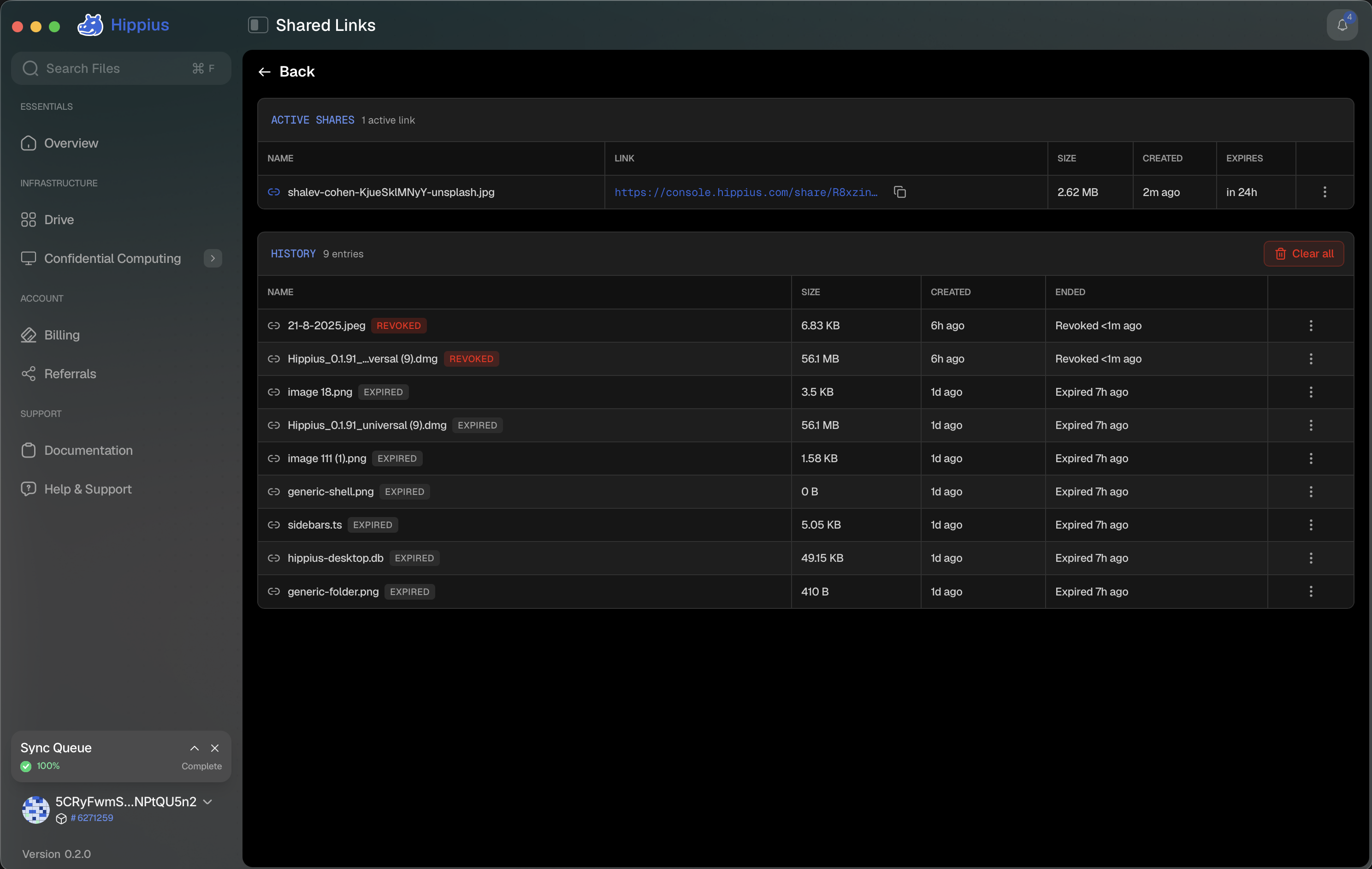
Active Shares
The Active Shares table shows every share currently live on your account, refreshed from the server every few seconds. It includes shares created from any device or the console, not just this desktop install.
If a share was created on a different device (or on the console), this device doesn't have the share key, so the filename shows as <unknown> and some actions are disabled.
Copy link
Click Copy link from the row's action menu to copy the full recipient URL to your clipboard.
Copy link is only available on the device where the share was created. The share URL includes the encryption key, which is saved in a local database on the creating device. On any other device, the key isn't there and the option is disabled.
Reshare
Click Reshare from the row's action menu to create a fresh share for the same file with a new expiry and a new link.
Reshare is only available on the device that created the original share. It requires both the share key and the source file's location in your sync folder. See Reshare Mechanics below for the full details.
When reshare completes, the old link is immediately revoked and the new URL is copied to your clipboard automatically.
Revoke
Click Revoke from the row's action menu to permanently invalidate a share. Revoke works from any device, even if the share was created elsewhere.
A confirmation dialog appears first. When you confirm:
- The link stops working immediately for anyone who has it.
- The encrypted copy on Hippius is deleted, freeing the storage.
- The row moves to History as "Revoked."
- This cannot be undone.
There is no grace period. Anyone with the link loses access the moment you confirm the revoke.
Shares from other devices
If a share was created on a different device or on the console, this device doesn't have the share key. In that case:
| Action | Available | Reason |
|---|---|---|
| Name | Shows <unknown> | Filename is encrypted and decryption requires the key |
| Copy link | ❌ Disabled | The URL includes the key fragment and only the creating device can reconstruct it |
| Reshare | ❌ Disabled | Requires the key and the source file location, both stored on the creating device |
| Revoke | ✅ Available | Only needs the share token, which the server returns in the list |
You can always revoke a share from any device, even if you didn't create it here.
Reshare Mechanics
Reshare replaces an existing file share with a fresh one, which is how you give a file share more time. It is still the route for a file share; a folder share can have its expiry changed directly from the Shared Links page in the console, without a new link.
When you click Reshare:
- The old share token is revoked on the server. The old URL stops working immediately.
- The desktop reads the source file from your local sync folder and creates a completely new share, with a new encrypted copy, a new key, and a fresh expiry.
- The new recipient URL is copied to your clipboard automatically.
Why Reshare requires the creating device: The desktop needs to read the local plaintext file again to create the new encrypted copy. The source file's location (drive label and relative path) is stored in a local database on the device that created the original share. This information is not synced across devices.
If the old token has already expired by the time you click Reshare, the revoke step is skipped and the desktop goes straight to creating the new share.
The console doesn't have access to your local files. It would need to download and decrypt the Drive copy to create a new share, which is a heavier operation. The desktop app can do this fast because the file is already on disk. Reshare is a desktop only feature.
The console can still change a folder share's expiry directly, which needs no local file and mints no new link.
Share History
The History section records shares that have ended, whether expired or revoked.
How history is captured
Every time the active shares list is fetched, the app compares it against the previous snapshot. Any share token that was present before but is now gone is classified and saved to history:
| What happened | Recorded as |
|---|---|
| Its expiry time had passed | Expired |
| It disappeared while still in date | Revoked elsewhere (another device or the console revoked it) |
| You clicked Revoke on this device | Revoked, recorded immediately at the moment you confirm |
Status badges
| Badge | Meaning |
|---|---|
| Revoked | You pressed Revoke on this device. |
| Revoked elsewhere | The share was revoked from another device or the console. |
| Expired | The server's TTL elapsed. |
Removing entries
Click the three dot menu on any history row and choose Remove from history to delete that entry from local history. No confirmation is shown, the share is already ended and this only affects what you see here.
Clear all history
Click Clear all history at the top of the History section to remove all local history entries at once. A confirmation dialog appears first. This does not affect any active shares.
What Recipients See
When someone opens your share link, they land on a simple page in their browser. No Hippius account is needed. What they see depends on the link type and the file.
Password-protected links ask for the password first. The recipient types in the password you sent them and the page unlocks. Without it, the file can't be opened, and we can't recover it for them either.
Preview. For common file types, the file is shown right on the page so the recipient can view it without downloading:
- Images, videos, and PDFs up to 100 MB preview inline, full-page.
- Documents preview inline too: Word documents (DOCX), presentations (PPTX), spreadsheets (XLSX, CSV), HTML, plain text, JSON, and Markdown.
- Everything else, and any file too large to preview, shows a download card with the filename, size, and a Download button. Shared folders arrive as a
.zip, so they always download rather than preview.
A Download option is always available. The file is decrypted directly in the recipient's browser: on modern browsers (Chrome, Edge, Firefox) the download streams straight to disk with no size limit; on older browsers it's buffered in memory up to 500 MB. The decryption key never reaches our servers.
If the link has expired or been revoked, recipients see: "This link has expired or been revoked." We don't say which, so no one can guess whether a token was ever valid.
Storage Usage
Every active share stores a separate encrypted copy of your file on Hippius:
- Counts against your storage quota for as long as the share is active.
- Is independent of your sync copy, using a different key and living in a different location on the network.
- Is deleted when you revoke or when it expires, so storage is freed automatically.
Sharing the same file multiple times creates multiple separate copies, each with its own cost.
Each active share uses storage quota. Revoke temporary shares when you're done with them to free up space.
Desktop vs Console
| Feature | Desktop App | Console |
|---|---|---|
| Create a share | ✅ Yes | ✅ Yes |
| Share a folder | ✅ Yes | ✅ Yes |
| Share from Finder | ✅ macOS only | ❌ Not available |
| Choose an expiry | ✅ 24h, 7d, 30d, or until revoked | ✅ Same options |
| Password-protected link | ✅ In the app and from Finder | ✅ Yes |
| How it reads the file | Local plaintext from sync folder, no download needed | Downloads and decrypts the Drive copy |
| Copy link (same session) | ✅ Yes | ✅ Yes |
| Copy link after restart | ✅ Yes, key saved in local database | ❌ No, key is in memory only and lost on tab close or reload |
| Reshare (file shares) | ✅ On creating device | ❌ Not available |
| Change expiry (folders) | ❌ Use Reshare | ✅ From the session that created the share |
| Revoke | ✅ Any device | ✅ Any device |
| History | ✅ Yes | ✅ Yes |
Where to next
- Drive: manage your sync folders and uploads.
- Console Shared Links: the console version, where you can create shares from the web interface.
- Billing: manage credits before sharing large files.