Troubleshooting & FAQ
When something's not working, start with the Error Log and Debug Log at the bottom of the plugin page. They usually point straight at the problem.
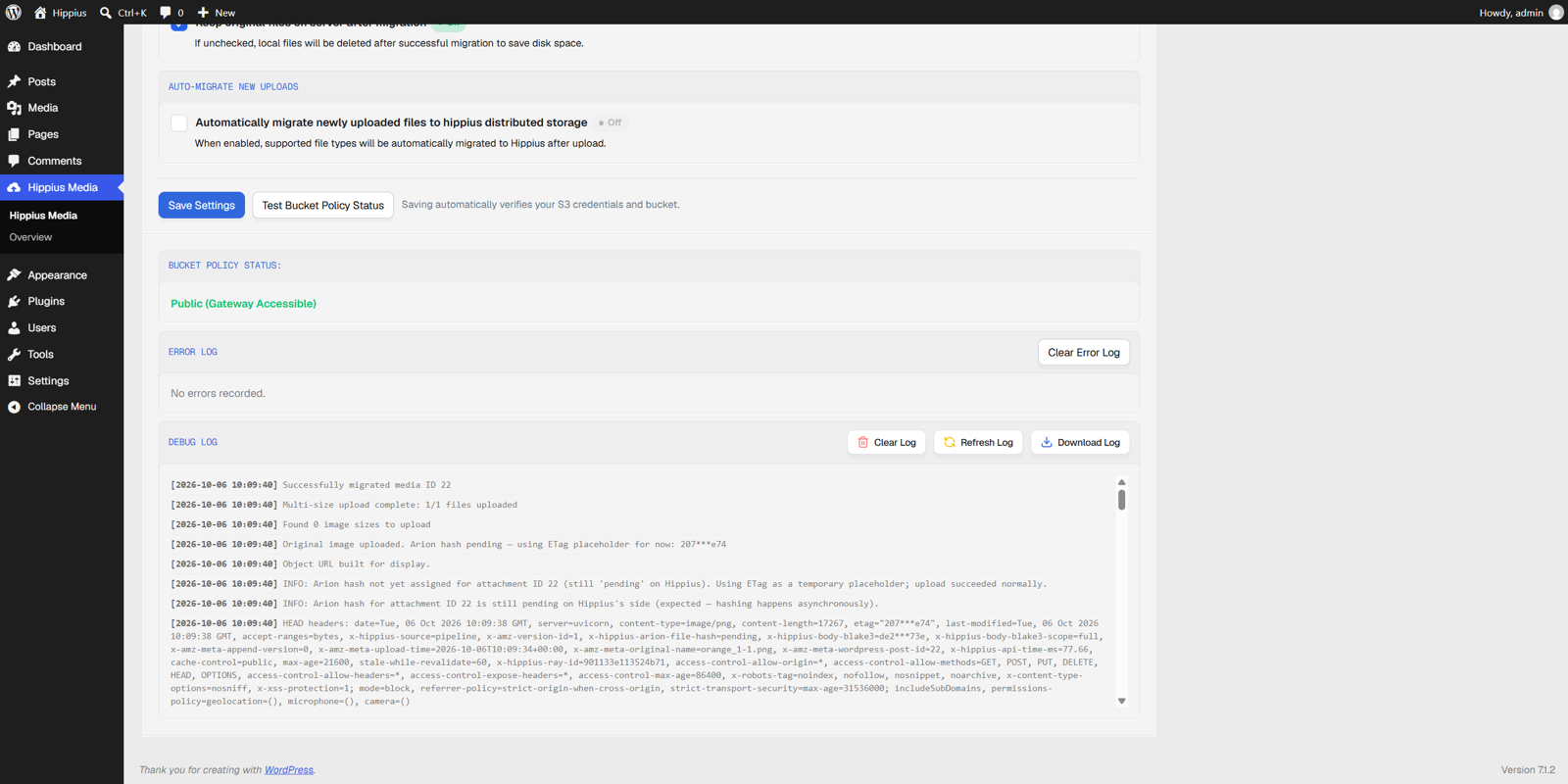
Error log and debug log for troubleshooting.
Troubleshooting
Settings won't save: access denied or authentication failed
When Save Settings can't reach your bucket, you'll see Settings were not saved because the connection check failed, followed by the reason. Your previous settings stay in place until a save succeeds. A few things to check:
- Invalid Access Key ID or Signature mismatch means a key is wrong. Re-check both, and watch for stray spaces at the start or end. If you've lost the Secret Access Key, create a new key pair in the console.
- Access denied means the keys work but aren't allowed to use that bucket. Make sure they belong to the same Hippius account as the bucket, and that the token hasn't expired or been revoked in the console.
If the message says the Access Key ID and Secret Access Key are required, fill in both. On a site that already has a saved secret, an empty Secret Access Key field keeps the saved one.
Settings won't save: the bucket doesn't exist
The message reads Bucket "your-bucket-name" does not exist or is not accessible. The plugin doesn't create buckets, so the name you entered has to match a bucket in your Hippius account exactly. Remember that the suggested wordpress-media is only a placeholder, and that an empty field falls back to it. Create your bucket in the console first, then enter its exact name in Bucket Name and save. See Create your bucket.
Settings won't save: a timeout or DNS error
Your server can't reach the Hippius endpoint.
- Make sure your host allows outbound HTTPS traffic.
- Check that S3 Endpoint is set to
https://s3.hippius.com, with no typos or extra paths. If you're not sure, clear the field and save: the plugin puts the default back. - If your host has a firewall or an outbound allow list, ask them to allow HTTPS to
s3.hippius.com, plusapi.hippius.comif you want the account balance to show.
Settings saved, but the bucket is private
You'll see Settings saved and connection verified, but the current bucket is private. Your keys work, but visitors can't load media from a private bucket. Click Make Bucket Public under Bucket Policy Status, or make it public with any S3 client. See Make sure your bucket is public.
Some files won't migrate
While a bulk migration runs, the Error Log shows the reason for each file that fails. Once the run is over, look in the Debug Log instead: each failure is recorded there in a line that starts with Failed, such as Failed to upload original image, followed by the reason. The Debug Log only keeps its last 100 entries, so check it soon after the run. The plugin already retries brief network errors on its own, so what's left usually needs a fix. The usual suspects:
- The file is too large for your server. Hippius handles big files fine, but the plugin reads each file into memory and gives each upload 60 seconds. A large video can run past PHP's
memory_limit, or time out on a slow connection. Raisingmemory_limitin your PHP config, or asking your host to, usually fixes it. - The file is corrupted or can't be read off the local disk.
- The upload hit a network timeout. Retry just that file with Migrate to Hippius in the Media Library list view, or start the bulk migration again: only files that aren't migrated yet are picked up.
- The file type isn't supported. These files show as Unsupported in the Media Library and stay local. See the file types question below.
- Your account balance ran out. If you pay as you go and your balance stays empty, S3 turns read only after 7 days, so uploads fail even though your settings still save. Top up on the Billing page in the Hippius console. See If your balance runs out.
Once you've dealt with the errors, Clear Error Log empties the list so new problems are easy to spot. To find every file that's still waiting, filter the Media Library list view to Local Only.
Bulk migration stopped partway
Bulk migration runs from your open browser tab, so closing the tab or losing your connection pauses it. Open Hippius Media again: within the hour it carries on by itself, and after that you click Start Migration and it picks up only what's left. See Keep the page open while it runs.
Migrated media doesn't show on the front-end
- Open one migrated file's Hippius URL in a private browser window. If it returns AccessDenied, the bucket isn't public. Click Make Bucket Public in the plugin, or run
aws s3api put-bucket-acl --bucket your-bucket-name --acl public-read --endpoint-url https://s3.hippius.com(see Make a bucket or object public), then reload your page. - Cached pages can still hold the old local URLs. Clear your WordPress page cache, plus any CDN cache in front of your site.
Account balance shows 0 or doesn't update
- Make sure you added your API token in the plugin settings, not just the S3 keys. The token is what lets the plugin read your account balance. Without it, the balance shows -- and the plugin tells you no API token is configured.
- If you see Credit balance request failed with status 401, or another status number, the token is wrong or no longer valid. Copy it again from Settings in the Hippius console, paste it into API Token and save.
- Click Check balance to force a refresh.
- If it really is 0, add funds to your account balance on the Billing page in the Hippius console.
Making sense of the Debug Log
The Debug Log keeps the plugin's last 100 entries, newest first: connection checks, uploads, failures and the media URLs it works out in the admin. It loads when you open the page. Refresh Log shows the latest entries, Download Log saves a copy you can share when asking for help, and Clear Log starts it fresh. The entries worth knowing:
- Lines starting with Successfully or Failed tell you how each file's upload went, with the reason when it failed.
- Arion hash pending is normal. Hippius works out each file's hash shortly after the upload, and the file is already stored.
- Exact filename match, Dimension match and Original file match mean the plugin found the Hippius copy of the image size a page asked for.
- No size match found means it couldn't find that exact image size, so it fell back to the original-size file.
- Fallback URL is the URL it served in that case.
FAQ
What is Hippius?
Hippius is a distributed cloud storage platform where every file is encrypted and split across independent machines. You get the convenience of mainstream cloud storage without having to trust any single provider.
What is Arion?
Arion is our own distributed storage engine. It uses Reed-Solomon erasure coding (10 data pieces plus 20 parity pieces, 30 in total) and the CRUSH placement algorithm. Your files rebuild even if 20 machines fail at once. See How Arion stores your data.
Do my files leave WordPress encrypted?
The connection between WordPress and Hippius runs over HTTPS. Once on Hippius, your files are encrypted at rest with envelope encryption: every chunk is encrypted under its own key, and those keys are wrapped by a key management service, so miners only ever see encrypted bytes, never your content. The plugin itself doesn't encrypt files before they leave your server, and media served on a website is public by nature anyway. For true end-to-end, client-side encryption, use the Hippius Desktop app.
Why does my bucket need to be public?
Your pages load each image straight from its Hippius URL, and visitors' browsers can't sign in to a private bucket. Making the bucket public is what lets them see your media. It's your choice, and you can do it with the plugin's Make Bucket Public button or any S3 client. Keep anything private out of that bucket.
What does it cost?
Your storage is paid from your account balance, or with an S3 plan. Downloads are free, only storage is billed. You can top up your account balance by card, Bitcoin, USDC, TAO or Hippius tokens (hAlpha). See Console Billing.
Where are my credentials stored?
Your Access Key ID, Secret Access Key and API token live in WordPress's standard options API, with admin-only access. The Secret Access Key field is masked in the UI and never exposed to JavaScript or the front-end.
Will this slow my site down?
In most cases it speeds things up. Hippius serves your files from a distributed network of machines, which takes load off your origin server and frees up your hosting bandwidth. The plugin isn't a CDN, though, so for a global audience you can still put one in front of Hippius.
What happens to my existing media?
Nothing, until you choose to migrate it. You can bulk-migrate everything at once, or just switch on auto migration for new uploads and leave your older files where they are.
Can I close the tab while a bulk migration runs?
It's better not to. Bulk migration is driven by the open plugin page, so closing the tab pauses it. Nothing is lost: reopen Hippius Media and it carries on, or click Start Migration to pick up the remaining files. Auto migration of new uploads is different: it runs in the background and needs no open page.
Can I stop a migration and finish it later?
Yes. Click Stop Migration and it stops. When you start again, only the files that aren't migrated yet are picked up, and nothing already uploaded is repeated. The progress counter restarts for the remaining files.
Can I go back to local storage?
If you kept local copies during migration, deactivating the plugin puts WordPress back to serving from wp-content/uploads. There's no automatic reverse migration that pulls your files back down from Hippius, so keep local copies if you want an easy way back. Deleting the plugin also removes its settings and its record of which files were migrated. Your files stay in your Hippius bucket until you delete them there.
What happens if I delete a file from the Media Library?
The plugin deletes its copy from your Hippius bucket too, including every image size, so your bucket doesn't fill up with files your site no longer uses.
What if migration fails for some files?
The plugin records every failure with its reason: in the Error Log while a bulk migration runs, and in the Debug Log afterwards. Fix the cause, then retry. To retry one file, use Migrate to Hippius on it in the Media Library list view. To retry everything that's left, start the bulk migration again: it only picks up the files that didn't make it.
Does it support all WordPress file types?
It supports the media types sites use day to day:
- Images: JPEG, PNG, GIF, WebP, HEIC, SVG, BMP and ICO.
- Video: MP4, M4V, MOV, AVI, WMV, MPEG, OGG and 3GP.
- Audio: MP3, M4A, OGG, WAV and WMA.
- Documents: PDF, Word, Excel, PowerPoint, Keynote, OpenDocument text, RTF, Photoshop, plain text, CSV and calendar files.
- Archives: ZIP.
Anything else stays on your server and shows as Unsupported in the Media Library's Hippius Status column. The list is built into the plugin, so there's currently no setting or filter to add more types.
Can I use more than one bucket?
The plugin uses one bucket per site. You can switch to a different bucket in the settings, and the plugin uses the new one from then on, while files already migrated keep loading from the bucket they went to. If you need several buckets side by side, say to separate content types, run a WordPress site per bucket.
Support & resources
Plugin support
- WordPress.org forum: wordpress.org/support/plugin/hippius-media-offloader
Hippius documentation
- S3 compatibility: supported S3 operations
- Public buckets and ACLs: Make a bucket or object public
- How storage works on Arion: How Arion stores your data
Hippius console
- Account, keys and buckets: console.hippius.com
- Billing page, to top up your account balance: Console Billing
Community
- Community forum: community.hippius.com