Find and Manage Your Captures
Everything you capture is kept in your Hippius Drive, and the extension's popup is the quickest way back to it.
Find a capture
Click the Hippius button to see everything you've captured, newest first and grouped by day, including captures from the Hippius desktop app and the console. Filter by recordings or screenshots, or search by name or time: "recording at 3:46" finds that recording. Each capture is named after the moment you took it, such as Recording 2026-10-22 at 15.46.24.mp4.
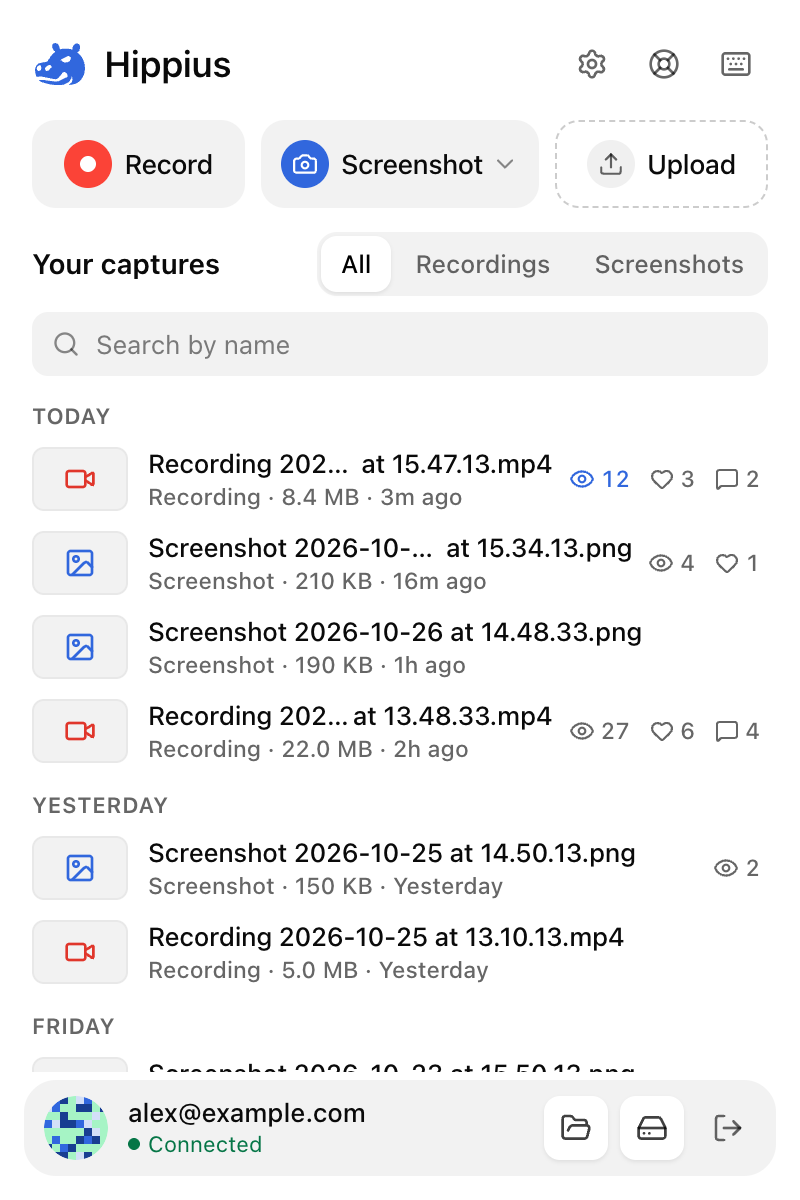
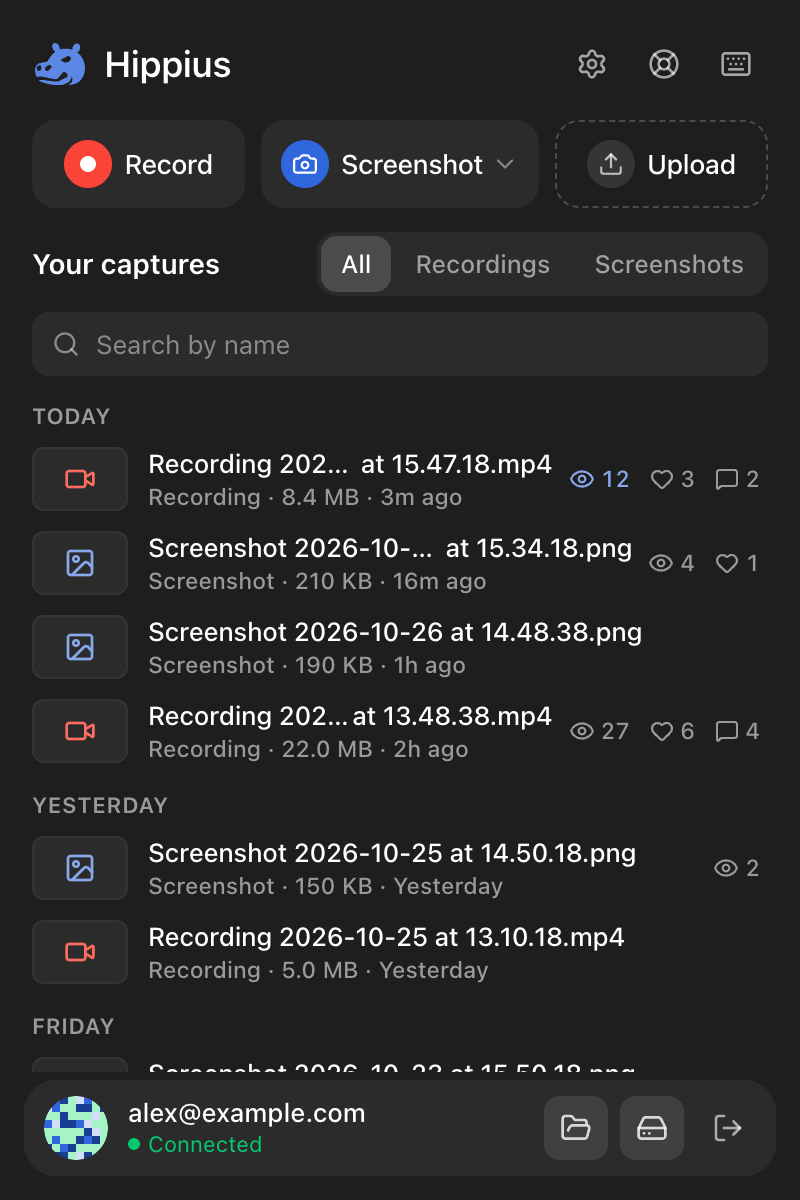
Click a capture to open it in the console. Hover over it to copy its link, and use the three-dot menu to see its insights, edit a screenshot, download a copy, or delete it.
At the bottom of the popup, next to your account, are shortcuts to Captures and to your Drive in the console.
Share a file you already have
Click Upload in the popup and pick a file from your computer. It's encrypted and saved to your captures drive like a capture, and its link is copied for you.
Where your captures live
Your captures are files in your captures drive, a drive in your Hippius Drive that holds only screenshots and recordings. The capture bar and the console call it Hippius Captures. The extension, the console and the Hippius desktop app all save to the same one, so a recording you made in your browser at work shows up on your laptop at home, and the other way round.
To see your captures outside the extension, sign in at console.hippius.com and open Captures in the sidebar, under Drive. You can also open the captures drive itself, next to your other drives. A capture is an ordinary file there, so you can rename, move, download or share it like any other. Screenshots & Recording covers the other apps that capture.
Delete a capture
A share link keeps its own encrypted copy of the file, so on its own it would keep working after the file is deleted. To avoid that, Delete from Drive first turns off the links this browser made for the capture, then deletes it. The confirmation says so.
Links made somewhere else, in the console, the desktop app or another browser, stay on, because Hippius can't be sure they point to this file. The popup tells you how many there are and offers to turn them off too, and asks once more before it does.
On the Free plan, deleting a recording gives you one of your 25 recordings back straight away.
If a capture isn't saved yet
Nothing is lost when a capture can't be saved straight away. It stays in your browser and sits at the top of the popup's list under Not saved yet, with a short note on why it's waiting: it's waiting for you to connect, it's waiting to save, it couldn't upload, or it's saved and only its link is missing.
Hippius tries again by itself when your connection comes back and whenever you open the popup. To deal with one yourself, click Retry on its row (Save if it hasn't been tried yet). That opens its capture card, which offers the right next step:
- Retry when you were offline or Hippius couldn't be reached.
- Connect account when you're not connected, for example after a browser restart. Once you've connected, the capture saves.
- Upgrade and Retry when your Drive is full, or your account has no plan. Make room or pick a plan, then click Retry.
- Create link when the file reached your Drive and only the link is missing.
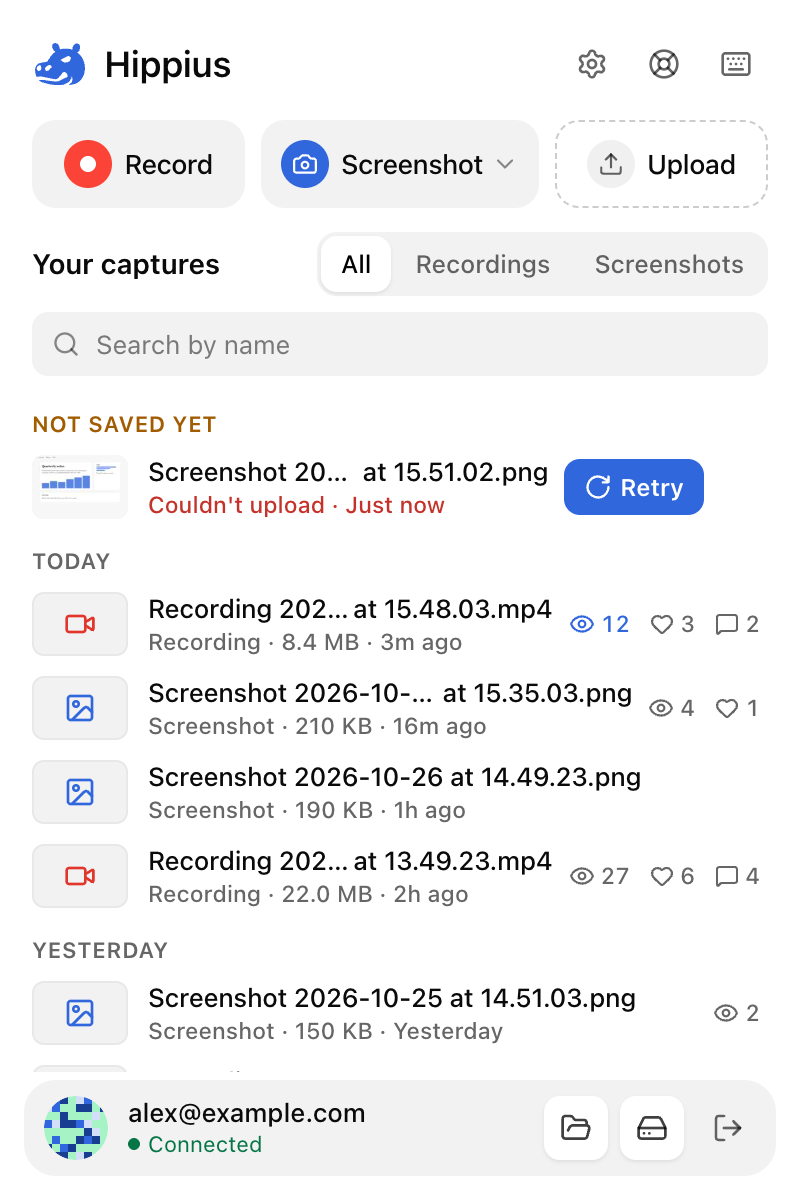
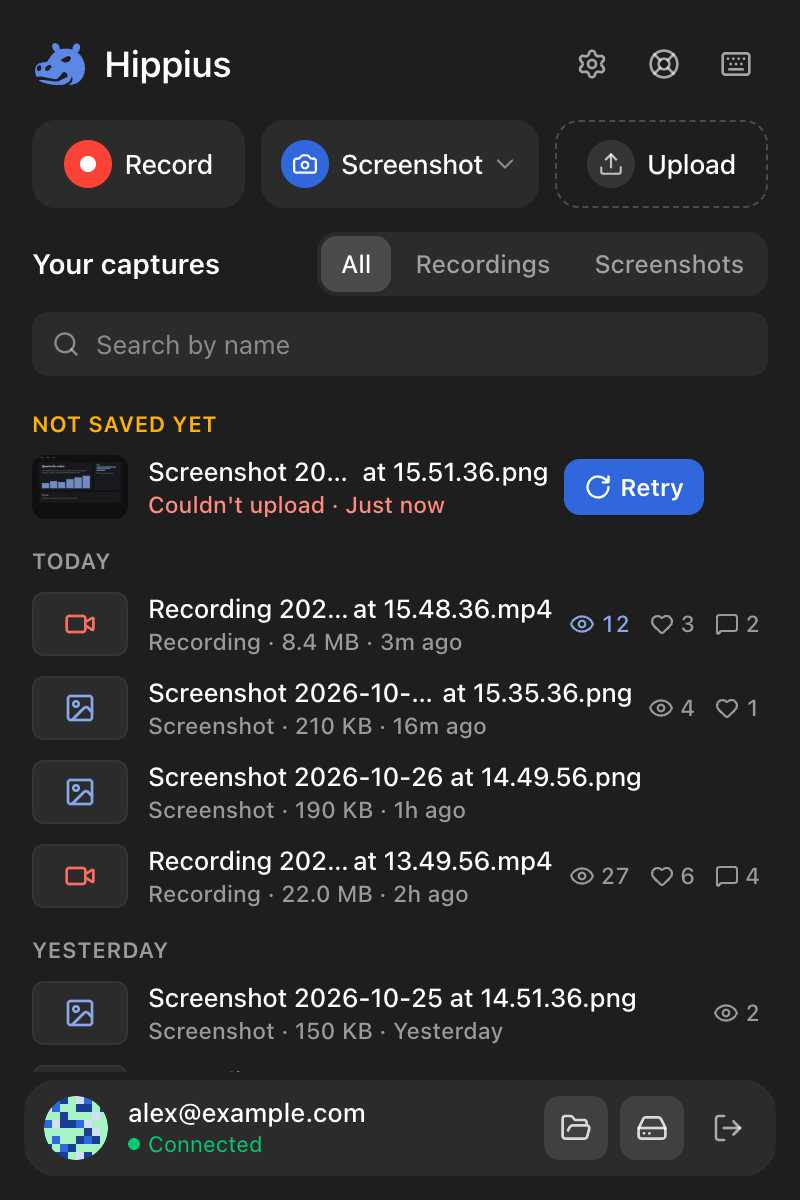
A capture taken while you were connected is encrypted from the start, and it only ever uploads to the account that took it, so it never ends up in someone else's Drive. A capture taken while you weren't connected waits unencrypted until you connect (why).
Settings
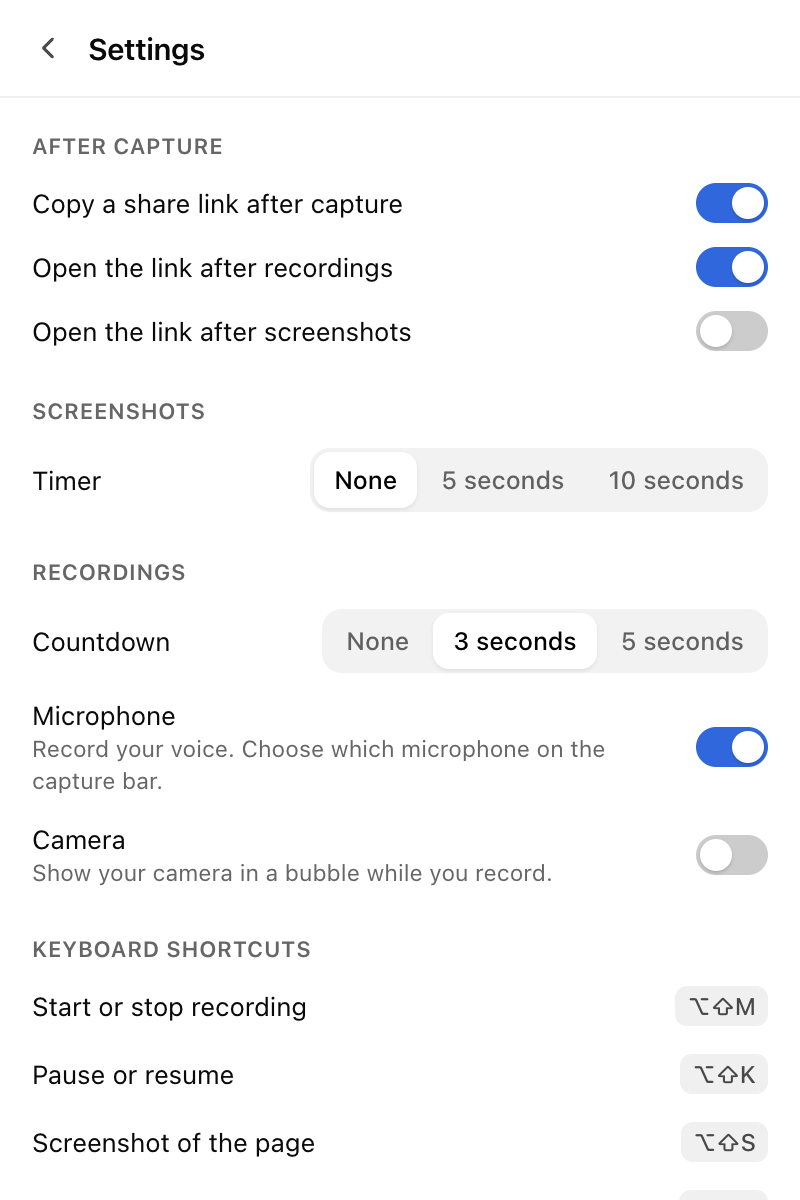
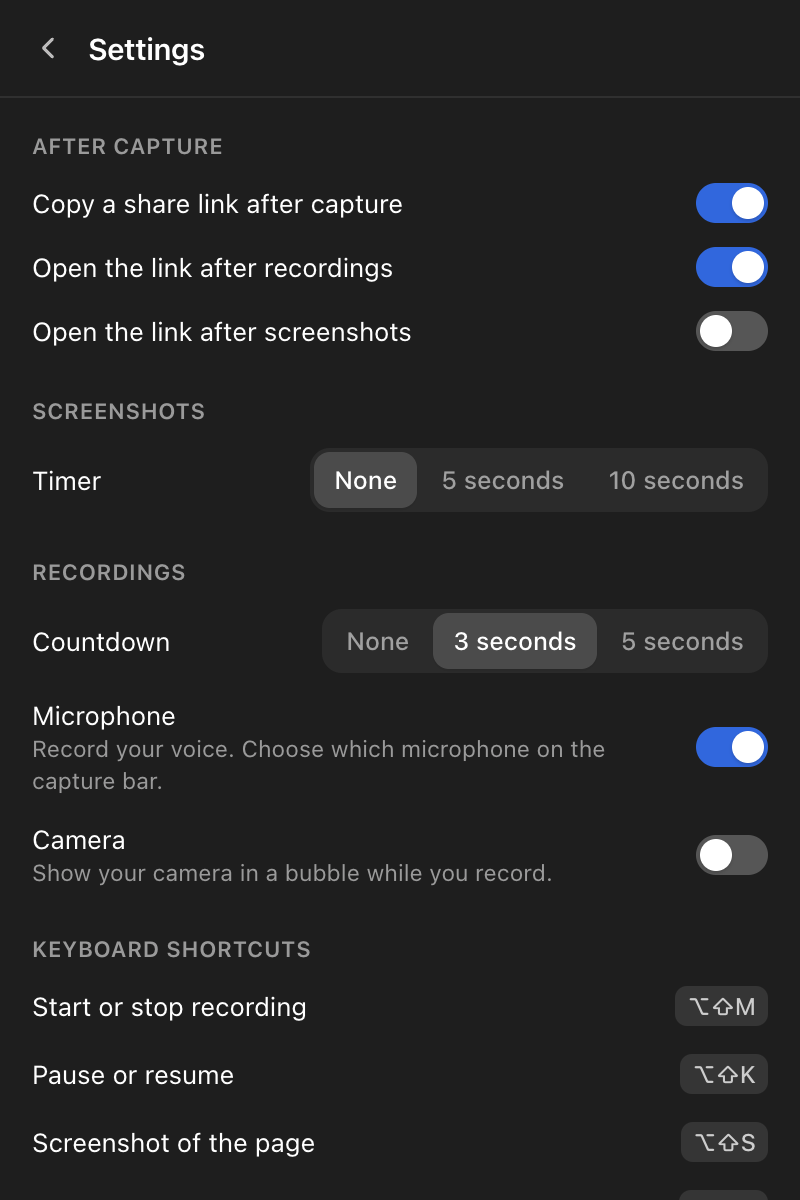
Settings decide what happens after each capture. By default, the link is copied, recordings open in a new tab, and screenshots don't. Click the gear at the top of the popup to change them. They're the same settings as Options on the capture bar, and they're kept in this browser.
- After capture: whether to copy a share link, whether to open the link after recordings, and whether to open it after screenshots.
- Screenshots: the timer.
- Recordings: the countdown, and whether to use the microphone and the camera.
- Keyboard shortcuts, with Set for any that have no keys.
- Account, with Disconnect.
Next
Capture often? Keyboard Shortcuts saves you a trip to the popup. Running low on recordings or space? Plans and Limits explains what each plan includes. Something not working? Troubleshooting.