Record Your Screen with the Extension
A short recording often says more than a long message: walk a teammate through a page, show a bug as it happens, or explain a design while you point at it. The extension records what you choose, with your voice and your face if you want them, and gives you a link to the video as soon as you stop.
Open the capture bar
Click Record in the popup, or press Alt Shift M (Option Shift M on a Mac). The capture bar opens at the bottom of the page. It remembers your choices, so next time the shortcut starts recording straight away with the same setup.
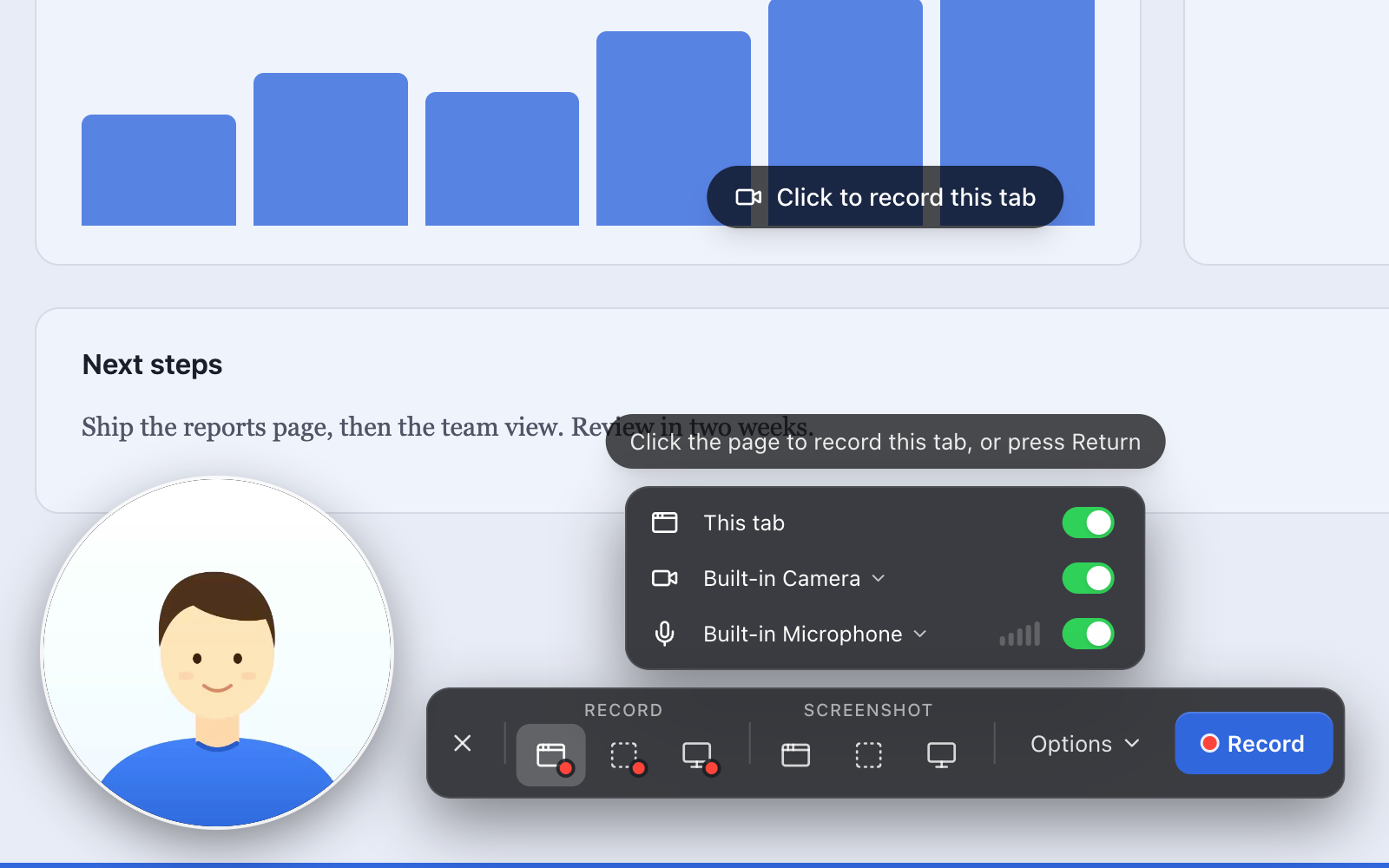
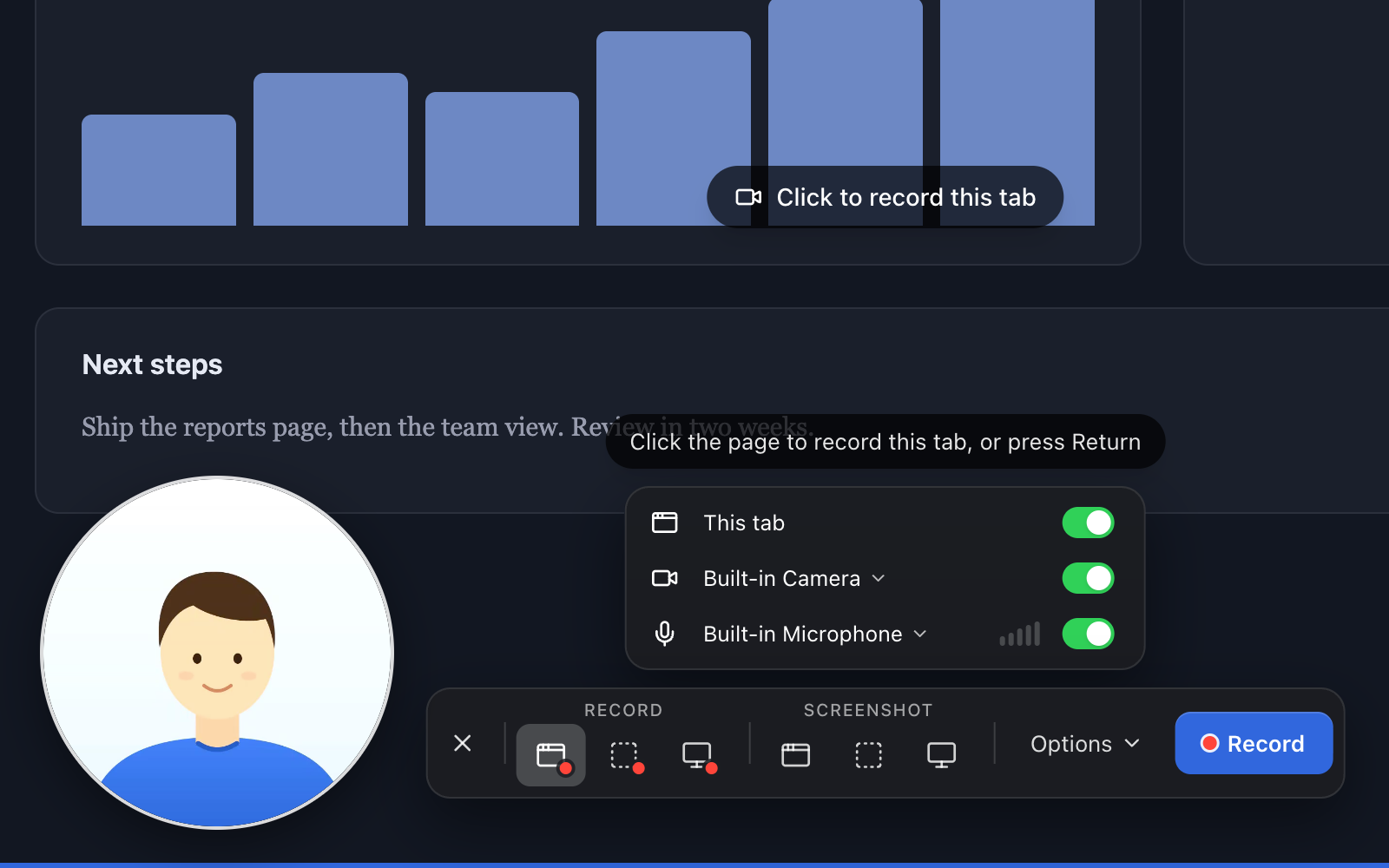
Choose what to record
Most of the time, choose This tab. It records only the page you're on, so notifications, other windows and the recording controls never end up in the video, and your camera bubble is recorded right where you put it on the page.
The other choices are for when you need more than one tab:
- Area records a part of your screen that you draw, other windows and apps included. Your camera is always in the video, inside the area.
- Screen records a whole screen, one window or another tab, which you pick in your browser's sharing dialog.
For a quick video message, record just your camera: turn off the mode row (This tab, Area or Screen) and keep the camera on.
Your camera with Screen
With Screen, your camera floats in a small window of its own above every tab and app, so you can see yourself while you switch windows. Because it's a separate window, it's only in the video when you share your entire screen. If you share one window or a tab, you'll still see the bubble, but the video won't have it. The bar reminds you of this when the camera is on.
To have your face in the video while you show just part of your screen:
- For a single tab, use This tab. The bubble is drawn in the page, so it's recorded.
- For a single window or app, use Area and draw the area around that window. Your camera is drawn into the video inside the area, wherever you place it. Anything that moves into that part of the screen is recorded too, so keep other windows clear of it.
Your microphone and camera
Turn your microphone and camera on or off, and pick which ones to use if you have more than one. The microphone shows a live level, so you can see it hears you before you start. With the camera on, a round camera bubble appears on the page. Drag it anywhere, and hover over it to make it small, large or full size.
The first time, your browser asks you to allow them for Hippius (why you only allow them once).
Options
Options on the bar sets the countdown before recording starts (none, 3 or 5 seconds) and what happens when you stop: whether to copy the link, and whether to open it in a new tab so you can check it.
Some pages can't show the capture bar, such as your browser's own settings pages. There, the popup lets you set up a recording right inside it instead.
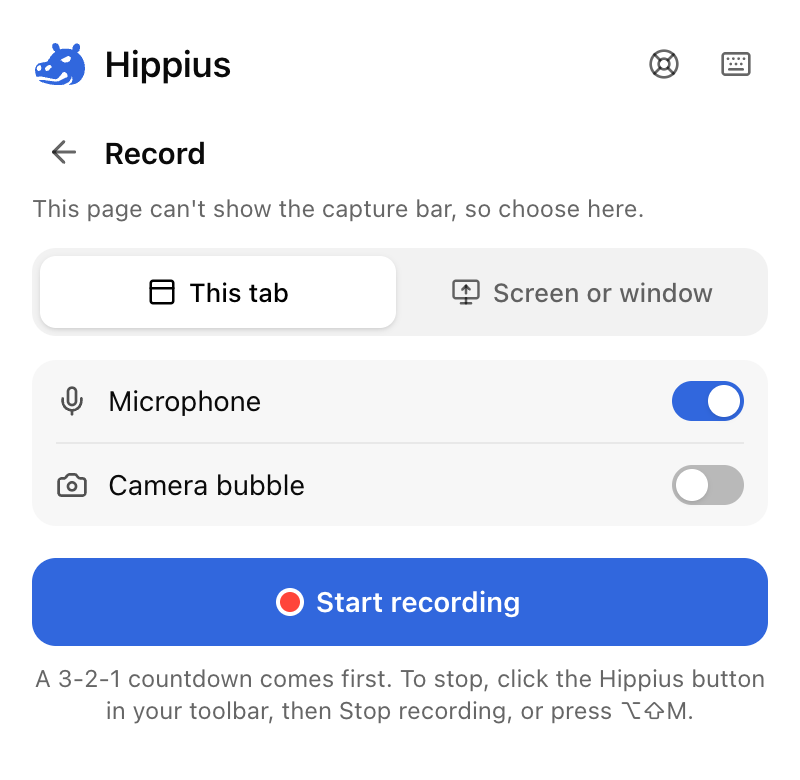
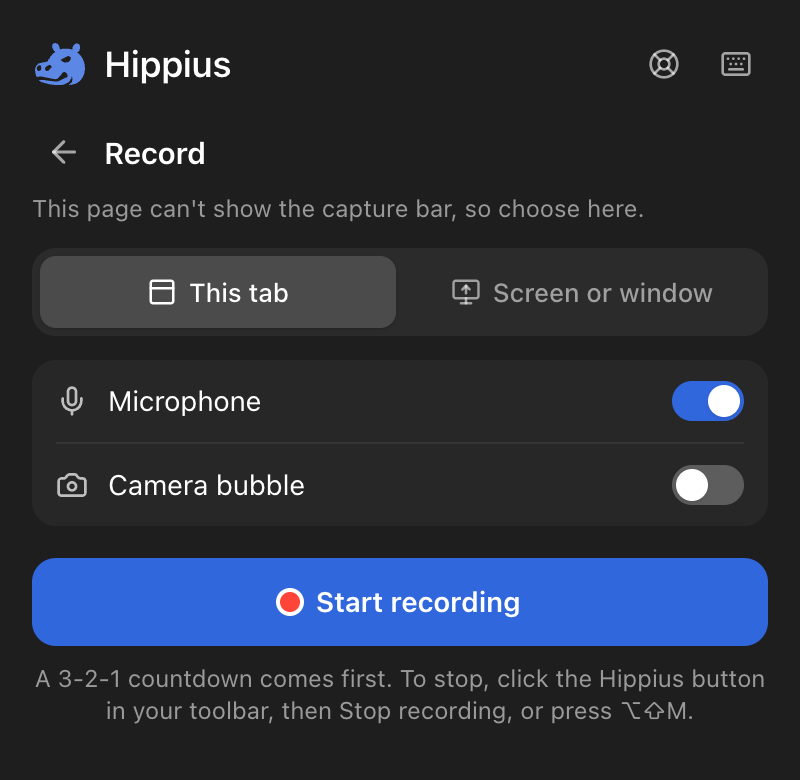
Start recording
Click Record on the bar, or press Enter (Return on a Mac). For This tab, you can also just click the page.
Hippius opens the Hippius tab next to yours, with a single button to click. Why the extra tab and the extra click? Browsers only let an extension open a floating window, like your camera bubble over other apps, from a click on the extension's own page, and this is that click.
- Start recording for this tab or your camera alone. Click it and you're back on your tab, where the countdown starts.
- Choose what to share for a screen, a window or an area. Click it, pick what to share in your browser's dialog, and click Share. To record the sound of a tab, such as a video playing in it, turn on Also share tab audio in that dialog. You're taken straight back to your tab, where the countdown starts.
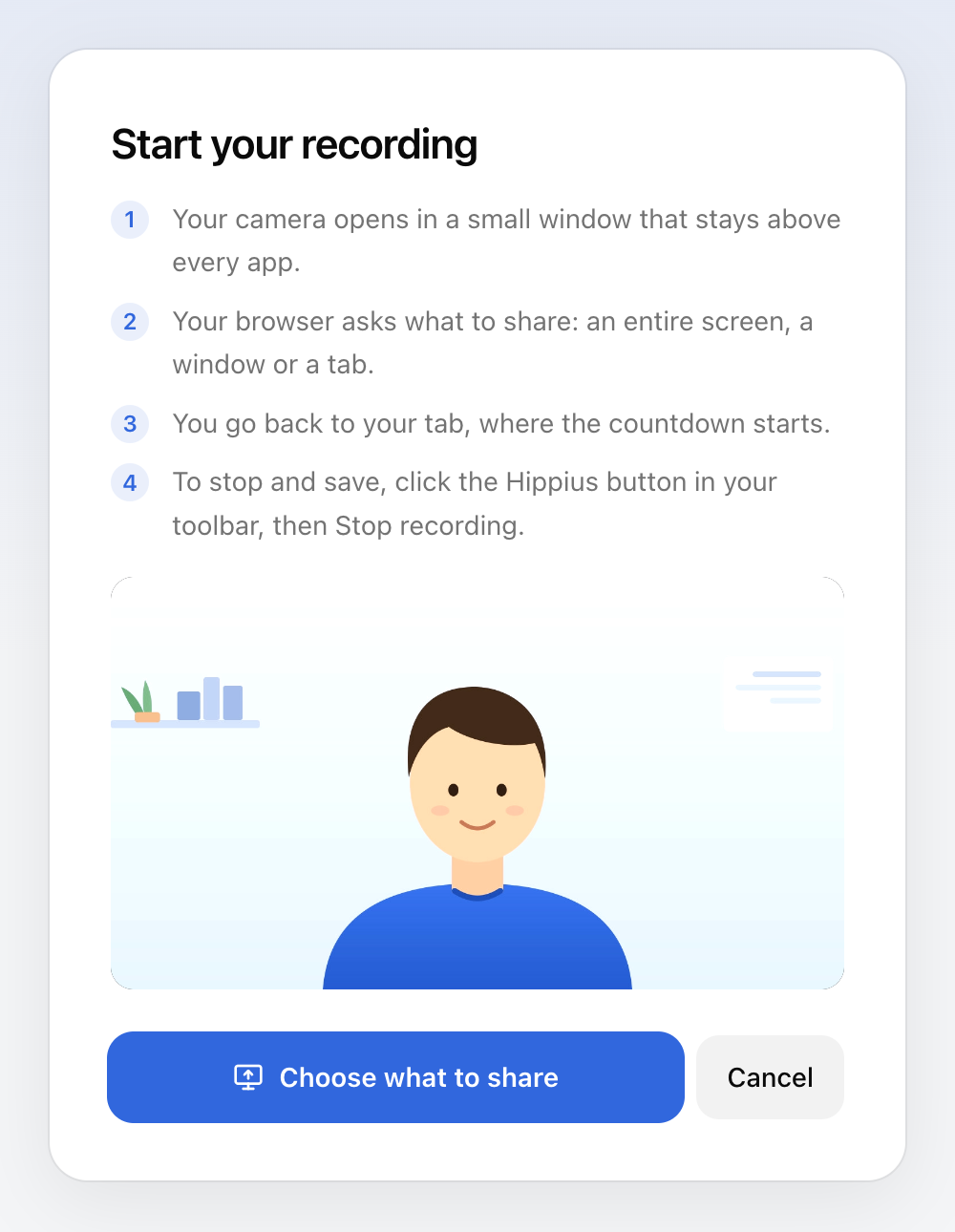
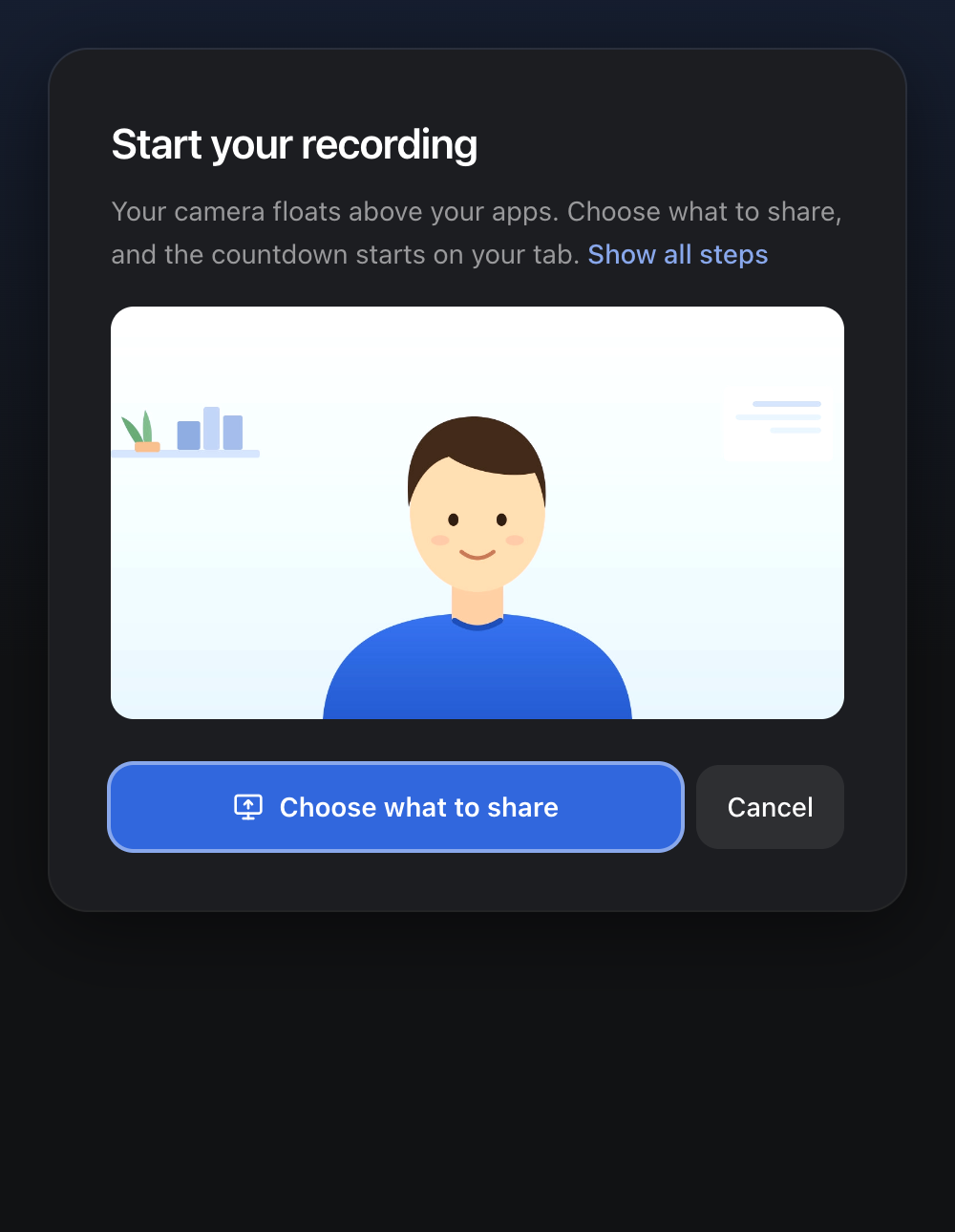
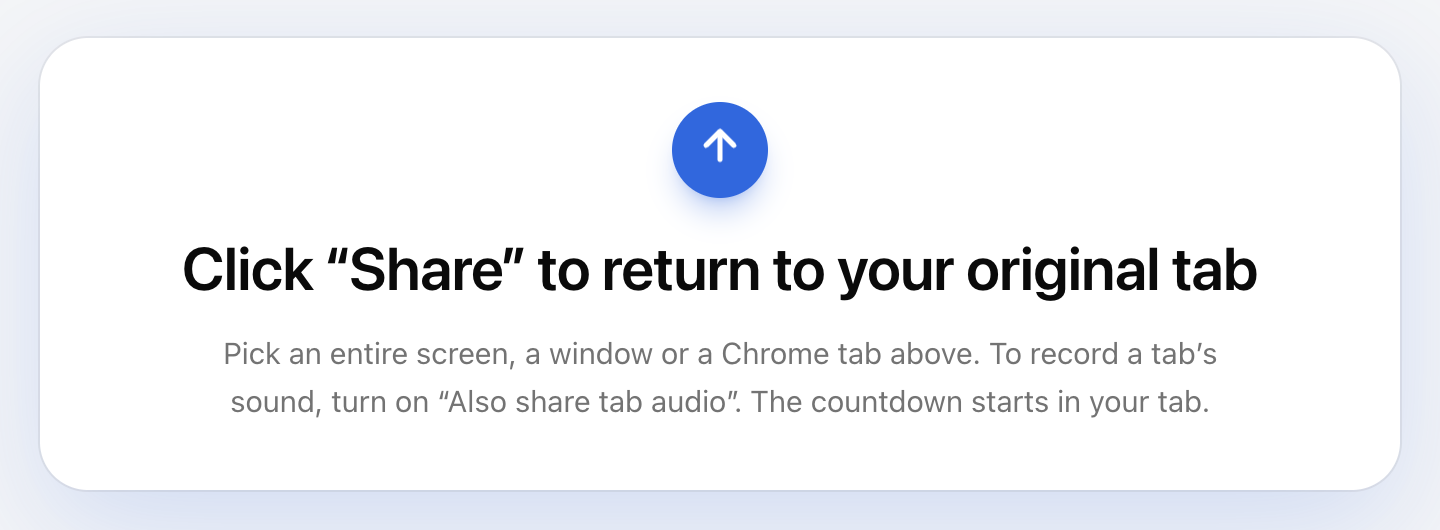
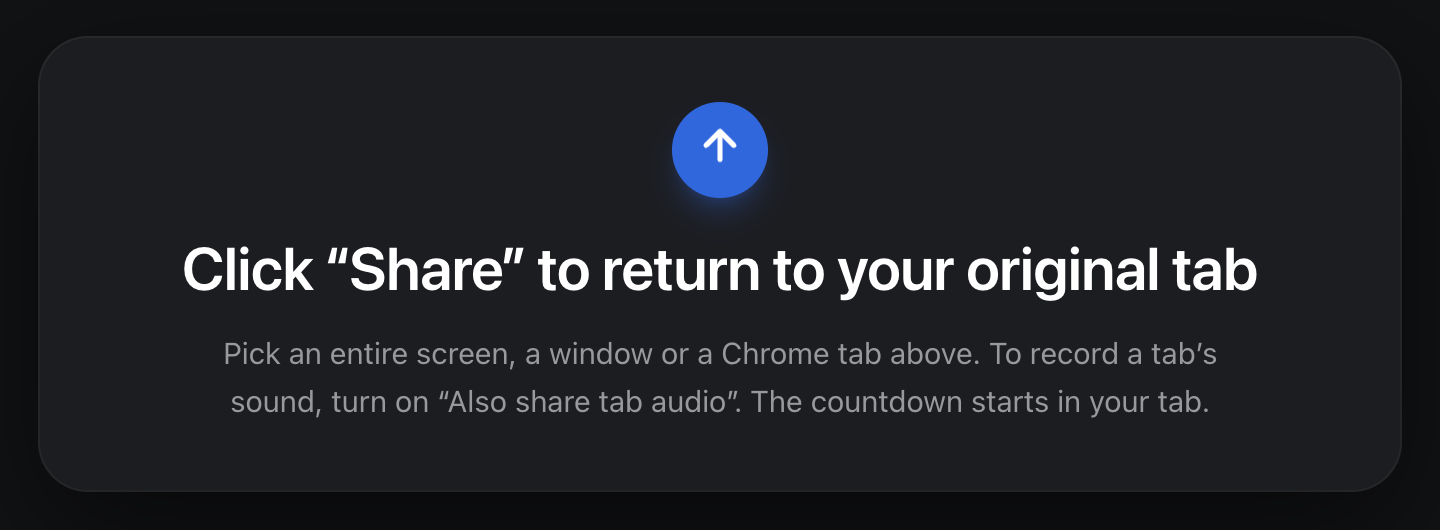
Keep the Hippius tab open until you stop. It holds the recording, which is why it stays pinned while you record.
Record an area
With Area, after you share your screen Hippius shows a picture of it so you can draw the area. Drag the area out, move it, and nudge it with the arrow keys. Press Enter (Return on a Mac) to record, or Esc to cancel. Your last area is drawn again next time.
Everything inside the area is recorded, other windows and apps too, so you can switch apps and keep recording that part of the screen.
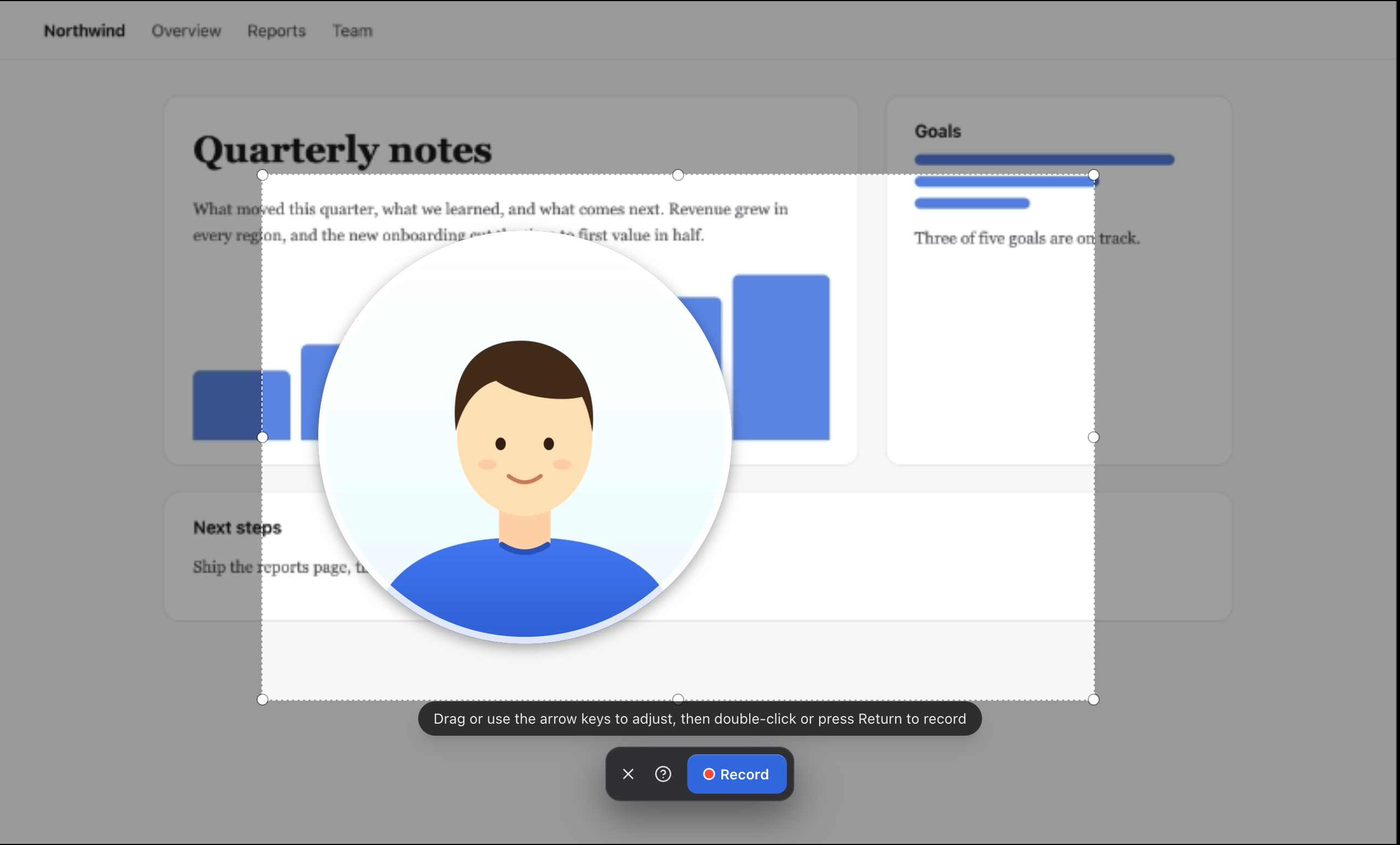
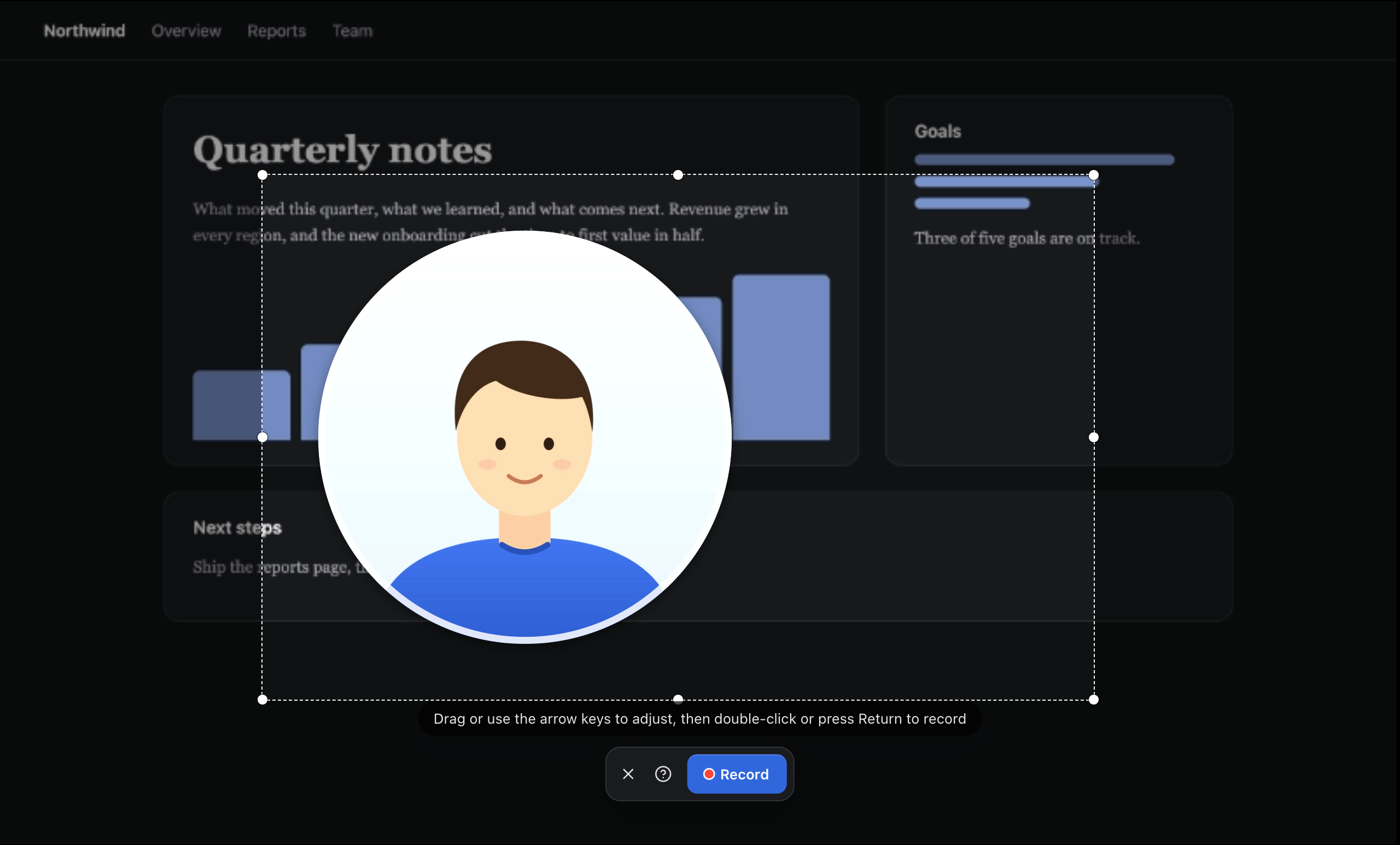
With the camera on, place it inside the area on that picture. It's drawn into the video exactly there, so it's always in the recording however your windows are arranged.
While you record
A short countdown runs first. Click it, or press Enter (Return on a Mac), to start straight away. Then the recording controls appear, with the time and everything you need to mute, hide your camera, pause, start over or stop.
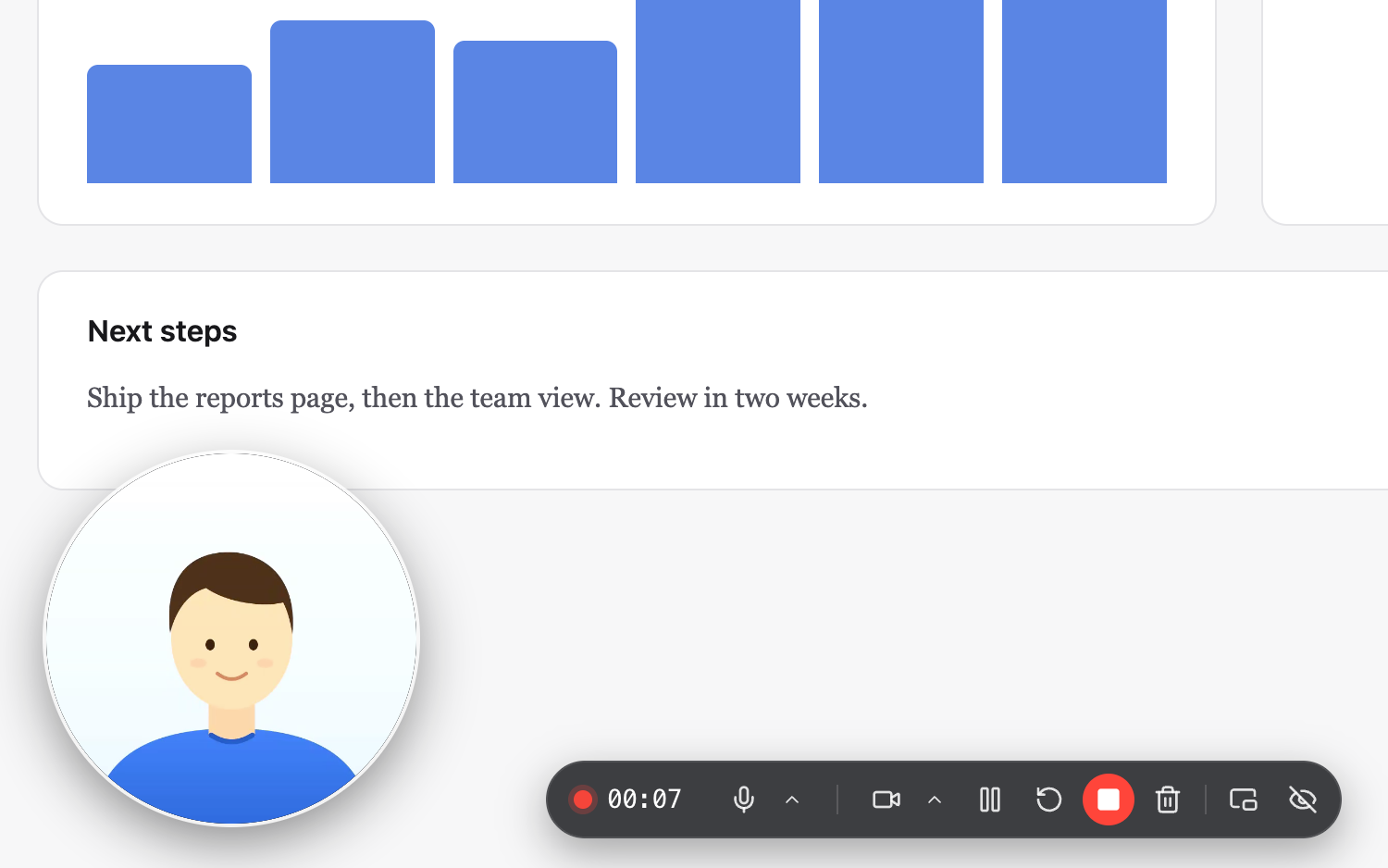
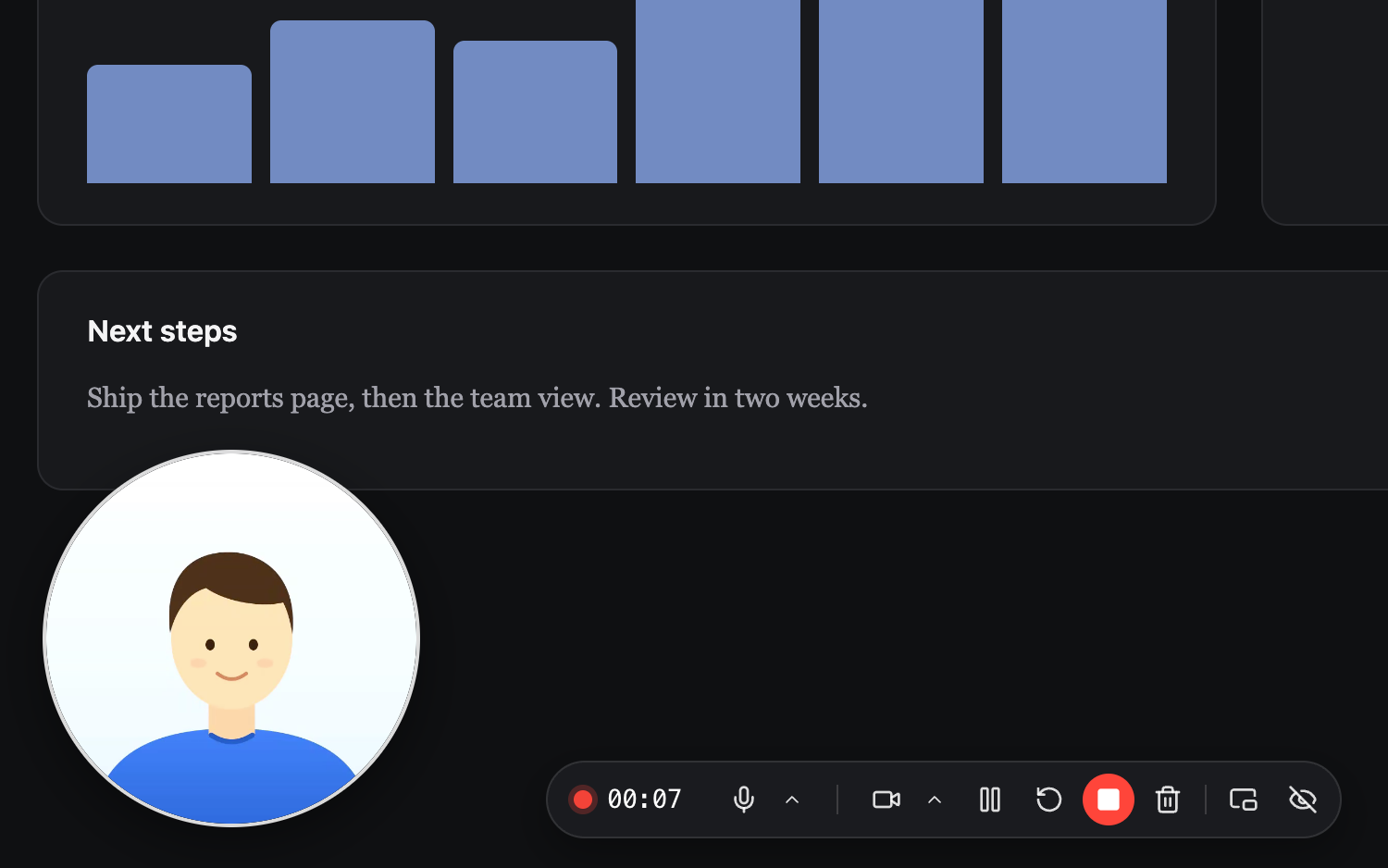
When the camera floats in its own window, move it by dragging and resize it from its edges. Hover over it to mute or hide the camera.
Pause, start over or stop
Pause and resume as often as you like, with the controls or Alt Shift K (Option Shift K on a Mac). Paused time is left out of the video, so you can stop to think without editing anything out later.
Fluffed a line? Restart starts the take again, and Discard throws it away. Both ask first once you've recorded more than 5 seconds, so a misclick never costs you a take.
Stop saves the recording. Stop from the controls, by pressing Alt Shift M again, or from the Hippius button in your toolbar: click it, then Stop recording.
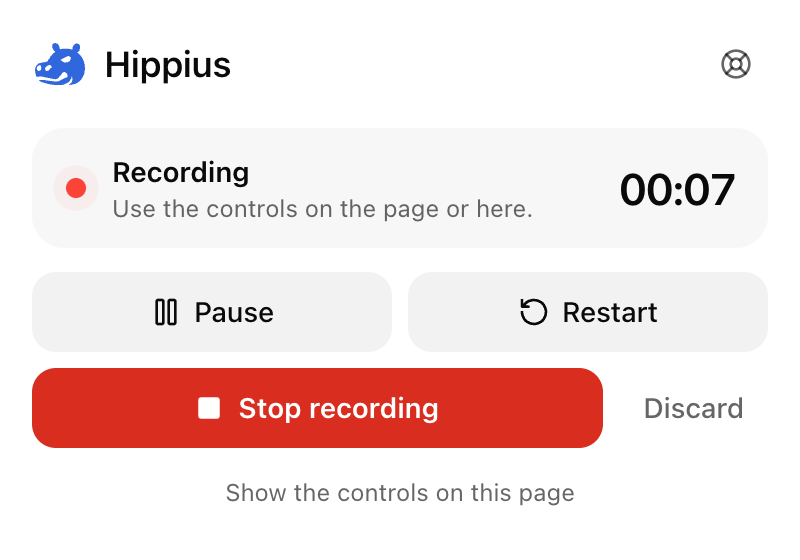
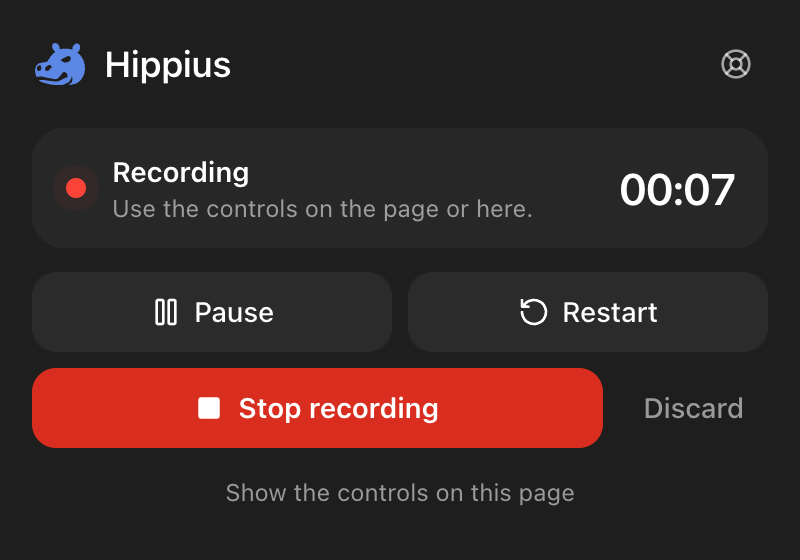
This tab never shows the controls in the video. Area with the camera off shows nothing extra either; stop with Alt Shift M or the Hippius button. If you'd rather have the controls on screen, turn on Float the recording controls in the Hippius tab and keep them outside the area. A whole screen includes the small folded controls; share a single window instead if that matters.
On the Free plan a recording stops on its own at 5 minutes, and the timer counts down the last minute. Paused time doesn't count. See Plans and Limits.
When you stop
A small card in the corner shows Hippius encrypting and saving the recording. When it's done, the link is on your clipboard and the recording opens in a new tab so you can watch it back (you can turn that off in Settings). When your link is ready explains the card.
If something goes wrong, your recording is safe
The recording is written to your computer as you record, a second at a time, so if your browser closes in the middle of one, what you recorded until then is kept. If it can't be saved straight away, for example because you're offline, it waits in your browser until it can. See If a capture isn't saved yet.
Next
Your video's link is on your clipboard. Share a Link and See Who Watched shows who can open it and how to see who watched.