Keyboard Shortcuts
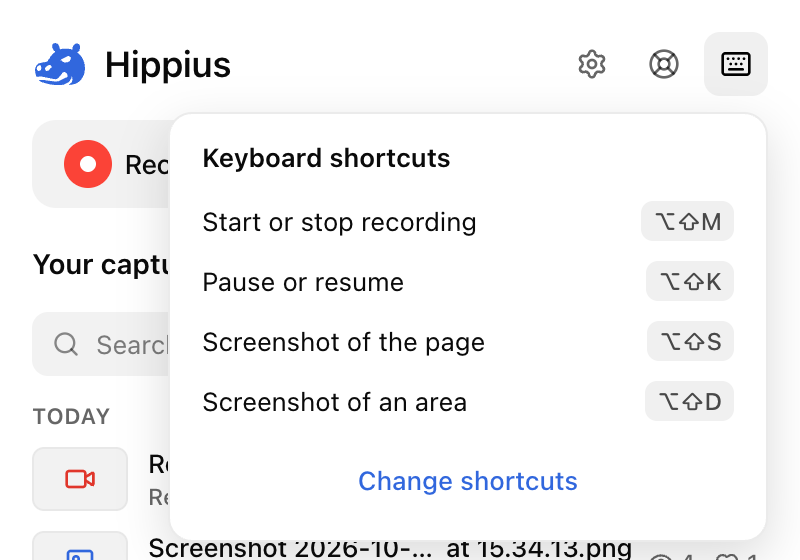
Once you capture often, shortcuts save you a trip to the popup. There are four, one to start and stop a recording, one to pause it, and two for screenshots.
The shortcuts
| Shortcut | On a Mac | What it does |
|---|---|---|
| Alt Shift M | Option Shift M | Start recording with your last setup; press again to stop. The first time, it opens the capture bar so you can choose what to record. |
| Alt Shift K | Option Shift K | Pause or resume the recording |
| Alt Shift S | Option Shift S | Screenshot of the visible page |
| Alt Shift D | Option Shift D | Screenshot of an area you drag out |
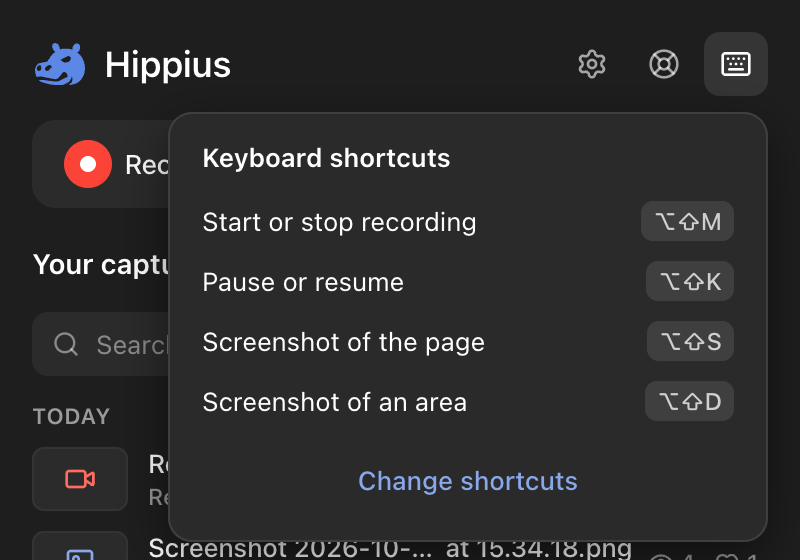
To check which keys each one has right now, click the keyboard button at the top of the popup.
When a shortcut has no keys
Your browser, not Hippius, decides which keys an extension gets. It hands them out when the extension is installed, and it skips any key that another extension already uses, so a shortcut can arrive with no keys at all. Wherever Hippius lists its shortcuts, one without keys has a Set button that takes you to the page below.
Change a shortcut
- Click Change shortcuts in the keyboard panel in the popup, or type
chrome://extensions/shortcutsinto the address bar (edge://extensions/shortcutsin Edge). - Find Hippius and click the pencil next to the shortcut.
- Press the keys you want. They need Ctrl or Alt (Command or Option on a Mac).
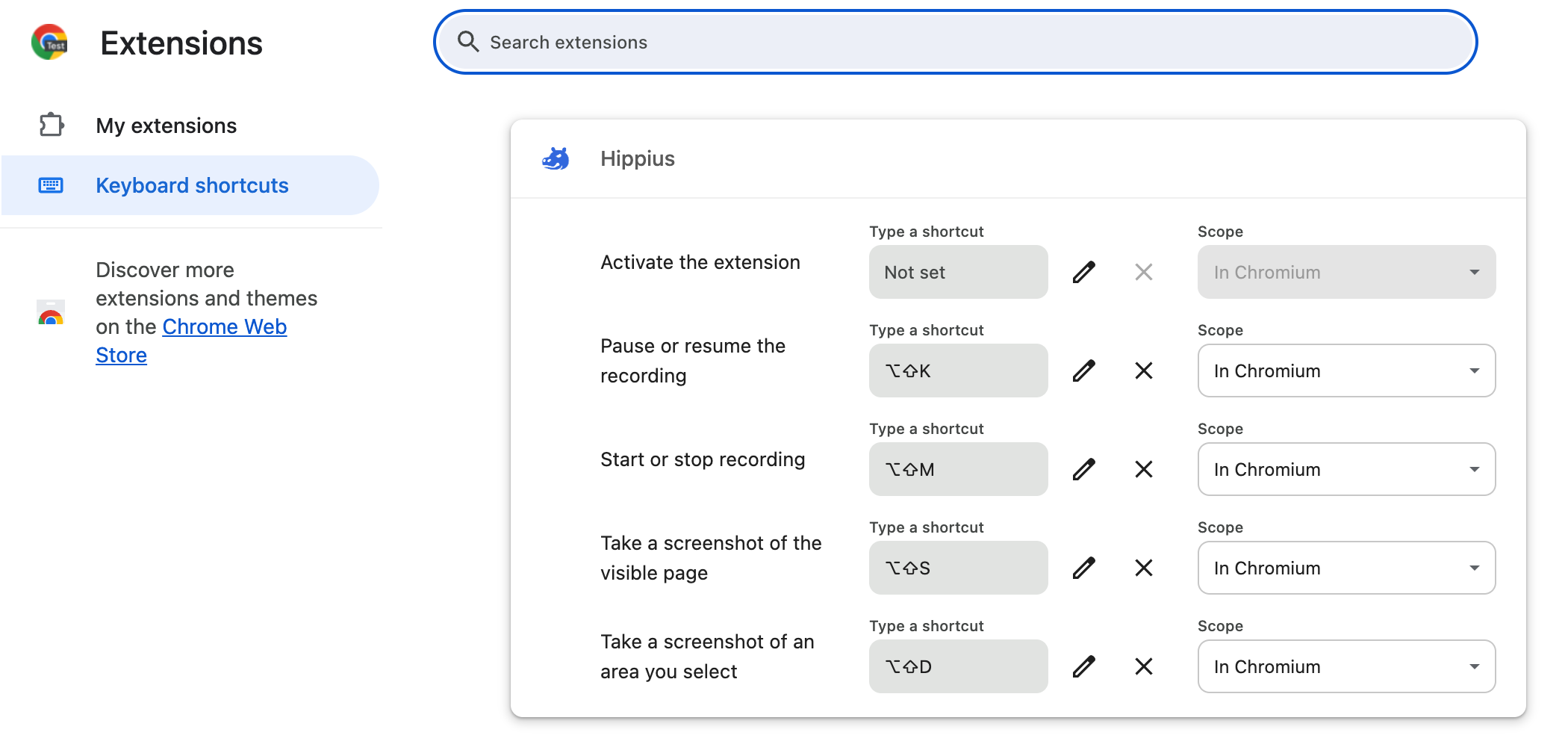
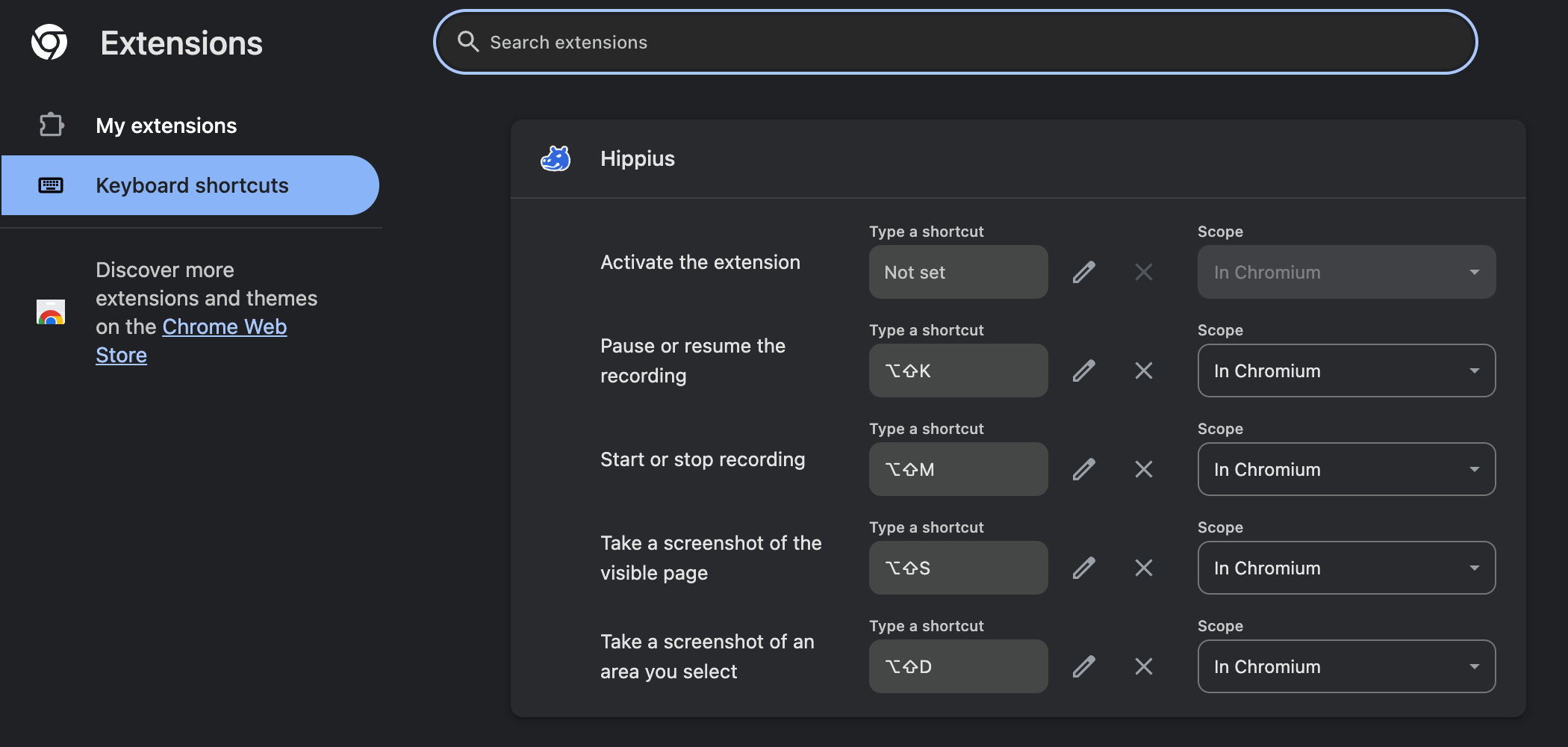
On the same page you can add a key that opens the Hippius popup (Activate the extension), and choose whether each shortcut works only in the browser or everywhere on your computer.
Earlier versions used Alt Shift R, P and A. Chrome keeps those keys for itself on Windows and Linux, so they never reached Hippius there. When the extension updates, it moves to the keys in the table above, unless you had set your own, which stay as they are.
Next
Shortcuts start captures; Settings decide what happens after them, like whether the link opens in a new tab.