Share a Link and See Who Watched
Every capture comes with a link, so sharing is a paste away. The person on the other end opens it in their browser and sees your screenshot or plays your recording, with no account and nothing to install.
When your link is ready
When you take a screenshot or stop a recording, a small card opens in the corner of your screen. It shows Hippius encrypting the capture and saving it to your captures drive, and then it tells you the link is on your clipboard. The card calls it a public link, because anyone who has it can open the capture. Paste it into a chat, an email or a ticket.
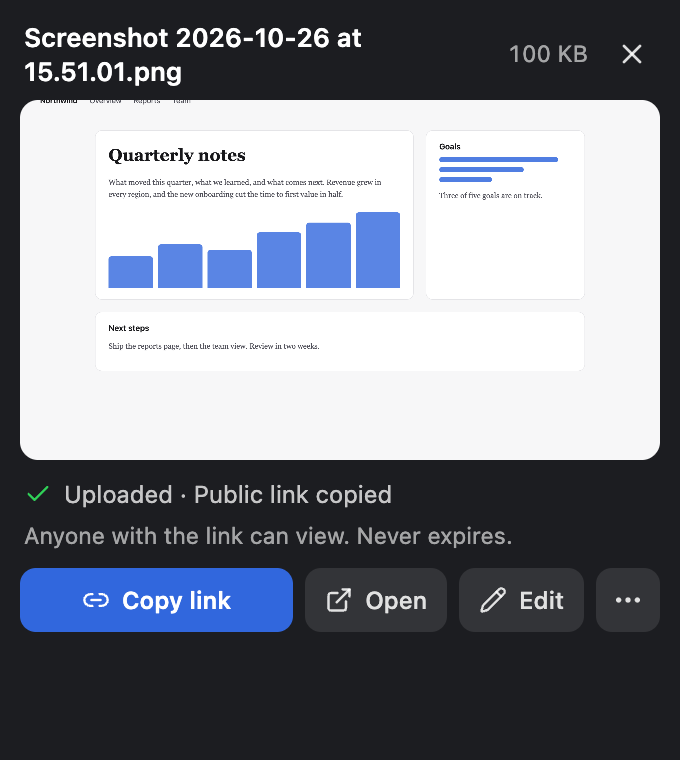
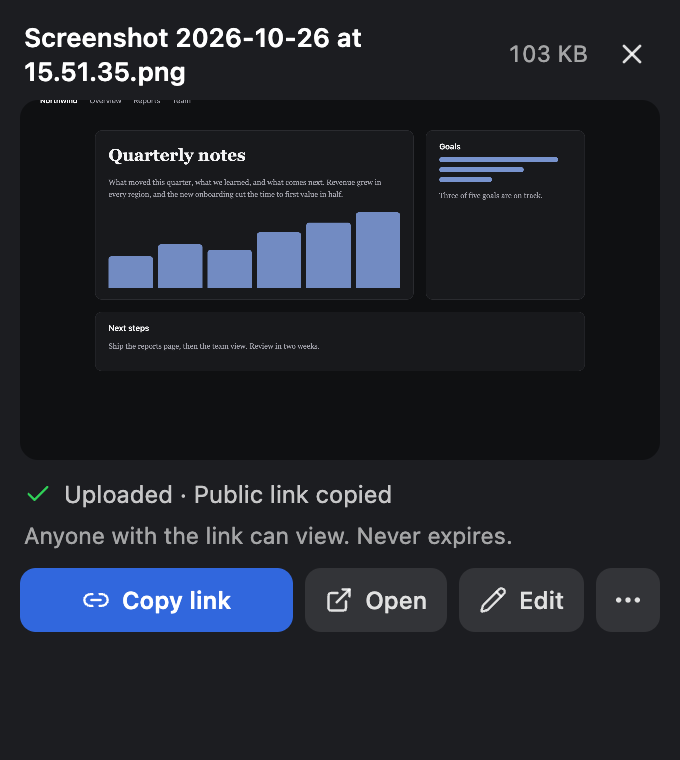
The card also lets you open the capture, copy the link again, or, for a screenshot, edit it in the console's editor before you send it. Download and Discard are in its menu. Once everything is saved, it closes by itself after a few seconds; hover over it to keep it open.
After a recording, the link also opens in a new tab so you can check it. In Settings you can choose whether the link is copied, and whether it opens after recordings and after screenshots.
Who can open a link, and for how long
- Treat the link like the capture itself. Anyone with the link can view the capture in their browser, without a Hippius account or anything to install. Send it only to people you'd show the capture to.
- It keeps working until you turn it off. From then on, nobody can open it. Turn a link off shows how.
- It carries its own key. The part after the
#is what unlocks the capture, and it never reaches us. Someone with only the part before the#can't open the capture. How your captures are protected explains why.
Sending something sensitive, or only for this week? Make a second link with an expiry or a password in the console. Share links for captures explains how.
Copy a link again
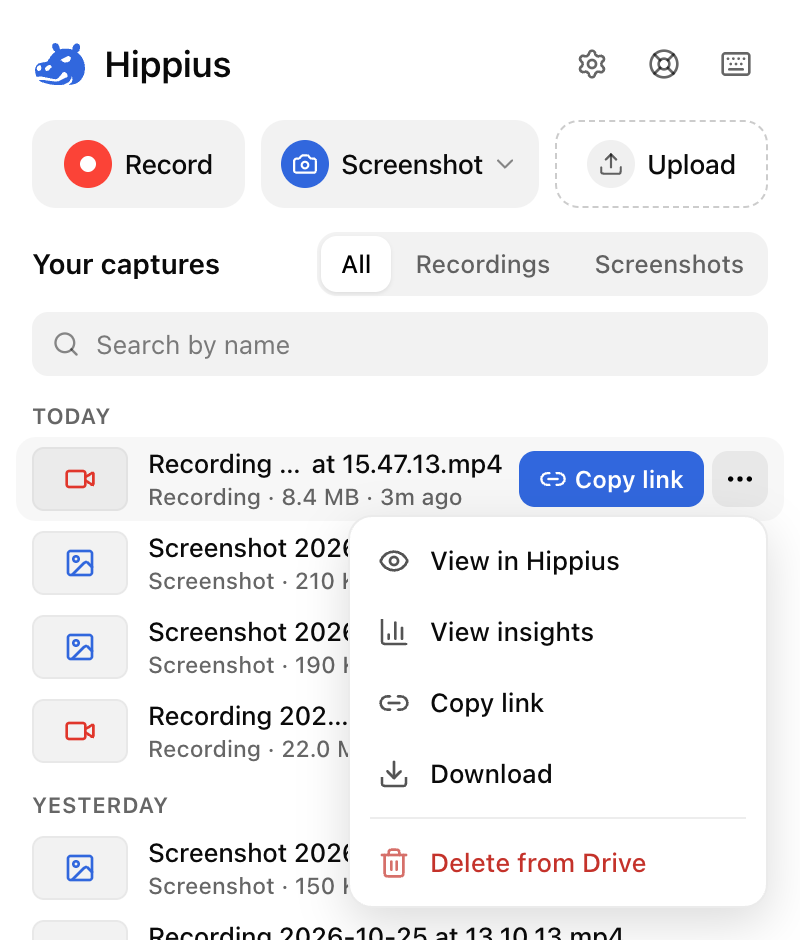
Hover over a capture in the popup's list and click Copy link. If this browser made the link, you get the same link again, for as long as it's on. A capture with no link gets a new one.
A link made somewhere else, such as in the console, the desktop app or another browser, can't be copied from here, because its key stays where it was made. The popup tells you, so you never end up with a second link by accident, and offers two choices:
- Create a new link makes a fresh link for the capture. The old one keeps working.
- Open Shared Links takes you to the console, where you can copy the existing link.
For a file over 300 MB, copy or make its link in the console instead.
See who watched
On a paid plan, every link the extension makes comes with insights, comments and reactions switched on. You can see how many people opened the link and how much of a recording they watched, and the people you send it to can comment and react right under the video or screenshot.
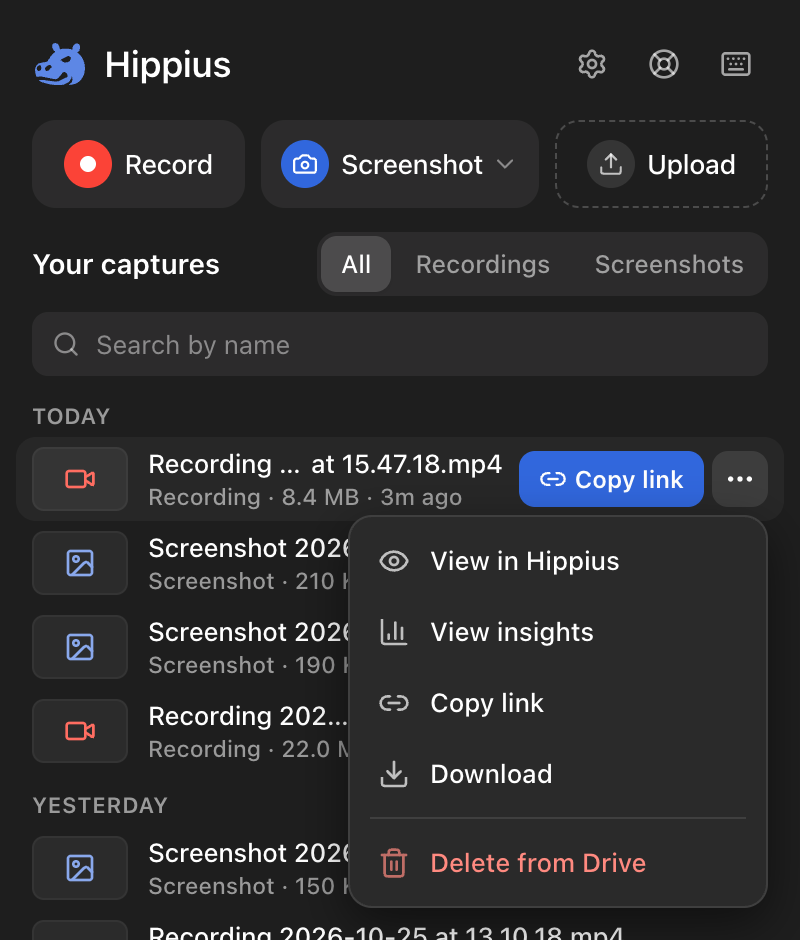
To look, find the capture in the popup. A capture with a link shows its views, reactions and comments at the end of its row, and the views turn blue when there's something new. Choose View insights from the row's three-dot menu to see who watched, for how long, and what they said. It works for any capture with a live link, wherever the link was made, and the comments usually open straight away, without asking for your password.
Comments are encrypted with the link's key, so only people with the link can read them. We can't. Reactions and view counts aren't encrypted, because Hippius has to count them. On a paid plan, you can switch insights, comments or reactions off, or back on, for any link in the console.
Insights, comments and reactions are part of the paid plans, so links you make on the Free plan start with them off. Opening Insights on the Free plan shows what upgrading adds. Plans and Limits compares the plans.
Turn a link off
If a link reaches someone it shouldn't, turn it off in the console under Shared Links (the button says Revoke). Deleting a capture from the popup also turns off the links this browser made for it (see Delete a capture).
Next
All your links live alongside your captures. Find and Manage Captures shows how to find one again, download it, or delete it.