Take a Screenshot with the Extension
A screenshot is the quickest way to show someone what you're looking at. With Hippius, taking one also saves it to your Drive and puts a link to it on your clipboard, so the next thing you do is paste.
Screenshots are unlimited on every plan, including the Free plan.
Pick what to capture
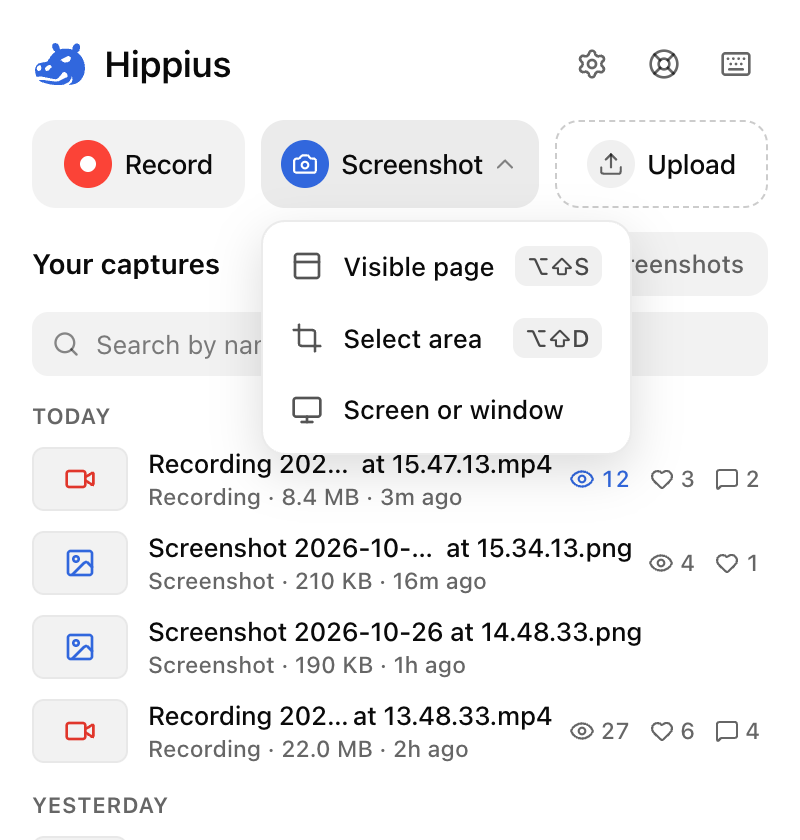
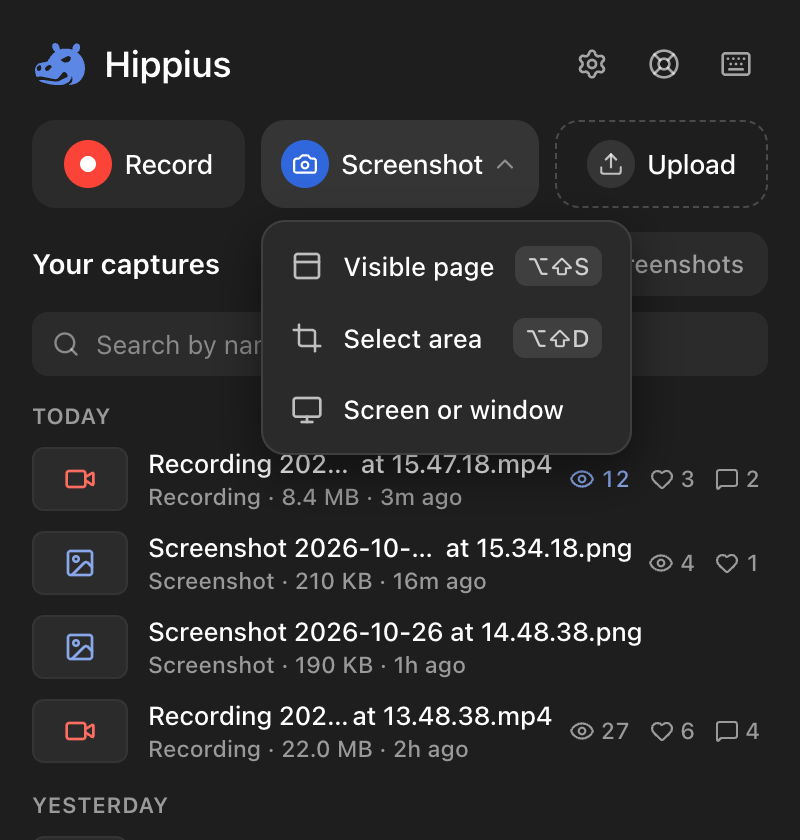
Click Screenshot in the popup and choose one of three:
- Visible page when everything you need is on screen. It's taken straight away.
- Select area to show just part of the page. Drag it out and let go. Esc cancels.
- Screen or window for anything outside the browser, other apps included. Hippius opens a tab of its own, where your browser asks which screen or window to share. Pick one, click Share, and you're back where you were with the screenshot taken.
Skip the popup with a shortcut
Alt Shift S (Option Shift S on a Mac) takes the visible page. Alt Shift D (Option Shift D on a Mac) lets you drag out an area: drag, let go, and it's taken.
If a shortcut doesn't respond, your browser may not have given it its keys. Keyboard Shortcuts explains why and how to set them.
Capture a menu or tooltip with a timer
Some things only appear while you hover over them, like a menu or a tooltip, and they vanish the moment you reach for a shortcut. The timer gives you time to set the page up. It lives on the capture bar.
- Click Record in the popup to open the capture bar.
- Pick one of the screenshot choices on the bar (the same three as in the popup), then set the timer under Options to 5 or 10 seconds.
- Start the screenshot, open the menu or hover over the tooltip, and wait. Hippius takes the picture when the countdown ends. For a screen or window, the countdown starts once you've shared it and shows on the Hippius button.
The bar remembers the timer for next time, and you can also change it in Settings.
When it's taken
A small card in the corner shows Hippius encrypting and saving the screenshot, then tells you the link is copied. Paste it wherever you need it. If you want to point something out first, click Edit on the card to add arrows, text or a blur in the console's editor (Edit a screenshot). When your link is ready has more on the card.
Pages you can't capture
Browsers keep some pages off limits to every extension: their own pages, such as settings and the extensions page, and the extension store. If you press a shortcut on one of those, the Hippius button shows a ! instead, and hovering over it tells you why. Open a regular website and try again.
Next
Once you've got the link, Share a Link and See Who Watched shows what the people you send it to will see. Ready for video? Record Your Screen.