Install and Connect the Extension
Five minutes from now you can have your first link on your clipboard. You'll install the extension, pin it where you can reach it, and connect it to a Hippius account, which is where your captures are kept. If you don't have an account yet, you'll make a free one along the way.
Install the extension
The extension is for Chrome and Microsoft Edge on a computer, version 116 or later. Both install it from the Chrome Web Store.
- Open Hippius on the Chrome Web Store and click Add to Chrome. In Edge, the store first asks whether to allow extensions from other stores. Allow it, then click the button again.
- Your browser lists what the extension may do. Confirm with Add extension. Wondering why it asks for each one? Privacy and Permissions explains.
- A Welcome to Hippius tab opens.
The welcome tab has four short steps: pin Hippius, connect your account, allow your camera and microphone, and take your first capture. Each one ticks itself off when it's done, and you can skip any of them. The sections below follow the same order. To see the welcome tab again later, click the help button at the top of the popup and choose Getting started.
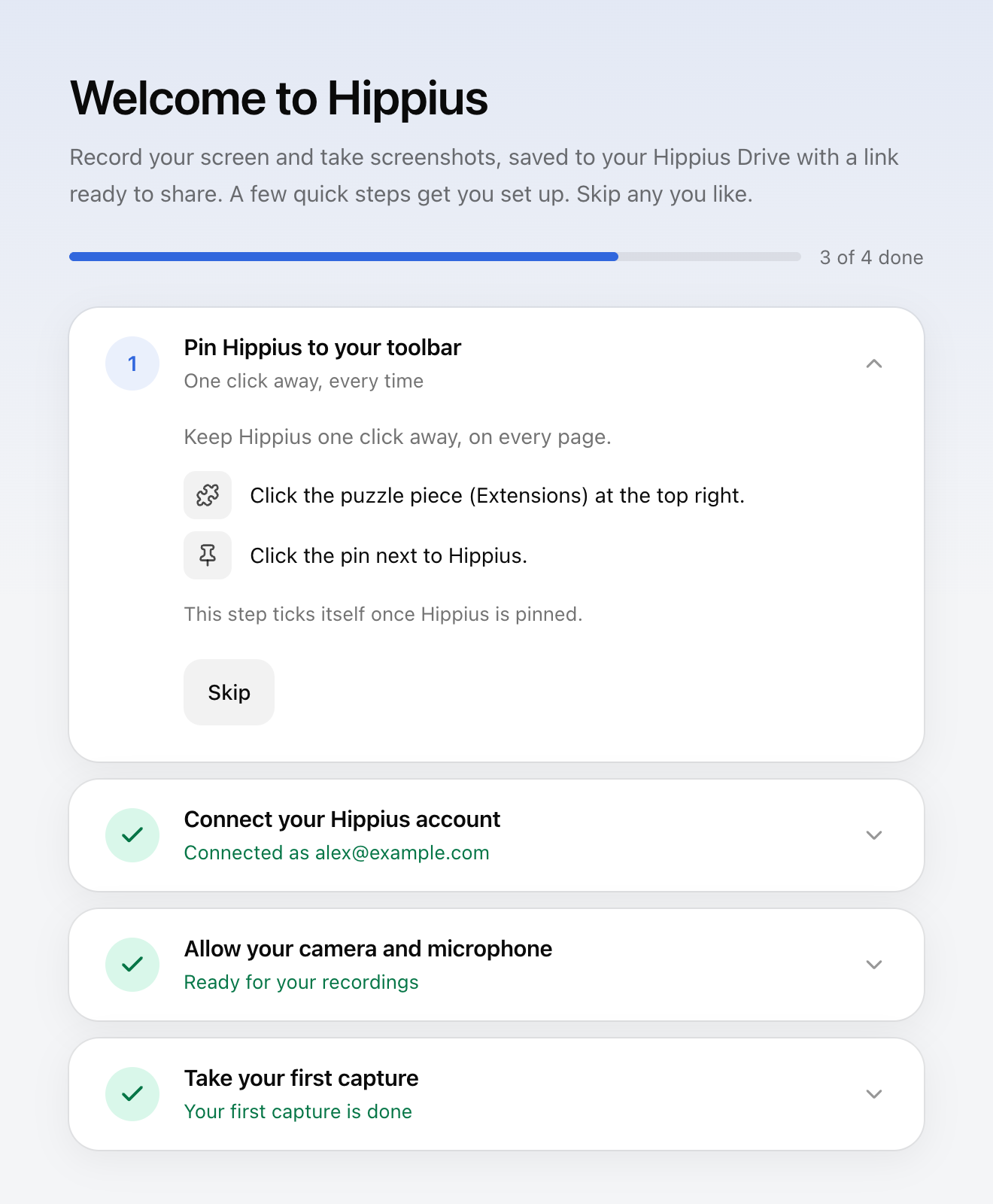
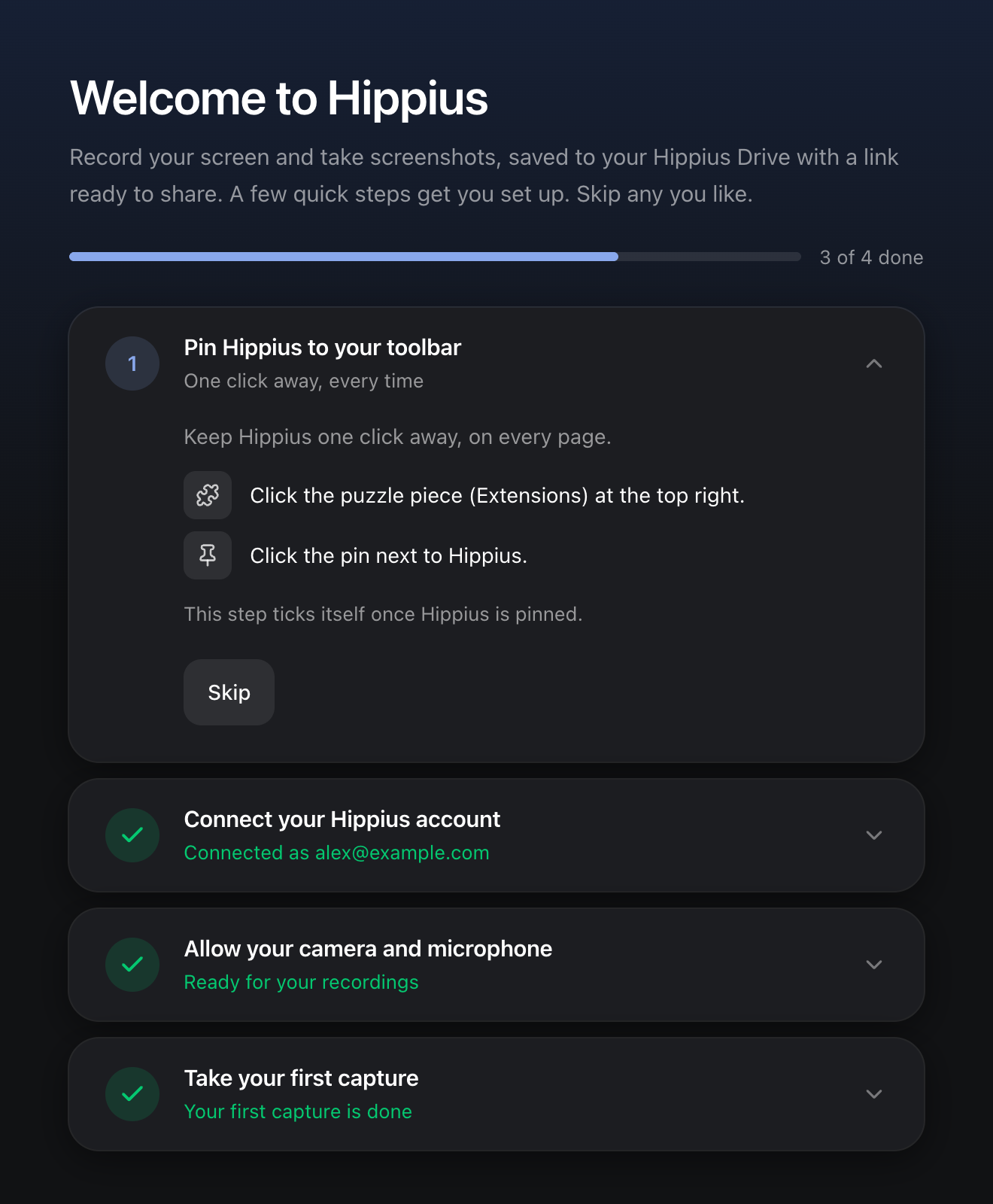
Pin it to your toolbar
New extensions hide behind the puzzle piece at the top right of your browser. Pin Hippius so it sits in your toolbar on every page. That button is where you'll start most captures, stop a recording and find your captures.
- Click the puzzle piece (Extensions) at the top right of your browser.
- Click the pin next to Hippius.
Once it's pinned, the button also tells you what's happening: it shows REC while you record and II while you're paused.
Create a free account
Every capture is saved to your own Hippius Drive, so the extension needs an account to save to. Your Account and Password explains why that's a good thing.
If you already use Hippius (the console, the desktop app or the mobile app), you already have an account. Skip to Connect the extension.
- Go to console.hippius.com. This is the Hippius console, the website where you manage your account and your files.
- Choose Continue with Google, GitHub or Apple. There's no separate sign-up form: the first time you sign in, your Hippius account is made.
- The console asks how you'd like the dashboard laid out. Either choice is fine for the extension, and you can change it later.
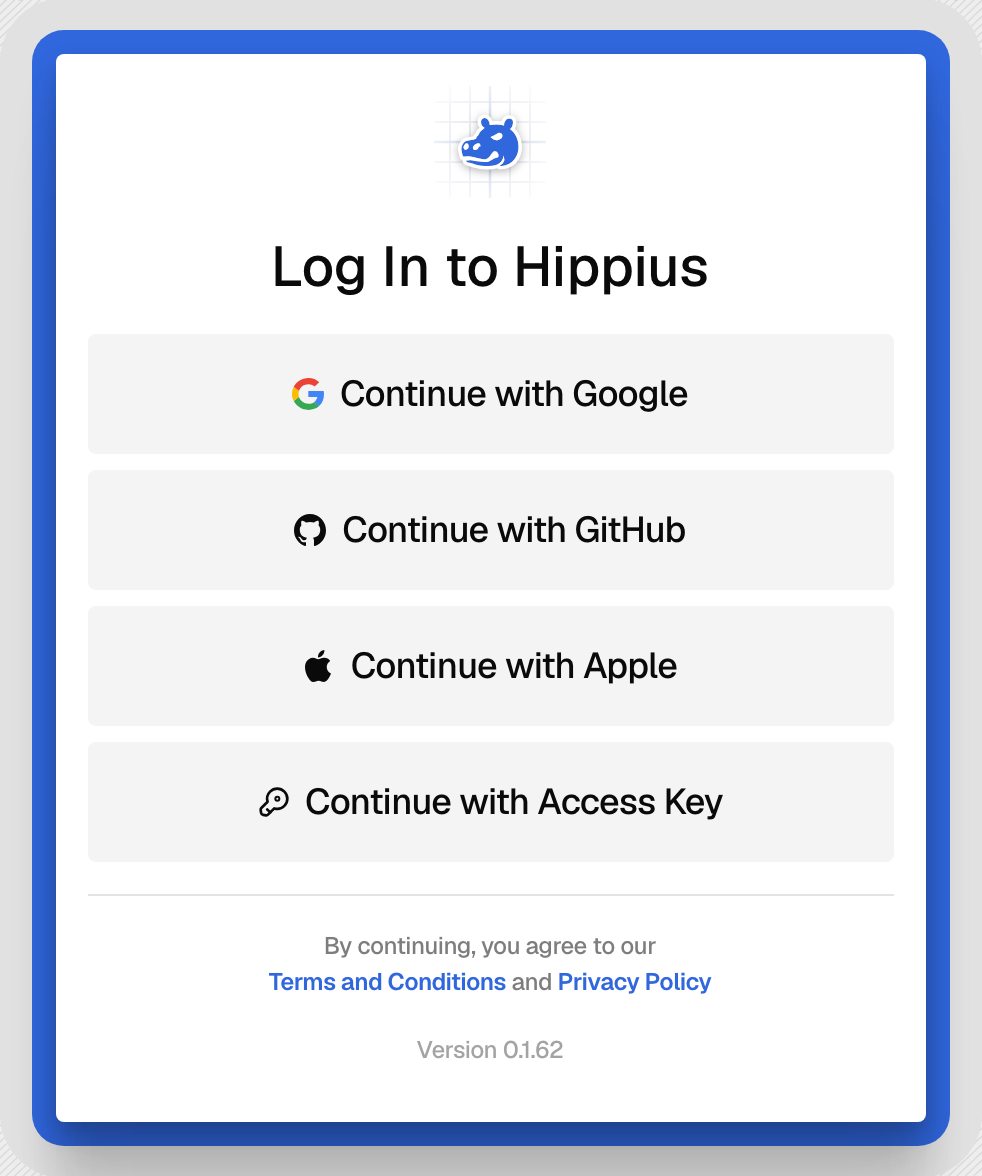
Accounts made with Google, GitHub or Apple start on the Free plan, with no card needed: 10 GB of encrypted storage, unlimited screenshots and share links, and 25 recordings of up to 5 minutes, with a small Hippius watermark. Plans and Limits explains what paid plans add.
The console also offers Continue with Access Key, a 12-word key instead of Google, GitHub or Apple. An account made that way has no free storage, so it needs a paid plan before the extension can save anything. The console's Getting Started guide explains each way to sign in.
Set your unlock password
Signing in with Google proves who you are. Your files are protected by something else: an unlock password that only you know, which Hippius never sees. Connecting the extension asks for it, so if your account is brand new, set it first.
- In the console, click your account at the top right and choose Settings.
- Find Unlock Password and click Set Password. If the button says Change Password, you already have one, and you can skip to the next section.
- The console shows you 12 words, your recovery phrase. Write them down somewhere safe and offline.
- Choose a password of at least 10 characters. The meter has to read Strong before you can save it.
The 12 words are the only way back into your files if you forget your unlock password. We don't keep a copy, and nobody can reset the password for you.
Settings and Unlock Password in the console guide have more on both.
Connect the extension
Connecting lets the extension save to your captures drive and make links for what you capture. It never gets your password or your 12 words, and it can't open the rest of your Drive. Privacy and Permissions lists exactly what it receives.
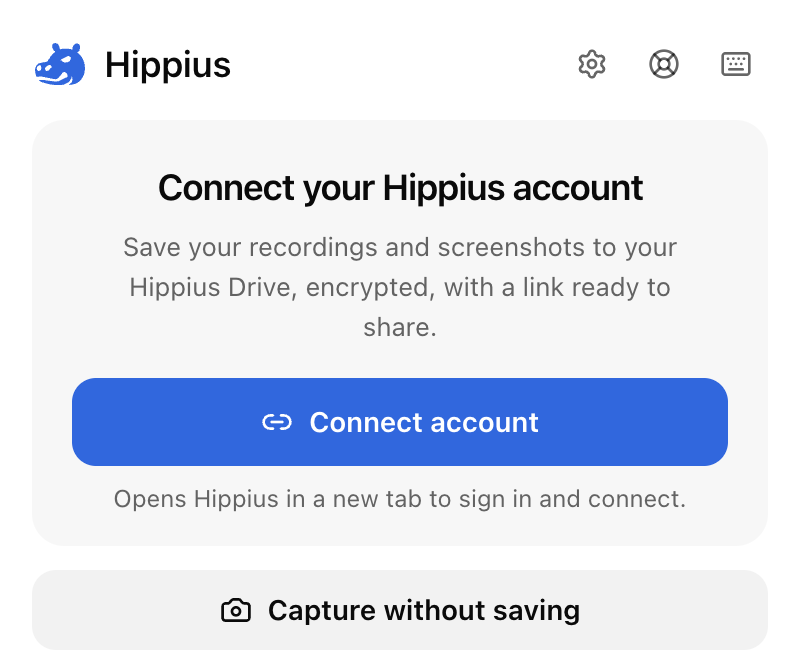
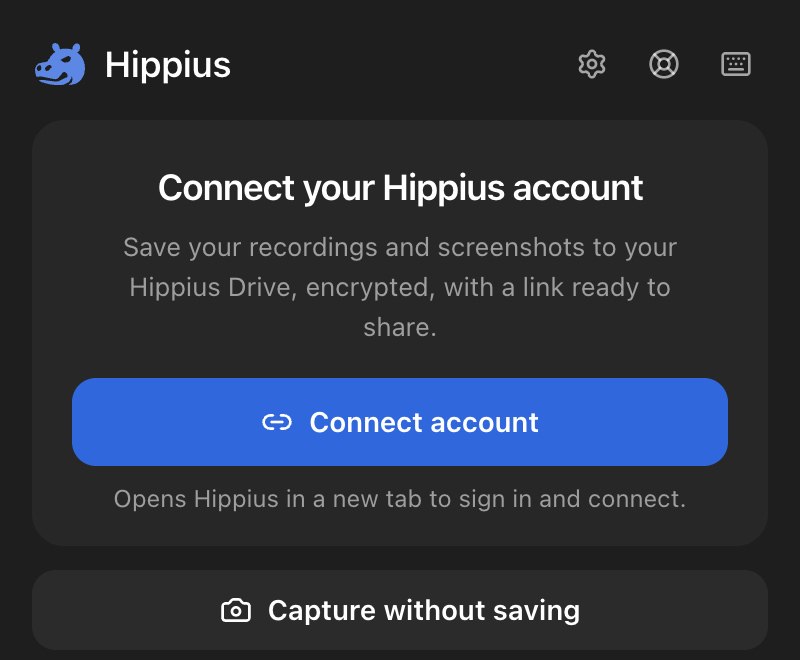
- Click the Hippius button in your toolbar, then Connect account.
- The console opens its Connect the Hippius extension page in a new tab. Sign in if it asks you to.
- Click Connect.
- The Connect Extension dialog asks for your password. Enter your unlock password, the one you set in Settings, not your Google, GitHub or Apple password. Then click Connect.
- The page says The extension is connected. You can close the tab.
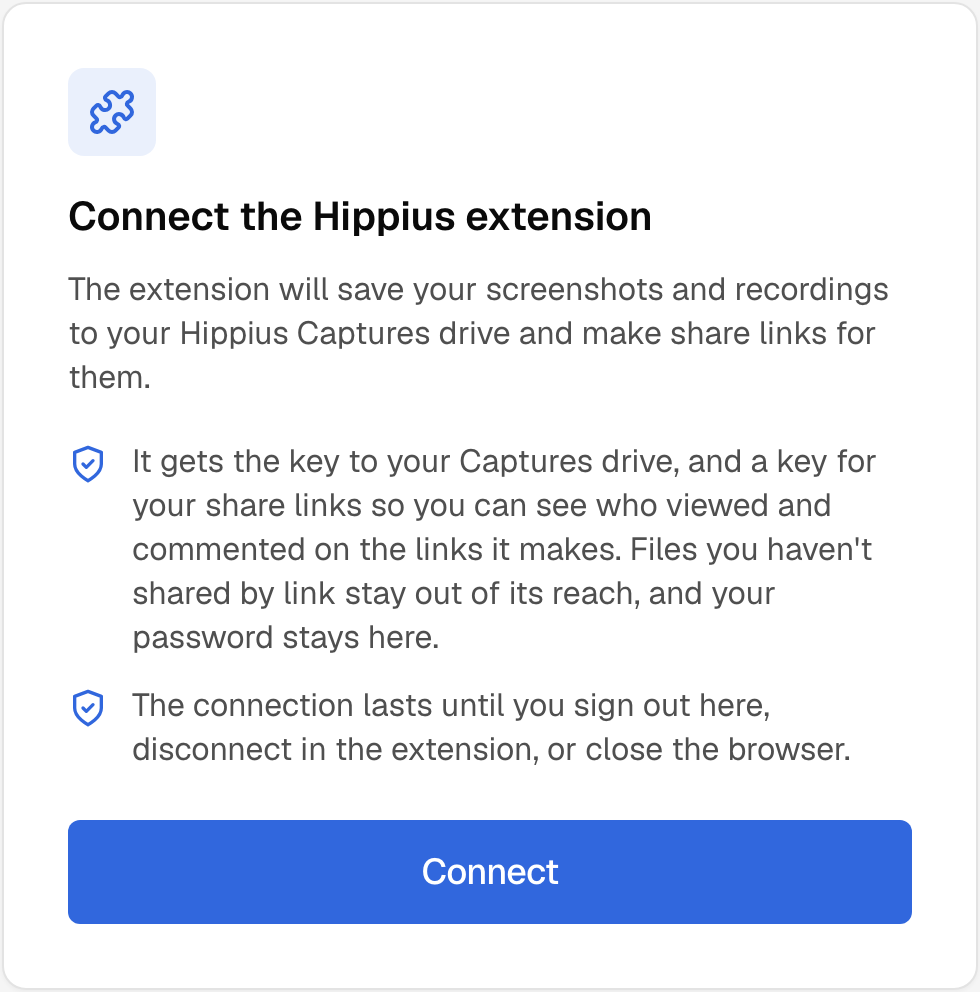
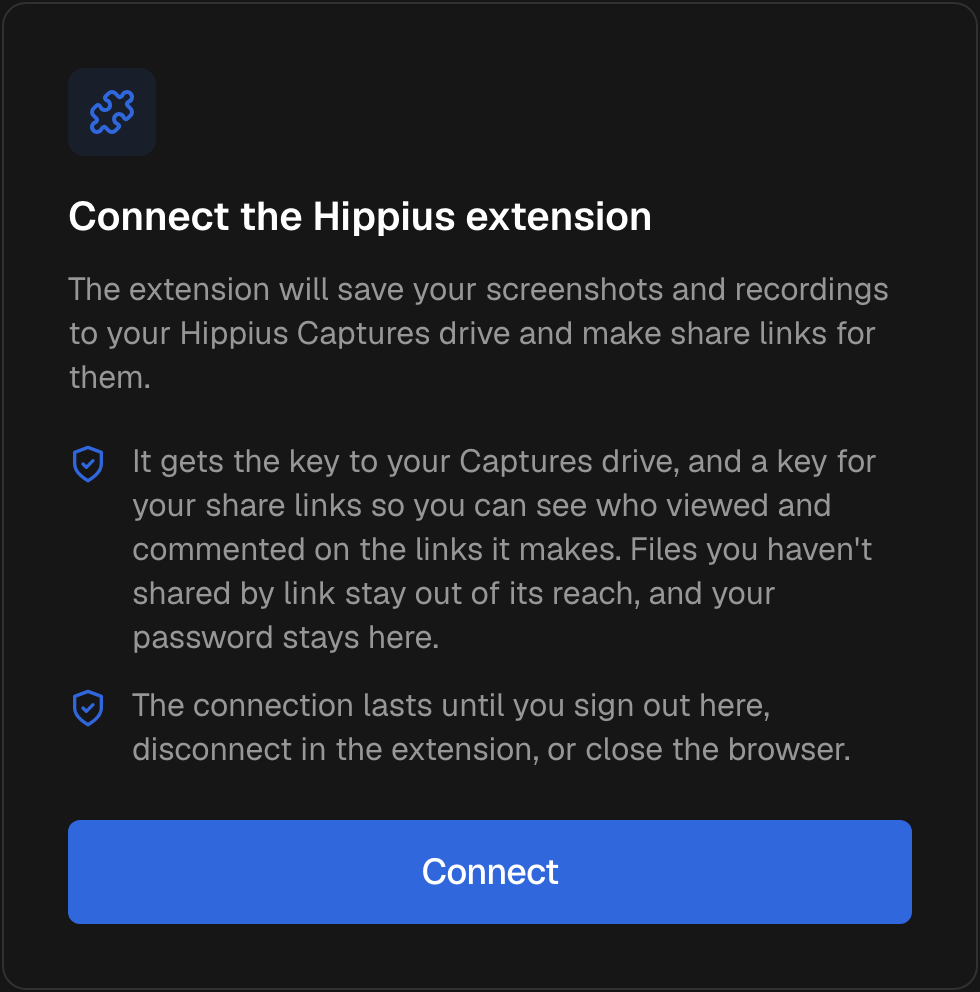
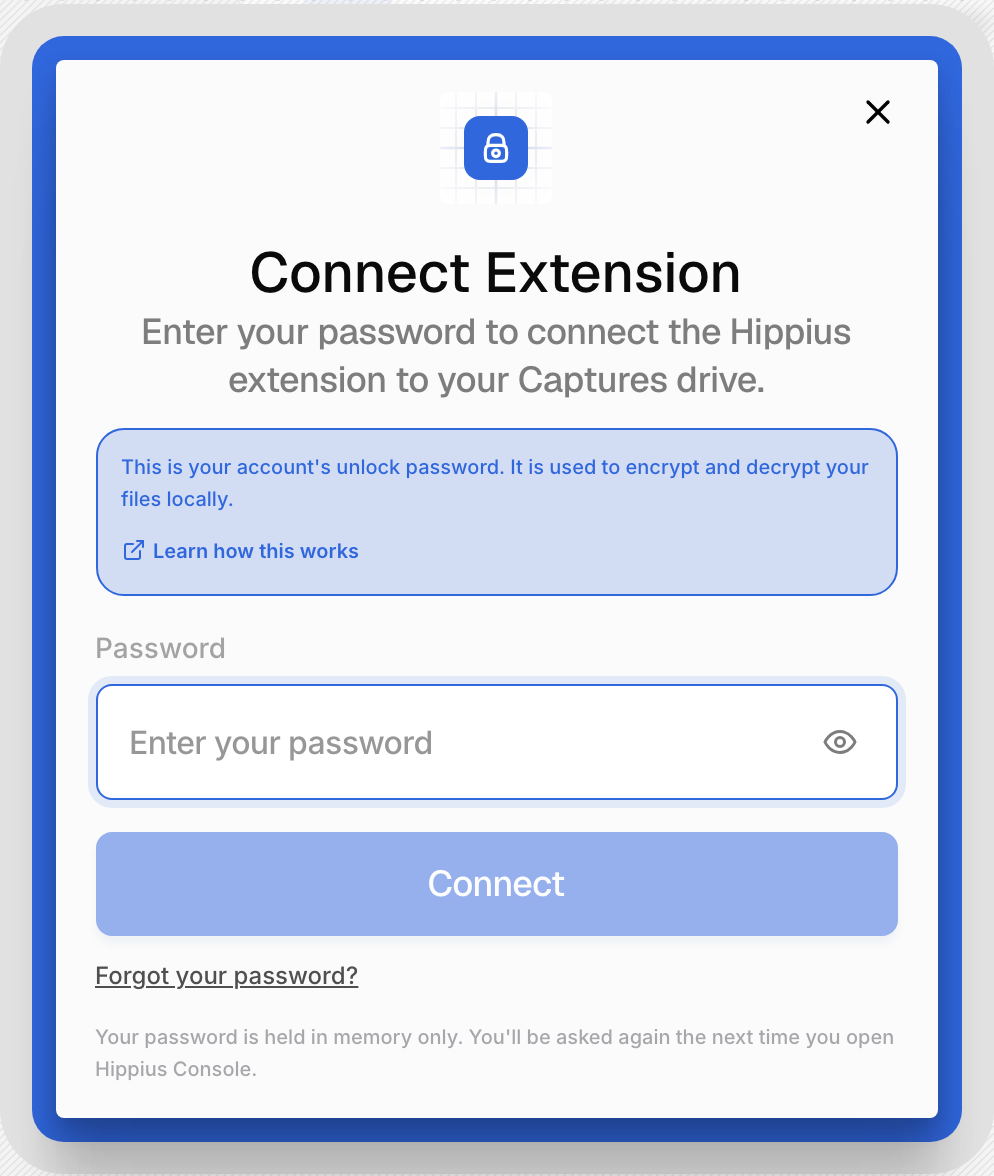
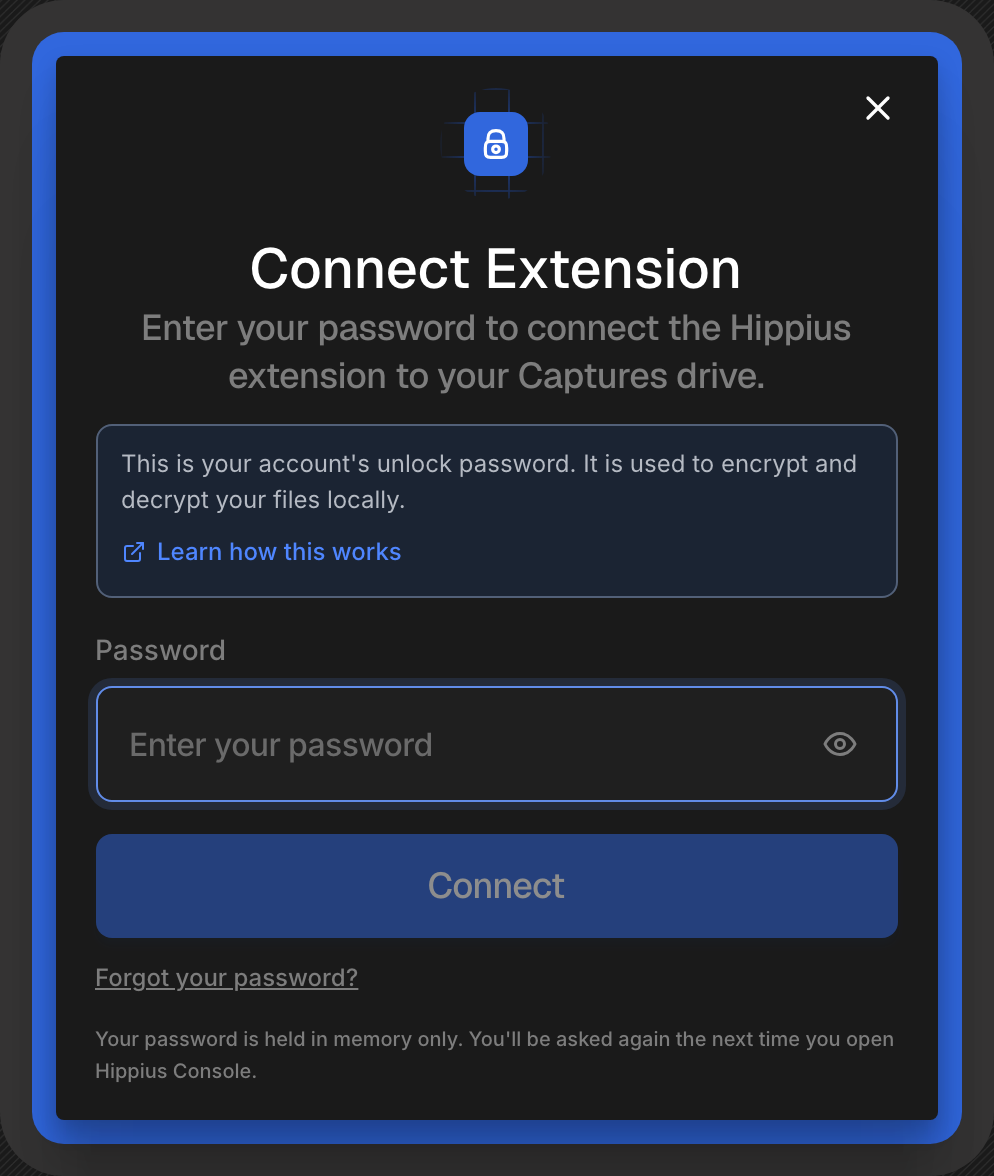
If you've already entered your unlock password in this console tab, the dialog doesn't appear and the page connects straight away.
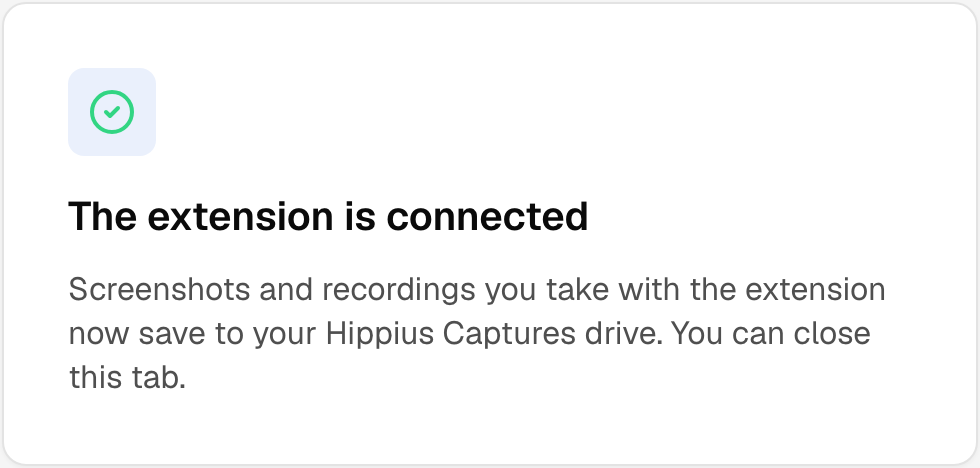
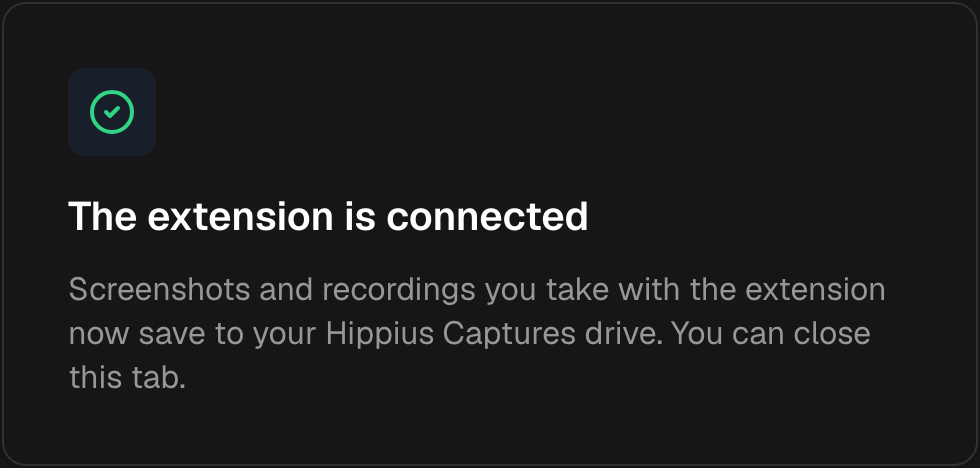
The connection lasts until you close your browser, so you'll connect again after a restart. It takes a few seconds. Staying connected explains why.
Allow your camera and microphone
The welcome tab's third step asks your browser to let Hippius use your camera and microphone. You allow them once, on a Hippius page, and the websites you record never get access to them. You still choose for every recording whether to turn them on. If you only want screenshots, skip this step and allow them when you first record.
Take your first capture
Go to any web page and press Alt Shift S (Option Shift S on a Mac). A small card appears in the corner while Hippius encrypts and saves the screenshot, and a moment later its link is on your clipboard. Paste it into a new tab: that's exactly what the people you share with will see.
Prefer clicking? Click the Hippius button, then Screenshot or Record. If a shortcut does nothing, see A shortcut does nothing.
What's next
Now that the link is on your clipboard, Take a Screenshot shows the other ways to capture, and Record Your Screen walks you through your first video. Curious how your password and the connection work? Read Your Account and Password.